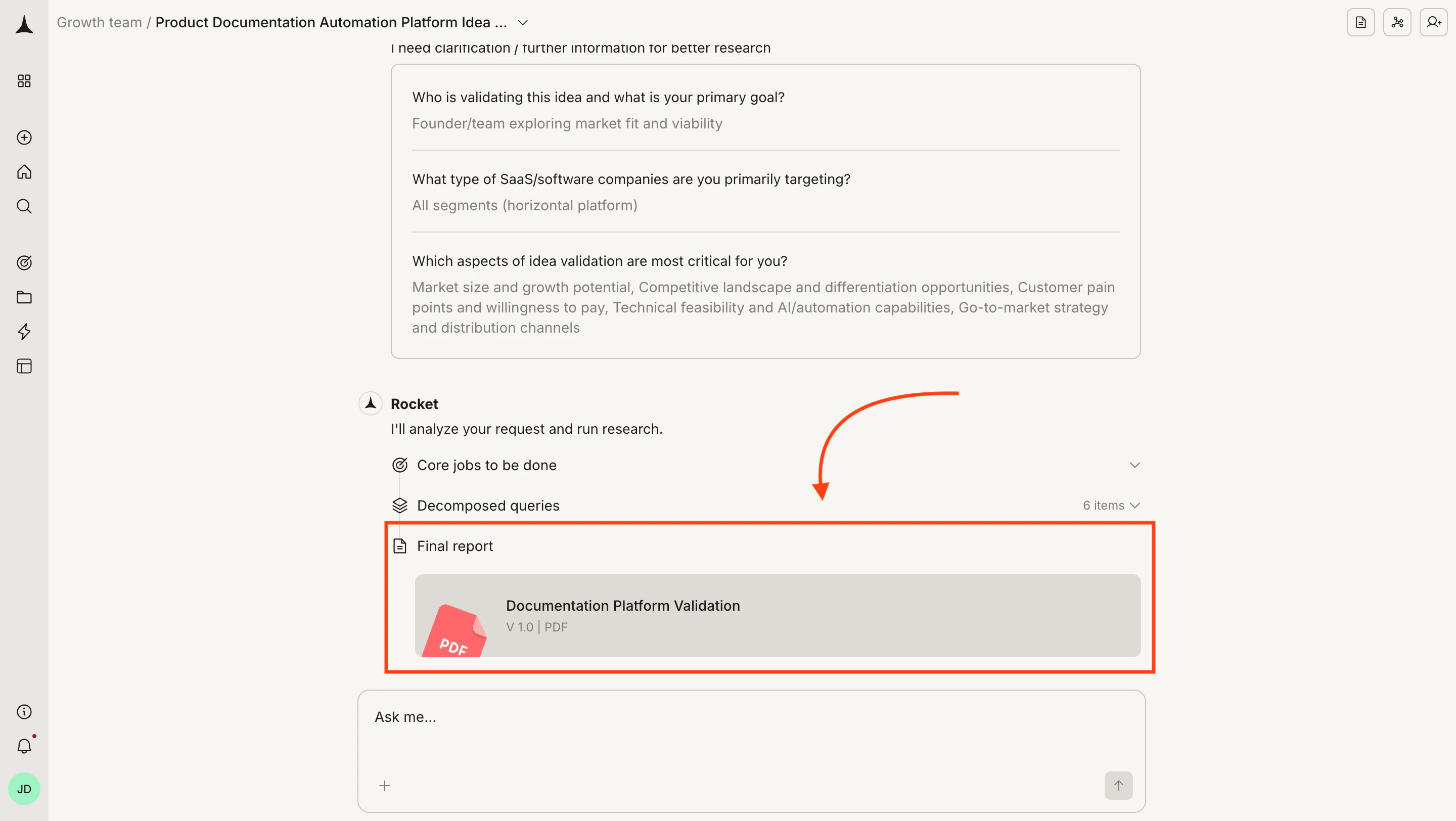
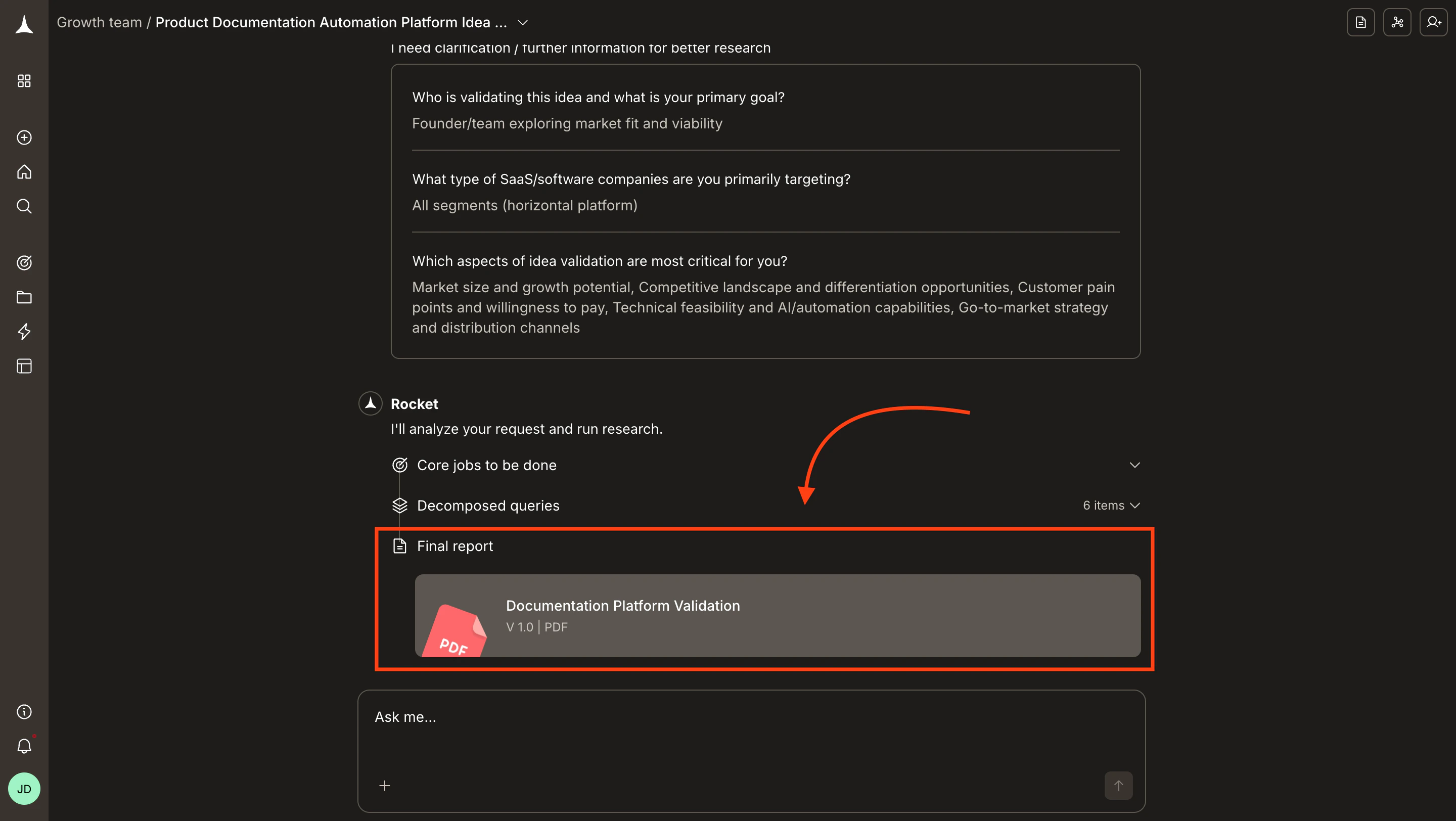
Solve delivers a structured report after every research task. A Final report link appears in the chat once research completes. Select the link to open the report in the right-side panel. The left side stays on the chat, so you can read the report and ask follow-up questions side by side. Toggle full-screen mode from the report toolbar to expand the report to the entire screen. Before the report generates, Solve may ask clarifying questions to sharpen the research scope. After the report generates, smart follow-up suggestions appear to help you take the next step.

The interface layout

The Solve workspace uses a split-panel design once a report is ready.
PanelWhat it shows
Left panel (chat)Your conversation history, decomposed research streams, and follow-up messages. The Final report link and versioned document links appear here.
Right panel (report)The rendered report with headings, tables, and recommendations. Opens when you select a report link. Stays visible while you continue chatting on the left.
You can collapse the report panel to return to the full-width chat, or expand it to full screen for focused reading.
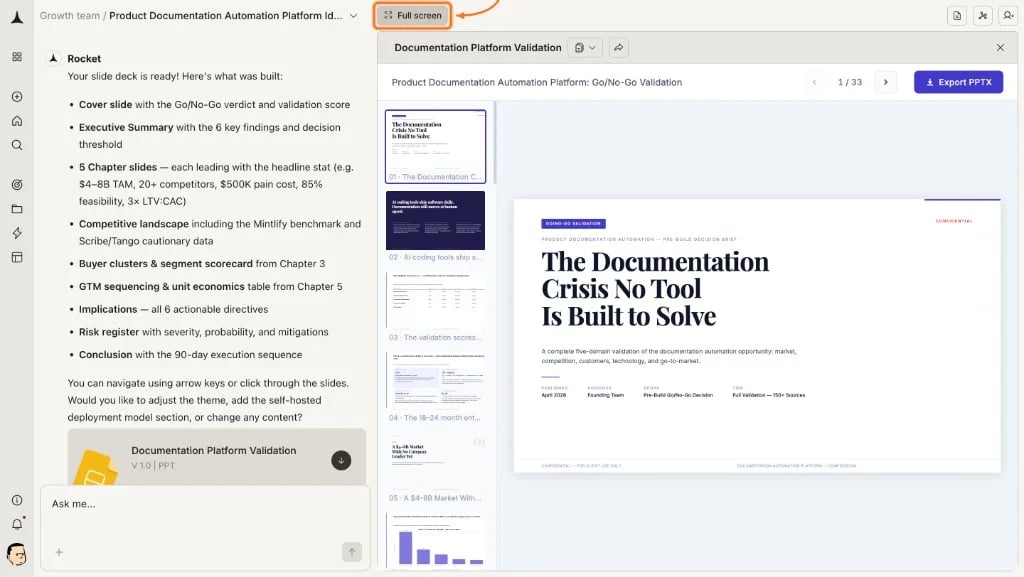
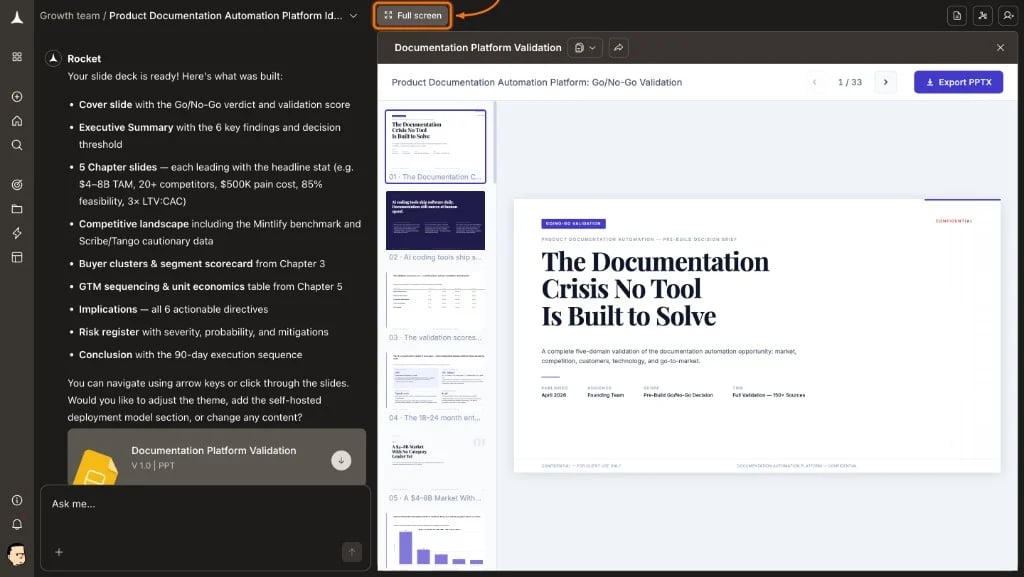
Solve split-panel view with the Full screen button highlighted in the report toolbarSolve split-panel view with the Full screen button highlighted in the report toolbar

Report structure

Every Solve report follows a consistent five-part structure, regardless of question type.
Executive summary

Key findings in two to four sentences. Start here if you need a quick decision or want to decide whether to read further.

Detailed analysis

The core of the report. Content varies by question type: market analyses include sizing tables, competitive teardowns include feature matrices, investment analyses include risk assessments.

Supporting data

Tables, comparisons, and data points backing up the analysis. Solve shows its work, including where numbers come from and what assumptions were made.

Recommendations

Actionable next steps based on the analysis. Specific rather than generic.

Sources and methodology

Where the data came from and how the analysis was structured. Use this to evaluate confidence before relying on findings for high-stakes decisions.

Report toolbar

The report opens in a panel with controls in the top bar.
ButtonWhat it does
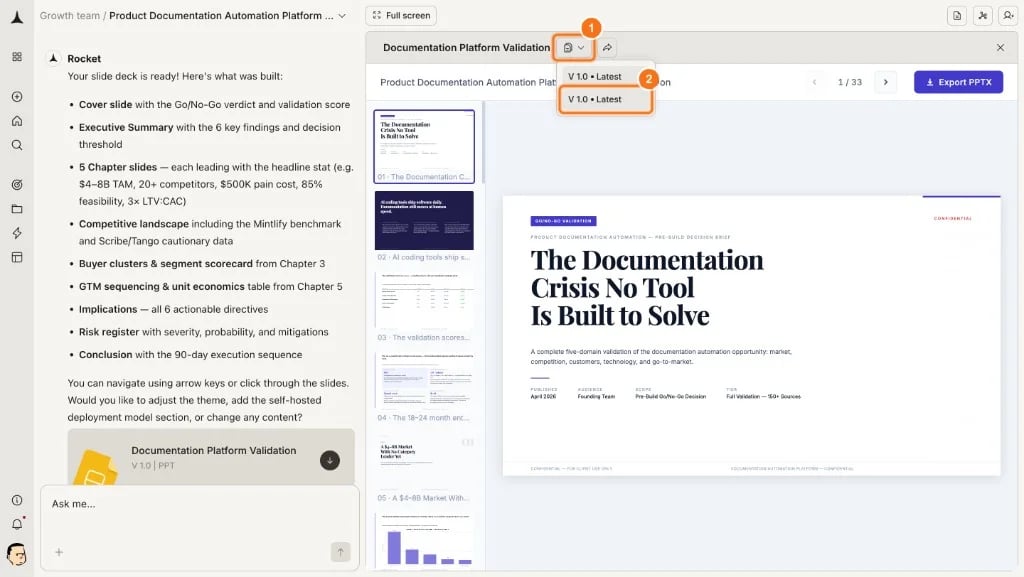
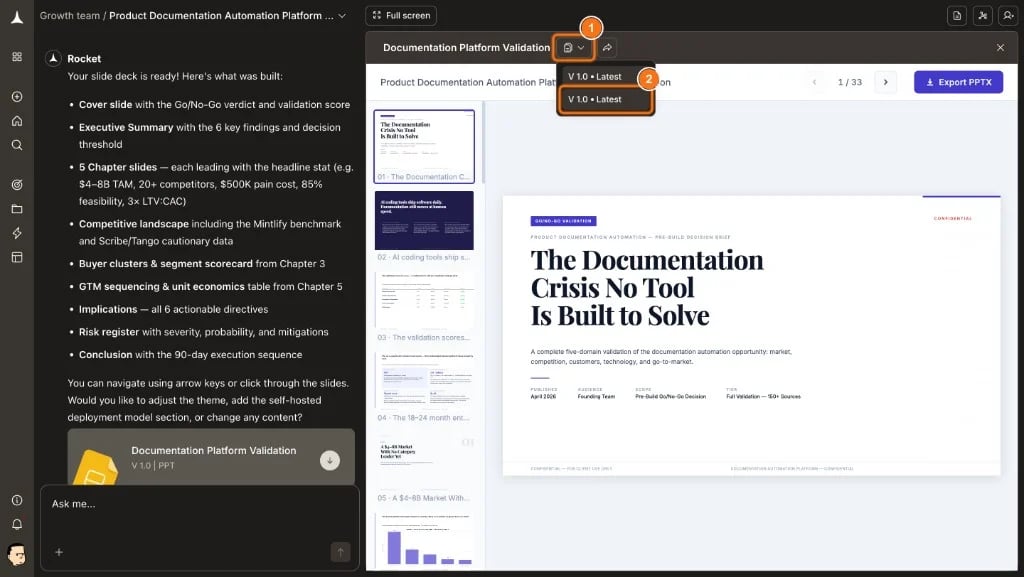
Version dropdownShows the current version (e.g. V 1.0, Latest). Switch between all saved versions of the report.
ShareGenerates a public link so anyone can view the report without a Rocket account.
Full screenExpands the report to fill the screen.
DocumentsOpens the Documents panel listing all reports and files Rocket generated in this task.
AttachmentsOpens the Attachments panel listing all files you uploaded in this task.

Document versions

Select the Version dropdown in the toolbar to view all saved versions of the report. Each edit cycle creates a new version. You can switch between versions to compare changes, but you can only continue editing from the latest version.
Version dropdown open in the report toolbar showing V 1.0 Latest optionsVersion dropdown open in the report toolbar showing V 1.0 Latest options

Documents and collaboration

The toolbar includes two icons in the top-right corner:
  1. Documents — Opens the Documents panel listing every report and file Rocket generated in this task. Use it to access all versioned outputs from a single place.
  2. Invite — Opens the collaboration overlay to add team members to this task.
Report toolbar with Documents and Invite icons annotated as 1 and 2 in the top-rightReport toolbar with Documents and Invite icons annotated as 1 and 2 in the top-right
Select the invite icon to open the Share your task overlay. Add team members by email and assign a role such as Editor. Collaborators can view the full conversation history, add follow-ups, and contribute to report refinement.
Share your task overlay showing the invite collaborators form with email field, role selector, and collaborator listShare your task overlay showing the invite collaborators form with email field, role selector, and collaborator list

Full screen

Select Full screen to expand the report to fill the entire screen. Select Exit full screen to return to the split-panel view.
Report in full-screen view with the Exit full screen button highlightedReport in full-screen view with the Exit full screen button highlighted
Select Attachments to open the Attachments panel, which lists all files you uploaded in this task.
Attachments panel open on the right side showing no attachmentsAttachments panel open on the right side showing no attachments

How to read a report

Not every report needs to be read top to bottom. Choose a reading strategy based on the time you have.
Read the executive summary and recommendations sections. Enough for a quick decision or to brief someone verbally.

Evaluate report quality

Solve reports are built from publicly available data. Assess confidence in the findings using these signals.
SignalWhat it means
Specific numbers with sourcesHigher confidence. The data is grounded in identifiable sources.
Ranges instead of exact figuresModerate confidence. Solve is being transparent about uncertainty.
”Estimated” or “approximately”Solve is extrapolating from available data. Treat as directional.
Named companies and productsHigher confidence for factual claims about specific entities.
General industry trendsUsually reliable for well-documented markets, less so for niche or emerging ones.
Always cross-reference critical data points (revenue figures, market sizes, growth rates) with primary sources before using them in investor presentations, financial models, or major business decisions.

Report types by Solve capability

Different types of questions produce different report structures. Use the best practices guide to frame questions that produce the most useful output.
Question typeKey report sectionsTypical length
Market analysisMarket sizing, growth drivers, landscape800 to 1,500 words
Competitive teardownsFeature matrix, SWOT, gap analysis1,000 to 2,000 words
Pricing strategyPricing tables, model analysis, recommendations600 to 1,200 words
Product directionPrioritization framework, evidence, tradeoffs800 to 1,500 words
Investment analysisThesis, financials, risk matrix, recommendation1,000 to 2,000 words

What’s next?

Refine reports

Query, modify, and extend reports through conversation.

Presentable report

Generate a polished HTML page or PPT deck in one message.

Share and export

Share via link, export as PDF, or copy content to other tools.