

Share via link
1
Open the report
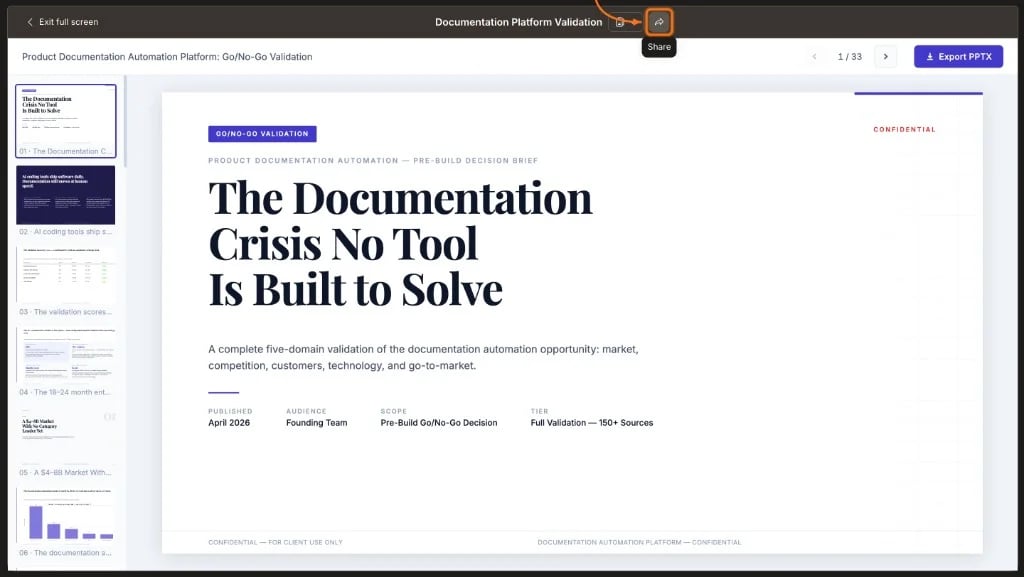
Open the report you want to share from the Documents panel or the Final report link in the chat.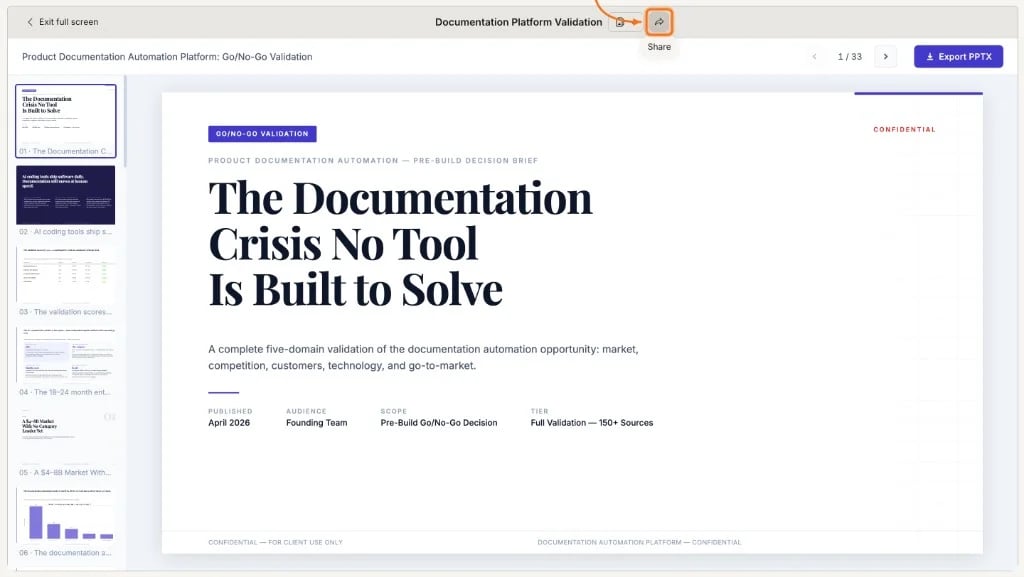
2
Generate a share link
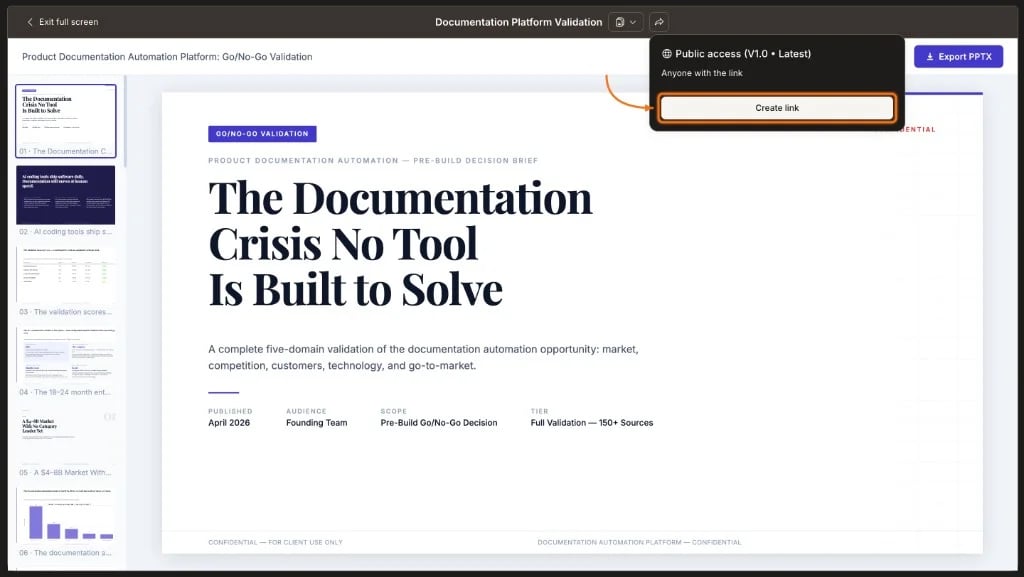
Select the Create link button in the report toolbar. Rocket generates a unique URL for this report.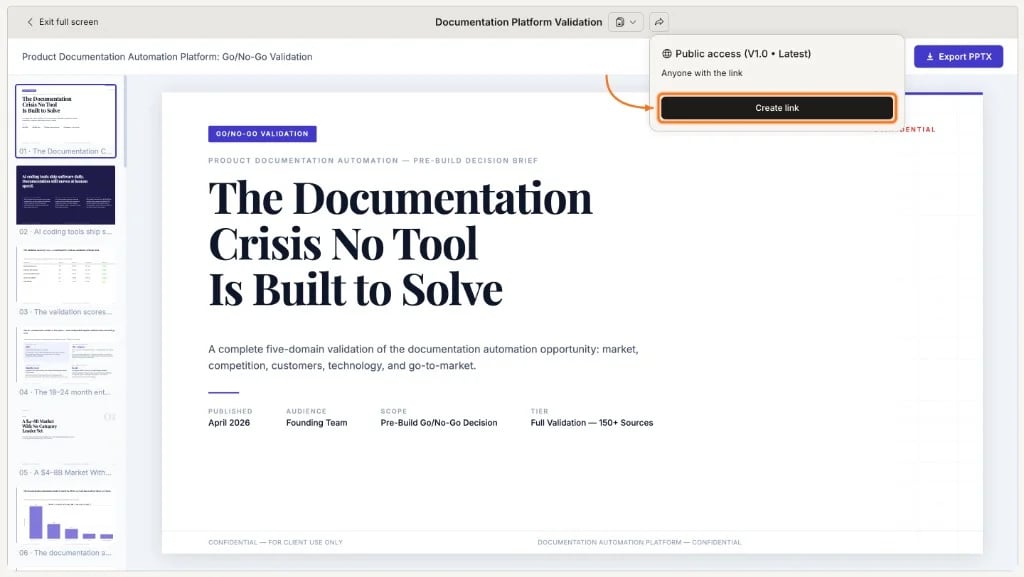
3
Set password protection (optional)
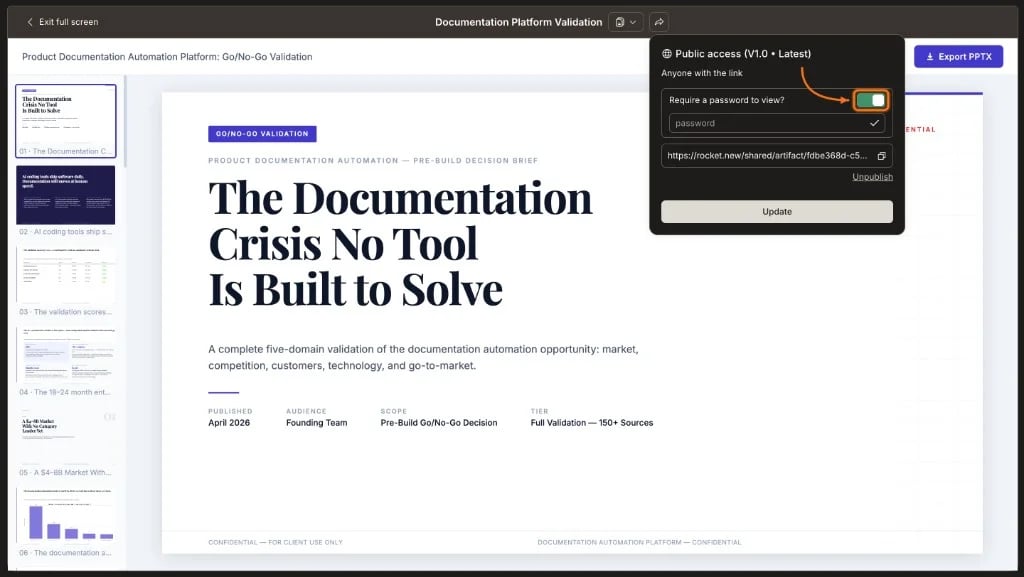
Enable password protection on the share dialog to restrict access. Recipients must enter the password before viewing. The password setting carries over to all versions of this report, including presentable outputs.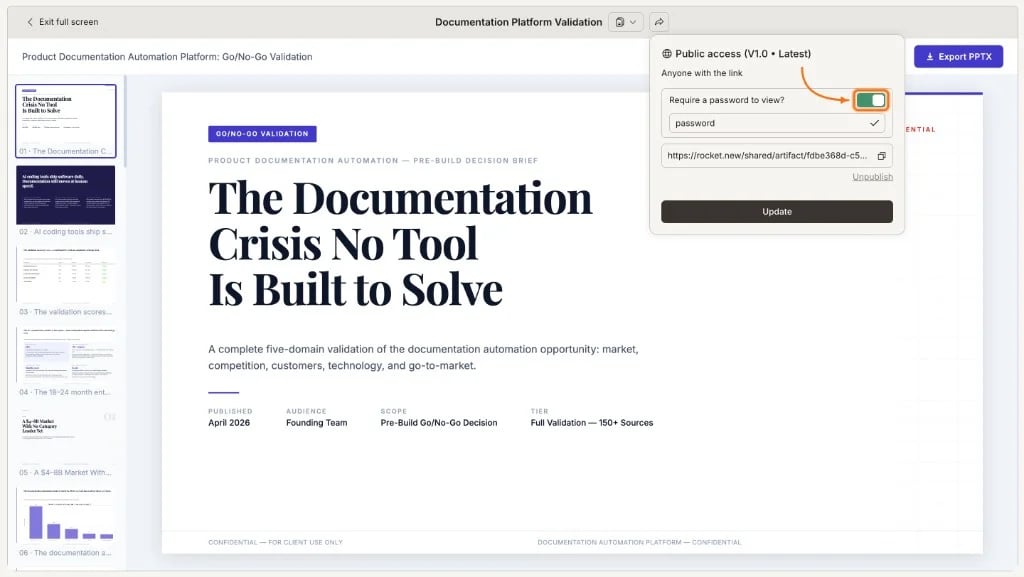
4
Copy and send the link
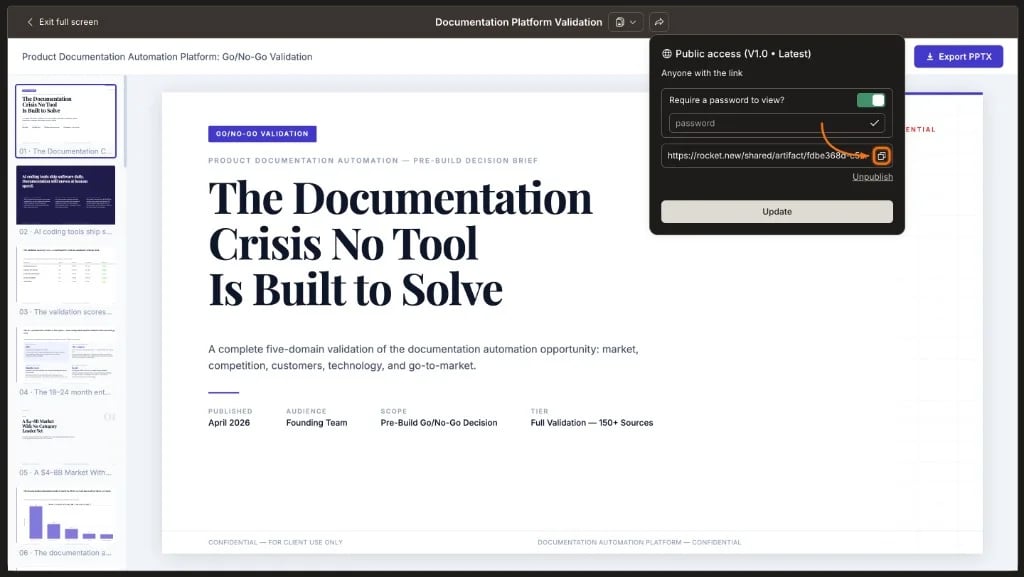
Copy the URL with a single click using the clipboard button and send it to your recipients. Anyone with the link (and password, if set) can view the report in their browser without a Rocket account.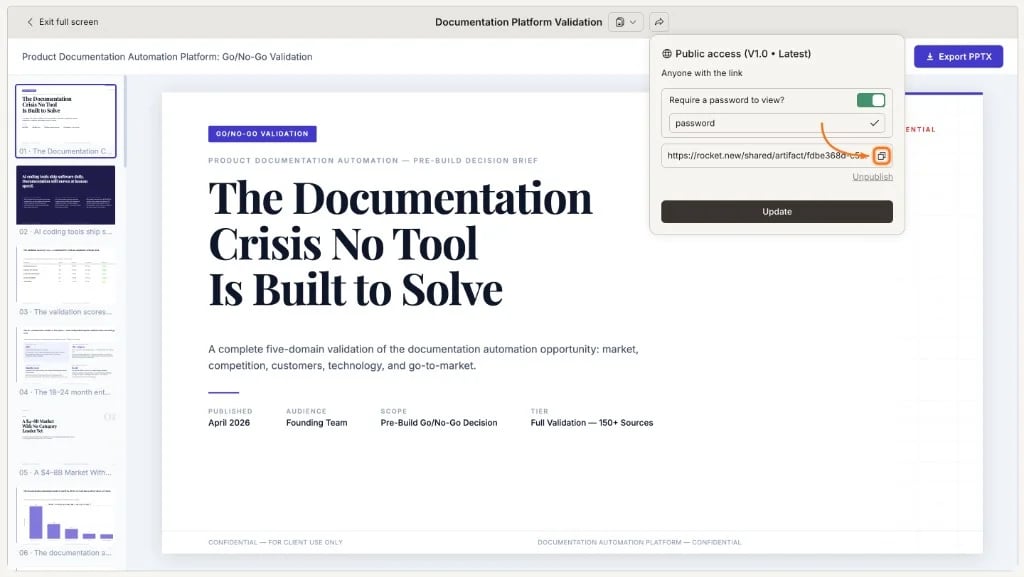
Unpublish a shared link
To revoke access, open the share dialog and select Unpublish. The link stops working immediately. Recipients who try the URL see an unavailable message. You can re-publish later to generate a new active link.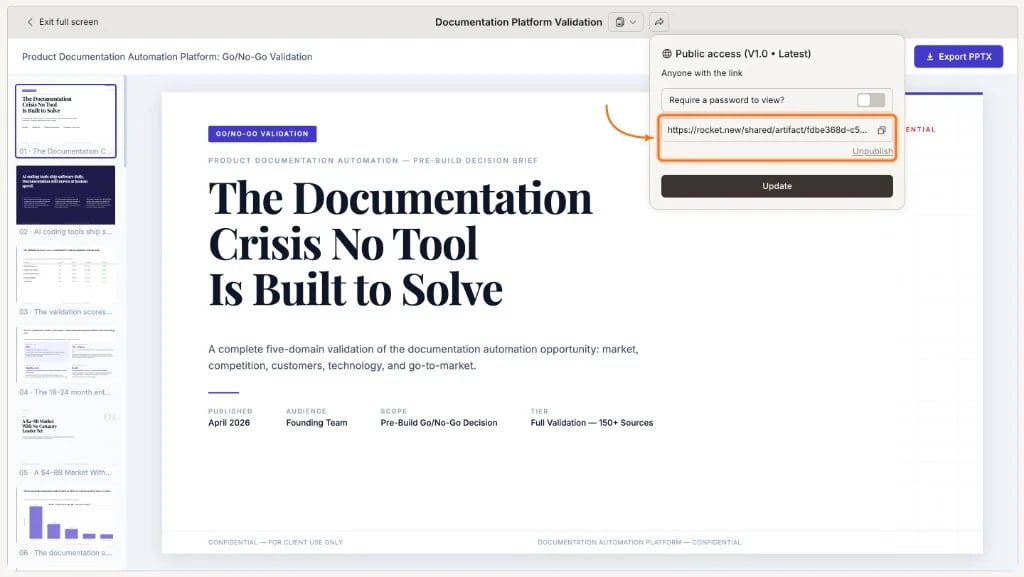
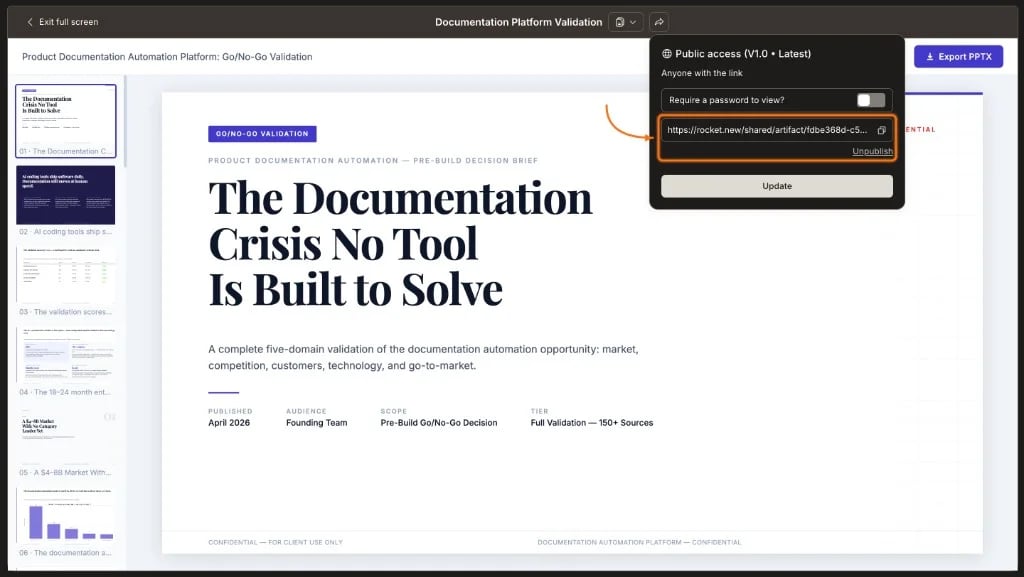
The share link is tied to the report, not a single version. Recipients always see the latest version. If you generate a new version through edits or presentable report generation, the link updates automatically.
Update link settings
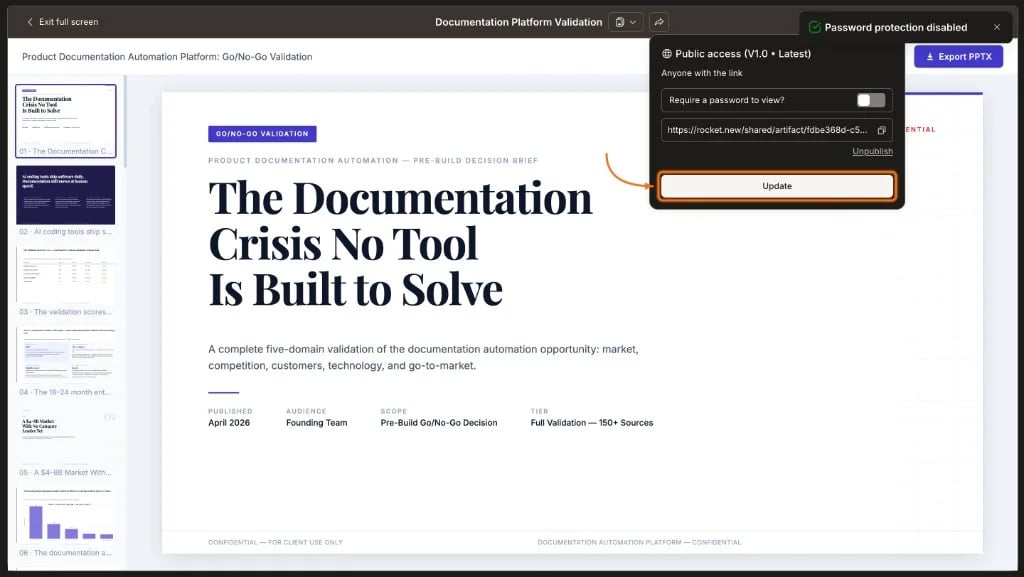
After publishing a link, you can change its settings at any time. Open the share dialog to toggle password protection on or off, then select Update to apply. The link stays active with the new settings. Recipients who already have the URL do not need a new link.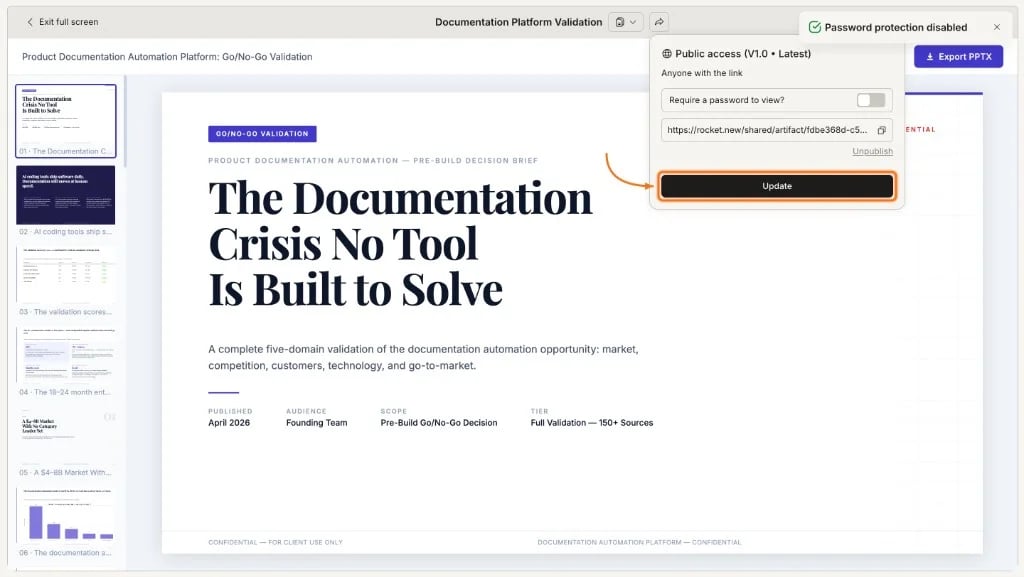
Export
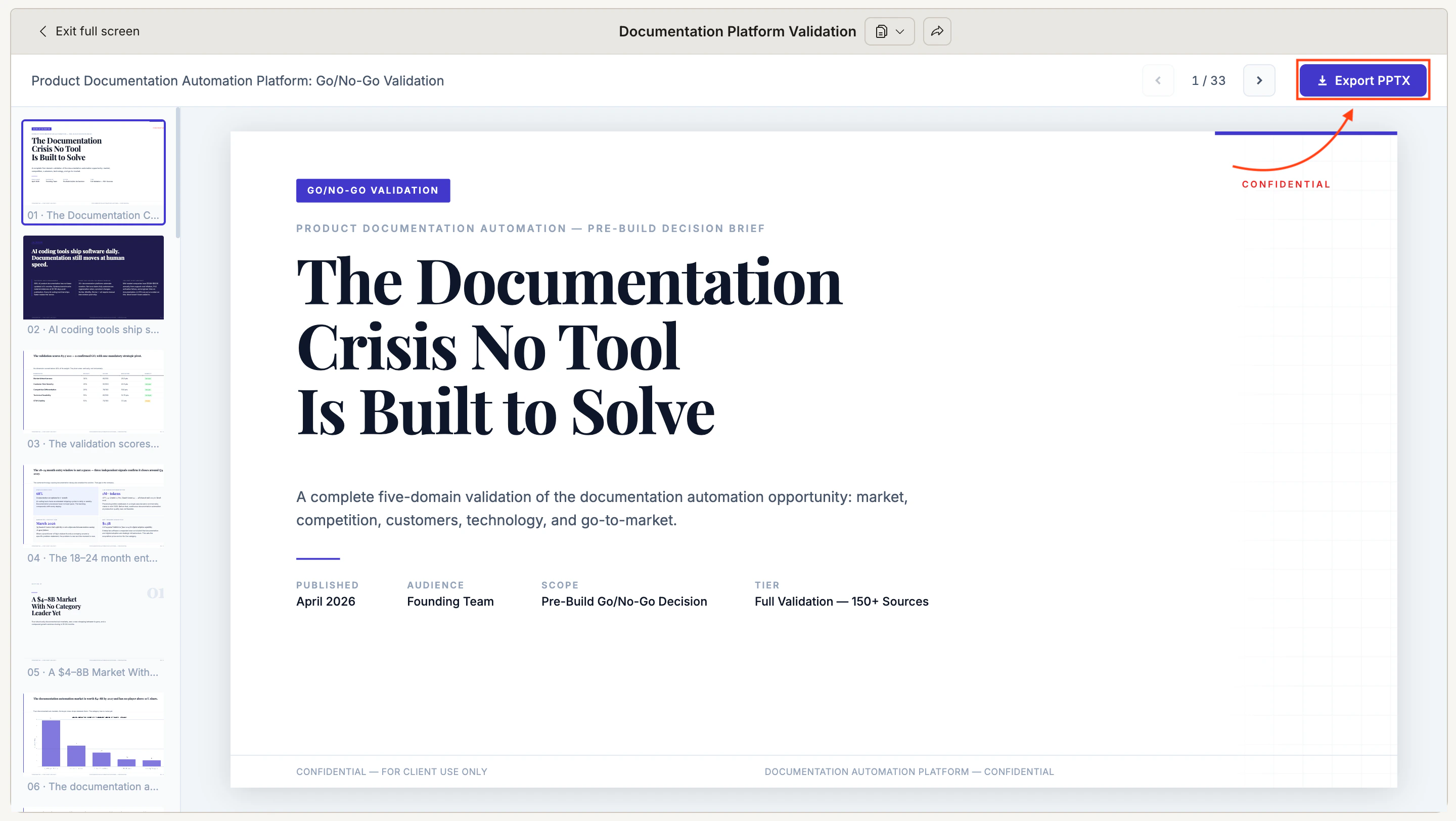
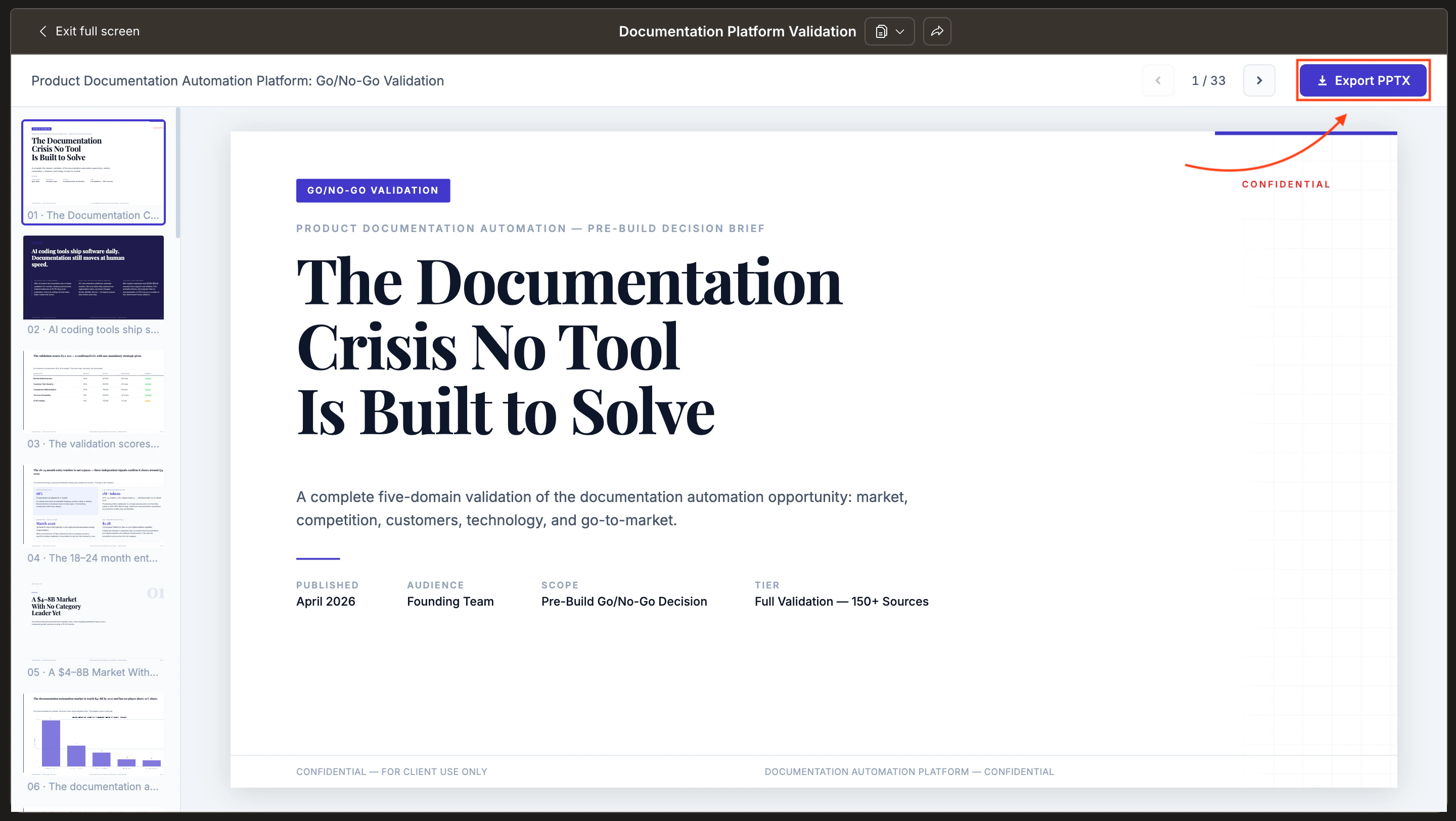
Export any report as a static file for offline use, printing, or editing in another tool. Open the report and select Export from the toolbar menu. Available export formats depend on your Solve mode:
Specify PDF, PPT, HTML, or PRD in your initial prompt to generate the report in that format. See Light Solve for mode differences and routing.
Workspace sharing
Push a report to your Rocket workspace so team members can access it from the shared documents area. Open the report and select Share to workspace from the toolbar. The report appears in the team’s shared document list. Workspace members can open, read, and reference the report in their own Solve tasks.Copy content
Select text in the report and use your standard copy shortcut to copy individual sections. To copy everything, select Copy all from the toolbar. Paste into Google Docs, Notion, Confluence, or any rich text editor.Use in other tasks
Reference a shared report in a new Solve task by mentioning it in your prompt. For example: “Using the competitive analysis from last week, compare pricing models for the EU market.” Solve pulls context from the referenced report to inform the new research.What’s next
Presentable report
Generate polished PDF, PPT, HTML, or PRD outputs from your research.
Reports
Learn how reports are structured and how to navigate them.
Refine
Edit and improve your report before distributing it.