In this guide, you’ll learn how to:
  • Connect a domain you already own to your Rocket app.
  • Update DNS records with your domain provider.
  • Make your app available at a custom web address.
Why use a custom domain?Use your own domain name for your Rocket app to create a professional, branded web presence. Connect any domain you own, update DNS records once, and Rocket handles the rest. Your app becomes available at your custom address with automatic HTTPS. Perfect for businesses, portfolios, or any app where professional branding matters.

Before you begin

You’ll need:
  • A published Rocket project.
  • Access to your domain provider account (for example, GoDaddy, Namecheap, or Google Domains).
  • Up to 24 hours for DNS changes to finish updating.

Connect your app to a custom domain

You can point any domain you own to your Rocket app directly from Rocket.
1

Open the Launch menu

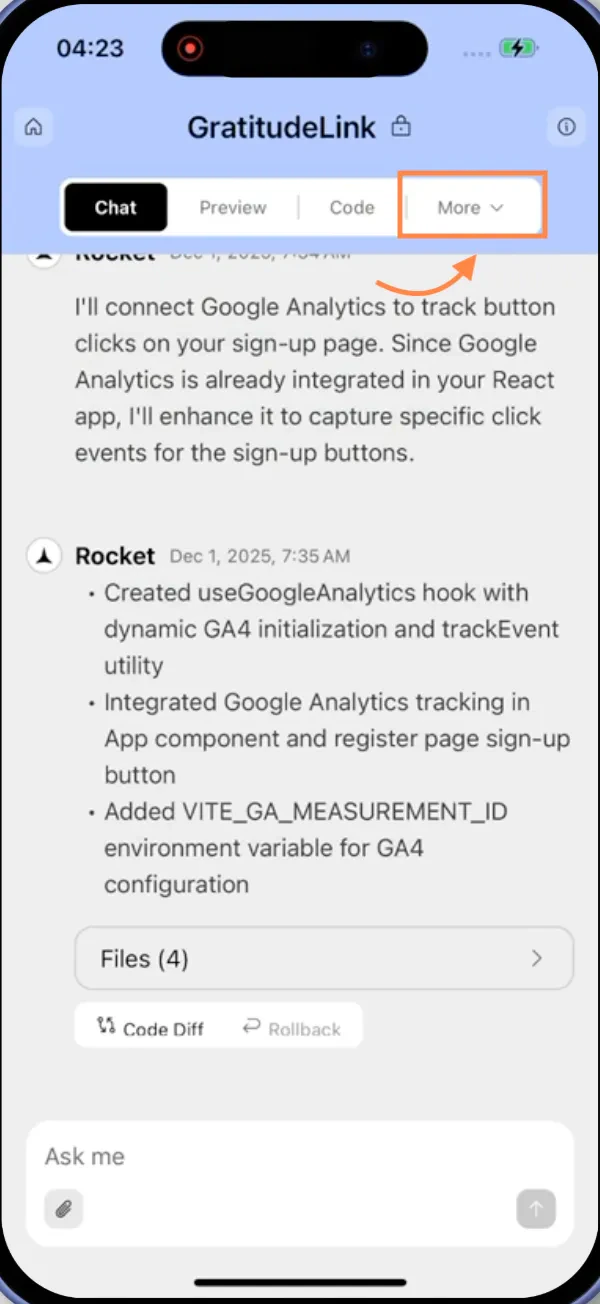
Click the Launch button in the top-right corner of your project.
Rocket Launch button in the top-right of the project editor.Rocket Launch button in the top-right of the project editor.
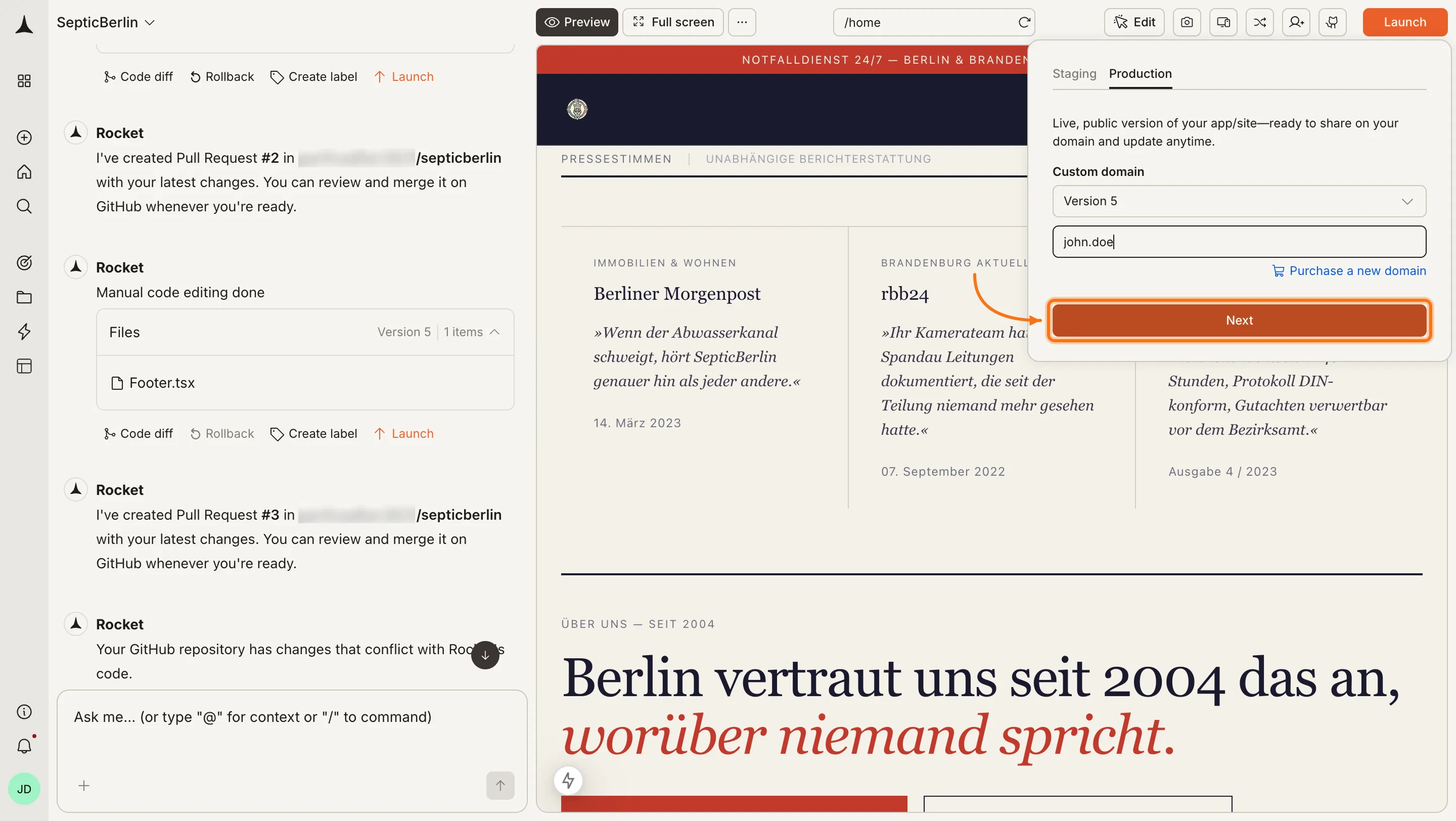
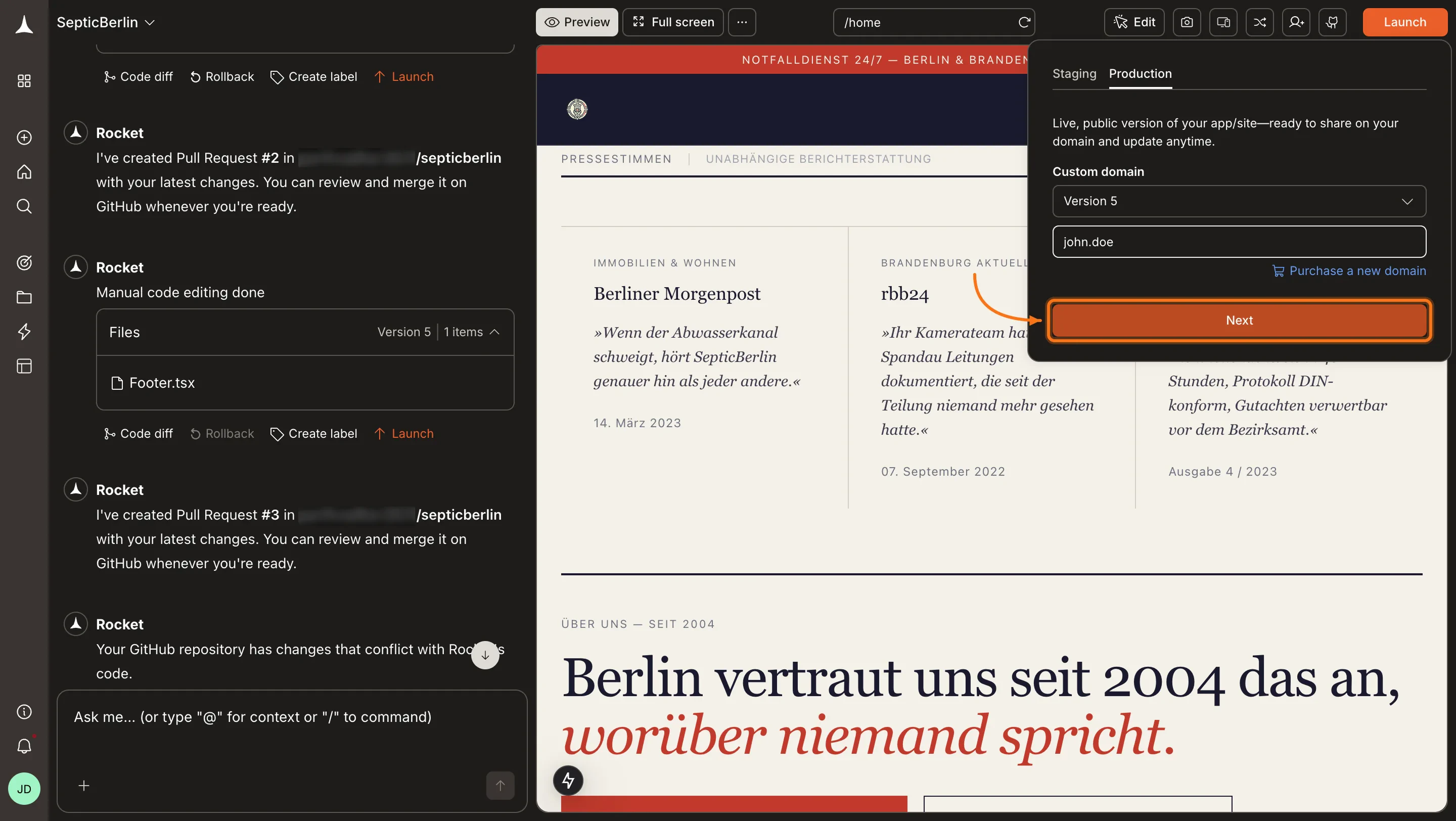
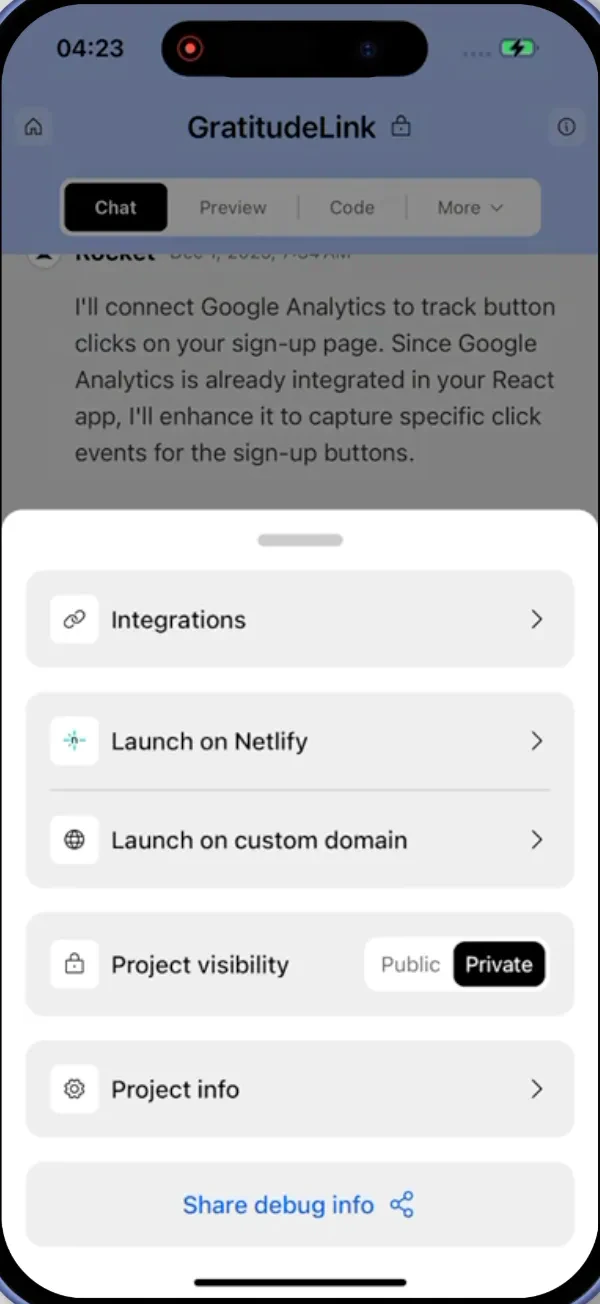
In the menu, find Launch on custom domain and click + Add domain.
Launch menu showing the option to add a custom domain.Launch menu showing the option to add a custom domain.
2

Enter your domain

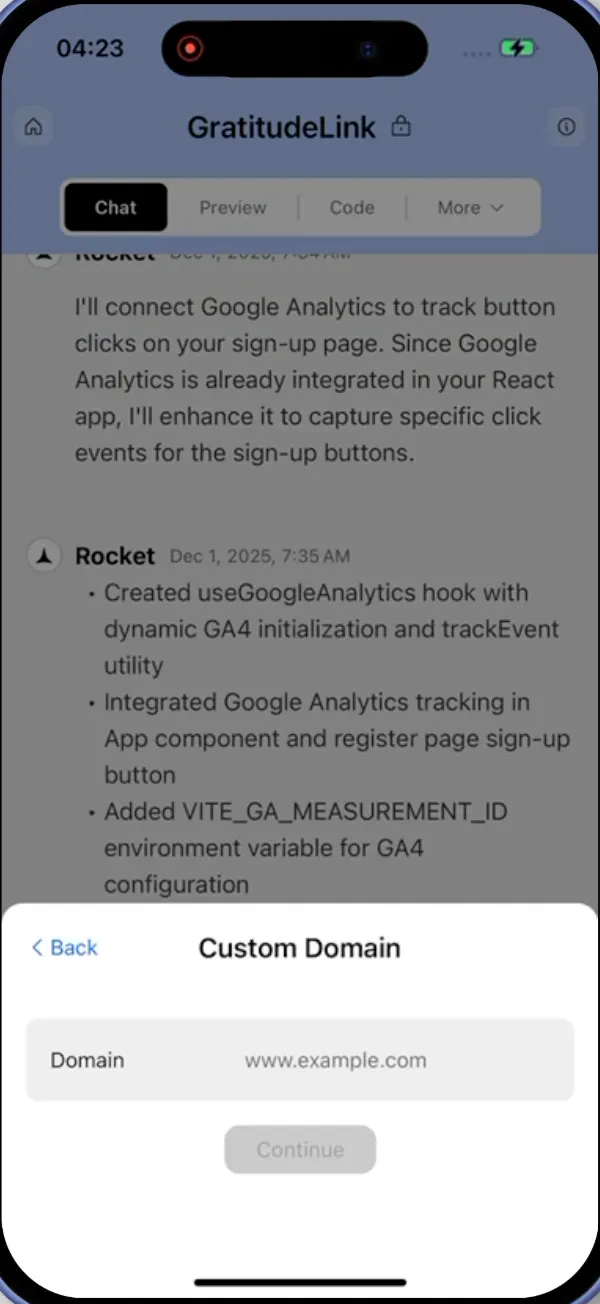
Type the domain you own (for example, example.com) into the field and click Add Domain.Rocket adds the domain to your project and shows you the DNS details you need next.
Text input for adding your domain to Rocket.Text input for adding your domain to Rocket.
3

Update DNS settings at your domain provider

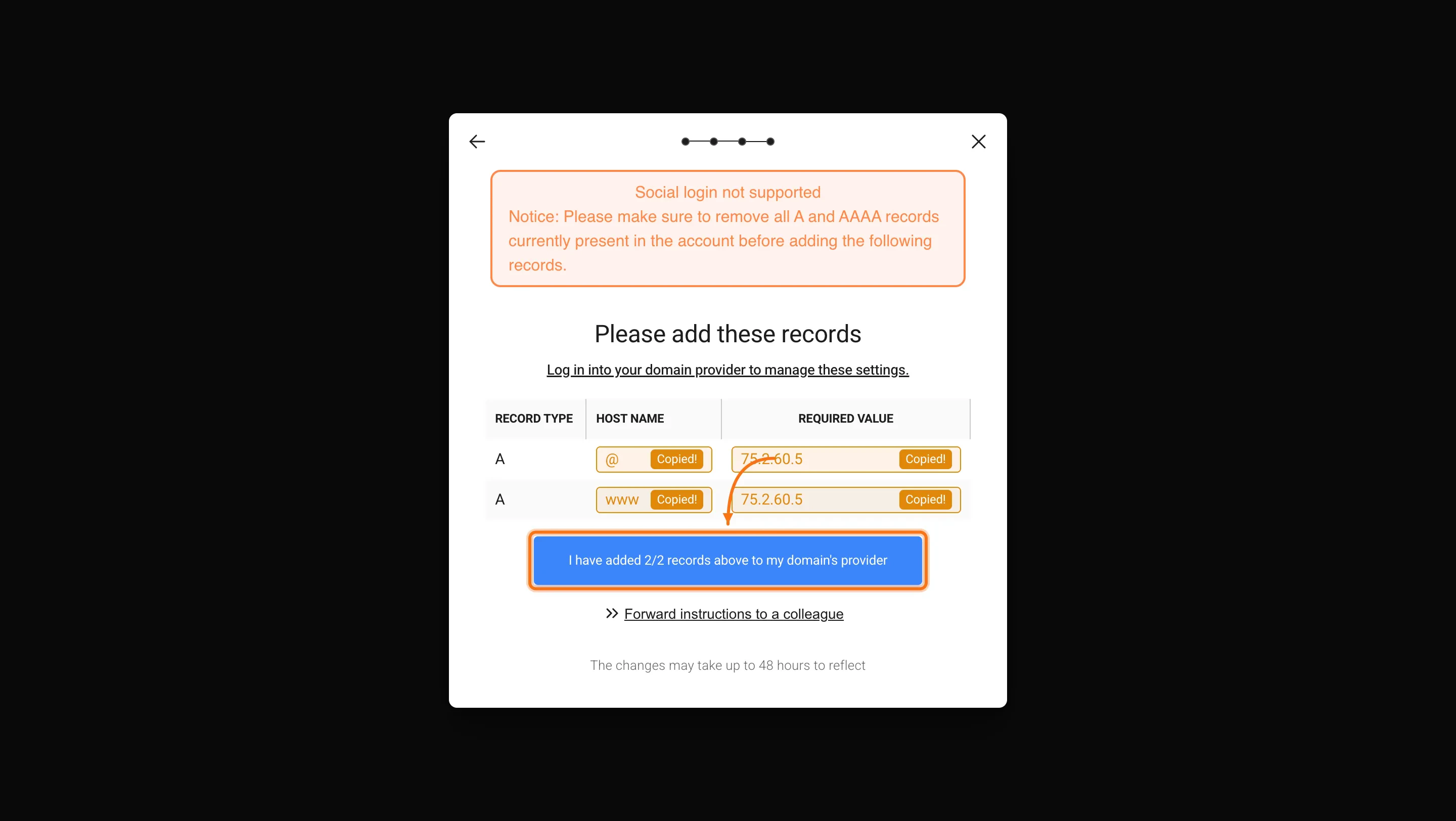
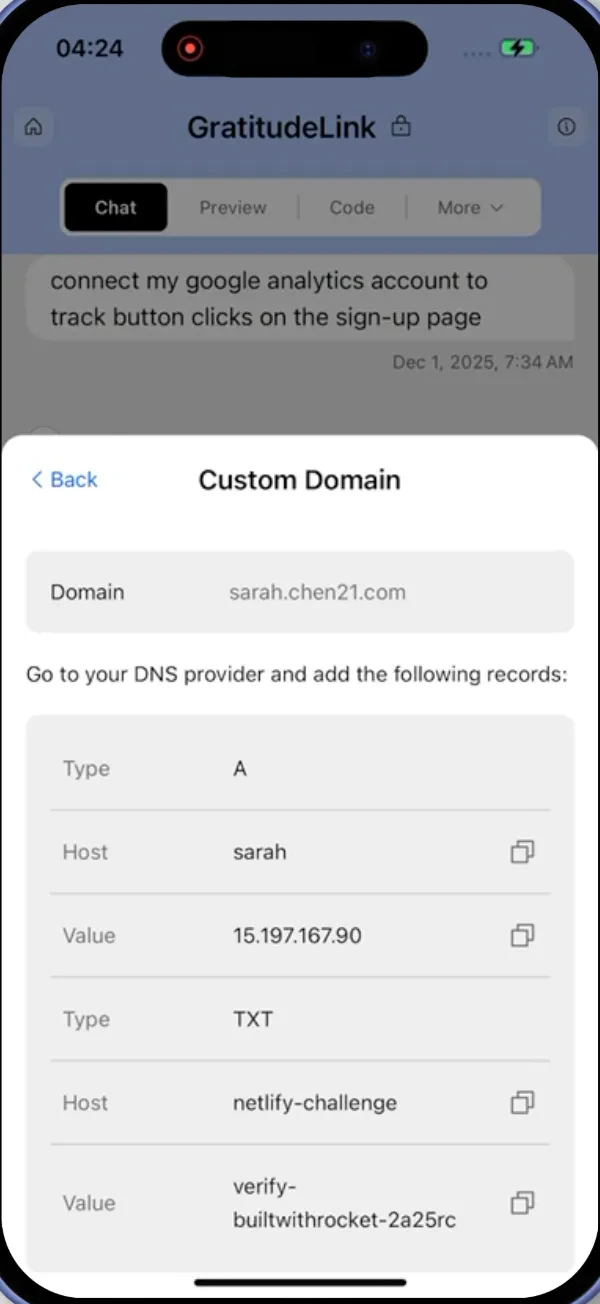
Copy the DNS records that Rocket shows you.In a new browser tab, open your domain provider’s dashboard and go to the DNS settings for your domain.Add the records from Rocket exactly as shown (Type, Host, and Value).
DNS records provided by Rocket for domain verification.DNS records provided by Rocket for domain verification.
DNS records you’ll need to add:
  • For root domains (e.g., example.com): Add two A records, one with host @ (root) and one with host www, both pointing to the IP address provided by Rocket.
  • For subdomains (e.g., app.example.com): Add one A record with the subdomain as the host (e.g., app), pointing to the IP address provided by Rocket.
You complete this step in your domain provider’s dashboard.
It can take up to 24 hours for your DNS changes to update everywhere.
4

Wait for verification

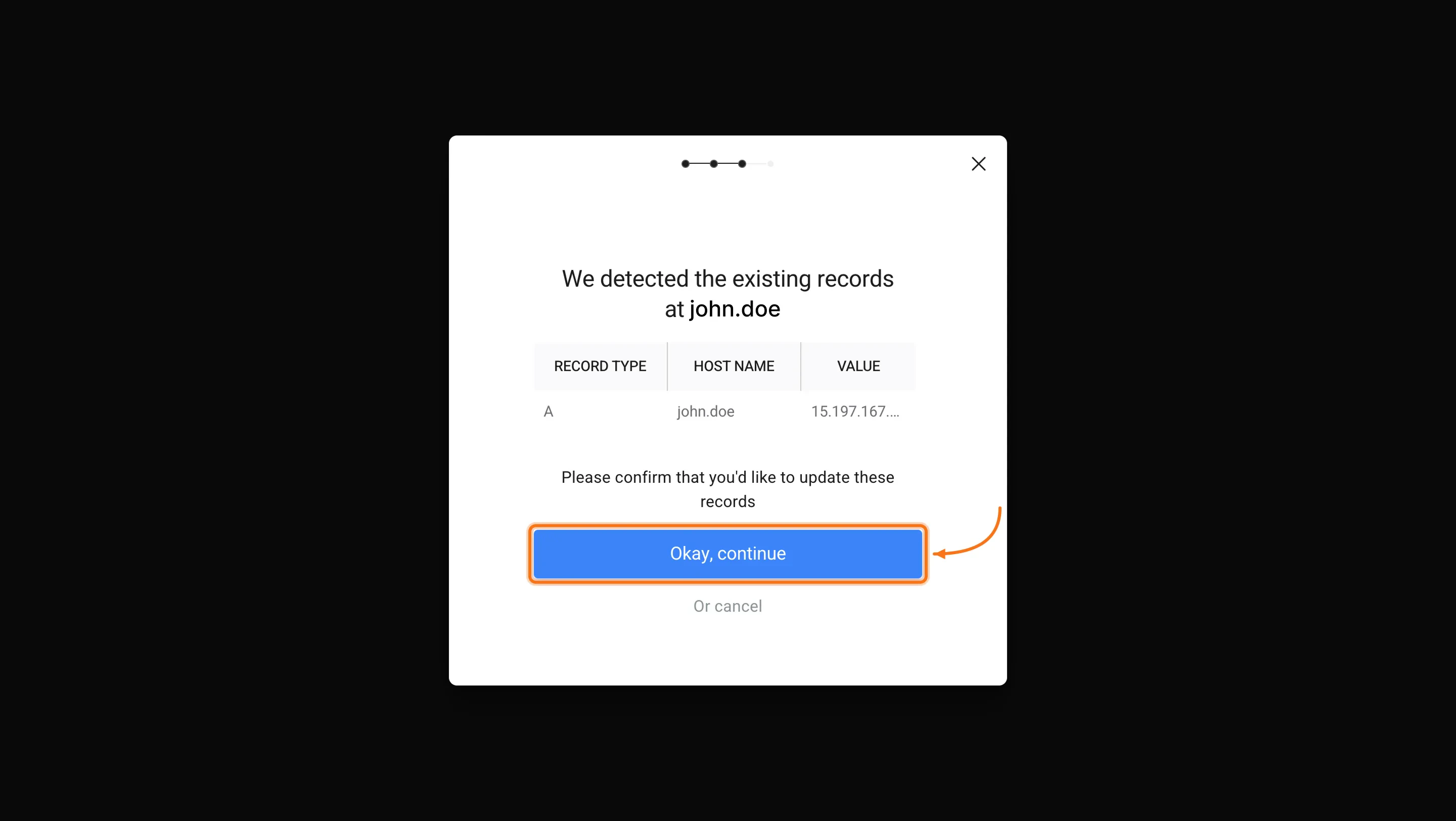
Return to Rocket and click Verify next to your domain.
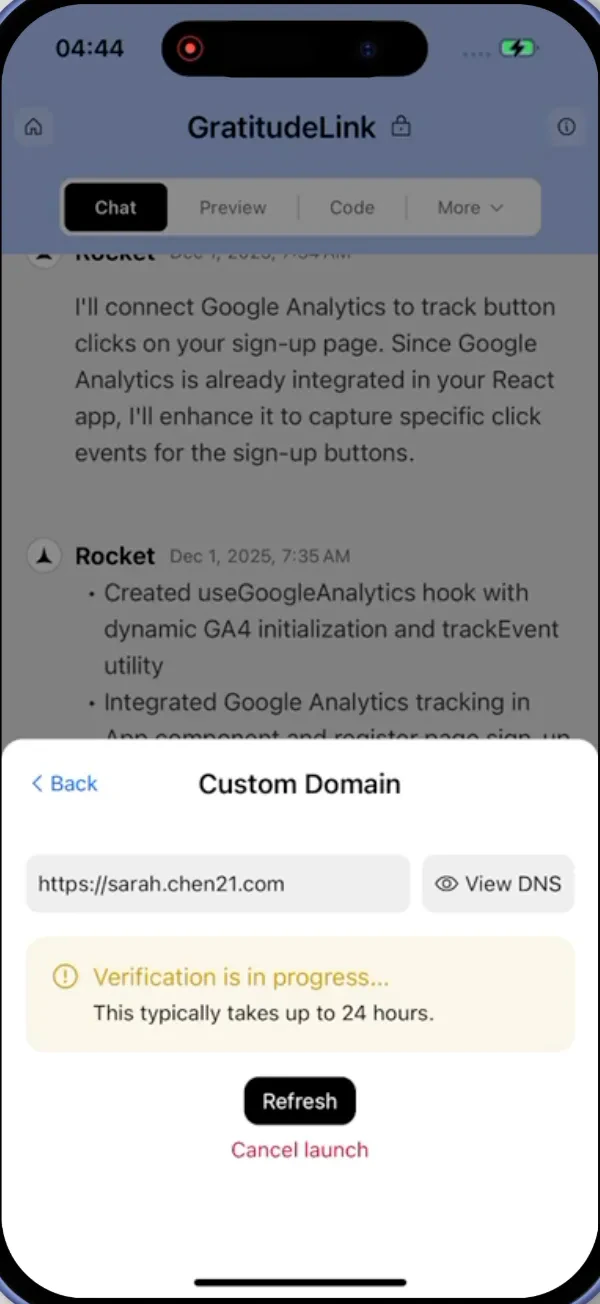
The domain status first shows Verification pending.
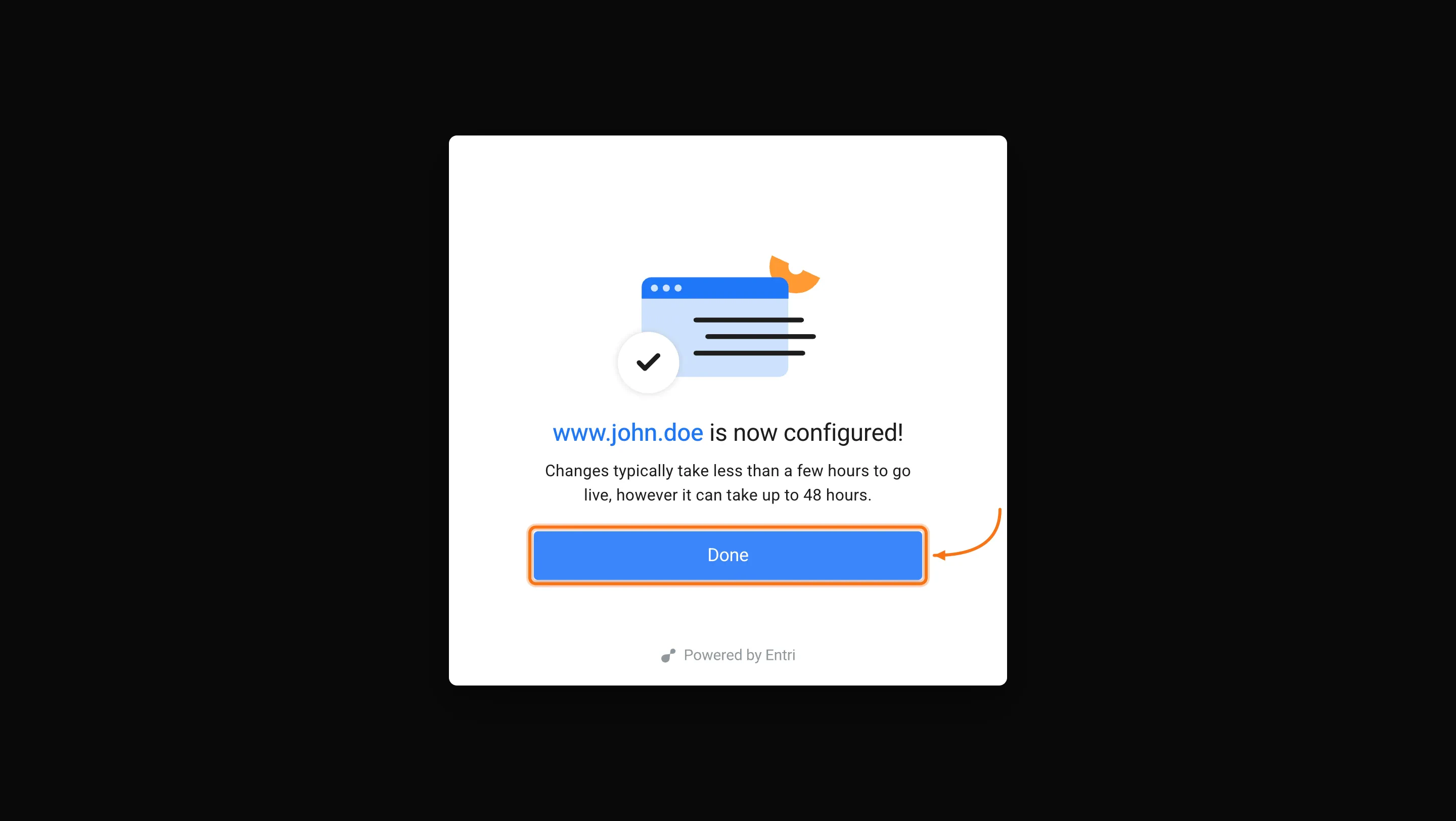
When Rocket detects the correct DNS records, the status changes to Live.
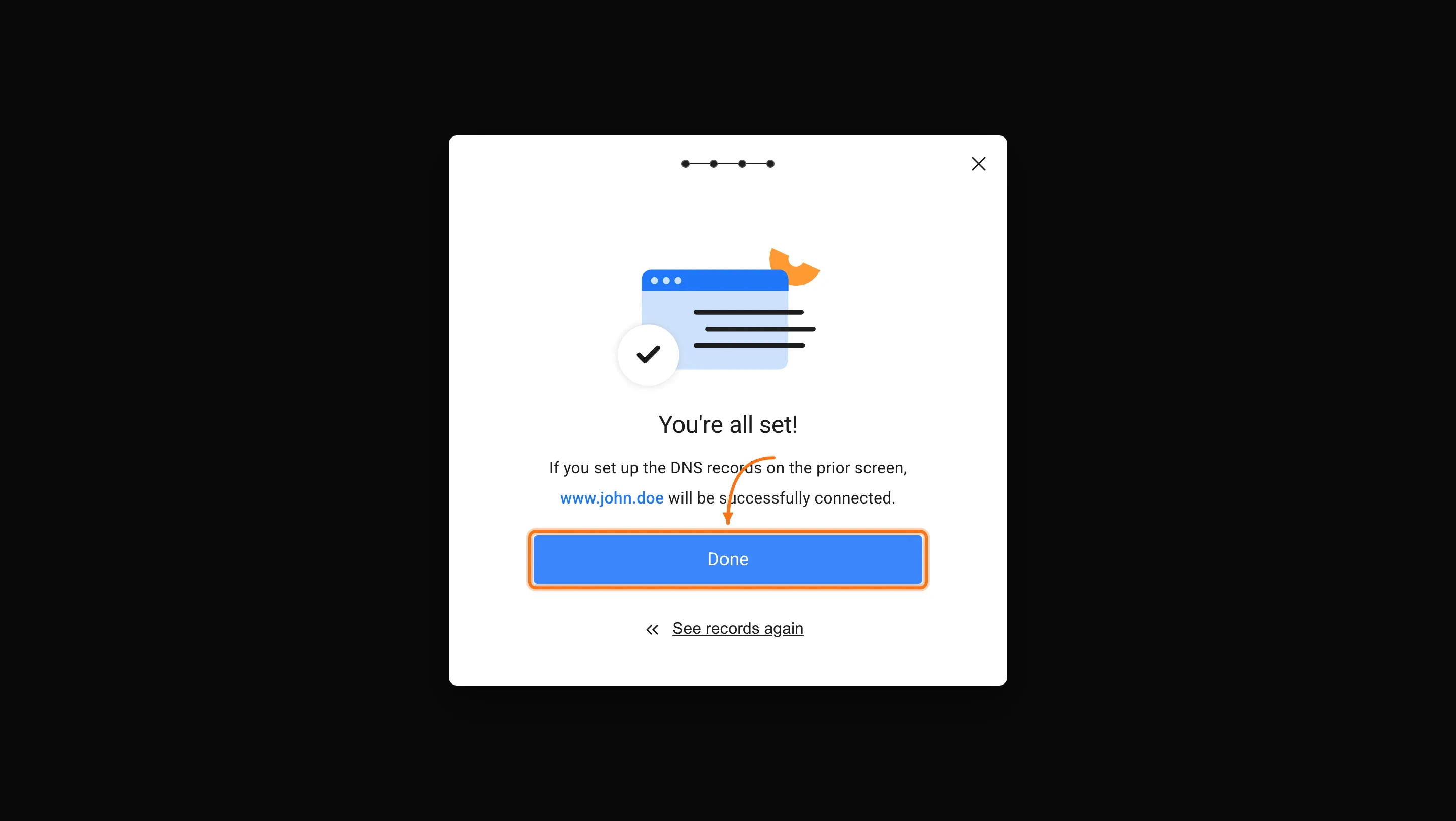
Your app is now publicly accessible at your custom domain.
Rocket showing your domain status as 'Verification pending'.Rocket showing your domain status as 'Verification pending'.
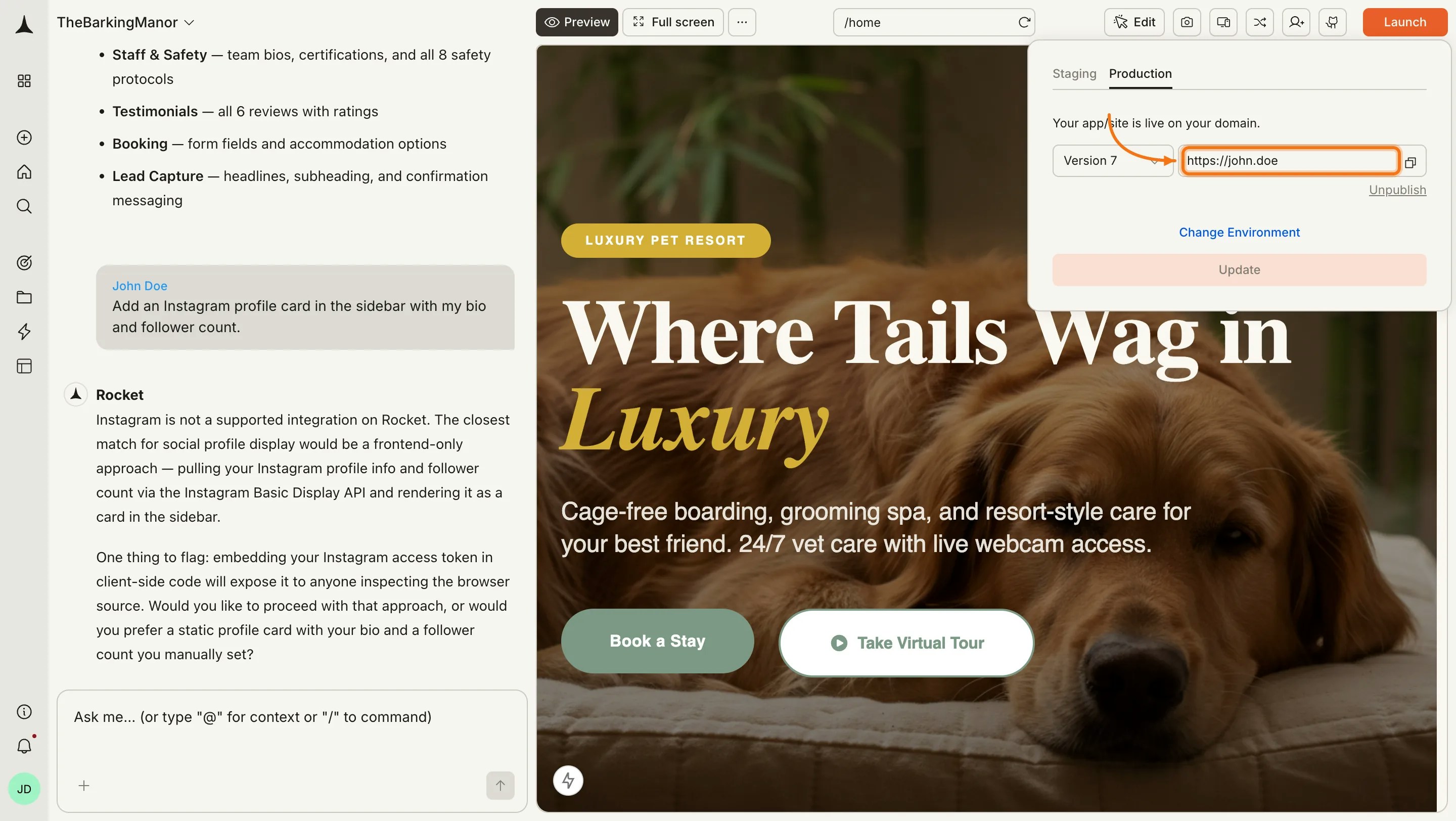
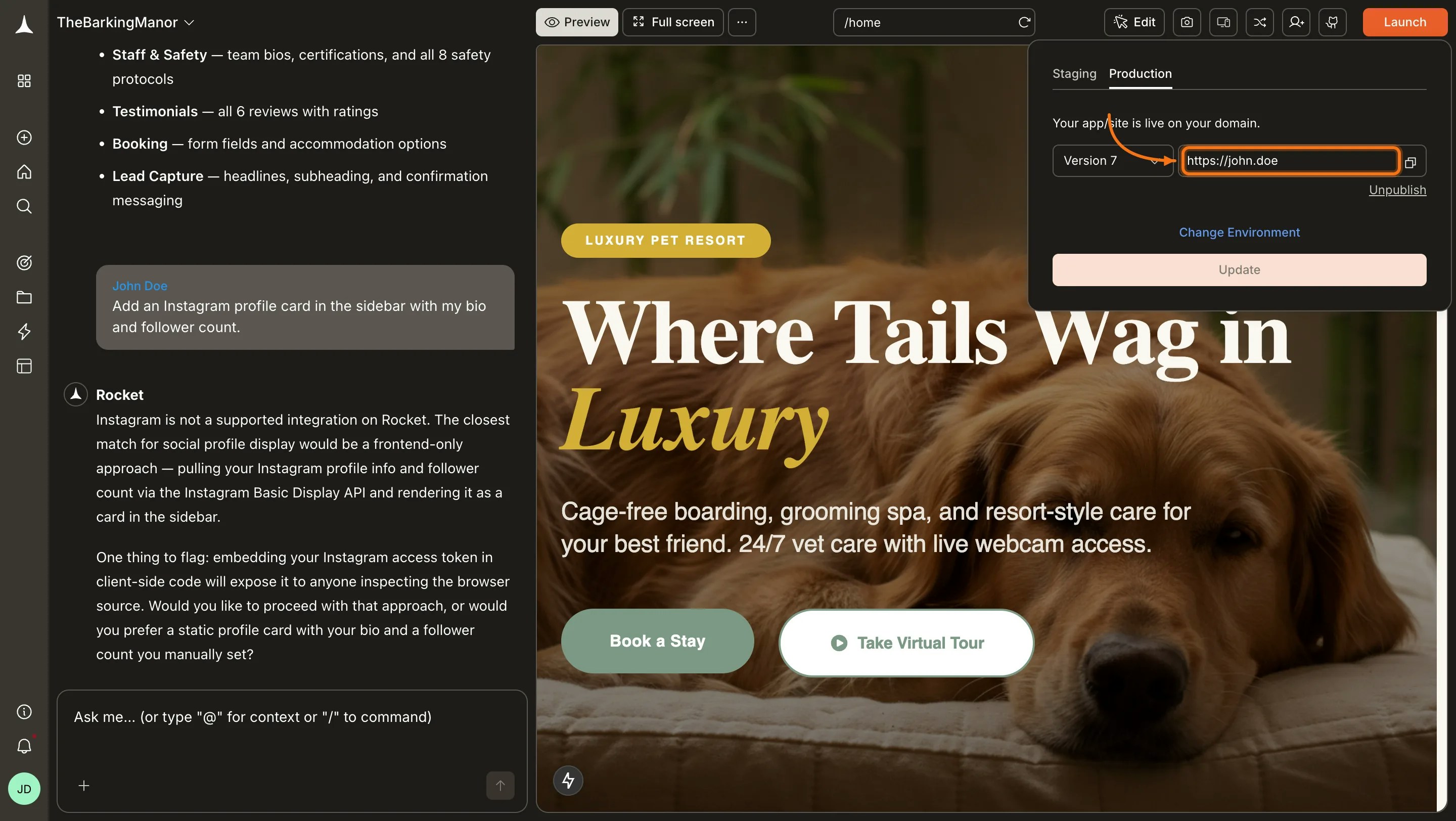
Success check: You see your custom domain listed in the Launch menu and under App menu → Settings → Custom Domain.
Rocket interface showing domain verified and live.Rocket interface showing domain verified and live.
You can manage your domain anytime from App menu → Settings → Custom Domain.
View DNS records, refresh status, or remove the domain.
Heads-up: Connecting a custom domain is available to paid users only.
If your domain isn’t connecting, you may have conflicting DNS records. Follow these steps to check and fix:
  1. Go to dnschecker.org.
  2. Enter your domain name in the search field.
  3. Select A as the record type and click Search.
  4. Check the results. If you see multiple different IP addresses, you have conflicting A records.
  5. Log in to your domain provider’s dashboard and go to DNS settings.
  6. Remove any A records that are not pointing to the IP address provided by Rocket.
  7. Keep only the A record(s) with the Rocket IP address.
  8. Wait up to 24 hours for DNS changes to propagate, then verify again in Rocket.
Having multiple A records with different IP addresses can cause your domain to intermittently point to the wrong server. Make sure only the Rocket IP address is configured.

You did it!

Your app is live at your own domain. You can now manage your domain, update DNS details, or disconnect it if needed.