Why use APIs?Connect your app to payment processors, data services, or your own backend without writing integration code. If you already have API definitions in Postman, Swagger, or cURL commands, import them directly. Rocket generates all the connection code, error handling, and data mapping automatically, so you can focus on building features instead of writing boilerplate.
- Web Browser
- Mobile App
Before you begin
You’ll need:
- An existing Rocket project.
- An API source you can access in one of these formats:
- Postman workspace and an API key, or
- A working cURL command, or
- A Postman collection export file (
postman.json), or - A Swagger or OpenAPI spec (JSON or YAML)
- Any environment variables your API definitions reference, for example:
inventory_api_base_urlaccessToken(or your token variable name)
Tip: If your imported request includes placeholders like
{{base_url}} or {{accessToken}}, the integration step may require you to map them to real values or stored variables.Need to set up environment variables?
Learn how to manage secret keys in your environment file.
Import APIs into your project
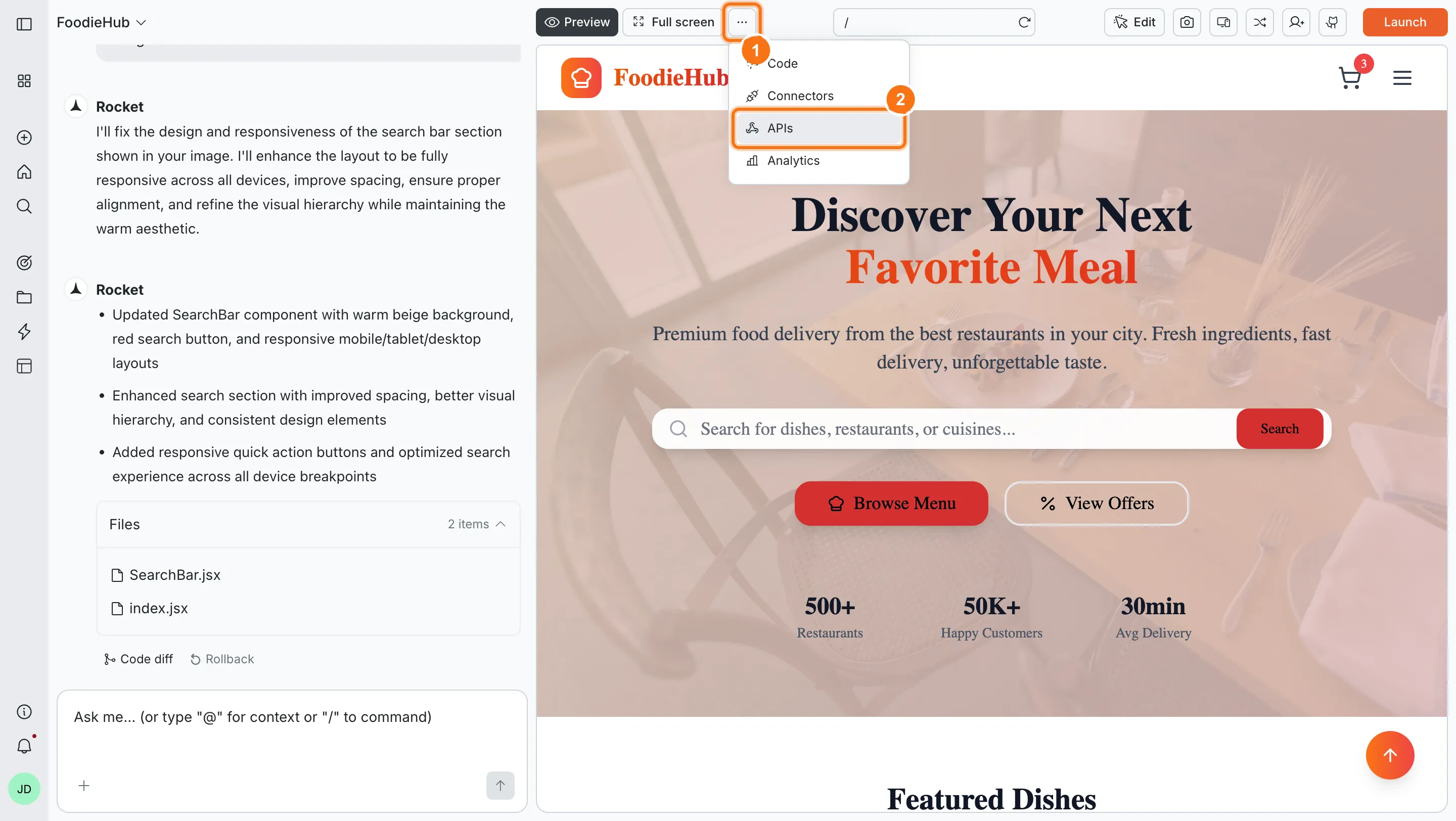
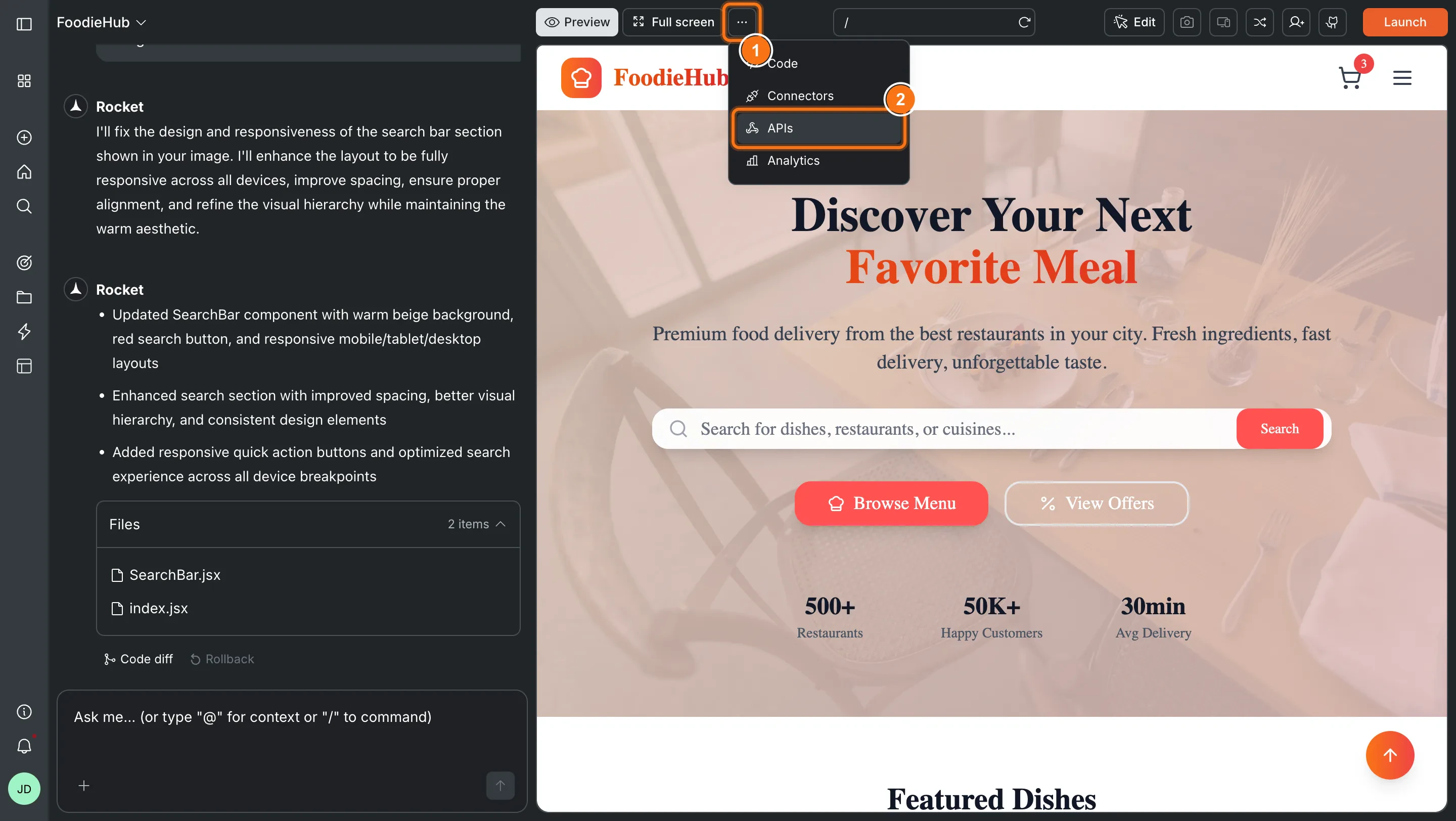
Open the Add APIs dialog
- Open the APIs section.
- Open the Select an API dropdown.
- If no APIs exist yet, click Add APIs.


Success check: The Add APIs dialog opens with import method options.
Choose an import method
Pick one method. You only need to do this once per set of APIs.Option A: Postman key (workspace import)
Option A: Postman key (workspace import)
Use this when your APIs already live in a Postman workspace.To generate a Postman API key:

What this gives you:
Get your Postman API key
Visit Postman’s documentation to learn how to generate your API key.
- Click your avatar in the Postman header, then click Settings.
- In the account settings page, click API keys.
- If you don’t have a key, click Generate API Key.
- Enter a name for your key and click Generate API Key.
- Copy your key.
Your Postman API key provides access to any Postman data you have permissions for. Keep it private and rotate it if you believe it has been exposed.
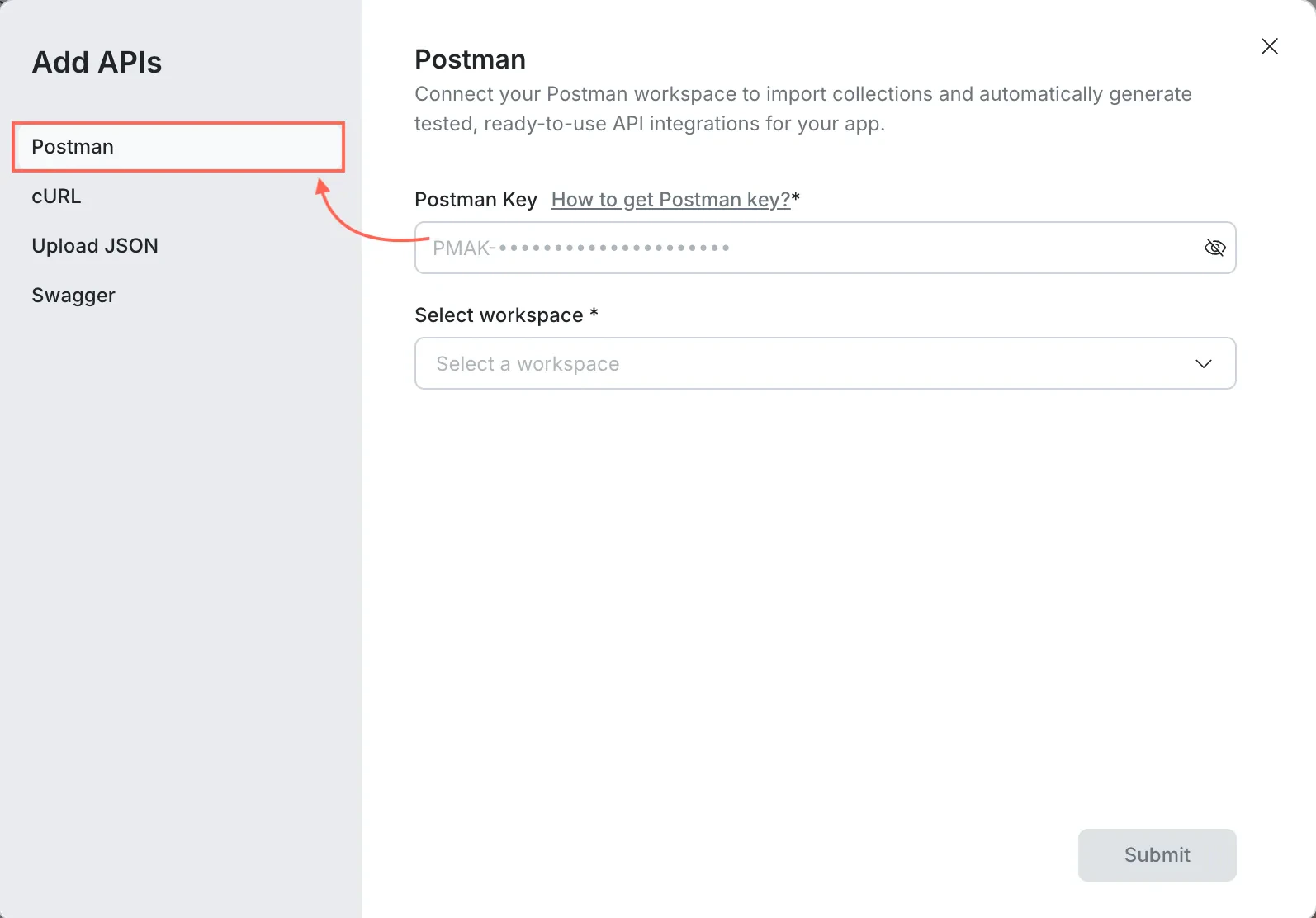
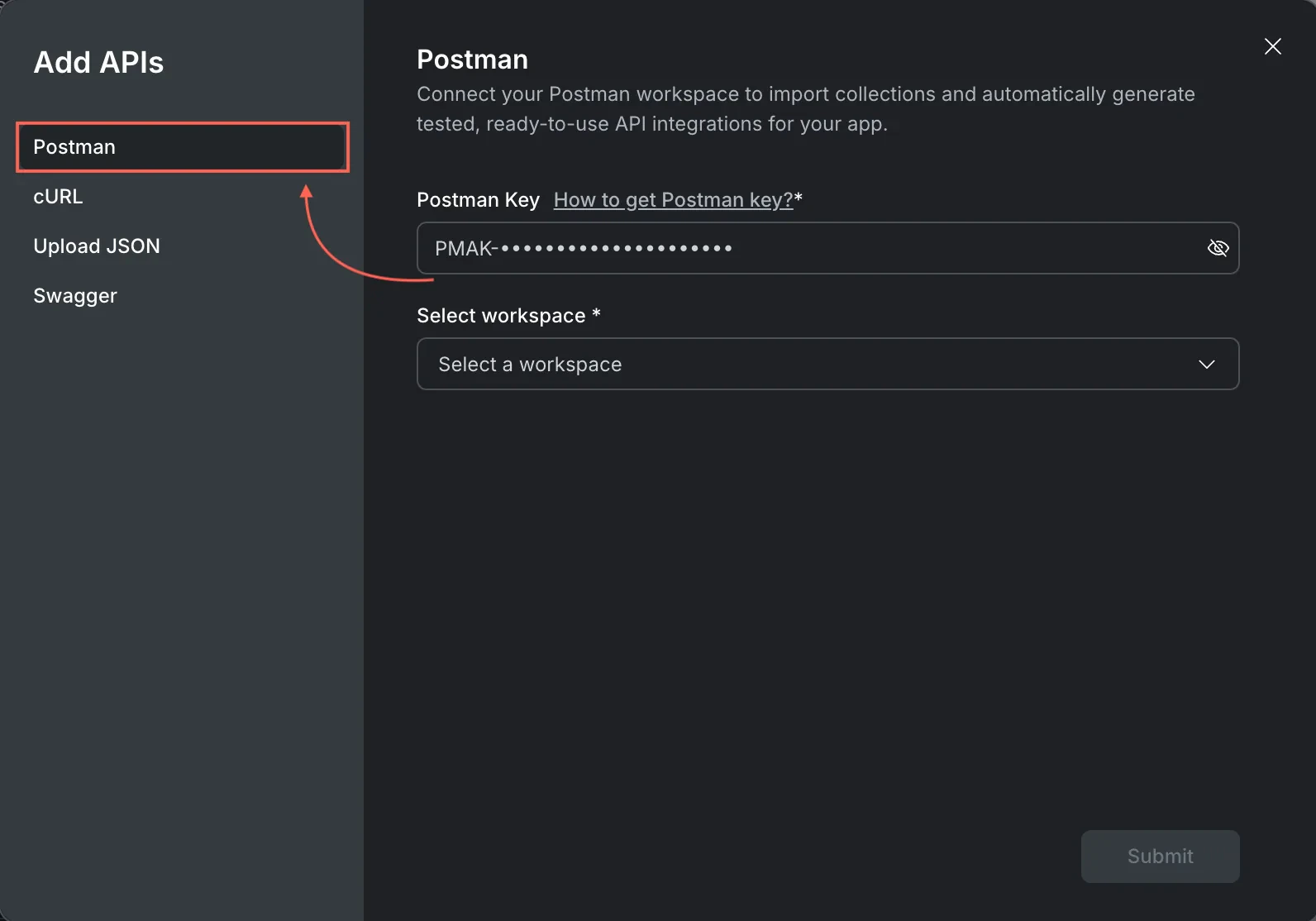
- In Add APIs, choose the Postman tab.
- Paste your Postman Key.
- Select the workspace.
- Click Submit.
- Select the collections or folders you want to add.
- Click Add APIs.


- A searchable list of endpoints in your project’s API picker.
- Method, URL, headers, and variables carried over from Postman.
Success check: Your Postman collections appear in the API picker.
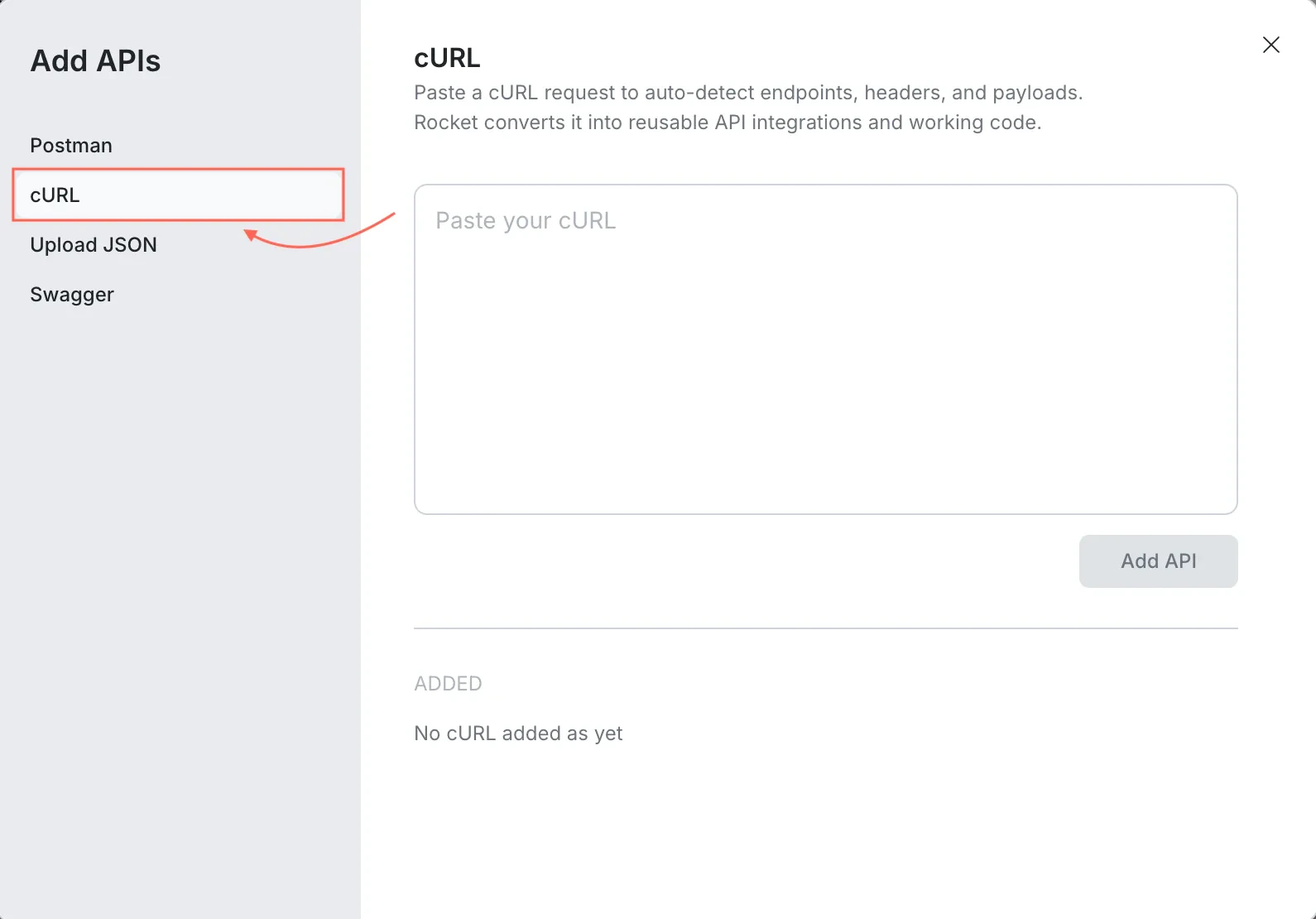
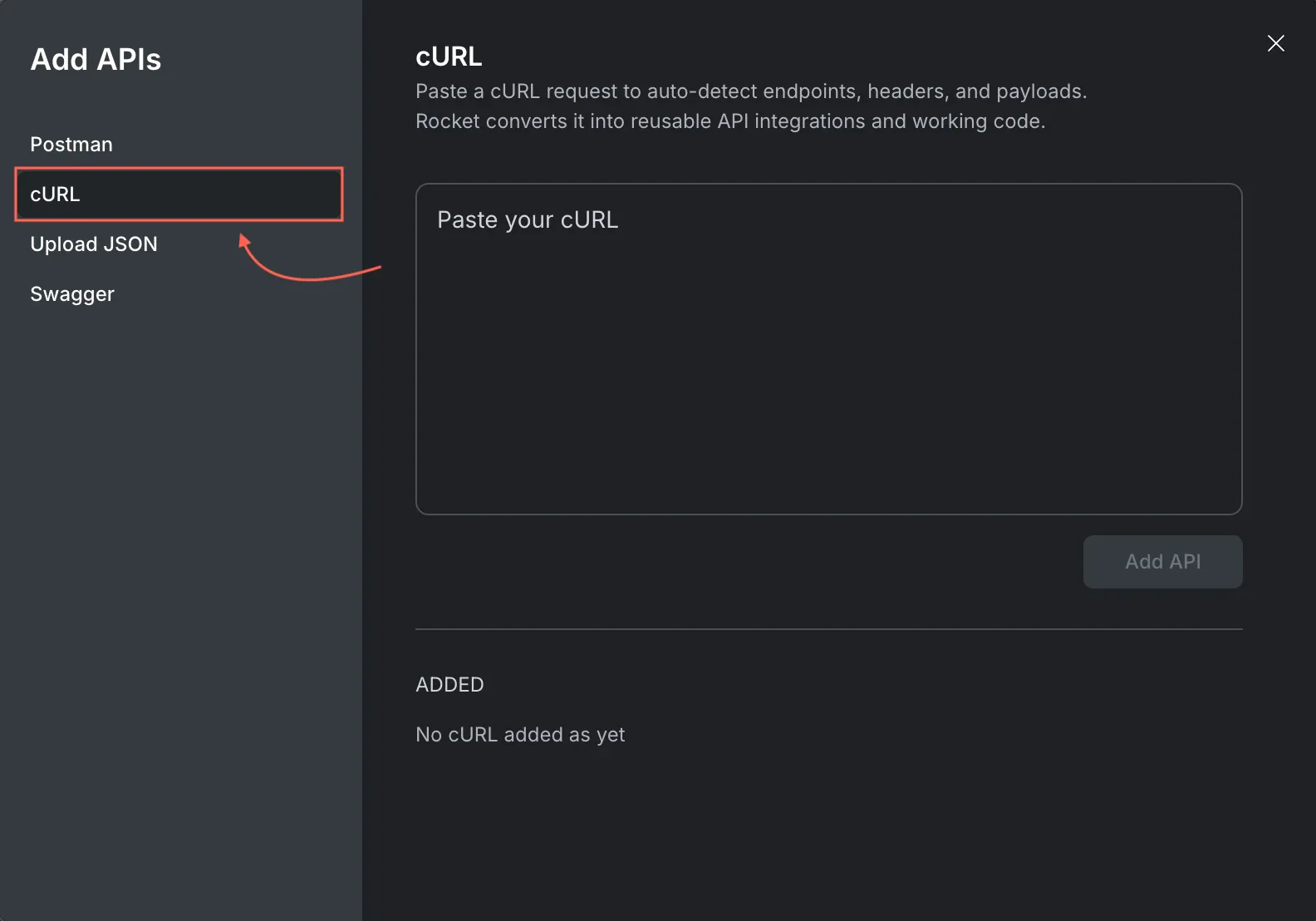
Option B: cURL (single request import)
Use this when you have a working request you can paste.

What to watch for:
- In Add APIs, choose the cURL tab.
- Paste the full cURL command.
- Click Add API.


- Make sure the cURL includes the correct URL, headers, and auth format.
- If cURL uses environment variables, convert them to your project’s variable format after import.
Success check: The API endpoint appears in your API picker.
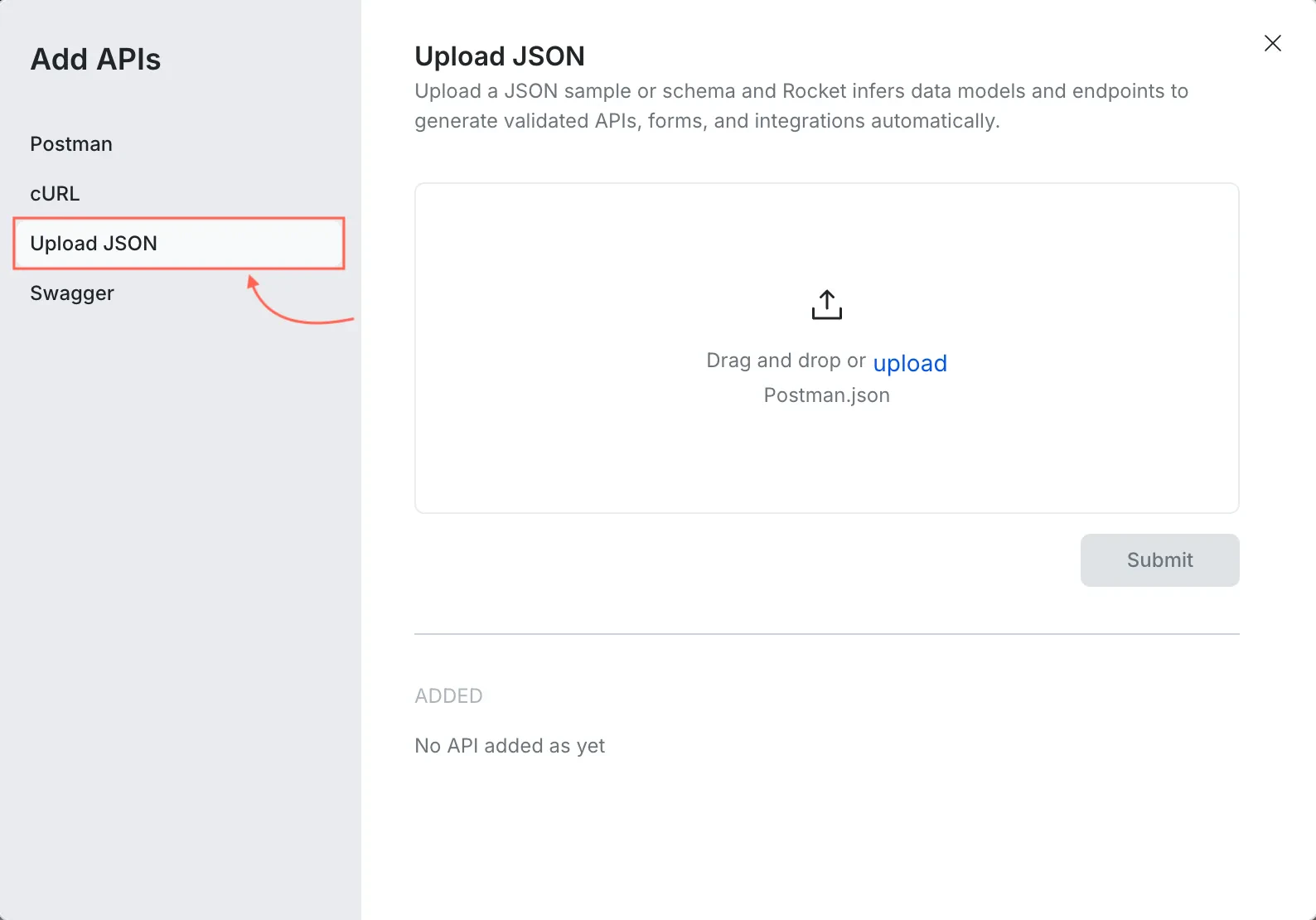
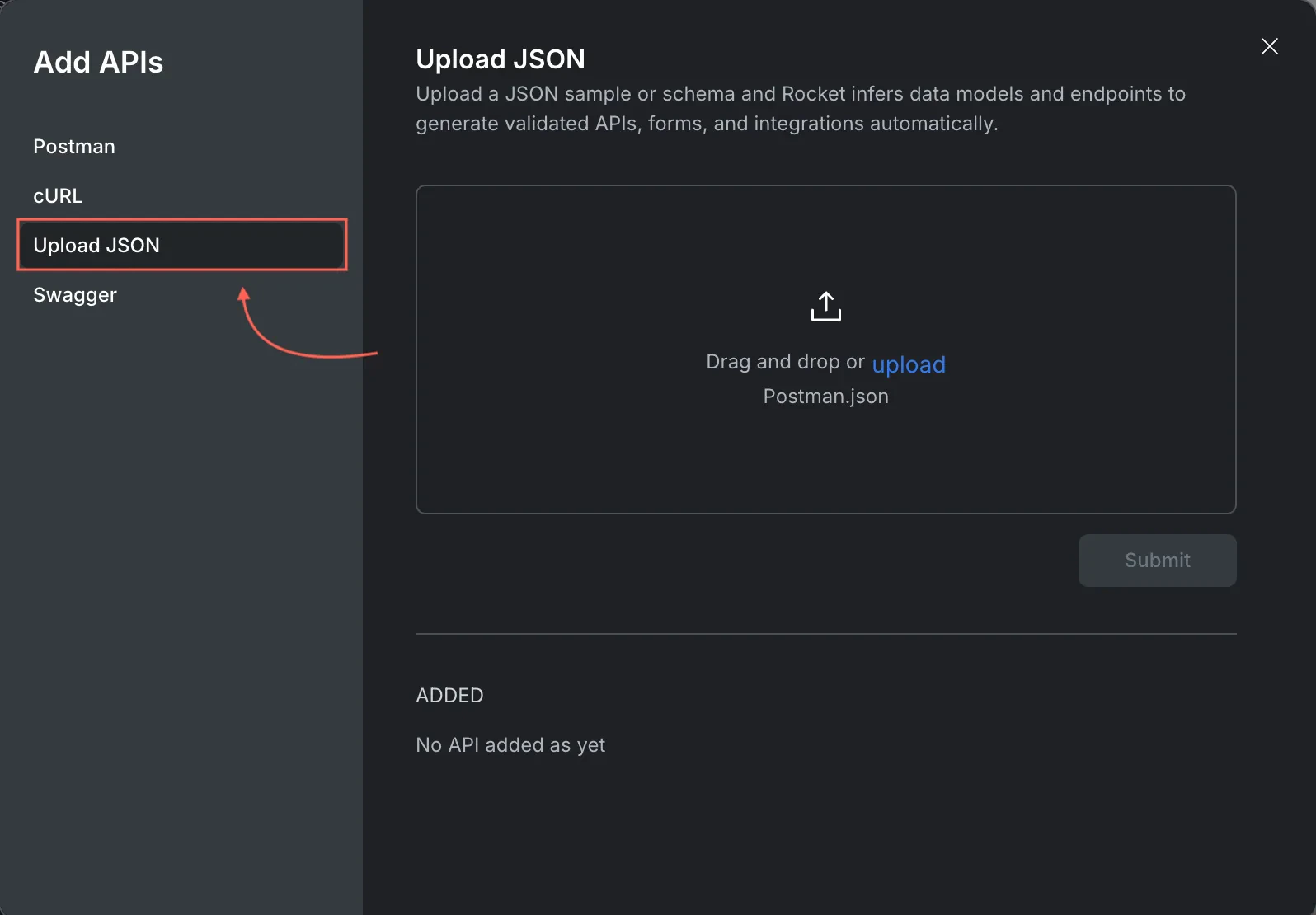
Option C: Upload JSON (Postman export file)
Use this when you have a Postman export file.

What this gives you:
- In Add APIs, choose Upload JSON.
- Upload your
postman.json. - Click Submit.


- The same benefit as Postman key import, without requiring workspace access.
Success check: Your Postman collection endpoints appear in the API picker.
Option D: Swagger (OpenAPI import)
Use this when your backend provides an OpenAPI spec.

What to watch for:
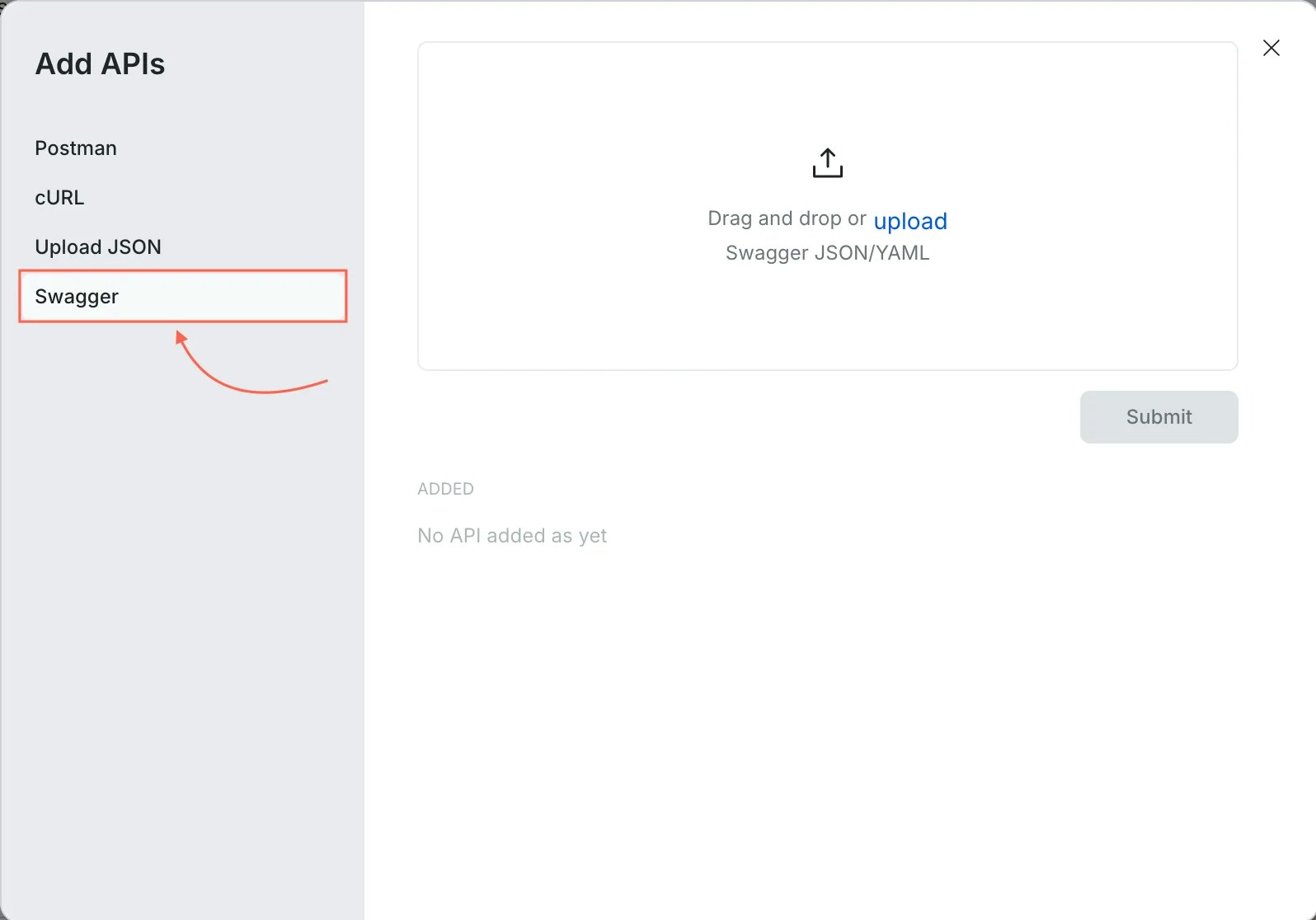
- In Add APIs, choose Swagger.
- Upload the Swagger or OpenAPI JSON or YAML.
- Click Submit.


- If your spec defines multiple servers, confirm the base URL matches your environment.
- Confirm auth is described in the spec if you want it preconfigured.
Success check: All endpoints from your OpenAPI spec appear in the API picker.
Verify the API is available in the picker
After import:- Open the Select an API dropdown again.
- Search for the endpoint you want.
- Confirm the method and path look correct.


- The HTTP method matches what you expect, GET vs POST.
- The URL points to the correct base, often a variable like
{{...base_url...}}. - Any required headers and auth placeholders are present.
Success check: Your imported API appears in the dropdown and is searchable.
Integrate an API into a UI element
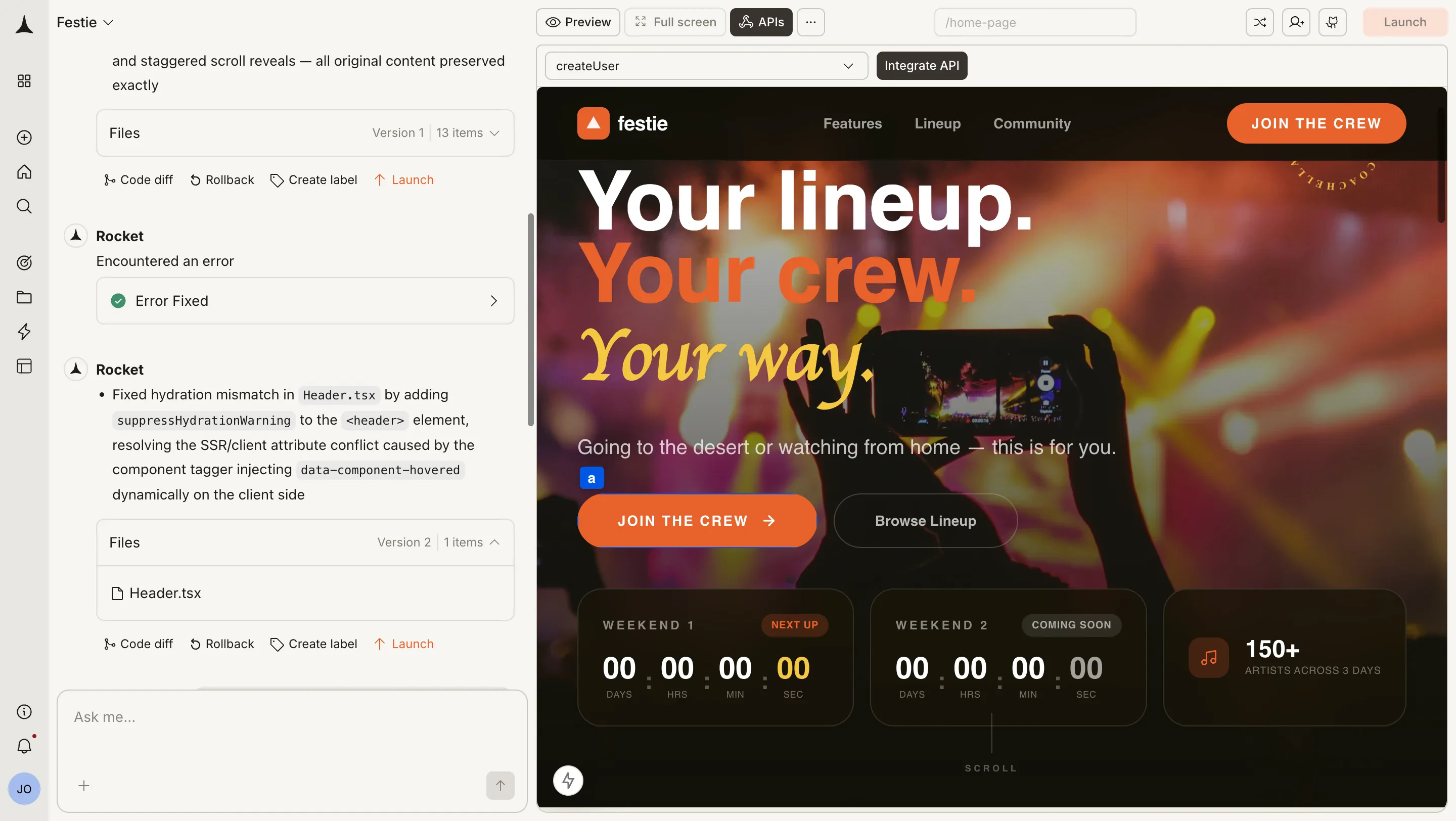
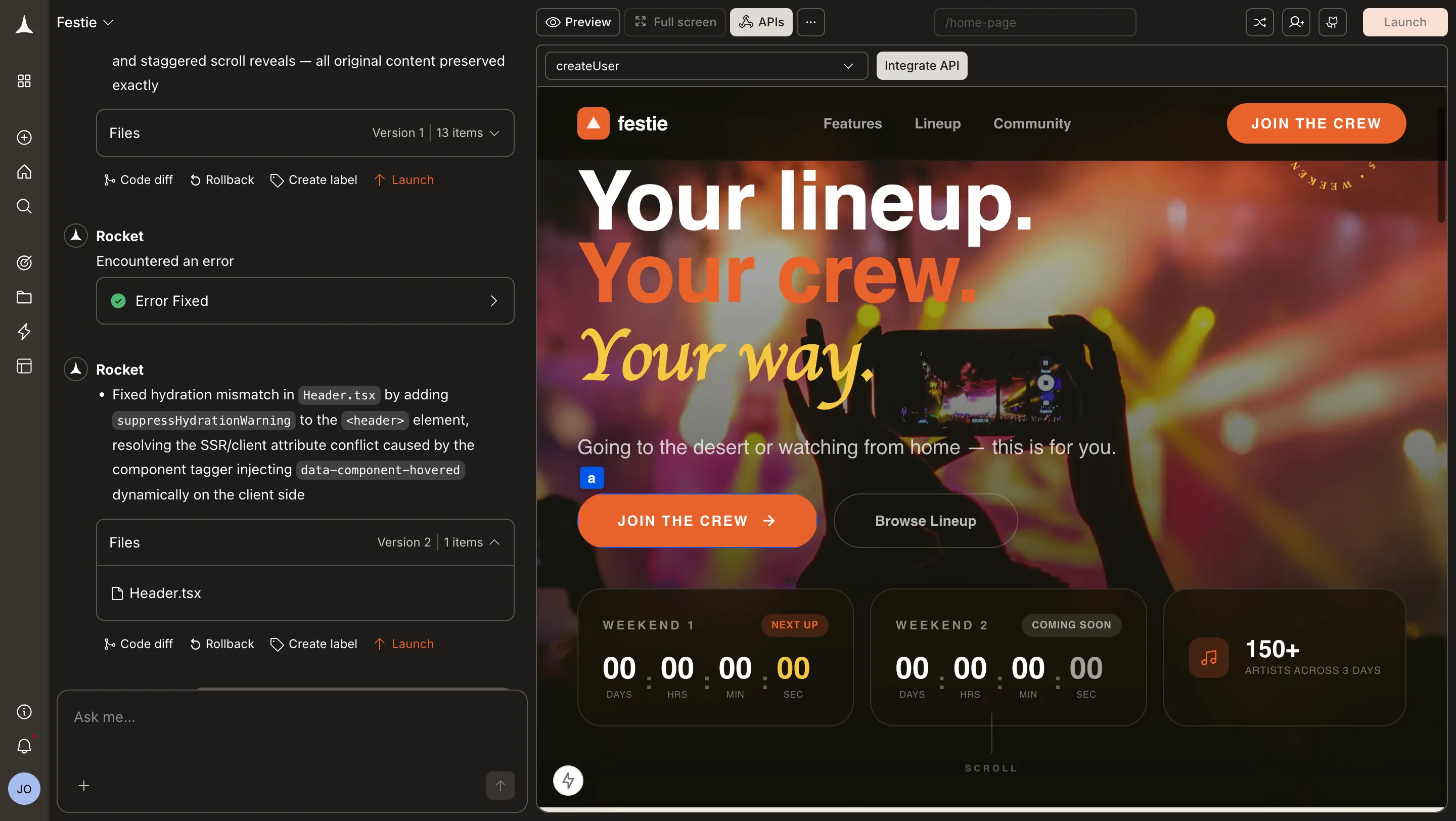
This is the step that connects an endpoint to your screen so Rocket.new can generate code tied to a real component.Start integration
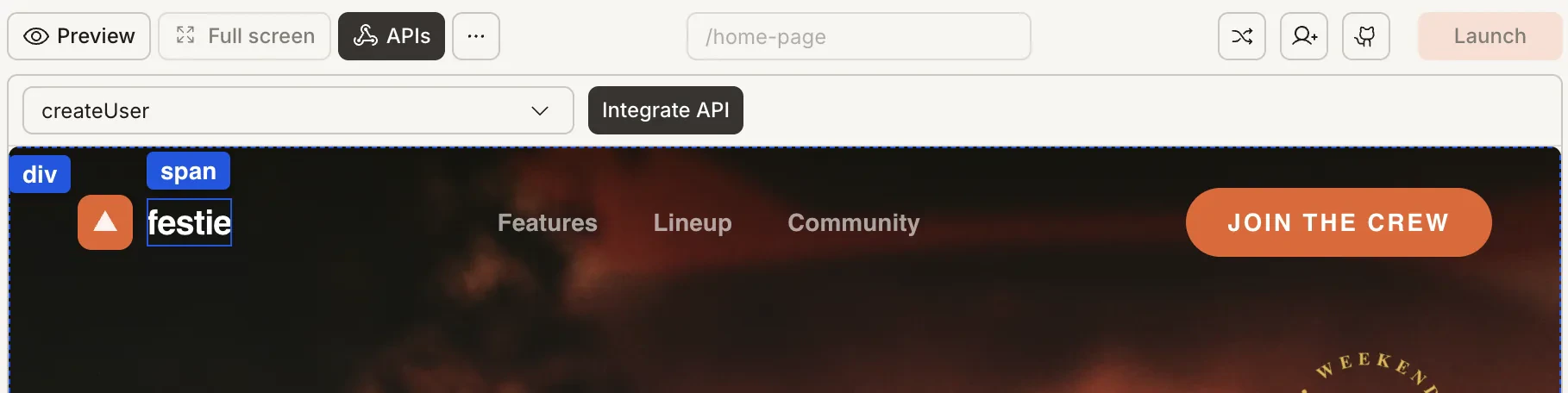
- Pick the route where this should run, for example
/. - Select the API from the API picker.
- Click Integrate API.


Attach it to the correct element
- When prompted, click Ok.
- Click the UI element where you want to integrate the API.
Best practice: Attach to a stable container element that is always present on the screen. Avoid attaching to conditional elements that might not exist on initial render.


Success check: The element is selected and the integration modal opens.
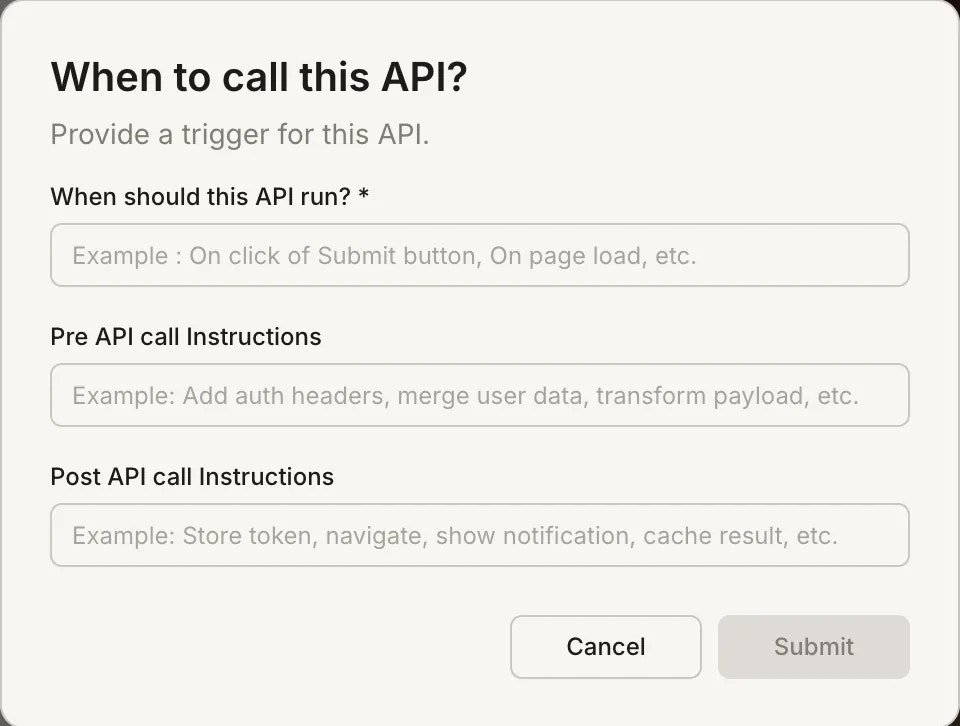
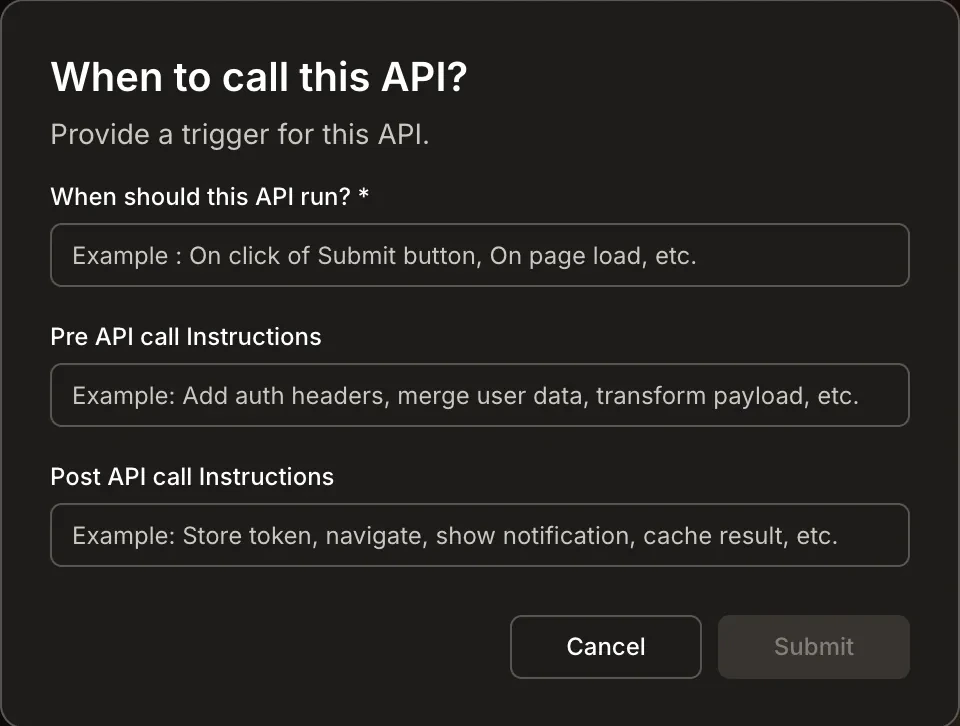
Integration configuration
After selecting the element, you’ll see the integration configuration screen showing the route, element, API details, and trigger options.

- When the API should run (trigger)
- What happens before the API call (pre-call instructions)
- What happens after the API call (post-call instructions)
- Any required placeholders that need to be resolved
Resolve required placeholders like accessToken
If your imported API includes placeholders for required fields, you may see a “Missing Attributes” prompt during configuration.What this means:- The request depends on a value like
accessToken, and the system needs to know where that value comes from.
- Provide a binding to your stored token value, not the literal word
accessToken. - Ensure the request uses the correct auth scheme, commonly
Authorization: Bearer <token>.


Important: If you do not yet have a token flow set up, decide where the token will be stored first. Rocket.new can generate the code, but it needs a consistent source of truth for the token.
Configure when the API runs and what it does
Set the trigger
Choose when the API should run, for example on page load.

- On page load for initial data hydration
- On pull to refresh for manual refresh
- On button click for user-initiated actions like “Track”, “Untrack”, “Save”, “Checkout”
Add Pre API call instructions
Use this area to ensure the call will succeed before it runs.Recommended checklist to encode as instructions:- Validate required variables exist, base URLs, IDs, query params.
- Validate auth state, token exists, token is not expired.
- If token can be refreshed, refresh it here.
- “Validate inputs and required variables. Ensure access token exists and is valid. If missing, refresh or redirect to login.”
Tip: Clear pre-call instructions help Rocket.new generate robust error handling code.
Add Post API call instructions
Use this area to define what happens after the call.Recommended actions to encode as instructions:- Store response data into a named state variable your UI can bind to.
- Cache successful responses to improve perceived performance and resilience.
- Handle error states with clear user feedback.
- Navigate when the result requires it, for example redirect to login on 401.
- “On success, store response to state and cache it. On 401, clear token, notify, navigate to Login. On other errors, show notification and keep cached data.”
Tip: Detailed post-call instructions ensure your UI updates correctly and handles edge cases.
Generate code with Rocket.new
After you complete the configuration, Rocket.new automatically generates the implementation for you. No additional action is required.What Rocket.new typically generates from this configuration:- The API call wired to the chosen trigger, for example on page load.
- Variable resolution, base URL variables, auth variables.
- State updates, storing response data into a variable the UI can render.
- Optional caching, so the UI can show last-known data during temporary failures.
- User feedback, notifications on success or failure, where configured.
- Navigation flows, for example redirecting to Login on authentication failure.


Success check: The API integration appears under the route and element you intended, and code is generated.
Validation checklist
After integration and code generation, confirm these items:- The API appears under the route and element you intended.
- Trigger fires when expected, page load, click, or refresh.
- Required variables resolve correctly, base URL, IDs, headers.
- Auth is applied correctly, especially token prefix rules like Bearer if your backend requires it.
- Response is stored to a named state variable your UI binds to.
- Error handling matches your UX, notification, fallback state, navigation.
Troubleshooting
The API picker is empty
Import did not complete, or you imported into a different project. Reopen Add APIs and verify your source.
Fix: Re-import your APIs and confirm they appear in the dropdown.
Integration asks for attributes you did not expect
The imported definition includes placeholders. Map them to known state variables or environment variables.
Fix: Review your API definition and ensure all placeholders are mapped to actual values.
Calls run but UI does not update
Most often, response data is not stored to the variable your UI is bound to. Update the Post API call instructions to store the response, then bind your UI list or widget to that stored variable.
Fix: Check your Post API call instructions and ensure response data is stored to a state variable your UI references.
You get 401 Unauthorized
You did it!
You’ve imported APIs and integrated them into your UI elements. Rocket generates the code that wires everything together automatically.