In this guide, you’ll learn how to:
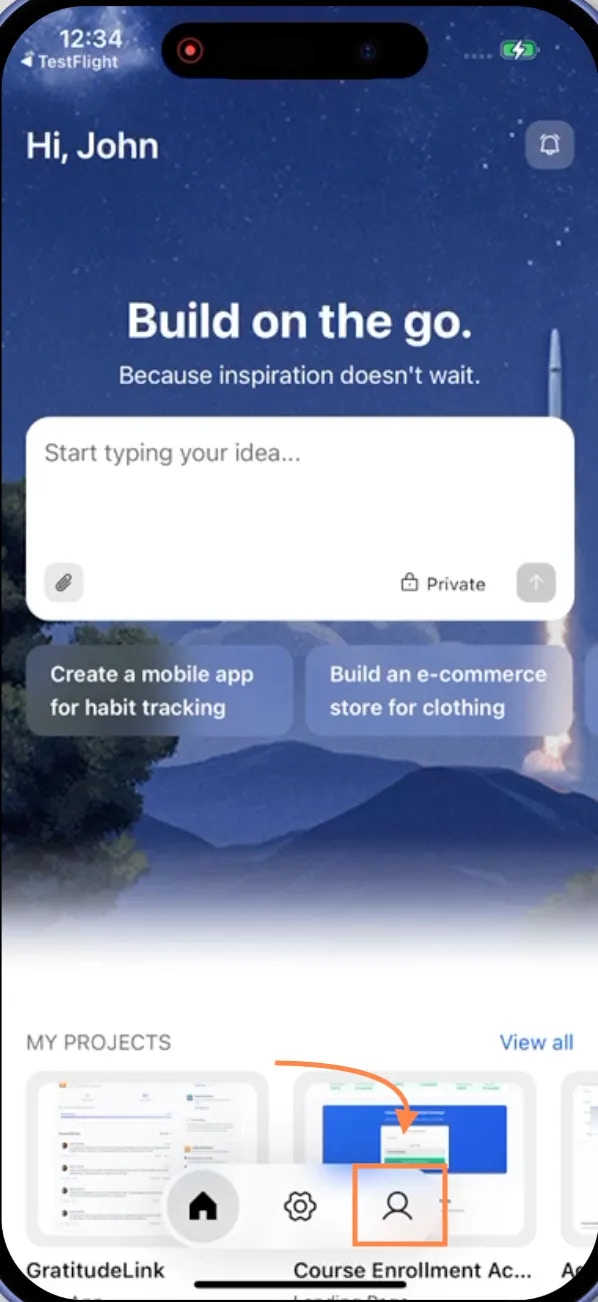
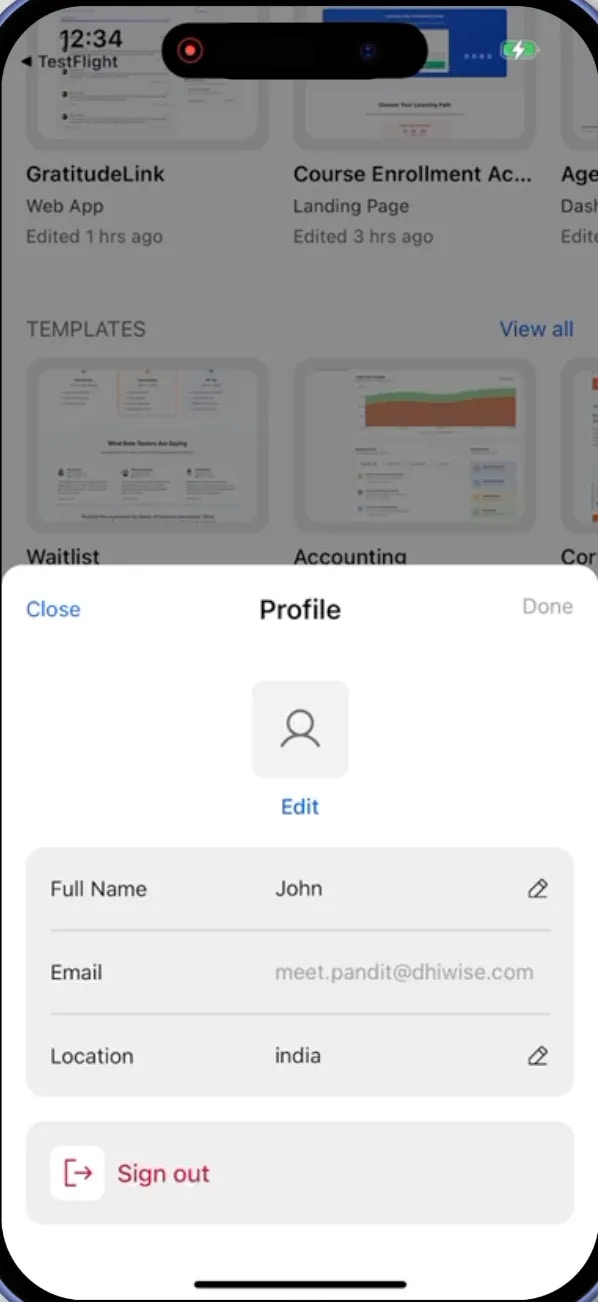
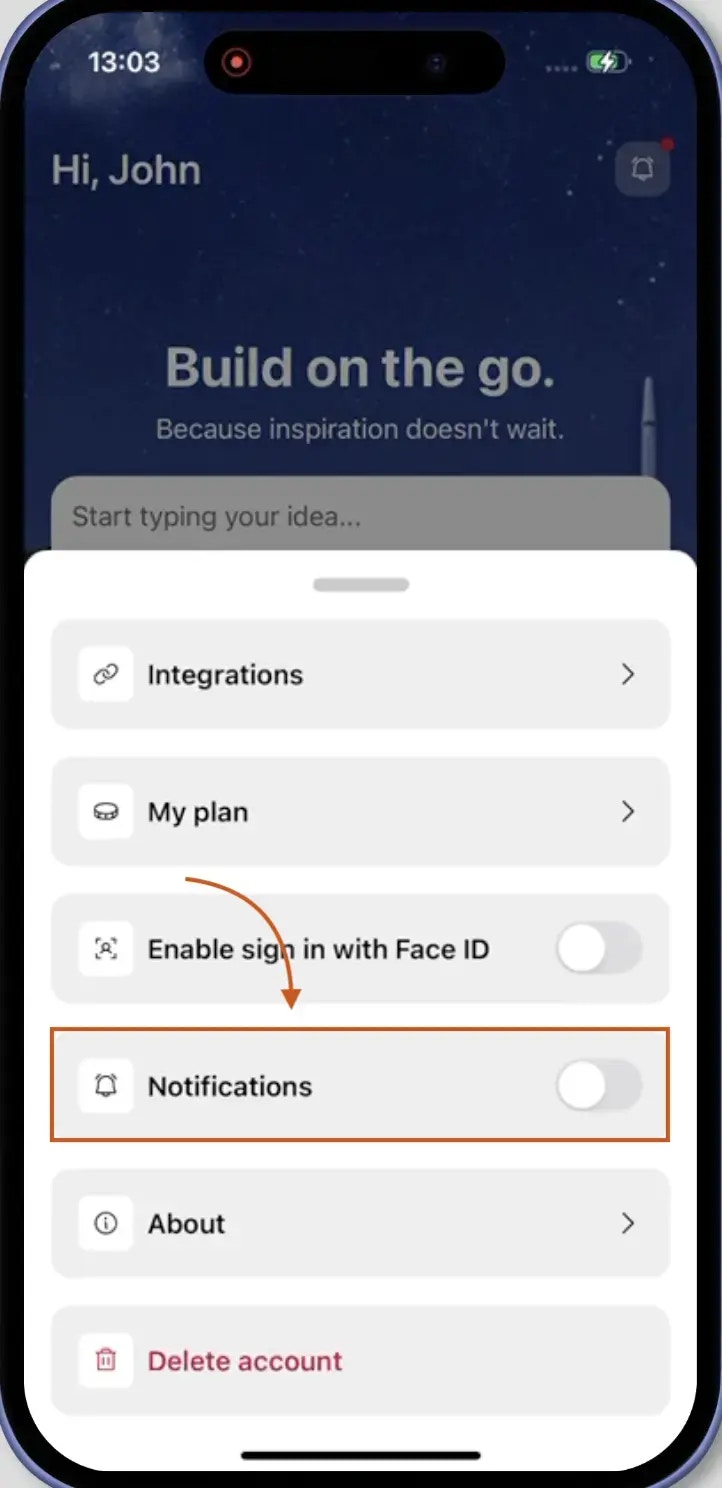
  • Enable or disable push notifications (web and mobile).
  • Enable or disable audio notifications (web browser only).
  • Manage notification preferences.
Why use notifications?Stay updated on your project’s progress without constantly monitoring the screen. Get instant browser or mobile alerts when builds complete or errors occur, and hear optional audio cues (web browser only) when tasks need attention.

Before you begin

You’ll need:
  • You’re signed in to Rocket.
  • For push notifications: Browser permissions enabled for notifications.

Manage notification settings

1

Open your profile menu

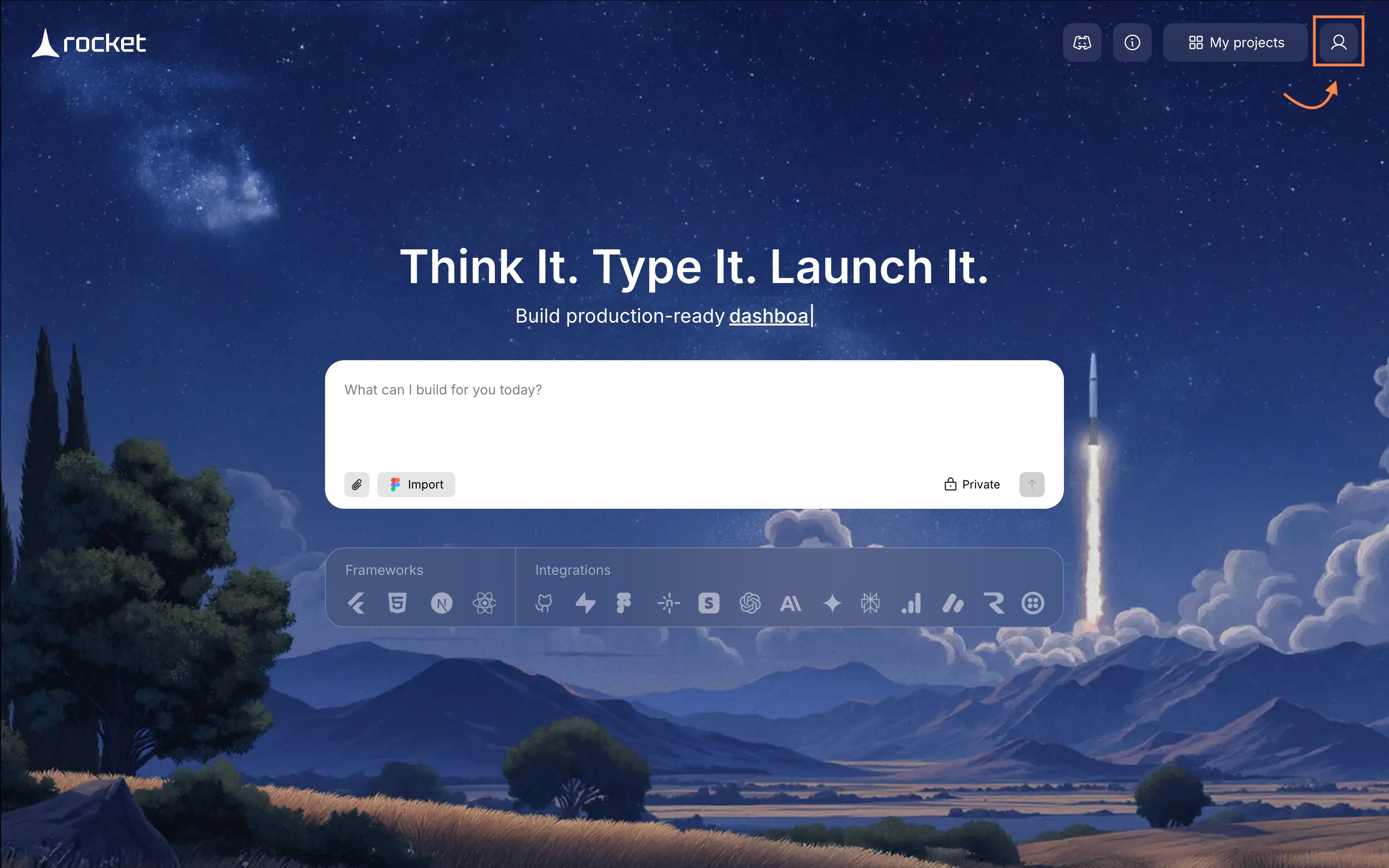
Select in the upper-right corner to open account controls.
Profile menu opened from profile icon on Rocket homepage.
2

Go to Account Settings

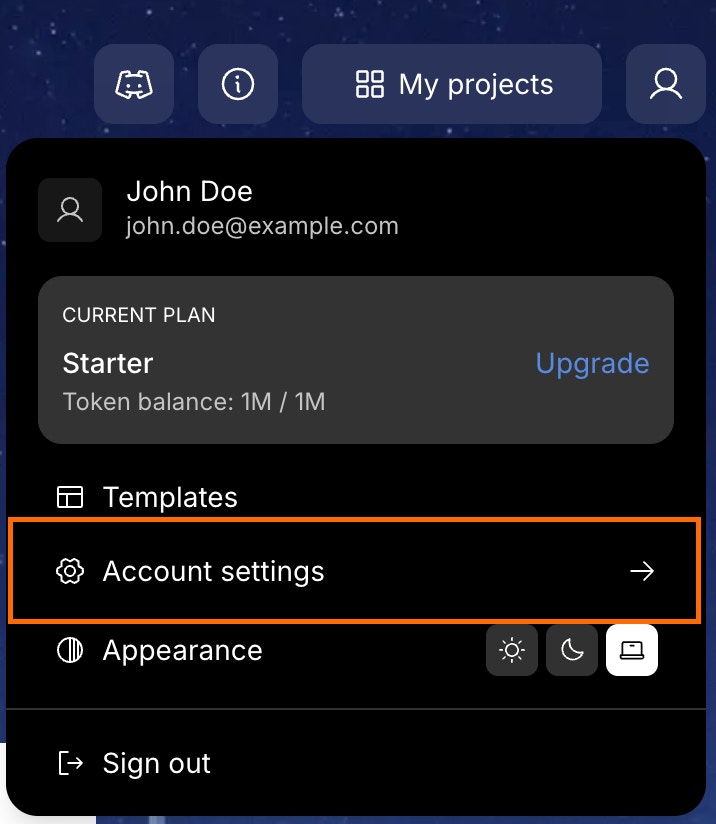
Choose Account Settings from the dropdown.
Account Settings option highlighted in the dropdown menu.
3

Open the Notifications tab

Inside settings, choose Notifications in the left navigation.
Notifications tab in the settings sidebar.Notifications tab in the settings sidebar.
4

Configure notification preferences

The Notifications settings panel displays two types of notifications you can toggle on or off:
Notifications settings showing Push Notification and Play Audio Notification toggles.Notifications settings showing Push Notification and Play Audio Notification toggles.
Push Notification
Receive browser notifications even when Rocket is in the background for:
  • Build status updates (completed, failed)
  • Important process events
  • Project generation milestones
Play Audio Notification
Hear a sound alert for:
  • Build completion or errors
  • Important tasks needing attention
  • Perfect for working in other tabs or applications
Success check: When enabled, you’ll receive a test notification confirming your settings are active.
For push notifications, your browser must have notification permissions enabled for Rocket. If prompted, click Allow to grant permissions.
You can enable both types for complete coverage, or choose only push (visual) or audio (sound) notifications based on your preference.

Troubleshooting

If push notifications aren’t working:
  1. Check that the toggle is enabled in Rocket notification settings.
  2. Verify browser notification permissions are granted for Rocket.
  3. Check your browser’s notification settings (look for Rocket in allowed sites).
  4. Try disabling and re-enabling the toggle in Rocket.
If audio notifications aren’t playing:
  1. Check that the toggle is enabled in Rocket notification settings.
  2. Verify your browser allows audio playback for Rocket.
  3. Check your system volume is not muted.
  4. Try playing audio in another tab to confirm browser audio works.
To reduce notification frequency:
  1. Disable audio notifications if you only want visual alerts.
  2. Disable push notifications if you only want audio cues.
  3. Disable both when working on long-running projects and check back manually.

Stay informed!

Enable notifications to stay updated on your project’s progress without constantly monitoring the screen.