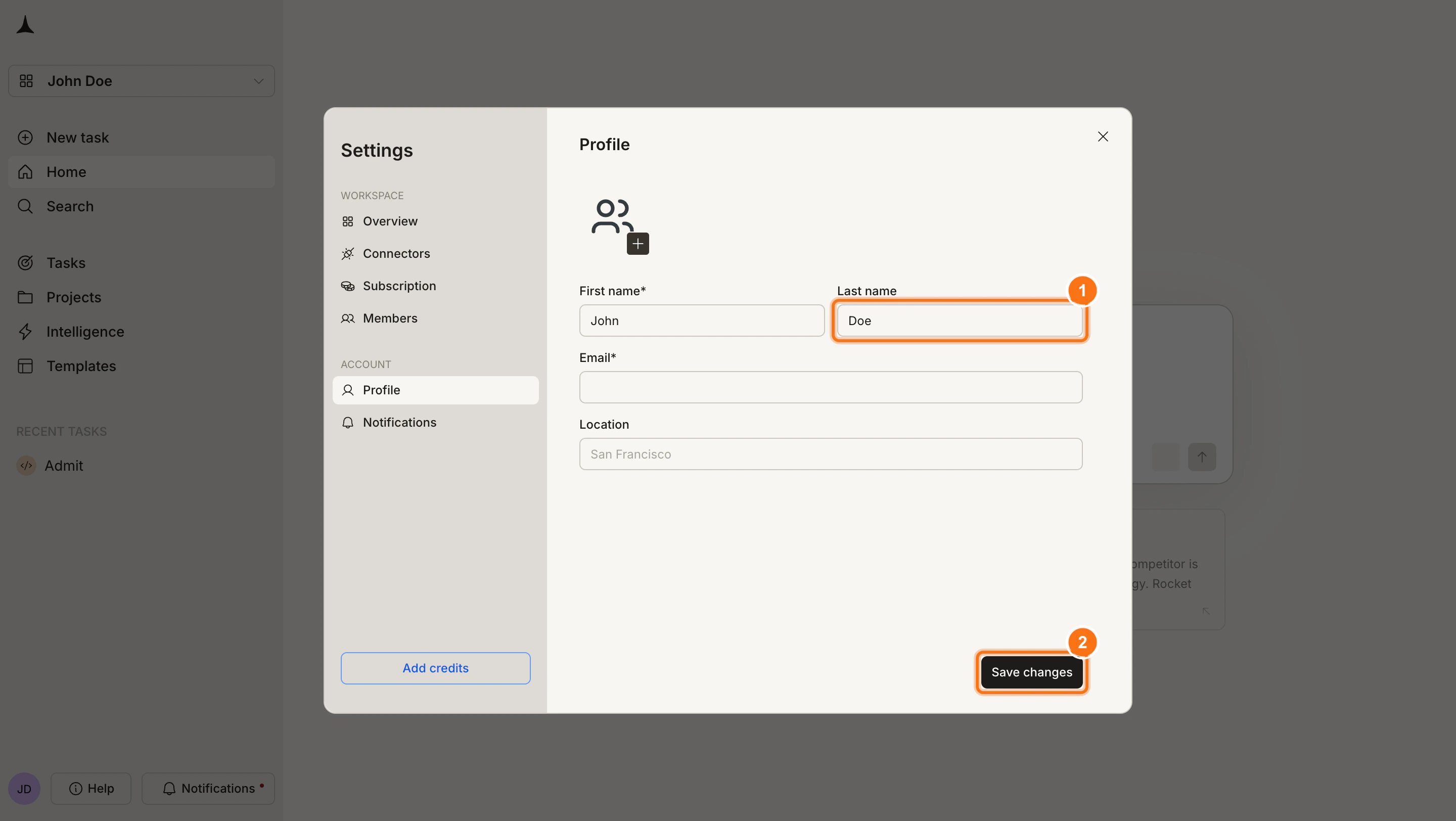
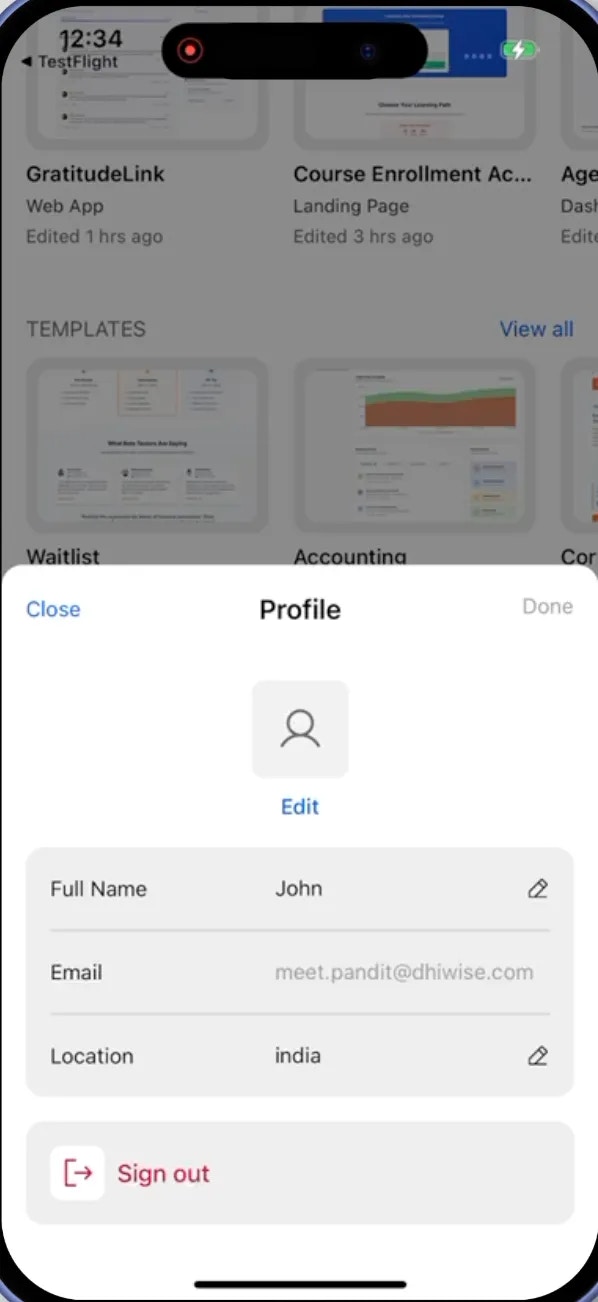
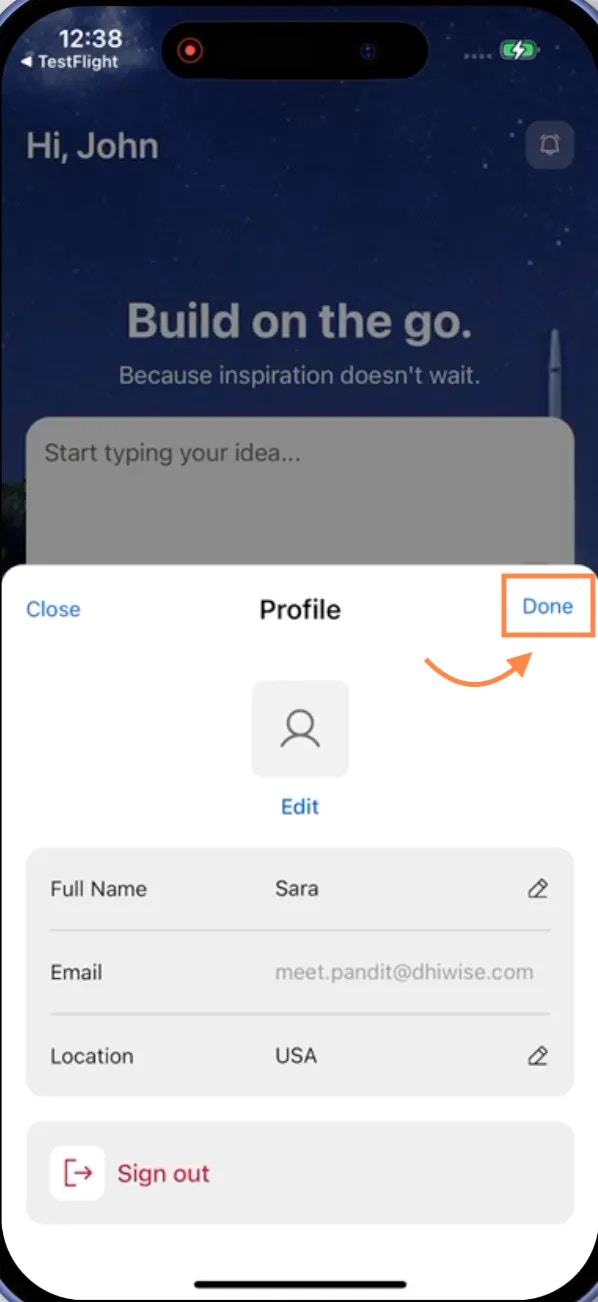
Why customize your account?Make your Rocket account yours. Add a profile photo, set a display name that appears across your projects, add your location for time zone coordination, and fine-tune how Rocket notifies you about builds and events.
- Web Browser
- Mobile App
Before you begin
You’ll need:
- A logged in Rocket account.
- For push notifications: Browser permissions enabled for notifications.
Open account settings
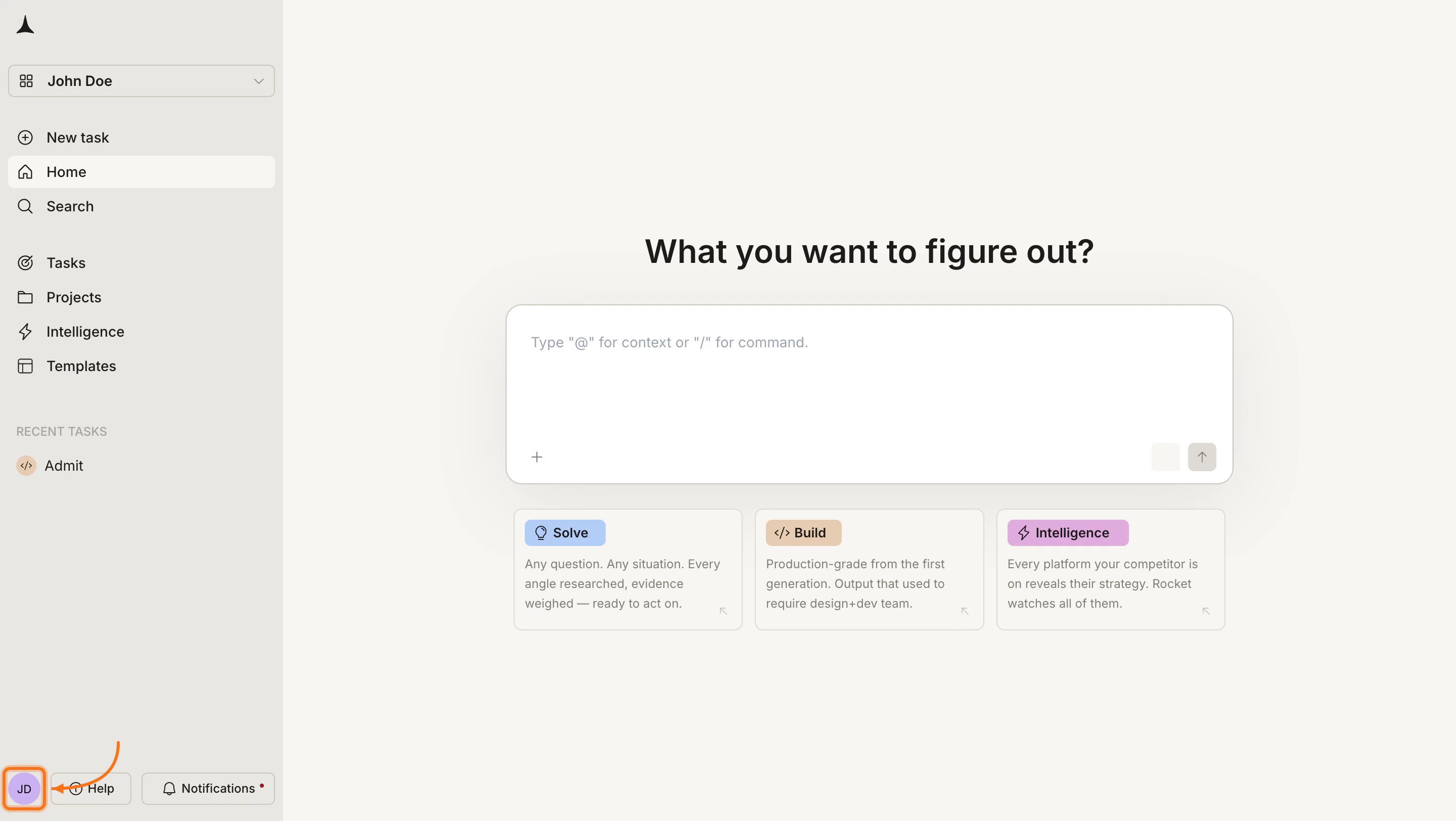
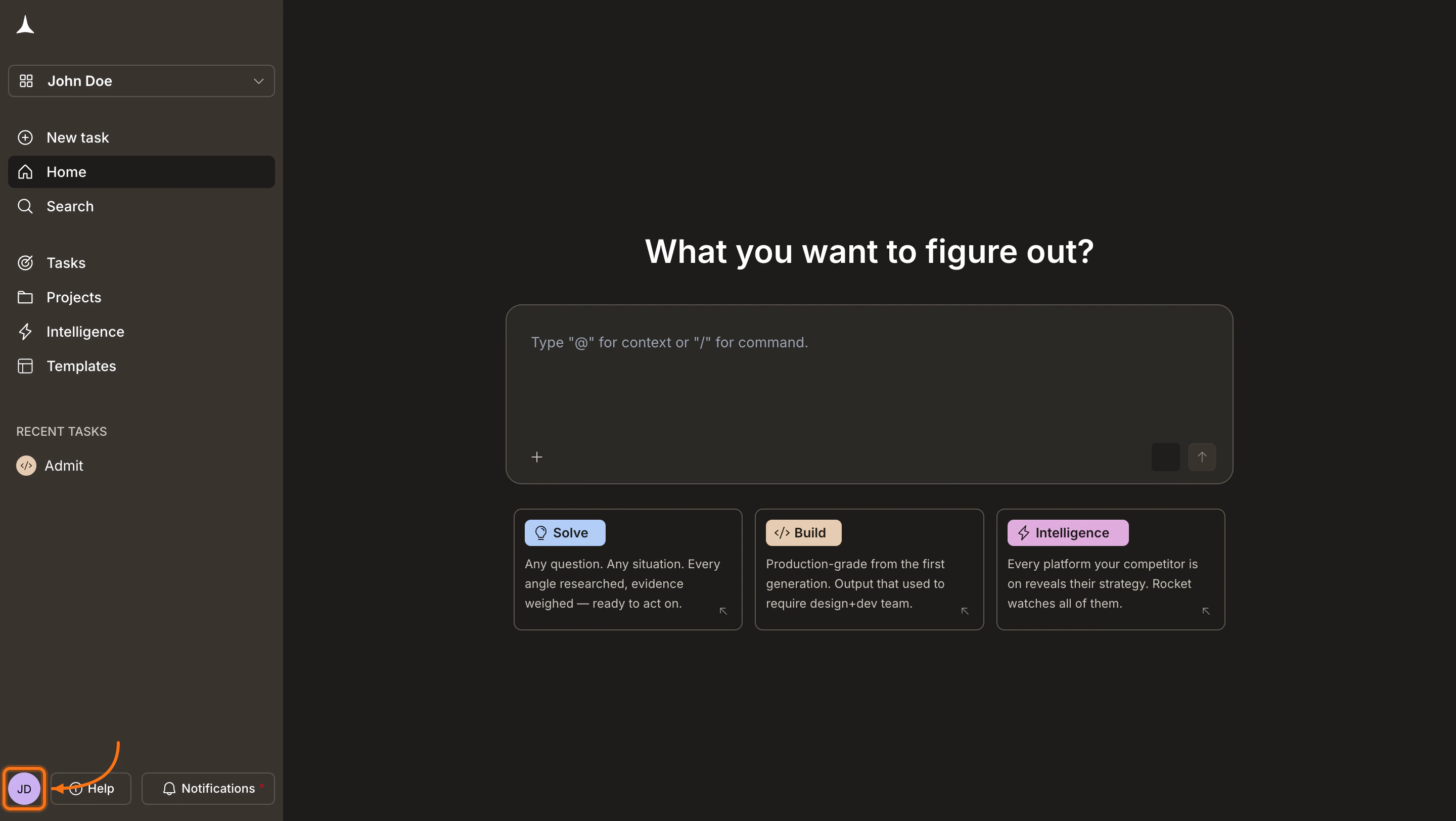
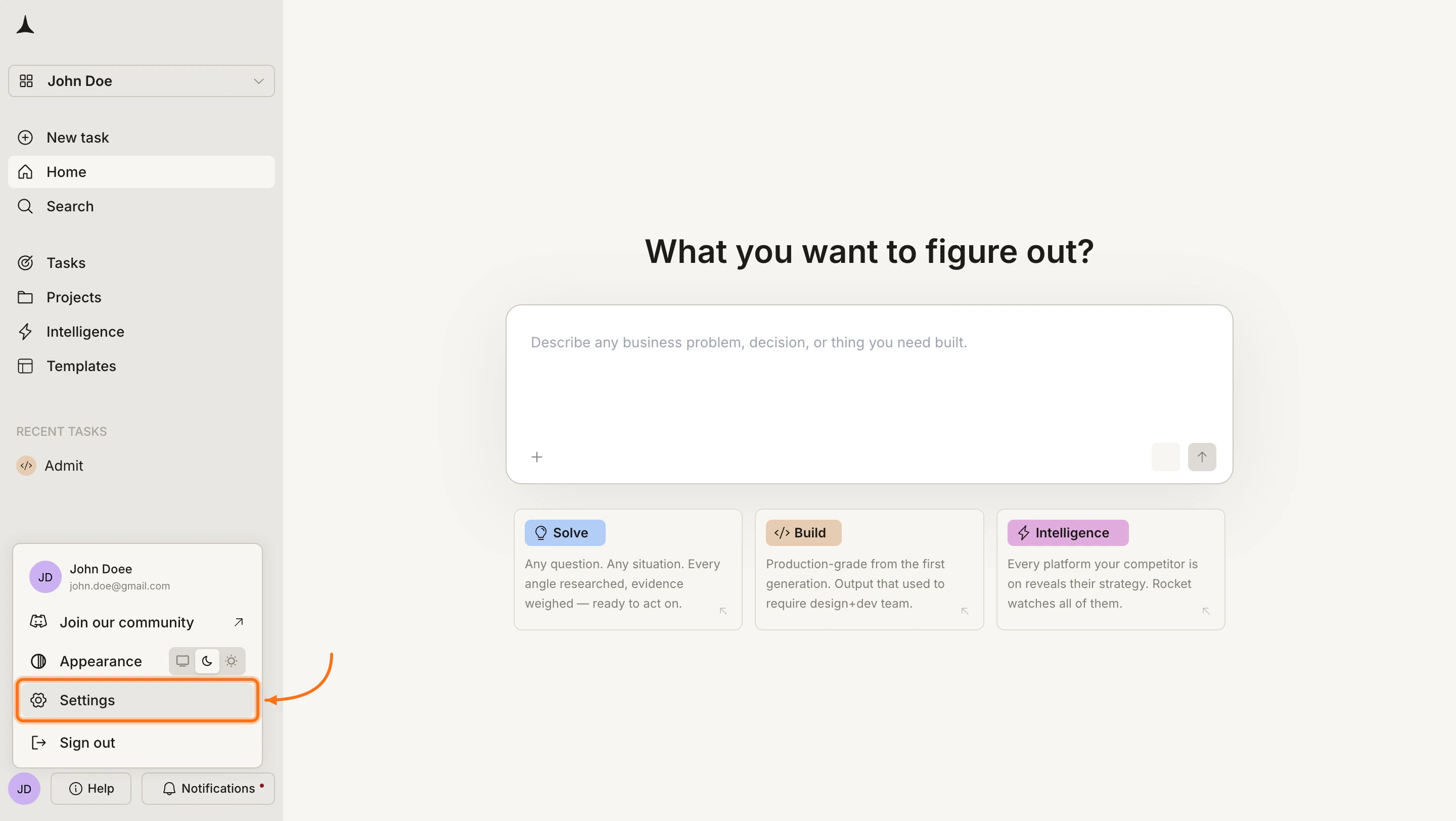
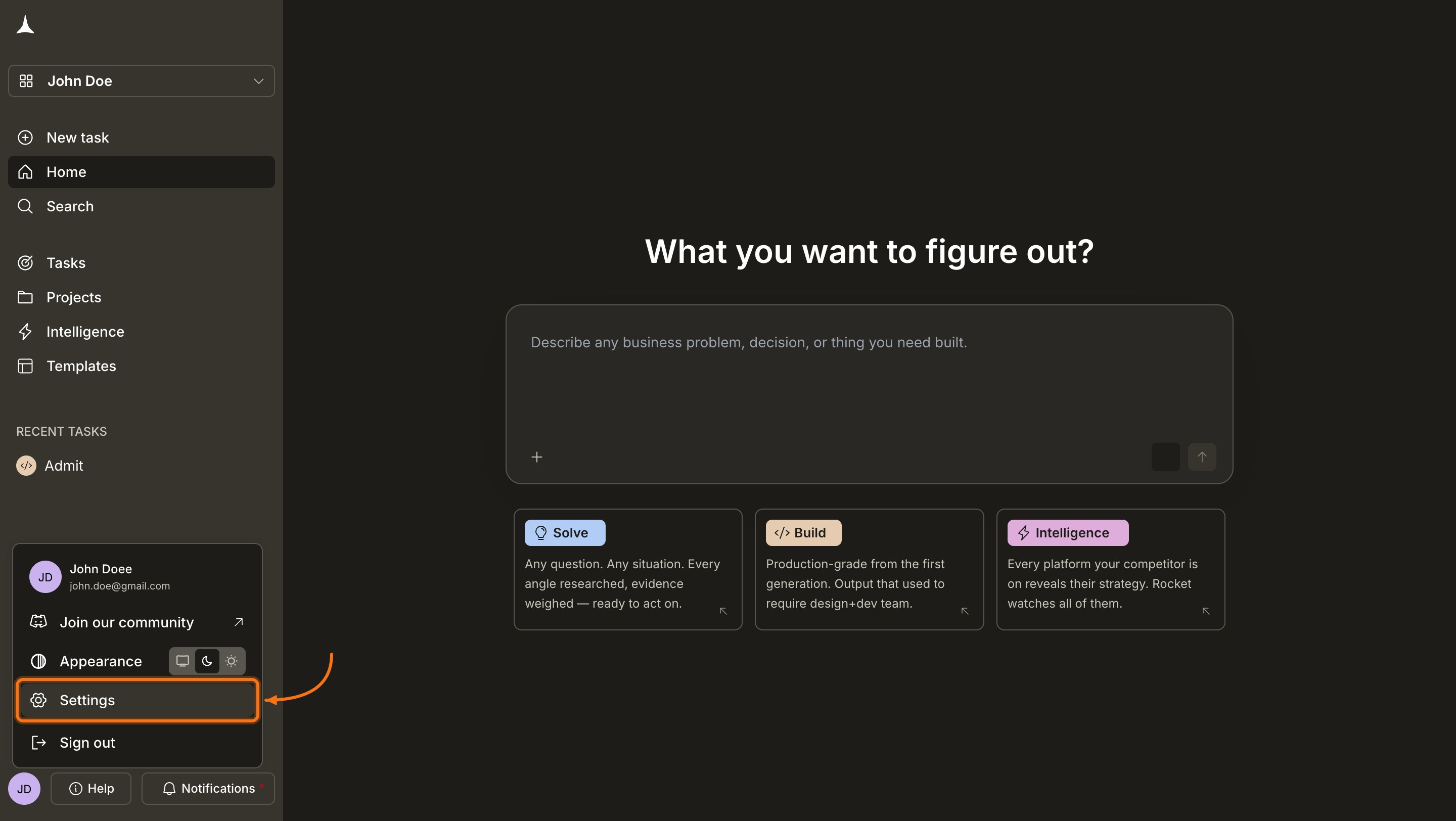
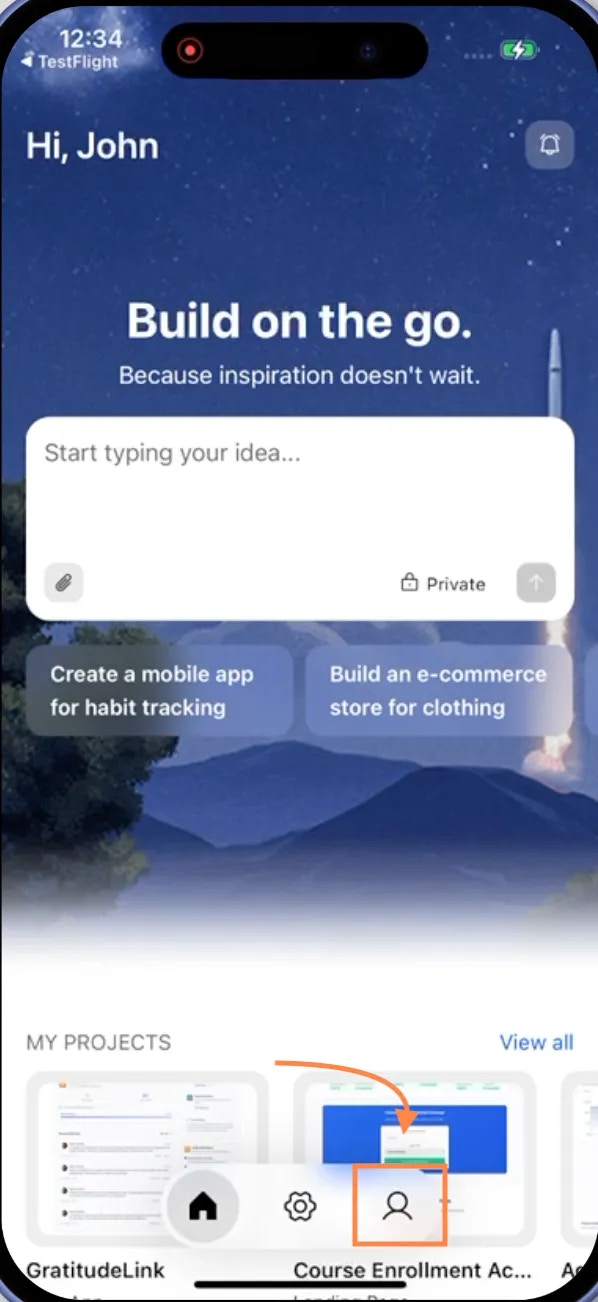
Click the profile icon
Click on the in the top-right corner of the Rocket homepage.

Success check: A dropdown menu appears with Account Settings option.
Update your profile
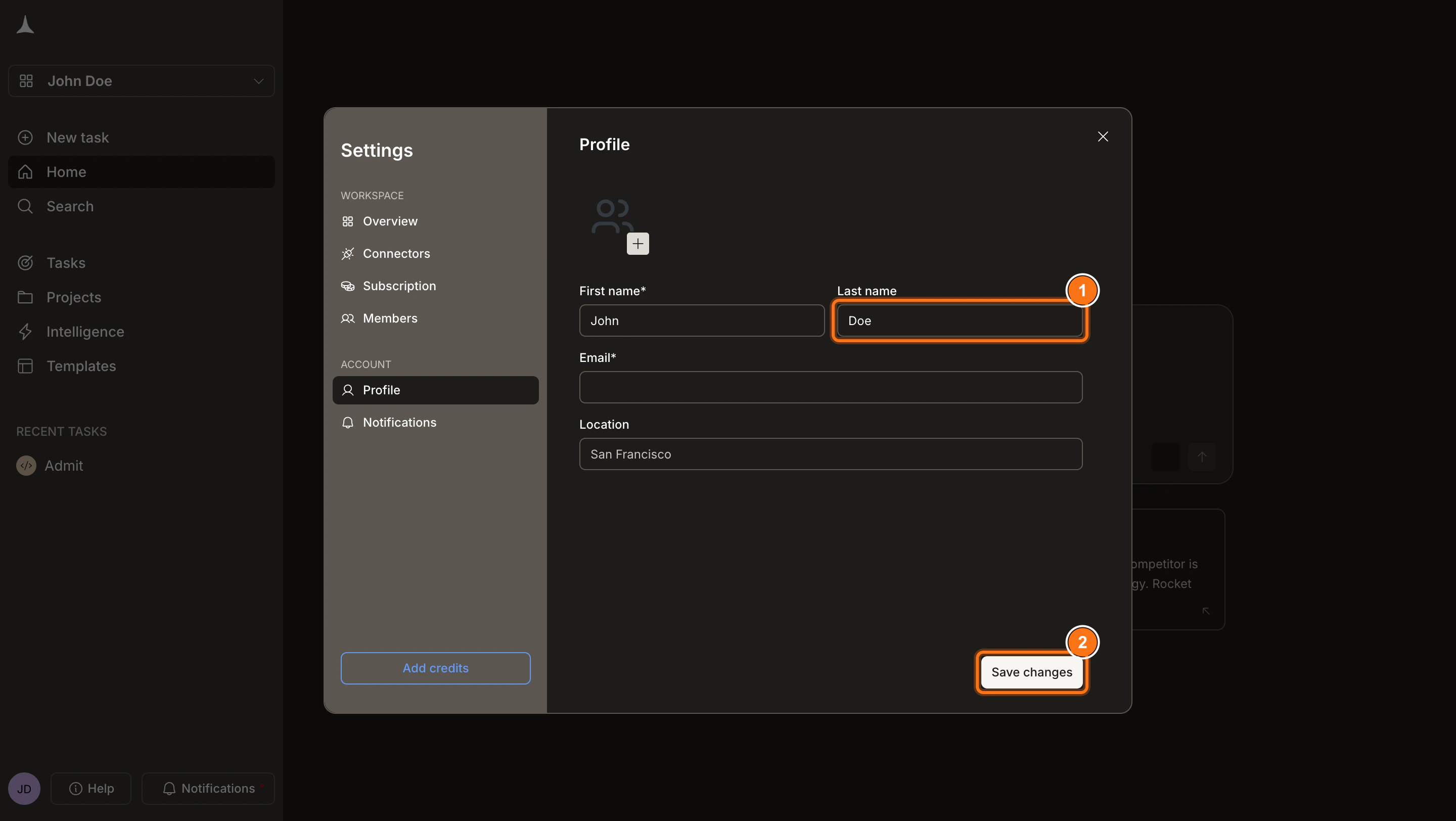
Edit your details
- Profile picture: Click the image square and upload a JPG or PNG file.
- Name: Enter the display name shown across Rocket.
- Location: Add your city or time zone.
Success check: You can see and edit all profile fields, and the image upload area is clickable.
Configure notifications
The account settings page also displays notification preferences you can toggle on or off:Push NotificationReceive browser notifications even when Rocket is in the background for:
- Build status updates (completed, failed)
- Important process events
- Project generation milestones
Hear a sound alert for:
- Build completion or errors
- Important tasks needing attention
- Perfect for working in other tabs or applications
Success check: When enabled, you’ll receive a test notification confirming your settings are active.
For push notifications, your browser must have notification permissions enabled for Rocket. If prompted, click Allow to grant permissions.
Troubleshooting
Not receiving push notifications
If push notifications aren’t working:
- Check that the toggle is enabled in Rocket account settings.
- Verify browser notification permissions are granted for Rocket.
- Check your browser’s notification settings (look for Rocket in allowed sites).
- Try disabling and re-enabling the toggle in Rocket.
Not hearing audio notifications
If audio notifications aren’t playing:
- Check that the toggle is enabled in Rocket account settings.
- Verify your browser allows audio playback for Rocket.
- Check your system volume is not muted.
- Try playing audio in another tab to confirm browser audio works.
Receiving too many notifications
To reduce notification frequency:
- Disable audio notifications if you only want visual alerts.
- Disable push notifications if you only want audio cues.
- Disable both when working on long-running projects and check back manually.