Create your free Rocket.new account in 30 seconds with Google, SSO, or email. Start researching, building, and tracking competitors immediately.
Web Browser
Mobile App
1
Go to rocket.new
Open rocket.new and click Sign in in the top-right corner, or click Start free on the homepage.
Rocket homepage
2
Choose how to sign in
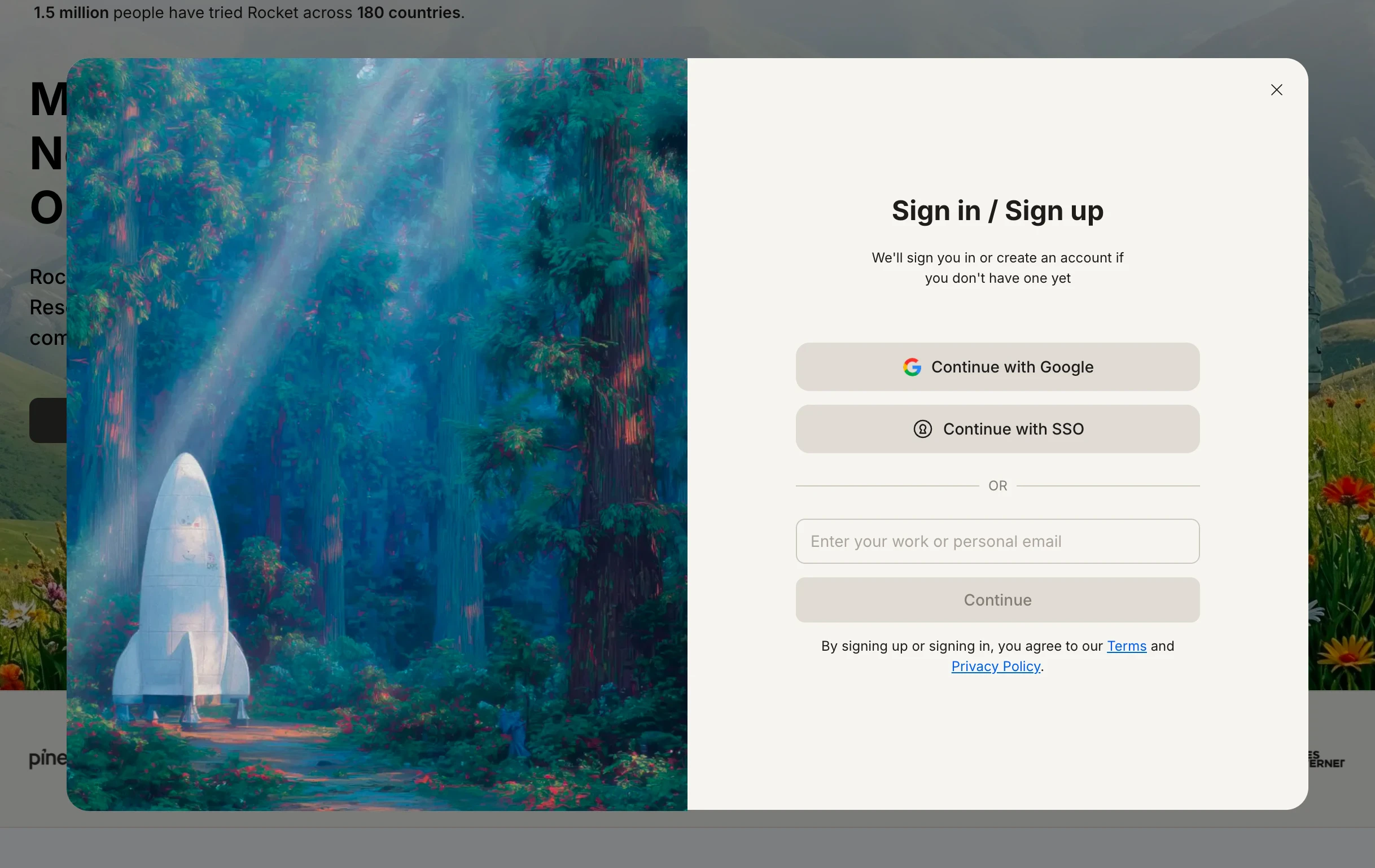
A popup opens with three options. Pick the one that works best for you.
Sign in options
Continue with Google
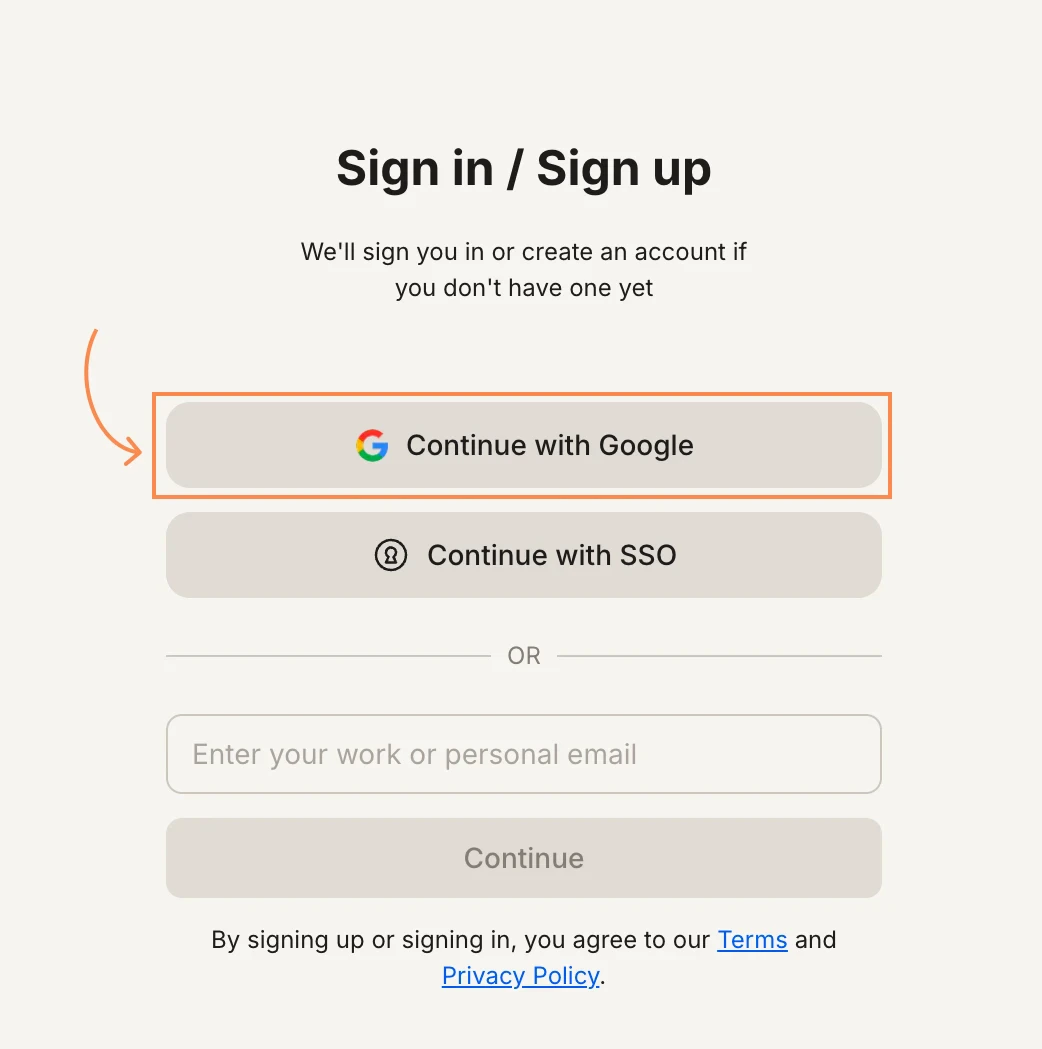
Click Continue with Google.
Continue with Google
If you have one Google account, you are signed in immediately. If you have multiple accounts, choose the one you want to use. Review the permission request and click Continue.
If you are redirected back to the sign-up page, enable third-party cookies or try an incognito window.
Continue with SSO
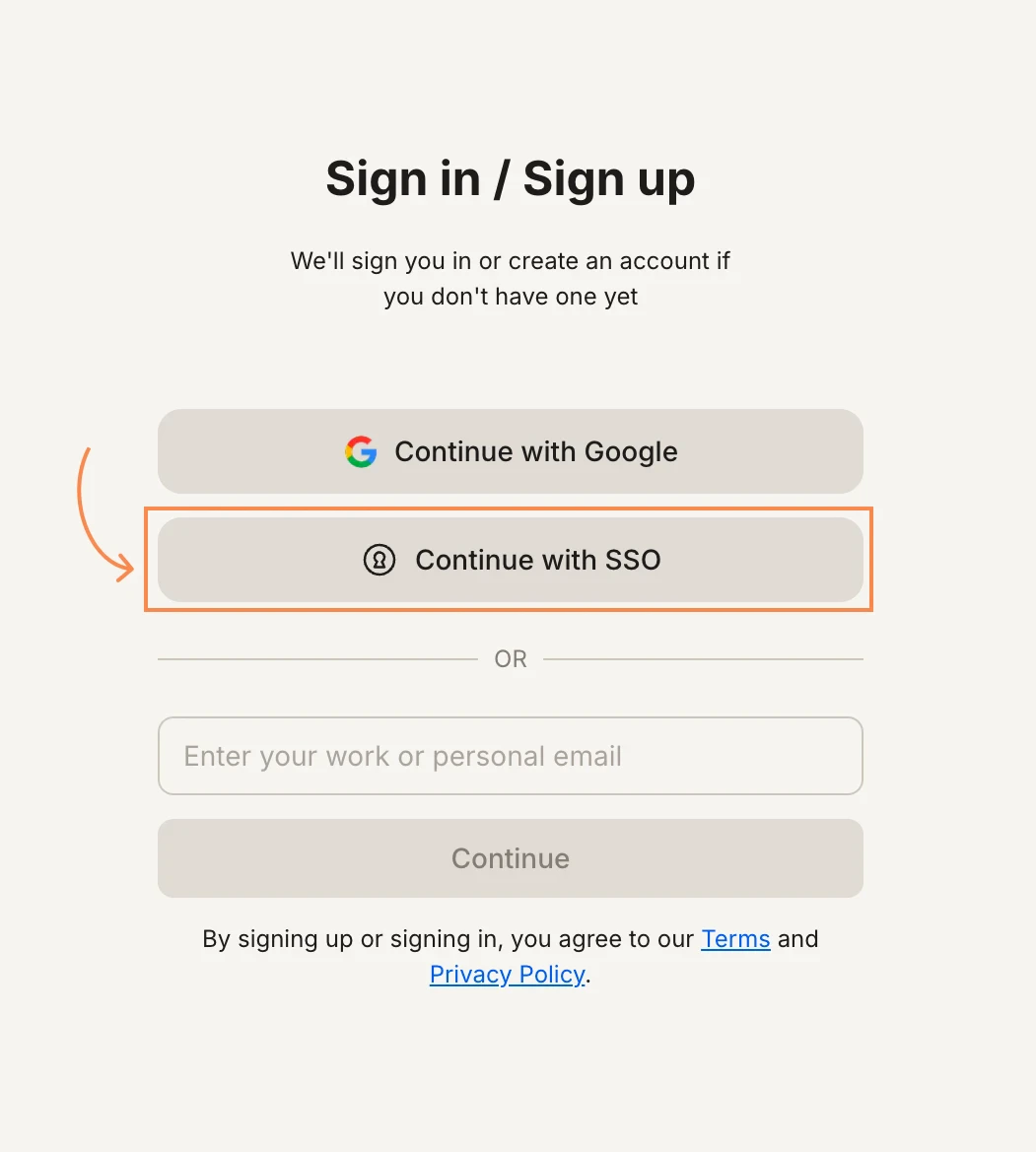
Click Continue with SSO.
Continue with SSO
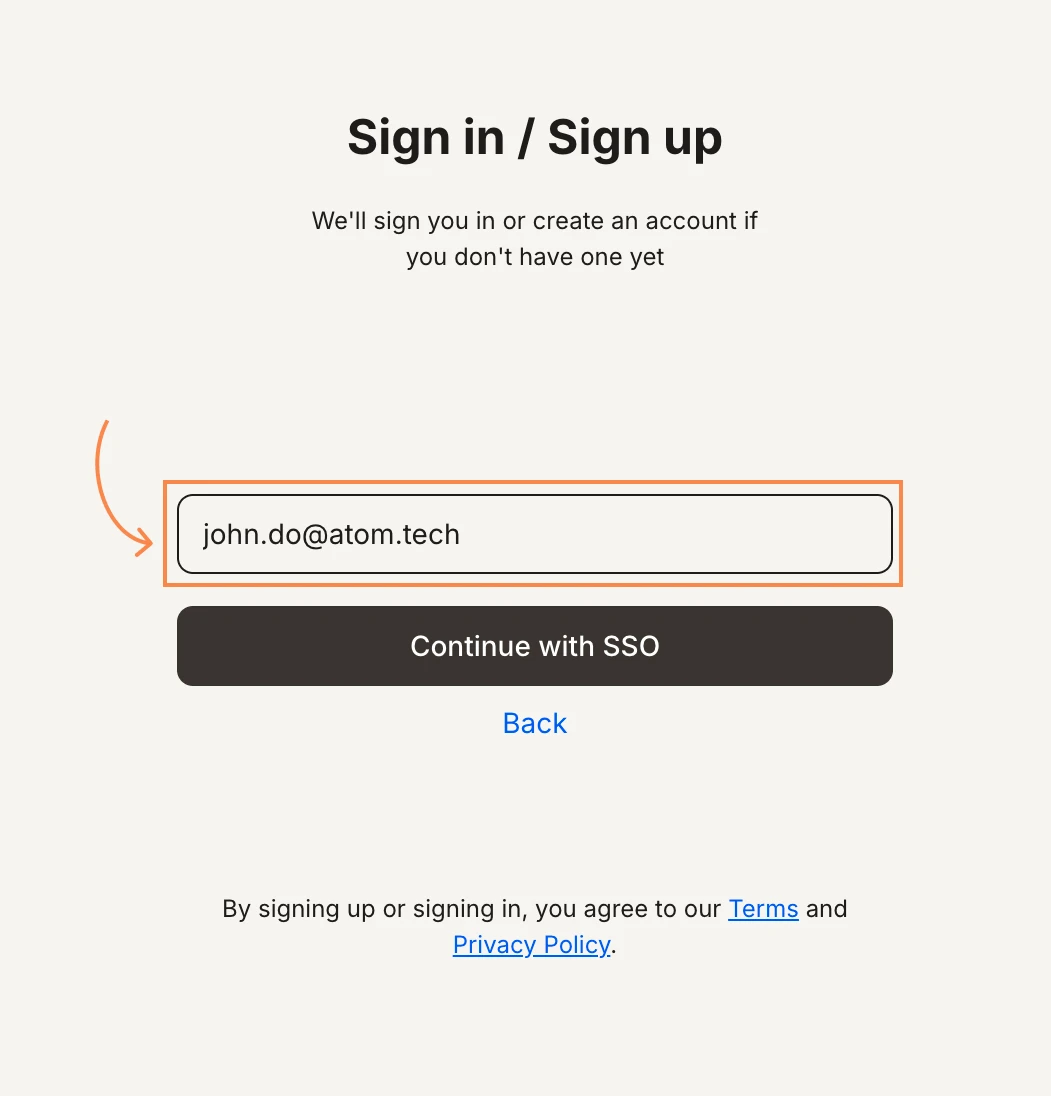
Enter your work email address and click Continue with SSO. You will be redirected to your organization’s identity provider to complete authentication.
SSO email input
SSO is available on plans that include it. Contact your workspace admin if you are unsure whether your organization has SSO enabled.
Use email
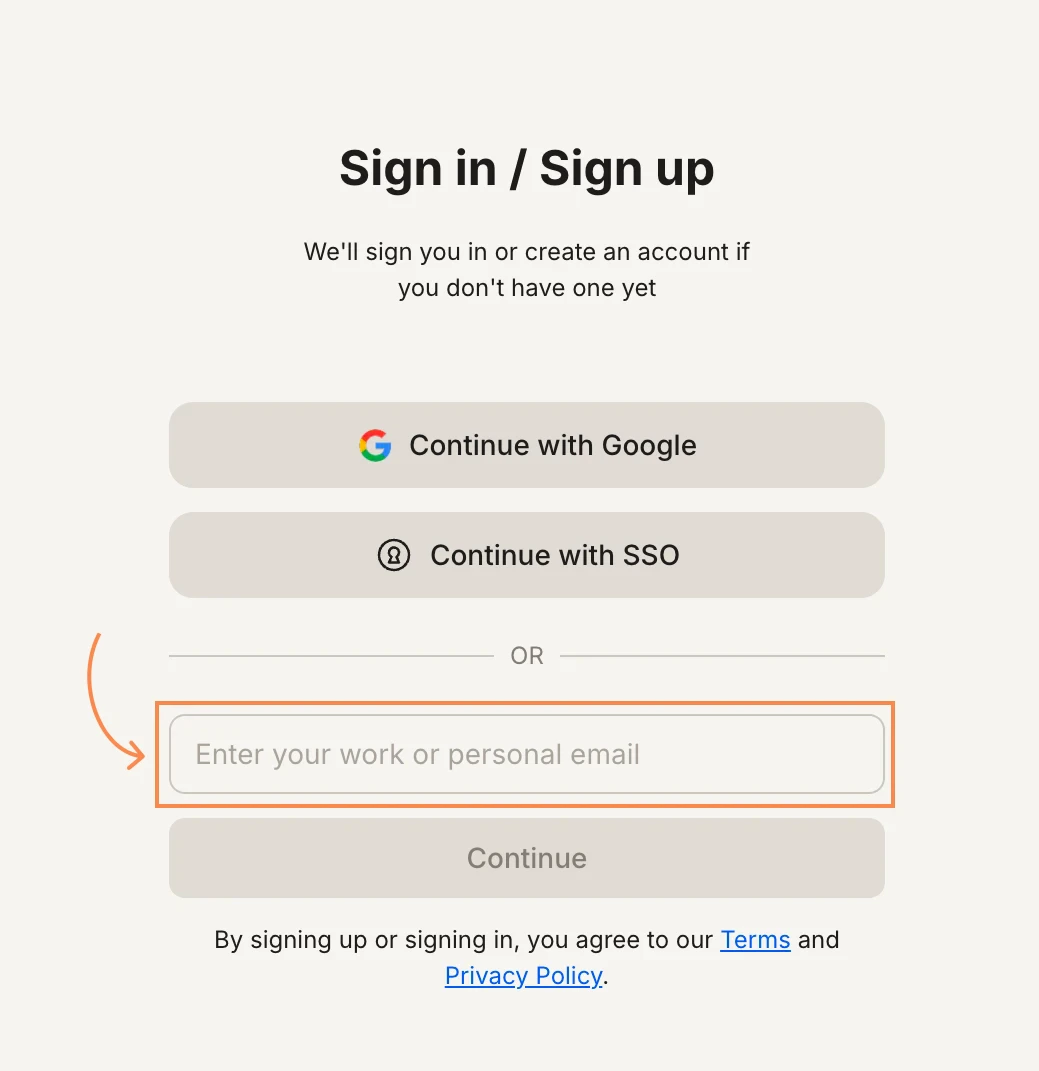
Enter your email address and click Continue.
Email sign-up
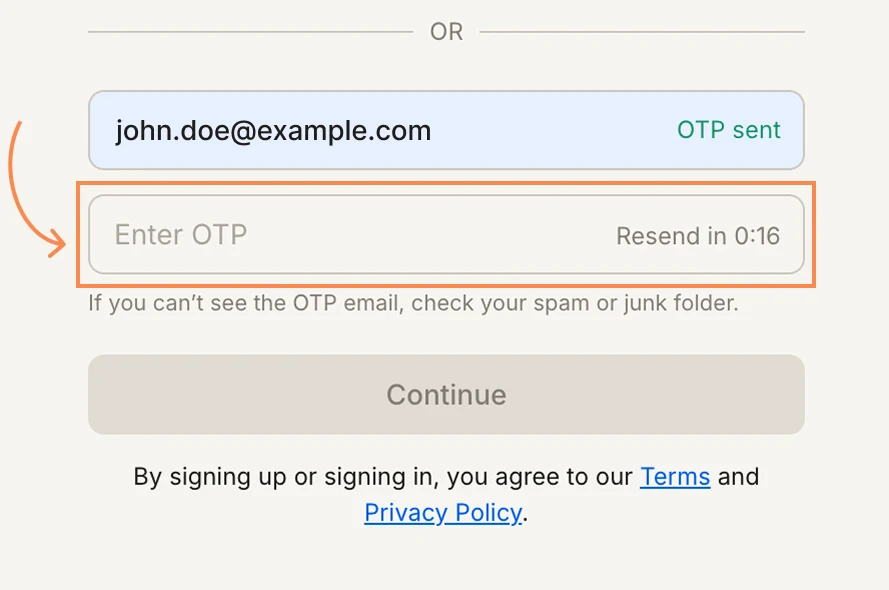
Check your inbox for an email from Rocket with a 6-digit OTP. Paste it into the field and click Continue.
Enter OTP
Did not receive the email? Check your spam or promotions folder, or click Resend.
3
You are in
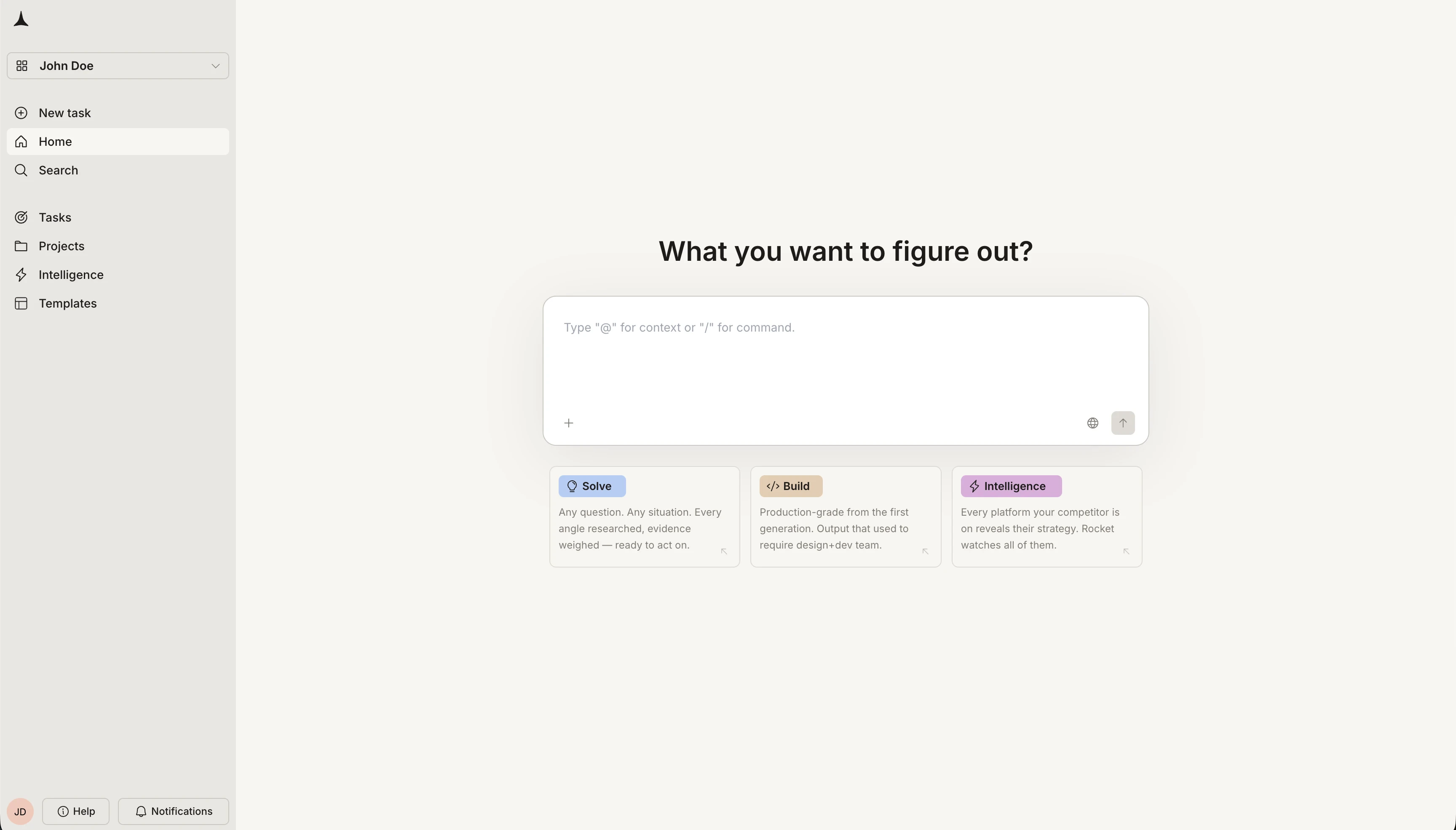
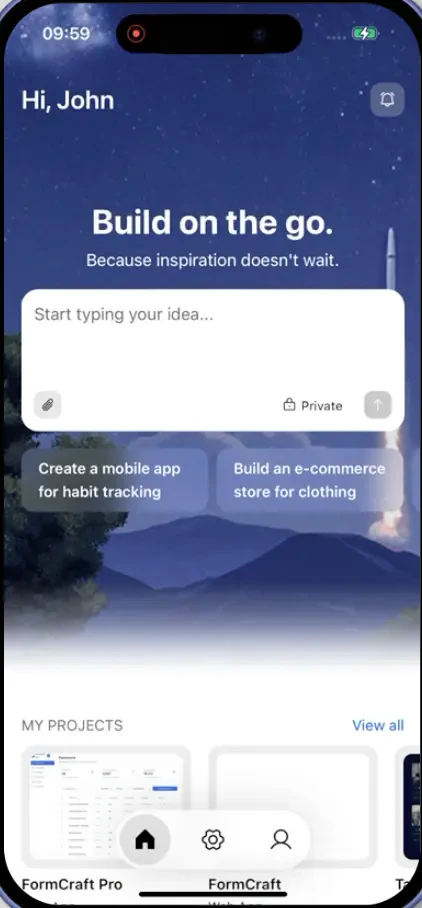
Rocket redirects you to the home screen. Your account is active and ready to use.
Rocket home screen
1
Download the Rocket app
On your iPhone or iPad, open the App Store, search for Rocket, and install the app.
The mobile app is currently available on iOS only.
2
Choose how to sign in
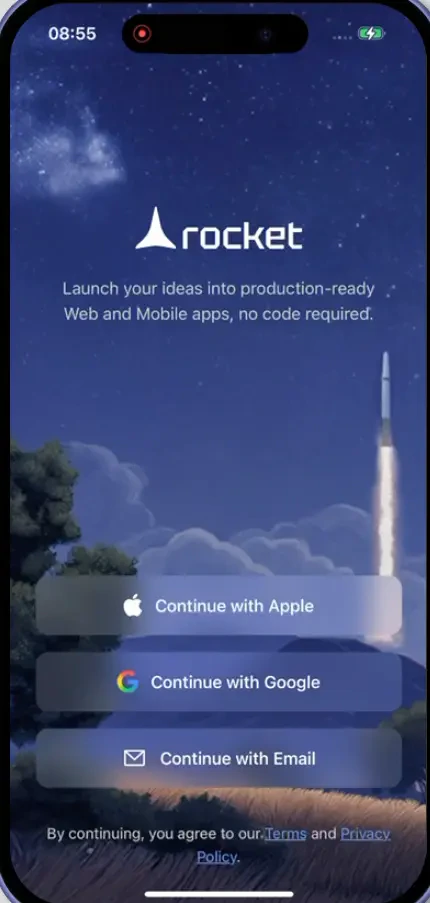
Open the app and pick one of the available options.
Mobile sign-in options
Continue with Google
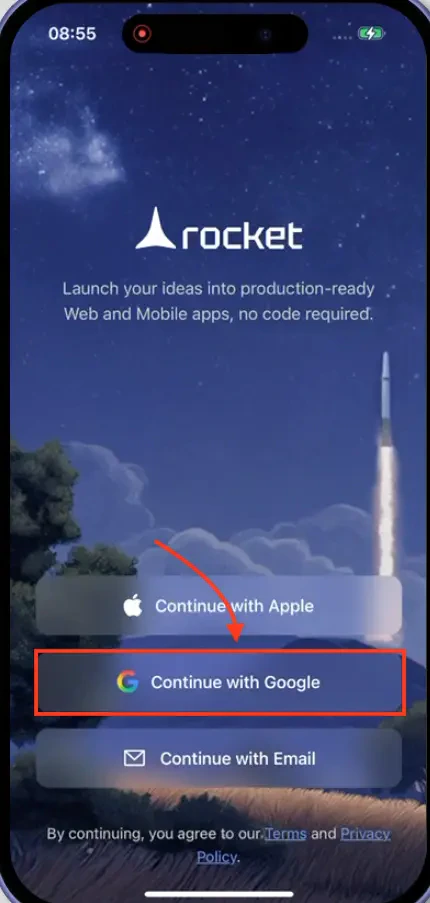
Tap Continue with Google, then select your Google account.
Google sign-in on mobile
Review the permission request and tap Continue.
If sign-in fails, check your internet connection and make sure you are signed into Google on your device.
Continue with Apple
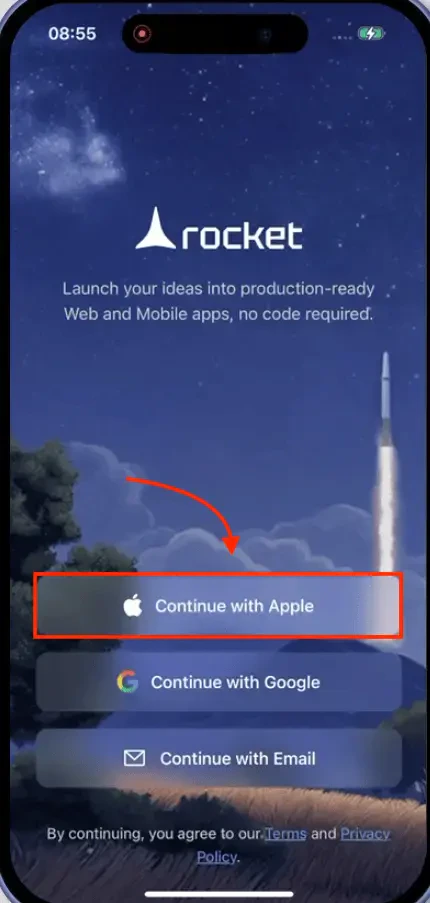
Tap Continue with Apple, then authenticate with Face ID, Touch ID, or your passcode.
Apple sign-in on mobile
Review the permission request and tap Continue.
If sign-in fails, make sure you are signed into iCloud and that Face ID or Touch ID is enabled on your device.
Use email
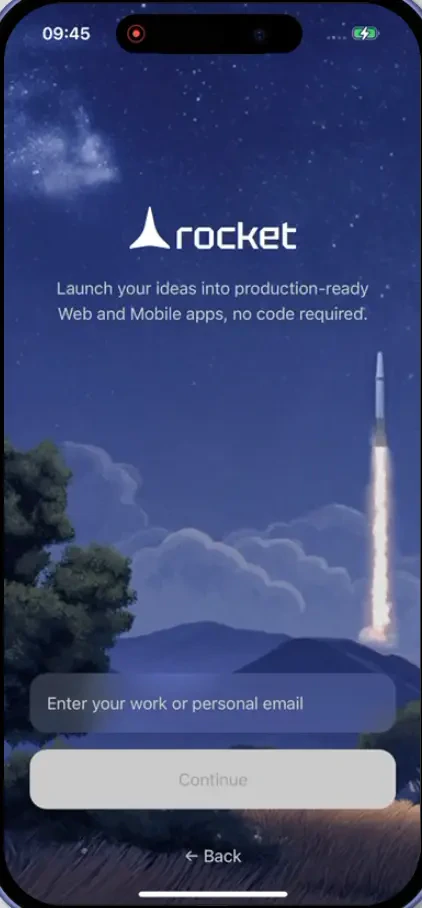
Enter your email address and tap Continue.
Email sign-in on mobile
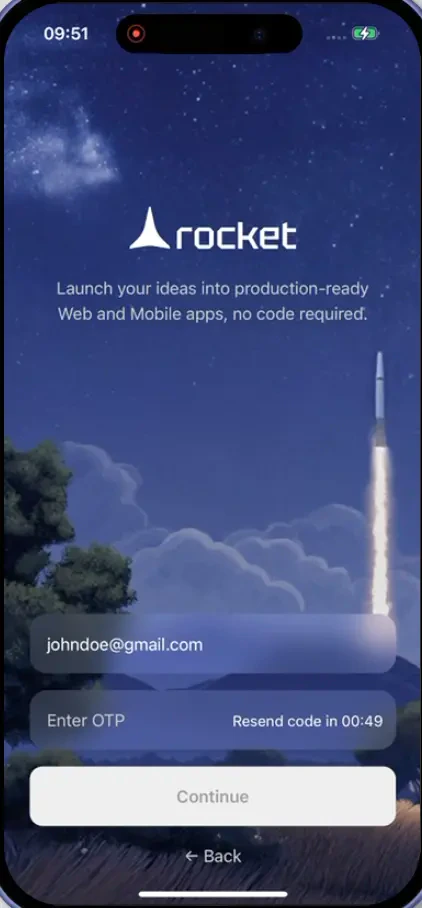
Check your inbox for a 6-digit OTP from Rocket. Paste it into the field and tap Continue.
OTP verification on mobile
Did not receive the email? Check your spam or promotions folder, or tap Resend.
3
You are in
Rocket takes you to the home screen. Your account is active and ready to use.