Change the Rocket.new interface theme between light mode, dark mode, or your operating system default from account appearance settings.
Rocket lets you choose between light mode, dark mode, or a system-synced theme. The system option automatically mirrors your operating system’s current appearance setting whenever it changes.
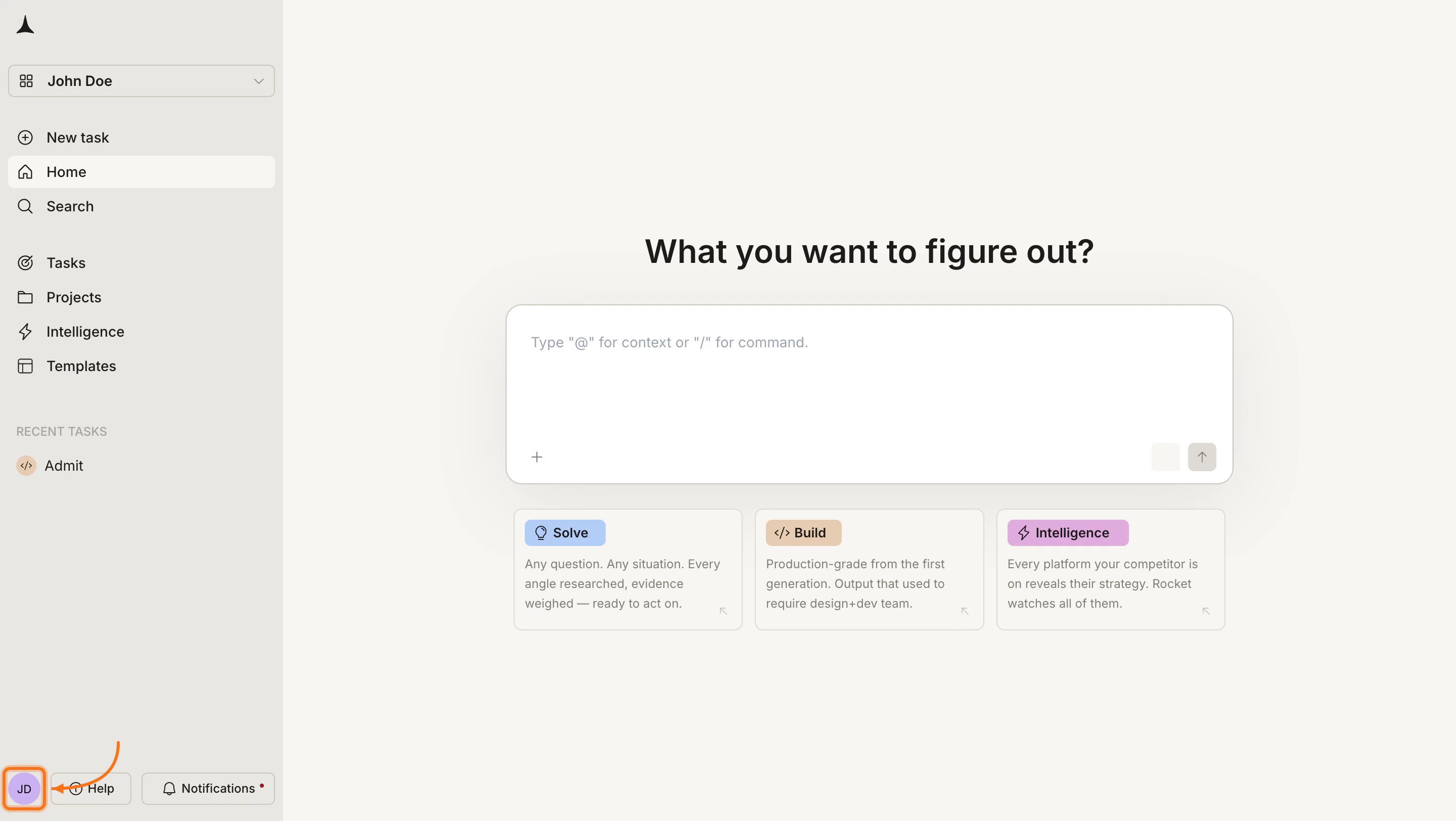
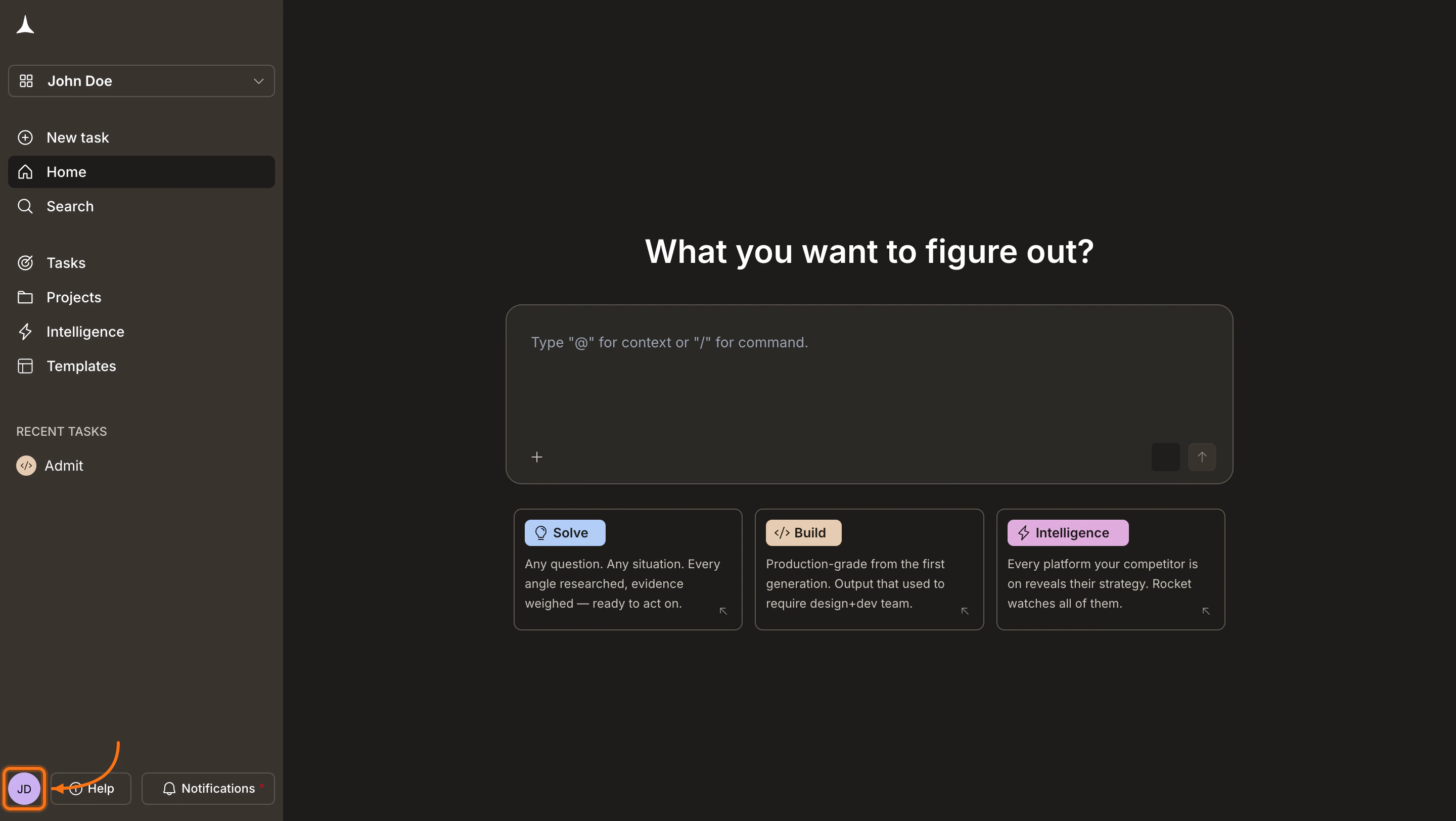
Click your avatar in the bottom-left corner of the screen.
Click your avatar in the bottom-left corner
2
Select a theme
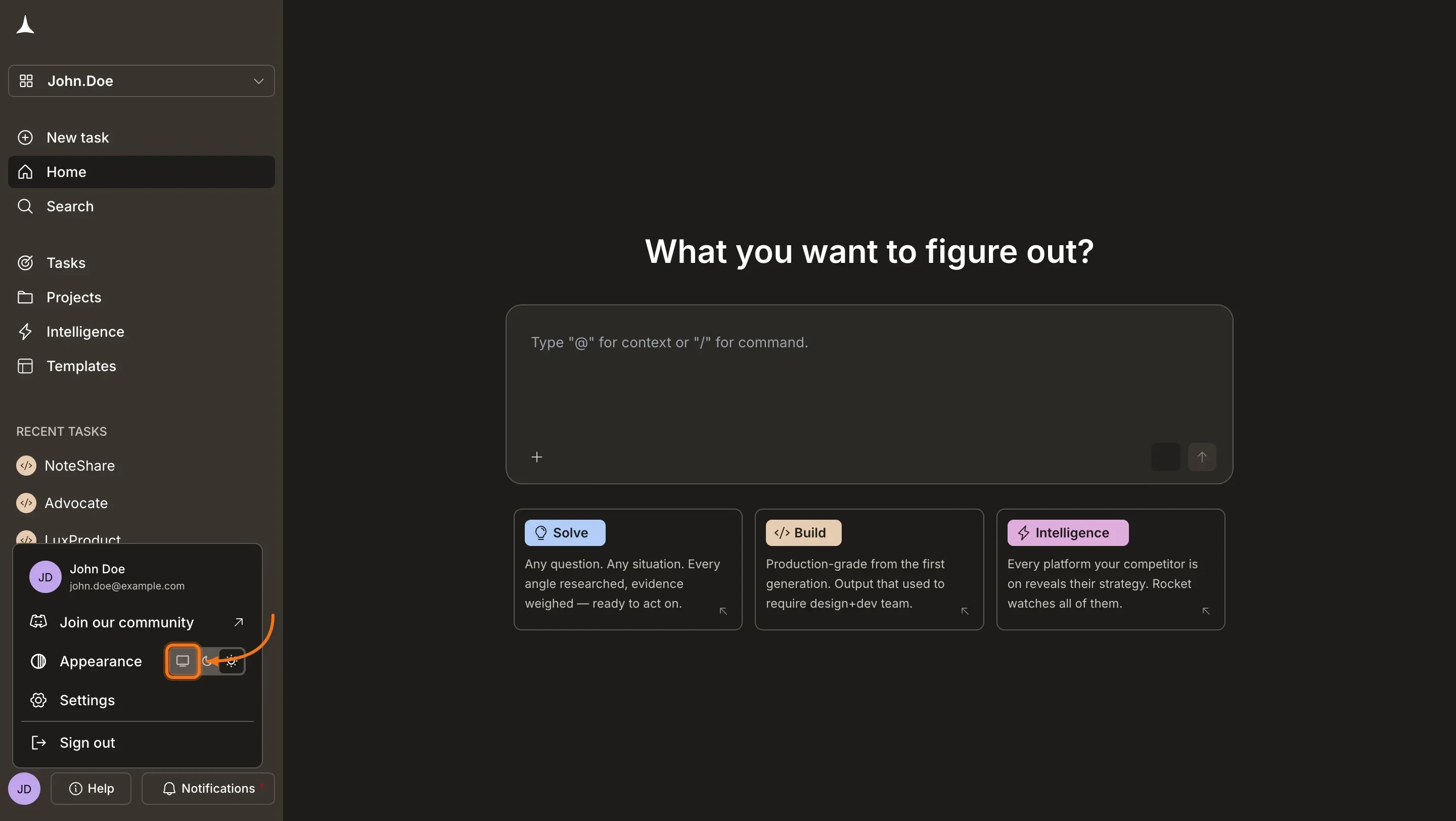
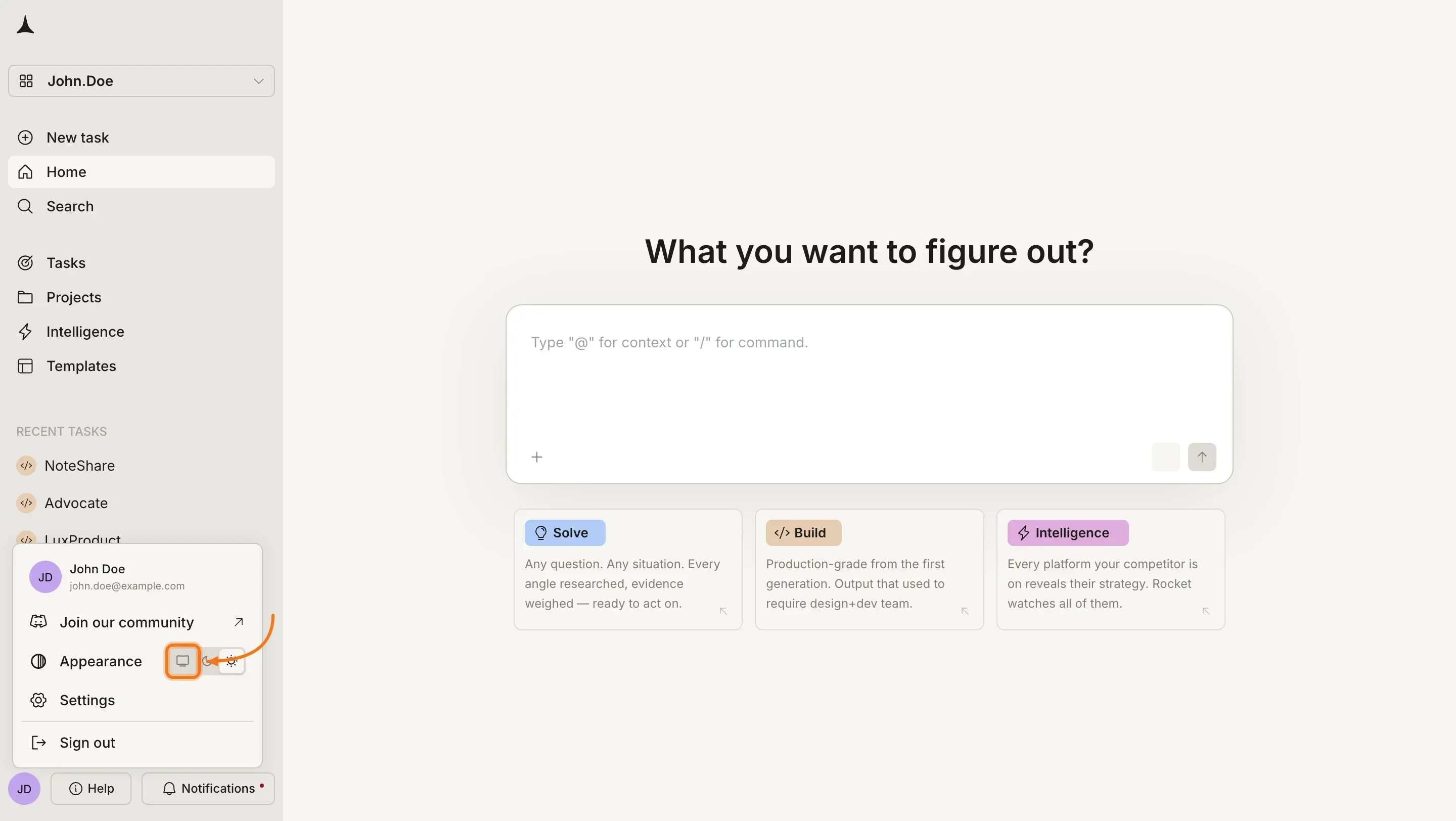
In the account menu, find the Appearance row. Click one of the three icons to apply your preferred theme:
Icon
Option
What it does
System
Follows your operating system’s light or dark setting and updates automatically when it changes
Dark
Applies a dark color scheme regardless of your system setting
Light
Applies a light color scheme regardless of your system setting
The change applies immediately. Rocket saves your choice across sessions so you only set it once.
Appearance toggle in the account menu
The System option is the default. If your operating system switches between light and dark based on time of day, Rocket reflects that change automatically.