Turn on browser push notifications and audio alerts in Rocket.new to track build progress, task completion, and project milestones.
Notification settings control when and how Rocket alerts you to build completions, errors, and project milestones. Configure these alongside appearance from the same account menu. You can also view incoming alerts in the notification panel, which organizes them by Requests, Updates, and Notifications.
Your browser must have notification permissions enabled for Rocket to send push notifications.
1
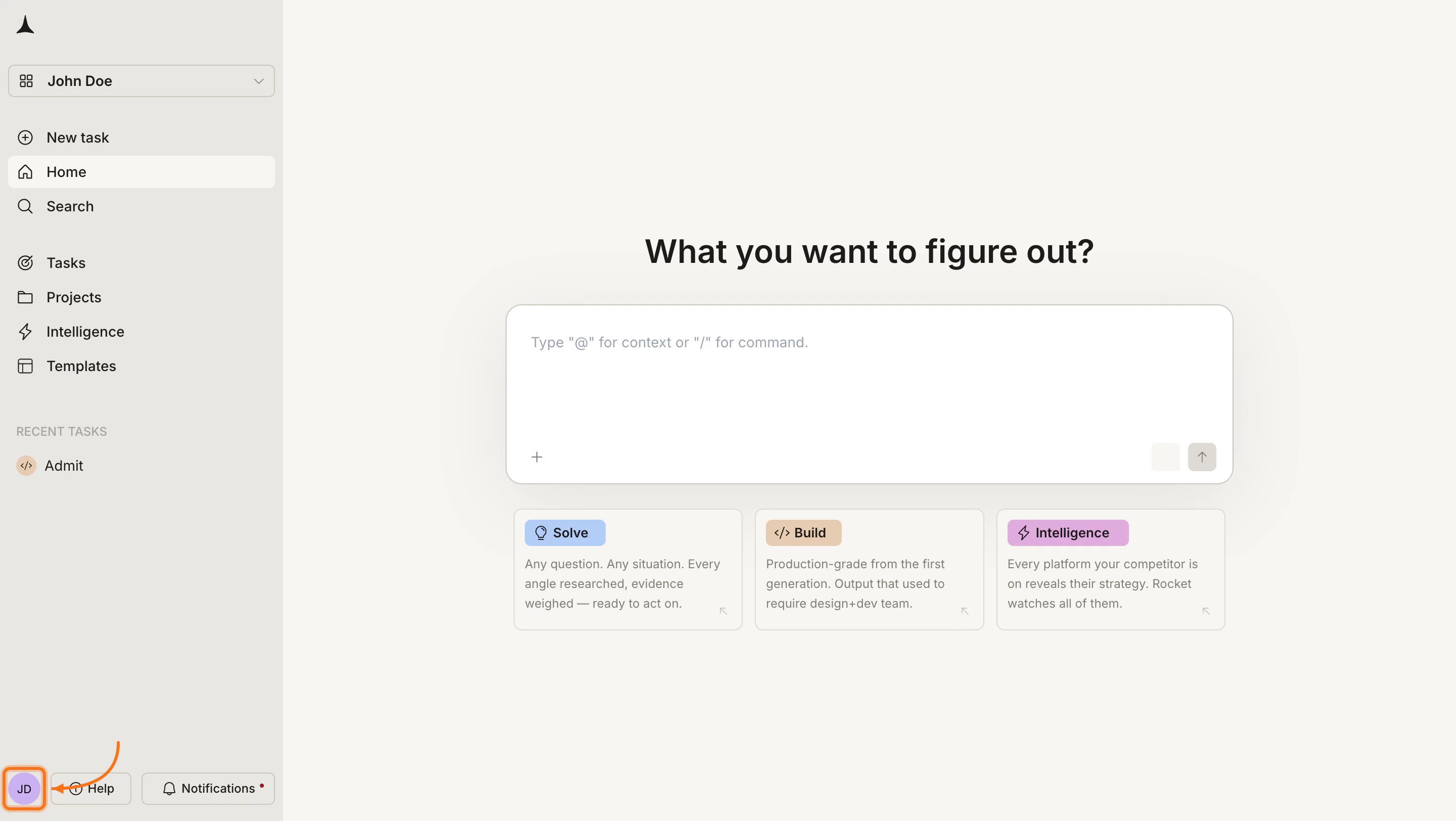
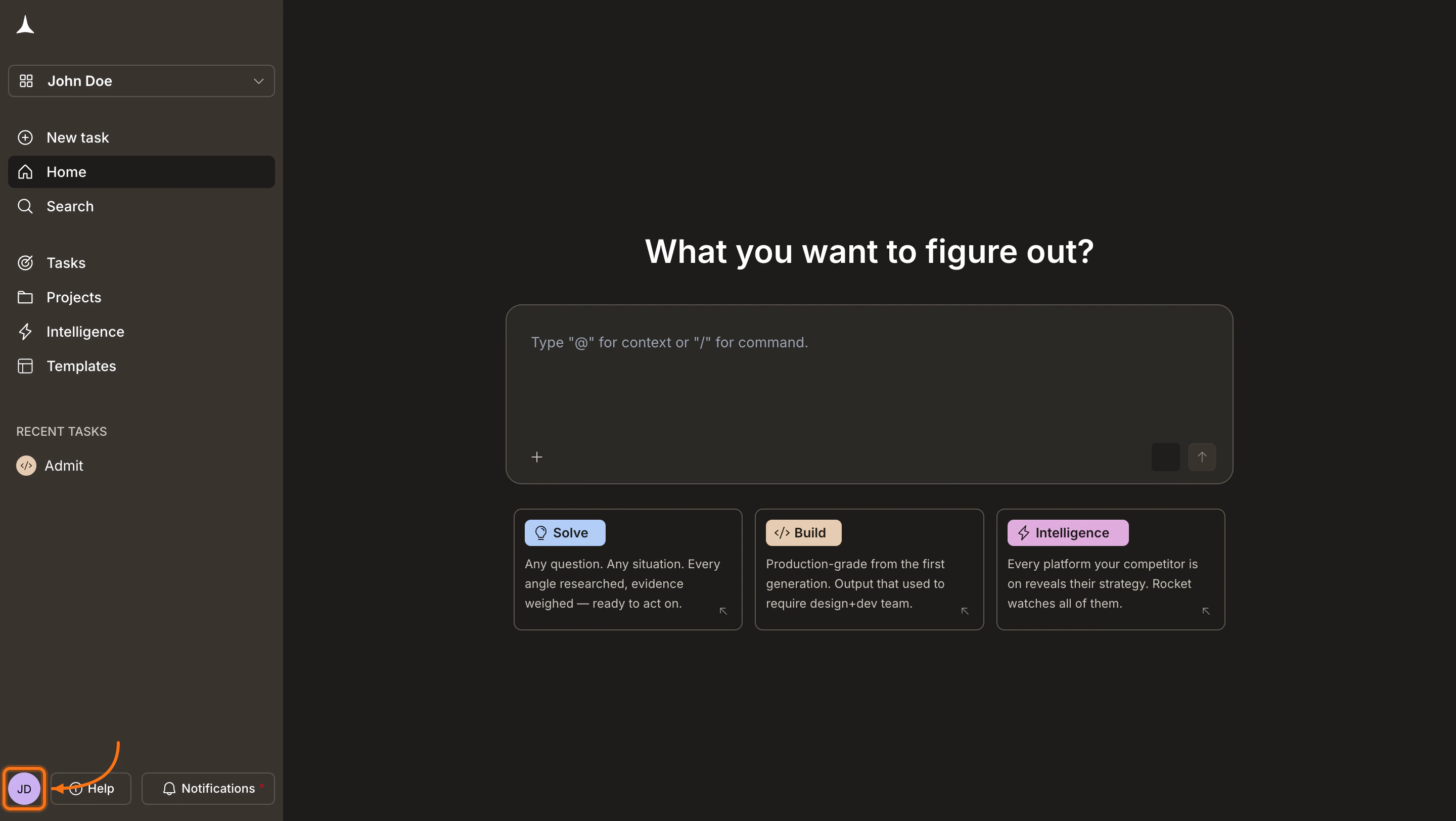
Click your avatar
Click your avatar in the bottom-left corner of the screen.
Click your avatar in the bottom-left corner
2
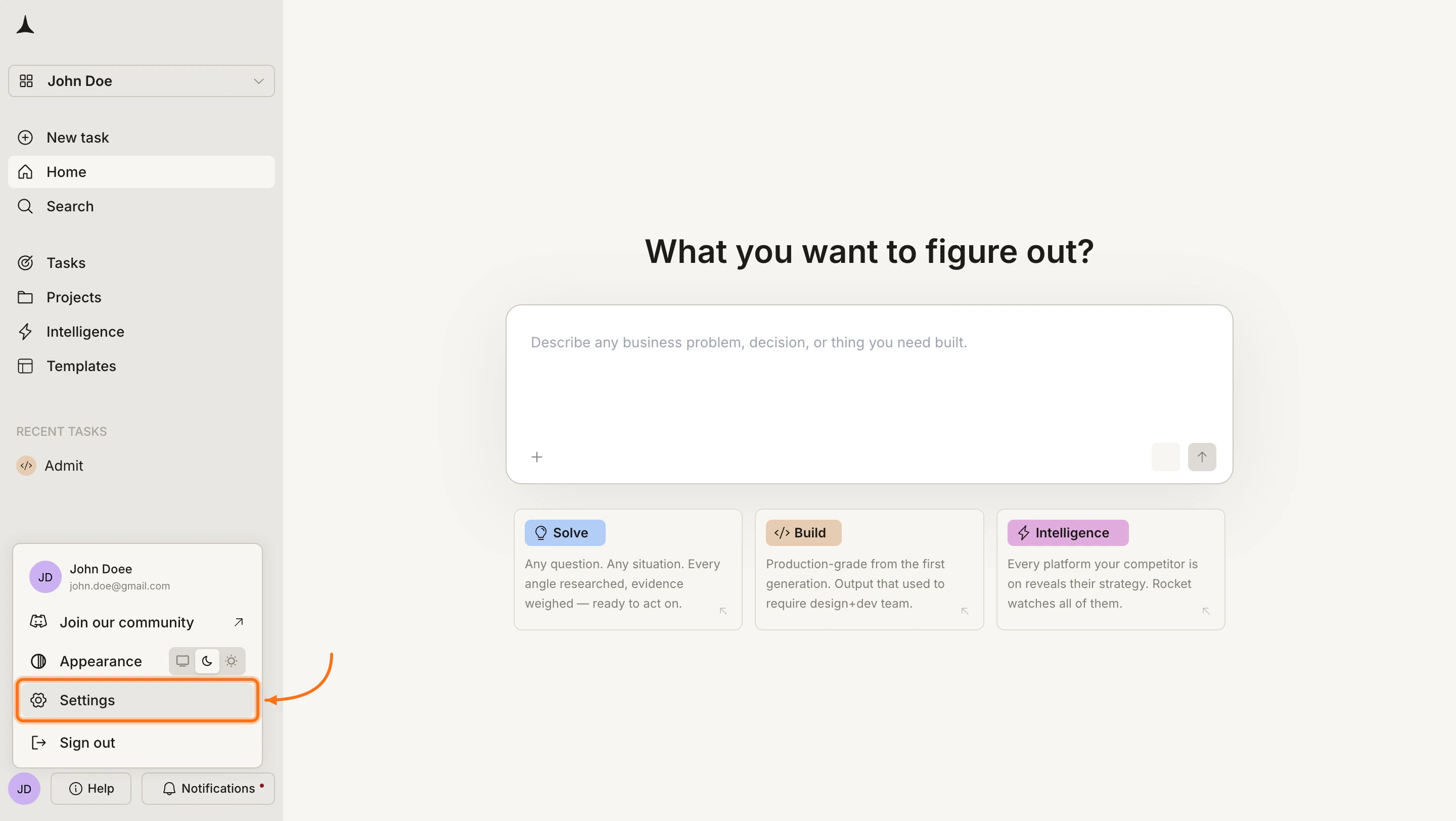
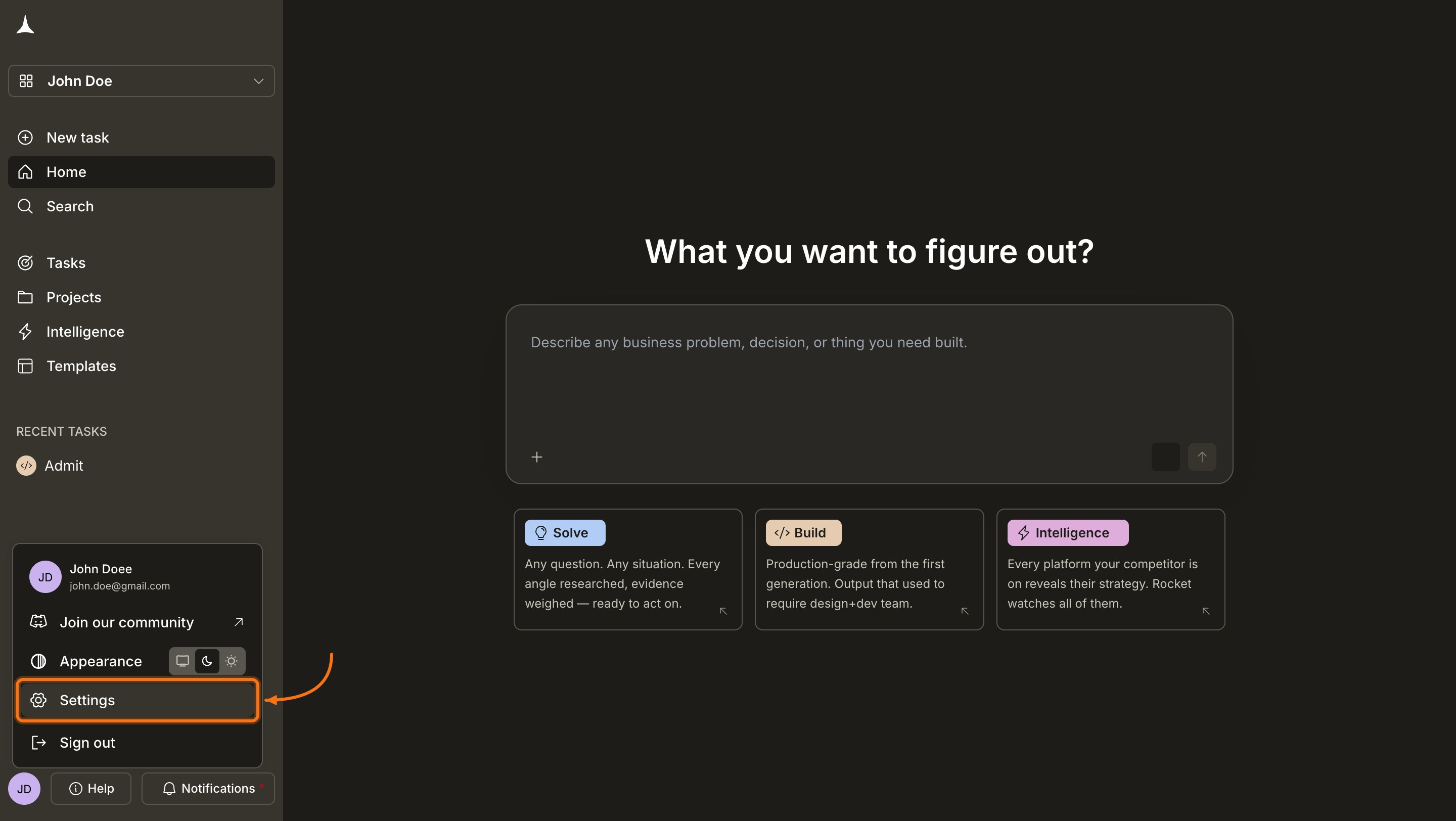
Click Settings
In the account menu, click Settings.
Click Settings in the account menu
3
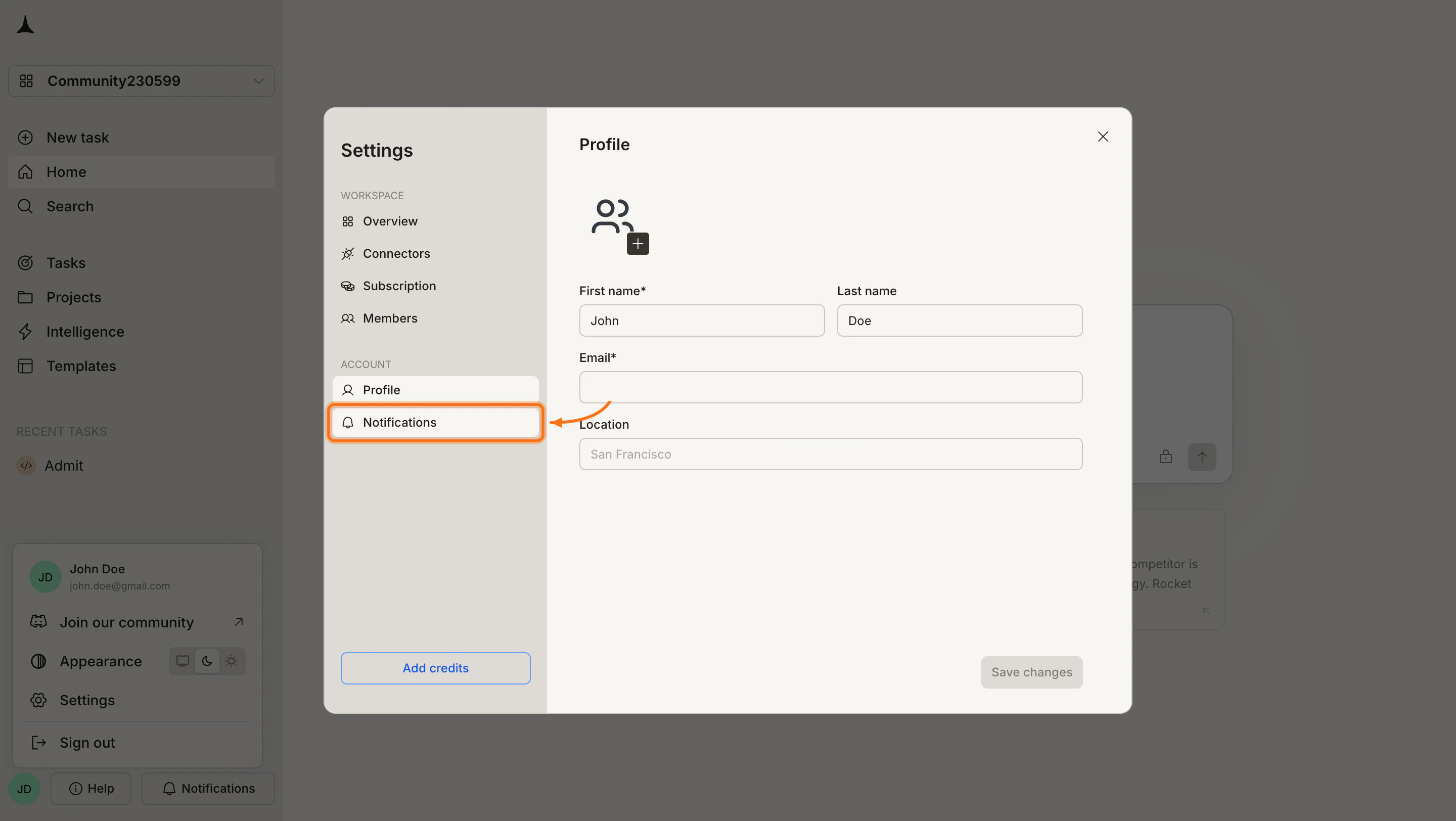
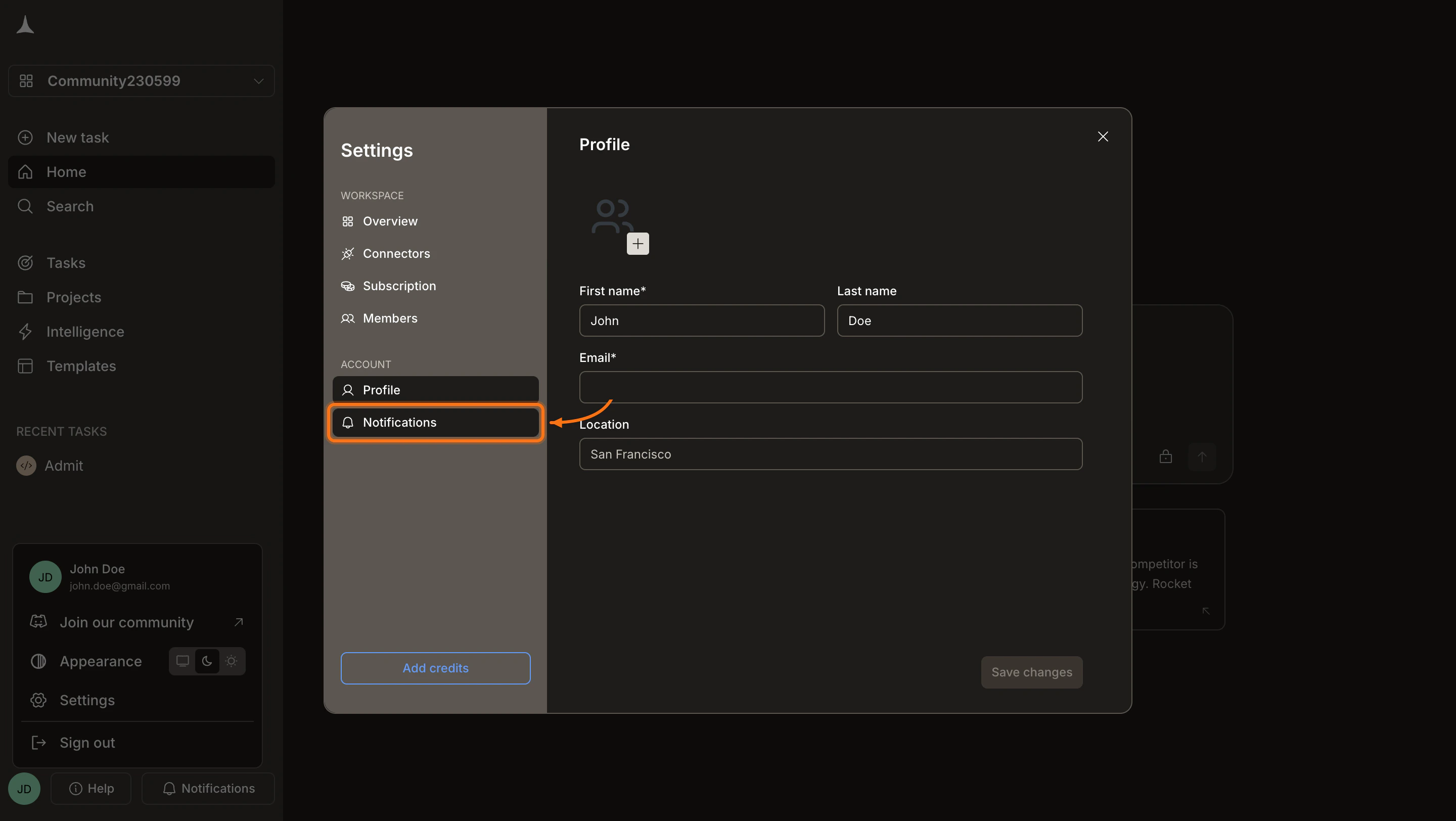
Click Notifications
In the Settings panel, click Notifications under the Account section.
Click Notifications in the Settings sidebar
4
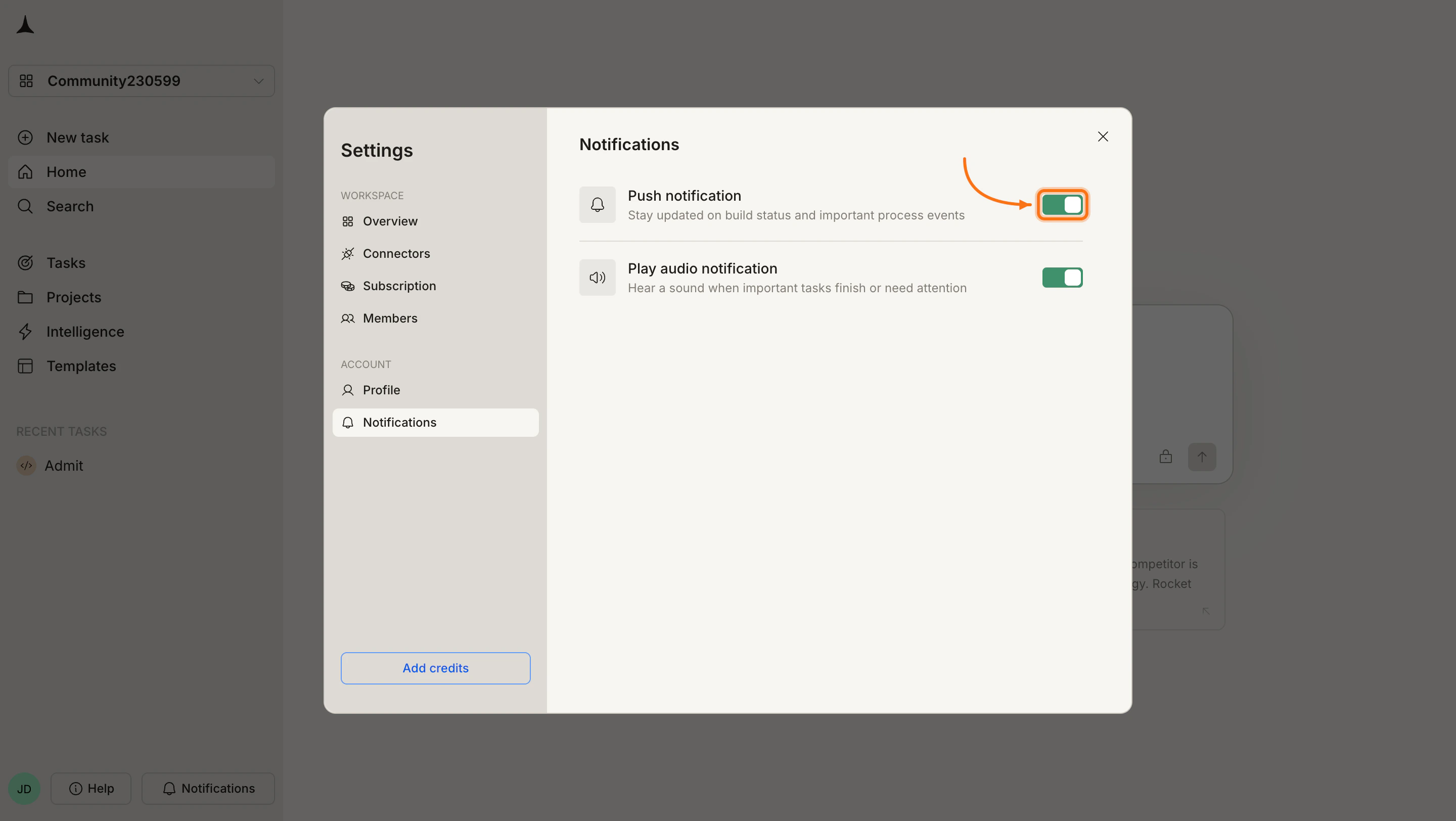
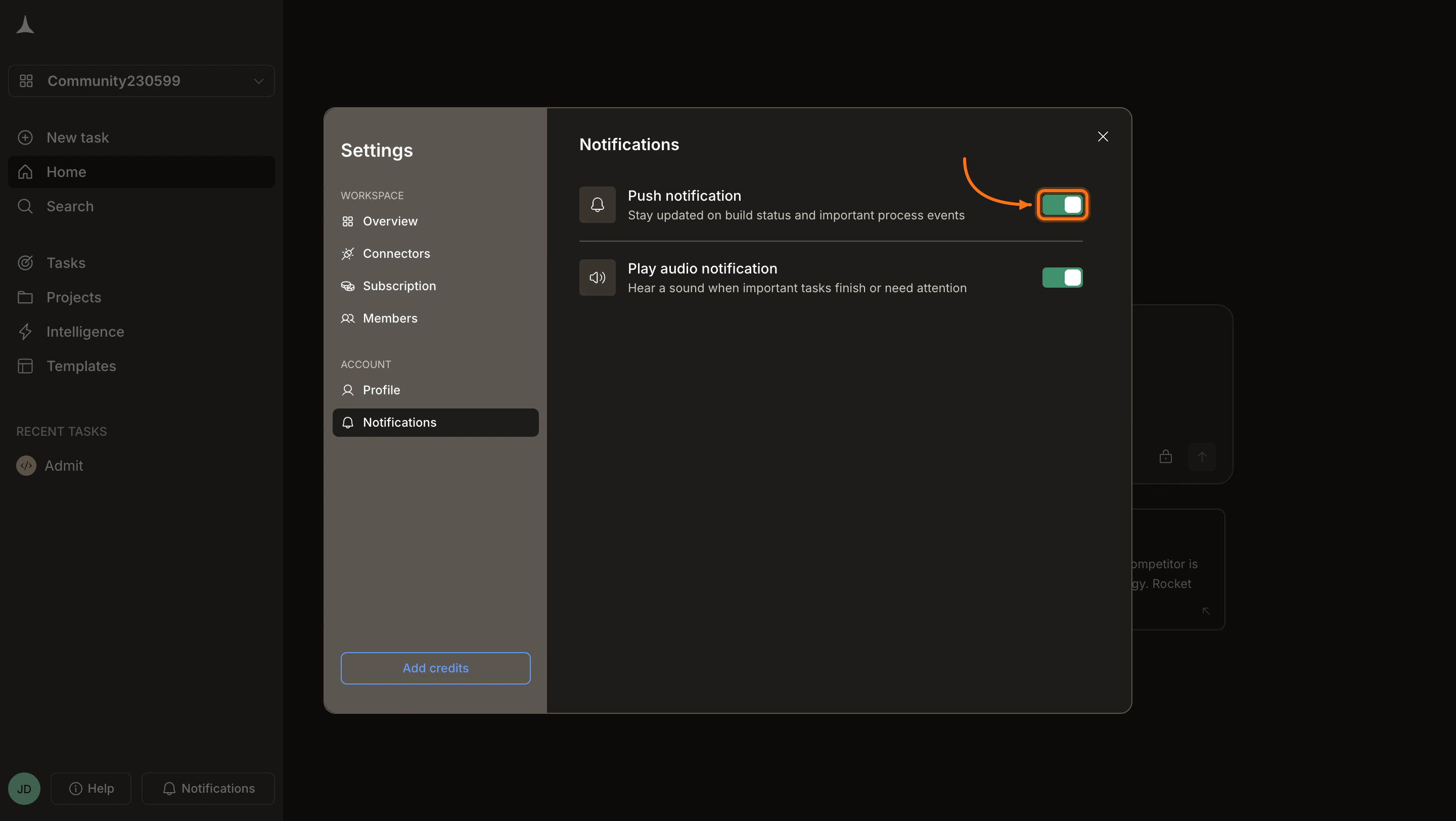
Enable notifications
Two toggles are available:
Push notifications: Receive browser alerts even when Rocket is in the background. Covers build status updates, important process events, and project generation milestones.
Play audio notification: Hear a sound alert for build completion, errors, and tasks that need attention. Useful when working in other tabs or applications.
Enable either or both based on your preference. If the browser prompts for notification permissions, click Allow.
Toggle Push notifications and Play audio notification on or off
1
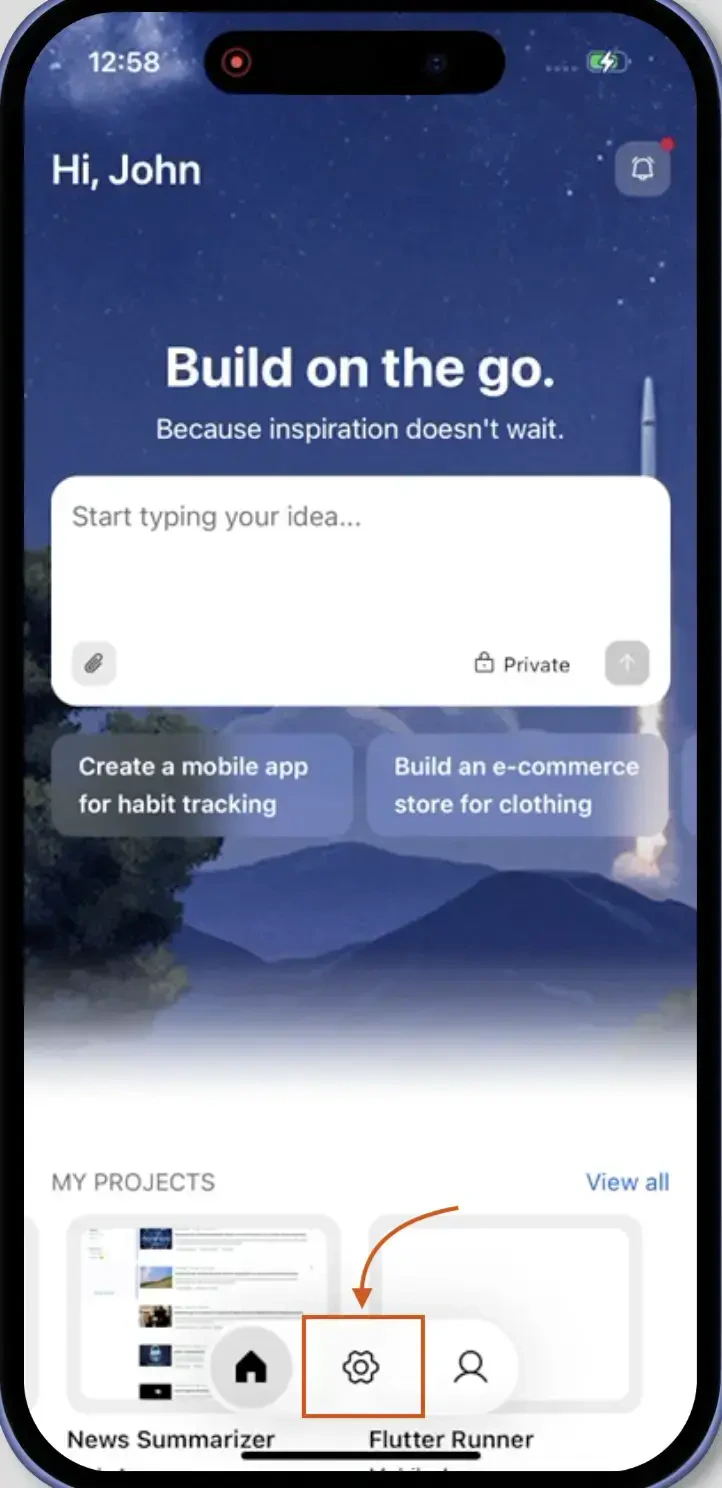
Open Settings from the footer bar
On the home screen, tap the Settings icon in the footer bar at the bottom.
Settings icon in the footer
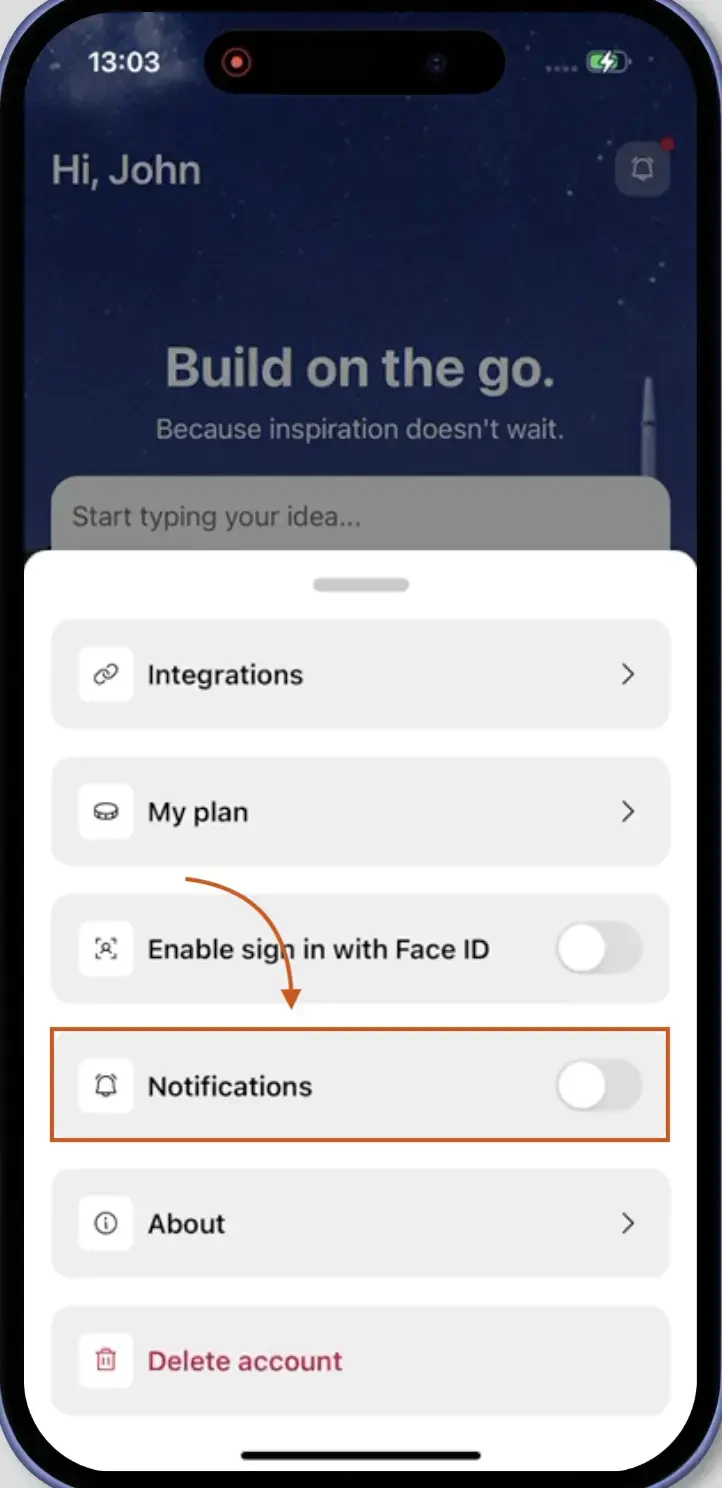
2
Toggle notifications on
In the settings sheet that slides up, toggle the Notifications switch to ON (green).
Enable notifications on mobile
When you toggle notifications on for the first time, iOS may prompt you to allow notifications. Tap Allow to grant permission.
If you previously denied notification permissions, go to device Settings > Rocket > Notifications to enable them, then return to the Rocket app.
3
Confirm push notifications are active
Once enabled, Rocket sends mobile push notifications even when the app is in the background or closed. Notifications cover build status updates, important process events, and project generation milestones.
Check that the push notifications toggle is enabled in Rocket settings.
Verify browser notification permissions are granted for Rocket.
Check your browser notification settings and confirm Rocket appears in the allowed sites list.
Try disabling and re-enabling the toggle in Rocket.
Not hearing audio notifications (web)
Check that the audio notifications toggle is enabled in Rocket settings.
Verify your browser allows audio playback for Rocket.
Check that your system volume is not muted.
Try playing audio in another tab to confirm browser audio works.
Not receiving push notifications (mobile)
Check that the Notifications toggle is enabled in Rocket settings.
Go to device Settings > Rocket > Notifications and confirm they are allowed.
Check that Do Not Disturb is not active on your device.
Restart the Rocket app.
Receiving too many notifications
Disable audio notifications if you only want visual alerts. Disable push notifications if you only want audio cues. Disable both when working on long-running projects and check back manually.