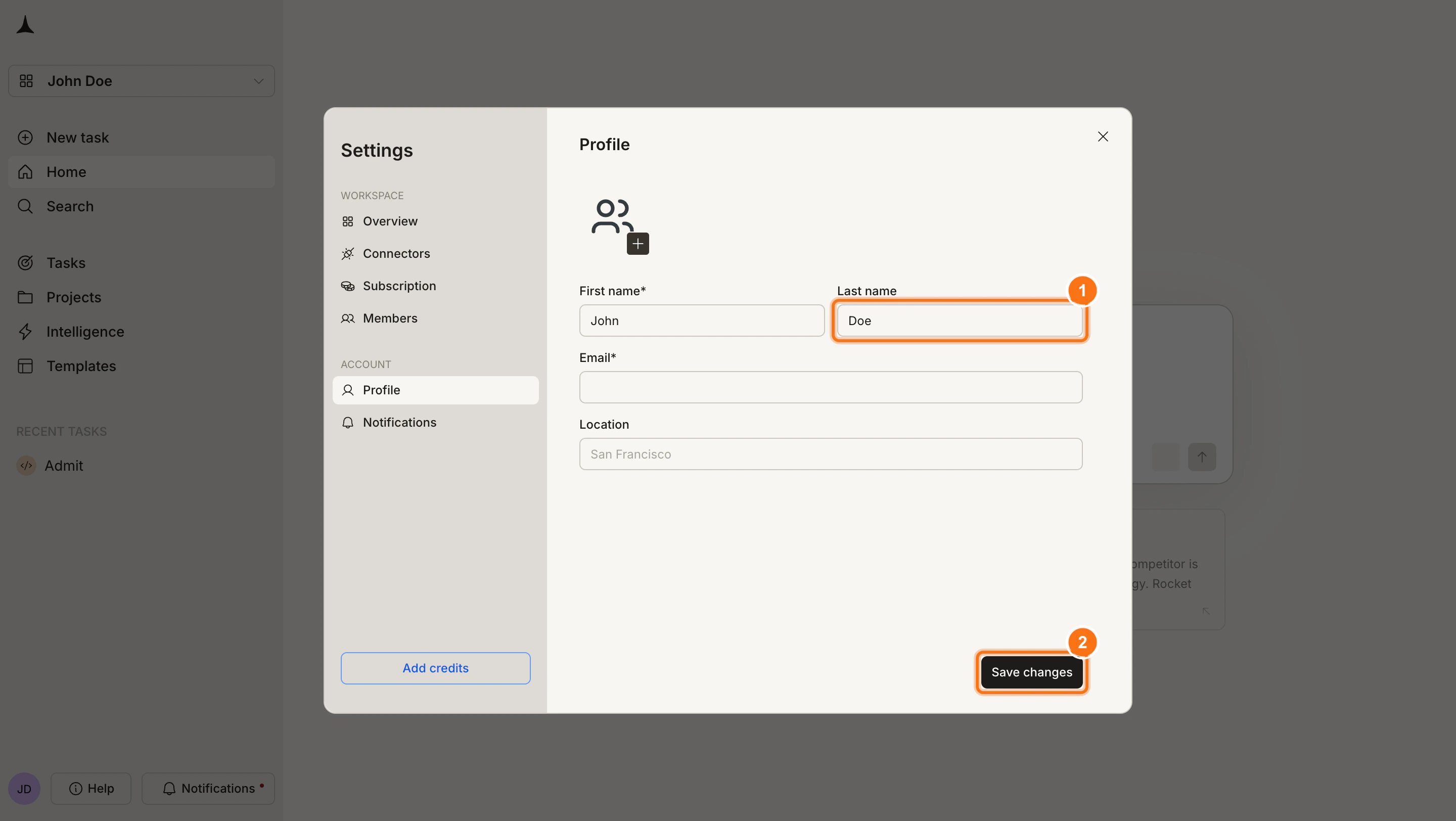
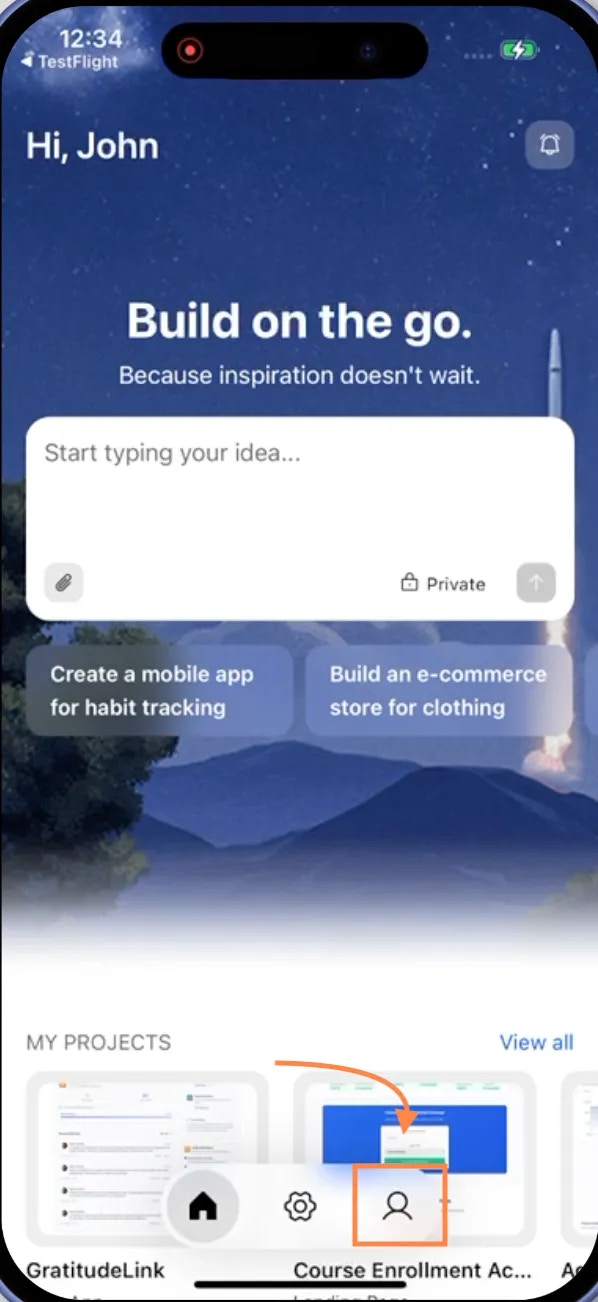
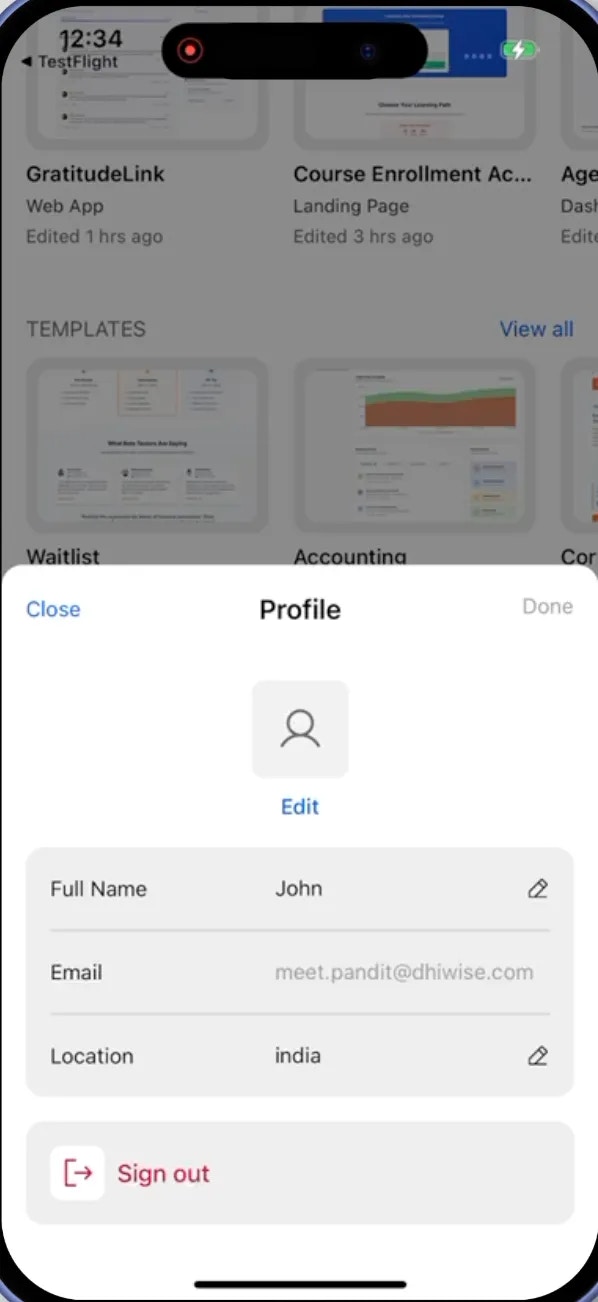
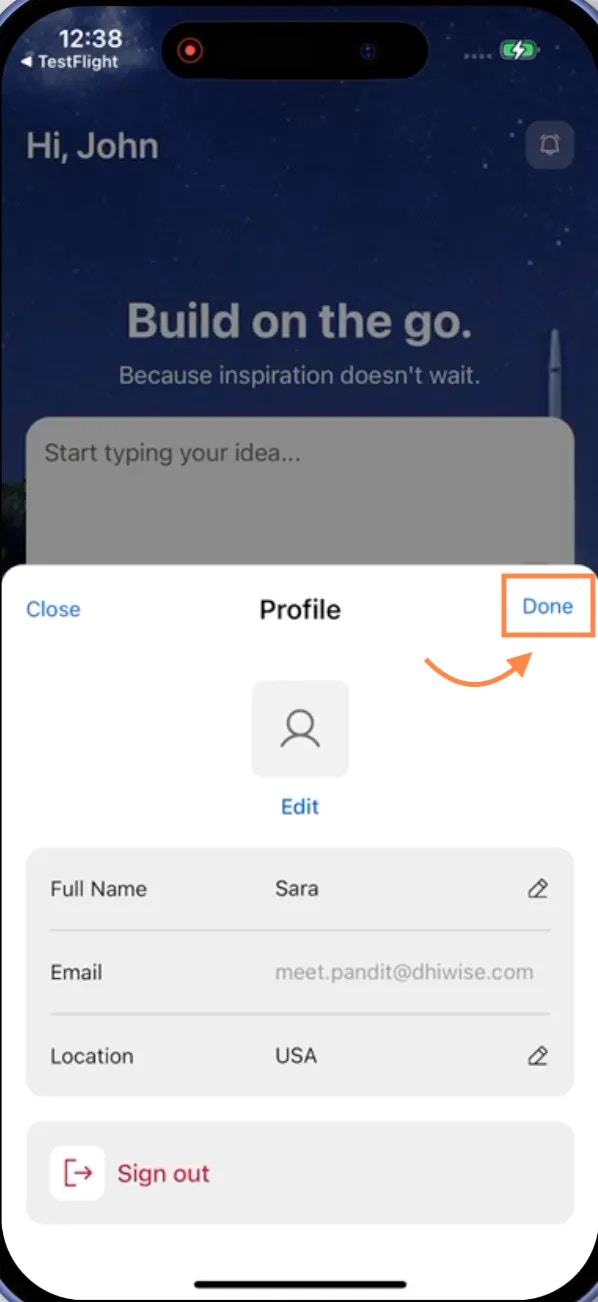
Your profile is your identity across Rocket. Your avatar, first name, last name, and location appear on every task you create, in collaboration invitations, and in emails sent to you. The same account menu also gives access to notification settings and appearance options.

Steps

1

Open the account menu

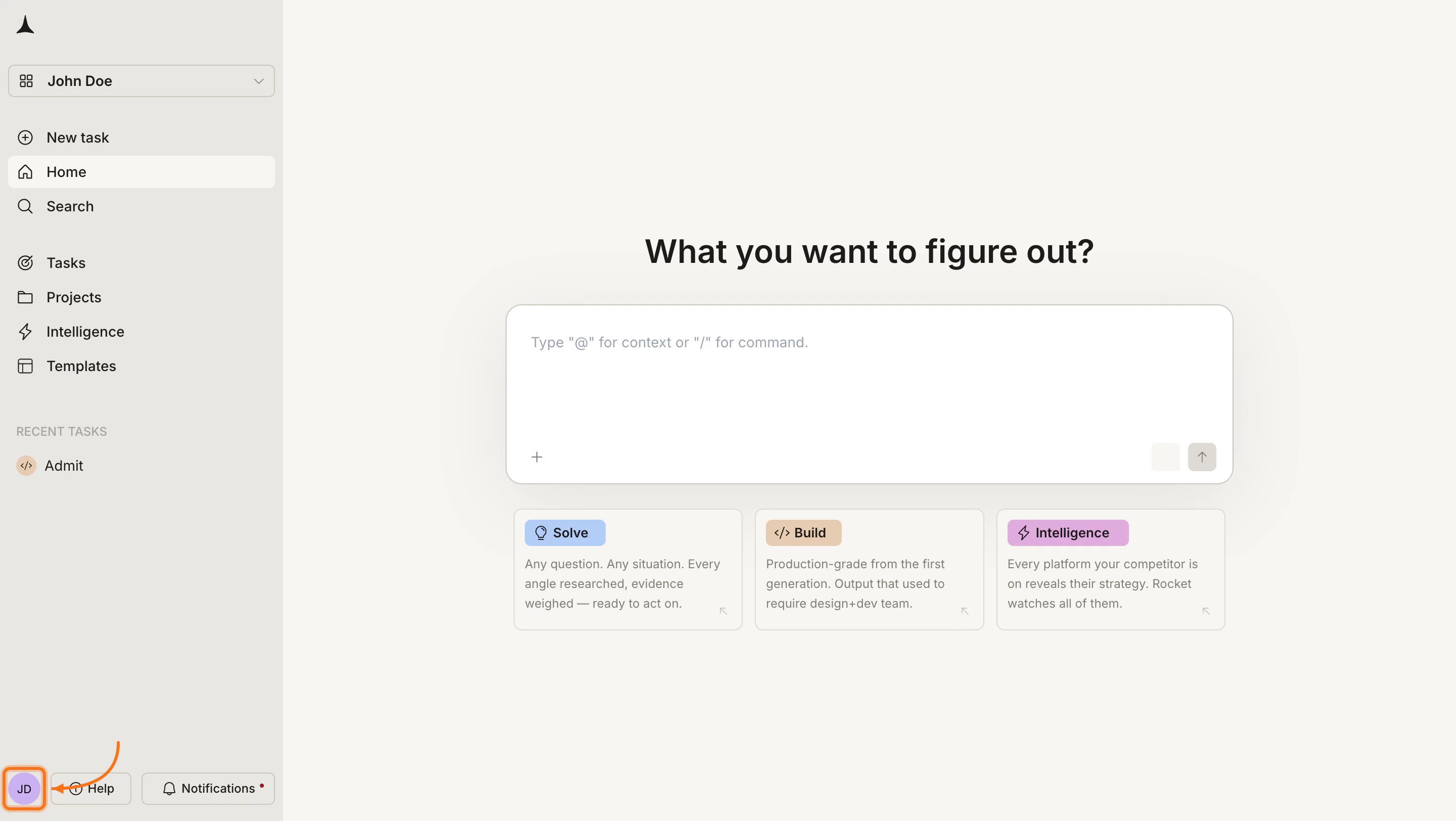
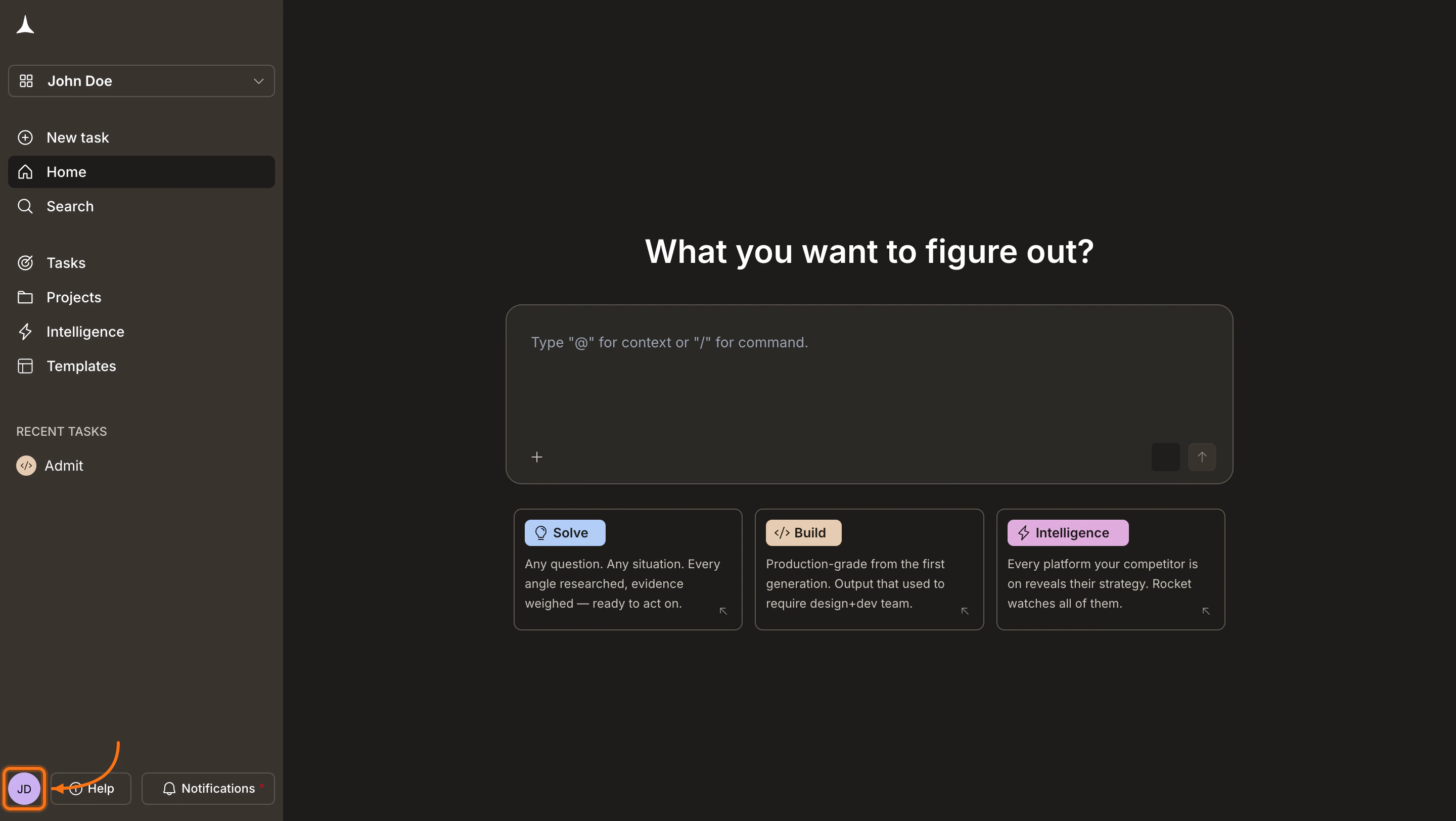
Click your avatar in the bottom-left corner of the screen. A menu opens with account and display options.
2

Go to Settings

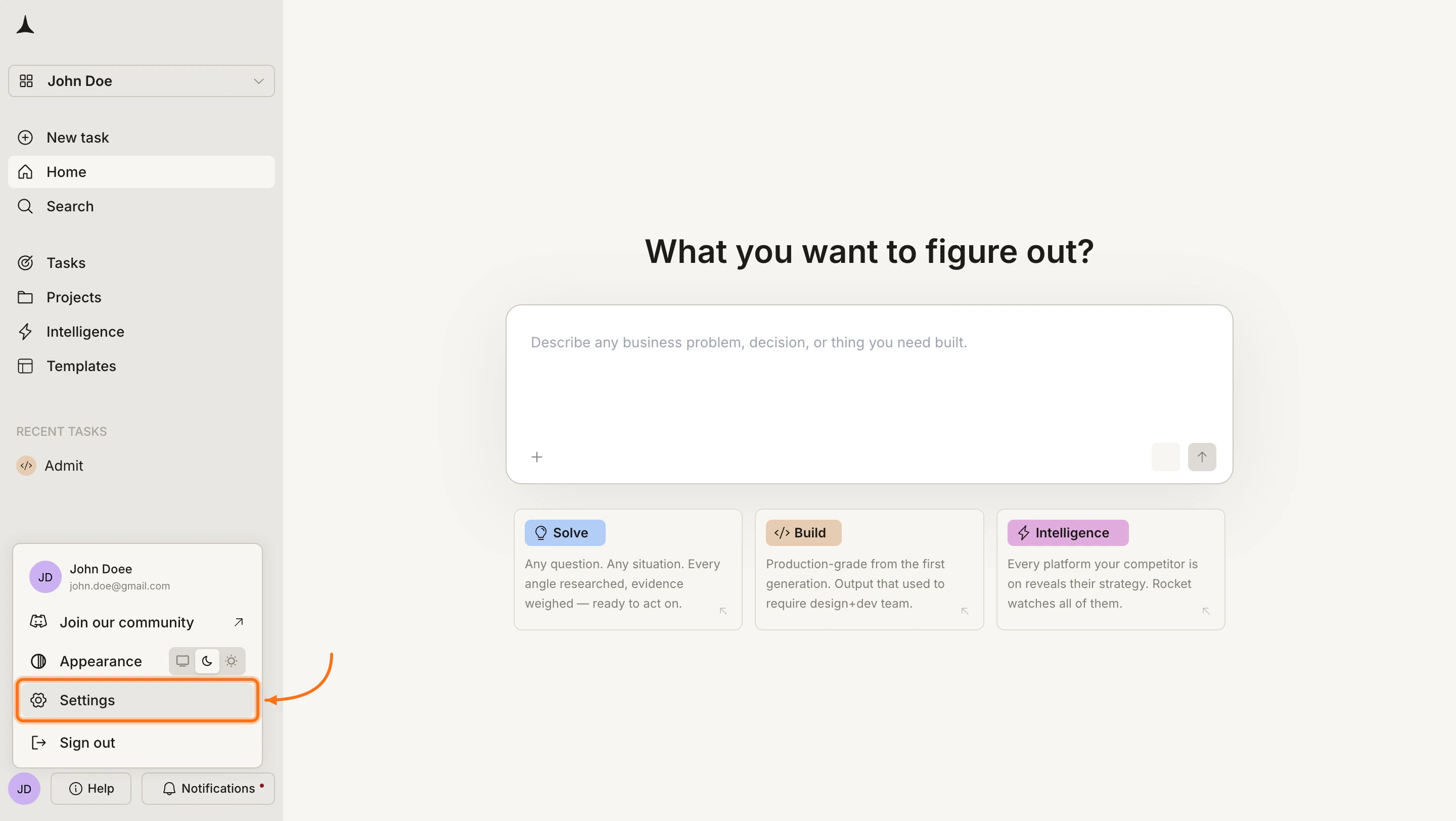
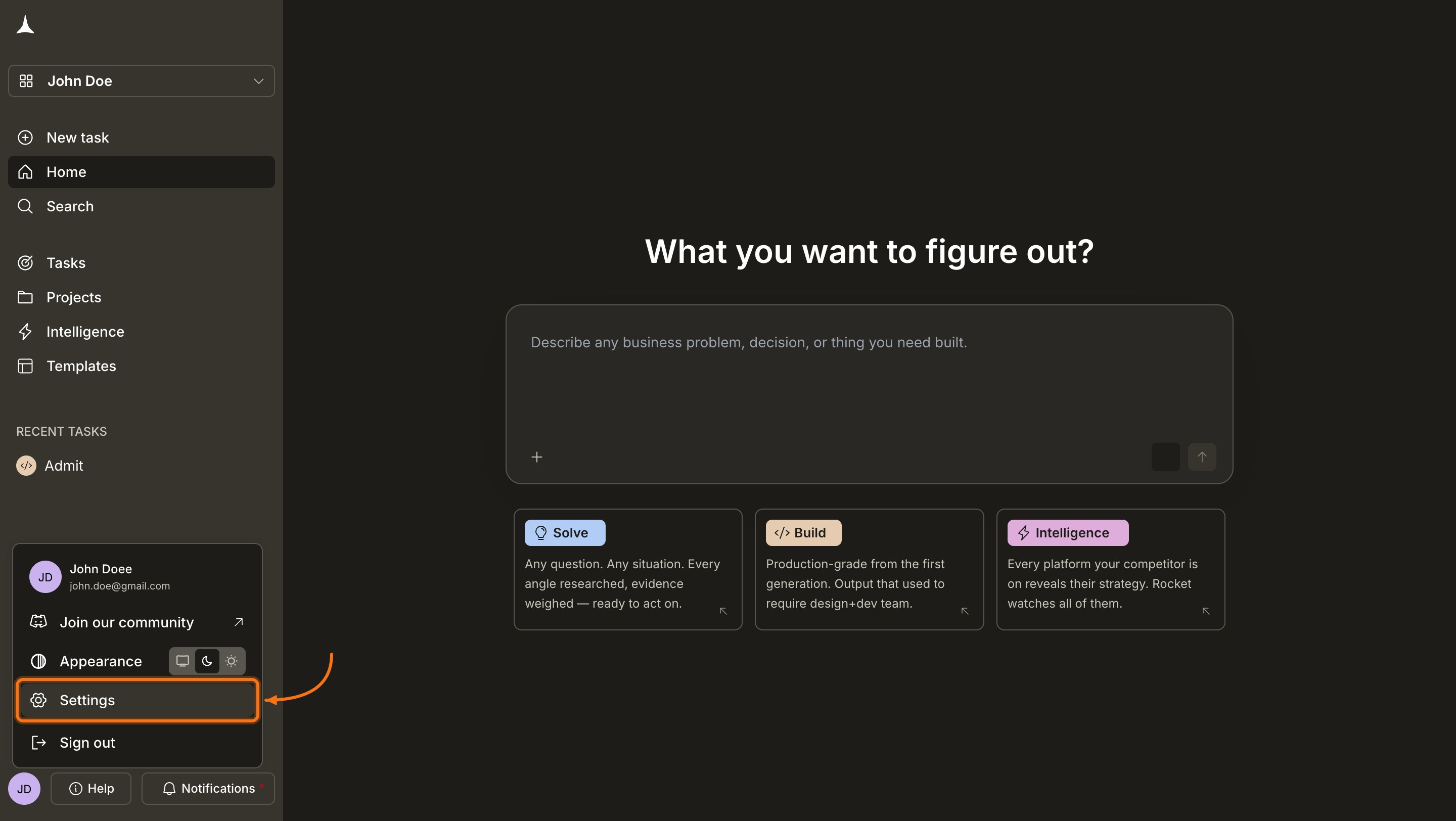
Click Settings in the menu. The Profile tab opens by default.
3

Edit your details

Update any of the following fields on the Profile tab:
  • Avatar: Click the image area and upload a photo or picture file.
  • First name: Enter your first name as it appears across Rocket.
  • Last name: Enter your last name.
  • Location: Add your city or time zone.
Email address changes are handled by the support team. Contact support@rocket.new if you need to change your login address.
4

Save your changes

Click Save at the bottom of the form. Rocket confirms once the update is applied.

What’s next?

Notifications

Open the notification panel to review collaboration requests, product updates, and task completion alerts.

Appearance

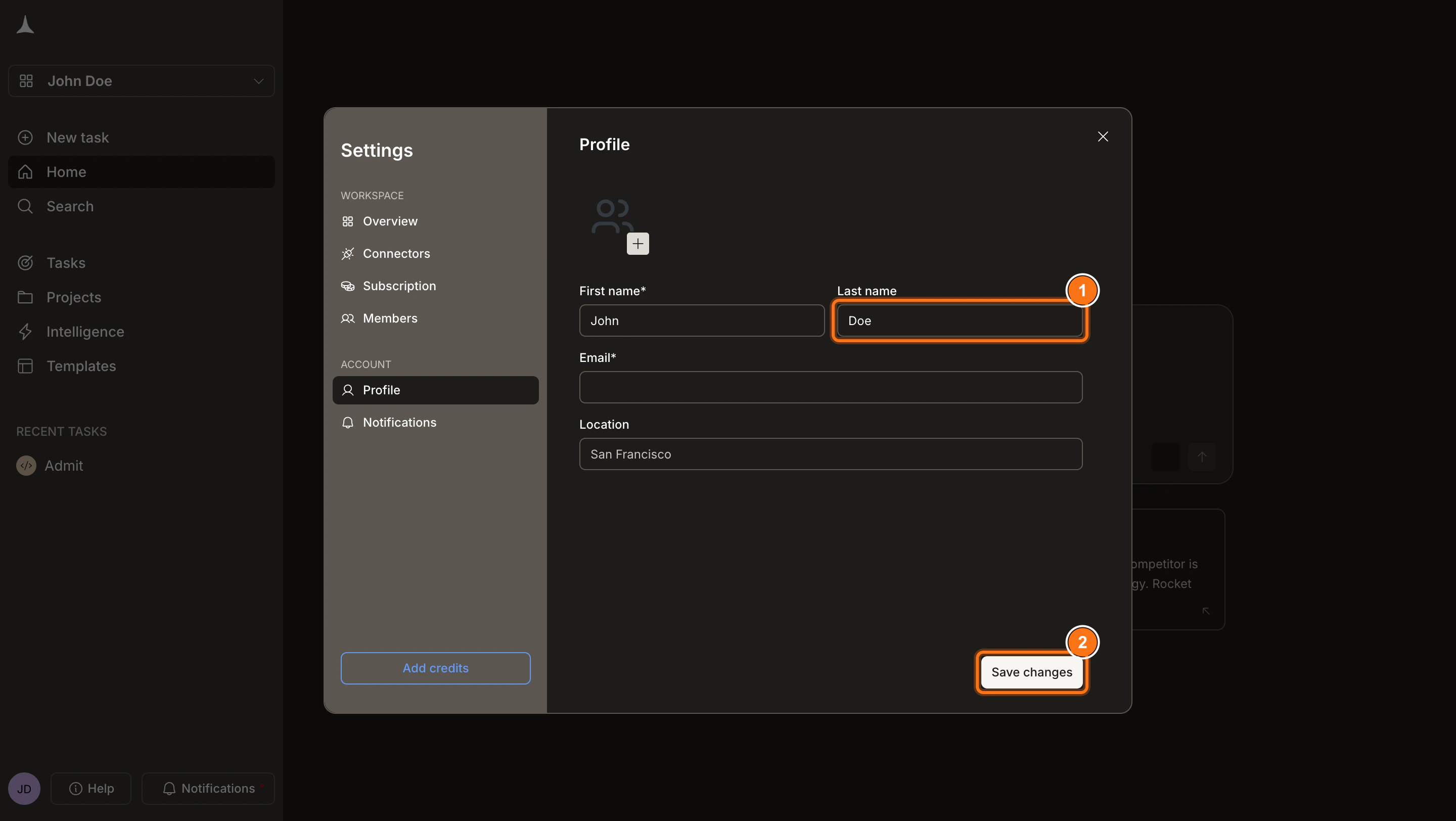
Switch between light mode, dark mode, or system-synced theme.