Workspace connectors let you establish connections to external services once and make them available to every project in the workspace. Instead of reconnecting in each project, you authorize a service at the workspace level and individual projects choose which specific resources to use.
This page covers workspace-level connectors - OAuth-based services like Notion, GitHub, and Google Workspace that are authorized once and shared across all projects. API key connectors (OpenAI, Anthropic, Stripe, and others) are task-level and connected per task from inside Build.

Browse all connectors - including task-level API key connectors like OpenAI, Stripe, and Resend.

Connectors

Notion

Share pages, databases, wikis, and meeting notes across all projects.

Google Workspace

Share Docs, Sheets, and Calendar data across all projects.

GitHub

Sync your codebase for backups, collaboration, and version control.

Supabase

Add a PostgreSQL database, auth, file storage, and edge functions.

Figma

Import Figma designs and convert them into production-ready code.

Netlify

Deploy your app to the web with one click.

Airtable

Manage leads, content, inventory, and internal workflows.

Linear

Build from tickets and write follow-up issues back to your board.

Mailchimp

Email campaigns, audience management, and marketing automation.

Typeform

Conversational forms for lead capture, surveys, and feedback.

Calendly

Scheduling and appointment booking with automatic calendar sync.
More connectors are coming. Check the changelog for the latest additions.

Connect a service

1

Open workspace Settings

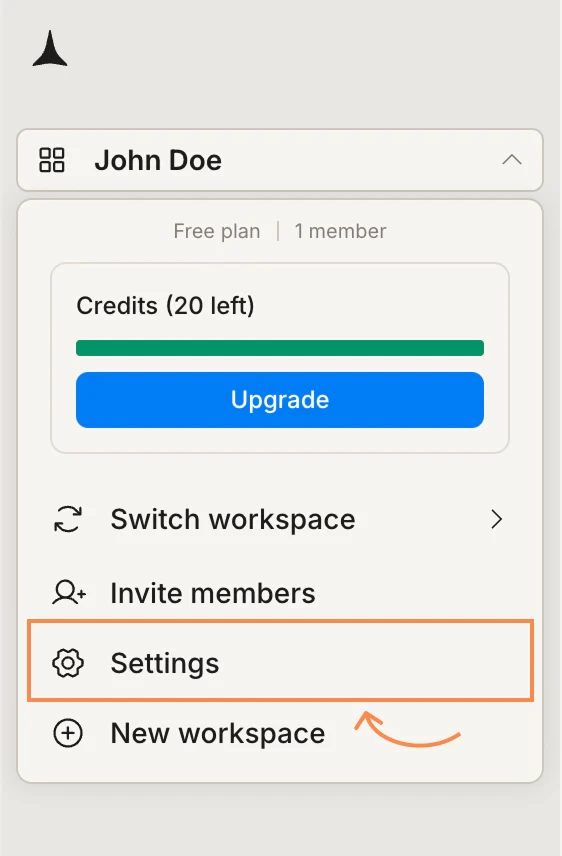
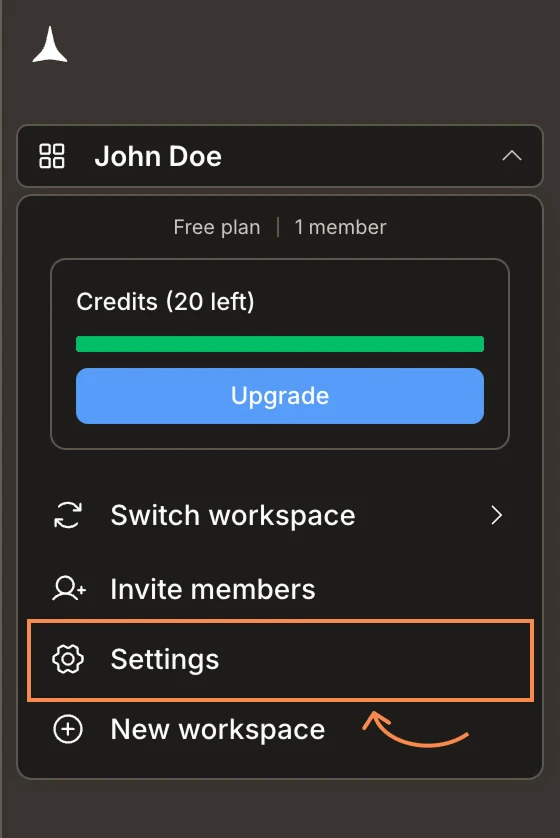
Click your workspace name in the top left of the sidebar, then select Settings.
Workspace menu with Settings highlighted.Workspace menu with Settings highlighted.
2

Open the Connectors tab and select a service

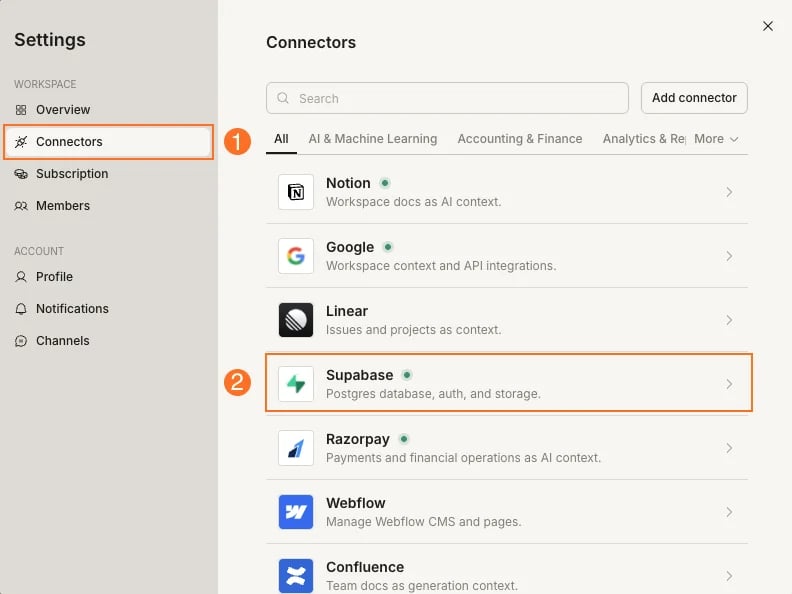
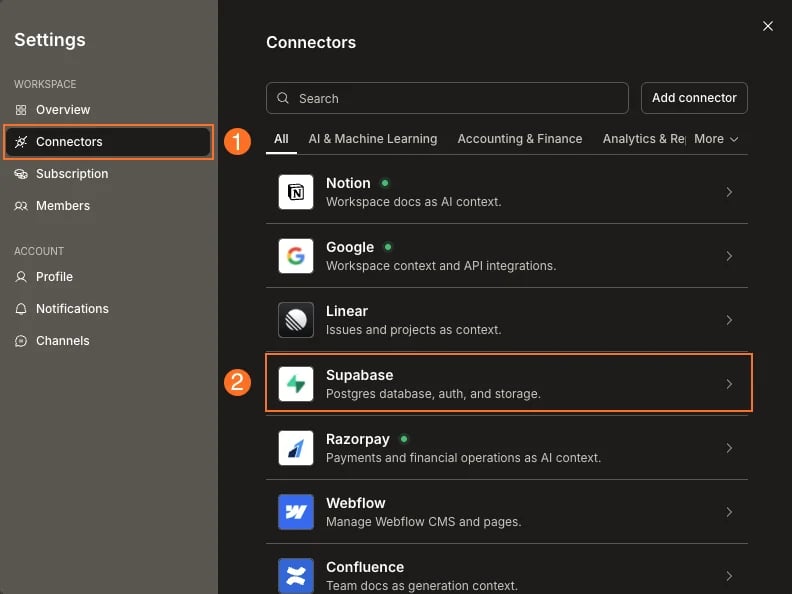
Click Connectors in the left sidebar. You will see all available workspace connectors. Click the one you want to connect.
Settings panel showing the Connectors tab with a list of services including GitHub, Figma, Netlify, Notion, Google, Linear, and Supabase.Settings panel showing the Connectors tab with a list of services including GitHub, Figma, Netlify, Notion, Google, Linear, and Supabase.
3

Click Connect

On the connector detail page, click Connect. Complete the OAuth flow - sign in to the external service and grant Rocket the access it needs.
Figma connector detail page with a Connect button.Figma connector detail page with a Connect button.
A green dot appears next to the connector name when the connection is active. The connection is now available to all projects in the workspace.

Disconnect a service

Follow the same steps as connecting: open Settings → Connectors, click the connector, then click Disconnect.
Figma connector showing a green active dot and a Disconnect button.Figma connector showing a green active dot and a Disconnect button.
Disconnecting removes the connection for all projects in the workspace. Any project using resources from this connector will lose access to that context. Existing task outputs are not affected.

Once connected, each project selects which specific pages, documents, or sheets to use as context. Learn how at the project level.


What’s next?

Connected services

Select specific resources from workspace connectors for a project.

Build connectors

Browse all connectors and see setup guides for each service.

Workspace collaboration

Understand who can manage connectors and project access.

Workspace overview

Learn about workspaces, billing, and team management.