

Supported payment methods
Rocket processes all payments through Stripe. When you buy a plan or add credits, Stripe checkout opens with the payment options available in your region.- Cards (default): Credit and debit cards are accepted everywhere Rocket is available. Supported brands include Visa, Mastercard, American Express, and most major international cards. Enter your card number, expiry date, and security code on the checkout form. See Update your payment method to add or change a saved card after subscribing.
- Link: Link is Stripe’s express checkout. If you have a Link account, Stripe securely fills in your payment and billing details so you can complete checkout in one click. Look for the Secure, fast checkout with Link option on the checkout page.
- Amazon Pay: Amazon Pay lets you use your Amazon account to complete checkout quickly. Select Amazon Pay on the checkout page and authorize the payment with your Amazon credentials.
Buy a plan
Open Settings and click Upgrade
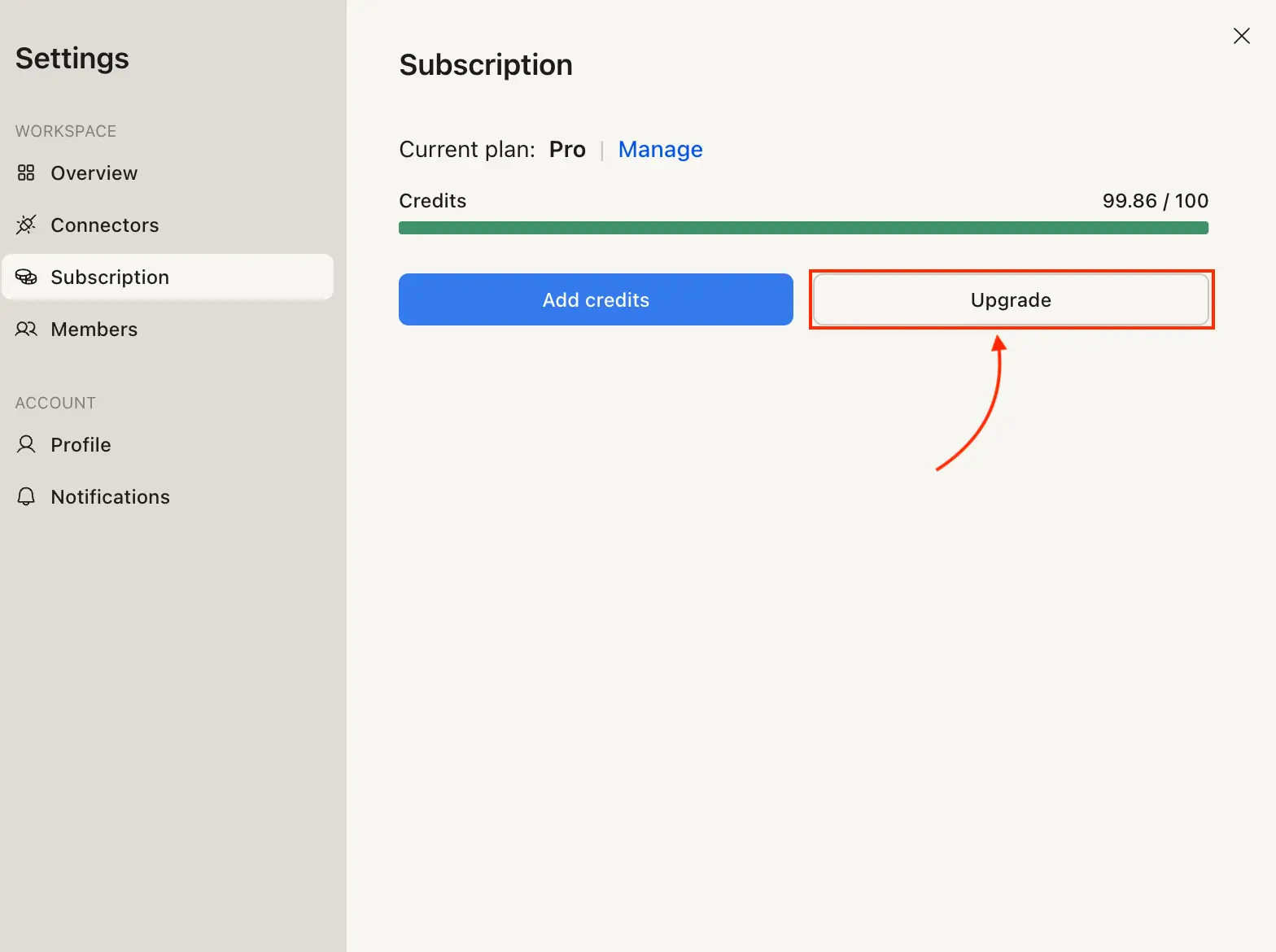
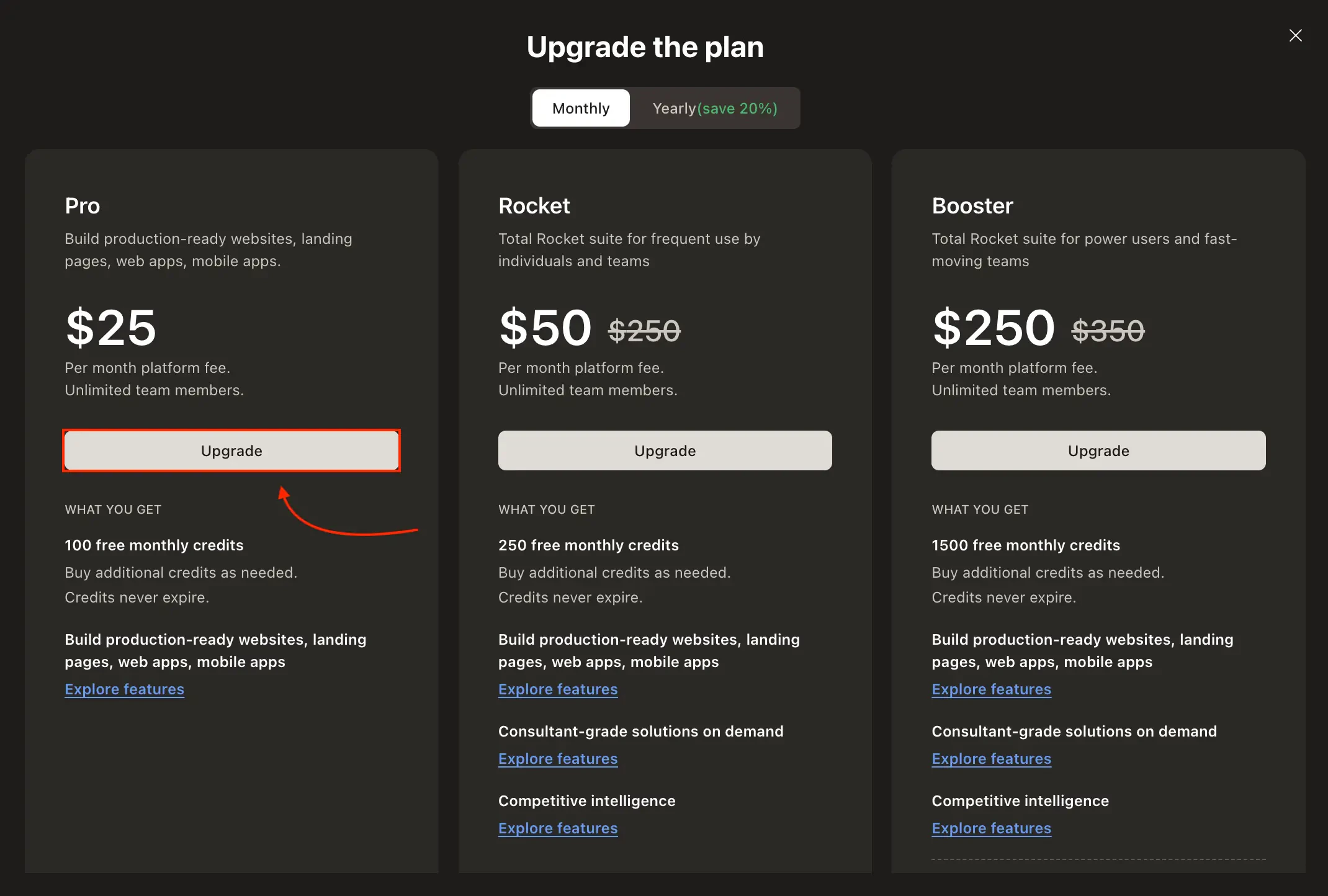
Upgrade the plan modal
Click Upgrade on the plan you want
Complete checkout
- Email: Pre-filled from your Rocket account.
- Payment method: Card number, expiry date, and security code. You can also use Link or Amazon Pay if they appear for your region.
- I’m purchasing as a business (optional): Check this to bill a company. Full name becomes Organisation name, and a Tax ID section appears with Business name, Tax ID type, and VAT or tax number.
- Billing address: Full name (or organisation name), country or region, and address. Click Use a saved address if Stripe already has one on file.
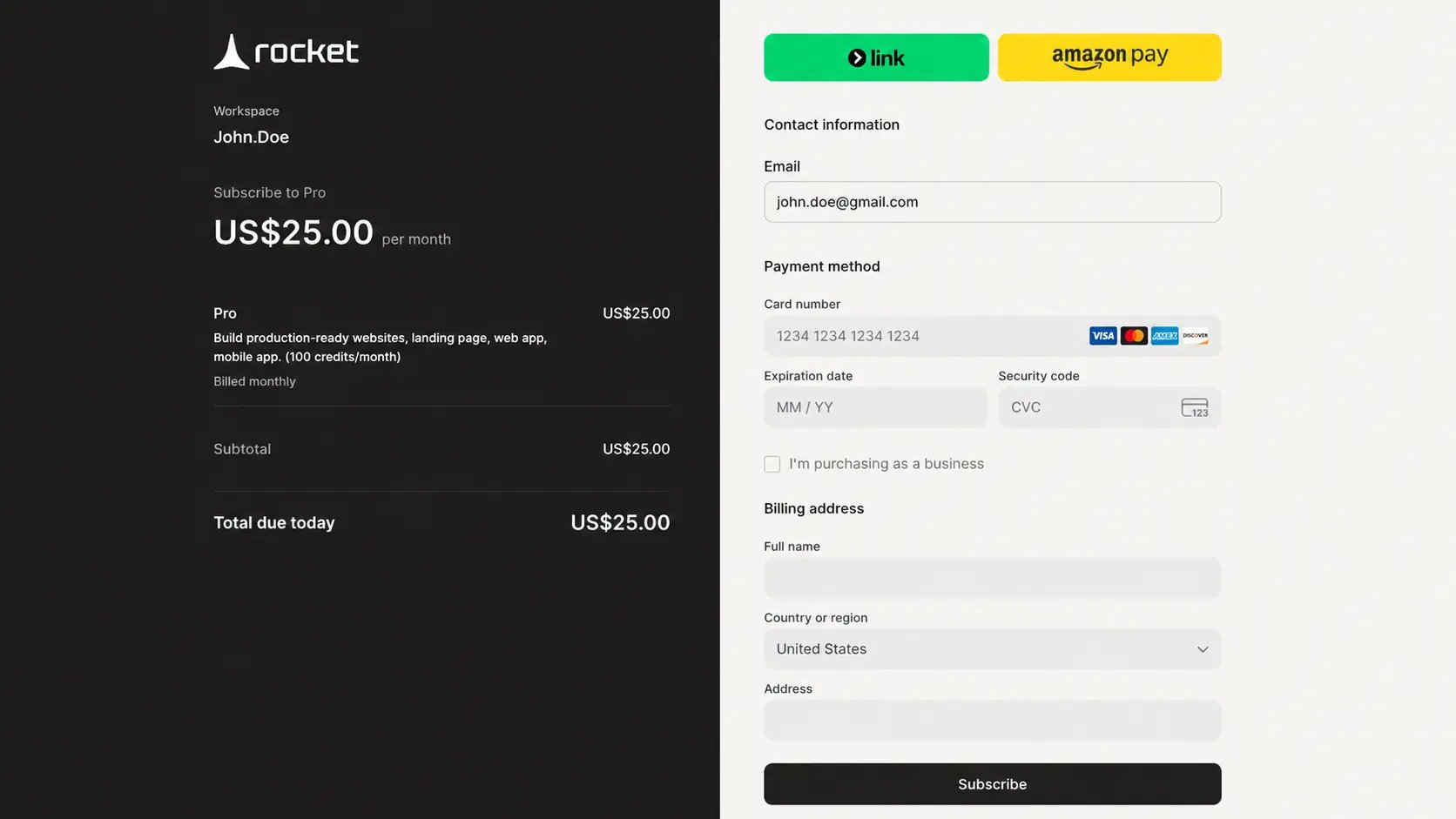
Stripe checkout
Upgrade paths by plan
The Subscription tab shows different options based on your current plan. See how to buy a plan or upgrade to another plan.Upgrade to another plan
Open the Subscription tab
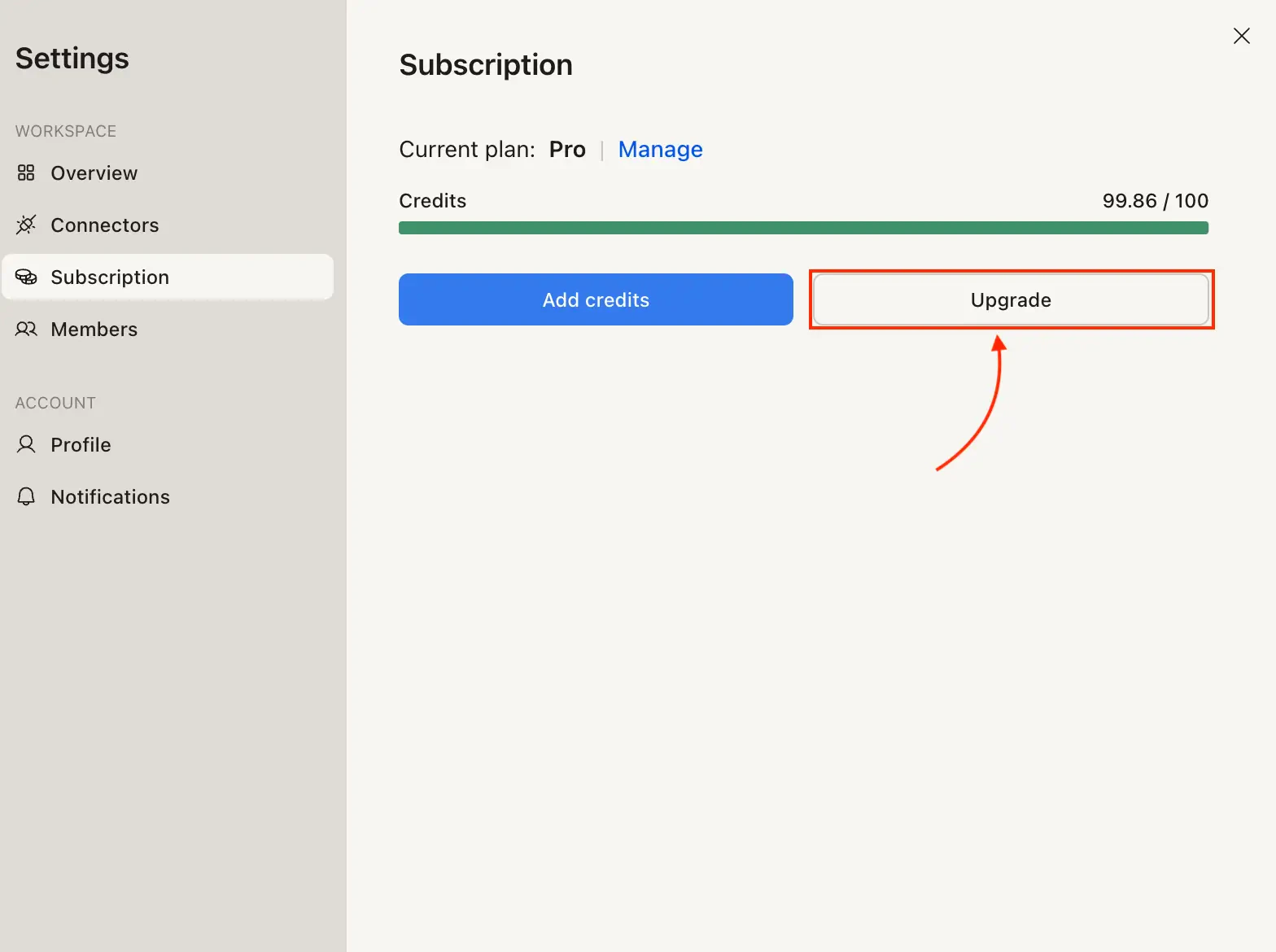
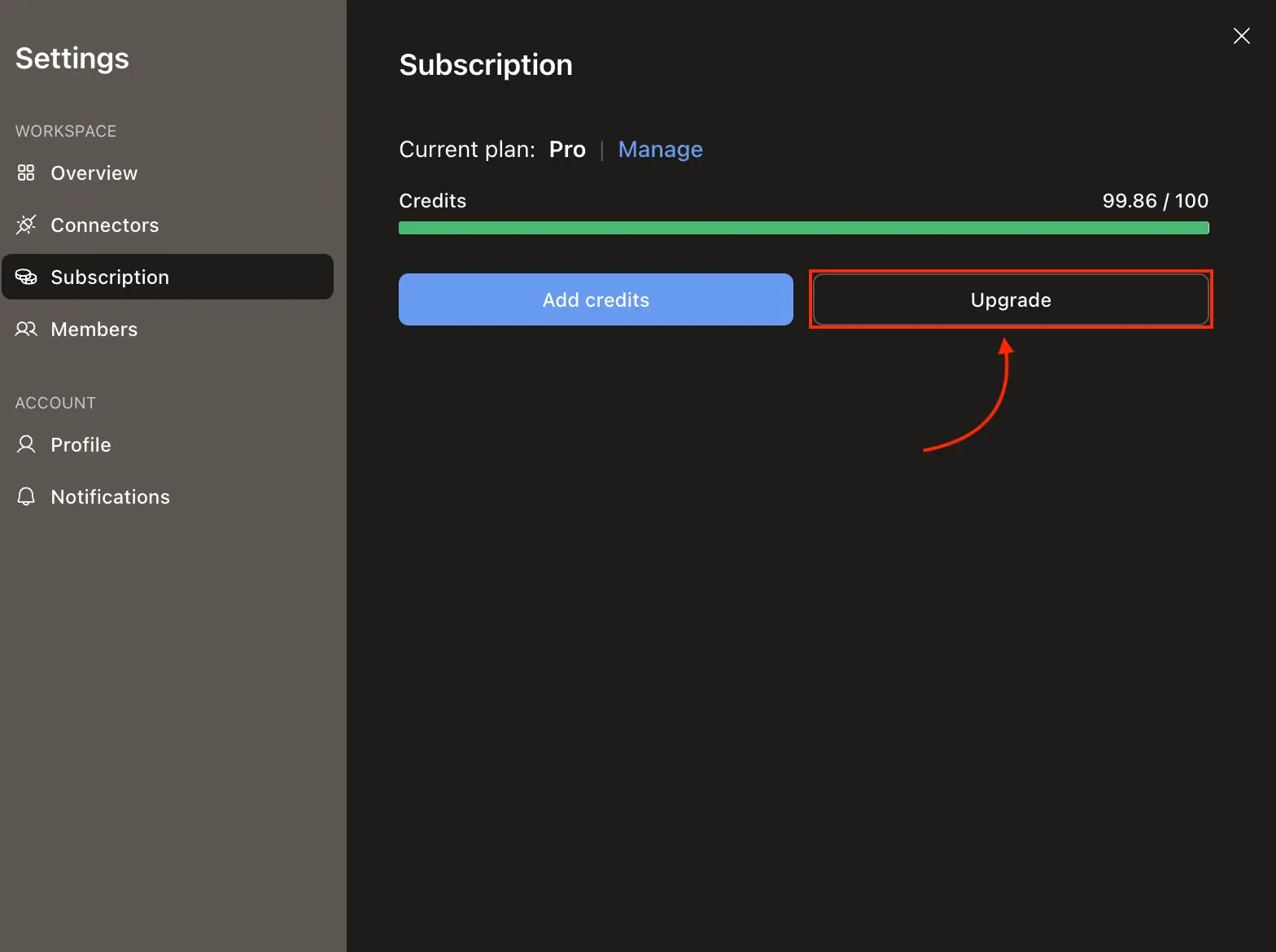
Settings Subscription tab with Upgrade button
Choose the higher plan
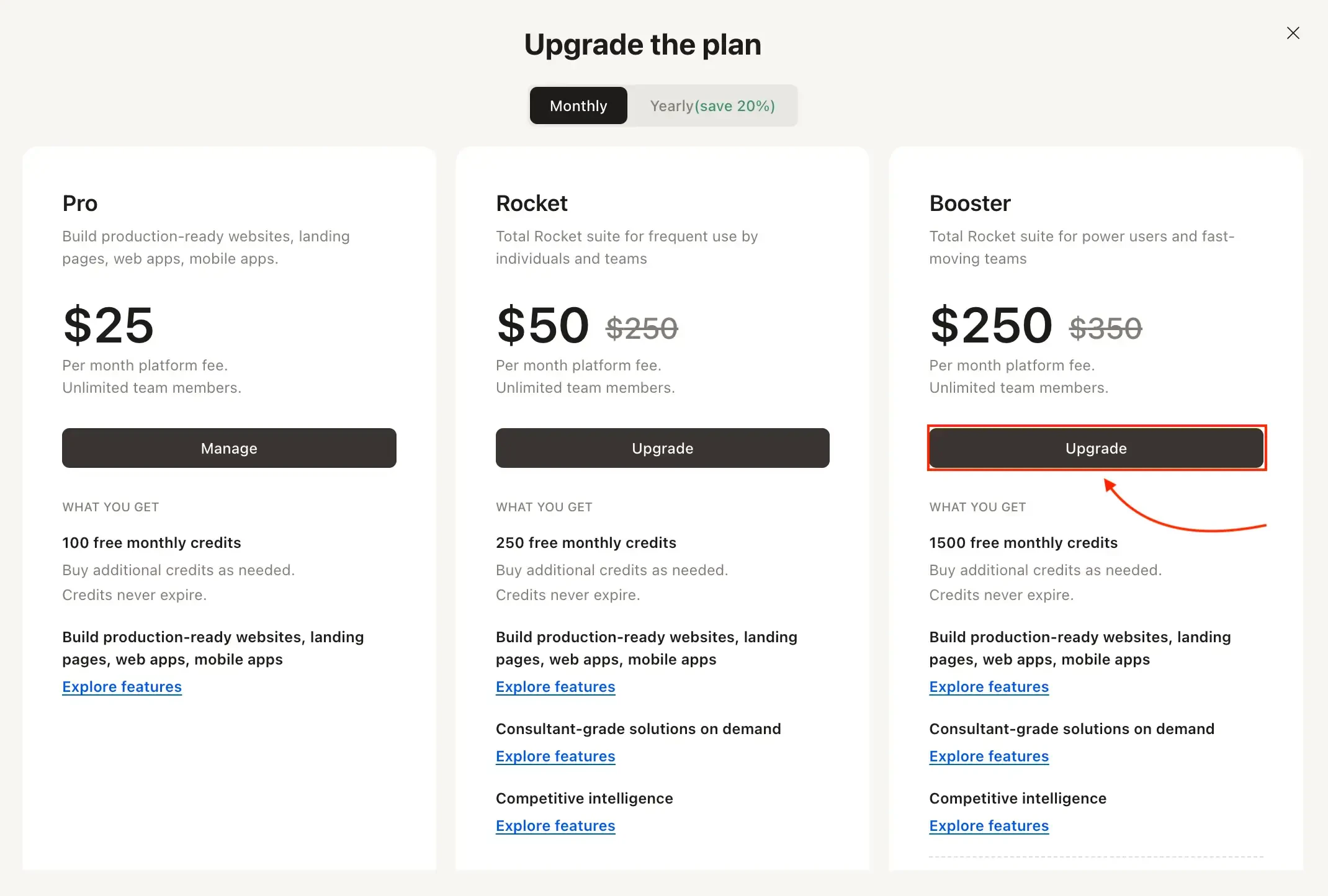
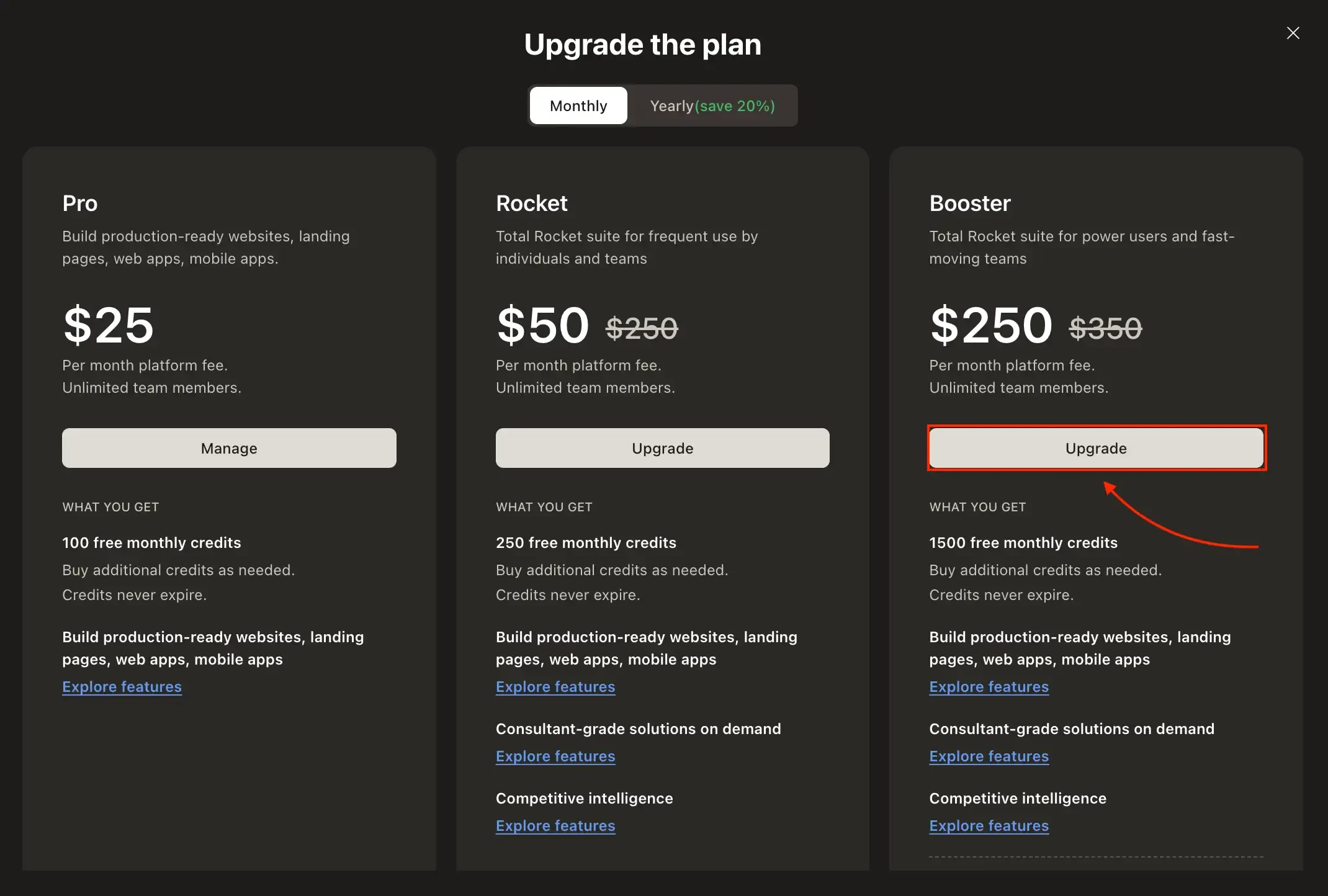
Upgrade the plan modal showing another plan
Confirm the update
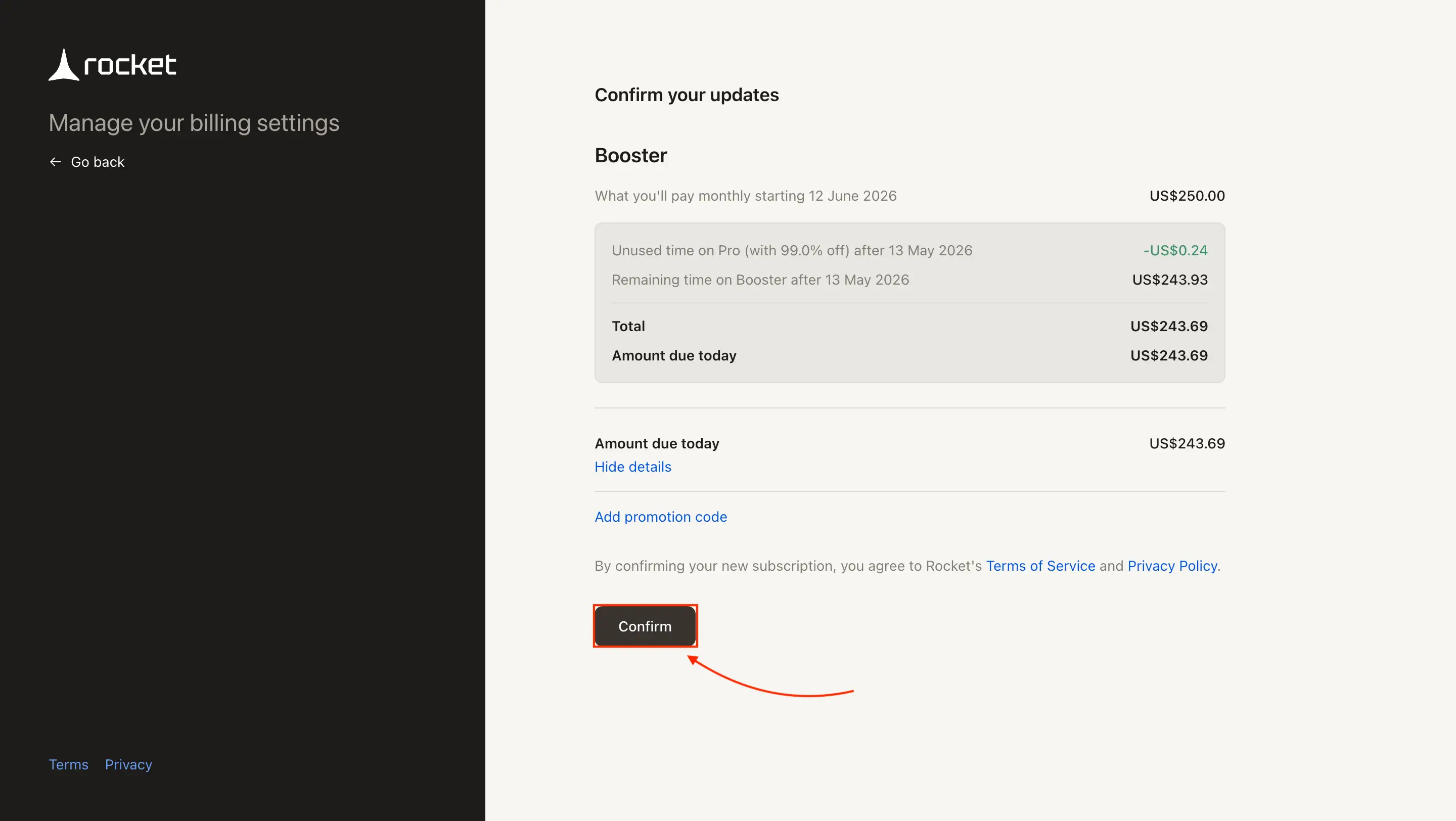
Stripe confirm plan update
Add credits
The Add credits button is visible in Settings → Subscription for paid users. Clicking it takes you directly to Stripe checkout where you choose how many credits to buy. If you find yourself adding credits regularly, consider upgrading to a higher plan for better value.Click Add credits in the Subscription tab
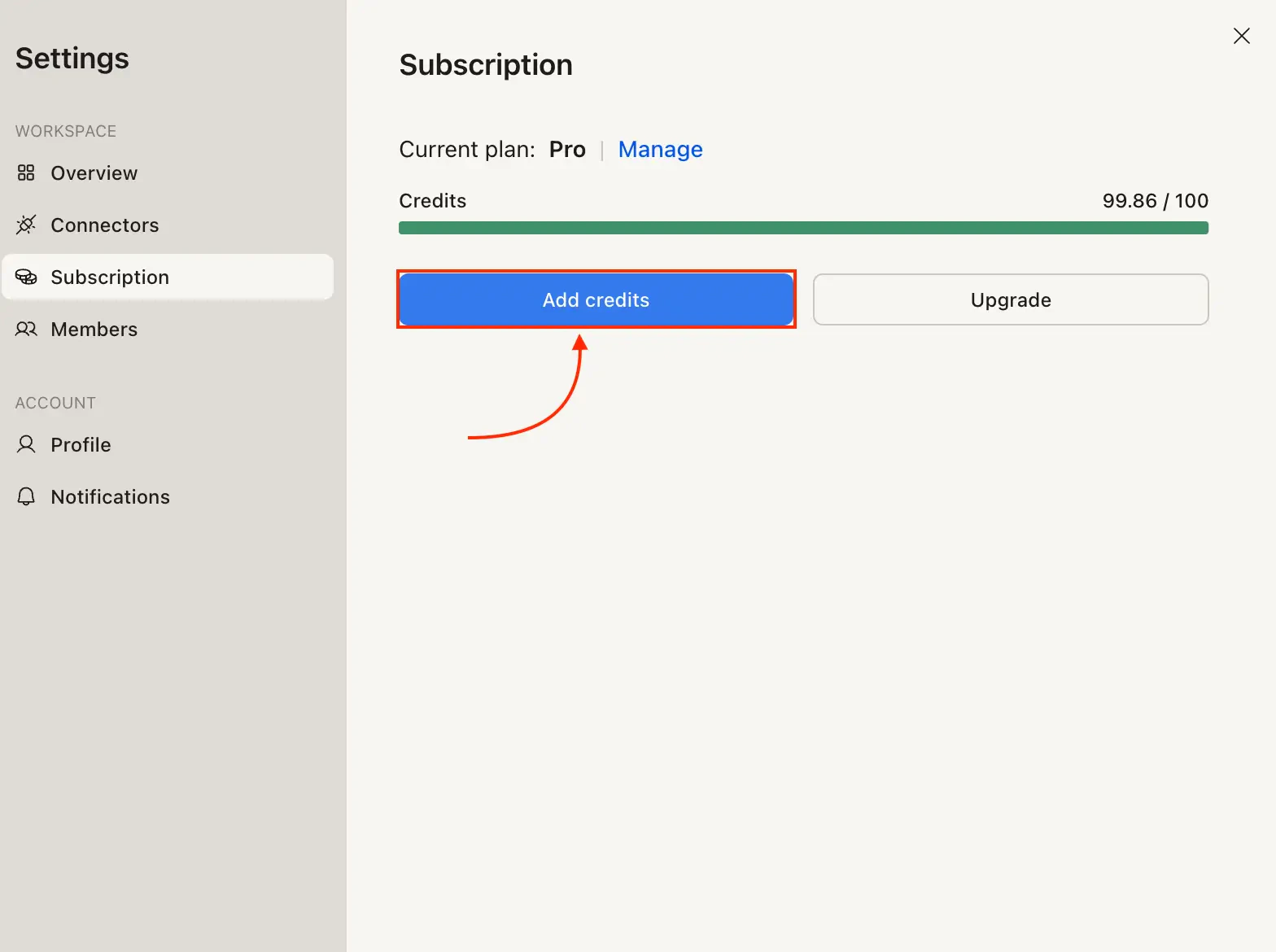
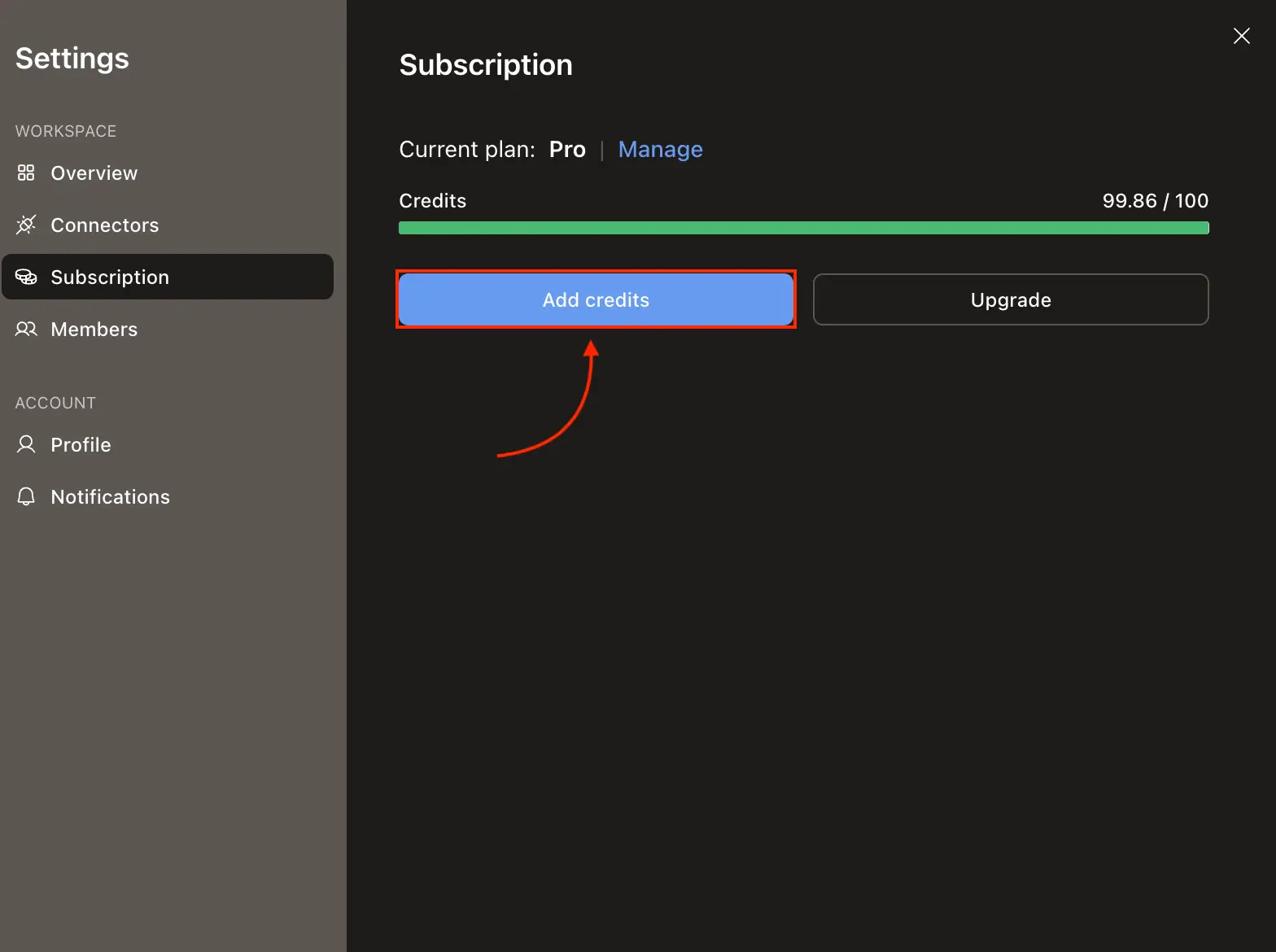
Add credits button in the Subscription tab
Choose quantity and pay
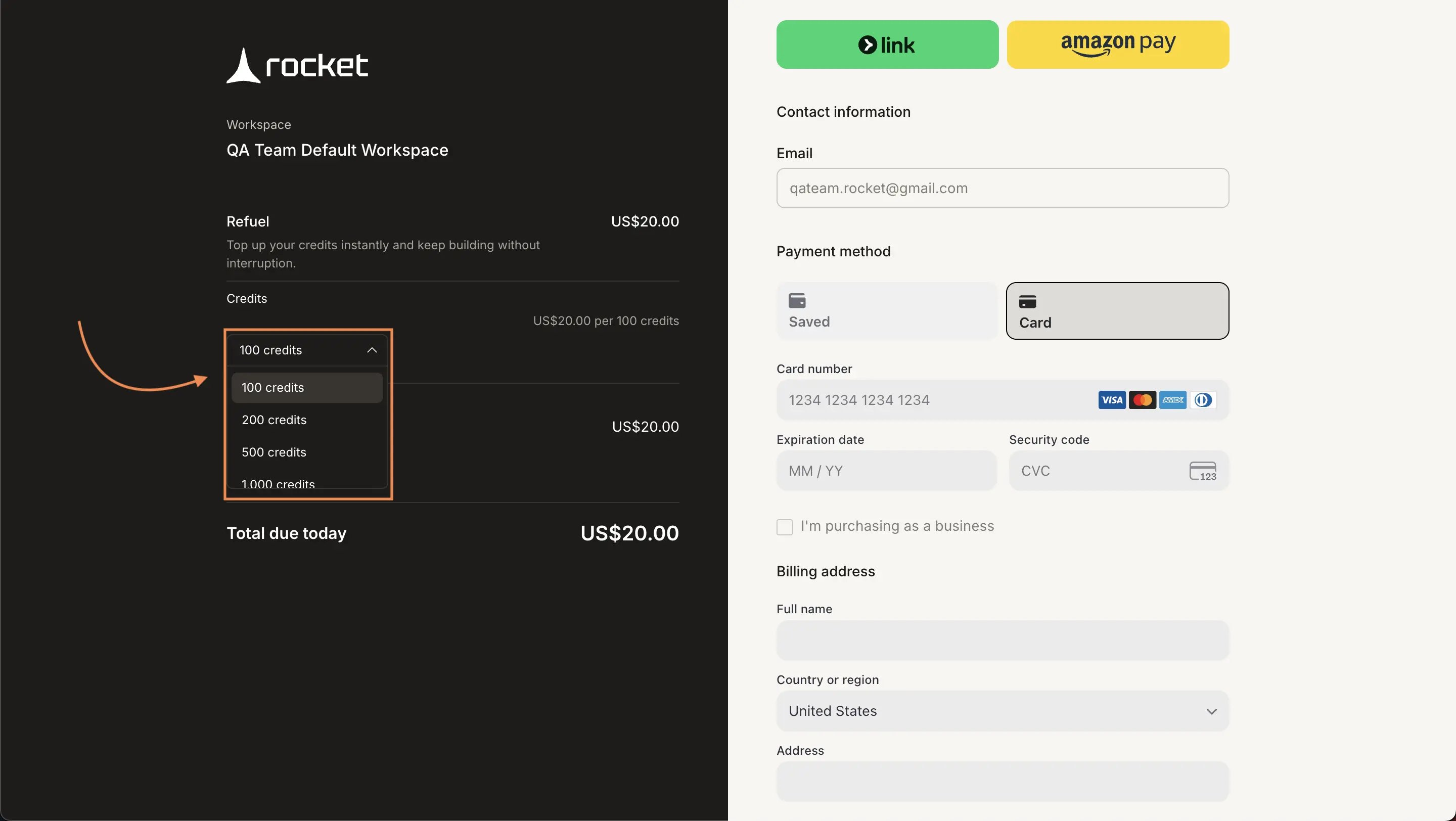
Stripe checkout for credit packs
Cancel your subscription
Click Manage next to your current plan
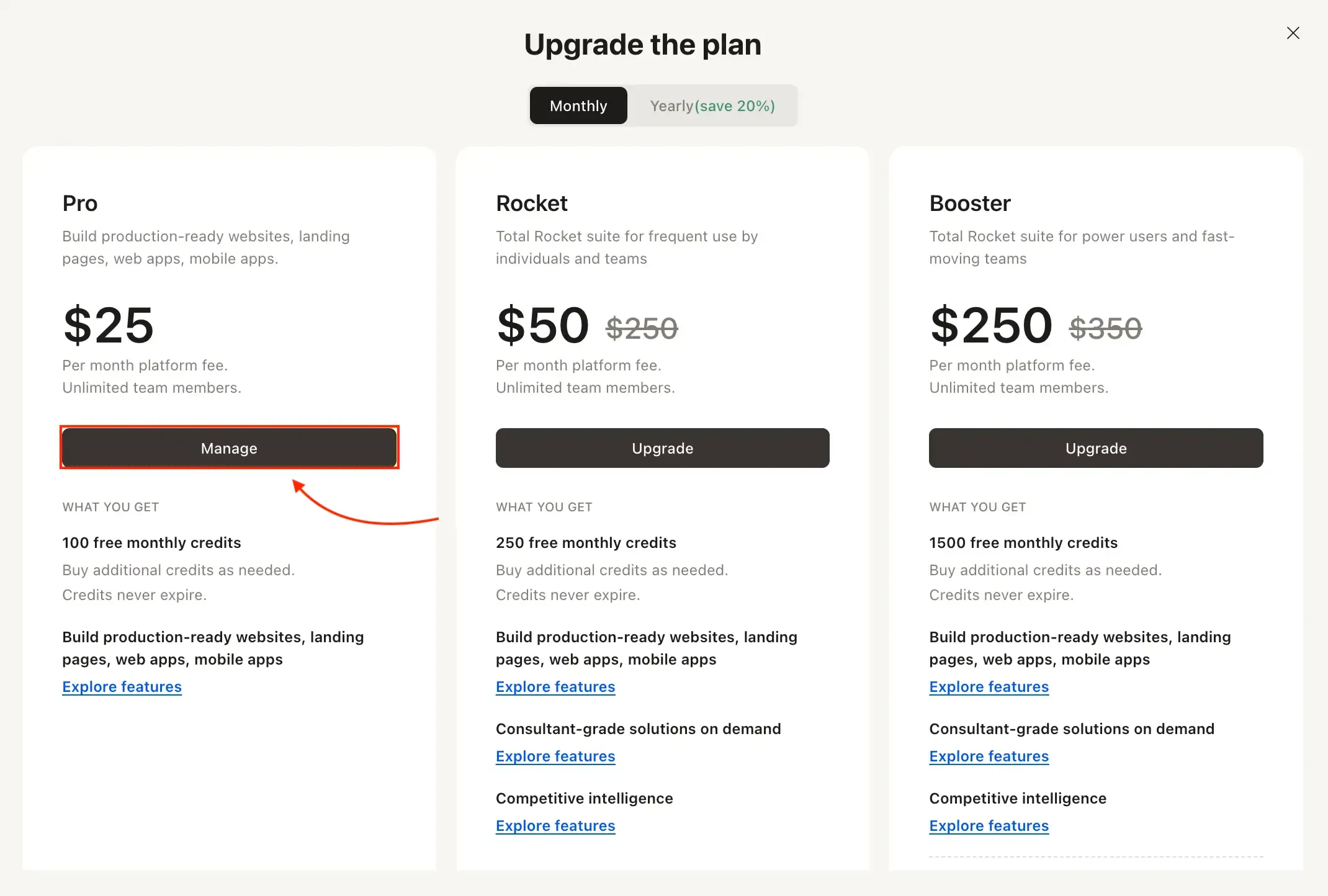
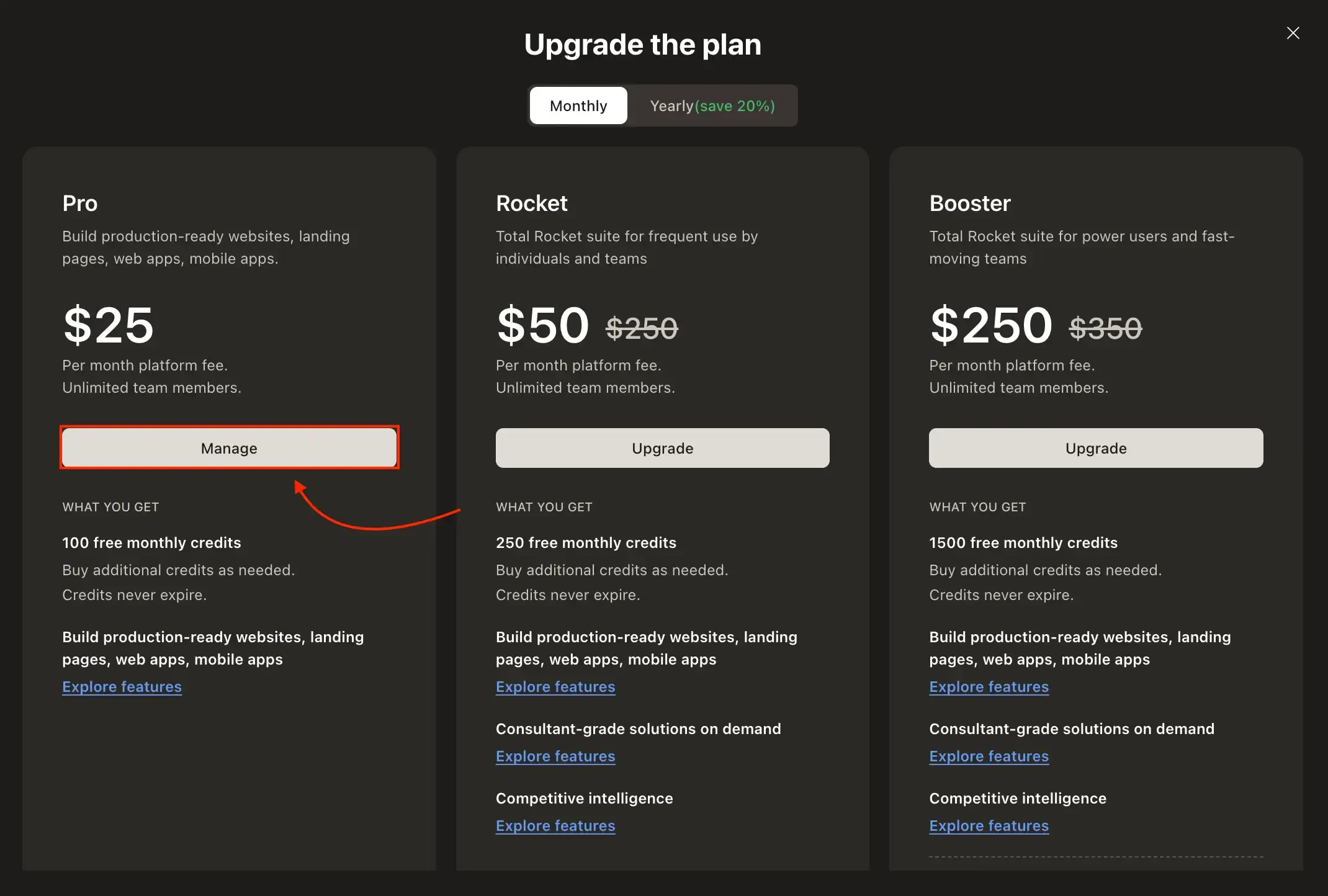
Upgrade modal showing Manage on your current plan
Click Cancel subscription
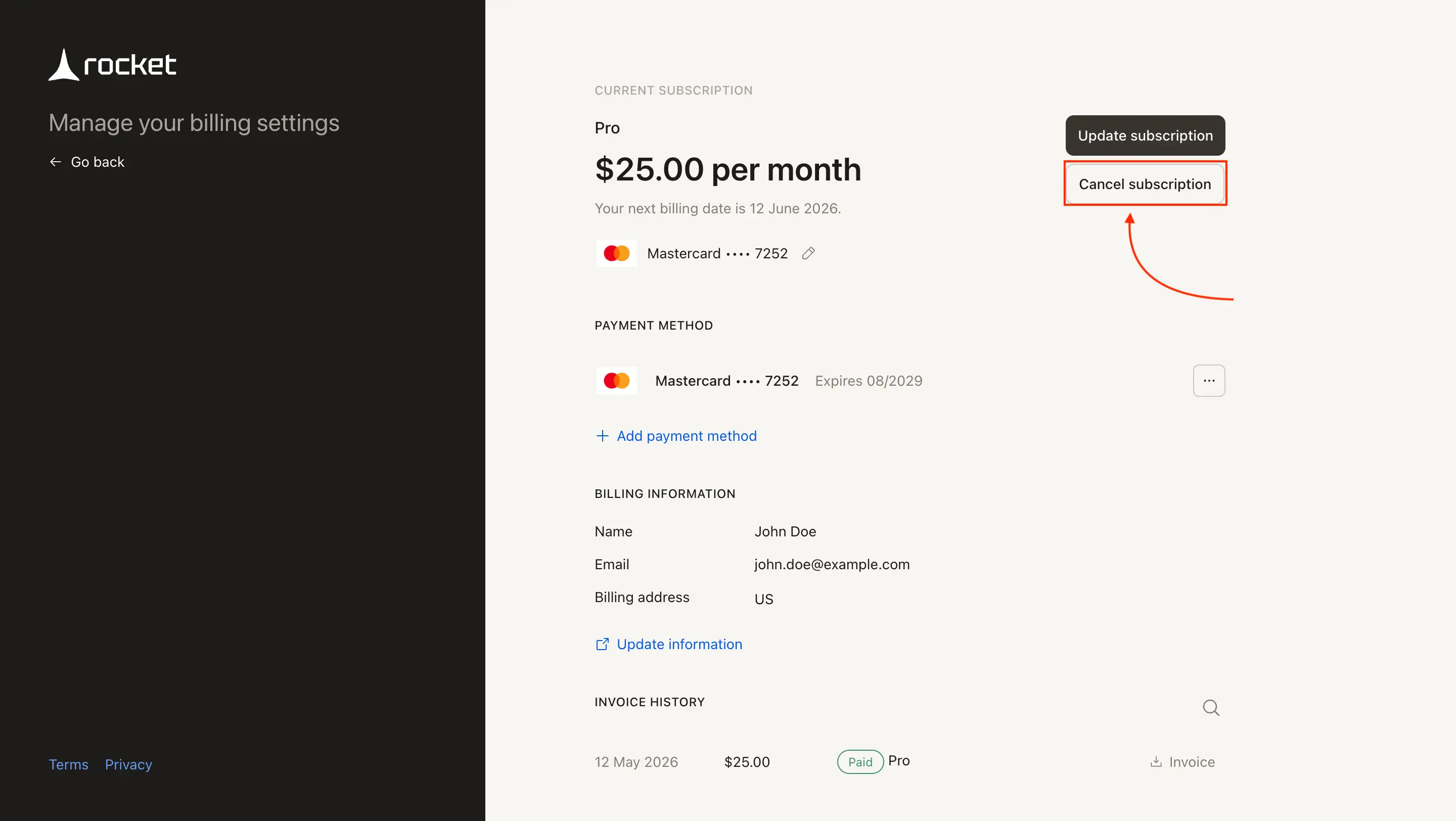
Stripe billing portal showing Cancel subscription button
Confirm the cancellation
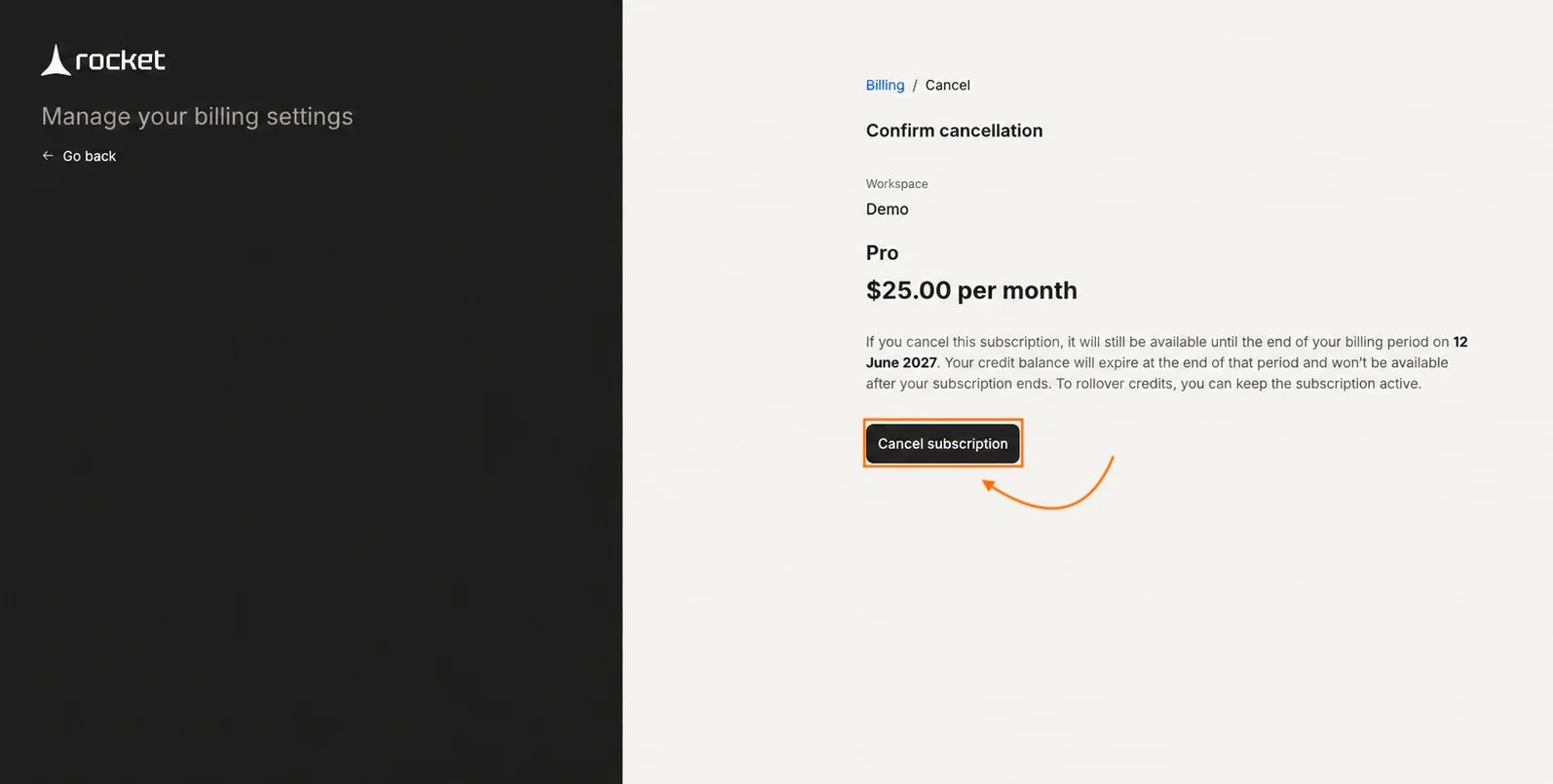
Stripe confirm cancellation
Downgrade your plan
To downgrade, click Manage next to your active plan in Settings → Subscription, then select a lower-tier plan in the Stripe billing portal. Downgrades are scheduled for your next billing cycle. You keep your current plan and credit balance until then.Update your payment method
Click Manage and go to Payment Method
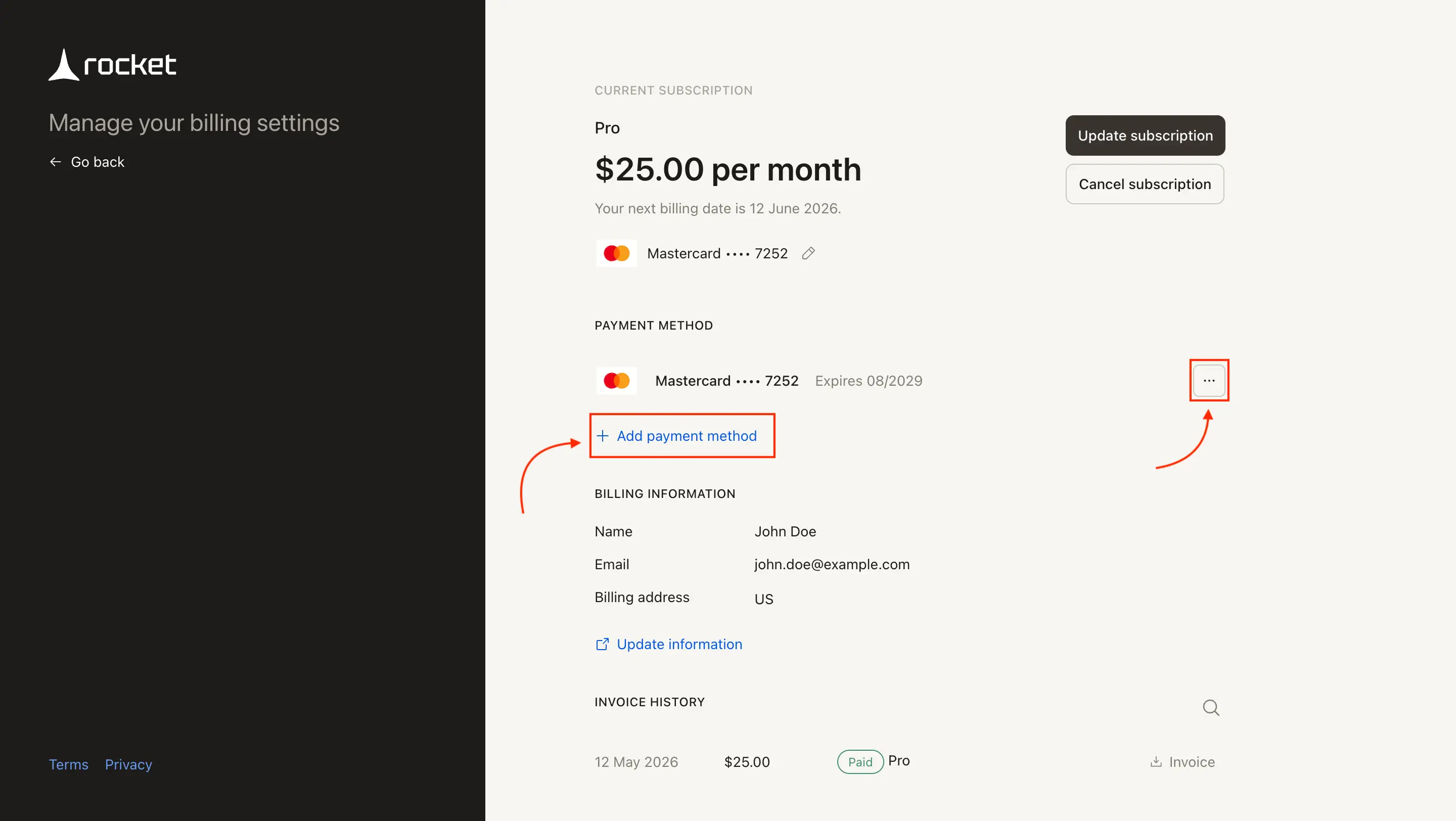
Stripe billing portal Payment Method section
Enter card details and save
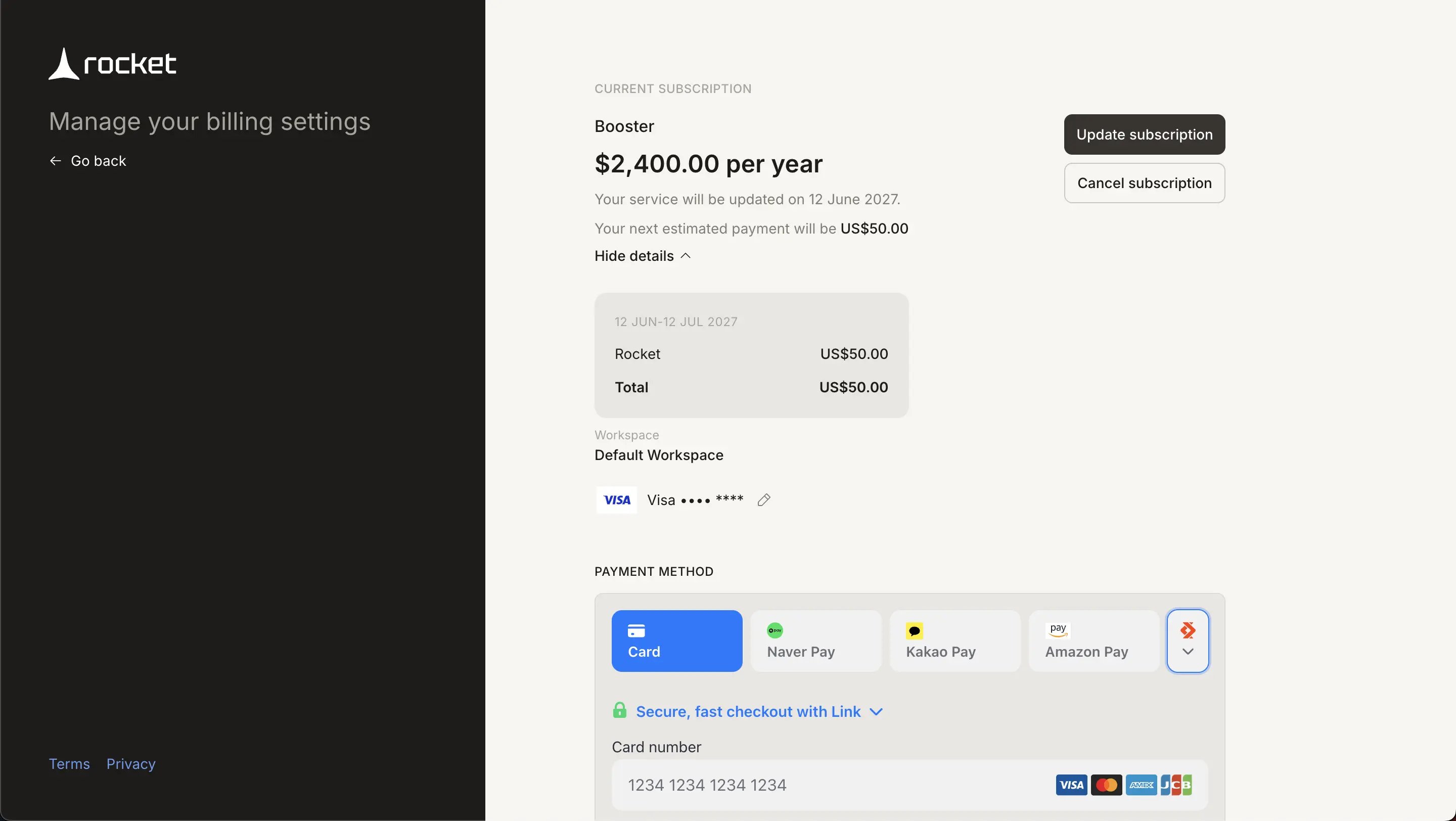
Add new payment method
Update your billing information
Click Manage and go to Billing Information
Edit the address and save
- Address line 1
- Address line 2 (optional)
- City
- Postal code
- State
- Country
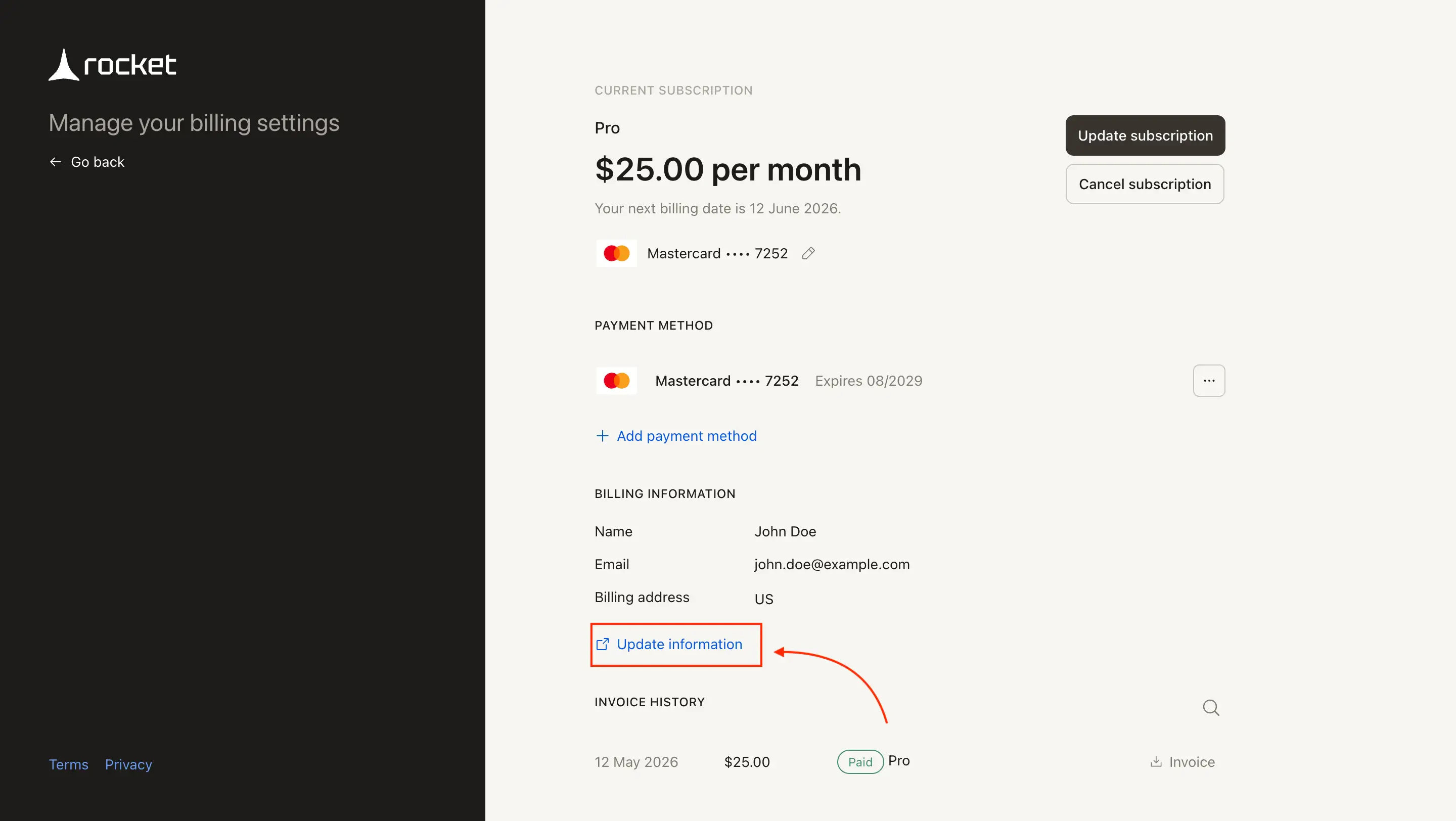
Stripe billing portal Billing Information form
Download an invoice or receipt
Open Settings → Subscription and click Manage, then scroll to Invoice History. Each row shows the date, amount, and plan. Click Invoice to download.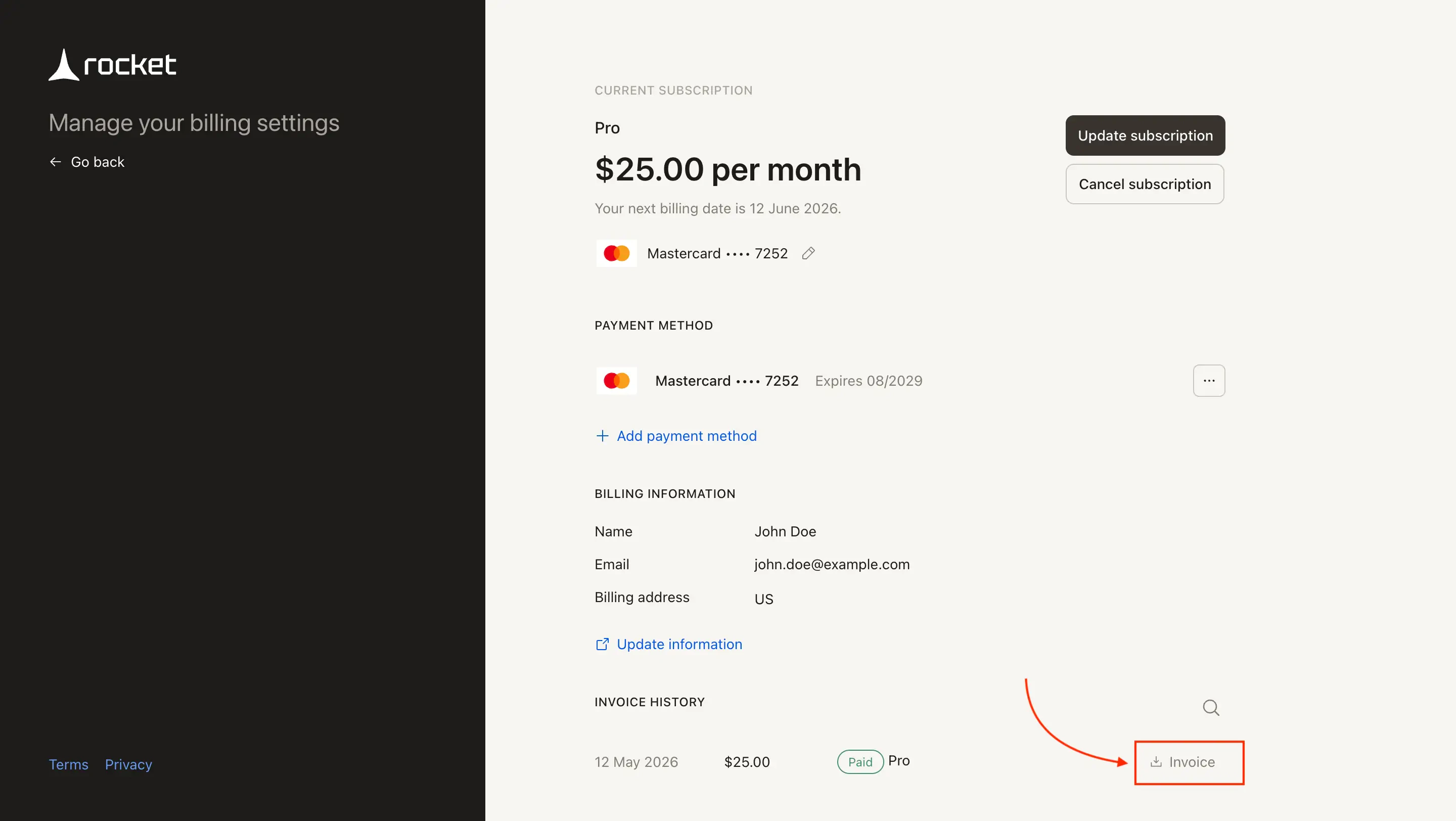
Invoice History