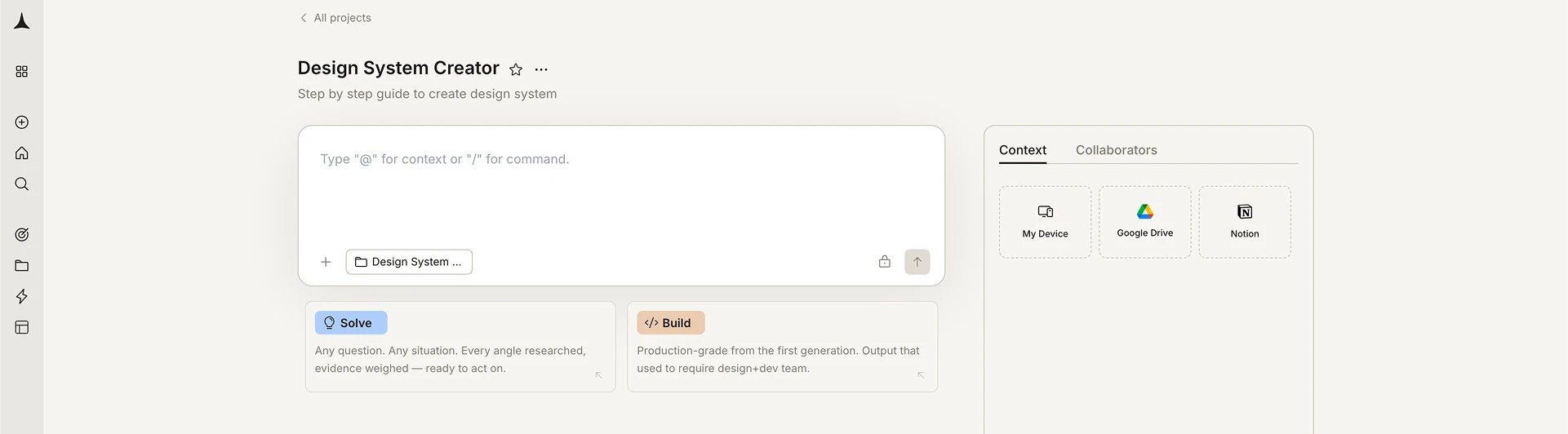
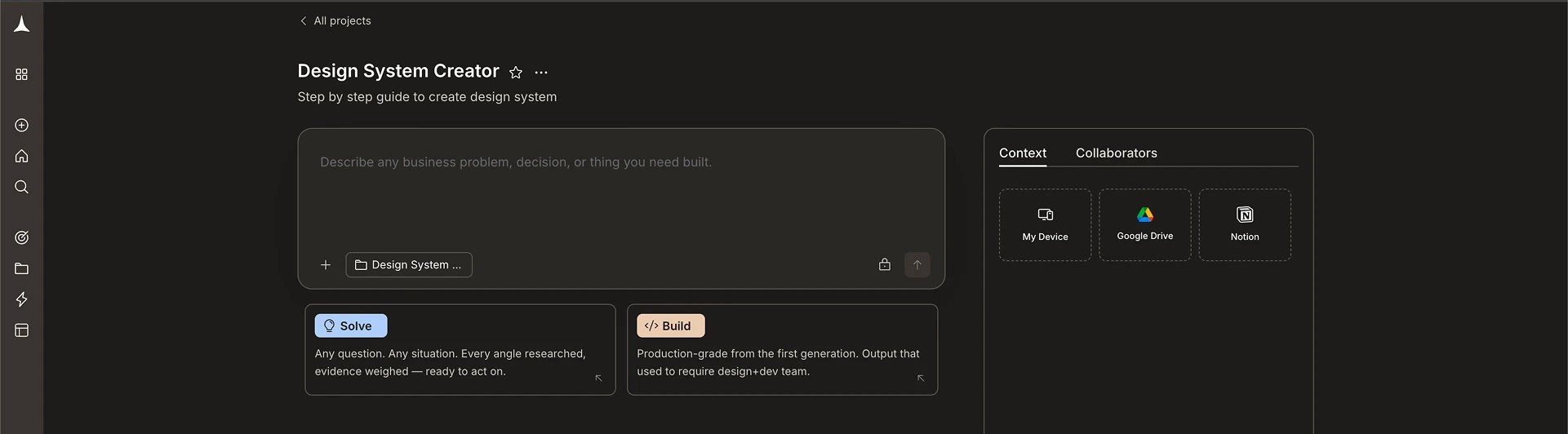
Create a project
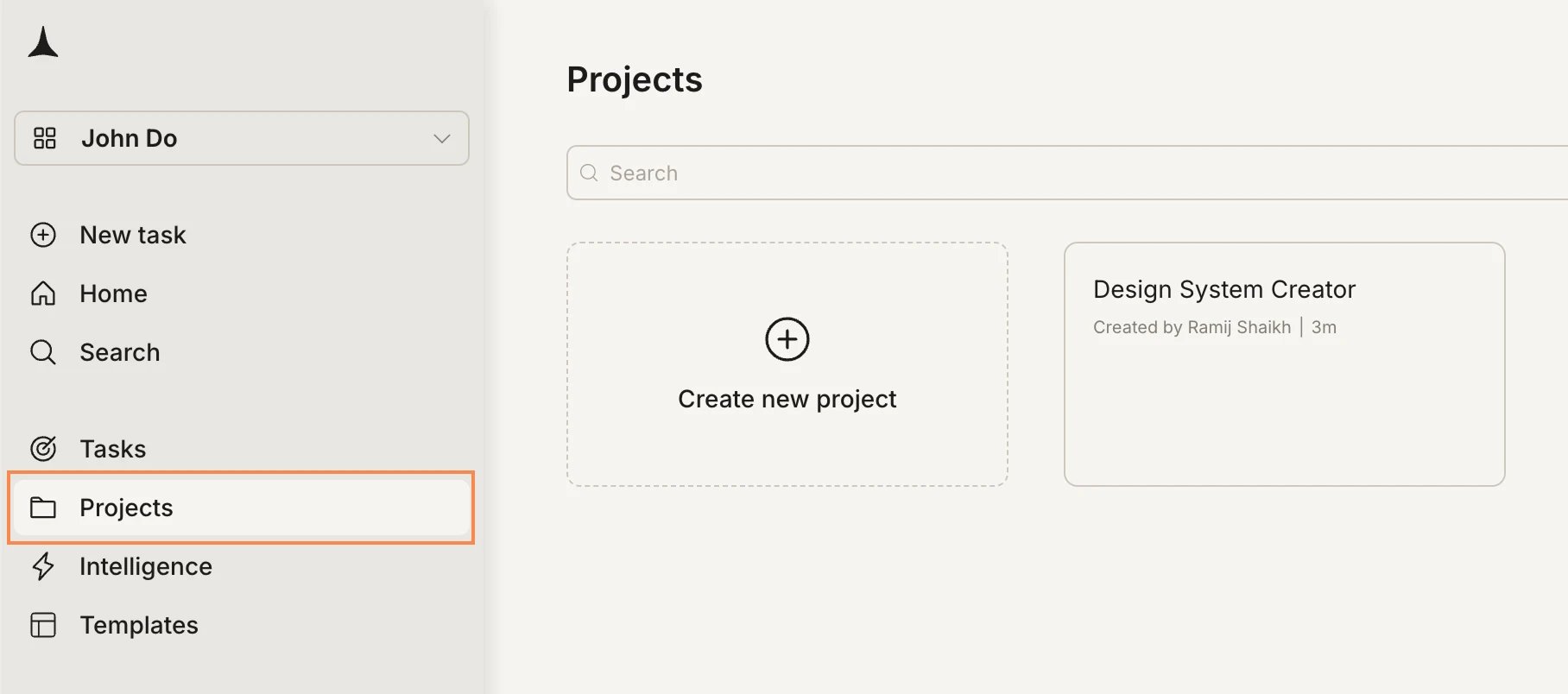
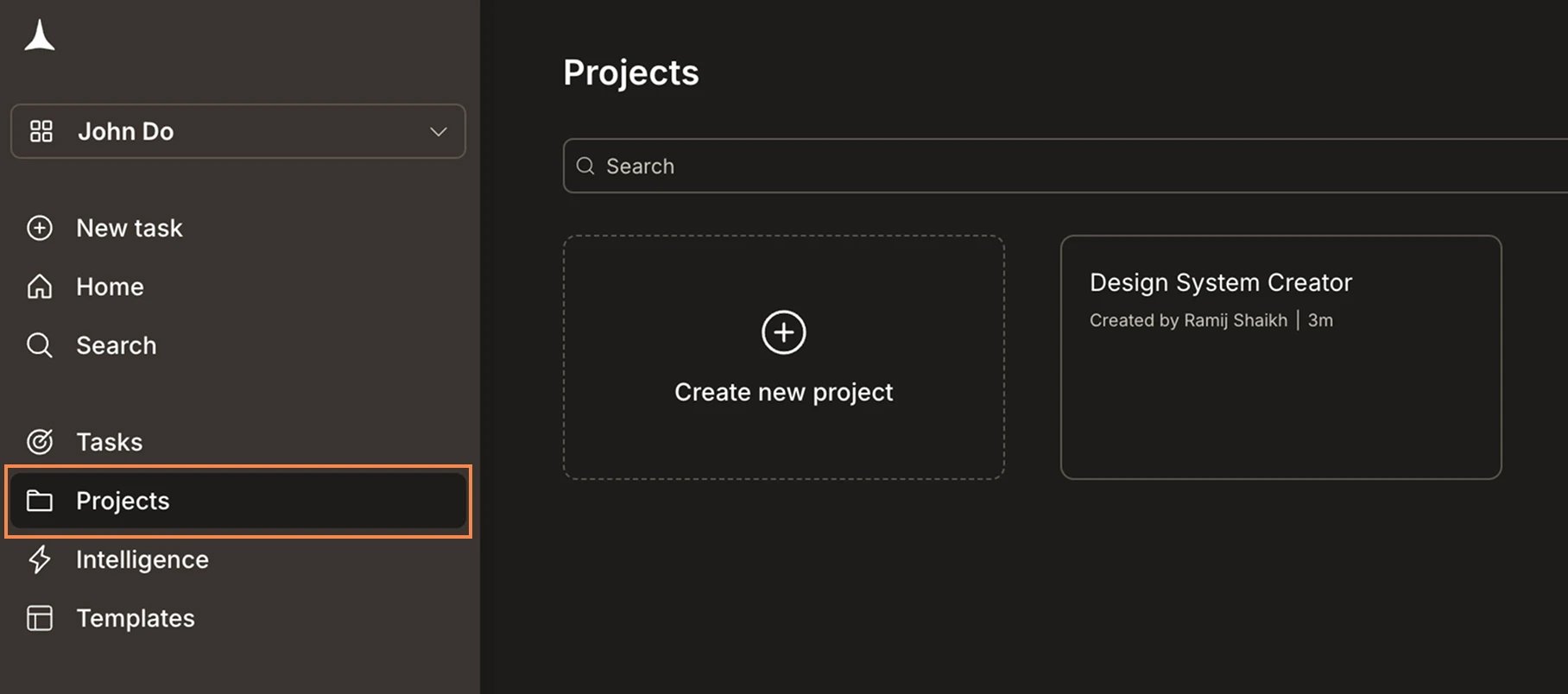
Open the Projects page
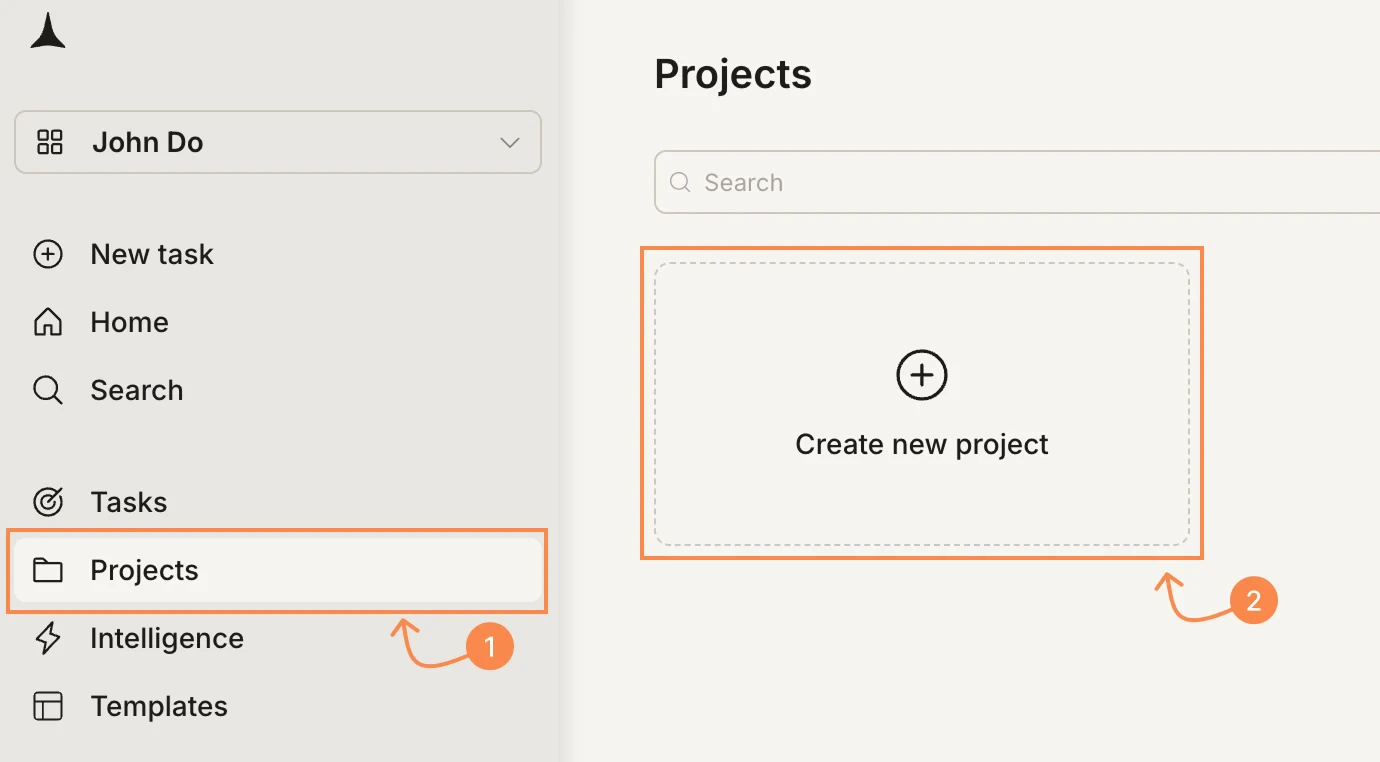
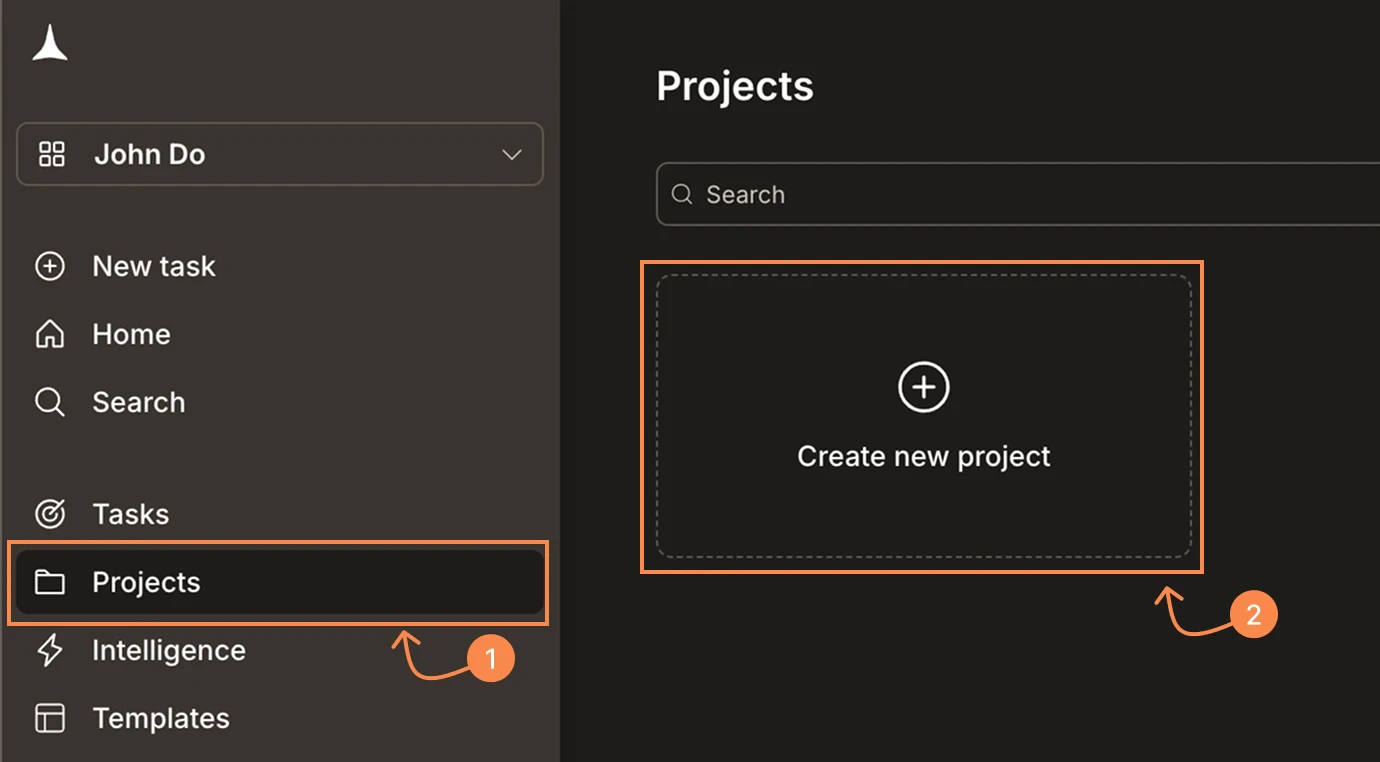
From the home screen, navigate to Projects. You’ll see your existing projects and a Create new project card.
Click Create new project
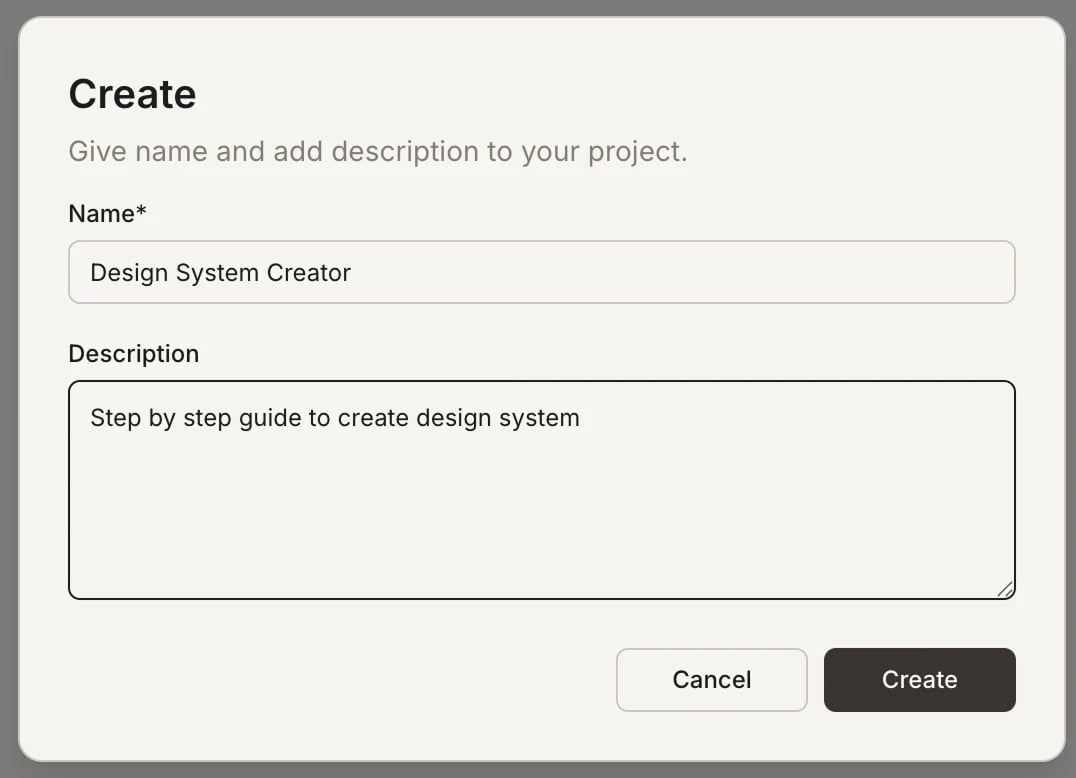
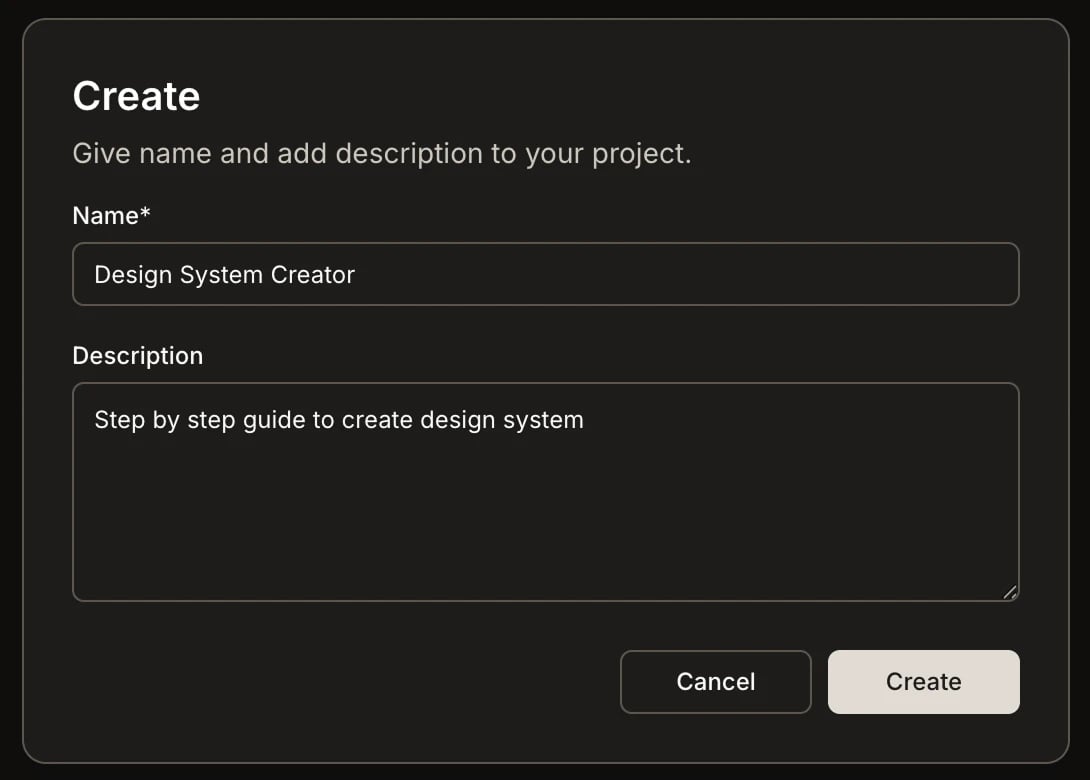
Click the Create new project card. A dialog appears with a name and description field.
Name your project
Enter a clear, descriptive name. Good names describe the initiative, not the task type.
Add a description
Write a short description of what the project is for. This helps collaborators understand the project’s purpose at a glance.
Naming tips
| Do | Don’t |
|---|---|
| ”Q3 Product Launch" | "Project 1" |
| "Competitor Analysis - Fintech" | "Research stuff" |
| "Marketing Site Redesign" | "Website” |
Keep names under 50 characters. Use the description field for additional context.
Rename a project
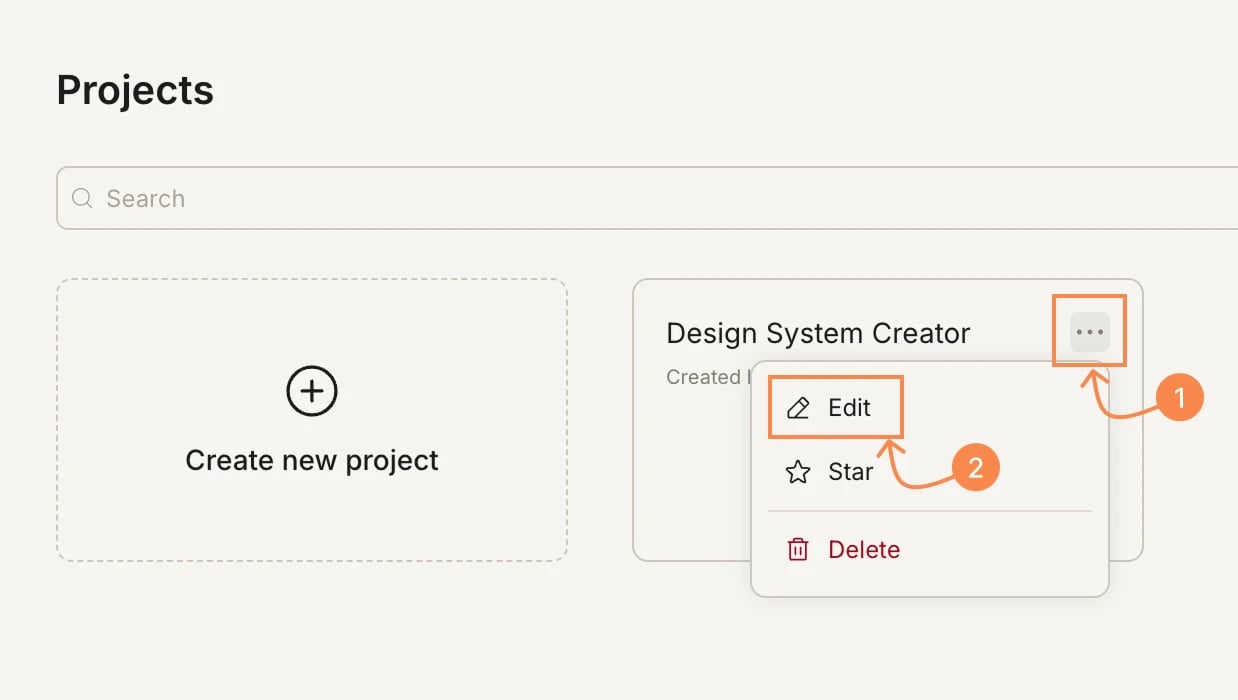
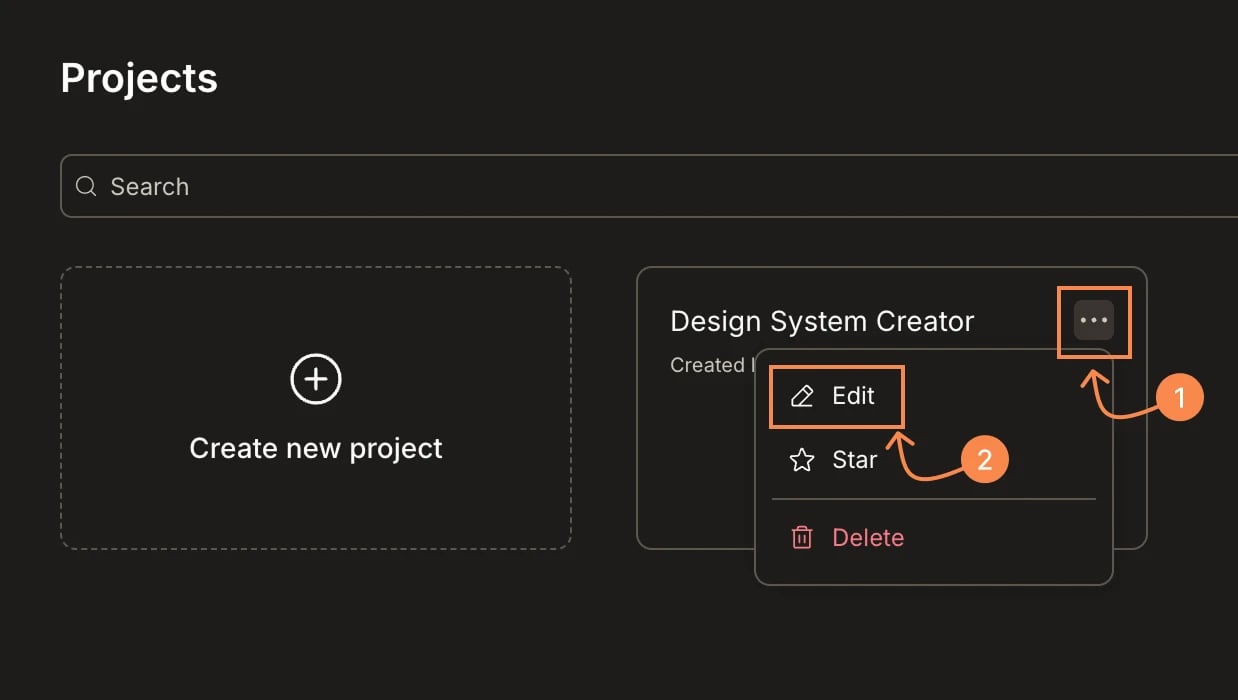
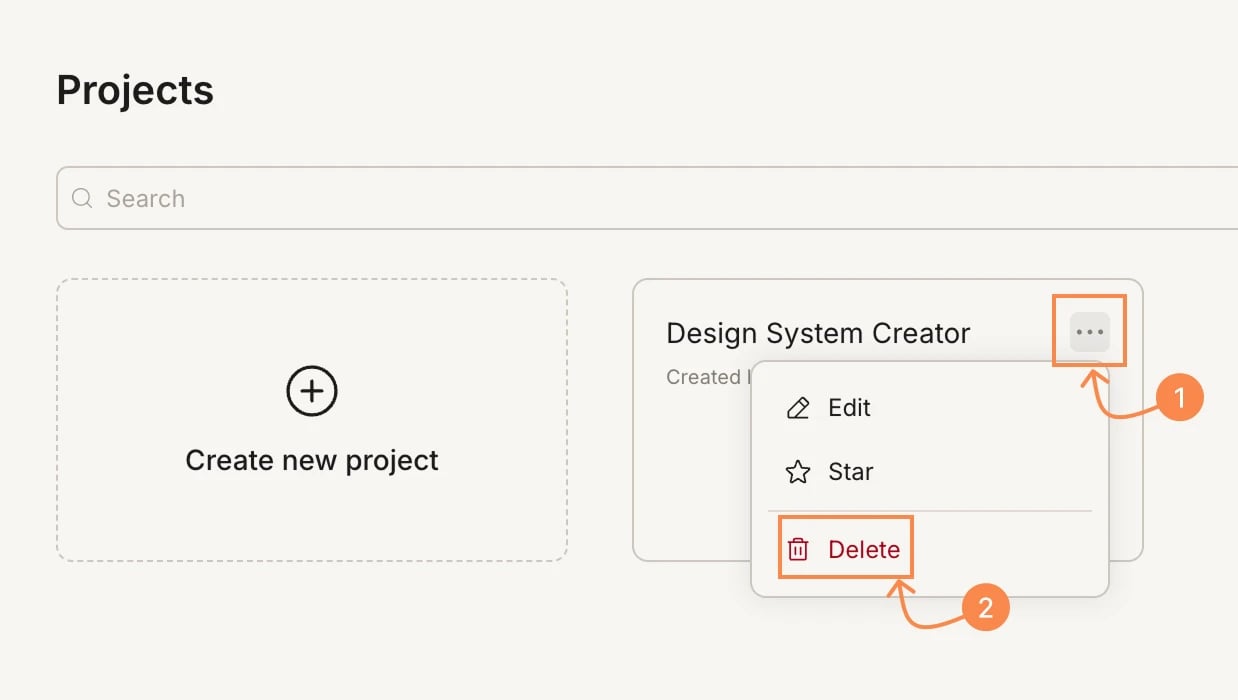
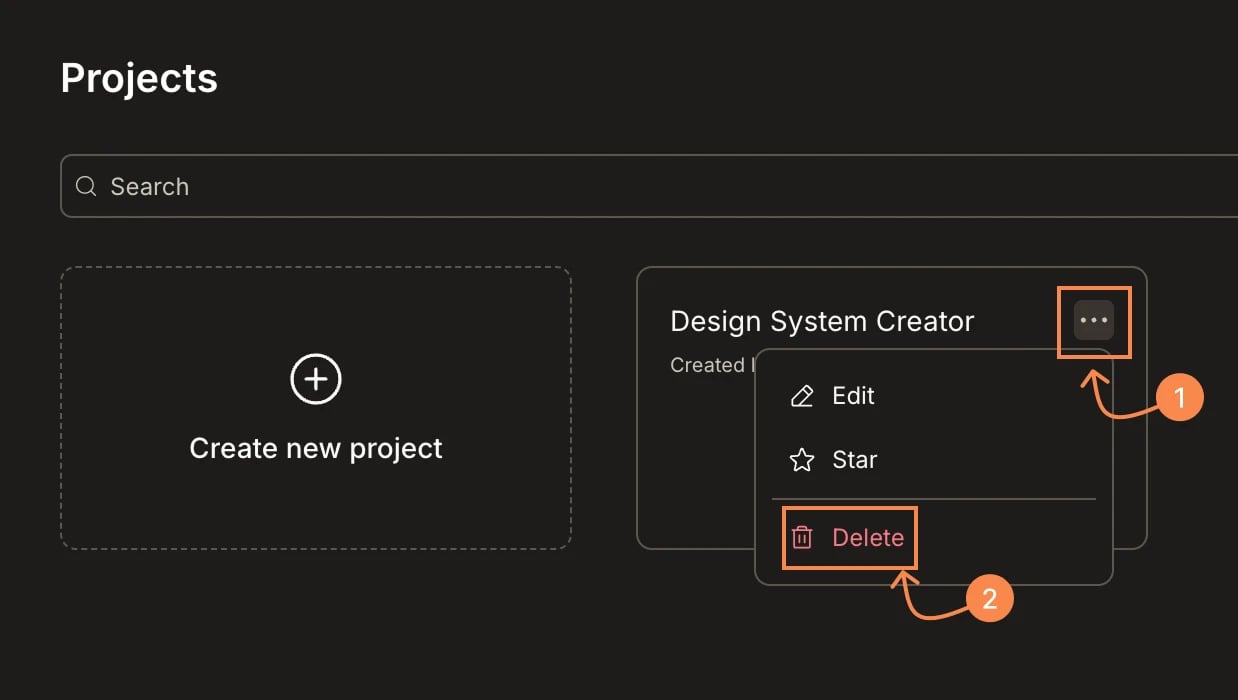
- Click the … menu on the project card.
- Select Edit.
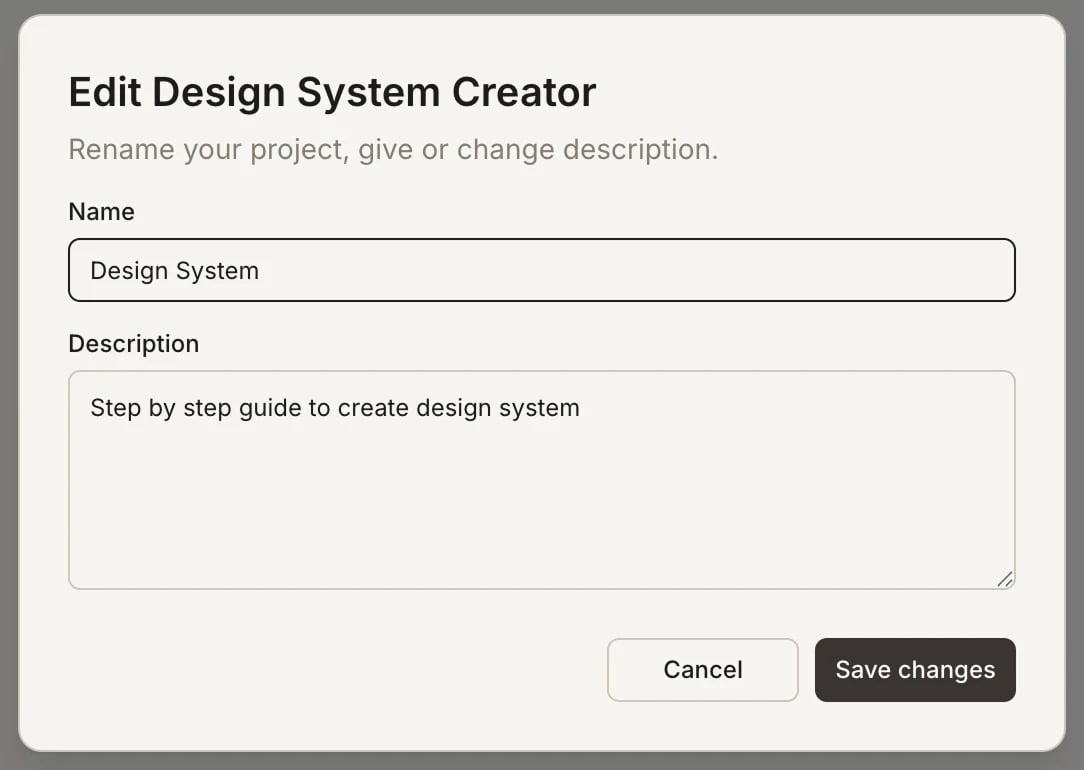
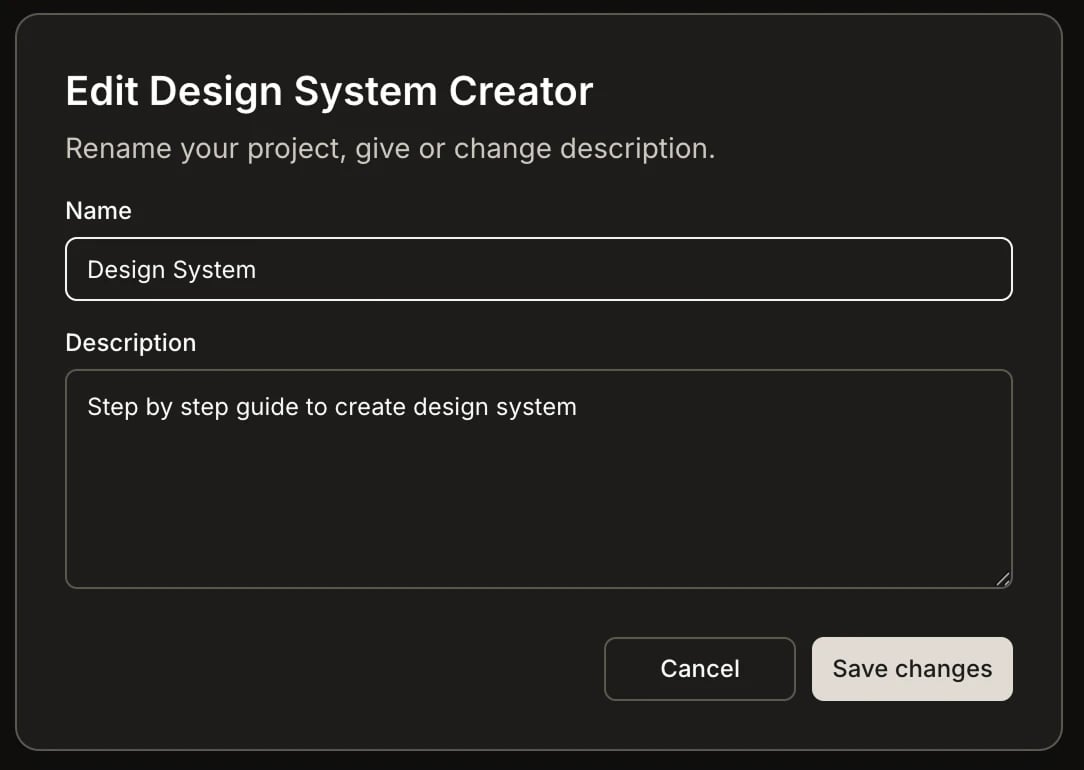
- Update the name or description and save.
Star a project
Star a project to pin it to the top of your project list for quick access.- Click the … menu on the project card.
- Select Star.
Archive a project
Archiving preserves a project and all its contents in a read-only state. Use it when work is done but you want to keep the history.- Open the project and click the … menu.
- Select Archive project.
- Confirm the action.
Archived projects are fully searchable and viewable. You can unarchive at any time to resume editing.
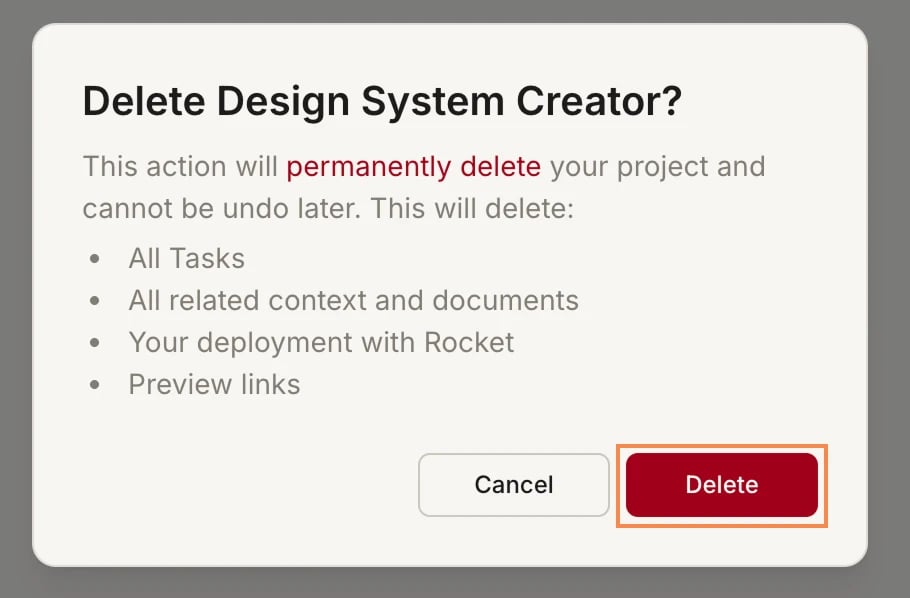
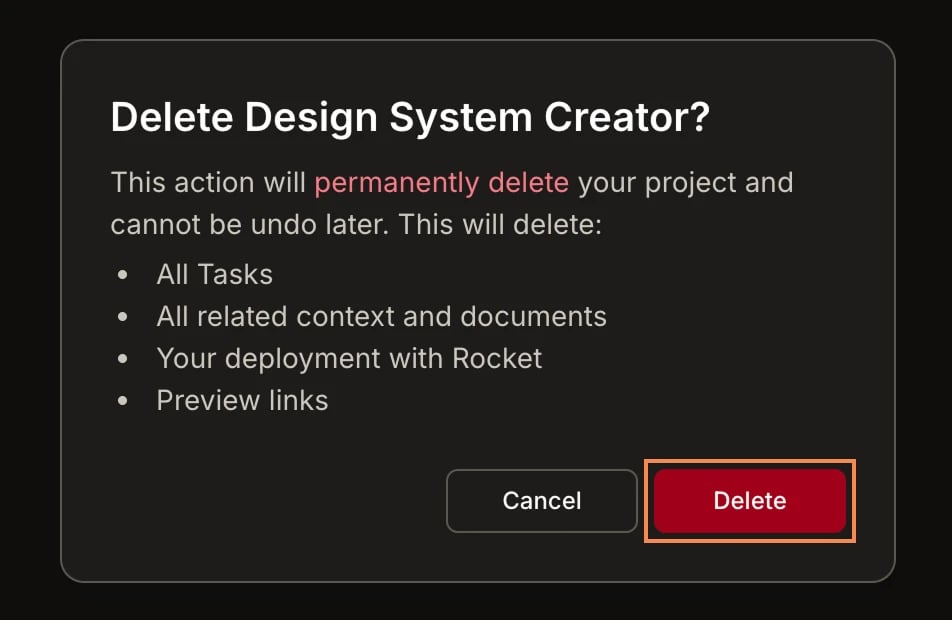
Delete a project
- Web Browser
- Mobile App
- Open the project and click the Settings icon.
- Click Delete project.
- Confirm by selecting Yes, delete.
What’s next?
Project overview
Learn how projects organize your Solve and Build tasks.
Context
Upload files and connect services for shared context.