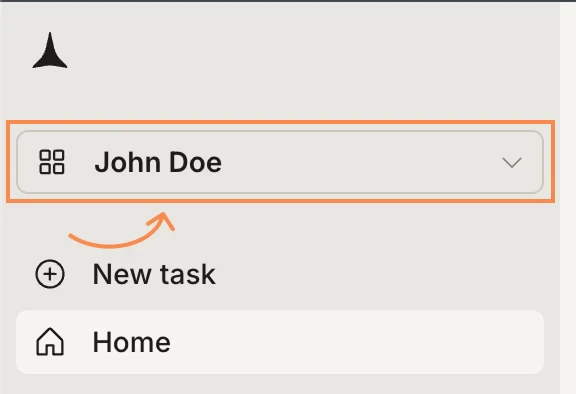
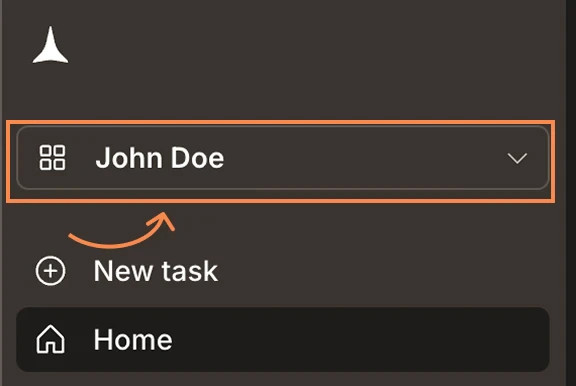
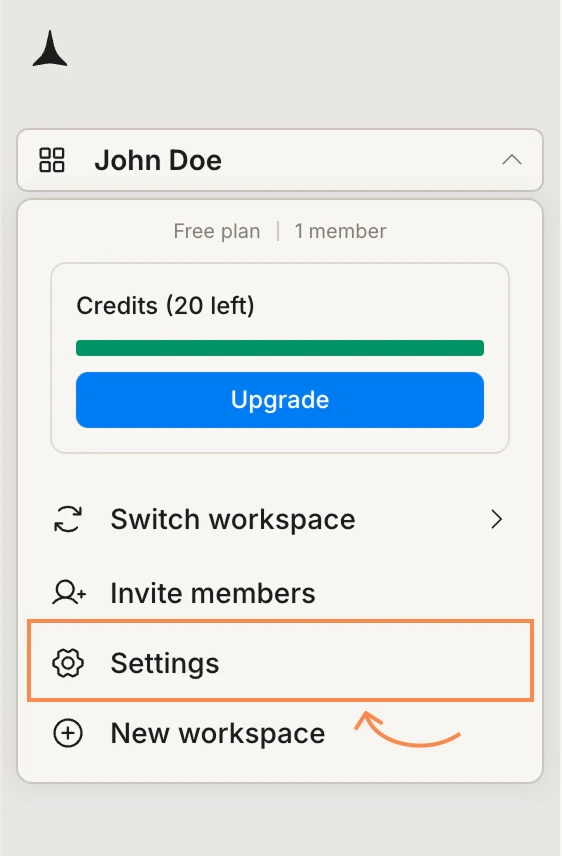
Click your workspace name in the top left of the sidebar to open the workspace menu.
Click your workspace name to open the menu
2
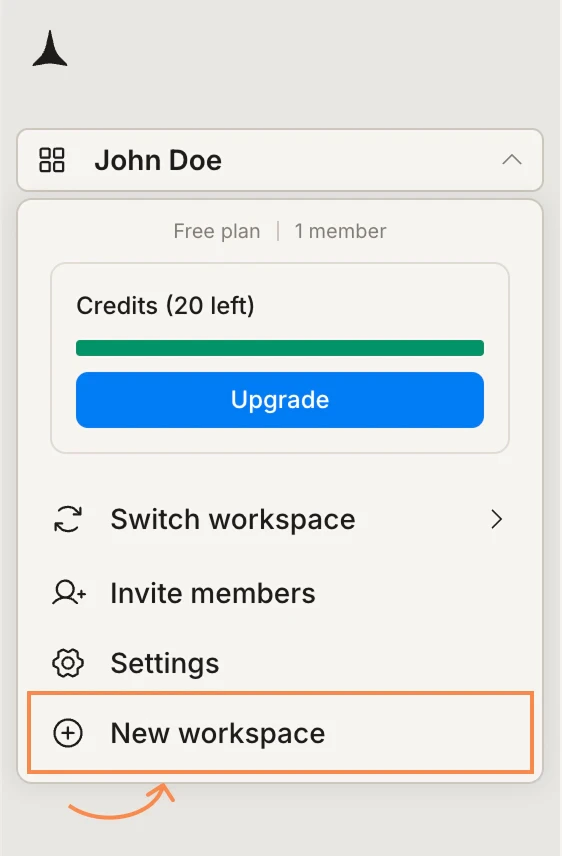
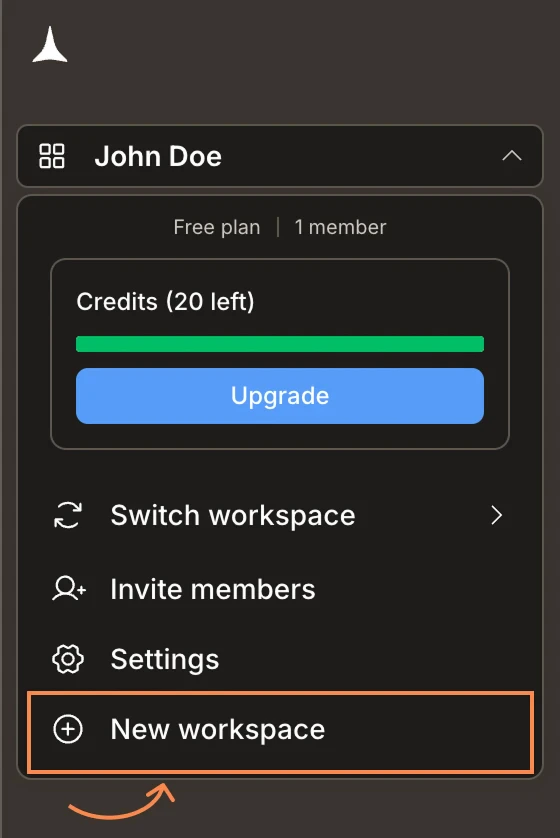
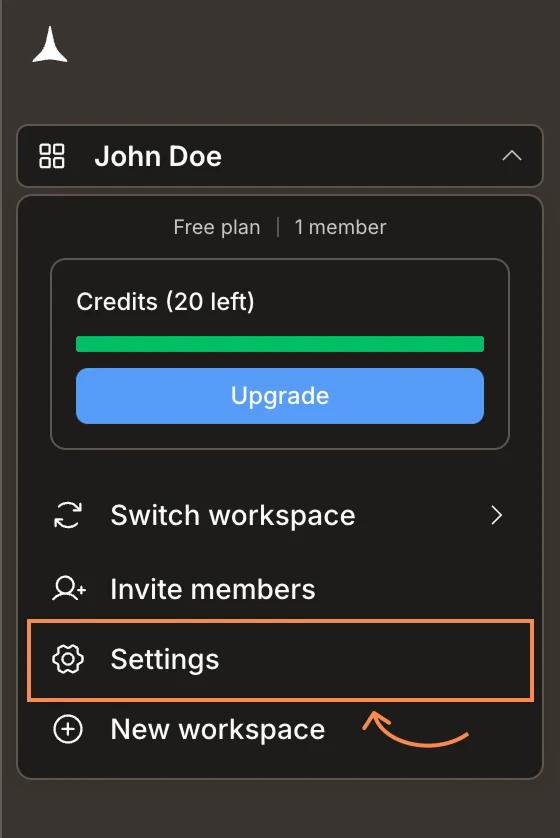
Click New workspace
Select New workspace at the bottom of the menu.
Workspace menu with New workspace highlighted
3
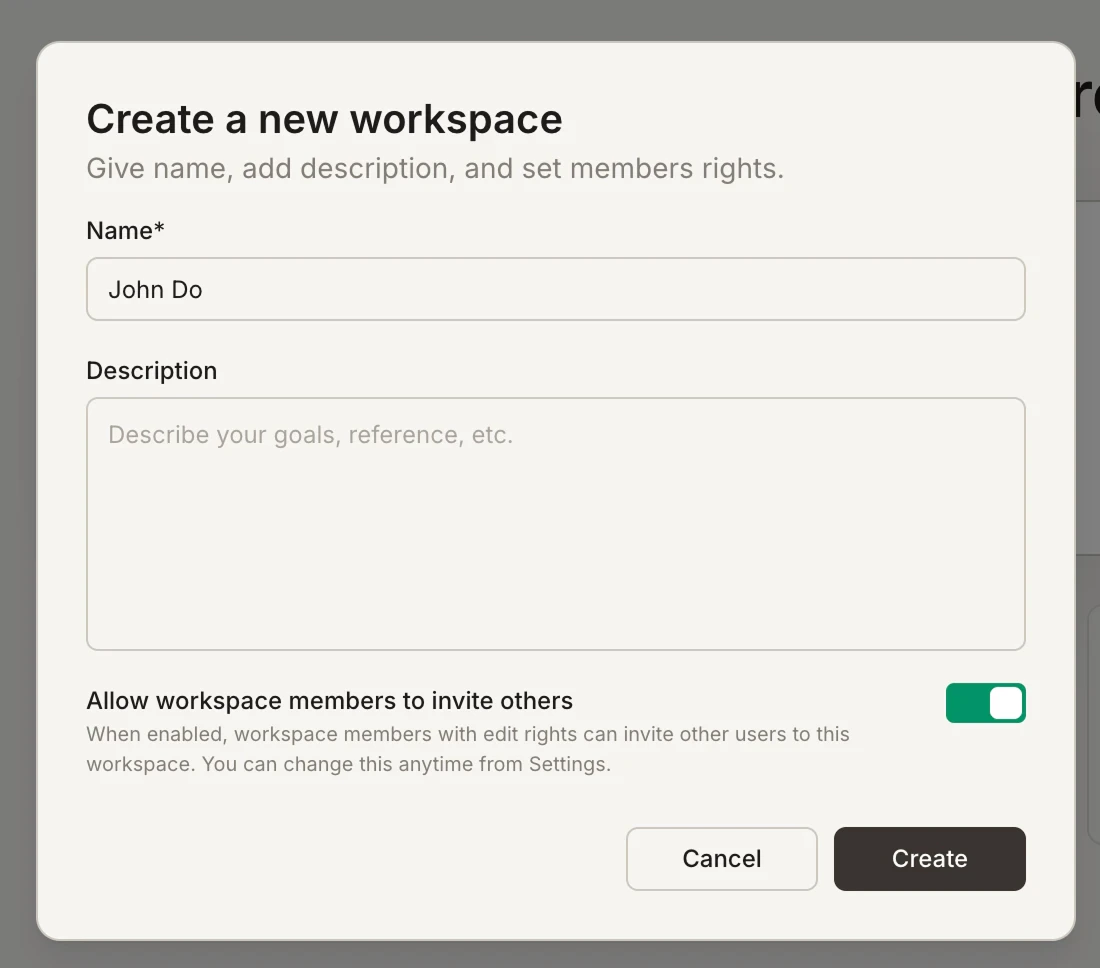
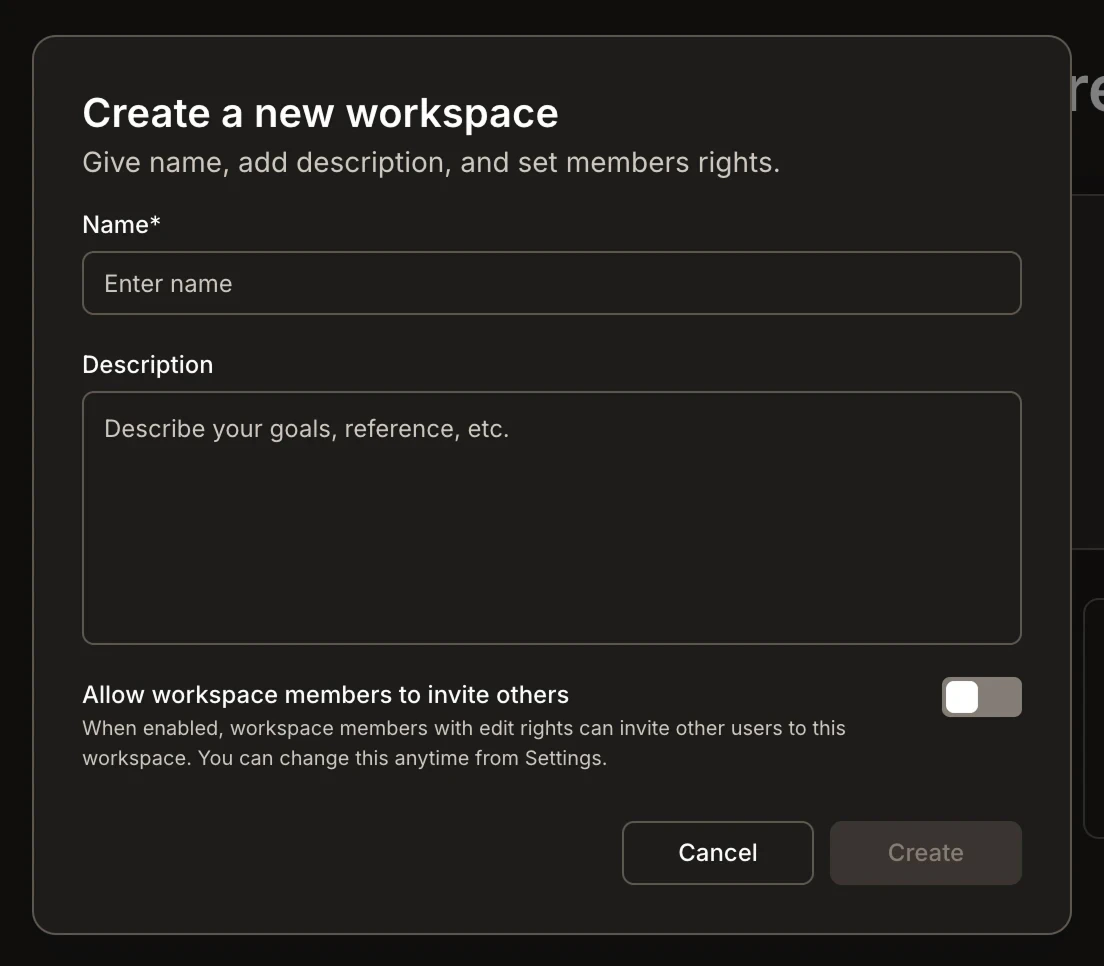
Fill in the details
Enter a Name for your workspace. Add an optional Description to give context to your team.Toggle Allow workspace members to invite others if you want Editors to invite new members at the workspace level. This toggle also applies to project and task owners who are Editors in the workspace. When it is on, those owners can invite anyone. When it is off, they can invite only existing workspace members. Editors who do not own a project or task can never invite anyone to it.
Create a new workspace dialog
4
Click Create
Click Create. Your new workspace opens immediately and is added to your workspace switcher.
Open Settings to rename your workspace, update its description, or manage the member invite toggle.
1
Open the workspace menu and click Settings
Click your workspace name in the top left, then select Settings.
Settings option in the workspace menu
2
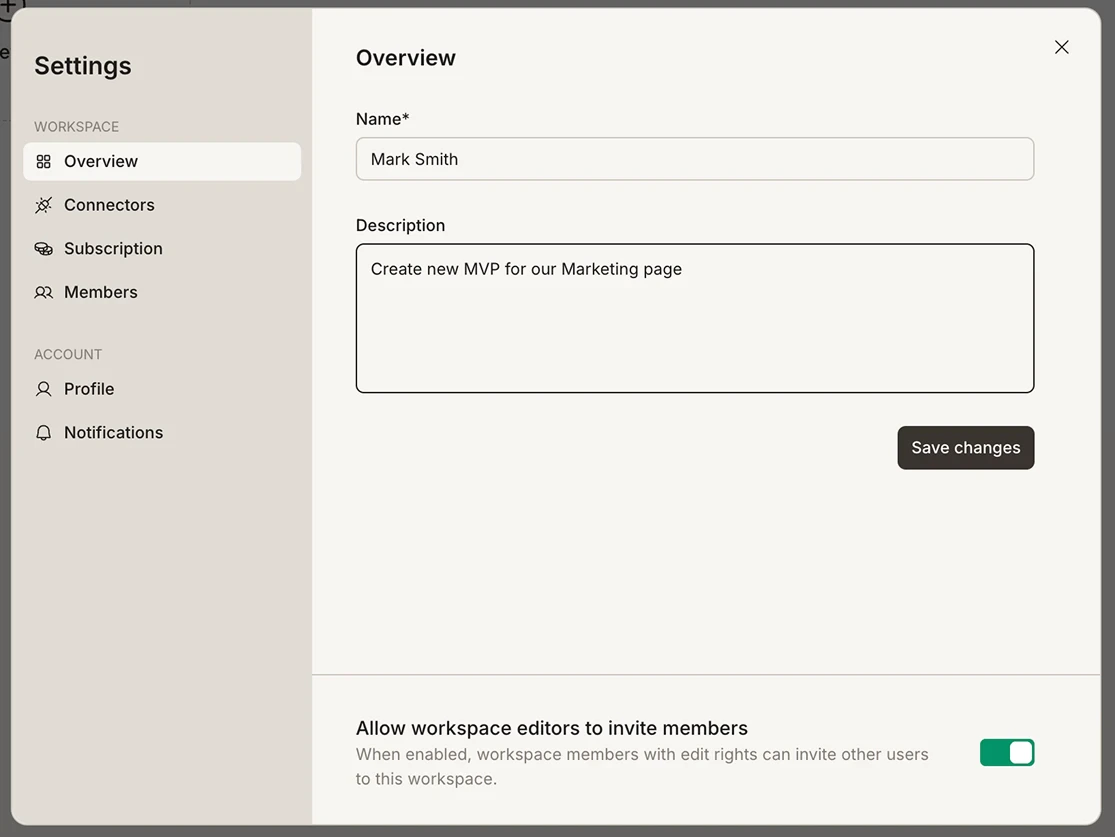
Edit in the Overview tab
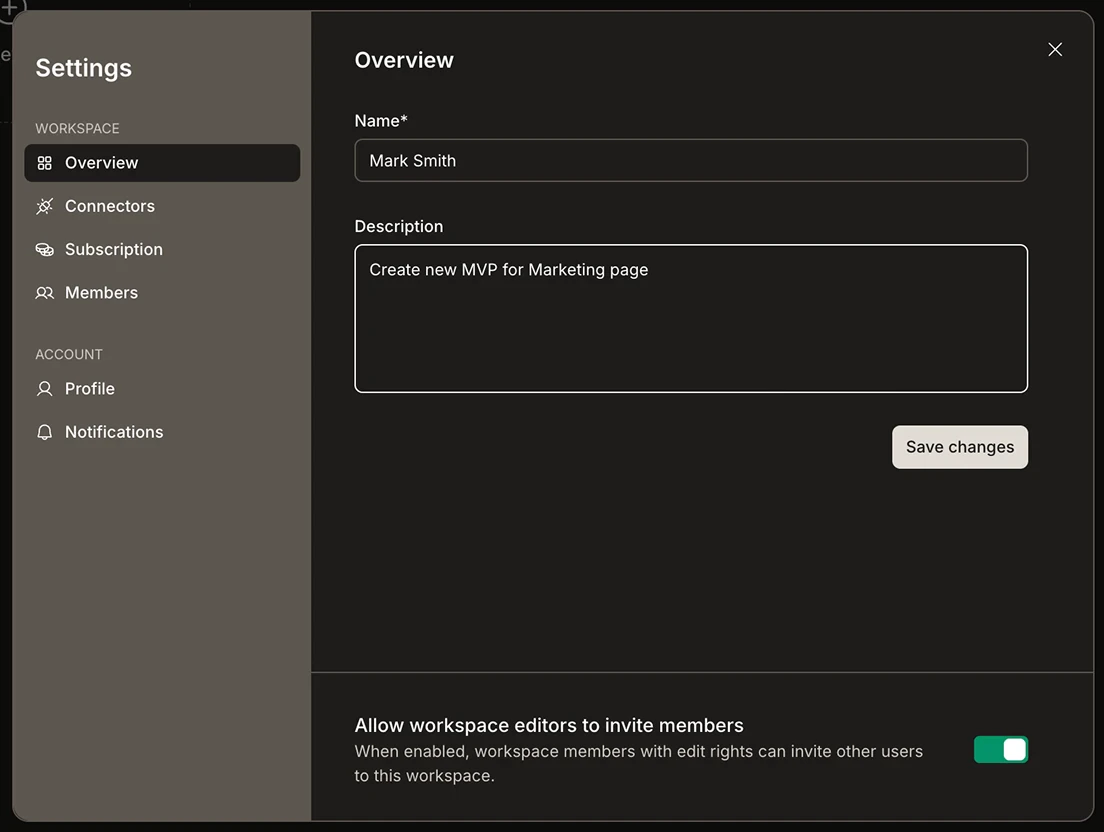
The Overview tab is selected by default. Update the workspace Name or Description, then click Save changes.
Settings - Overview tab
3
Manage member invite permissions (optional)
Scroll down in the Overview tab to toggle Allow workspace editors to invite members. This setting applies to Editors at the workspace level, and to project and task owners who are Editors in the workspace.
Enabled: Editors can invite new members to the workspace. Project and task owners can invite anyone to the projects and tasks they own.
Disabled: Editors cannot invite new members to the workspace. Project and task owners can invite only existing workspace members to the projects and tasks they own.
Editors who do not own a project or task can never invite anyone to it.
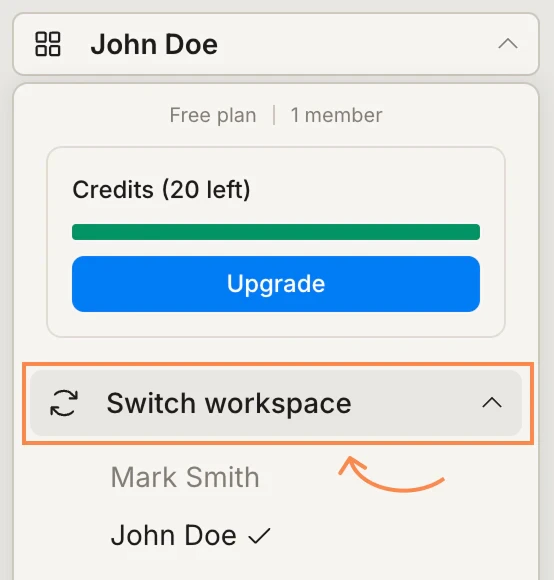
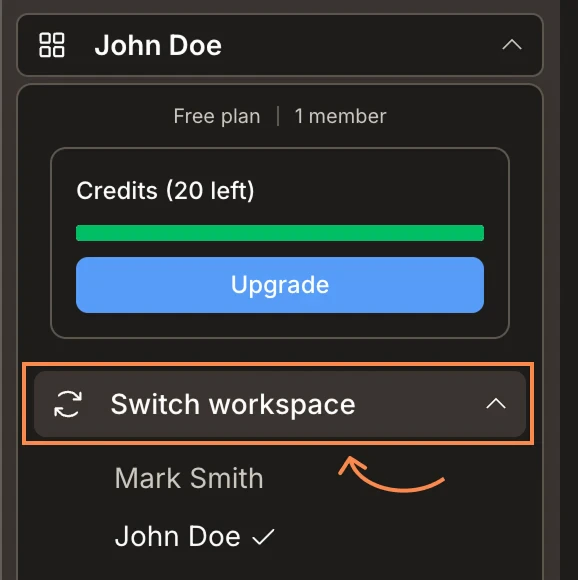
Click your workspace name in the top left, then click Switch workspace. A list of all workspaces you belong to expands inline. Click any workspace to switch to it immediately.
Switch workspace panel
You can belong to more than one workspace. This is useful when you work with multiple organizations or when your company separates teams into distinct workspaces for billing or access control.