

Steps
Open the workspace menu
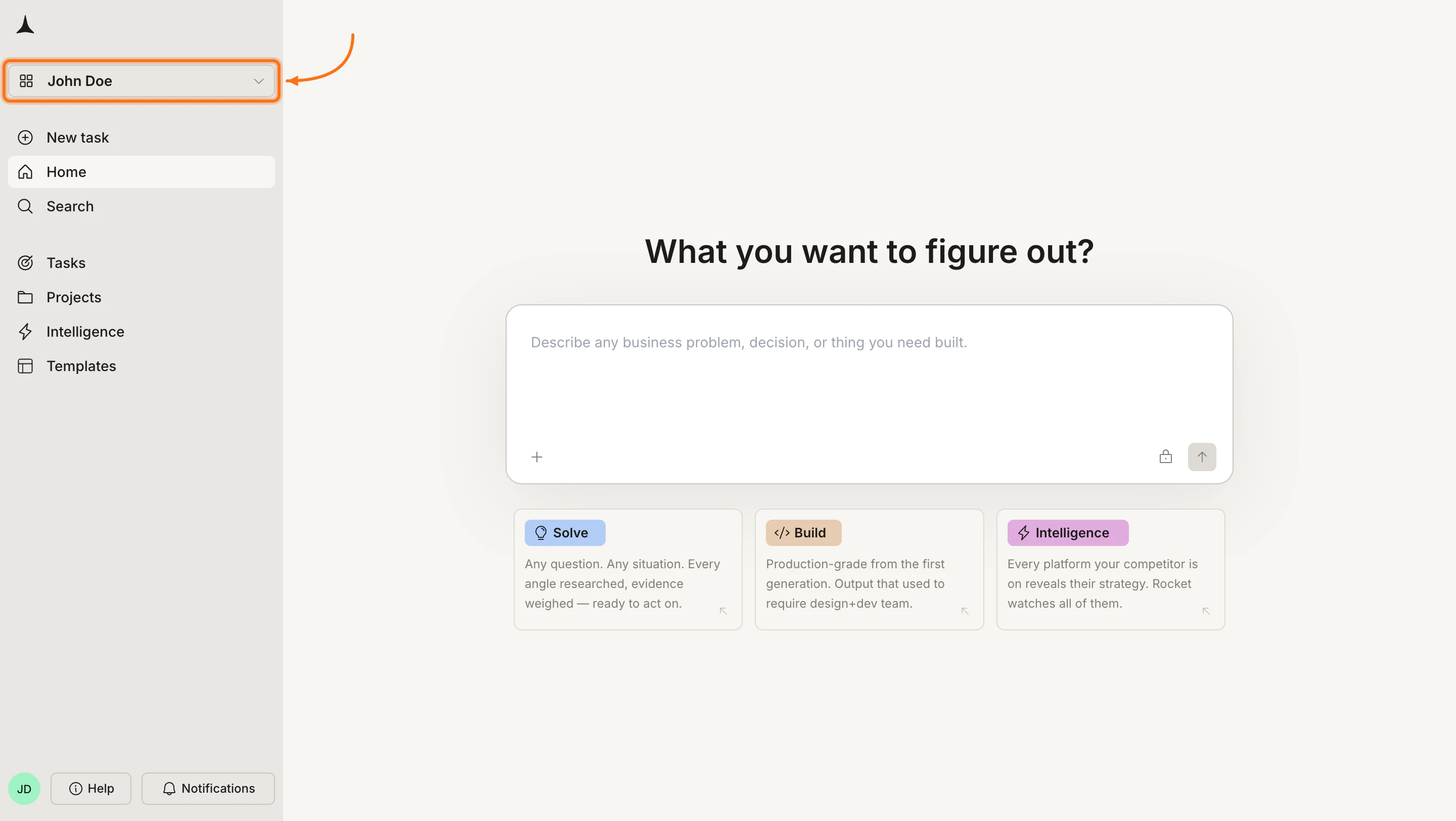
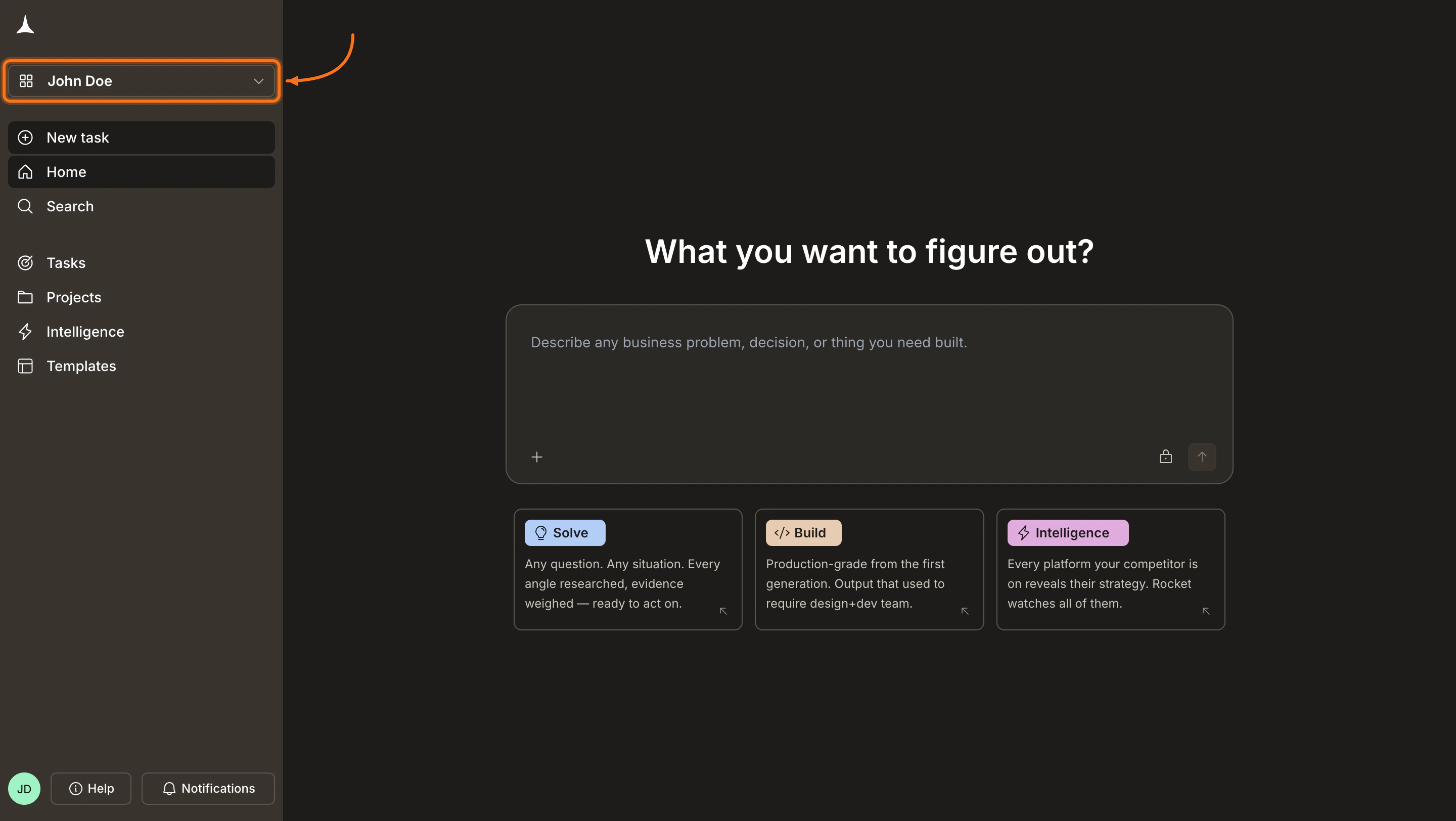
Click your workspace name to open the menu
Click Invite members
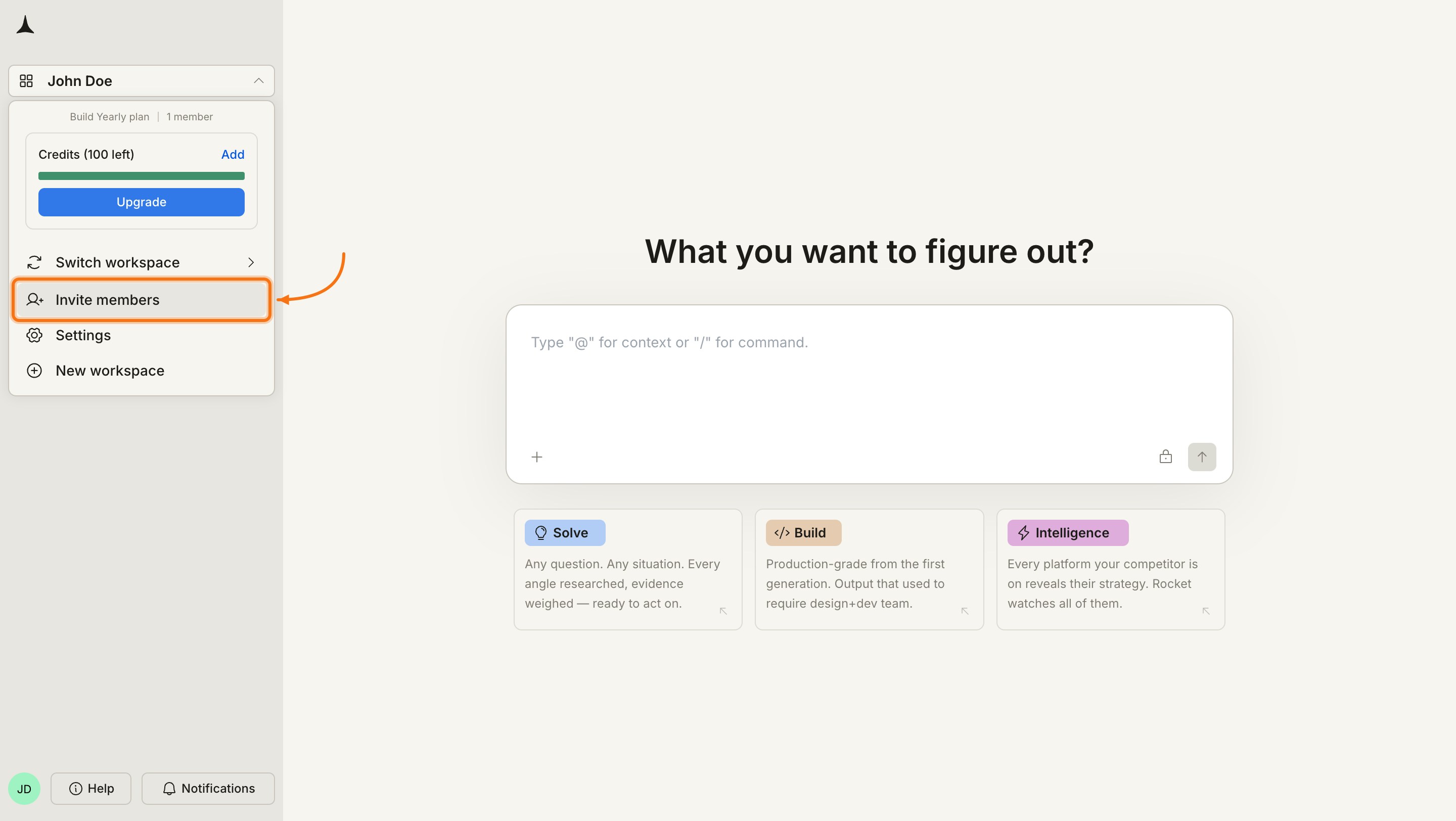
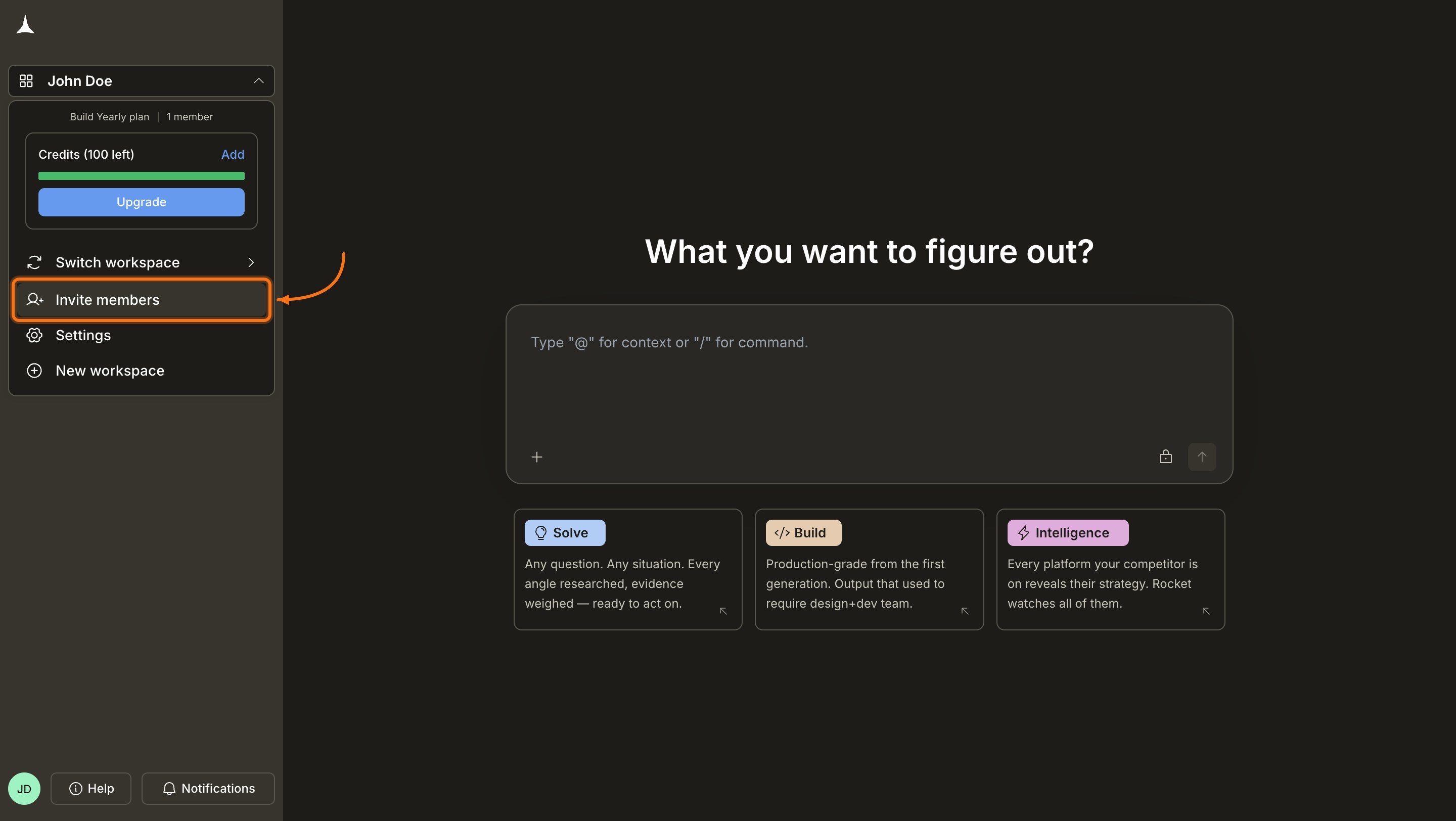
Select Invite members from the workspace dropdown
Enter email and choose a role
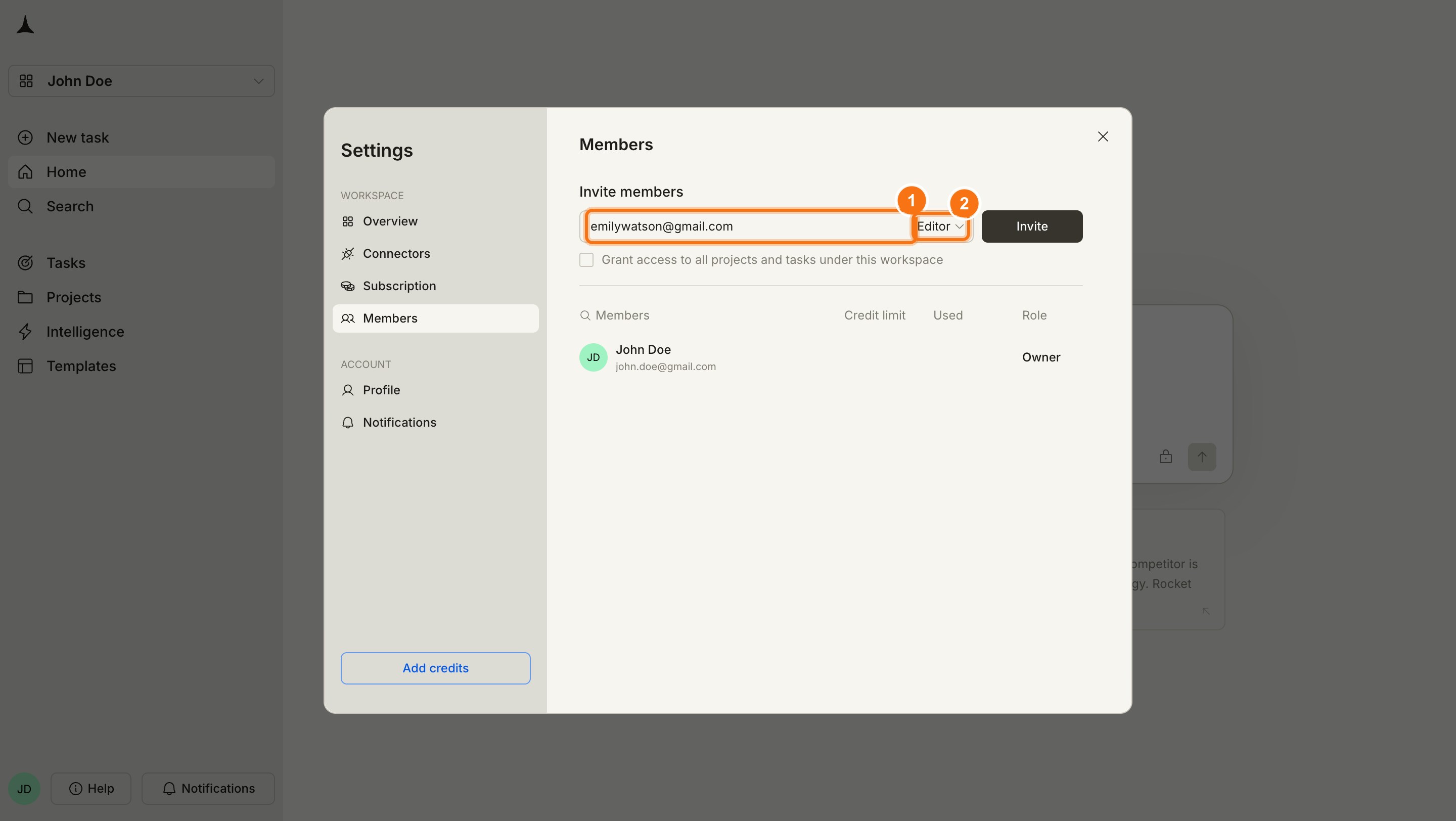
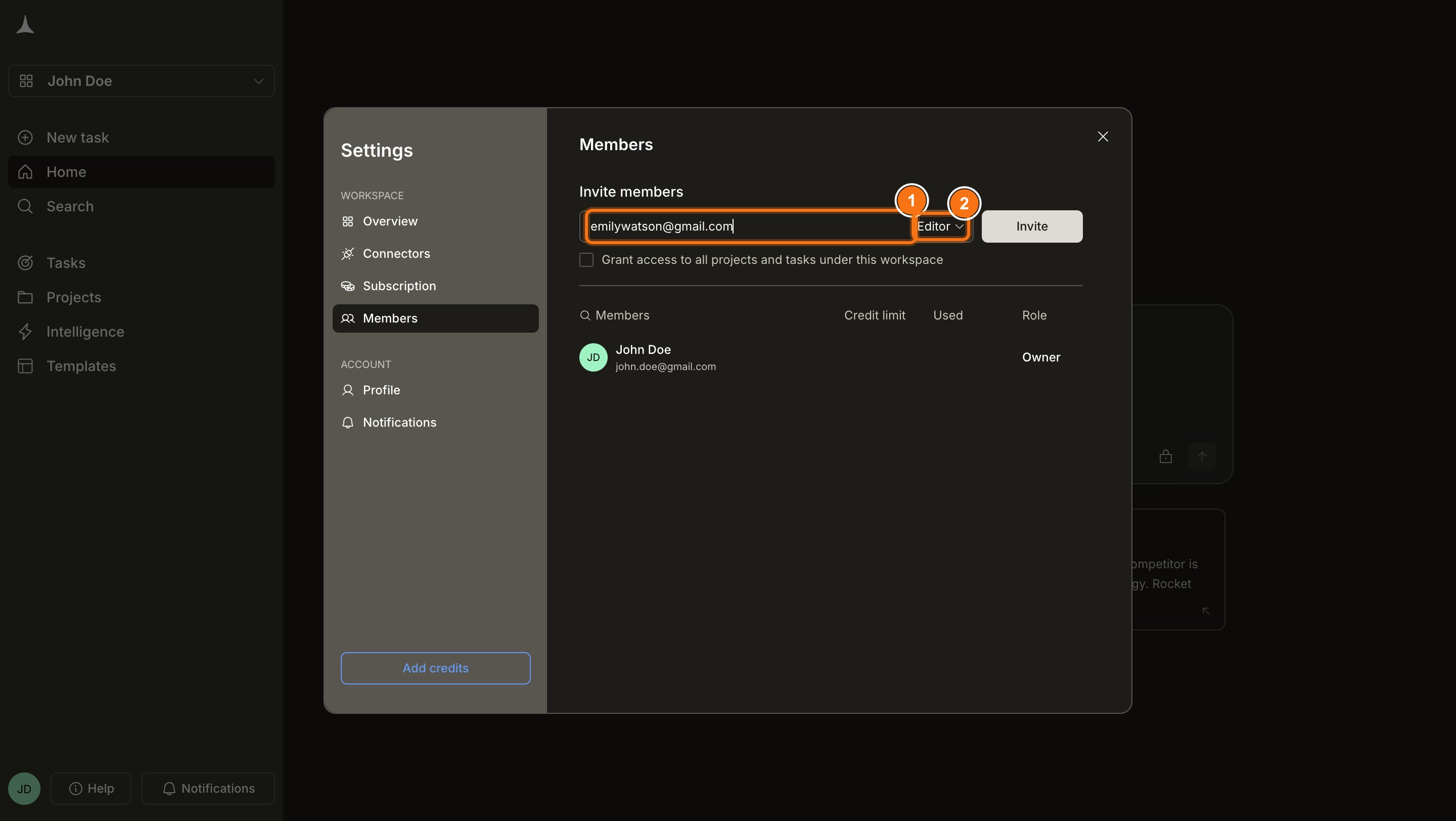
Enter an email address and select a role
Choose project access scope
- Checkbox ticked: the invitee gets access to all projects and tasks that currently exist in the workspace. Projects or tasks created after the invitation are not included and must be shared separately.
- Checkbox unticked: the invitee joins the workspace with an empty view. They can create new projects and tasks but cannot see any existing ones. Existing and future projects must be shared with them at the project or task level.
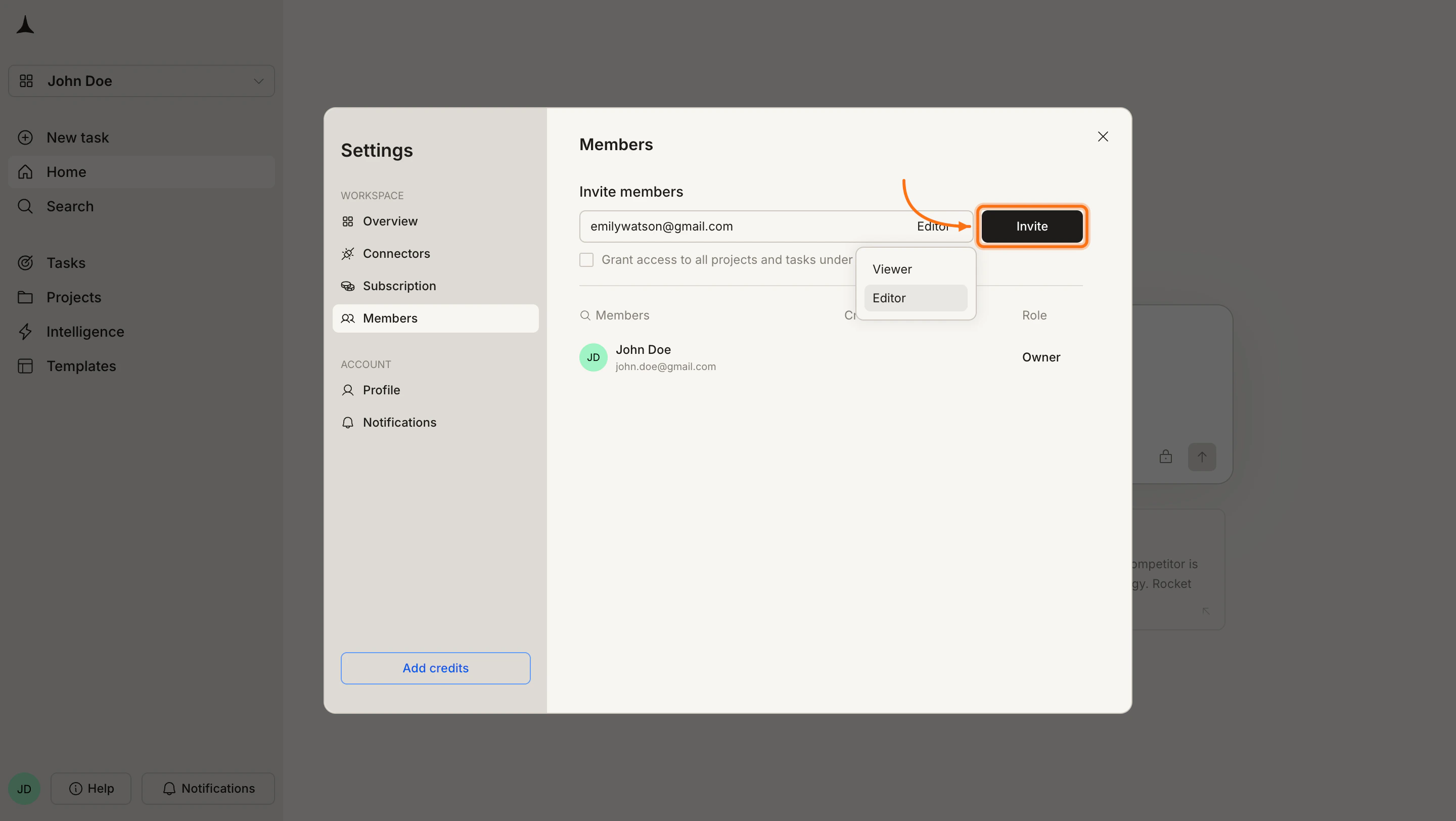
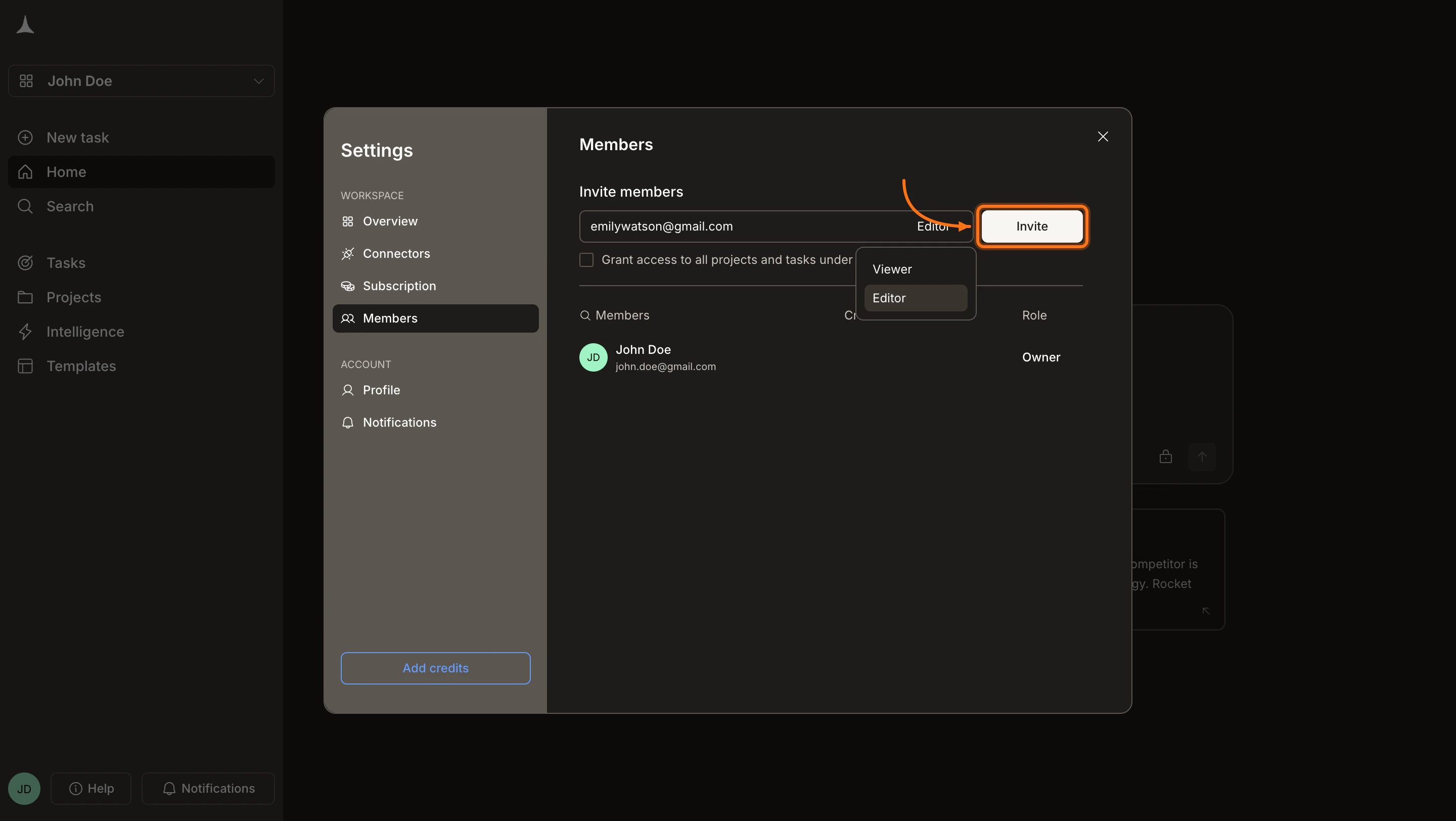
Grant access checkbox (available for both Editor and Viewer invites)
Set a credit limit
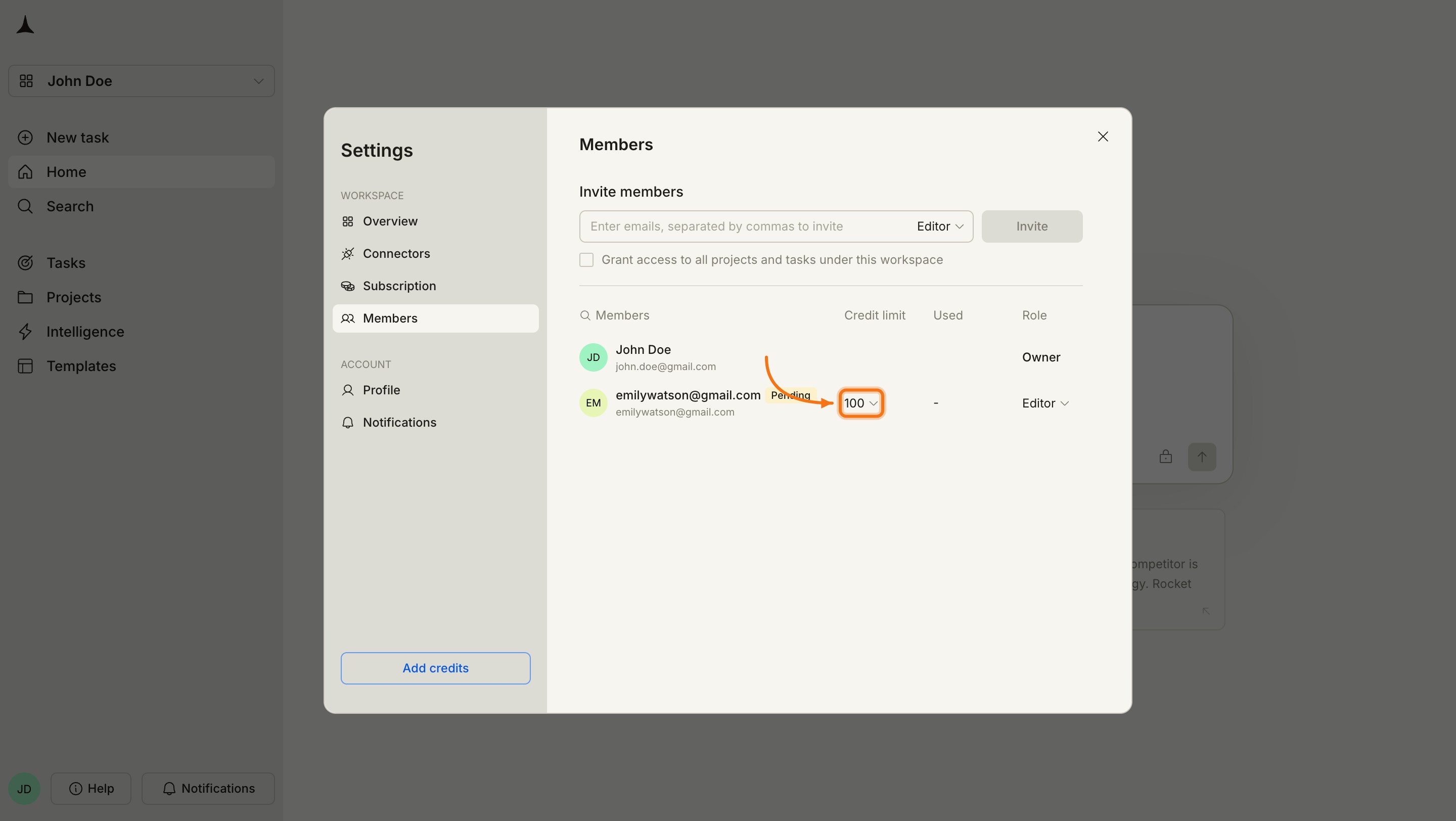
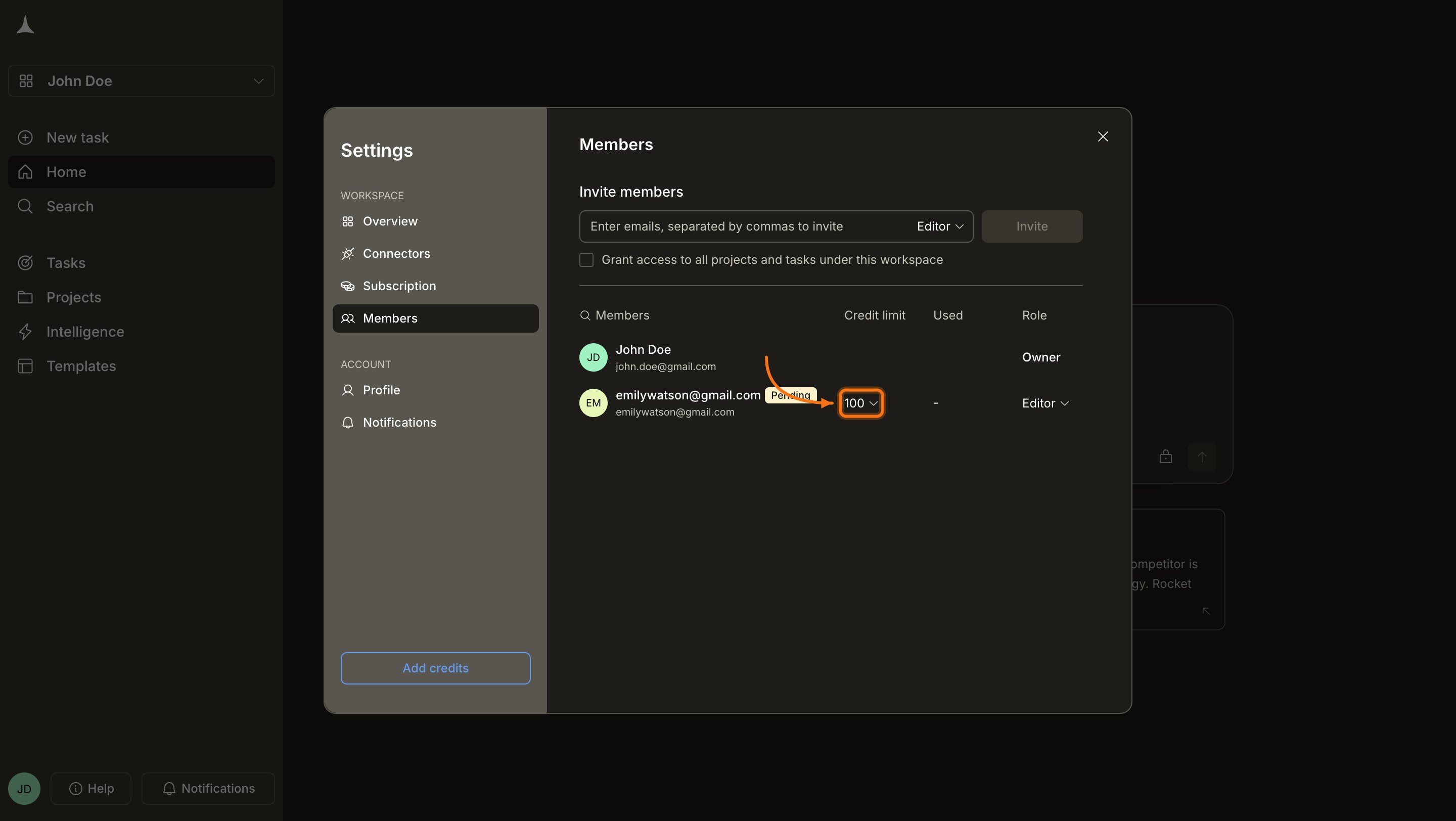
The invited Editor appears as Pending with a credit limit of 0 until they accept
Change the credit limit (optional)
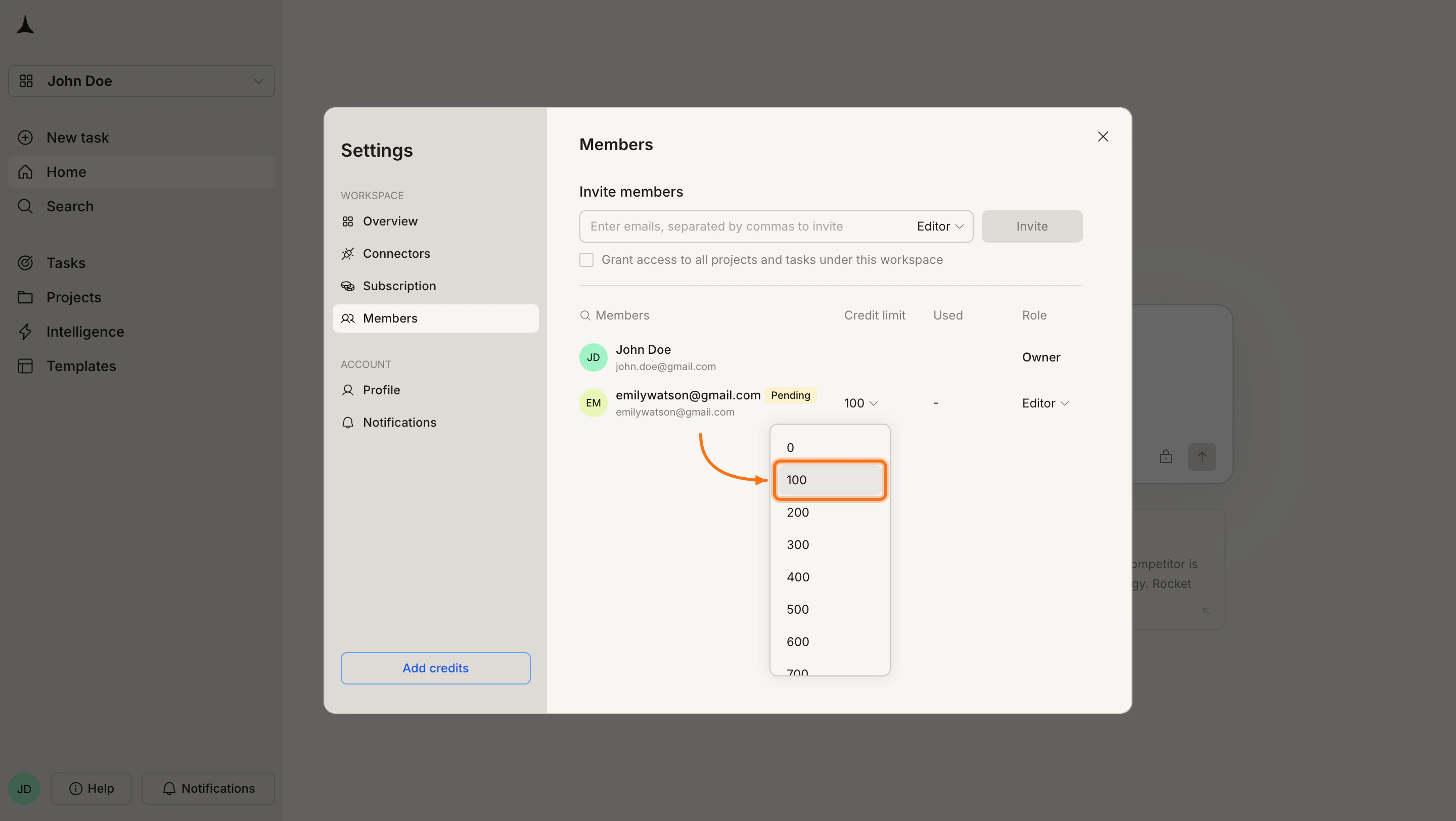
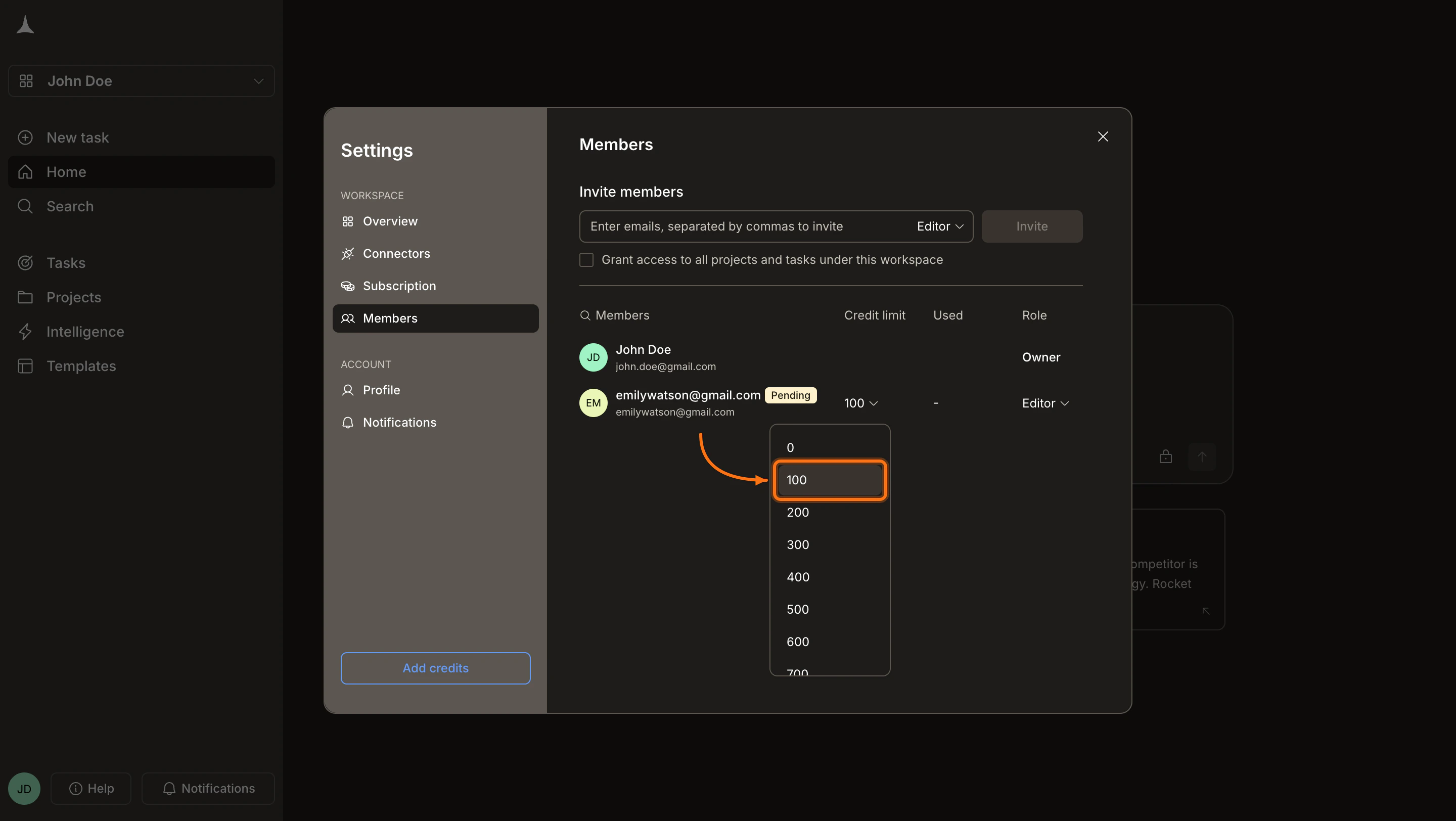
Select a different credit cap from the dropdown
Invitation sent
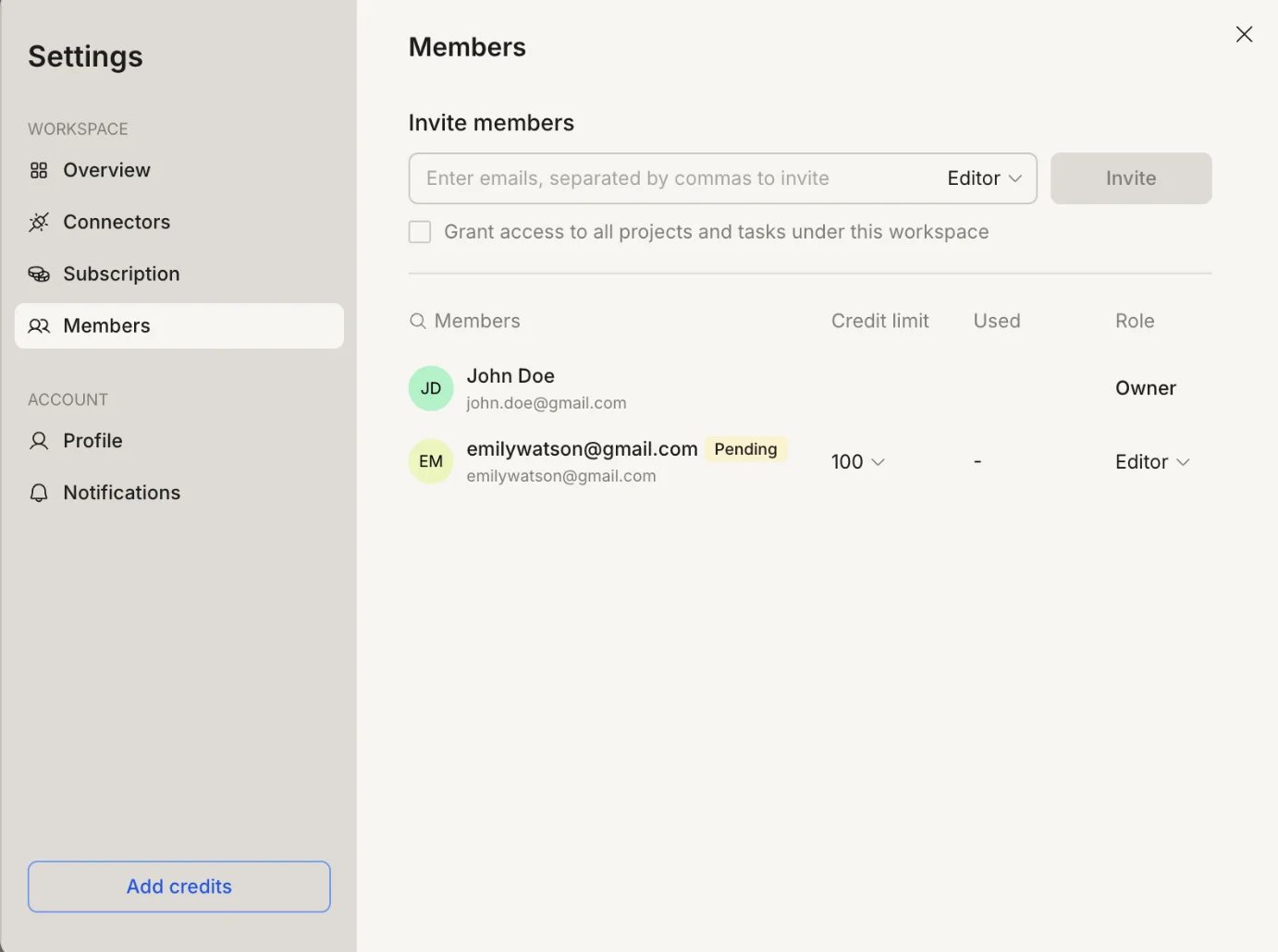
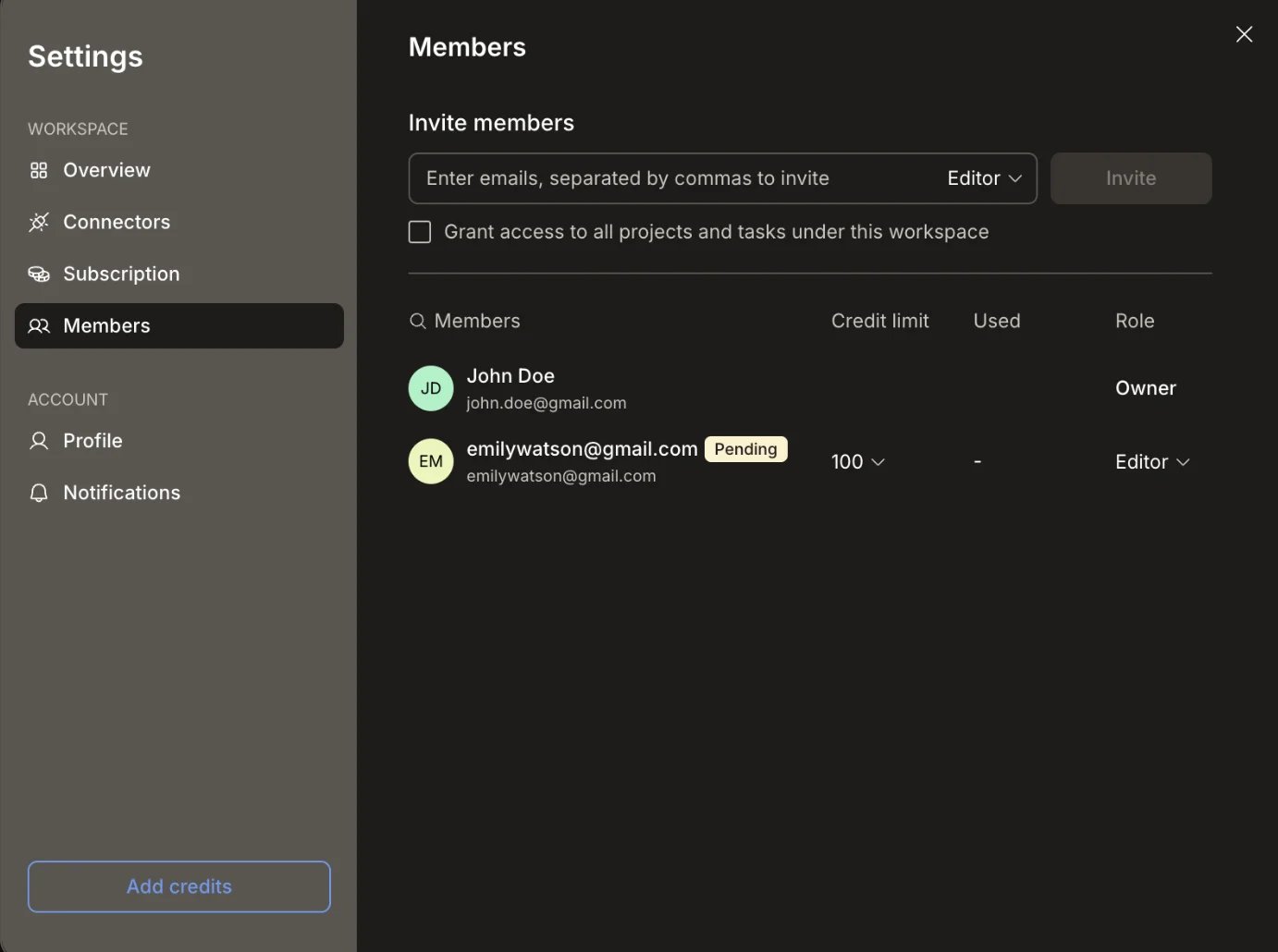
The member is listed as Pending until they accept the invitation
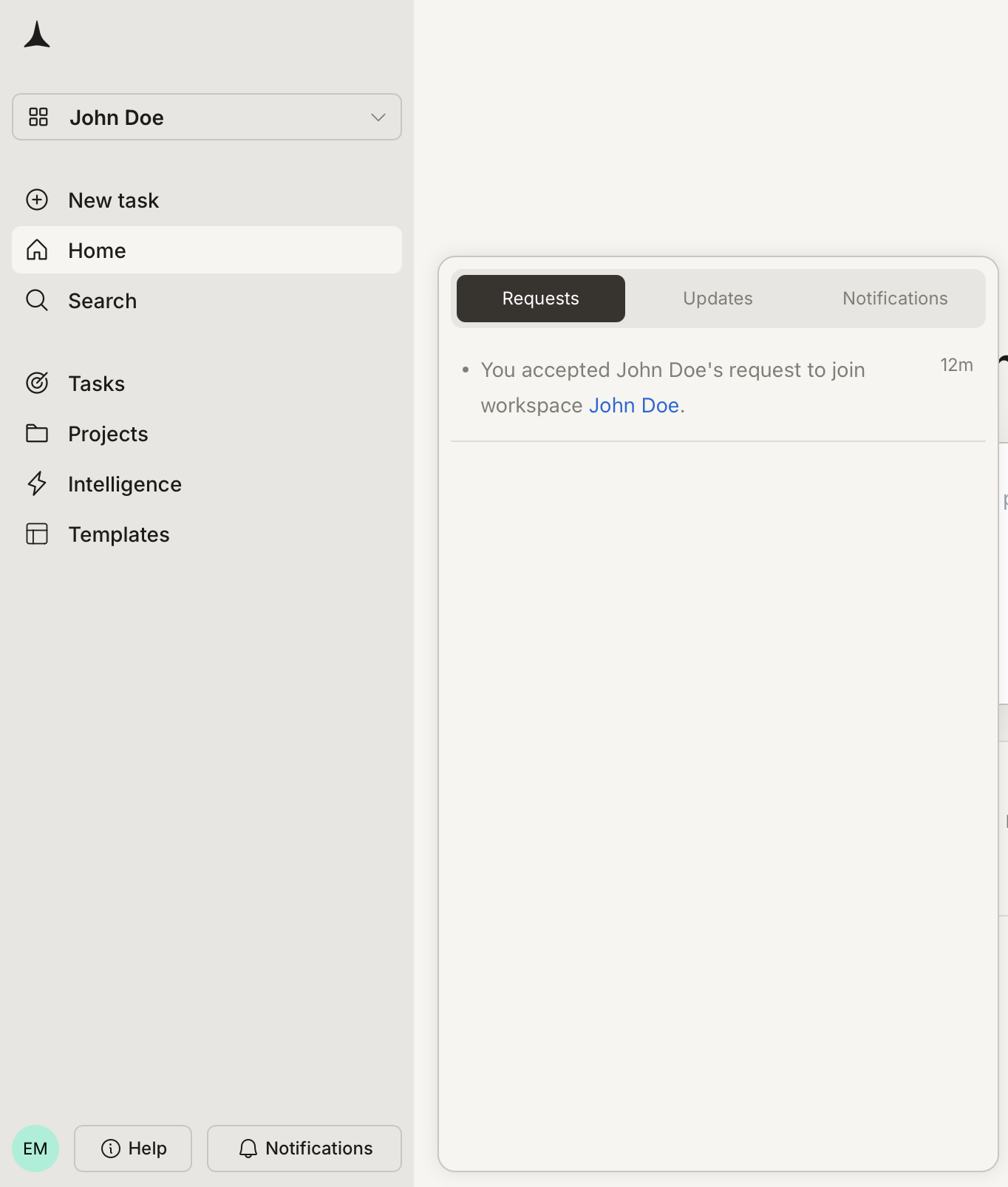
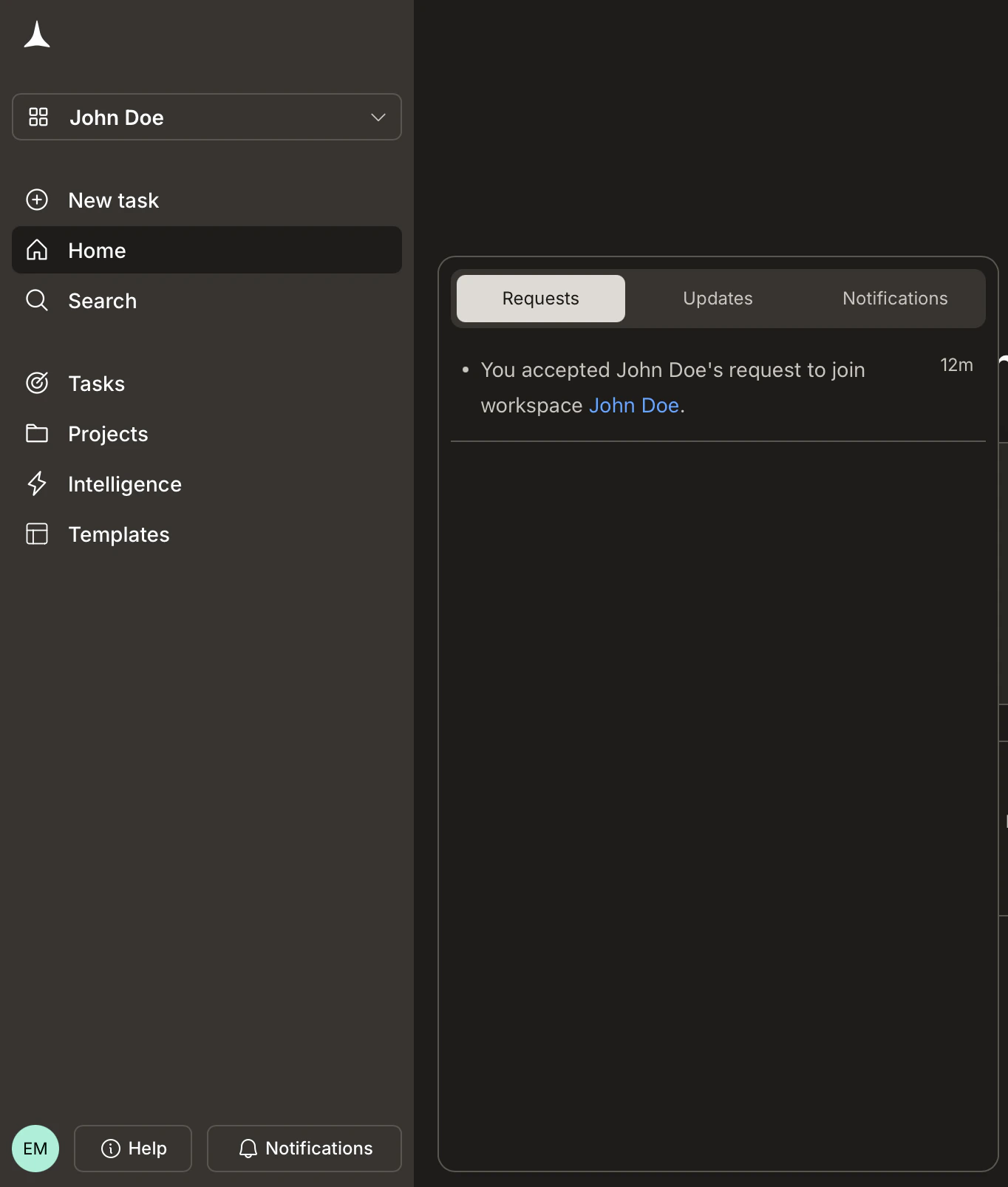
The Requests tab confirms when an invitation is accepted or rejected
Roles and permissions
Rocket uses two roles across all levels. The table below shows what each role can do at the workspace level.Editor
Editor
Viewer
Viewer
Revoke a pending invitation
If you need to cancel an invitation before the recipient accepts it, go to Settings → Members and find the member with the Pending badge.Open the role dropdown on the pending row
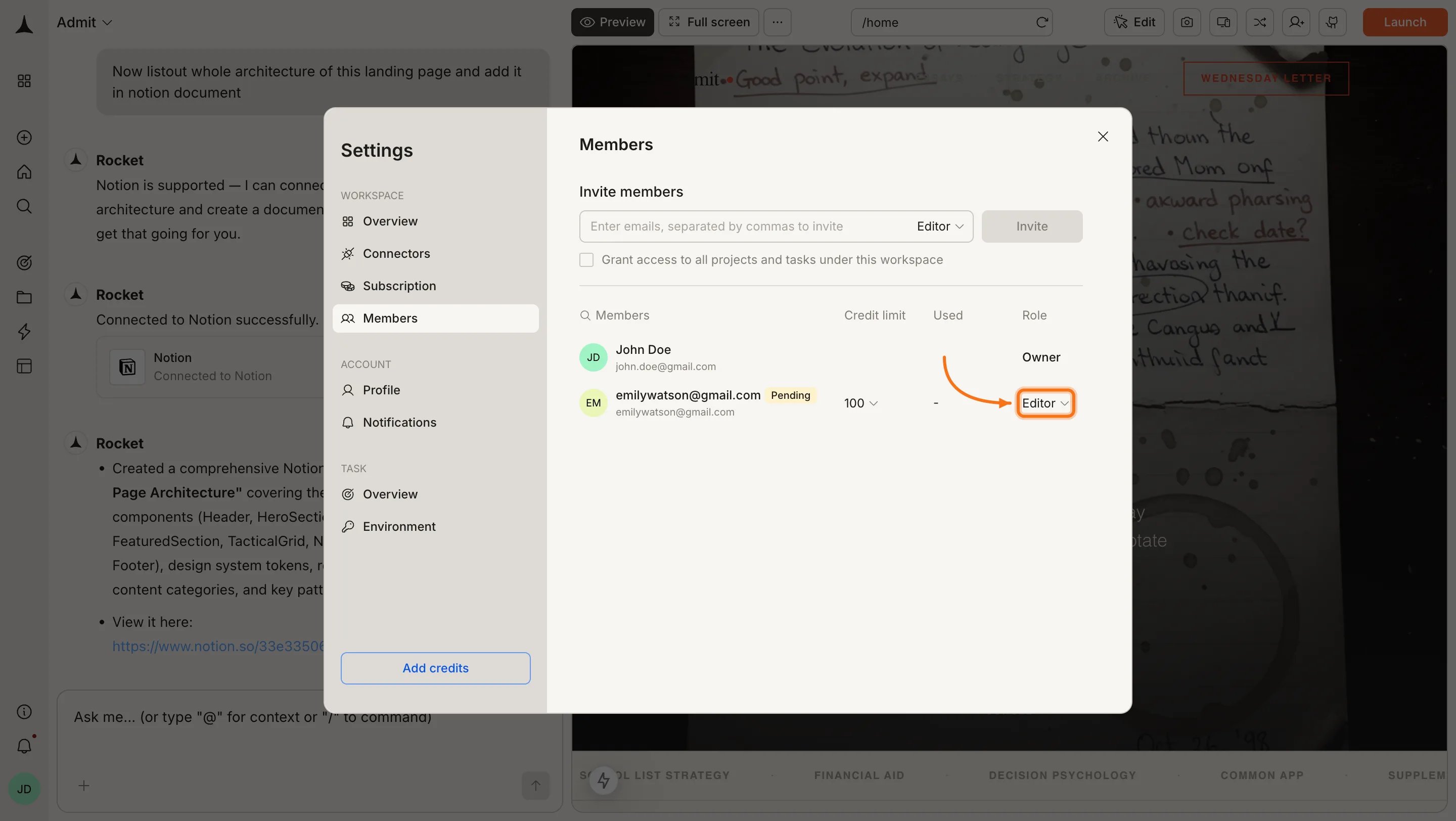
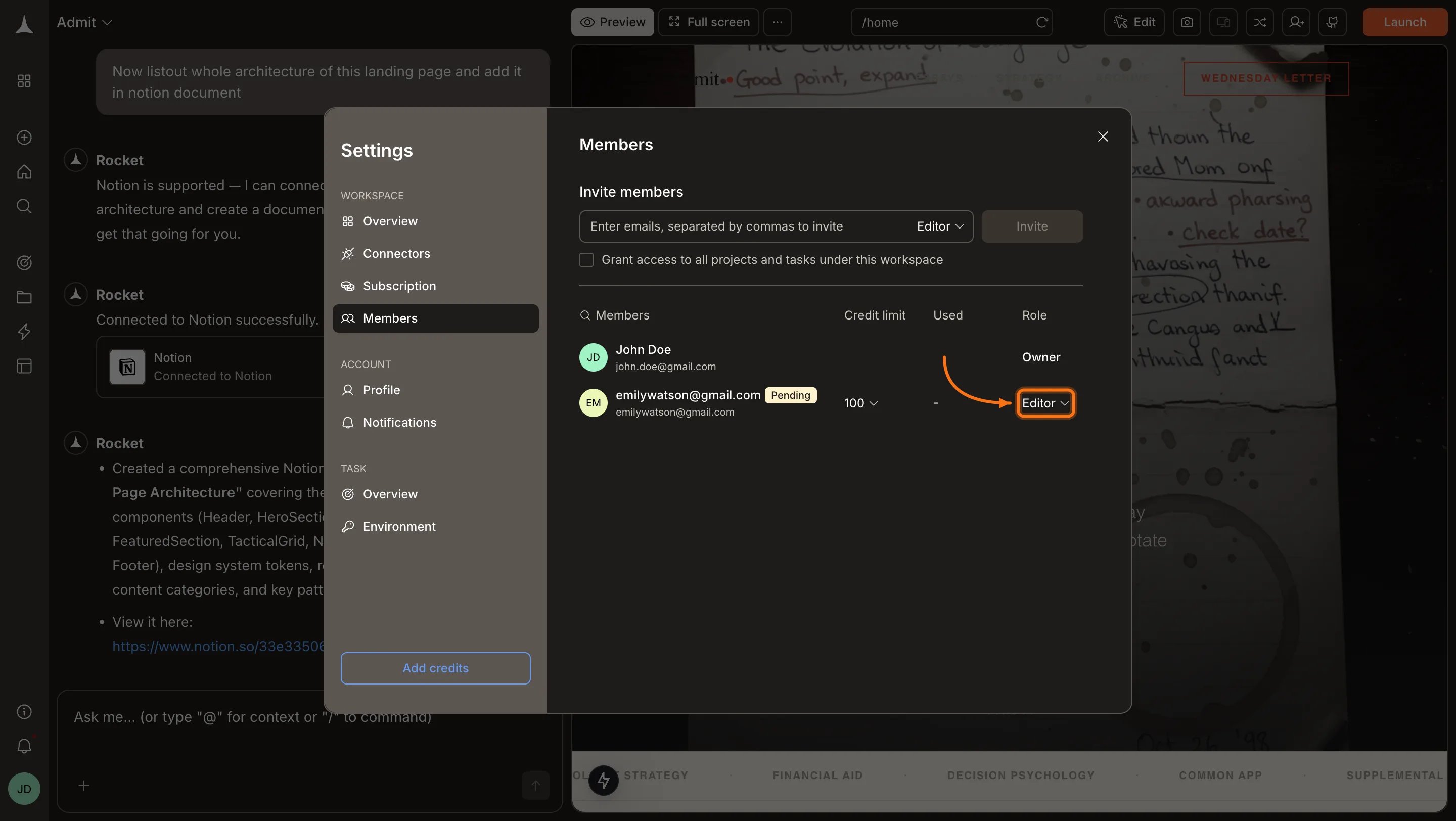
Click the role dropdown on the pending member's row
Click Revoke invite
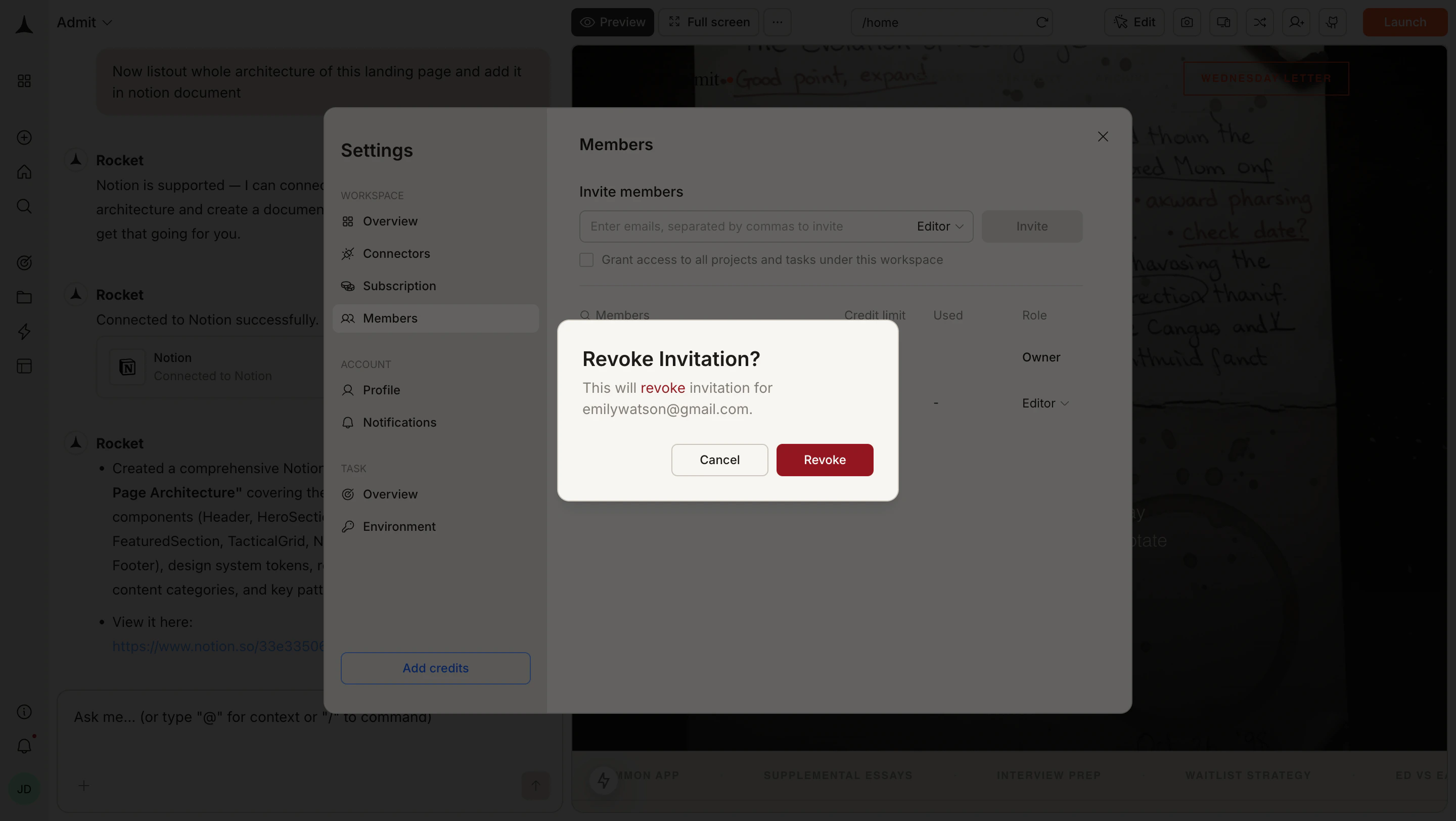
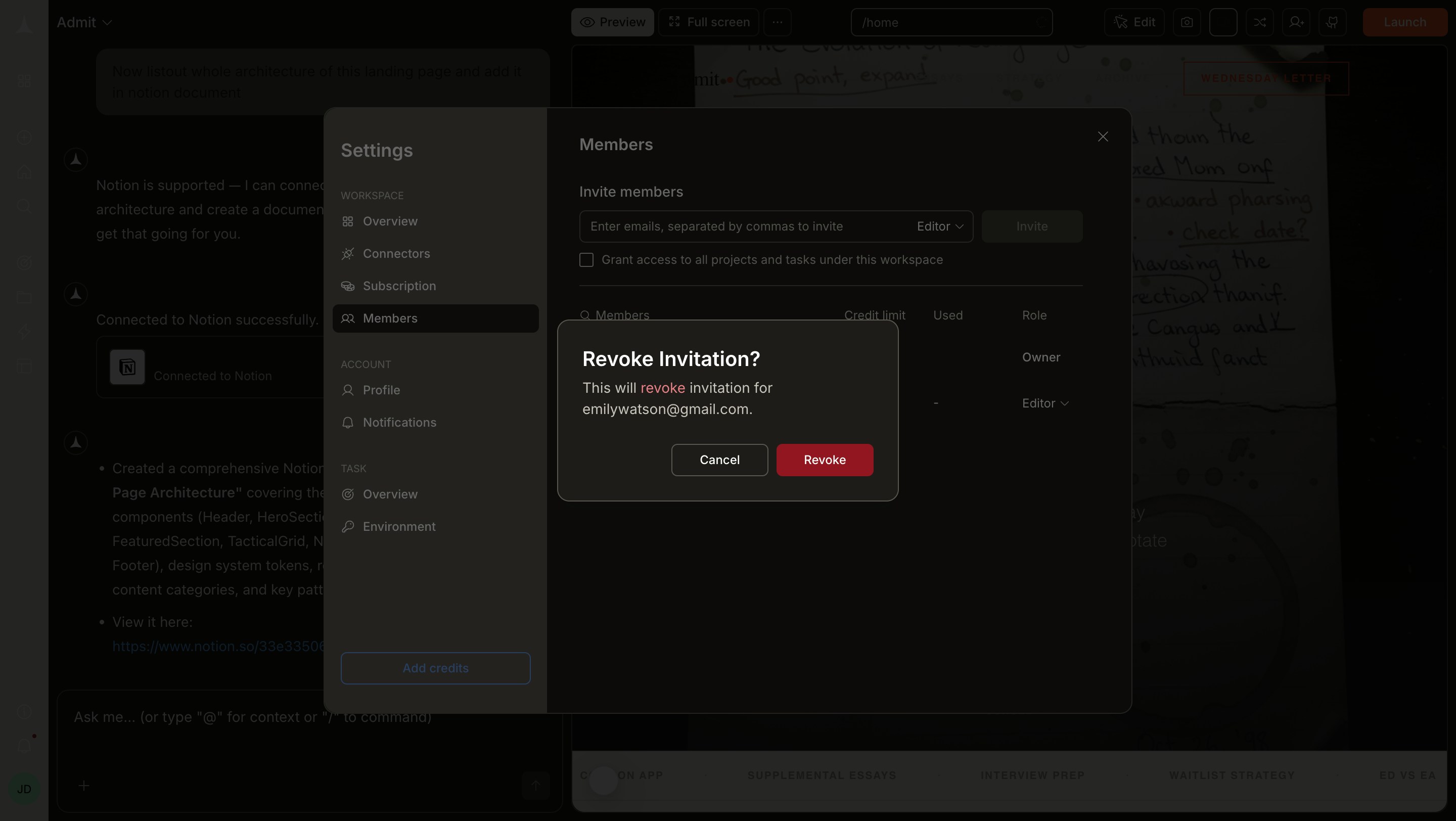
Select Revoke invite to cancel the pending invitation
Manage workspace members
Go to Settings → Members to change a member’s role, update an Editor’s credit limit, or remove them from the workspace. The members panel also shows credit usage for Editors, so you can see how many credits each Editor has consumed against their limit. After an Editor accepts the invitation, they receive a default of 100 credits for all time, which you can adjust at any time from this panel. Until they accept, the credit limit shows as 0. Owners and Viewers are not assigned a credit limit.Remove a member
To remove someone’s access to the workspace, go to Settings → Members, find the member’s row, and click their role dropdown.Open Settings → Members
Open the role dropdown on the member's row
Click Remove