

Pick a template. Customize it with chat. Ship a production-ready app without spending a single .Documentation Index
Fetch the complete documentation index at: https://docs.rocket.new/llms.txt
Use this file to discover all available pages before exploring further.
Zero credits consumed. You only spend credits when you start customizing through chat. The template itself is free.
When to use a template
| Scenario | Best starting method |
|---|---|
| You can describe exactly what you want | From an idea |
| You want a working app now and will customize later | Templates (you are here) |
| You have a screenshot, PDF, spreadsheet, or other file | From an attachment |
| You have completed Figma designs | From Figma |
How to use a template
- Web Browser
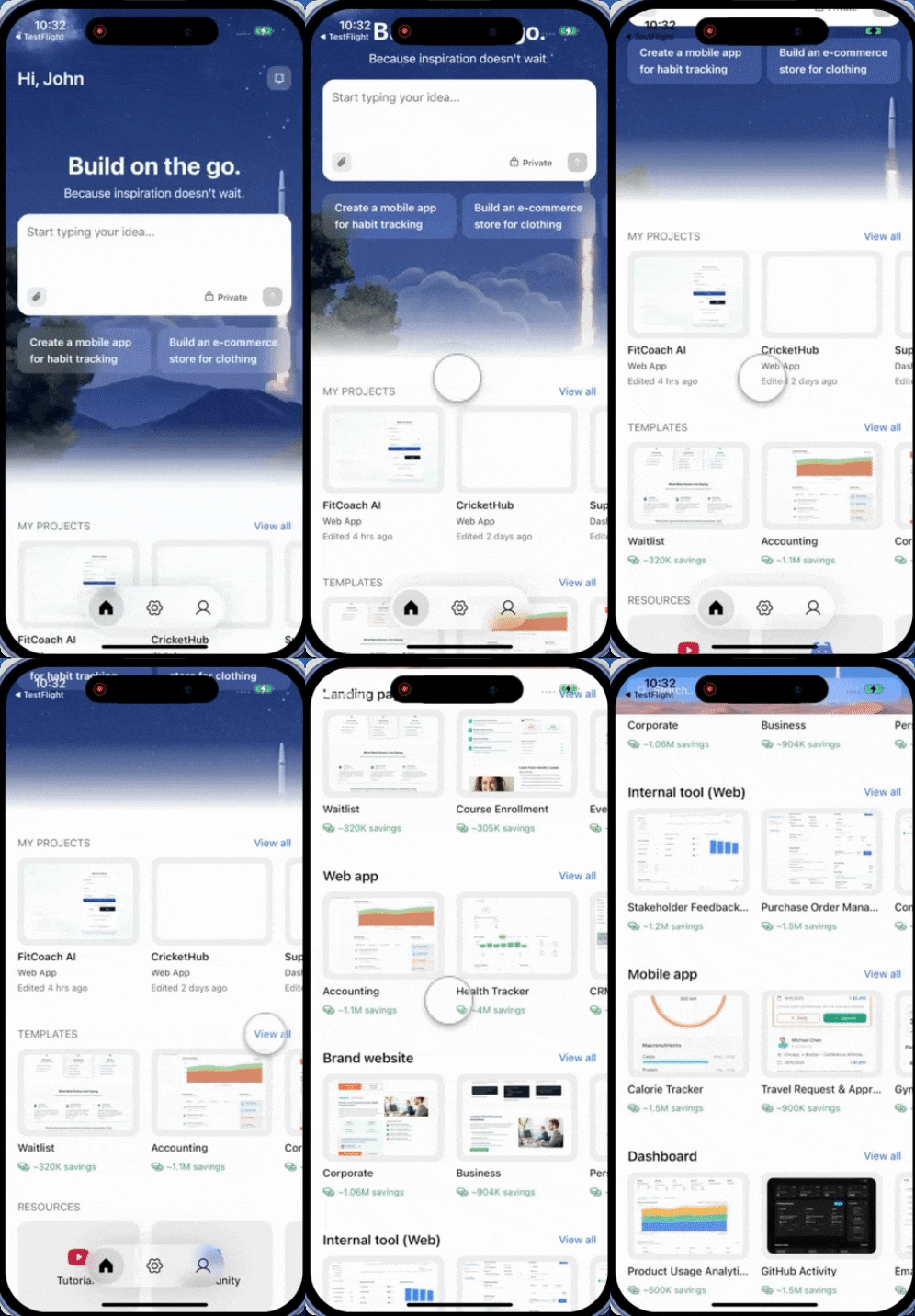
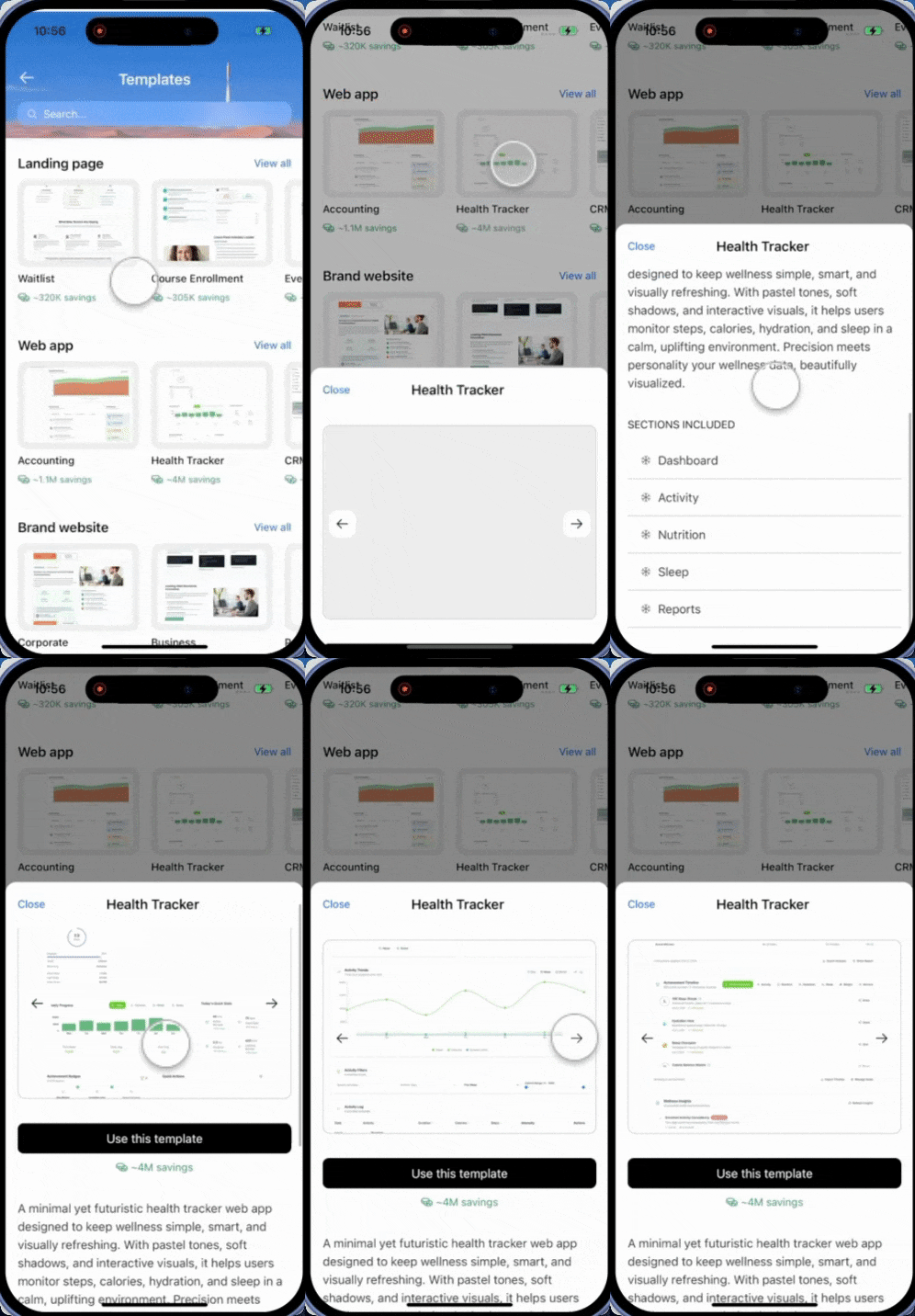
- Mobile App
You will need: A rocket.new account, signed in.
- Browse-first: Open Templates in the sidebar and pick from the full library
- Prompt-first: Describe what you are building and Rocket suggests the closest match
- Inline on the homepage: Click the Build tab and scroll down to Relevant templates
Explore templates manually
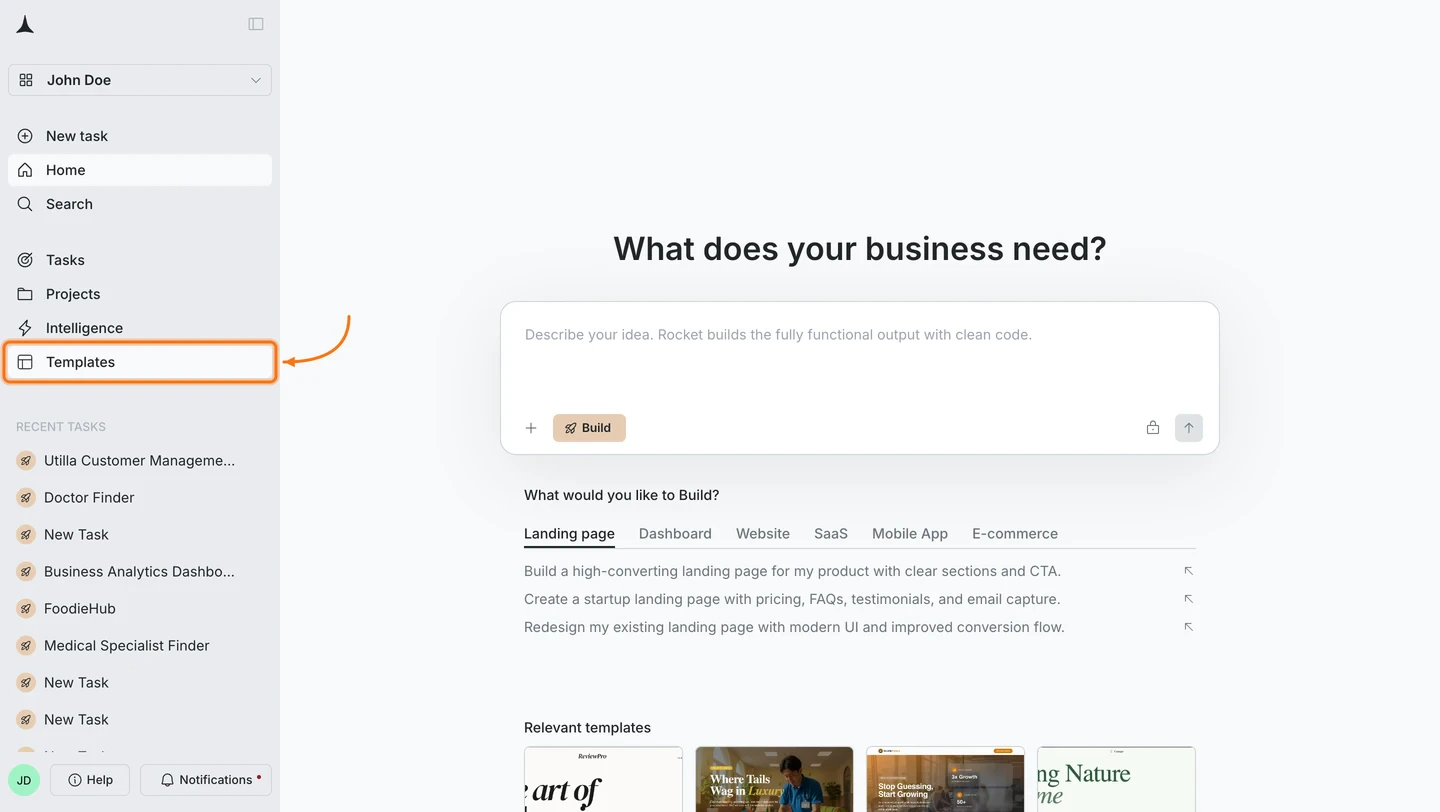
Browse by category
Templates are grouped by category: Technology, Professional Services, Health & Medical, Blog & Editorial, Retail & E-Commerce, Food & Beverage, and more. Search at the top or click a category to browse.See the template library for every category.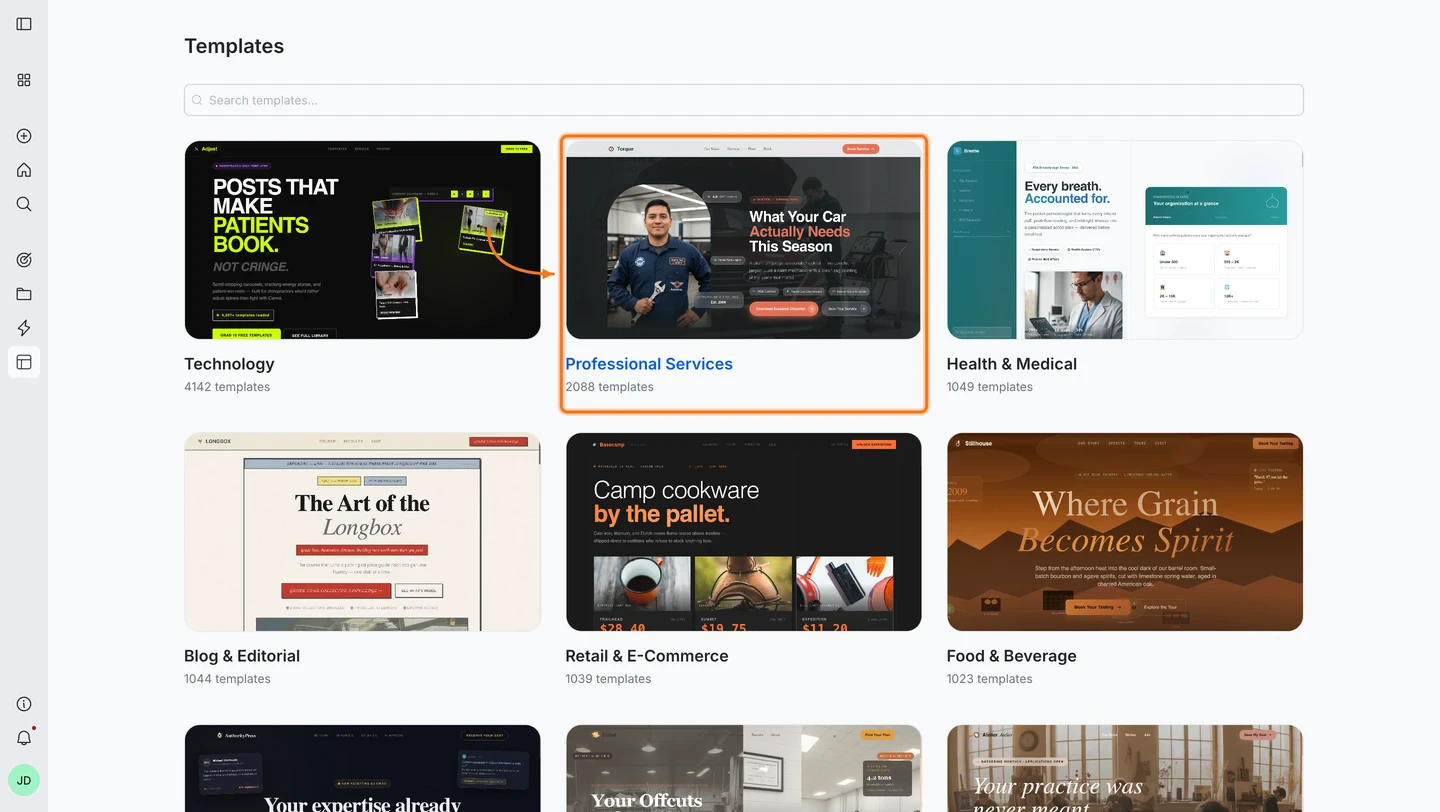
Pick a template
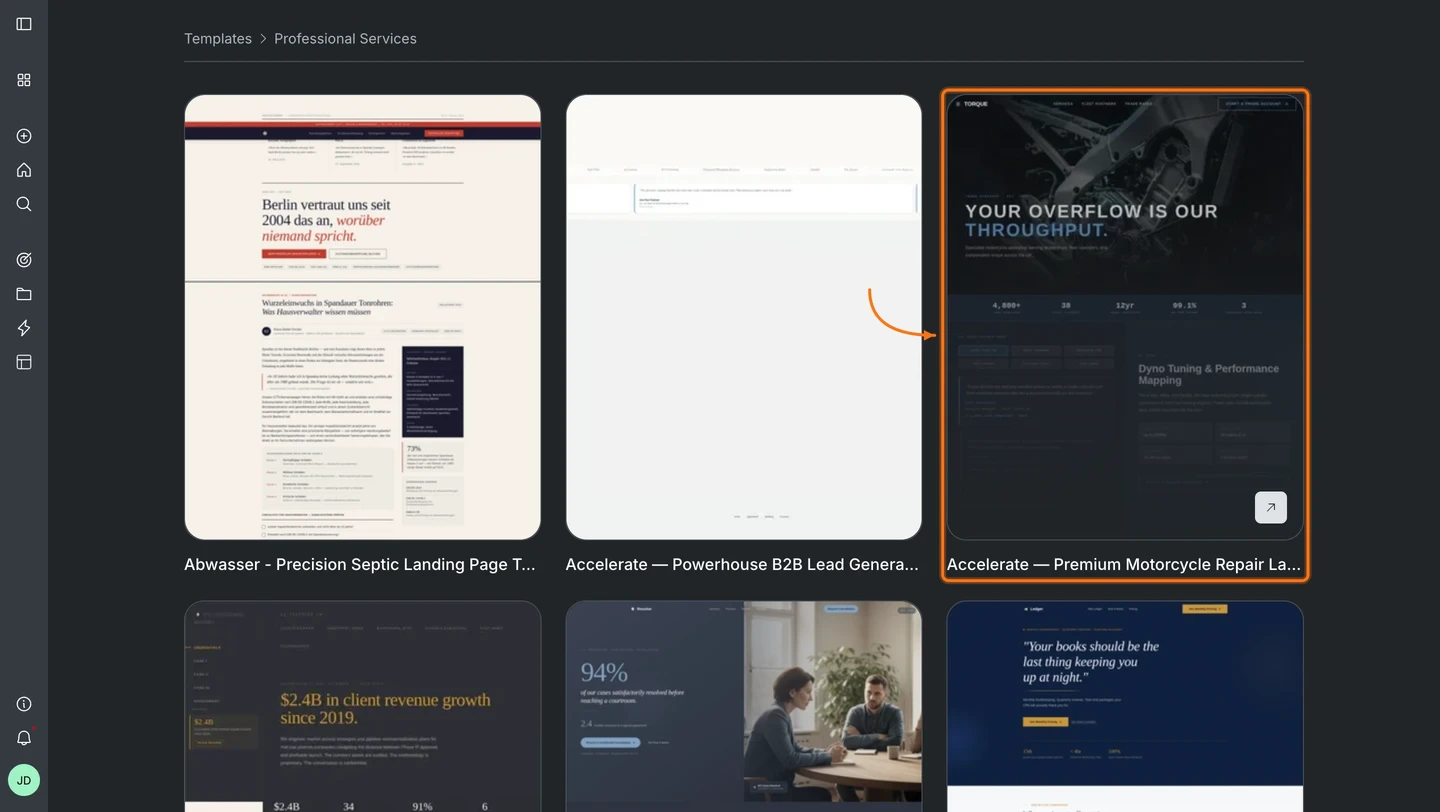
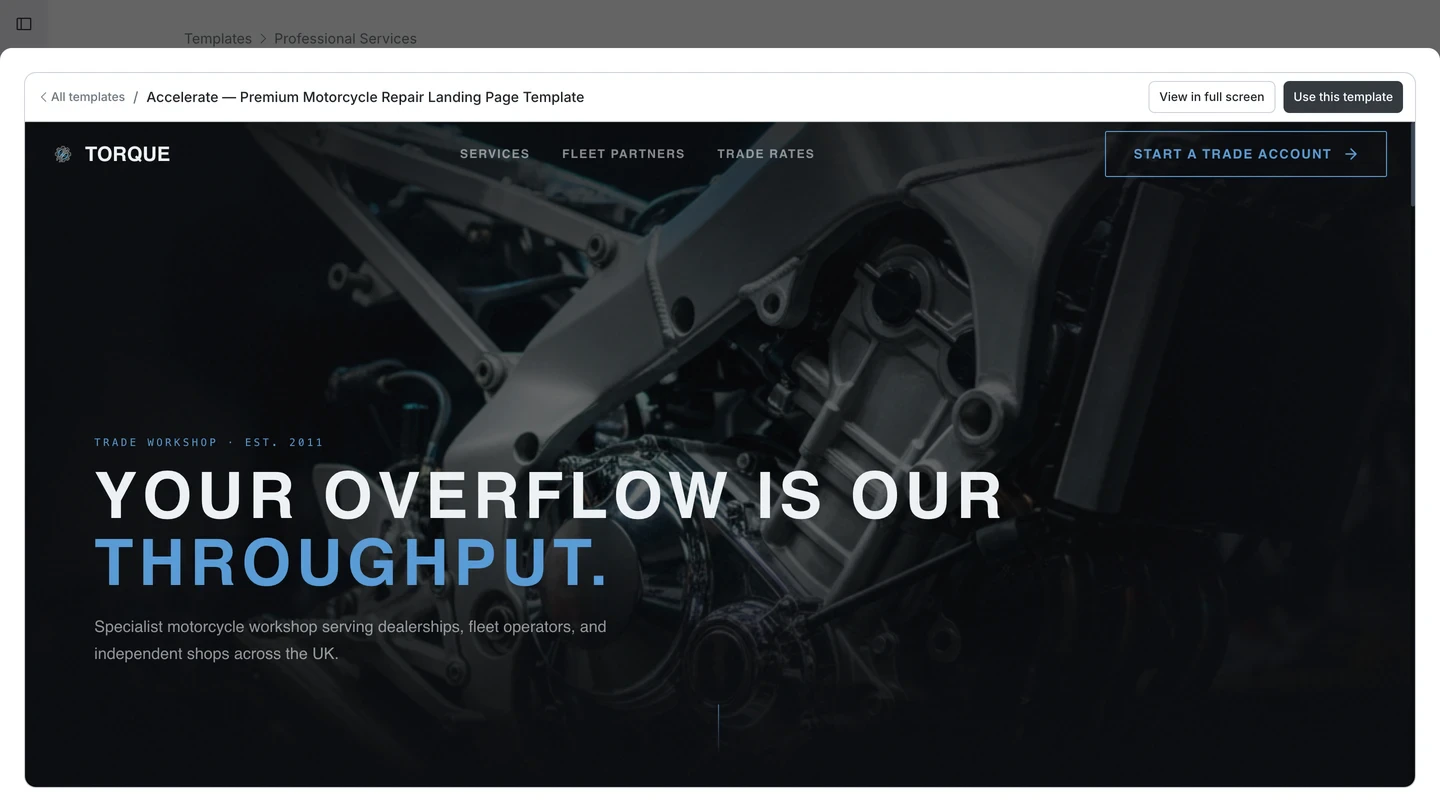
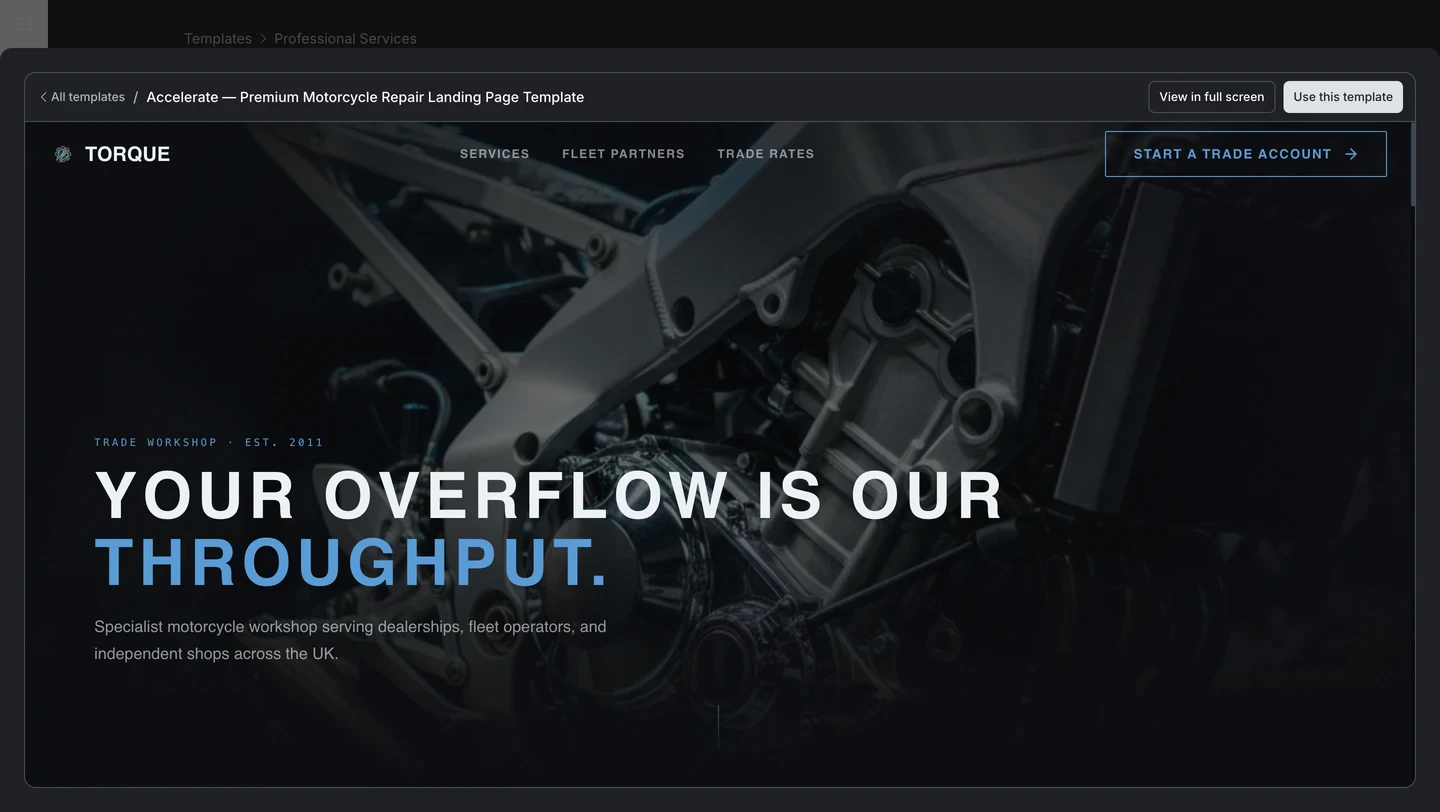
Hover over a card to reveal the link icon and preview it live in the browser before committing.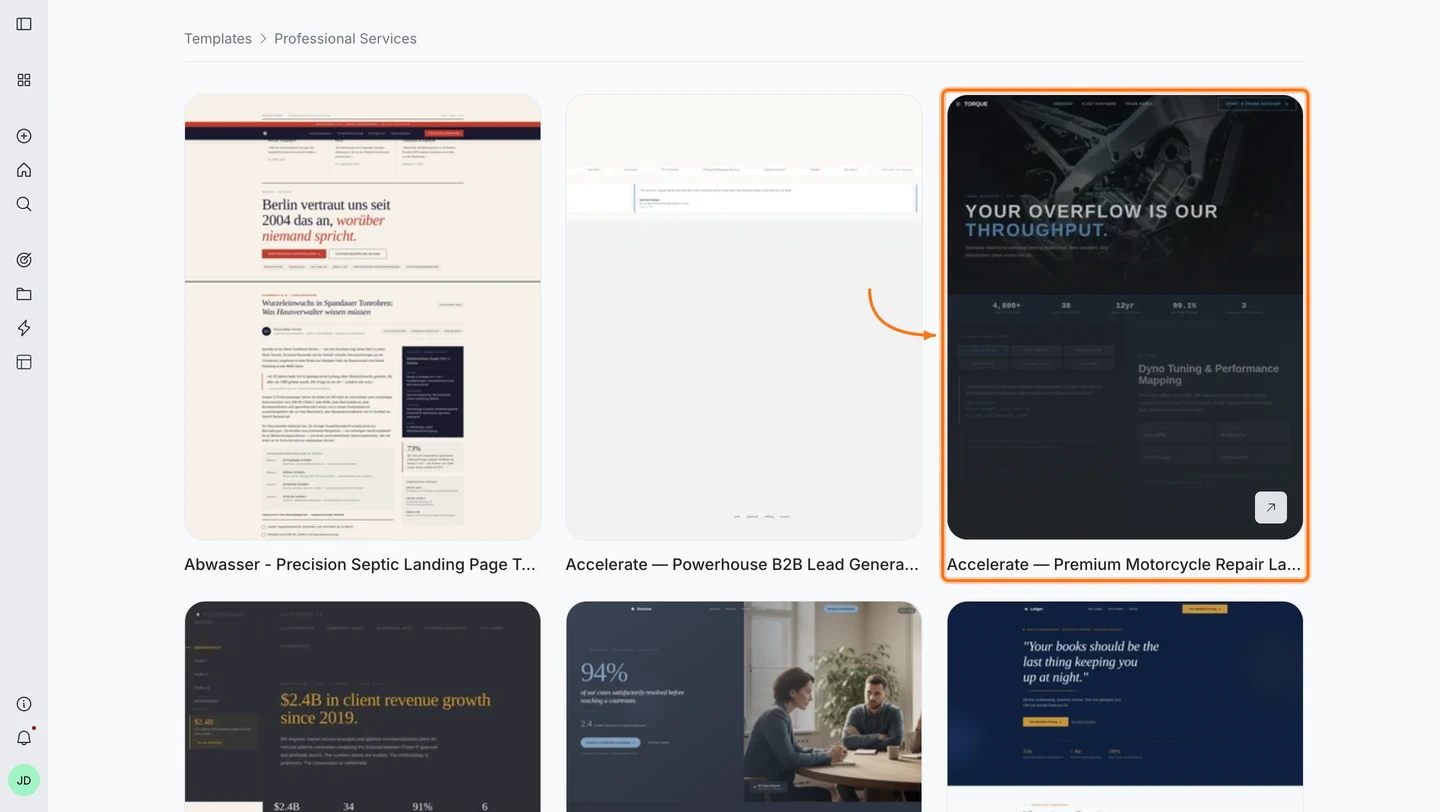
Get template suggestions while prompting
Describe what you want to build. If your prompt matches a known pattern, Rocket suggests a template before it starts generating. Click Use Template to start from it, or Continue without a template to build from scratch.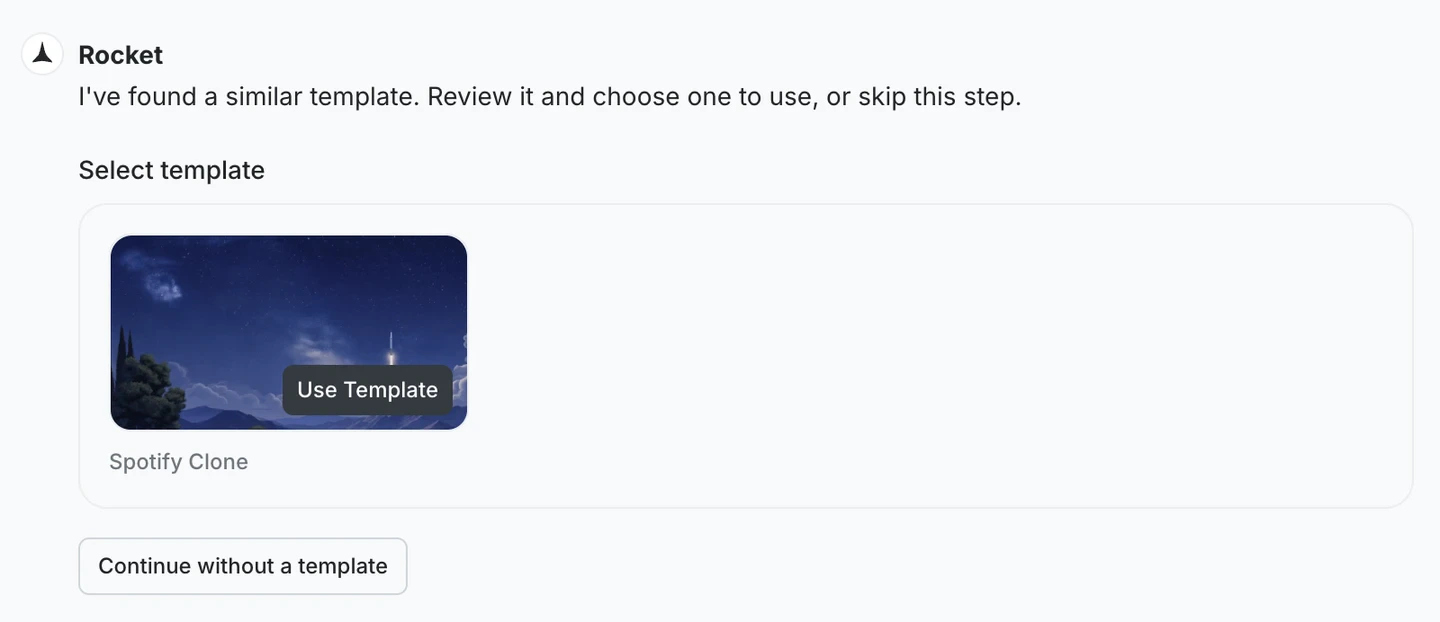
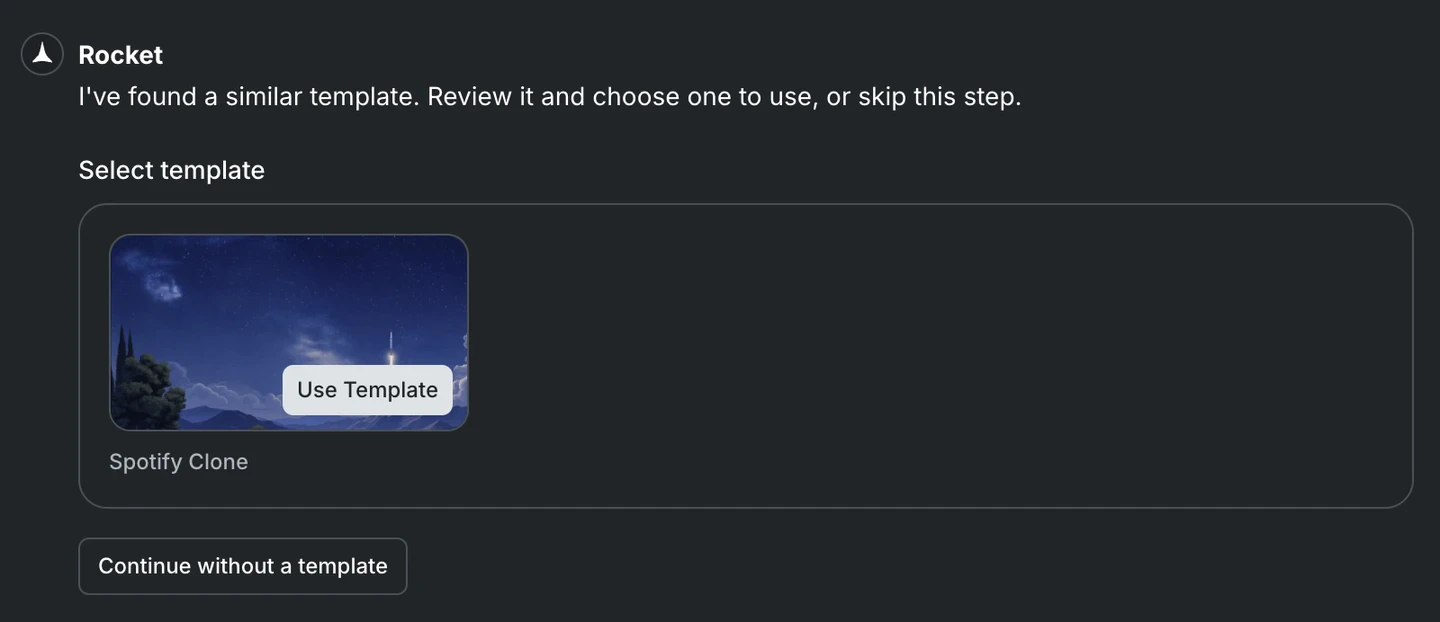
Zero credits. Templates are the fastest path to a production-ready app.
How to customize a template
Your template is a full Rocket project. Iterate on it the same way you would any app:Change the branding
Change the branding
Try this prompt:
Add new pages or features
Add new pages or features
Try this prompt:
Add connectors
Add connectors
Redesign the layout
Redesign the layout
Try this prompt:
What’s next?
Iterate with chat
Change the layout, colors, content, and features by describing what you want.
Add connectors
Wire up payments, databases, AI, email, and analytics in one prompt.
Visual edit
Click any element to tweak it directly, including text, colors, spacing, and layout.
Deploy your app
Ship your customized template to the web with one click.