Bring your existing code into Rocket. Clone a Next.js TypeScript repository from GitHub and pick up where you left off. Rocket imports your task files, installs dependencies, and sets up a live preview so you can start iterating with AI immediately.This is available for Next.js + TypeScript tasks only.

Prerequisites

Before importing, make sure you have:
  • A Rocket account
  • A GitHub account with access to the repository you want to import
  • A Next.js project using TypeScript (other frameworks and JavaScript-only projects are not supported)
If you have not connected GitHub to Rocket yet, you will be prompted to authorize during the import flow. See GitHub connector for details on permissions and setup.

Import a repository

1

Go to Rocket

Visit rocket.new, sign in, and click the Build tab below the input.
2

Open the GitHub import option

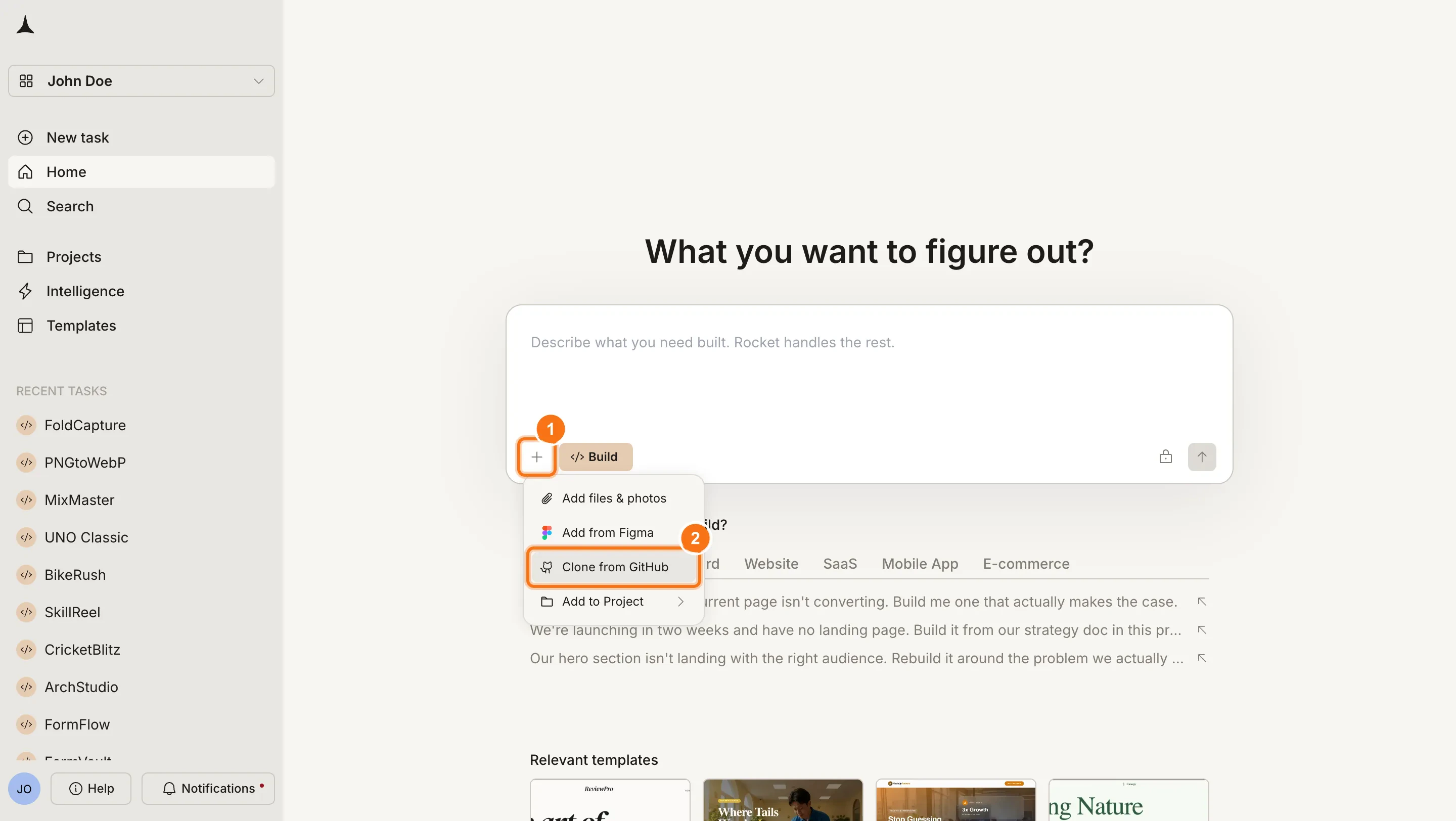
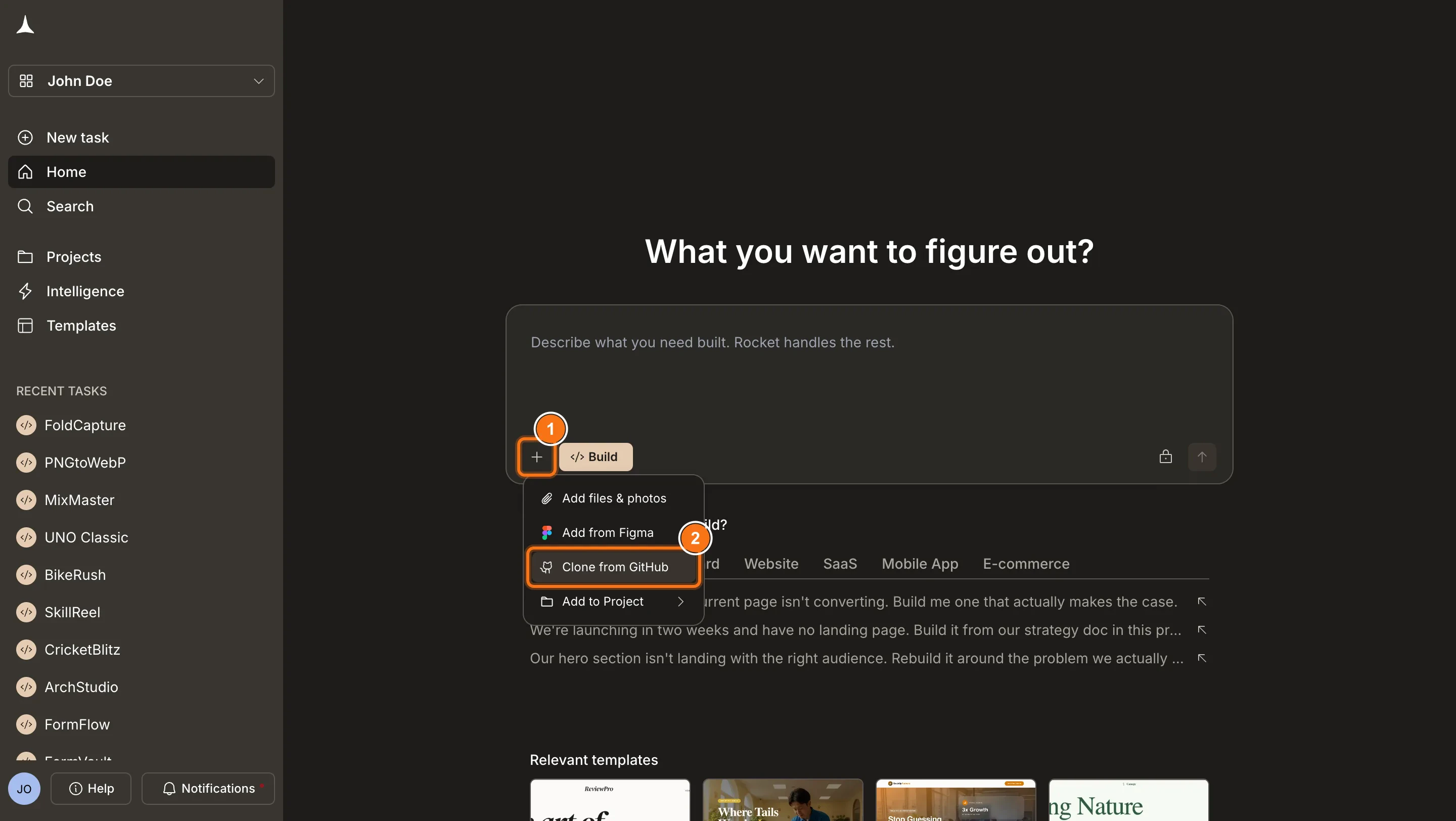
Click the + button at the lower left of the input box and select Clone from GitHub.
Rocket homepage with the + menu open, highlighting the Clone from GitHub option.Rocket homepage with the + menu open, highlighting the Clone from GitHub option.

Connect GitHub first

If you have not connected GitHub yet, Rocket will prompt you to authorize. Follow the connector setup guide for details.
3

Pick a repository

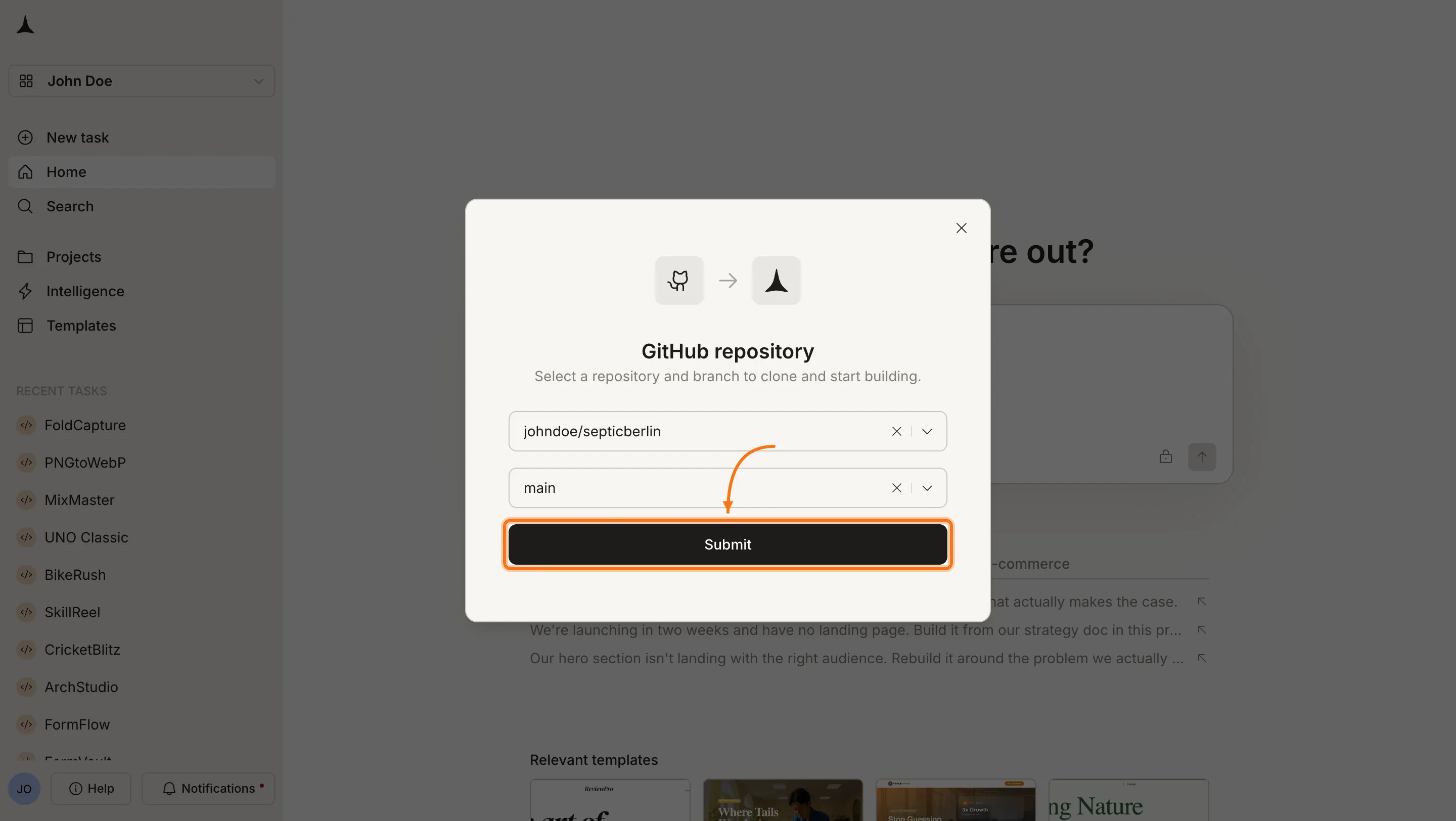
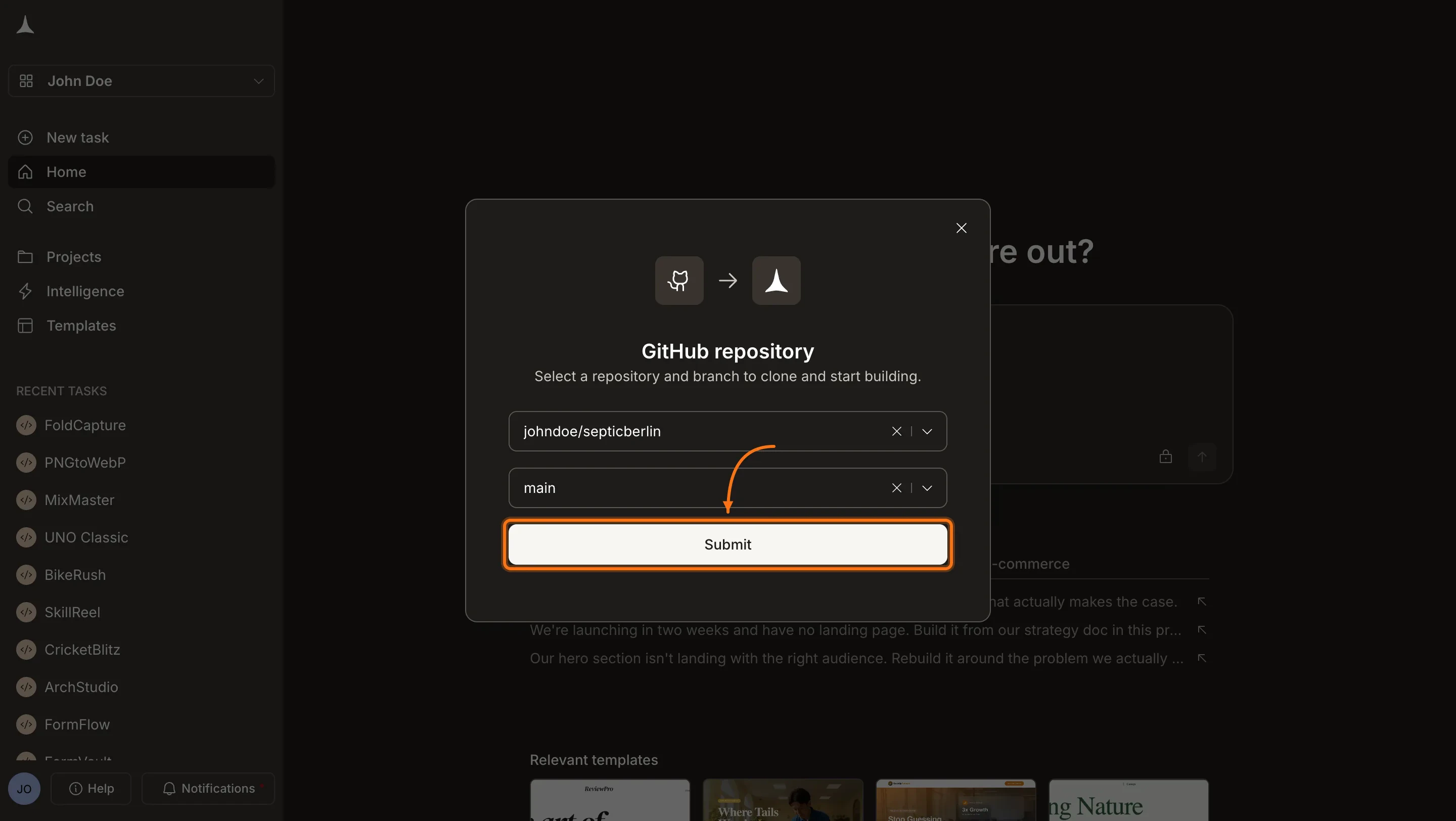
A dialog opens listing your GitHub repositories. Select the Next.js TypeScript task you want to import and click Submit.
GitHub repository selection dialog with a dropdown to pick a repository and branch.GitHub repository selection dialog with a dropdown to pick a repository and branch.
4

Wait for setup

Rocket validates the repository, clones it, installs dependencies, and generates a live preview. This may take a moment depending on task size.
5

Start building

Once the preview is ready, use the chat to iterate on your imported task just like any other Build task.

What gets imported

ImportedNot imported
All task files and foldersGitHub Issues and Pull Requests
package.json dependenciesCI/CD workflow files (GitHub Actions)
Environment variable keys and valuesGit history (only the latest state is imported)
Task structure and routingBranch-specific content (only the default branch)
Environment variable values from your .env file are imported automatically. Review them under Environment variables after importing.

After importing

Once your task is in Rocket, you get full two-way sync with GitHub:
  • Rocket to GitHub - Rocket pushes changes to the rocket-update branch and automatically opens a pull request to main for each batch of code edits (manual changes, visual edits, and AI-generated).
  • GitHub to Rocket - Pull in the latest state of main made in your local IDE or by teammates without leaving Rocket.

Learn how two-way GitHub sync works for Next.js TypeScript projects.

Disconnect from GitHub

GitHub is connected at the account level, not per task. Disconnecting removes the GitHub link for your entire Rocket account. To disconnect, click Disconnect from either:
  • Inside the task - click the ... button in the preview toolbar, select Connectors, then click the GitHub card.
  • Workspace Settings - click your workspace name in the top-left corner, select Settings → Connectors, then click the GitHub card.
Your task files in Rocket remain intact after disconnecting. To reconnect, go through the same steps and authorize a GitHub account.

When to use this vs other starting methods

Starting methodBest for
From GitHubYou already have a Next.js TypeScript codebase and want to enhance it with AI
From an ideaStarting fresh with a plain-language description
RedesignRebuilding or redesigning an existing website
From a templateLaunching quickly from a pre-built starting point

What’s next?

GitHub sync

Push and pull changes between Rocket and GitHub.

Environment variables

Review and manage your environment variables after importing from GitHub.

The chat

Iterate on your imported project using natural language.

Code tab

Browse and edit your project files directly.