Score your Rocket.new site against Core Web Vitals and fix LCP, CLS, and JavaScript issues with one-click actions from the performance dashboard.
Your site’s speed affects who finds it, who stays, and who converts. Rocket measures your site on the same metrics Google uses, grades it from A to F, and shows you exactly what to fix.
Performance is only available for landing page and website projects. Google uses Core Web Vitals (LCP, INP, CLS) as a ranking signal. Sites that score poorly on these metrics risk lower placement in search results.
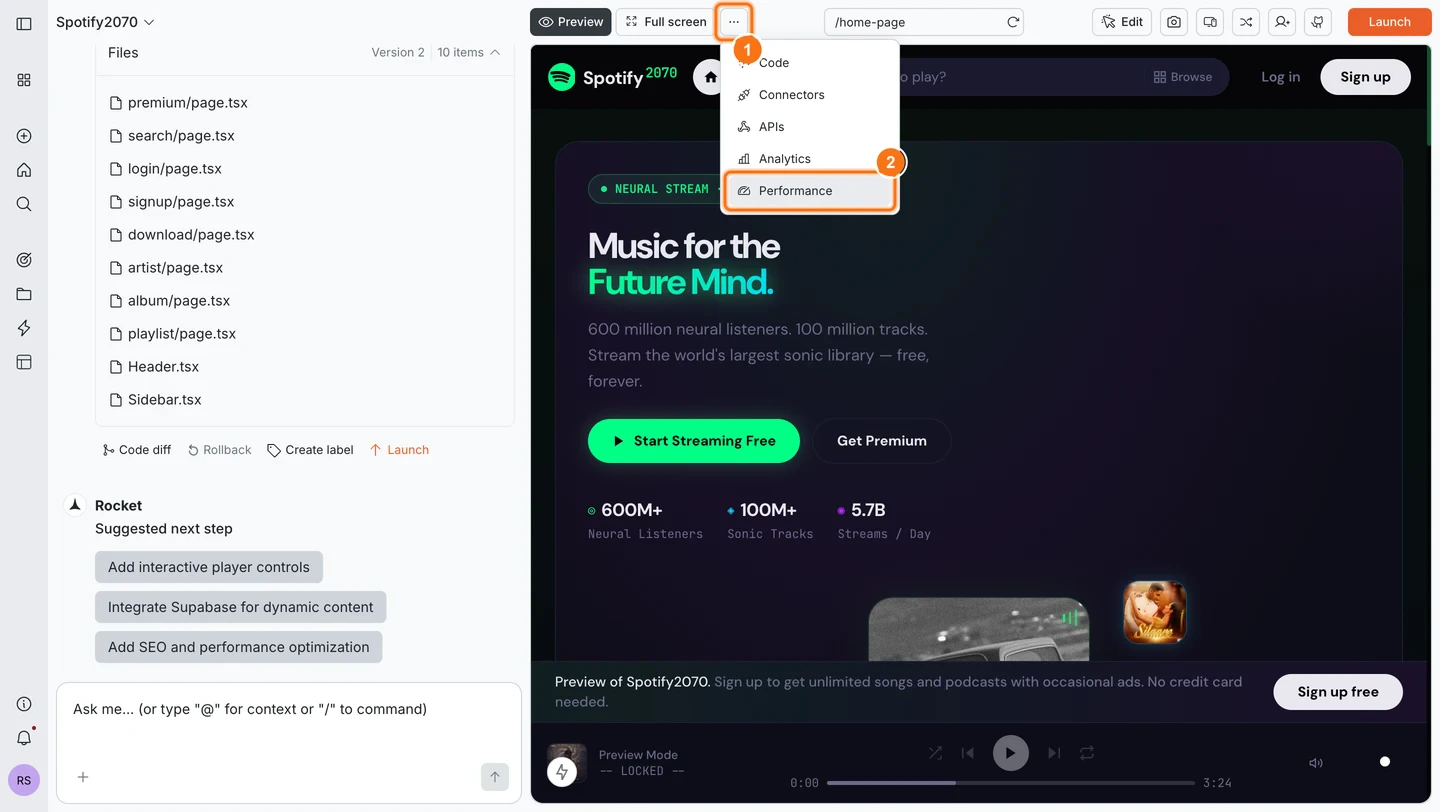
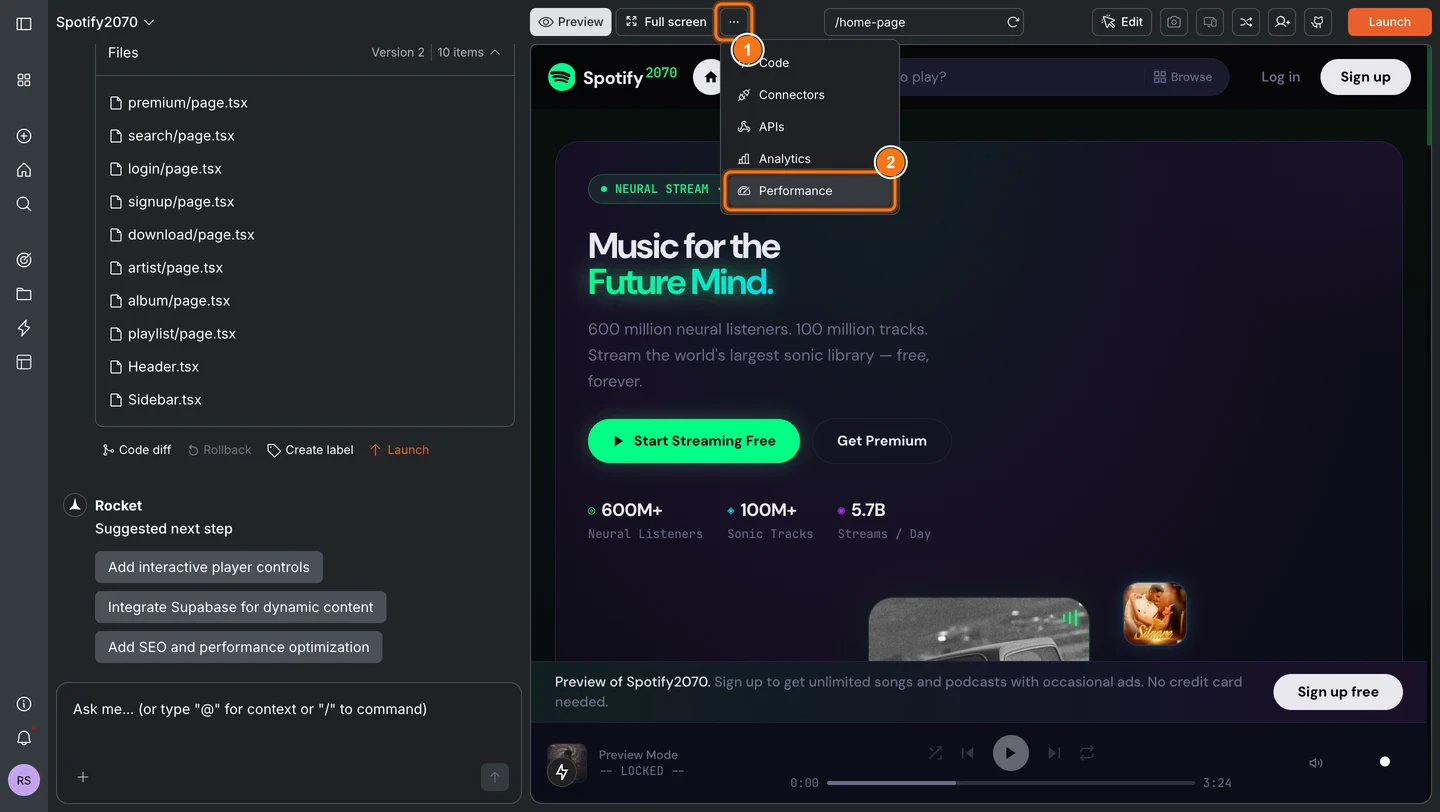
Click … in the top navigation bar of your task, then select Performance from the menu.
2
Pick what you want to measure
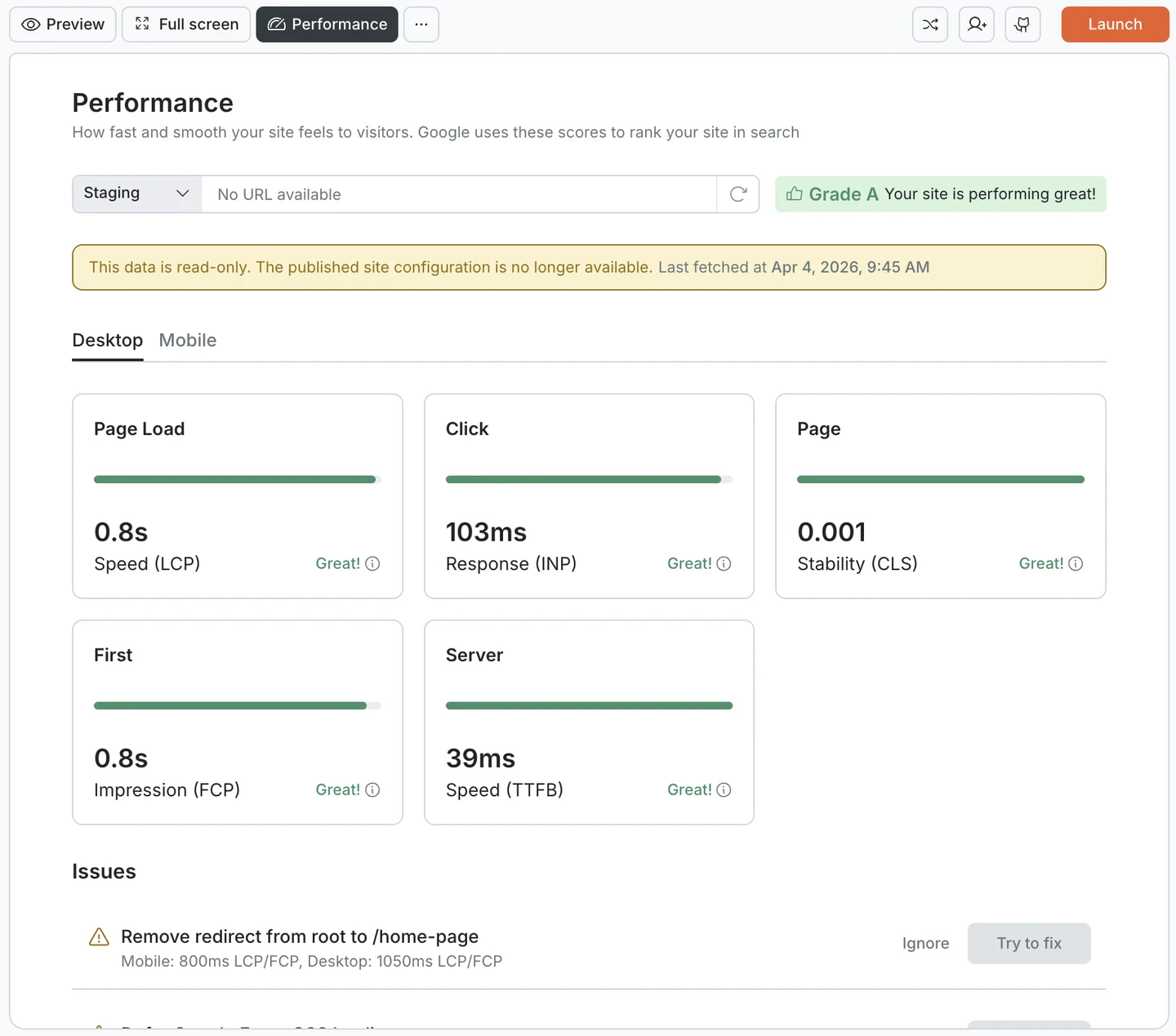
Use the Staging / Production toggle to choose which environment to check. Then switch between Desktop and Mobile to see scores for each.Desktop and mobile scores are measured separately because page loading differs by device. Mobile connections are slower, screens are smaller, and browsers handle resources differently. A page that scores well on desktop can still perform poorly on mobile. Check both.
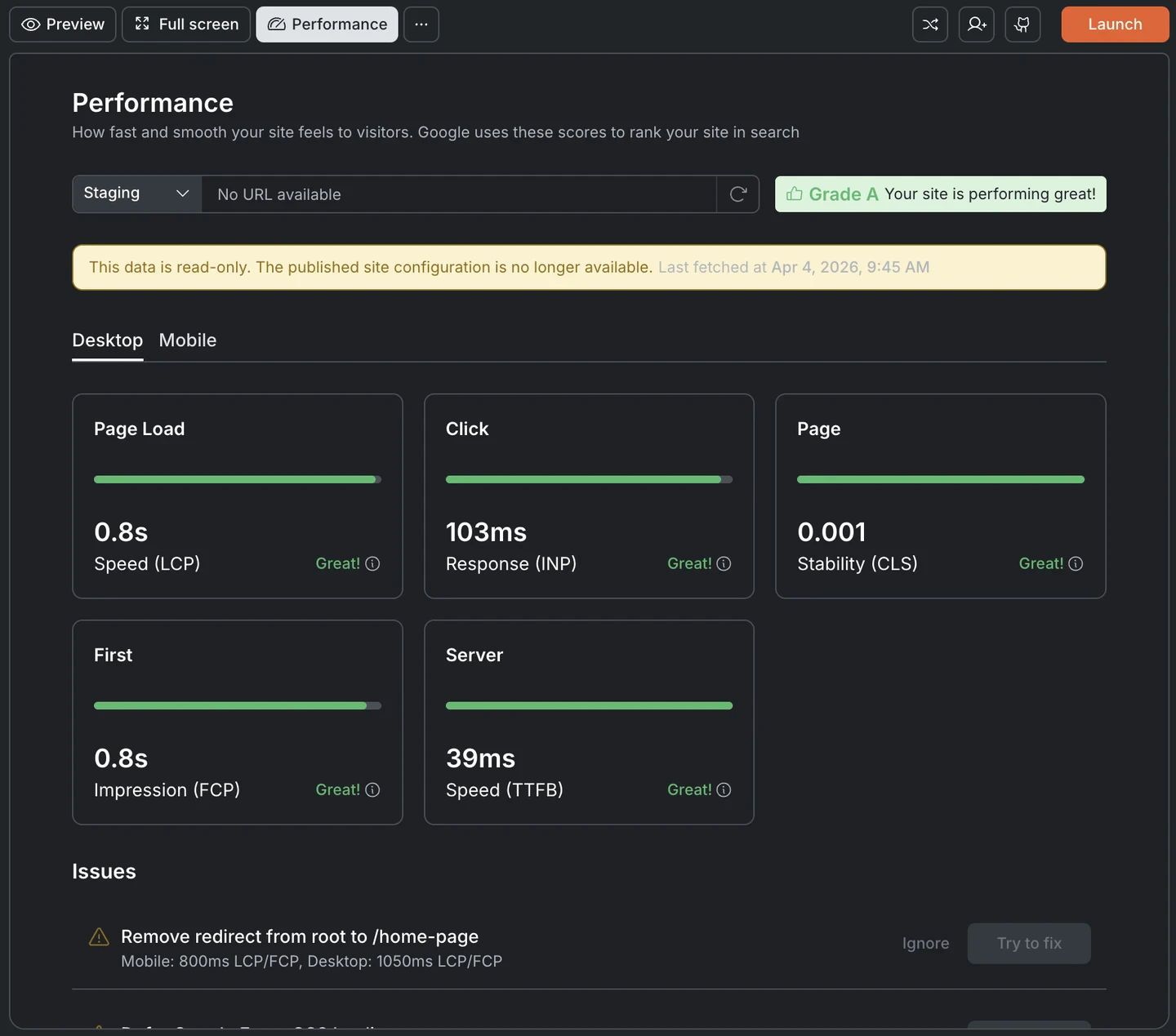
Performance dashboard showing Core Web Vitals scores and grade
3
Run the check
Click Refresh to fetch the latest scores.
4
Fix what Rocket flags
In Issues, click Try to fix on items you want Rocket to resolve automatically.
Try to fix uses credits. Each fix is an AI-powered code change applied to your project.
5
Re-check until stable
Click Refresh again. Aim for consistent “Great” on LCP, INP, and CLS.
Largest Contentful Paint measures how long it takes for the main content of your page to become visible. This is usually the hero image, headline, or largest text block.Visitors decide whether a page feels fast or slow based on this moment. Faster LCP means more people stay.
Interaction to Next Paint measures how quickly the page reacts when someone clicks, taps, or types. A slow INP makes the site feel unresponsive or broken even after it has fully loaded.
Cumulative Layout Shift measures how much the page layout moves while it is loading. A score of 0 means nothing shifts. Higher scores mean elements are jumping around, which causes misclicks and a frustrating experience.
First Contentful Paint measures how quickly the first piece of content appears on screen, whether text, an image, or a background. Unlike LCP, which tracks the main content, FCP captures the first sign of life.A fast FCP tells the visitor the page is working. A slow one looks like a blank screen.
Time to First Byte measures how quickly the server starts sending a response to the browser. Everything else depends on this. If the server is slow, no amount of front-end optimization will make up for it.
Rating
Threshold
Great
Under 800ms
Needs Improvement
800ms to 1800ms
Poor
Over 1800ms
Thresholds are defined by Google’s Web Vitals standards and measured at the 75th percentile of page views. This means if 75% of your visitors see a “Great” score, your site passes.
Staging scores reflect your current work in progress. Production scores reflect what real users experience on your live site. Check both before publishing to catch issues before they go live.
Below the metric cards, Rocket lists specific issues detected on your site. Each issue includes the affected metric, the current value, and an estimated savings breakdown so you can see exactly where time or bytes are being lost.
High LCP or FCP
Caused by unused JavaScript, render-blocking CSS, or unoptimized images.
Unoptimized images
Estimated waste in KiB shown for both mobile and desktop.
Missing cache headers
On generated images, affecting both LCP and FCP savings.
Try to fix. Rocket applies an automatic fix (compress images, remove unused code, add lazy loading, set cache headers). Each fix targets the exact metric that flagged the issue. This uses credits.
Ignore. Dismisses the issue if it is not relevant or if you plan to address it manually.
Google uses Core Web Vitals as a ranking signal. Sites that fail the thresholds risk being pushed down in search results.Beyond SEO, speed directly affects revenue: a Deloitte study found that a 0.1-second speed improvement increased travel site conversions by 10.1%.If you build sites for clients, a Grade A performance report is concrete proof of quality before they even review the design.
How often should I check my performance scores?
After every major change: adding images, new sections, third-party scripts, or fonts. Always before deploying to production. Rocket makes this a one-click task with the Refresh button.
What's the difference between staging and production scores?
Staging measures your work in progress inside Rocket. Production measures what real visitors experience on your deployed site. Scores can differ if your production environment has additional third-party scripts, different assets, or different server configurations.
What does the 'Try to fix' button actually do?
Rocket analyzes the specific issue and applies targeted fixes: compressing oversized images, removing unused JavaScript, adding lazy loading to off-screen images, or setting proper cache headers. Each fix targets the exact metric that flagged the issue.
Do I need technical knowledge to improve my scores?
No. The Try to fix button handles everything automatically. You can also describe the issue in plain language in Rocket’s chat and it will apply the changes.
Which three metrics does Google actually use for ranking?
LCP, INP, and CLS are the three Core Web Vitals that affect search ranking. FCP and TTFB are supplementary diagnostics. Rocket tracks all five because fixing TTFB or FCP often improves the core three as well.