Visual edit is only available on the web browser. It works on both web and mobile build tasks.
Visual edit lets you click directly on any element in your preview and change it on the spot. No prompts, no guessing selectors. Select something, adjust it, and save.

When to use visual edit

Use visual edit whenUse chat instead when
You can see and click the elementYou need changes across multiple pages
Quick text, style, or spacing tweaksComplex layout restructuring or new sections
You want immediate visual feedbackYou are adding new features or logic

How to use

1

Open the Edit menu

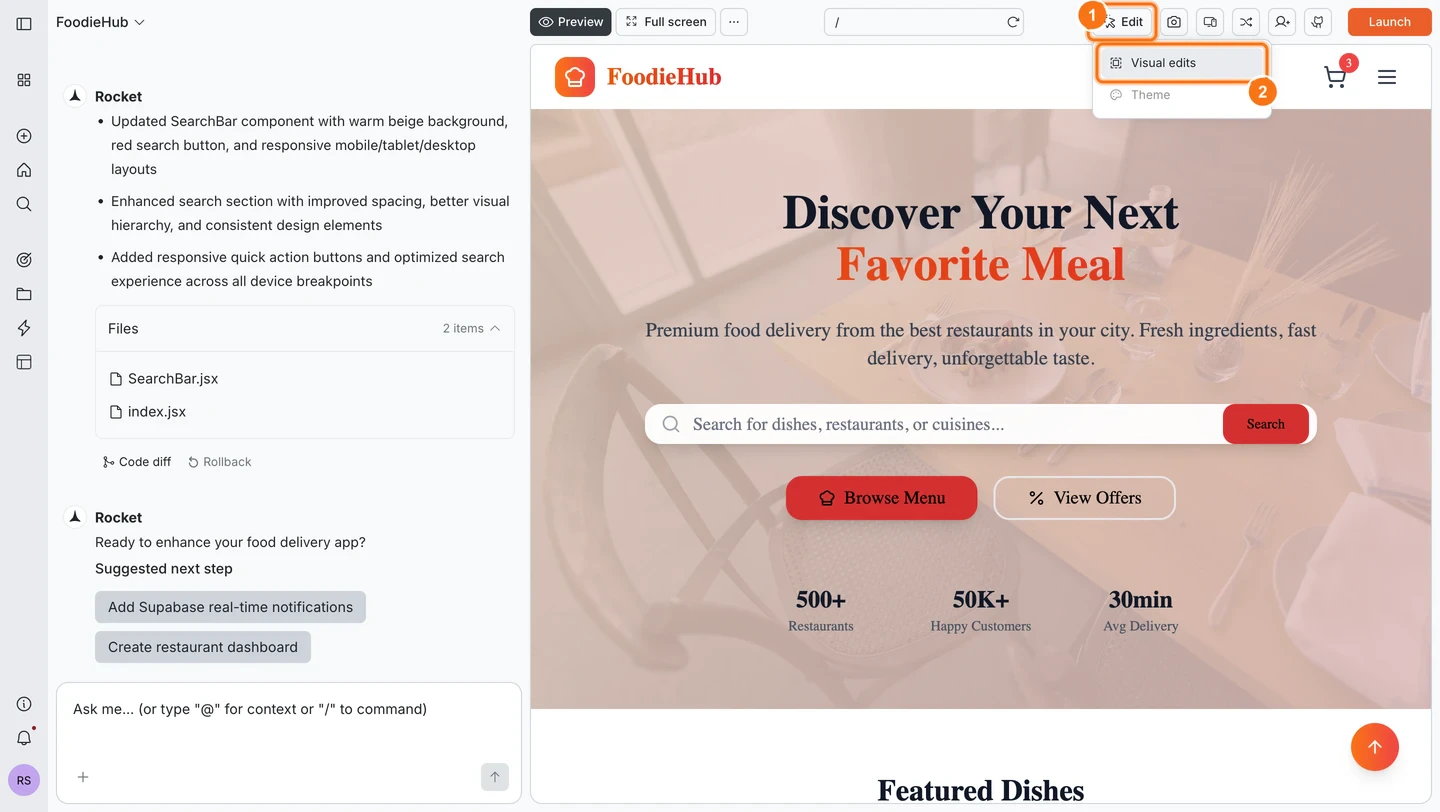
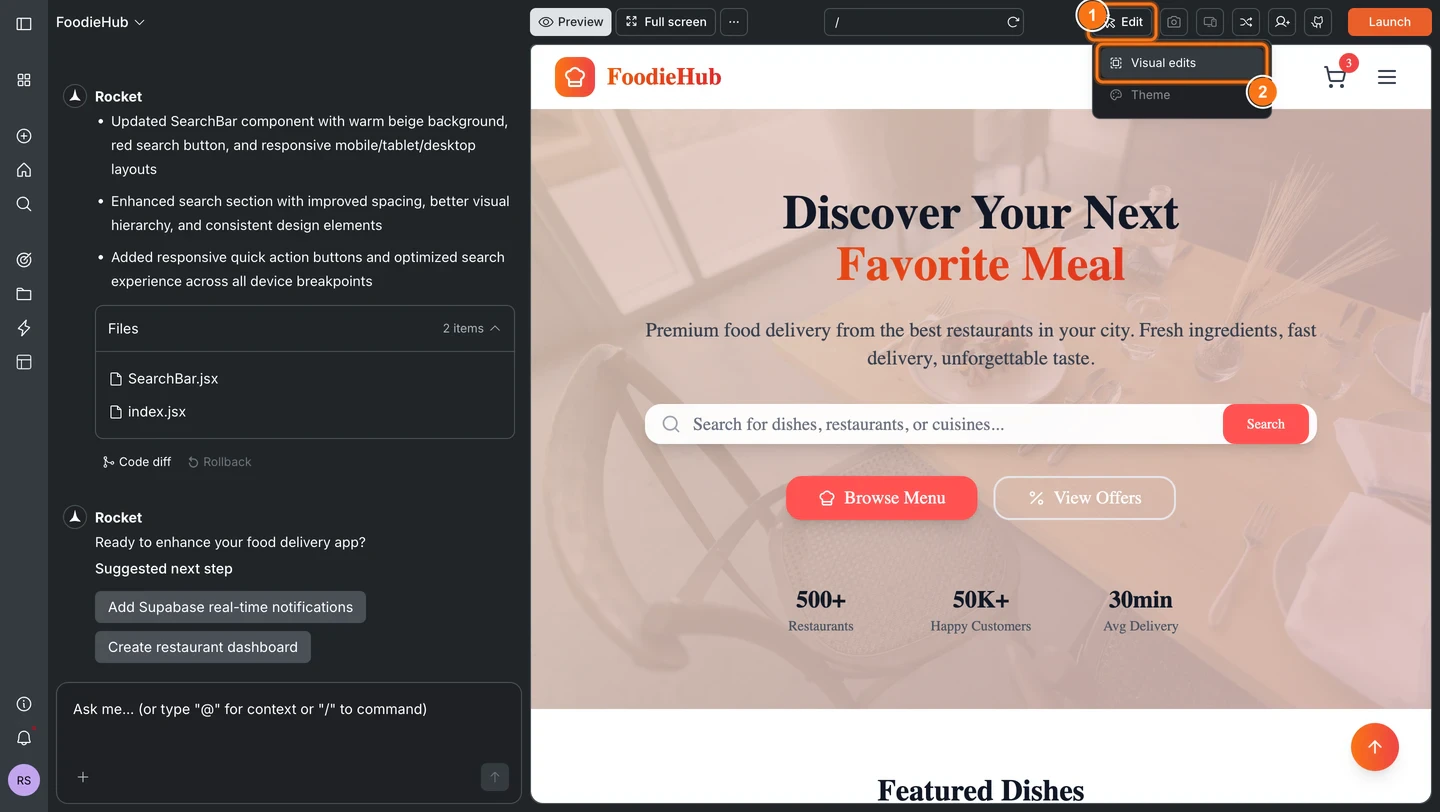
In the preview toolbar, click Edit. A dropdown appears with two options: Visual edits and Theme.
Edit button clicked in the preview toolbar showing a dropdown with Visual edits and Theme options.Edit button clicked in the preview toolbar showing a dropdown with Visual edits and Theme options.
2

Select Visual edits

Click Visual edits. The preview becomes interactive and elements highlight as you hover over them.
3

Click an element

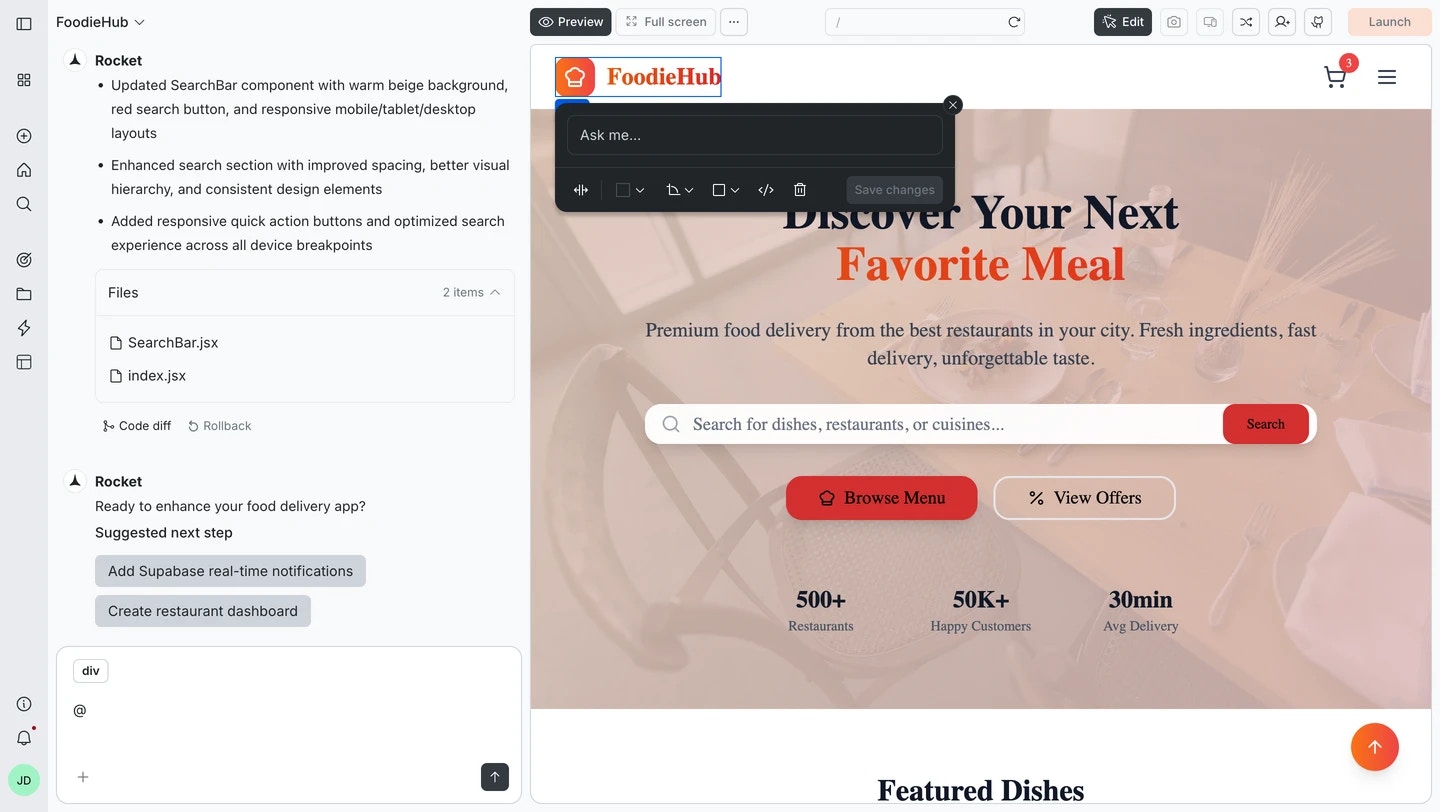
Click any element to select it. A floating toolbar appears with editing controls and an Ask me… field for quick AI-assisted changes.
Visual edit mode active in Rocket with a selected element and the editing toolbar showing Ask me field and controls.
4

Make your changes

Use the toolbar controls to adjust style, spacing, text, or images. You can also type a change in the Ask me… field and Rocket applies it to just that element.
5

Save

Click Save changes to write all pending changes to code. You can edit multiple elements before saving and they all apply at once.

Editing tools

Edit style

Adjust colors, fonts, weight, and alignment directly in the toolbar.
  1. Select an element.
  2. Use the font size, weight, color, or alignment controls in the toolbar.
  3. Changes apply immediately in the preview.
  4. Click Save changes.
Visual edit toolbar showing font size set to 20, Normal weight, color picker, text edit, spacing, italic, underline, align, go to code, and delete controls on a selected paragraph.

Edit spacing

Adjust margin and padding values on any element.
  1. Select an element.
  2. Click the spacing icon in the toolbar.
  3. Enter values for each side of the margin and padding.
  4. Click Save changes.
Spacing panel expanded showing individual margin and padding numeric inputs for a selected element.

Edit image

Replace or update an image without touching code.
  1. Click an image element to select it.
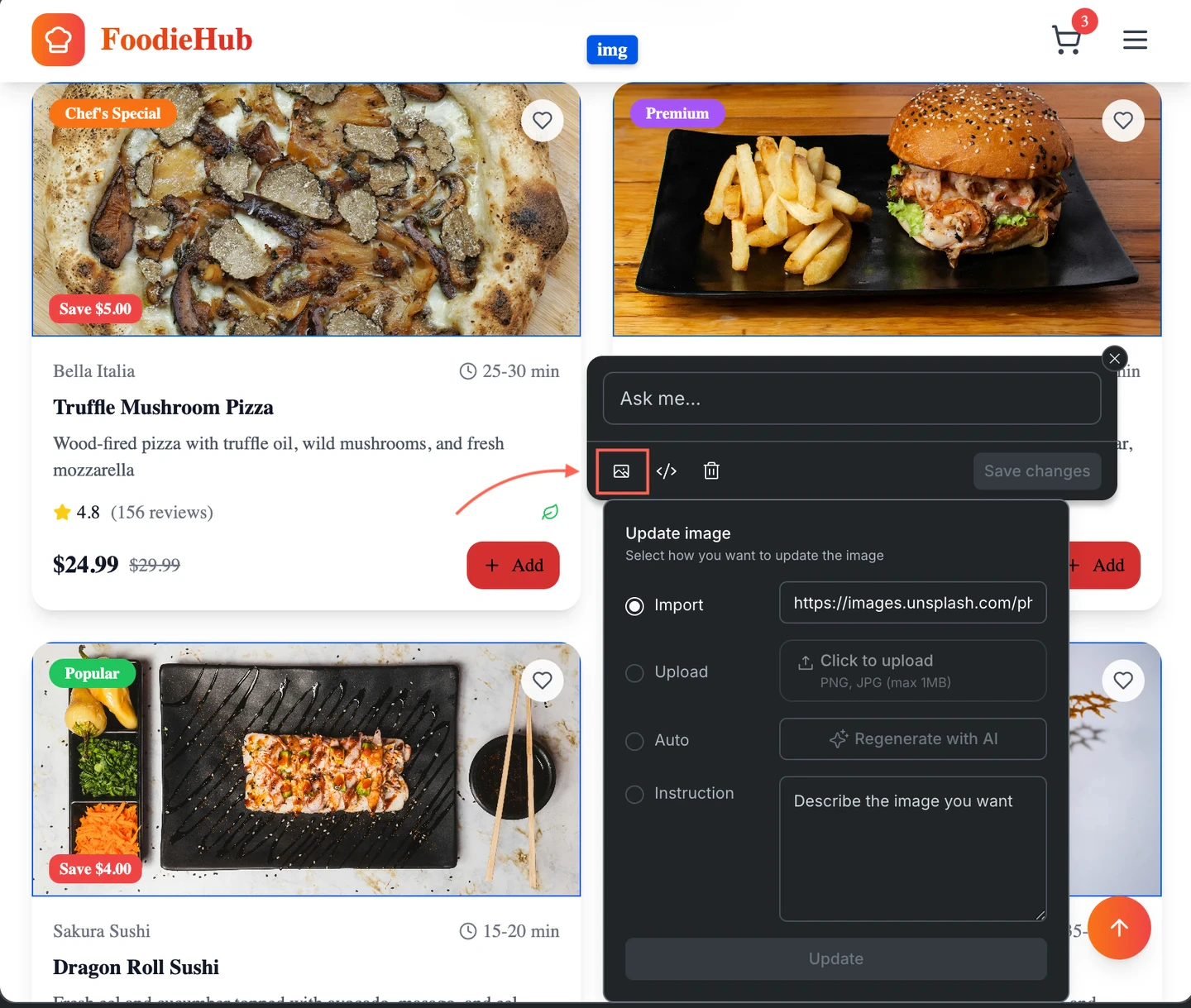
  2. Click the image icon in the toolbar.
  3. Choose how to update it:
    • Import a URL from the web
    • Upload a file from your device (PNG, JPG up to 1MB)
    • Auto to regenerate the image with AI
    • Instruction to describe what you want
  4. Click Update.
Update image panel showing Import URL, Upload file, Auto AI regenerate, and Instruction options for a selected image element.

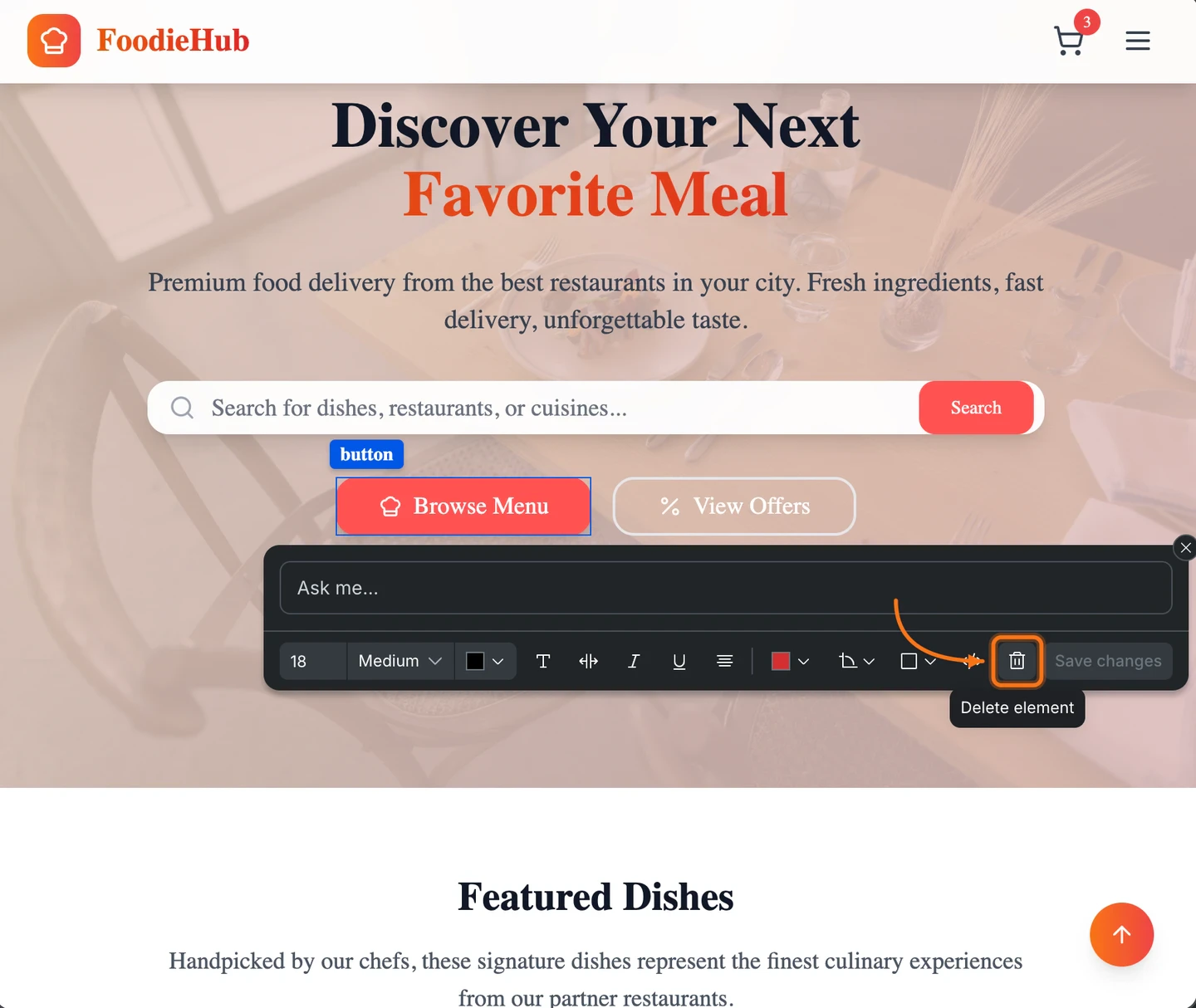
Delete an element

Remove an element from the page.
  1. Select the element.
  2. Click the Delete element icon at the end of the toolbar.
  3. Click Save changes.
Visual edit toolbar with the delete element icon highlighted showing a Delete element tooltip.

Go to code

Jump directly to the element’s source code for changes beyond what the toolbar offers.
  1. Select an element.
  2. Click the </> icon in the toolbar.
  3. The code view opens with the element highlighted.
Visual edit toolbar with the Go to code icon highlighted showing a Go to code tooltip on a selected heading element.

Ask for a quick change

Every selected element has an Ask me… field at the top of the toolbar. Type a change in plain language and Rocket applies it to just that element. Examples:
  • Make this button orange with white text and rounded corners
  • Set this heading to bold, center aligned, 32px
  • Add 24px padding and a subtle box shadow to this card
  • Change the background to a gradient from blue to purple

Toolbar reference

ToolWhat it does
Ask me…Apply a plain-language change to the selected element
Font sizeSet the size numerically
Font weightToggle Bold, Semibold, Normal, etc.
ColorChange the text or fill color
TEdit the text content inline
SpacingAdjust margin and padding
I / UItalic and underline
AlignChange text or element alignment
ImageReplace or regenerate an image
</>Jump to the element’s source code
DeleteRemove the element from the page
Save changesWrite all pending changes to code

What’s next?

Theme

Update your site’s fonts, colors, logo, and images from one place.

Commands

Use slash and @ commands for precise, targeted edits.

Chat

Use chat for bigger changes, new sections, or logic updates.

Code tab

Browse and edit your task source files directly.