

Visibility levels
Public Build tasks display a “Built with Rocket” badge (also called the Rocket watermark). Anyone with the link can view the output. Anonymous viewers stay view-only. The task owner and people with edit access can chat and iterate. Private Build tasks are hidden from people who do not have access, even if they have the URL.
Setting a Build task to Private requires a paid plan (Pro or above). Free plan Build tasks are always Public.
Set task visibility
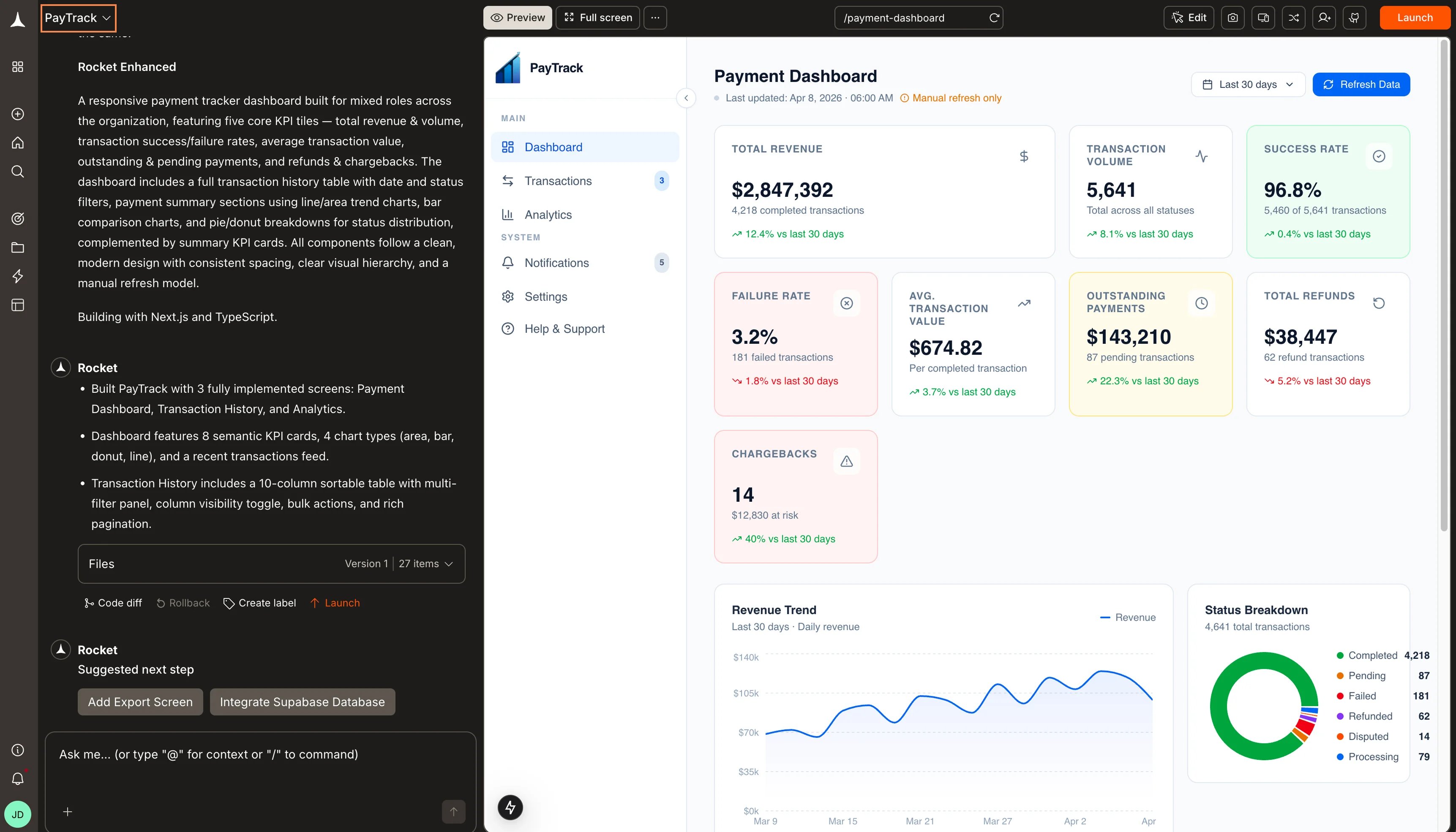
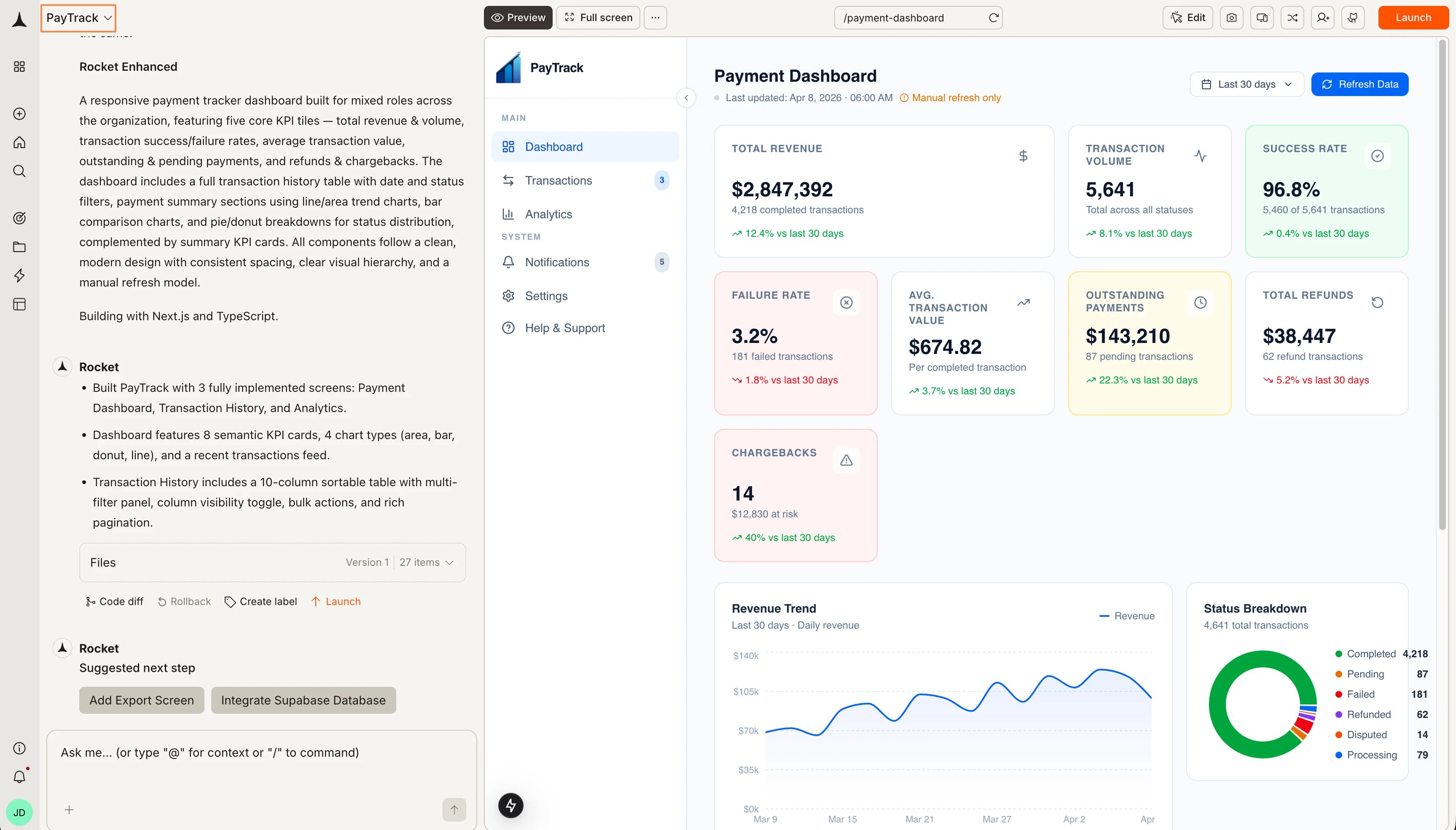
You can set visibility when creating a Build task, or change it at any time from inside the task.- When creating a Build task
- From inside the task
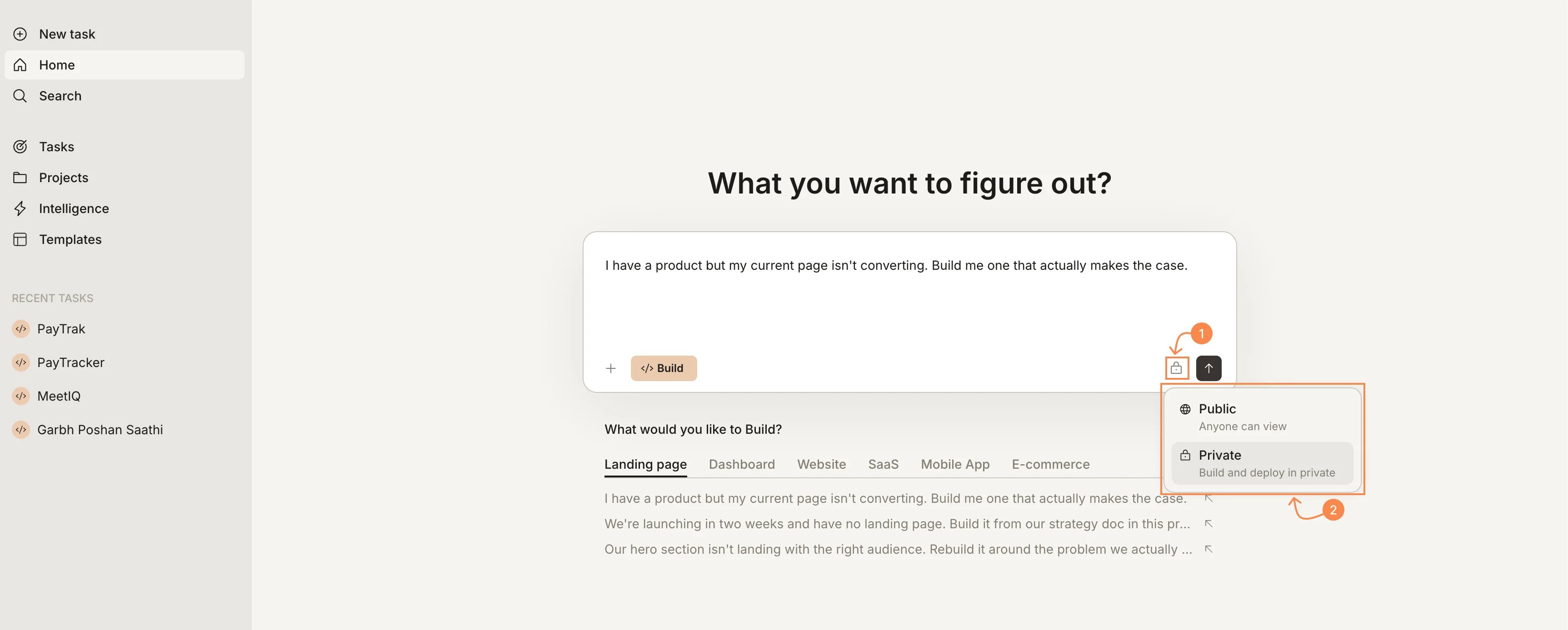
Before submitting a new Build task from Home, click the lock icon next to the send button to choose Public or Private.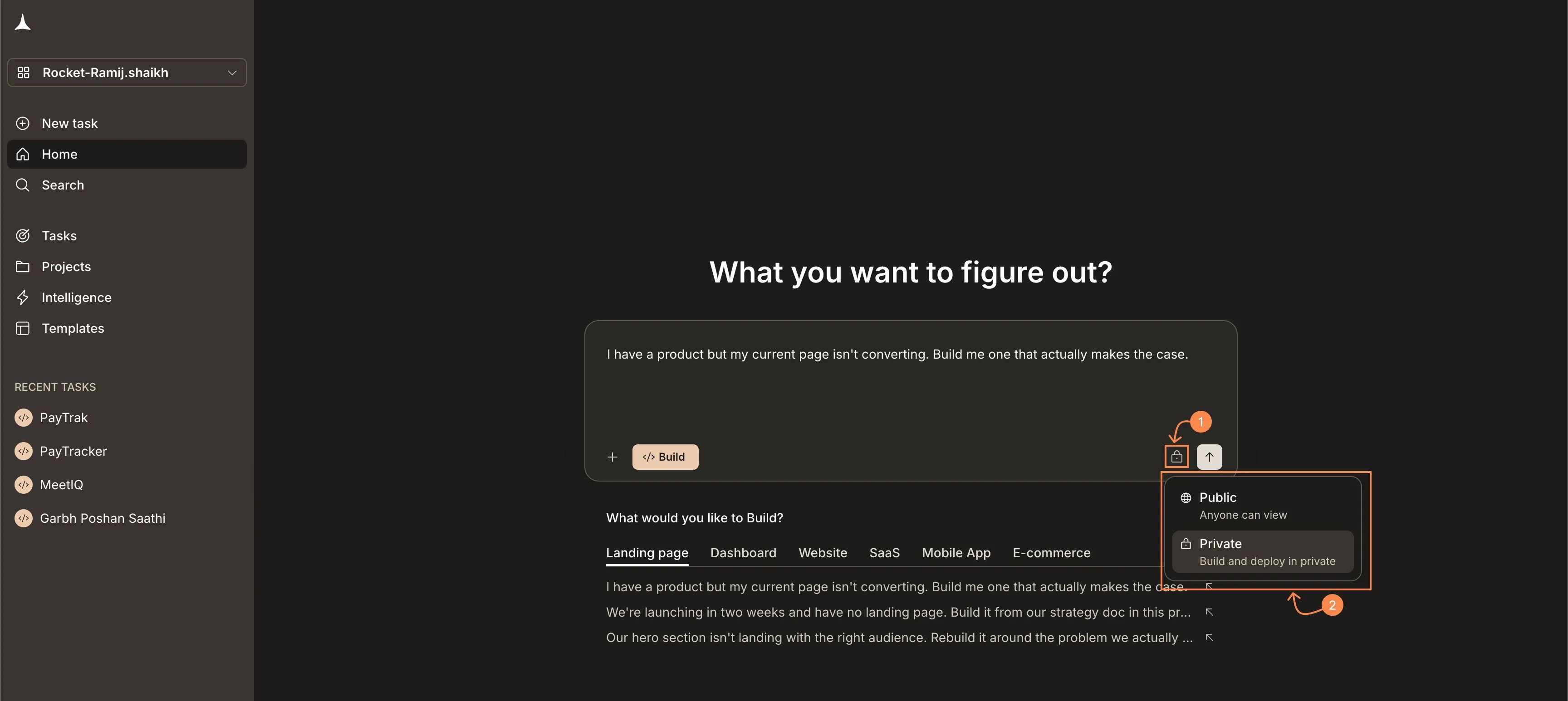
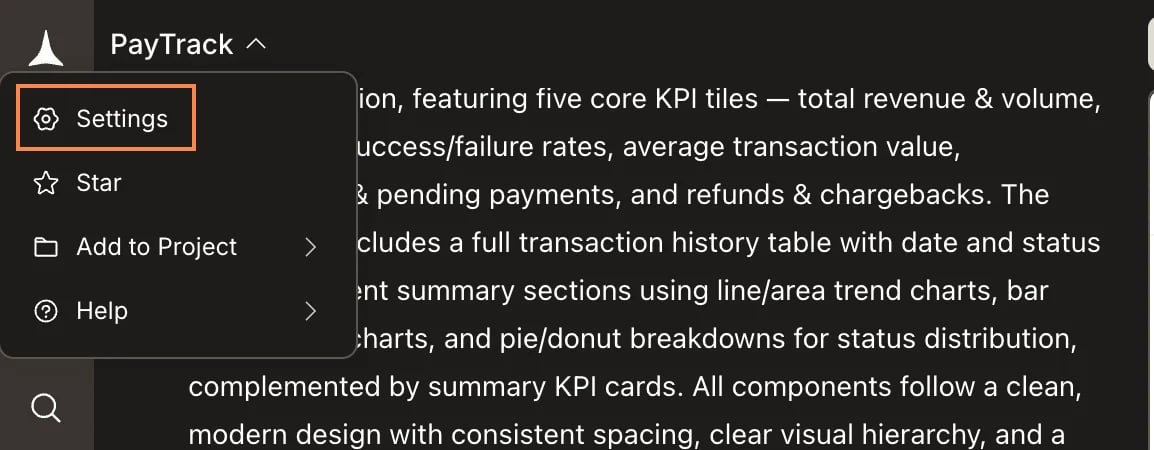
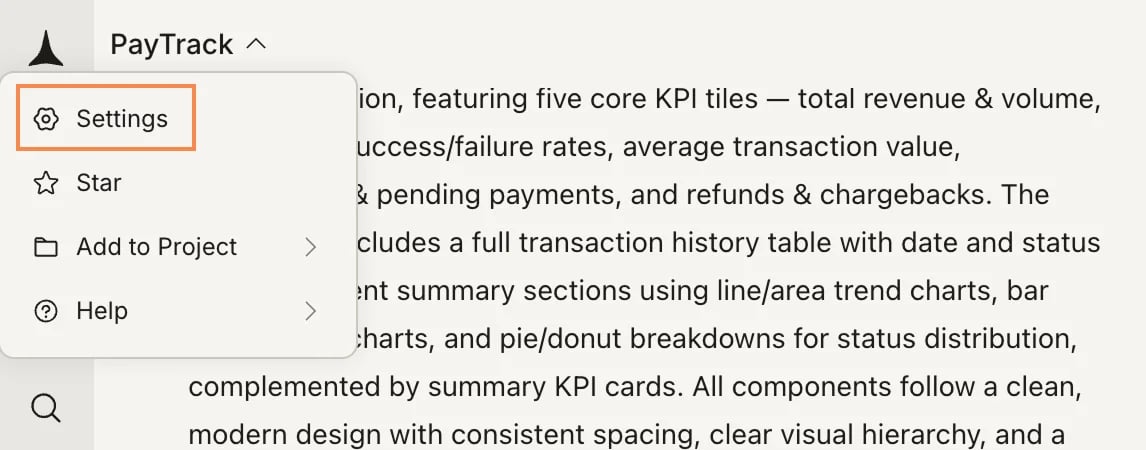
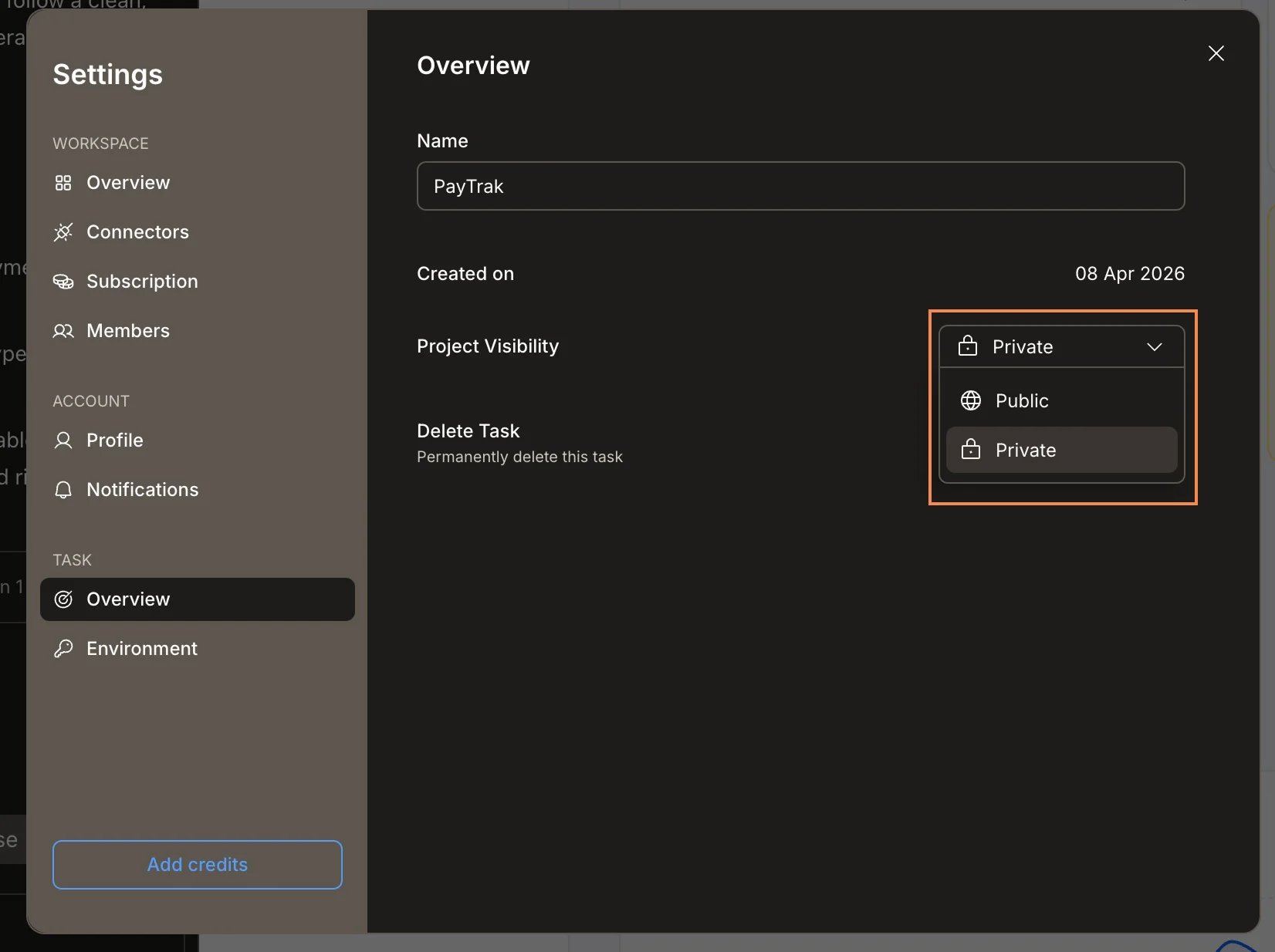
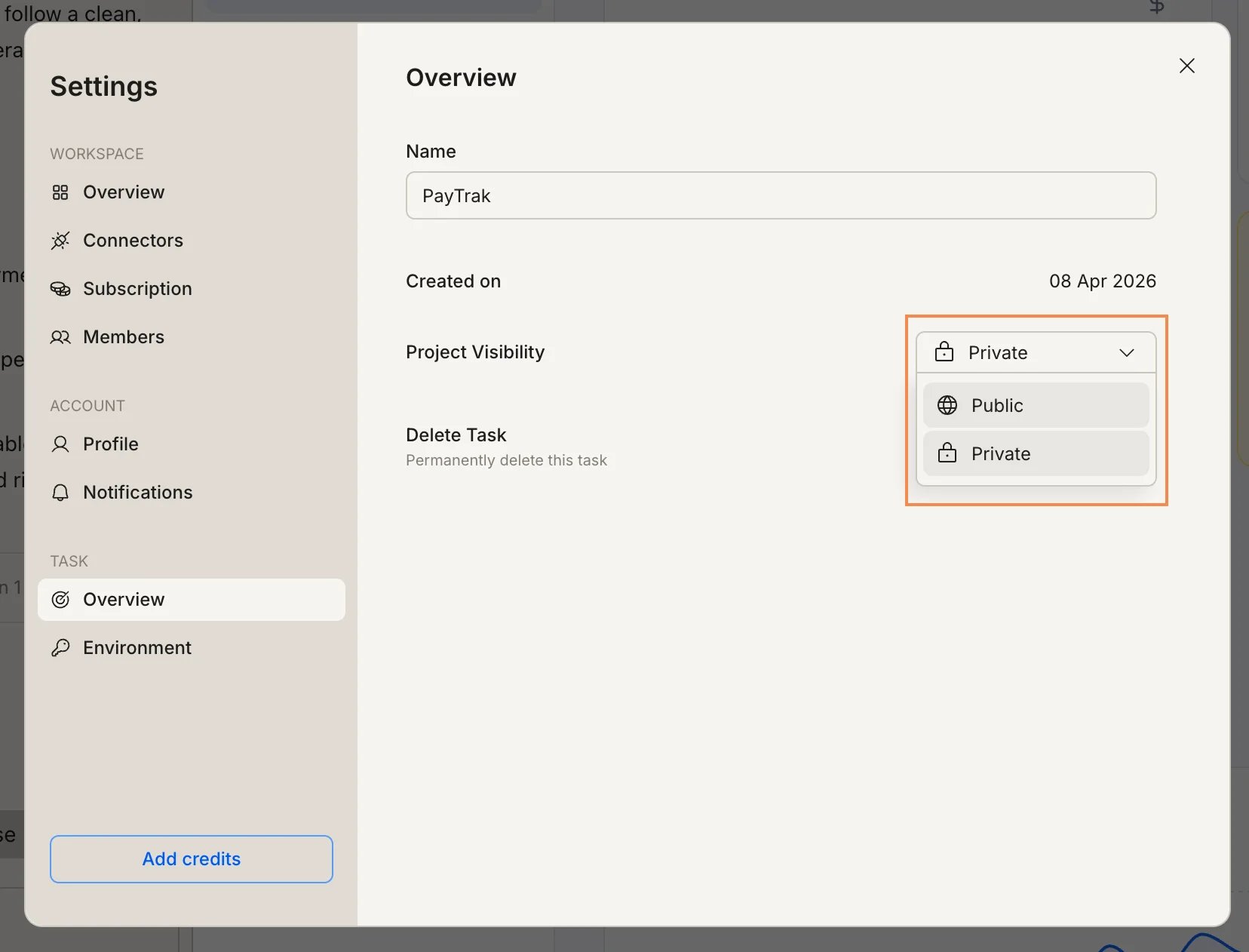
How visibility affects sharing
Public Build tasks: Copy the task URL and share it with anyone. Recipients can view the task output without logging in. Private Build tasks: Private tasks are hidden from people who do not have access. If you later change a private task to public, the full task history becomes visible immediately.Frequently asked questions
Can I change visibility after a Build task is created?
Can I change visibility after a Build task is created?
Yes. See the steps in the From inside the task tab above.
Does visibility apply to Solve or Intelligence tasks?
Does visibility apply to Solve or Intelligence tasks?
No. Public/Private visibility is a Build-only setting. For Solve report outputs, use report share links.
Does visibility affect what Rocket can access?
Does visibility affect what Rocket can access?
No. Visibility controls who can see the task, not what Rocket can do with it. Rocket has full access to the task’s files, context, and connected services regardless of visibility.
Do Build tasks in the same project need the same visibility?
Do Build tasks in the same project need the same visibility?
No. Each Build task has its own visibility setting. You can have a mix of public and private Build tasks within a single project.
What’s next?
Manage tasks
Rename, star, move, or delete a task.
Share with Remix
Let others clone a Build task into their own workspace.