Publish to the web
- Web Browser
- Mobile App
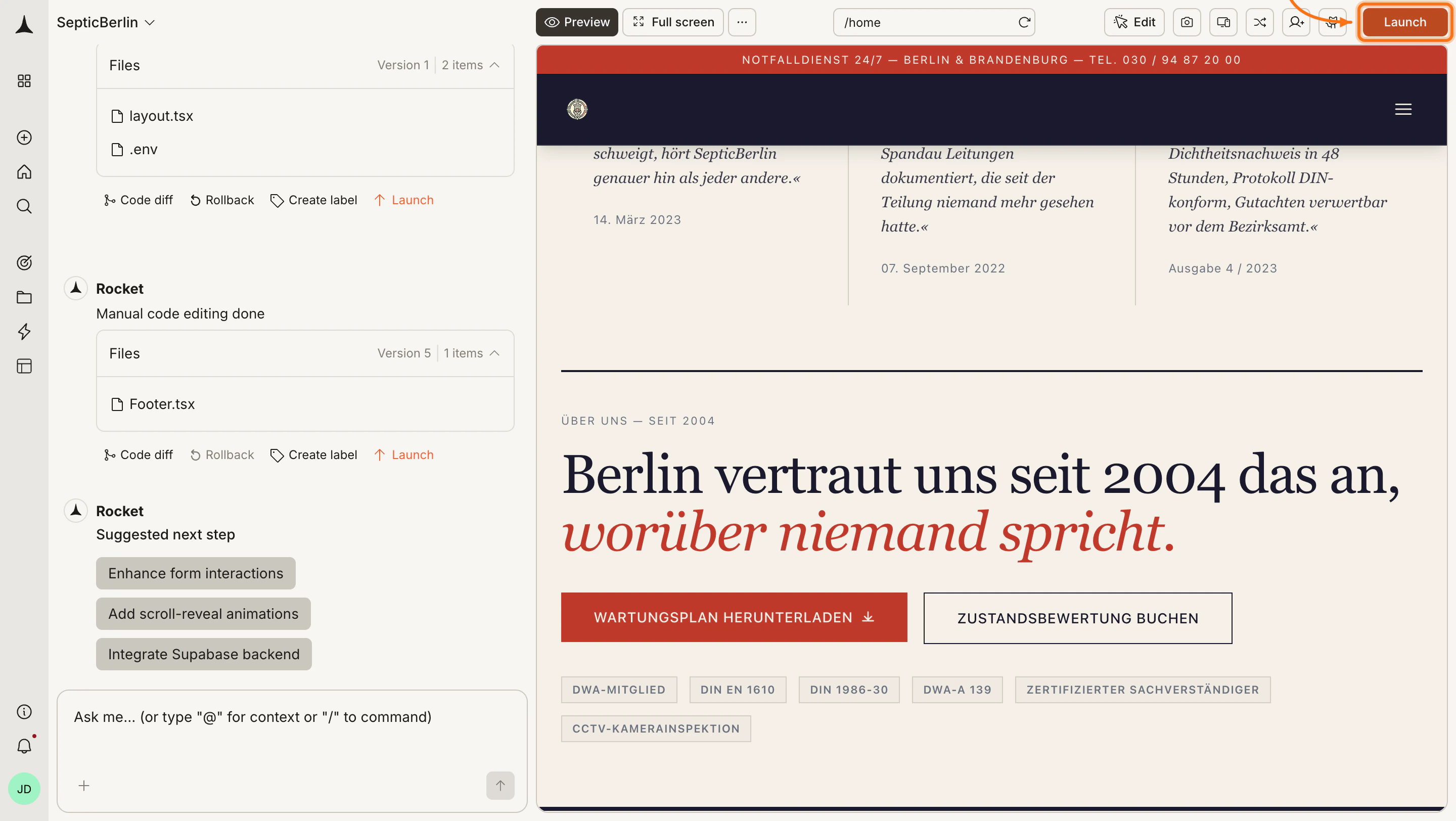
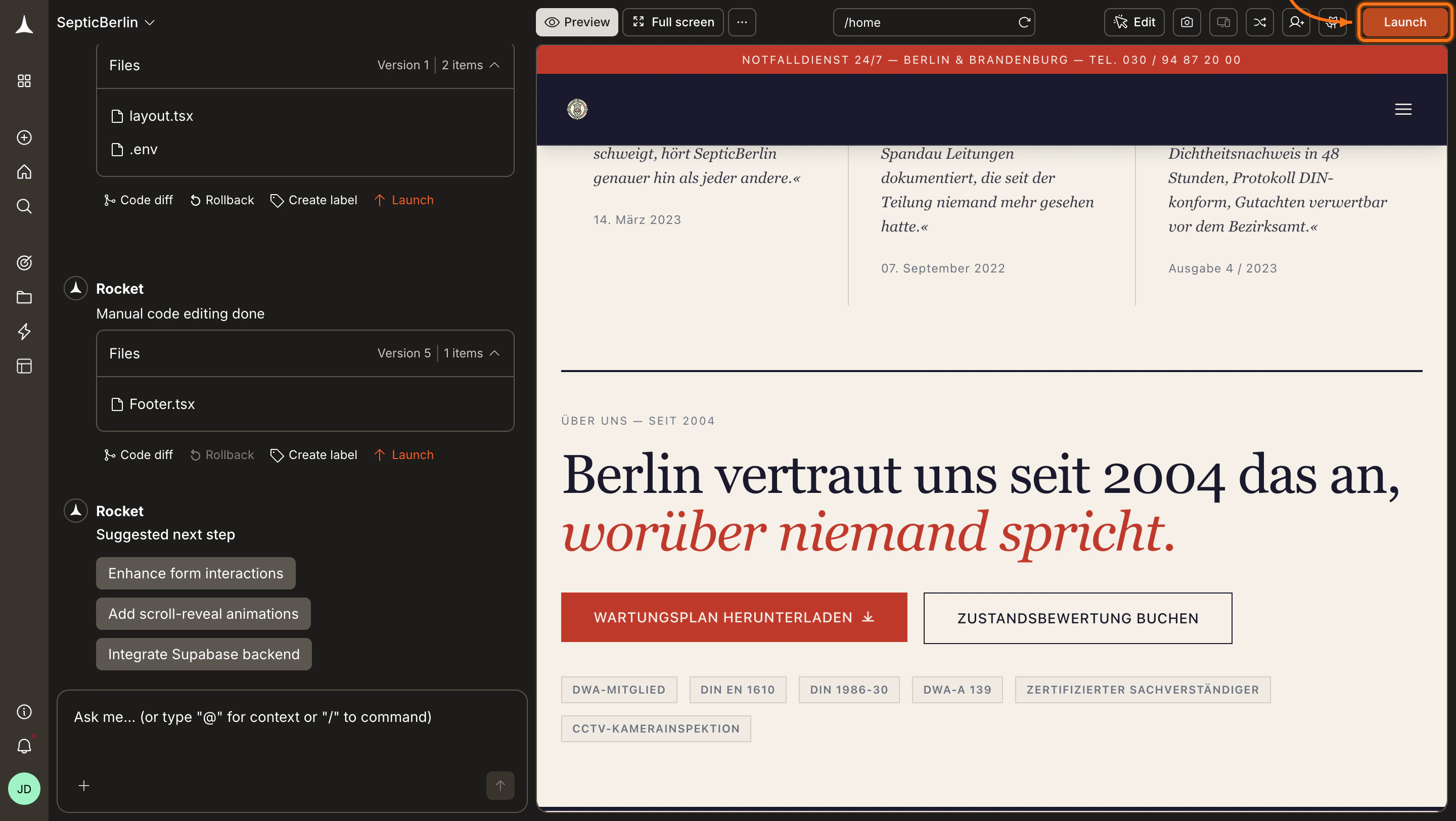
Open the Launch menu
Open your app in Rocket and click the Launch button in the top-right corner.

A popup titled Launch on web appears.


Click Launch on Web
Click Launch on Web in the popup.

The button changes to Launching while Rocket deploys your app. This takes a few seconds.


Confirm your app is live
When deployment finishes, you see a success screen with your public URL.

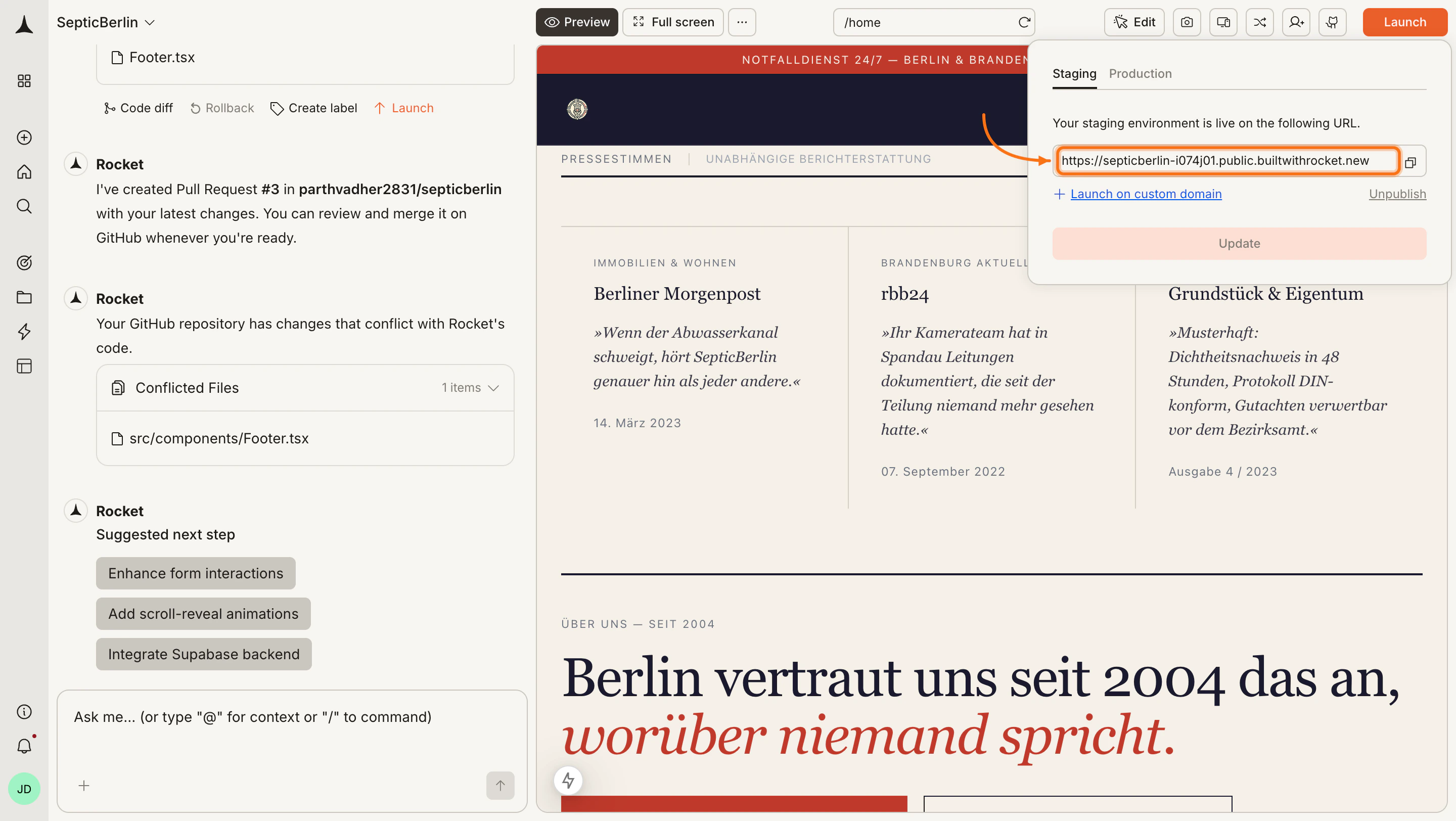
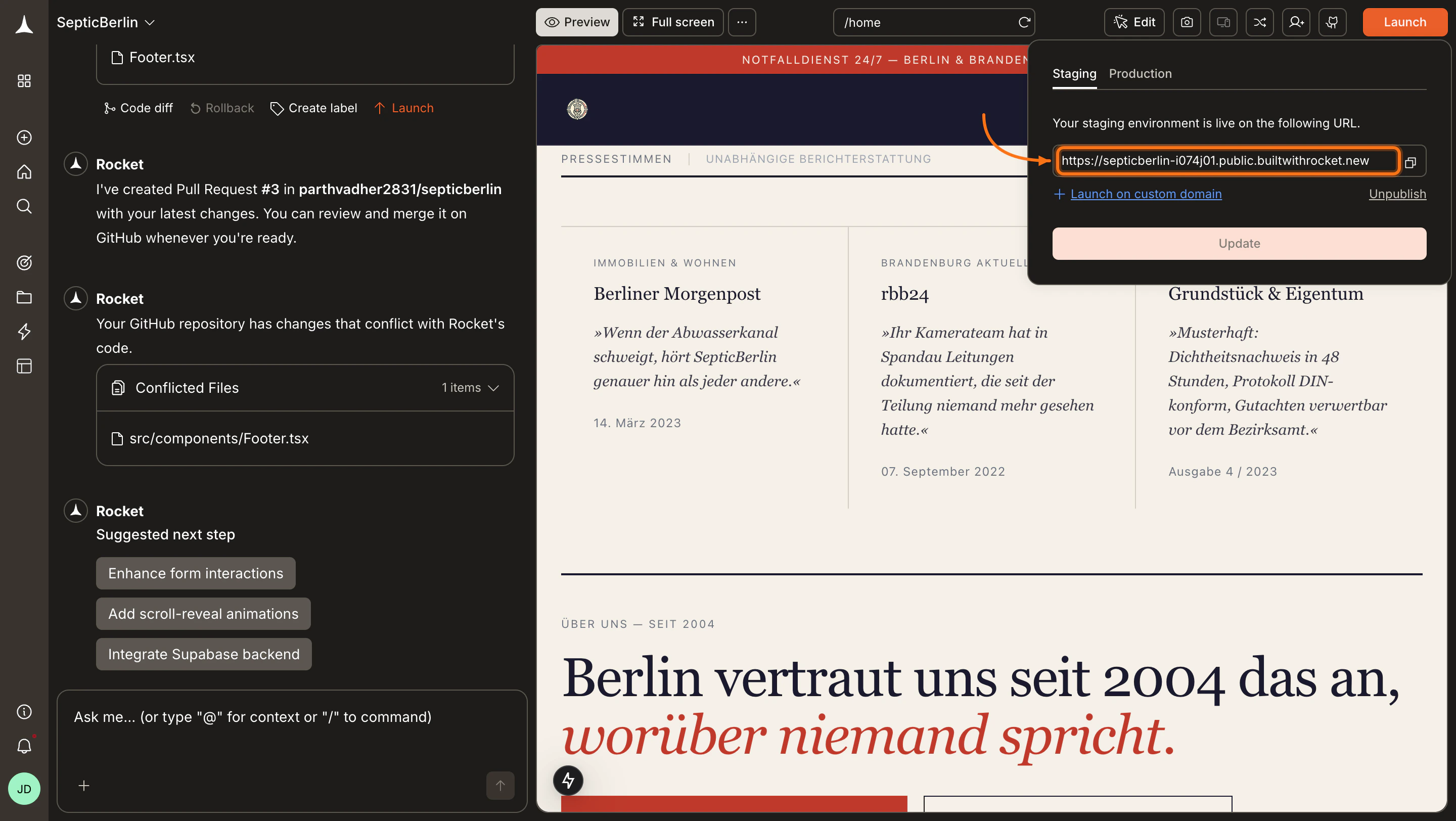
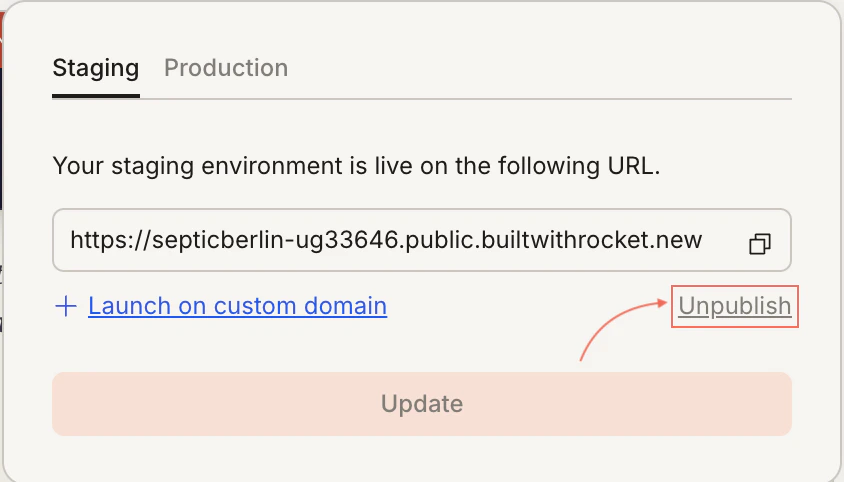
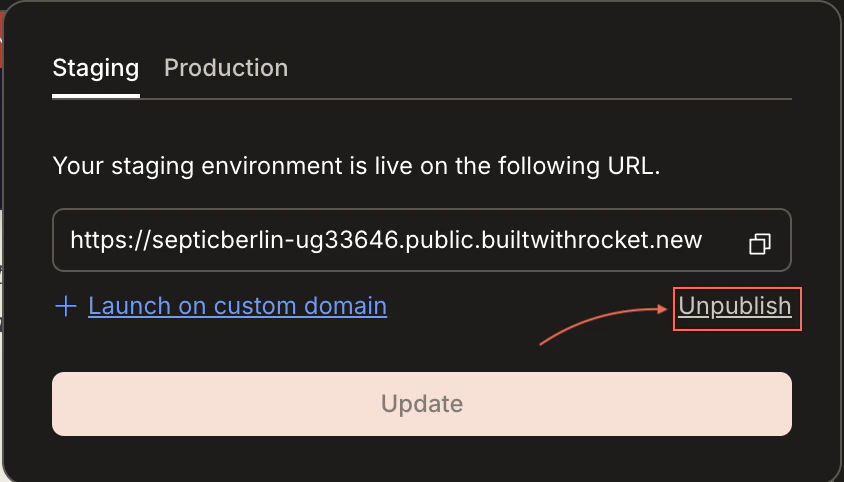
The screen shows a link to open your app, an Update button to republish with changes, and an Unpublish link to take it offline.


Rocket uses a default Netlify account if you have not connected your own. You can connect your Netlify account to use your own.
Update or unpublish
Update publishes your latest changes to the same URL. Unpublish removes the app and disables the public link.

Clicking Unpublish shows a confirmation dialog. Choose Cancel to go back or Confirm to unpublish.


Free users cannot unpublish apps and will see a Built with Rocket badge on the public site. Upgrade to remove the badge and access unpublish options.
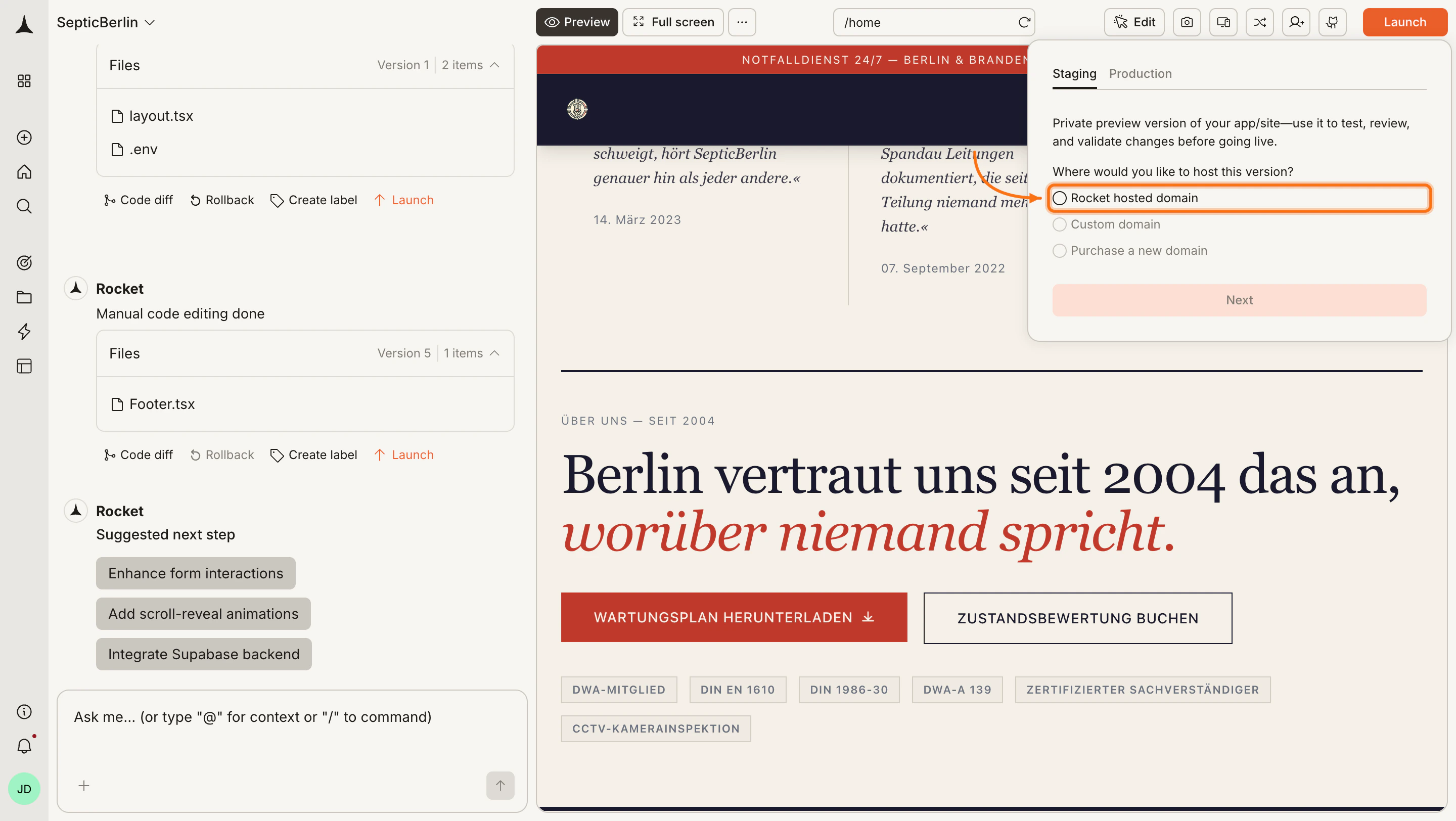
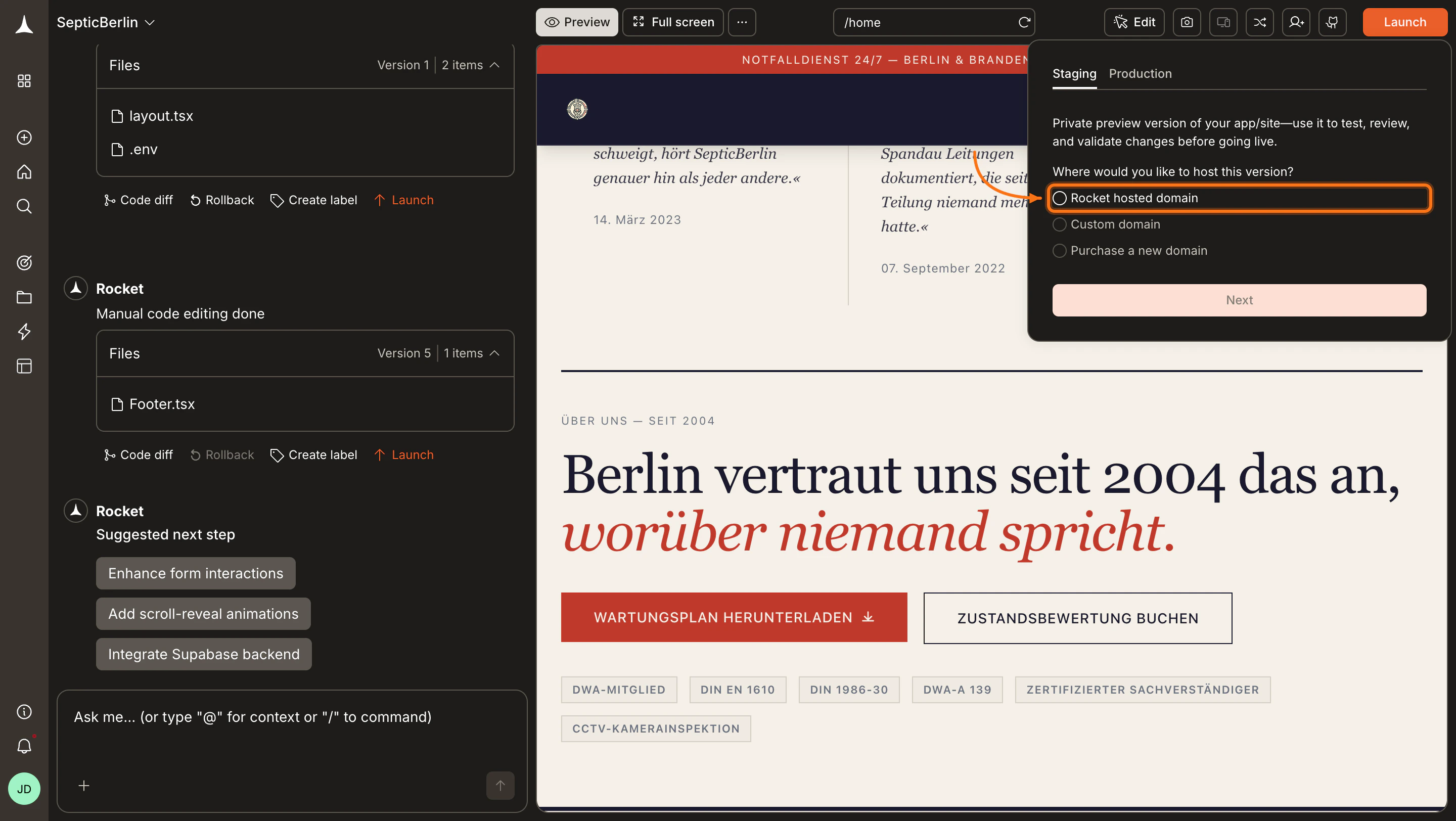
Staging and production
Every Rocket app has two environments: staging and production. Staging lets you iterate freely without affecting the live app your users see.| Staging | Production | |
|---|---|---|
| Who sees it | Only you and your team | Everyone with the URL |
| Purpose | Test changes before going live | Serve your live app |
| URL | Private staging URL (not indexed) | Your custom domain or Rocket URL |
| Updates | Every time you save in Build | Only when you explicitly publish |
| Risk | Safe to break | Changes are immediately visible |
Staging updates automatically as you work in Build. You do not need to manually deploy to staging.
Choose a version to publish
When you click Launch and open the Production tab, Rocket lets you pick which version to deploy. The latest version is selected by default, but you can choose any saved version from the dropdown. This is useful when you want to ship a stable version while still iterating on a newer one, re-deploy a known-good version after a rollback, or hold back changes during a staged rollout.Test in staging
Open the staging preview
Open your Build task and expand the preview panel. This shows your staging environment with all recent changes applied.
Test core user flows
Walk through sign-up, login, page navigation, form submissions, and purchases. Click every button and link.
Check on multiple screen sizes
Resize the preview or switch between desktop and mobile views. Verify layouts, navigation, and interactive elements at every breakpoint.
Test integrations
If your app connects to Stripe, Supabase, or external APIs, confirm data flows correctly. Submit a test payment, create a test user, or trigger a webhook.
Share with your team
Send the staging URL to teammates or stakeholders for feedback. They can interact with the full app without affecting production.
Roll back a release
Restore any previous version with one click if a production release introduces a problem.Select the target version
Browse the list and click the version you want to restore. Preview it to confirm it is correct.
Click Rollback
Click Rollback to this version. Rocket immediately updates production to match the selected version.
Pre-launch checklist
Content and copy
Content and copy
All placeholder text has been replaced with real content
Page titles and meta descriptions are set for every page
Images have descriptive alt text
Links point to the correct destinations (no broken links)
Legal pages are in place (privacy policy, terms of service)
Functionality
Functionality
All forms submit correctly and show confirmation messages
Navigation works on every page (including mobile menu)
Authentication flows work end-to-end (sign up, log in, password reset)
Payment processing completes successfully in test mode
Error states display helpful messages (404 pages, form validation)
Design and responsiveness
Layout looks correct on desktop, tablet, and mobile
Fonts, colors, and spacing are consistent across pages
Images and media load properly at all screen sizes
Interactive elements (buttons, dropdowns, modals) work on touch devices
Performance and SEO
Performance and SEO
Pages load quickly (run /Generate Performance Report to check)
SEO meta tags are present (run /Generate SEO Report to verify)
Open Graph and Twitter Card tags are set for social sharing
Sitemap and robots.txt are generated
Security
Security
API keys are stored in environment variables, not in client-side code
Authentication is required for protected pages and API routes
Row-level security is enabled on Supabase tables (if applicable)
HTTPS is enforced (Rocket handles this automatically on deployment)
Integrations
Integrations
Stripe is connected and webhook endpoints are configured
Supabase tables and auth are set up correctly
Third-party APIs return expected responses
Analytics tracking code is installed (if applicable)
Version history
Rocket saves a snapshot every time you publish to production. Open the Version history panel to see a chronological list of every release. Each entry shows a timestamp, a summary of what changed, and who published it. Click any version to preview it. Select two versions to compare them side by side.Frequently asked questions
Does staging update automatically?
Yes. Every change you make in Build is immediately reflected in staging. There is no manual deploy step.
Can my team see the staging environment?
Yes. Anyone with access to your project can view the staging URL. Share it with teammates to collect feedback before publishing.
How many versions does Rocket keep?
Rocket retains your full version history for as long as your project exists. You can browse, compare, or roll back to any previous production version at any time.
Can I roll back and then roll forward again?
Yes. Rolling back does not delete newer versions. They remain in your version history, so you can restore any version whenever you need to.
Does rollback affect my staging environment?
No. Rollback only changes production. Staging continues to reflect your latest work in Build.
What’s next?
Custom domain
Point your own domain at your deployed app.
SEO & discoverability
Optimize meta tags and sitemaps so search engines find your site.
Analytics
Track how users interact with your live app.
Version history
Browse, compare, and restore previous versions of your app.