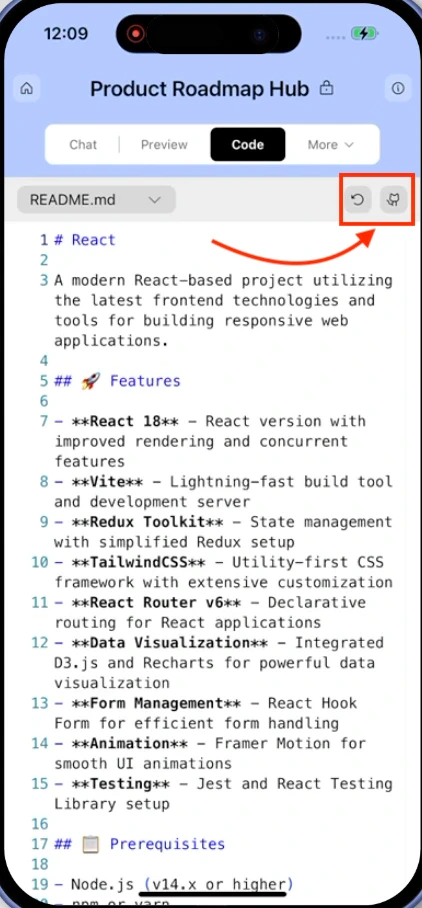
In this guide, you’ll learn how to:
  • Browse and search your project files.
  • Edit and save code directly in Rocket.
  • View live build logs and debug messages.
  • Refresh your editor, export code, or connect to GitHub.
Why use code view?Get direct access to your app’s source code. Browse files, make precise edits, manage environment variables, and see build logs in real time. Perfect for debugging issues, customizing behavior, or preparing to export your project.

Before you begin

You’ll need:
  • An existing project opened in Rocket.

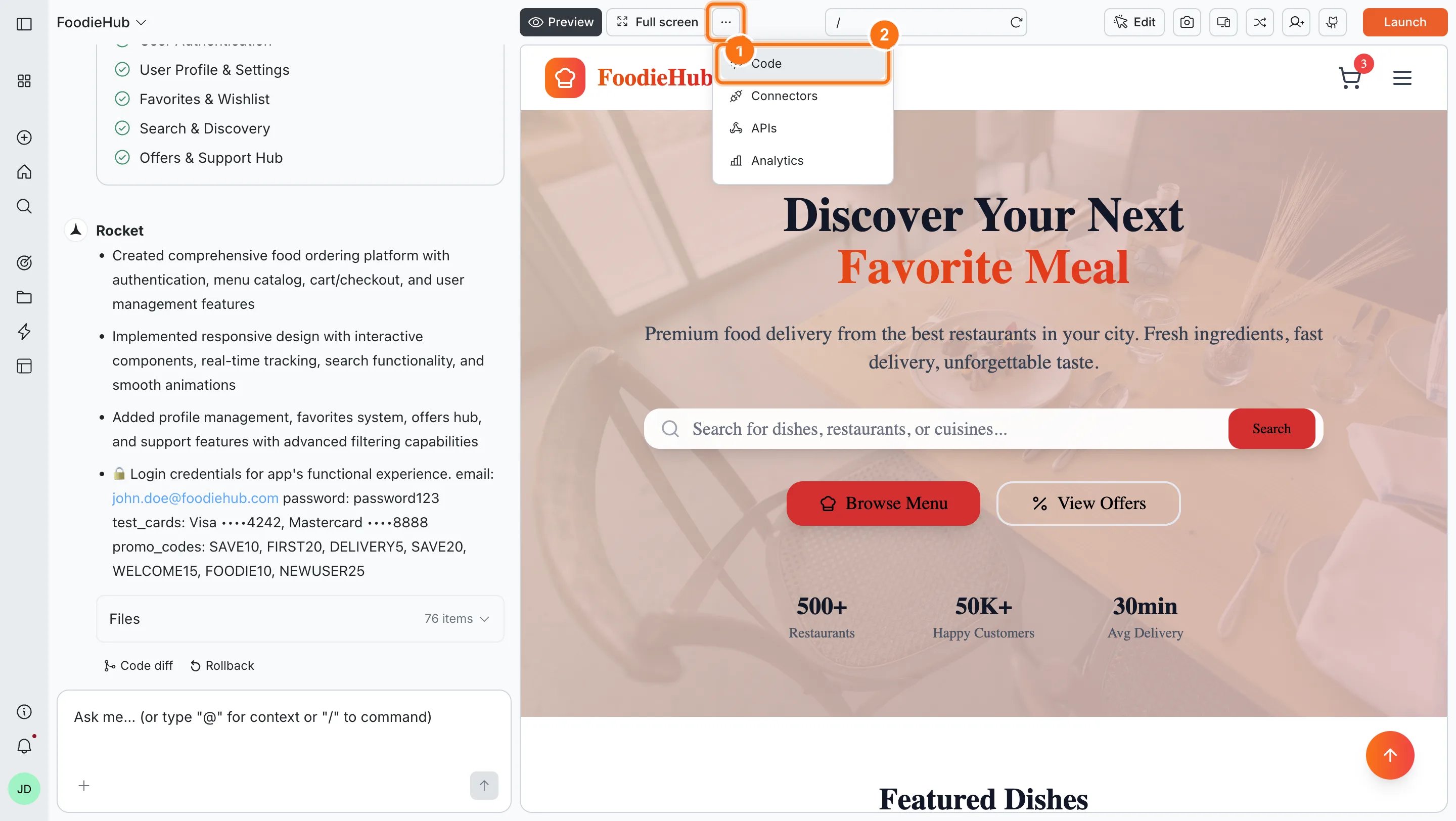
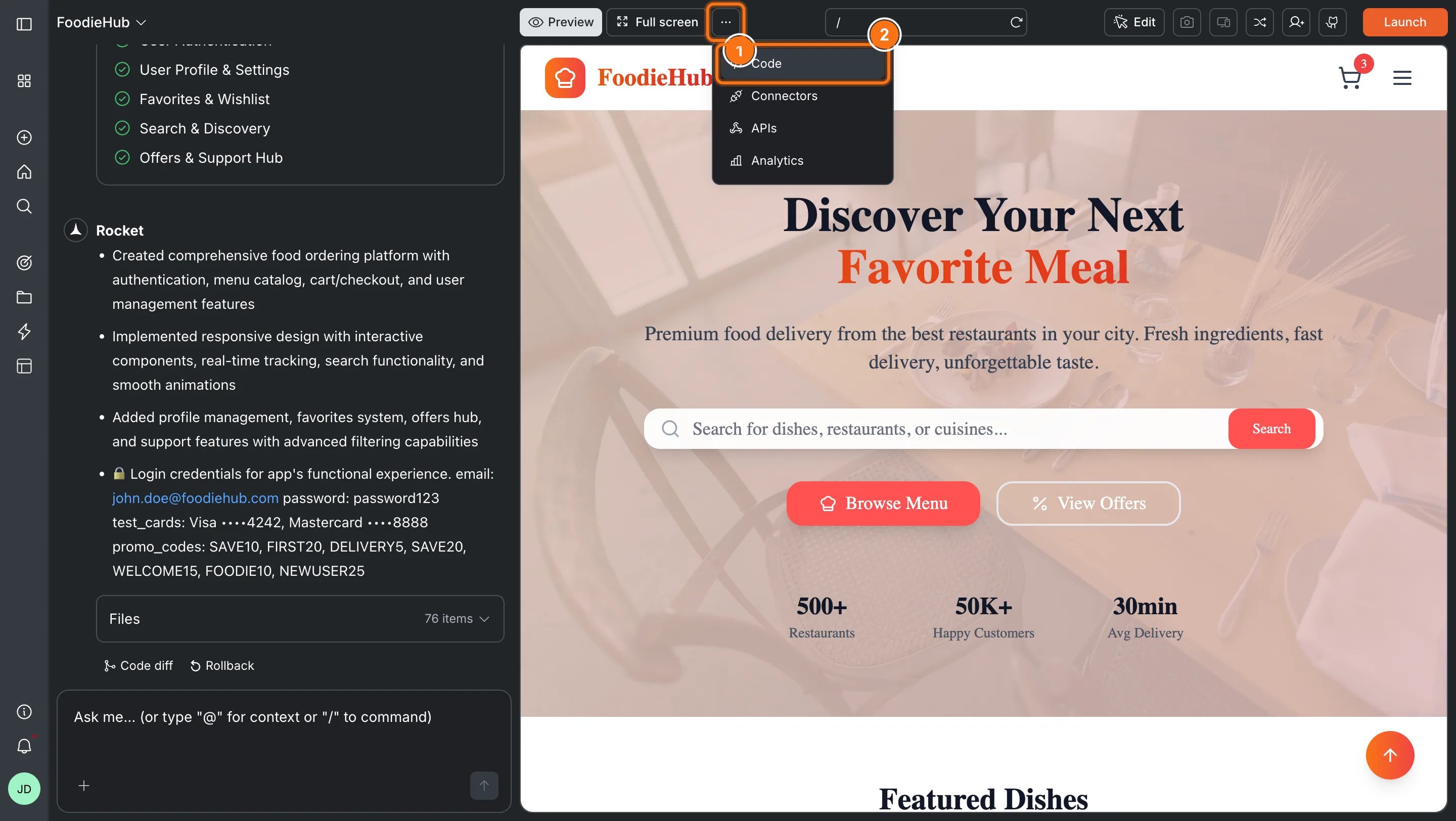
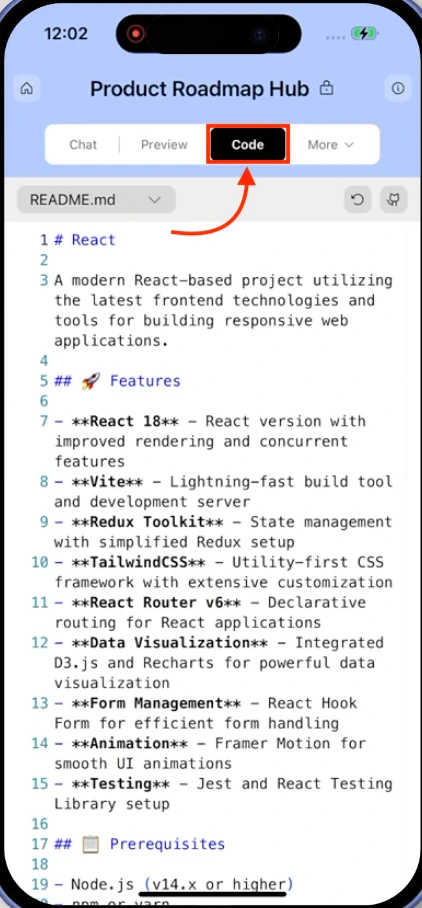
Explore the code-view

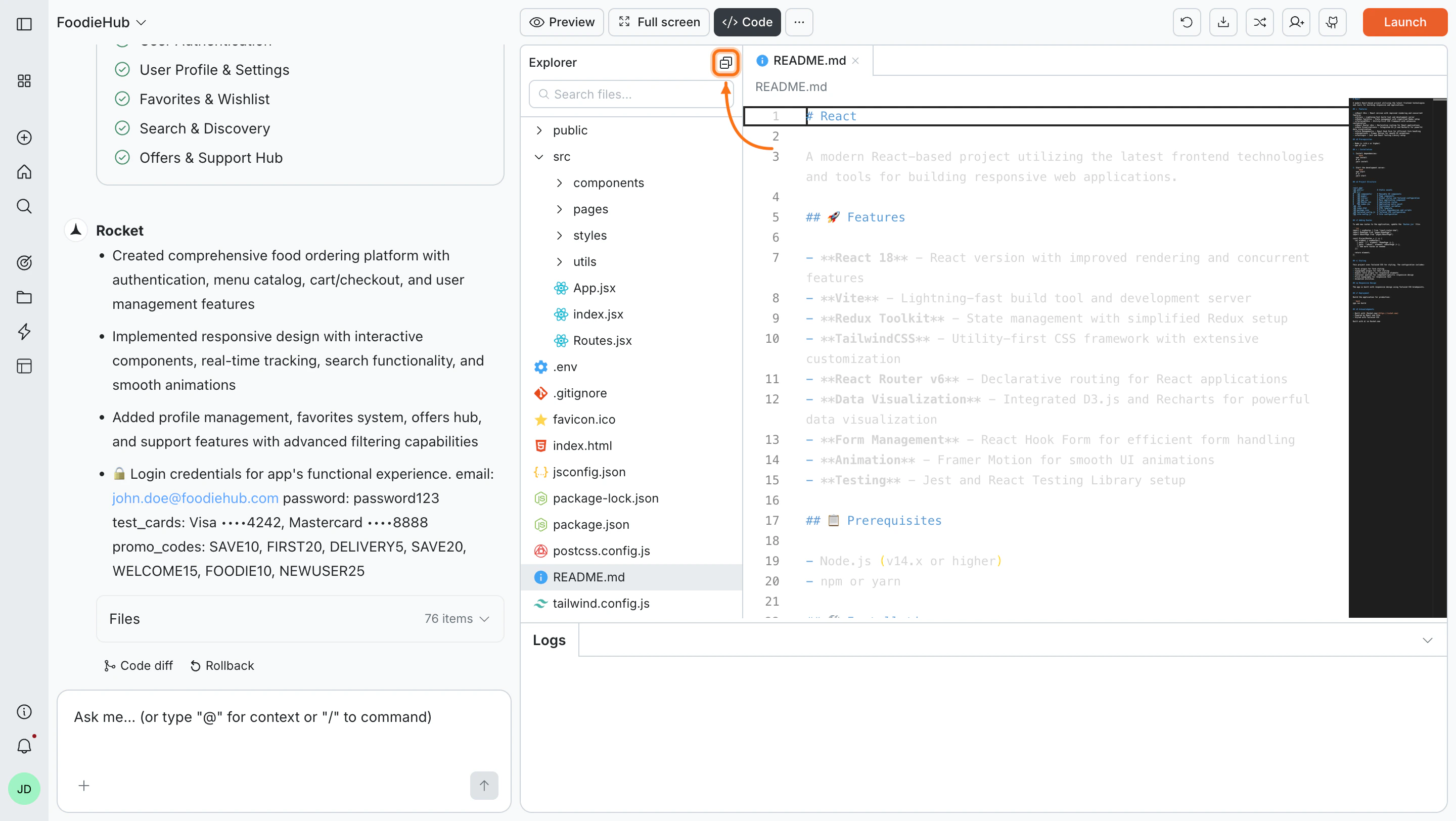
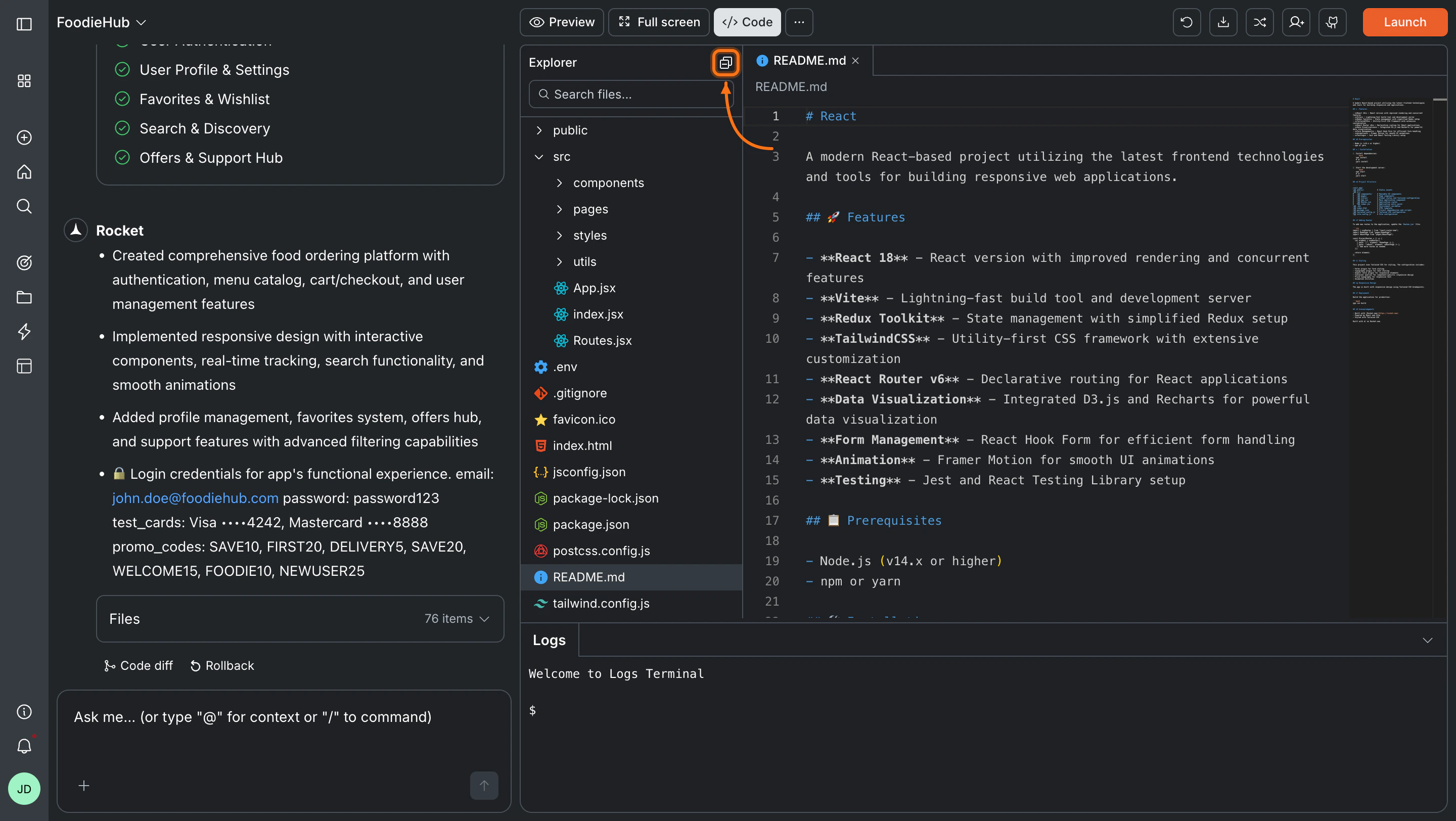
Rocket code editor with file explorer and output panel visible.Rocket code editor with file explorer and output panel visible.
The code-view gives you full control over your app’s files and logic. Fast, flexible, and precise.

Key features inside code-view

Browse your app files

What is this? Navigate your project’s file structure using the file explorer. Browse folders, open files, and see your entire project organization at a glance.
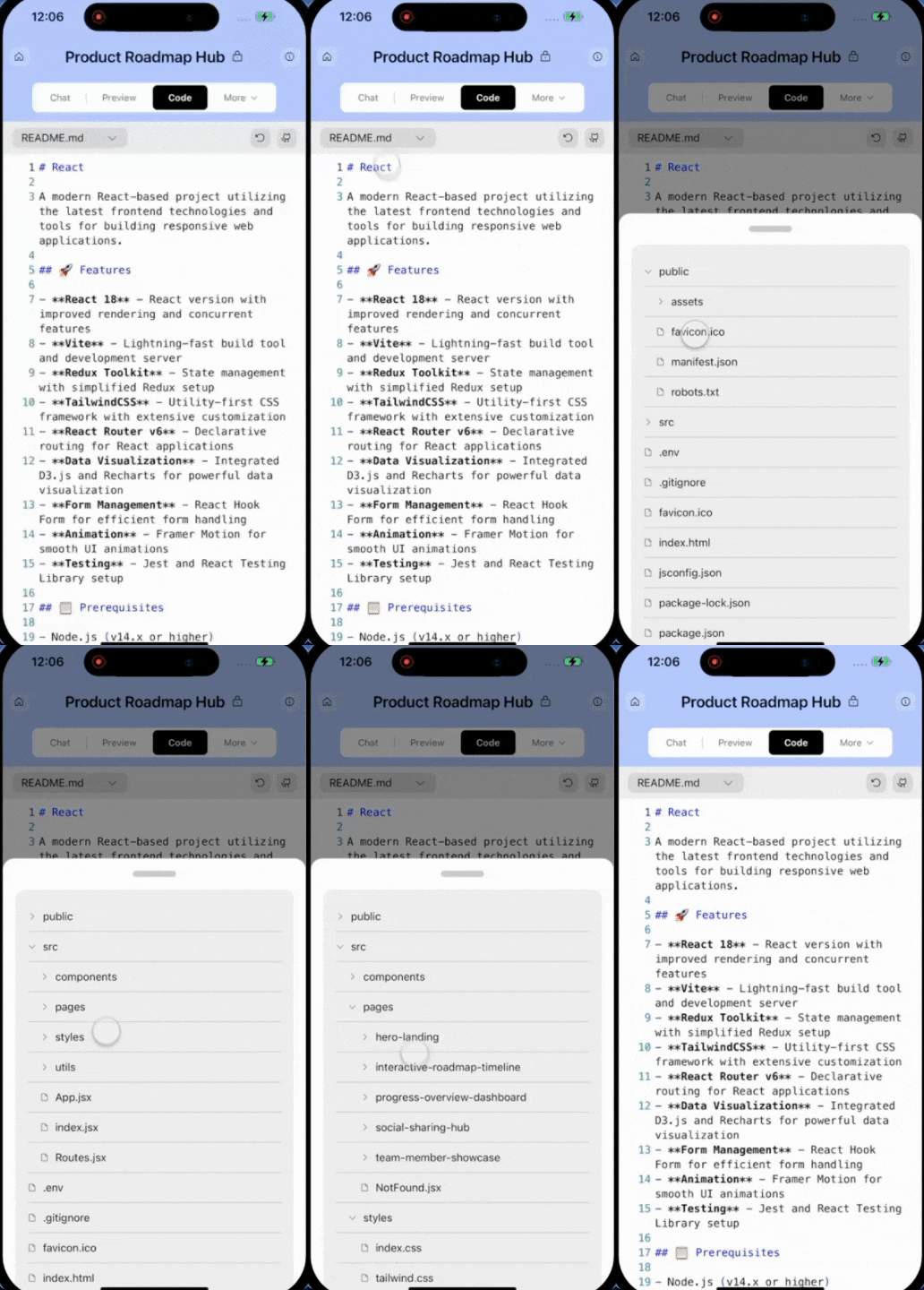
Use the file explorer on the left to navigate folders like pages, components, or styles.
  • Expand folders to view their contents.
  • Click any file to open it in a new tab.
Need more space? Collapse the explorer using the collapse icon in the top-right corner of the panel.
File tree expanded in Rocket code-view showing folders and files.File tree expanded in Rocket code-view showing folders and files.
Success check: Your selected file opens in a new tab.
What is this? Edit any file in your project directly in Rocket’s code editor. Make changes to styles, content, or logic, then save or discard them with one click.
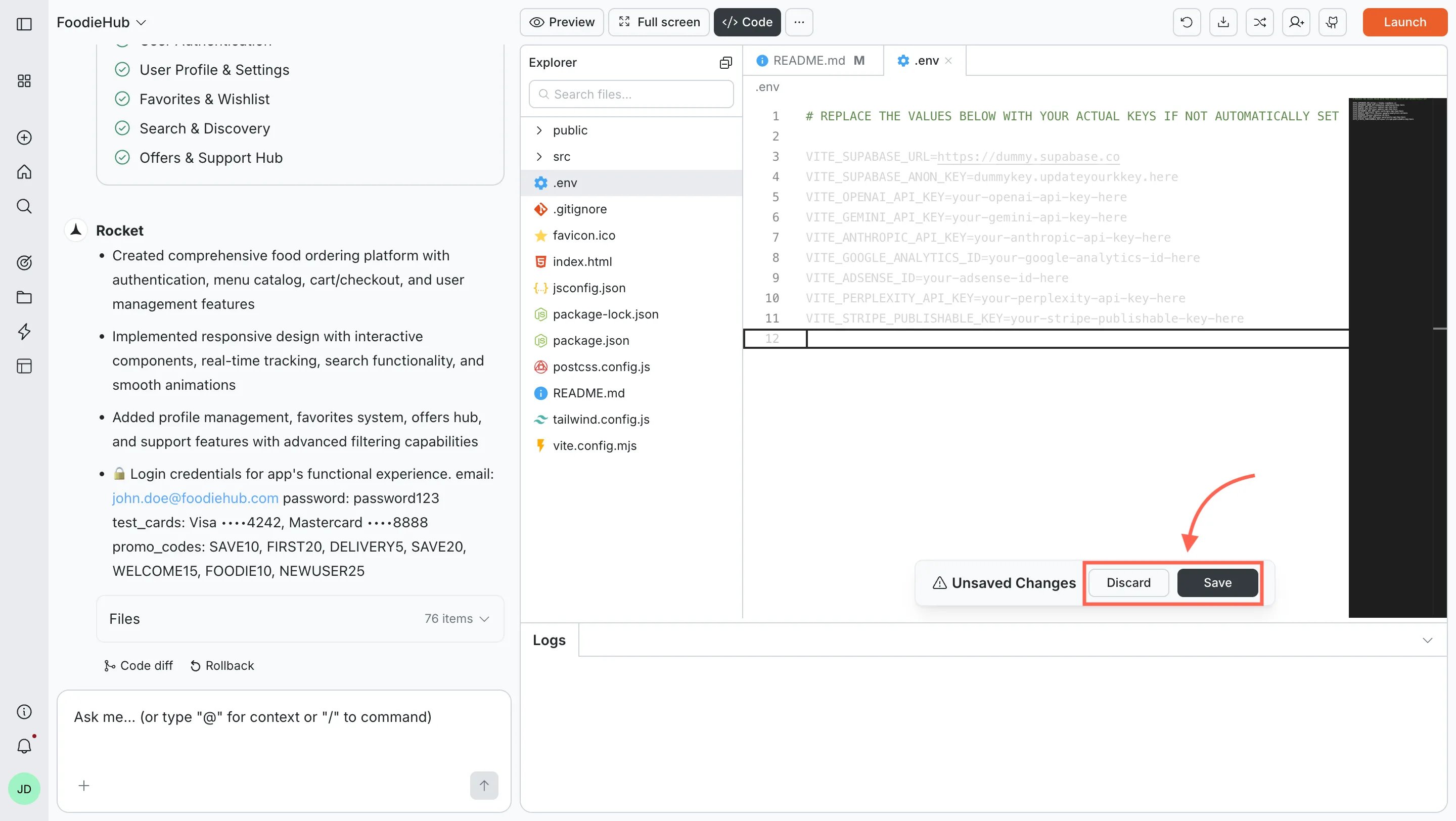
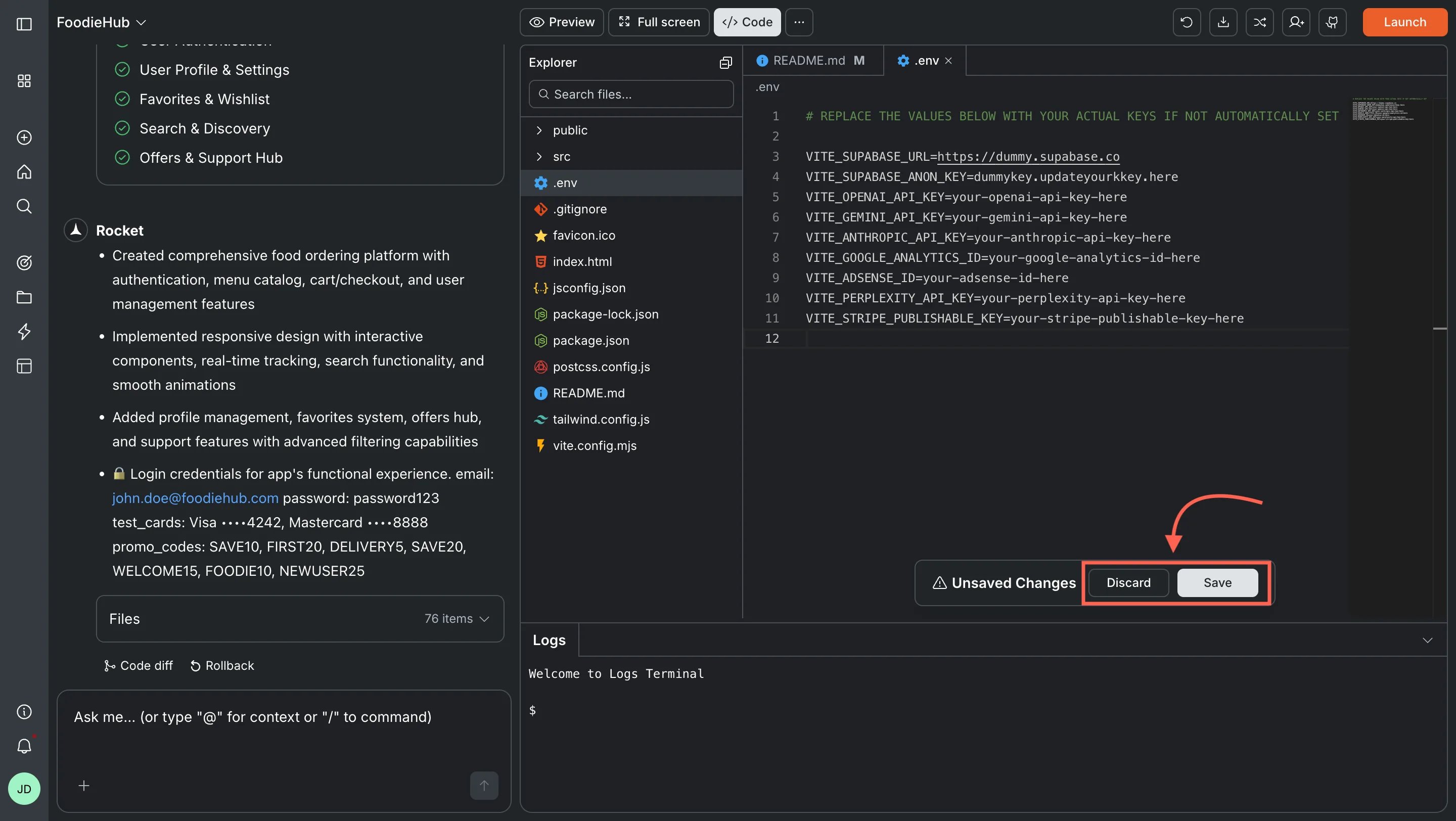
Click a file to open it in the editor. Make your changes whether it’s updating styles, editing content, or modifying logic.When you edit a file, a save bar appears at the bottom:
  • Click Save to apply changes.
  • Click Discard to undo them.
Rocket editor with unsaved changes and save/discard options.Rocket editor with unsaved changes and save/discard options.
Success check: Your changes are saved and reflected in the file.
If you’re editing configuration files like tailwind.config.js or package.json, your changes may affect how your app compiles or behaves.If something breaks, you can always revert or refresh.
What is this? Store and manage API keys and environment variables securely in your project. Update existing keys or add new ones without leaving Rocket.
Important: Your environment file stores secret API keys and config values. Never share it unless you’re sure it’s secure.
Rocket supports environment variables for both mobile and web projects.
  • Mobile apps use env.json.
  • Web apps use .env.

To update an existing key

  1. Open the relevant file.
  2. Find the key and replace its value.
  3. Press Save.
Example: Updating Supabase? Change both SUPABASE_URL and SUPABASE_ANON_KEY. Rocket applies them automatically wherever they’re referenced.
Editing environment key in env.json file.Editing environment key in env.json file.

To add a new key

  1. Open env.json (for mobile) or .env (for web).
  2. Add a new line, for example:
    STRIPE_PUBLISHABLE_KEY=your-stripe-publishable-key-here
  3. Click Save.
After saving, you can tell Rocket how to use that key in your app logic.For example:
“Use STRIPE_PUBLISHABLE_KEY to load the map on the home screen.”
Adding new environment key to env.json file.Adding new environment key to env.json file.
Tip: Use clear, specific key names so Rocket can recognize and apply them accurately.
What is this? Monitor your app’s build process and debug output in real time. See errors, warnings, and build status as you work, helping you catch issues early.
The output panel at the bottom shows live logs as you edit and save. Use this to:
  • Monitor app builds and auto reloads.
  • Catch errors or warnings early.
  • Confirm that updates were successful.
Live log output in Rocket showing build events and errors.Live log output in Rocket showing build events and errors.
Success check: Logs update automatically after each change.
You don’t need to run commands here. Logs provide a live feed of activity while you work.
What is this? The toolbar provides quick actions for managing your project. Refresh your editor to reload files, sync with GitHub for version control and backup, or download your project as a zip file to work offline or share with others.
Toolbar in Rocket showing refresh, GitHub, and download icons.Toolbar in Rocket showing refresh, GitHub, and download icons.
At the top-right corner of the editor, you’ll find:
  • Refresh: Reloads your editor and file tree.
  • GitHub: Connects your project to a GitHub repository.
  • Download: Exports your app as a .zip file.
You can connect and sync your Rocket app to a GitHub repo.
  • Connect your GitHub account.

Want to track changes or collaborate with others?
Learn how to connect your project to GitHub.
  • Click Transfer project to create a new repo.
Transferring Rocket project to a connected GitHub repo.Transferring Rocket project to a connected GitHub repo.
  • After transfer, use the Update button to push changes.
GitHub update button in Rocket for syncing project changes.GitHub update button in Rocket for syncing project changes.
Note: GitHub sync is one-way. Changes made in GitHub won’t appear in Rocket. Only the main branch is supported.
Heads-up: GitHub and Download options are available only for paid users.

You did it!

You explored, edited, and debugged your app using Rocket’s code-view.