

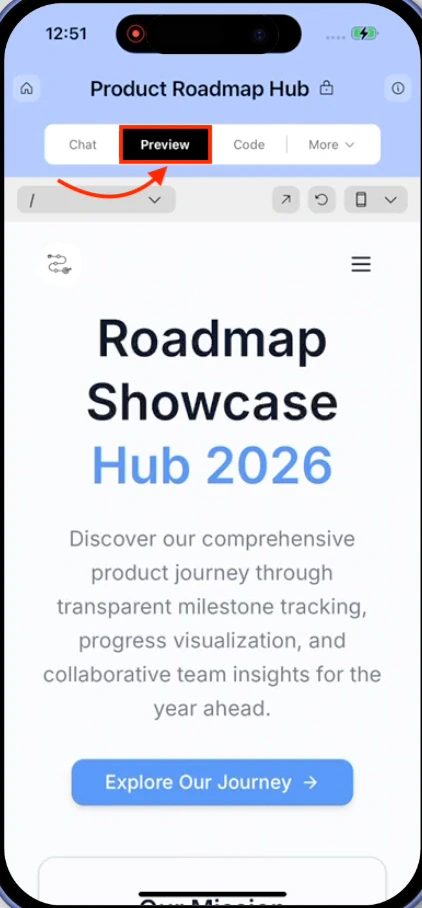
See your app running live as you build. The preview is a browser built into the Rocket editor. Every change you make updates the preview in real time. The preview is separate from your live URL. Use Launch in the toolbar to publish your app publicly.
What you can do in preview
| Action | How |
|---|---|
| Navigate to any screen | Use the URL bar in the preview toolbar to go to any route in your app |
| Test responsive layouts | Switch between desktop, tablet, and mobile views |
| Click through user flows | Navigate your app like a real user to verify routing and interactions |
| Capture screenshots | Take a screenshot and drag it straight into chat |
| Make visual edits | Click any element to open Visual Edit and change it directly |
| Launch your app | Click Launch in the top right of the preview toolbar to publish |
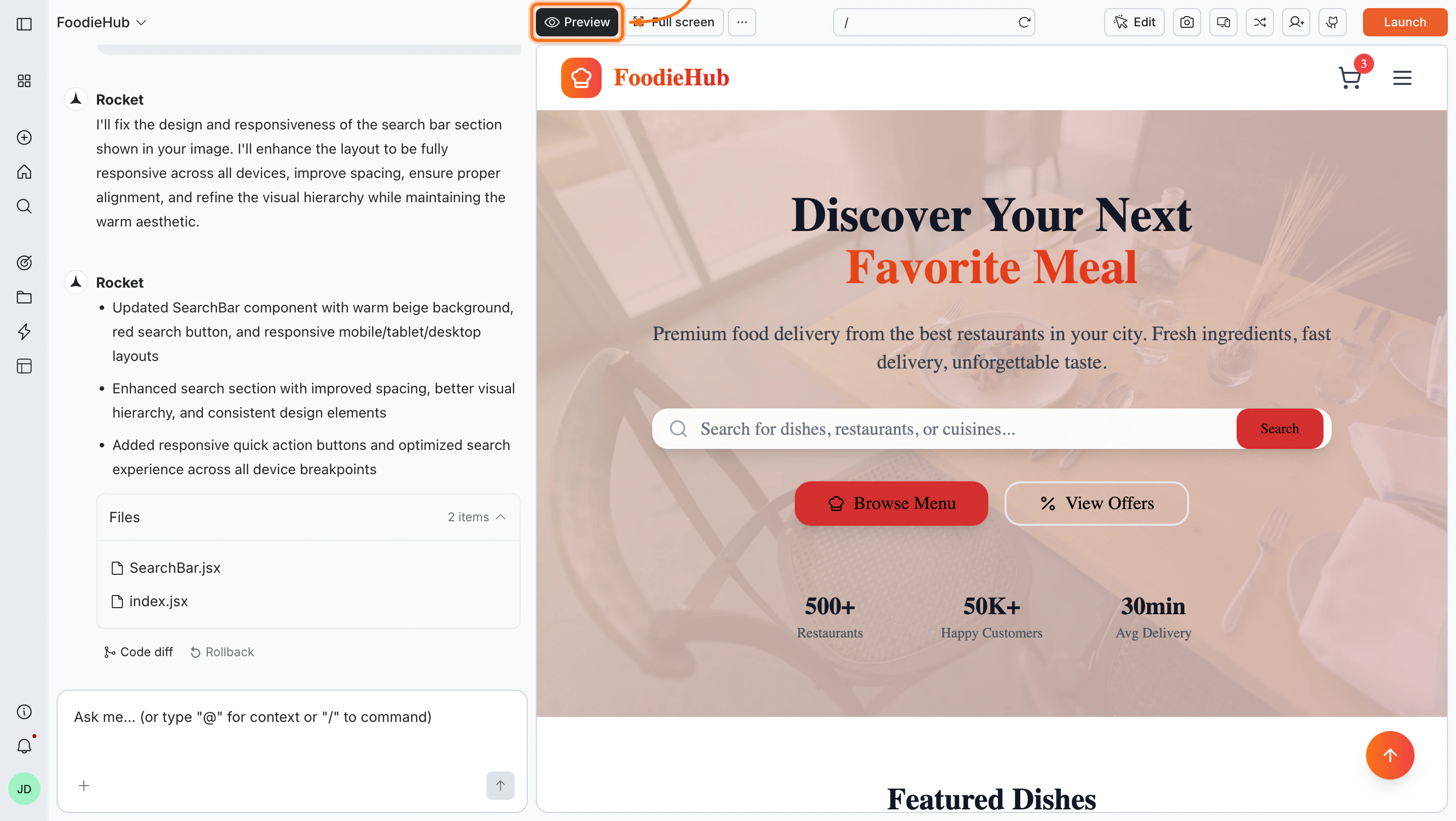
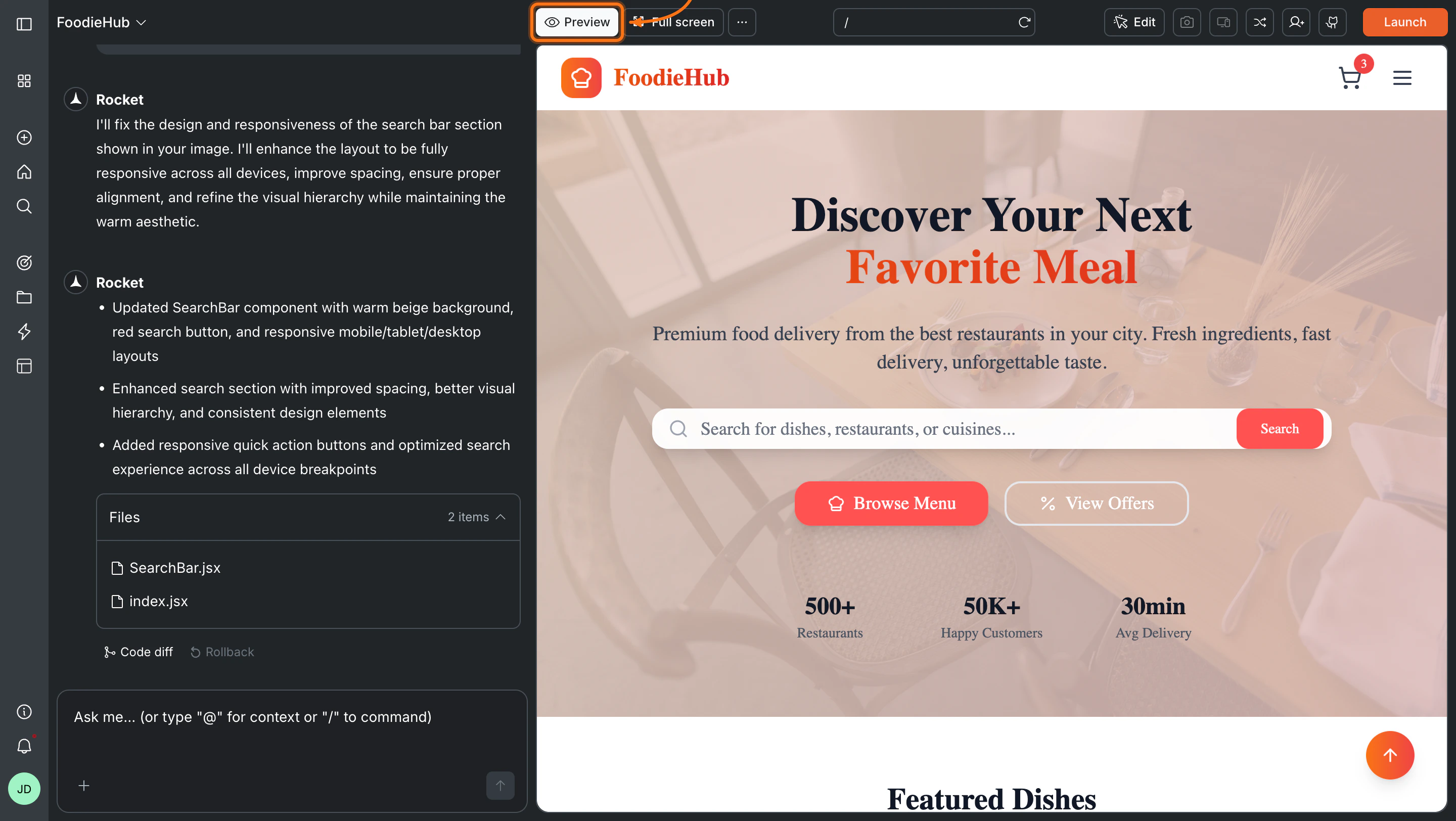
Preview toolbar
The toolbar runs across the top of the preview panel and gives you quick access to all preview controls.| Button | What it does |
|---|---|
| Preview | Opens or focuses the preview panel |
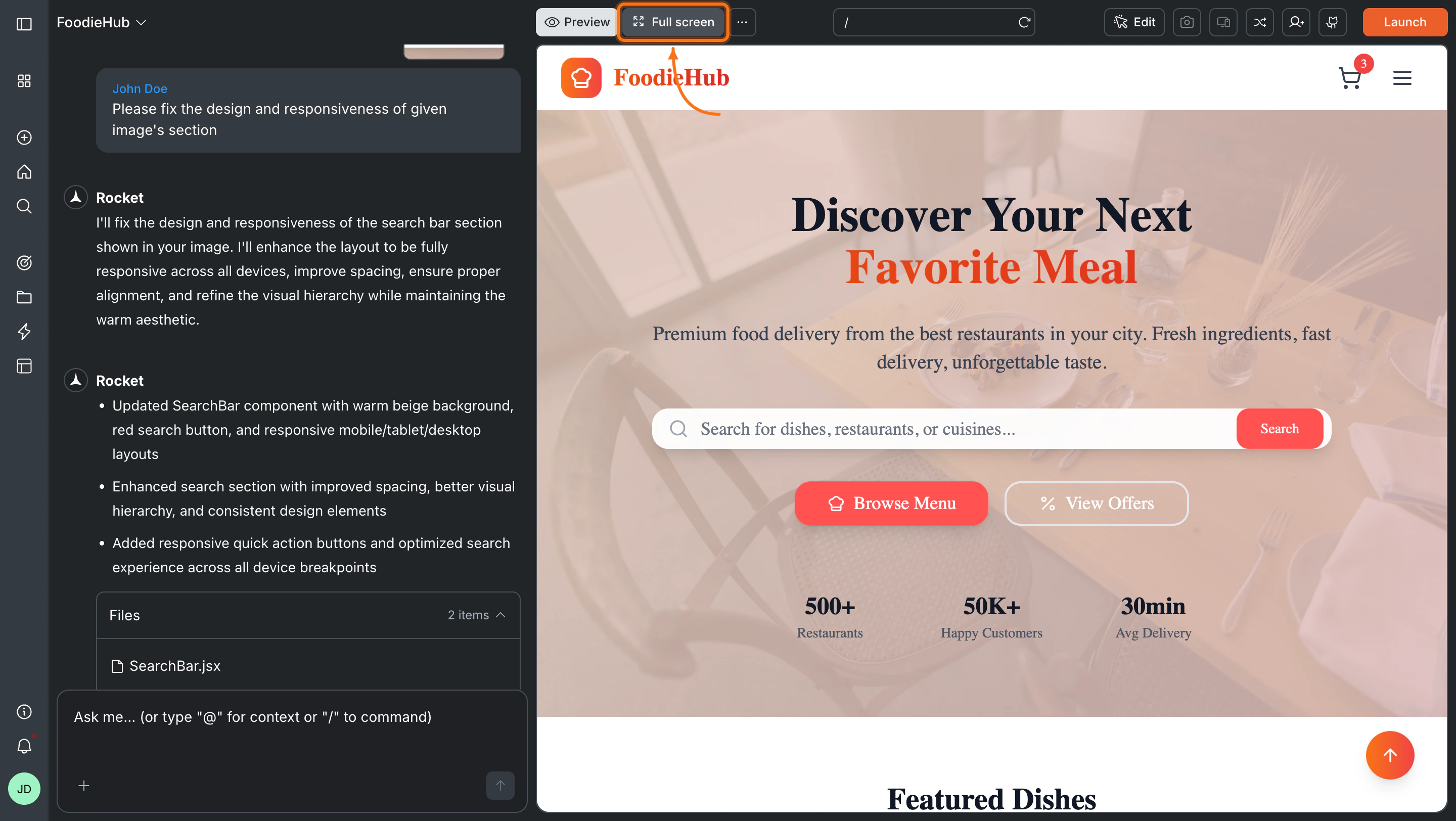
| Full screen | Expands the preview and hides the chat panel |
... | Additional options |
| URL bar | Shows the current route. Type any path to navigate directly |
| Refresh | Reloads the preview to show your latest changes |
| Edit | Opens the Edit dropdown for Visual edits and Theme |
| Camera | Capture a screenshot of the current view |
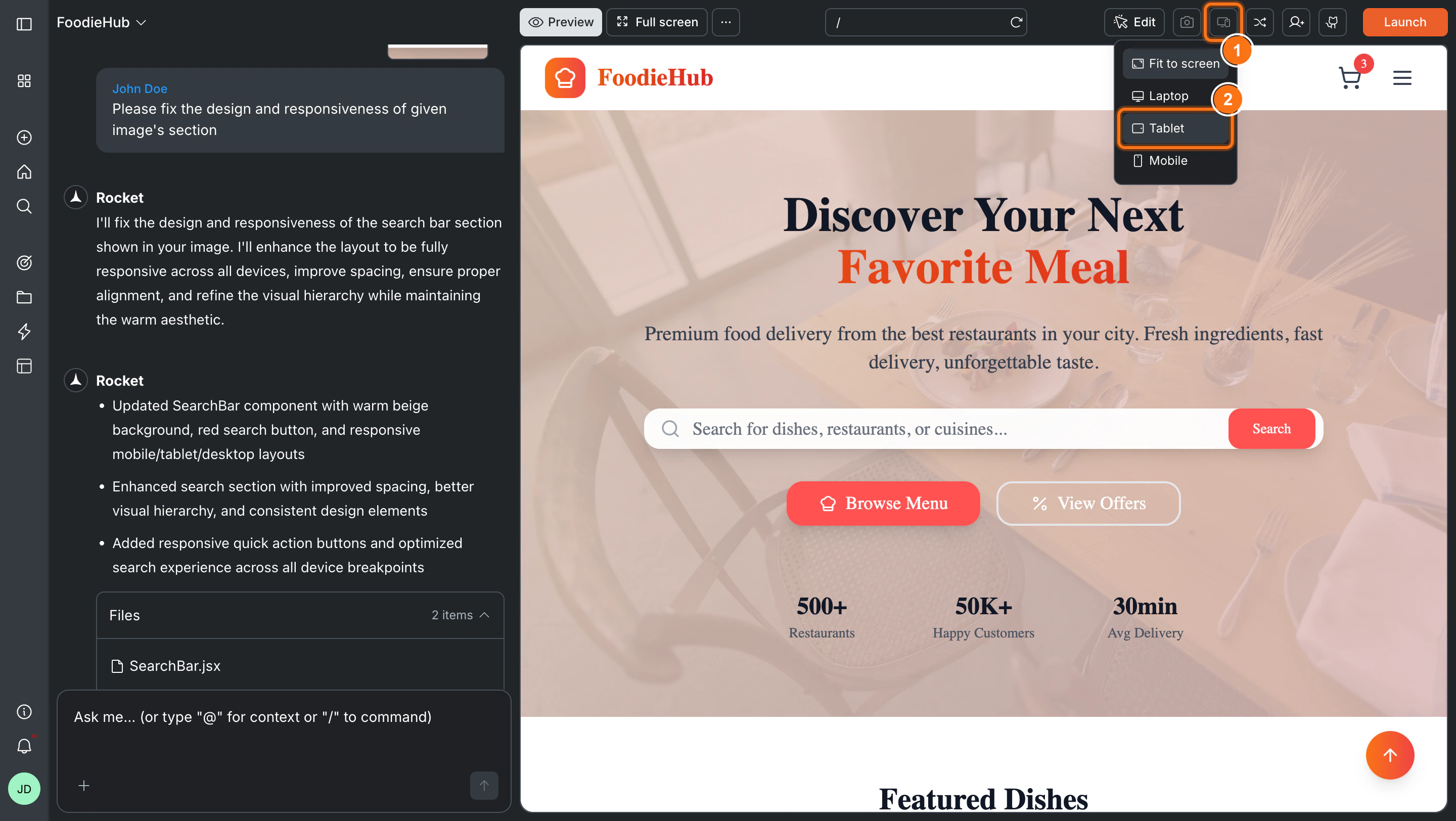
| Device/responsive | Switch screen sizes and device models |
| Launch | Publish your app to a live URL |
Using the preview
- Web
- Mobile
Navigate to a screen
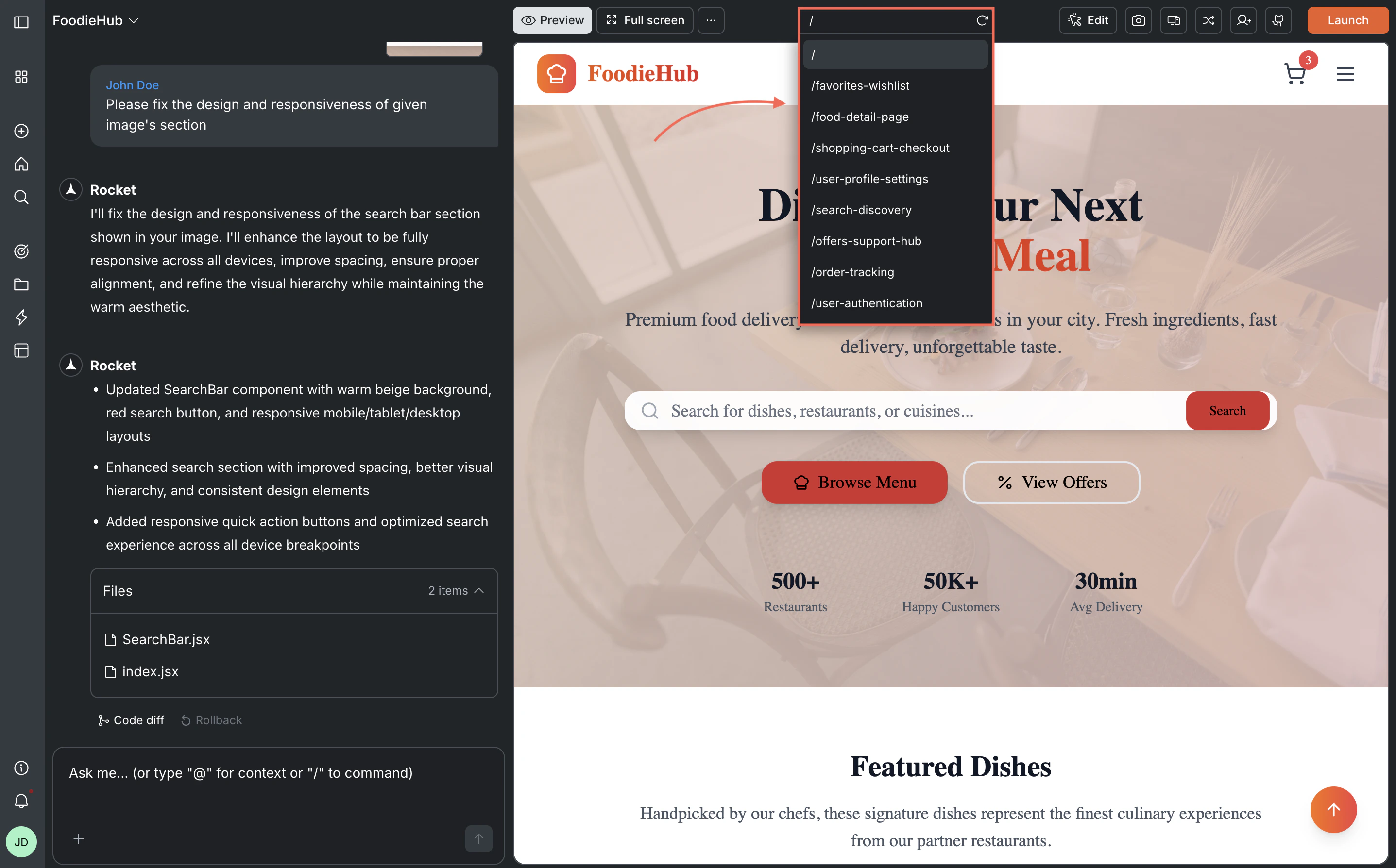
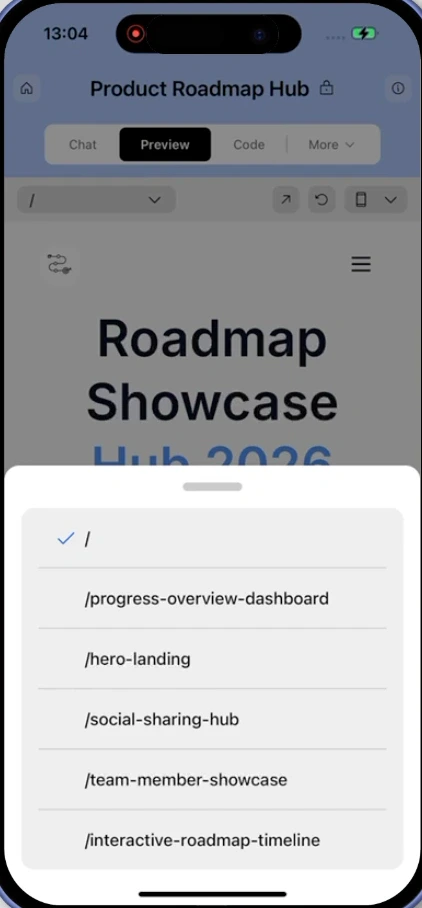
Use the URL bar in the preview toolbar to go to any route in your app. Type the path directly (for example/dashboard or /settings) and press Enter.You can also use the Currently viewing dropdown to switch between screens. The Refresh icon sits in the same control strip as the URL bar. Click it if your latest changes are not showing.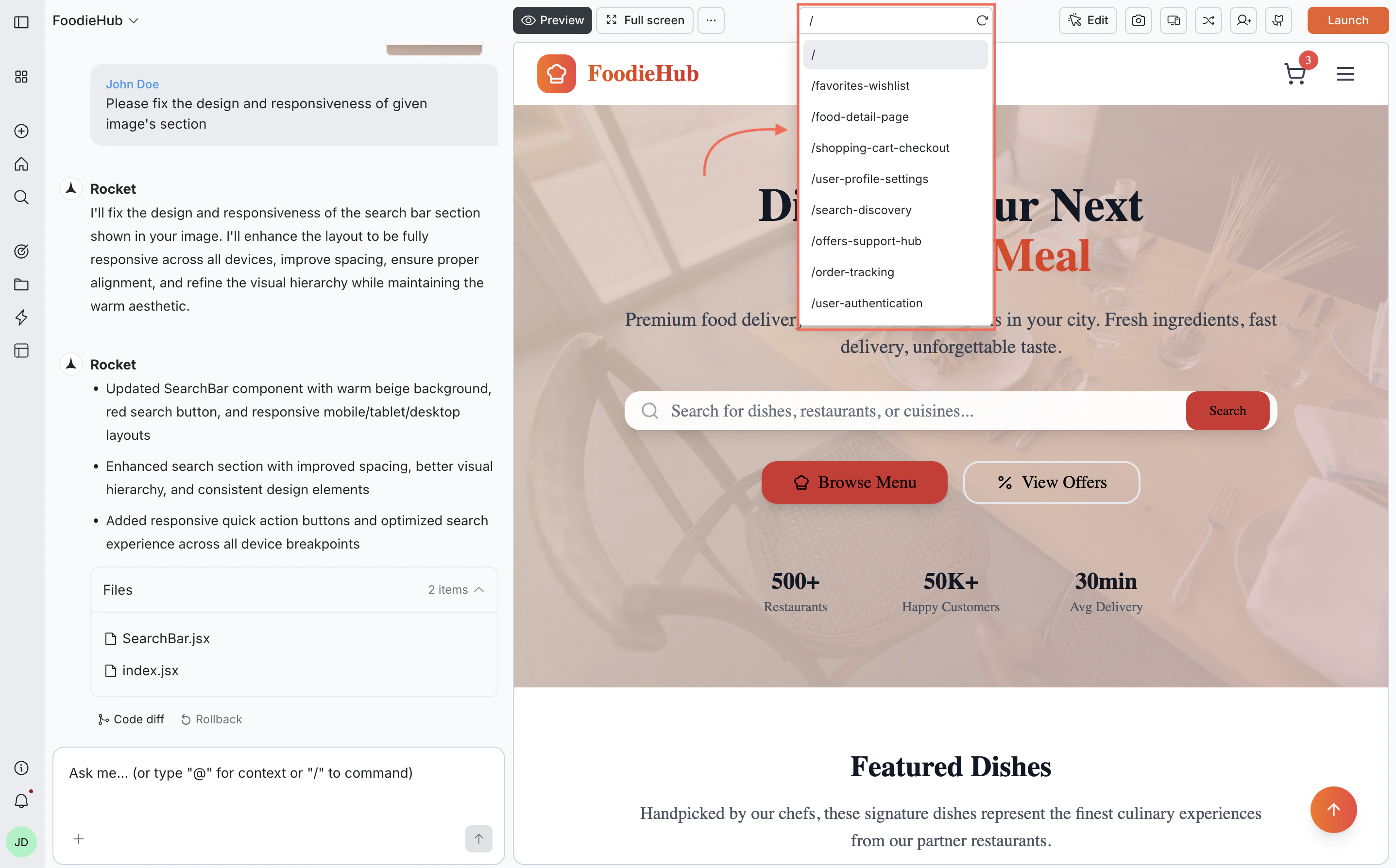
Full screen
Click Full screen in the toolbar to expand the preview and hide the chat panel. Use this when you want a larger view or need more room to test interactions.Click Full screen again to return to the editor.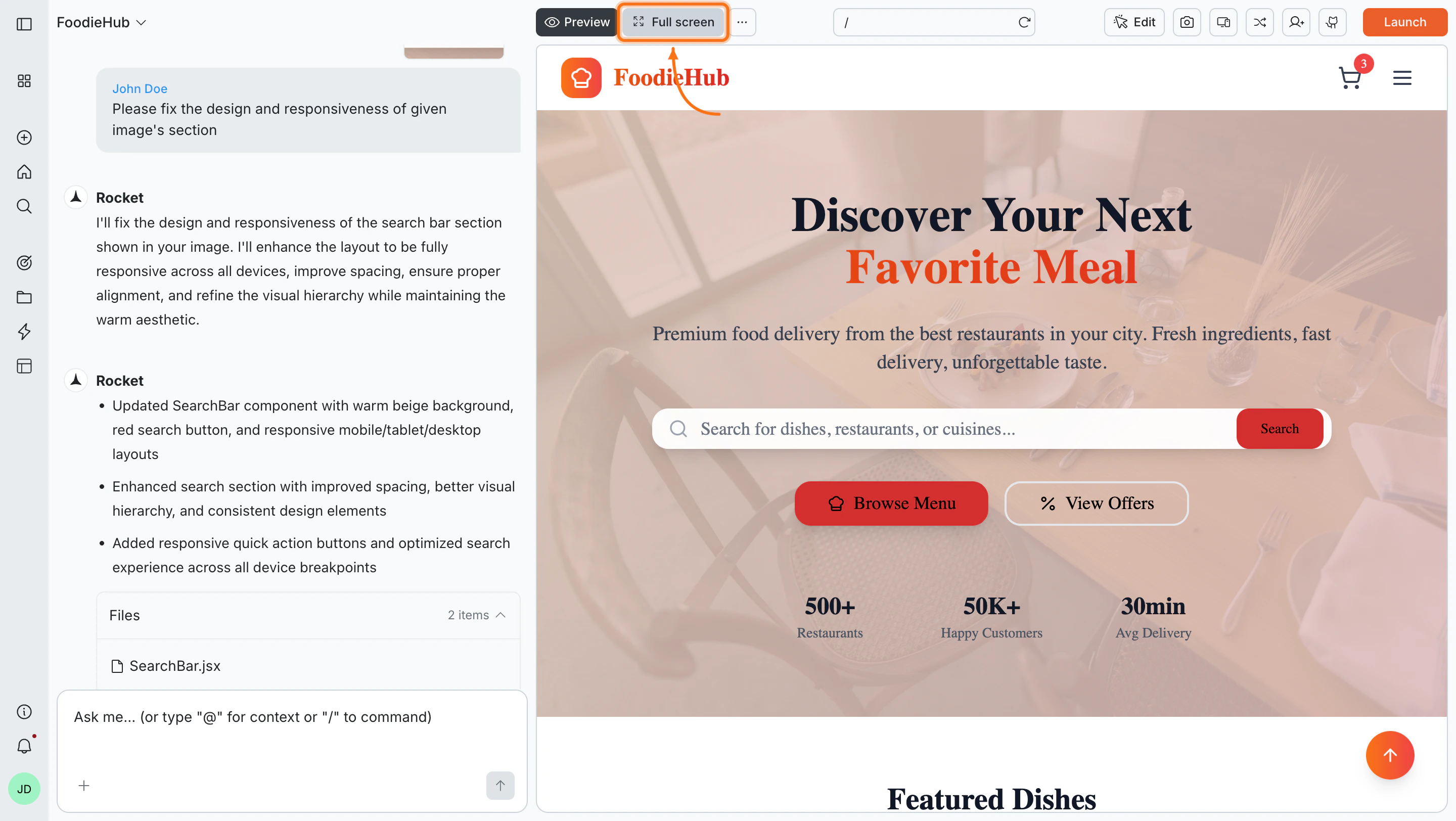
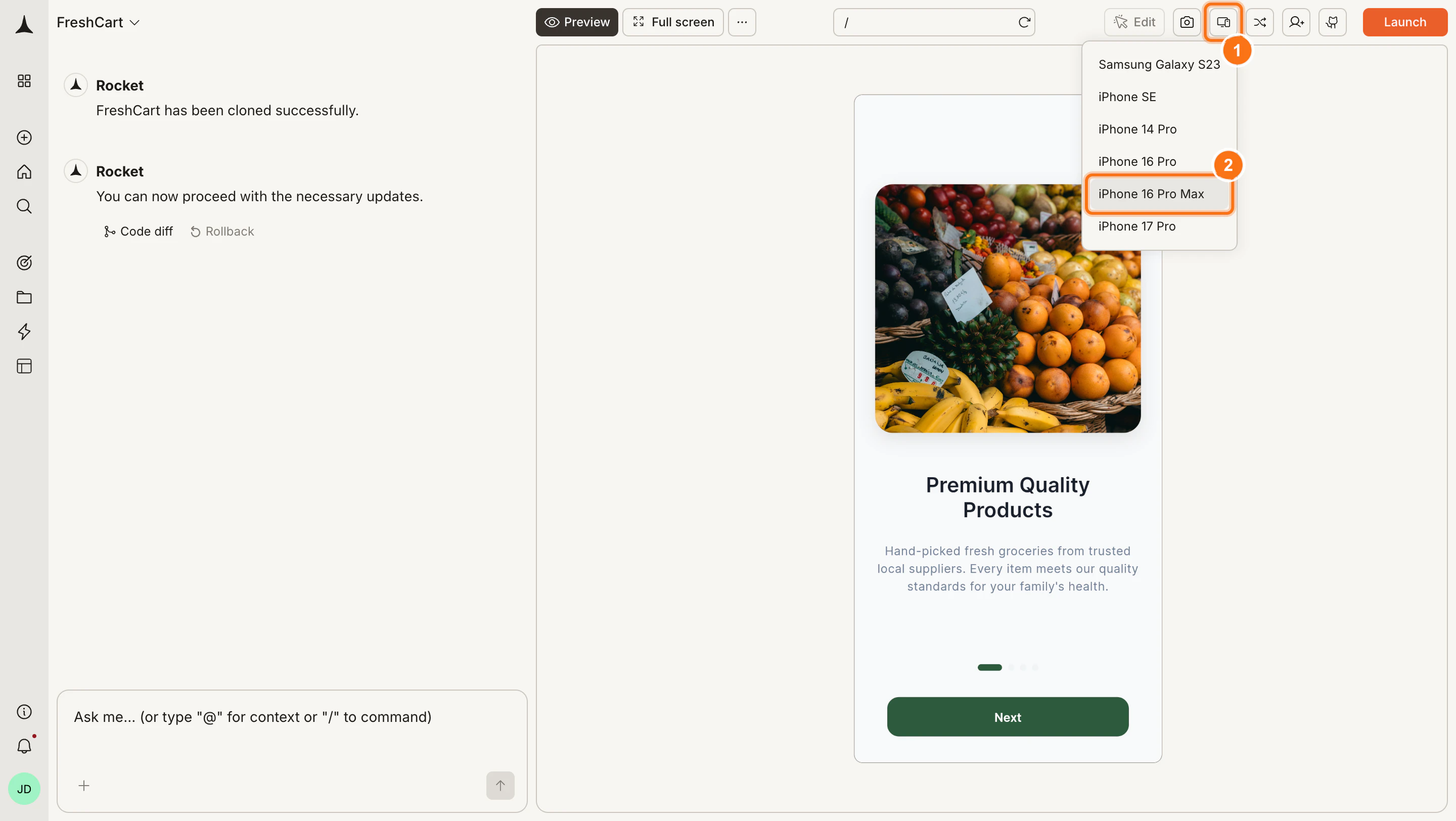
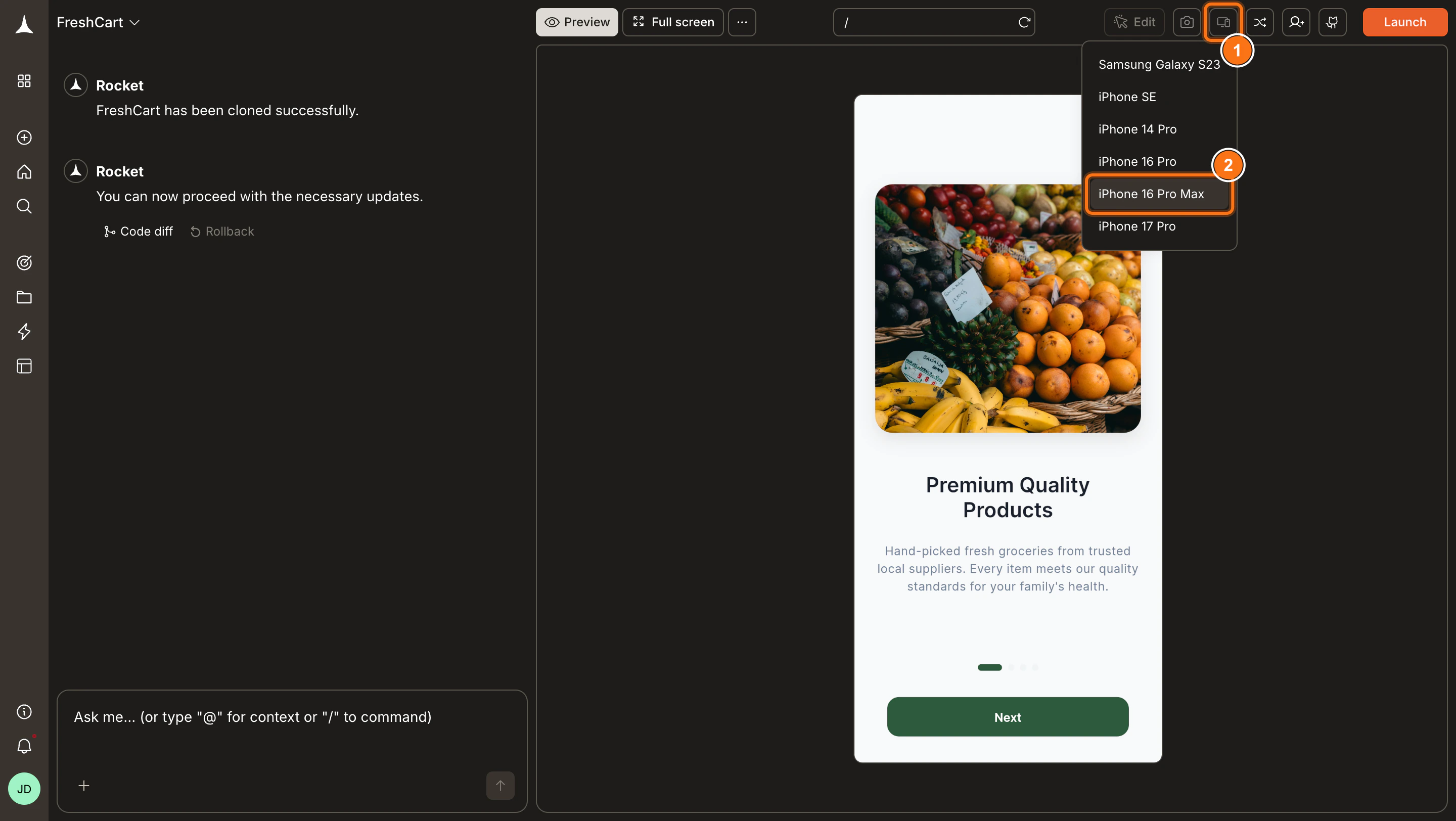
Test responsive layouts and device models
Click the Device icon in the toolbar to test how your app looks on different screen sizes.- Web app
- Mobile app
Available views: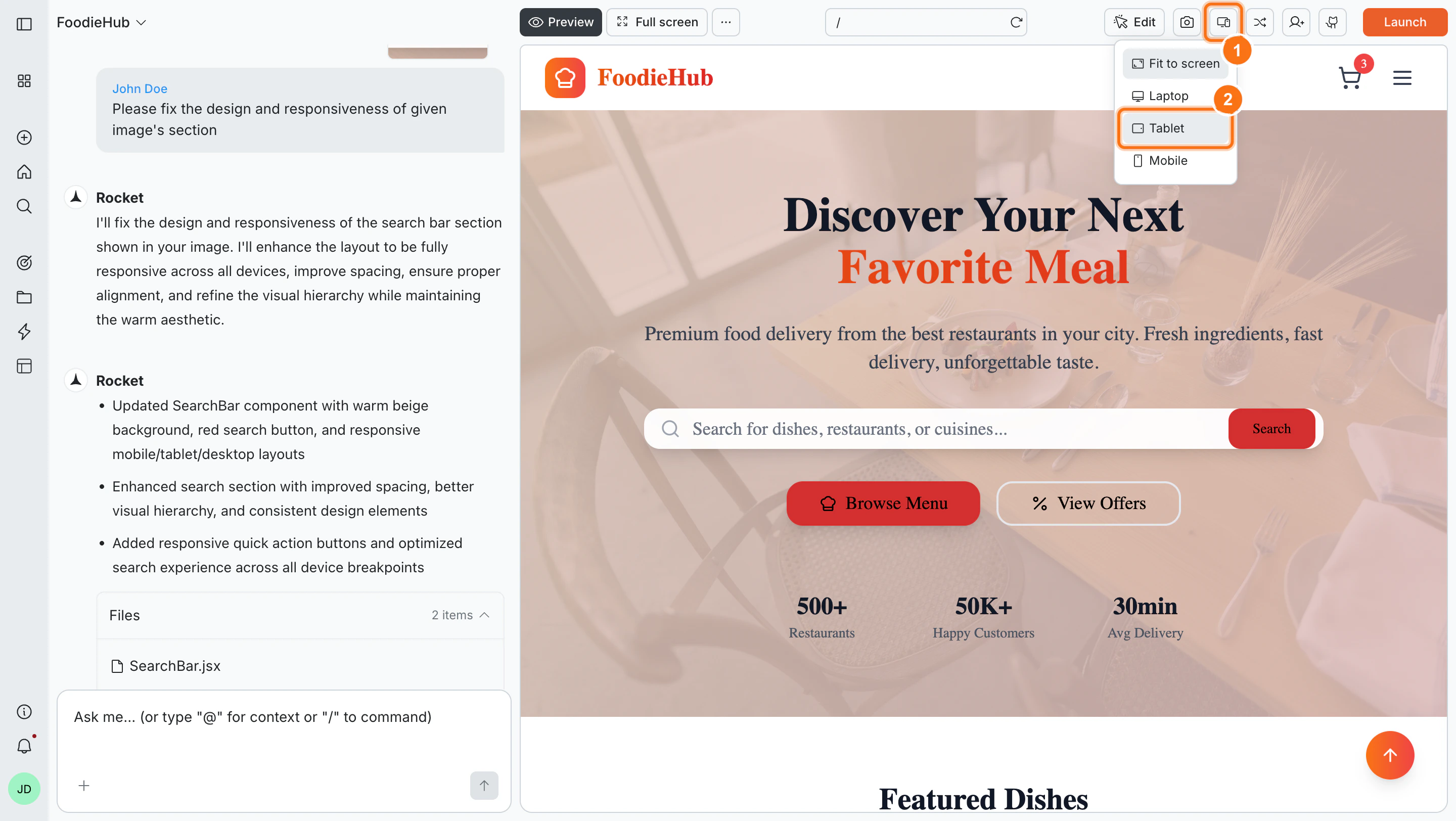
- Desktop
- Laptop
- Tablet
- Mobile
Edit visually
Click the Edit button in the toolbar and select Visual edits to enter visual edit mode. Click any element to change its text, style, spacing, or image directly in the preview.Learn more about visual edit and what you can change.
Capture screenshots
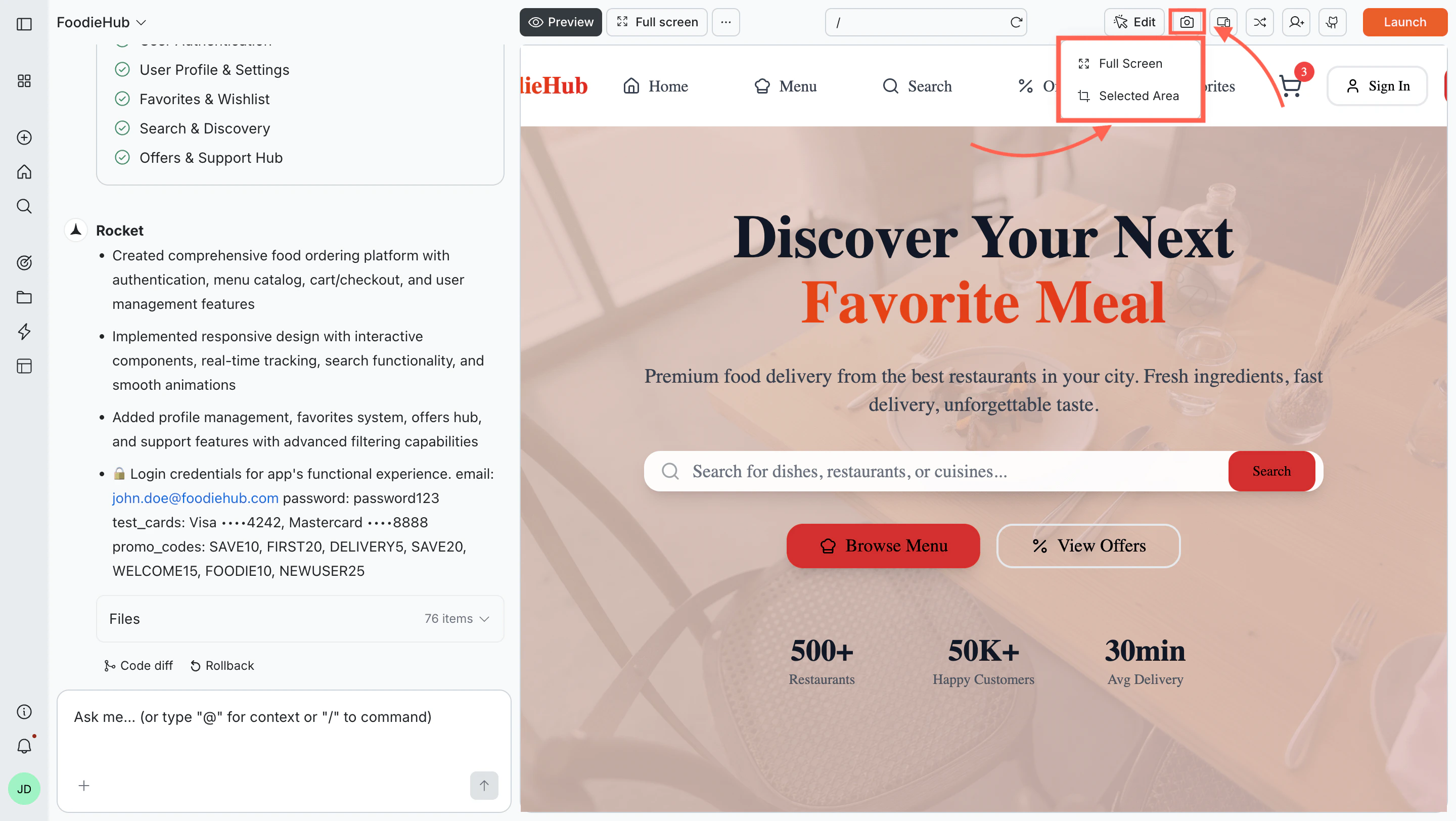
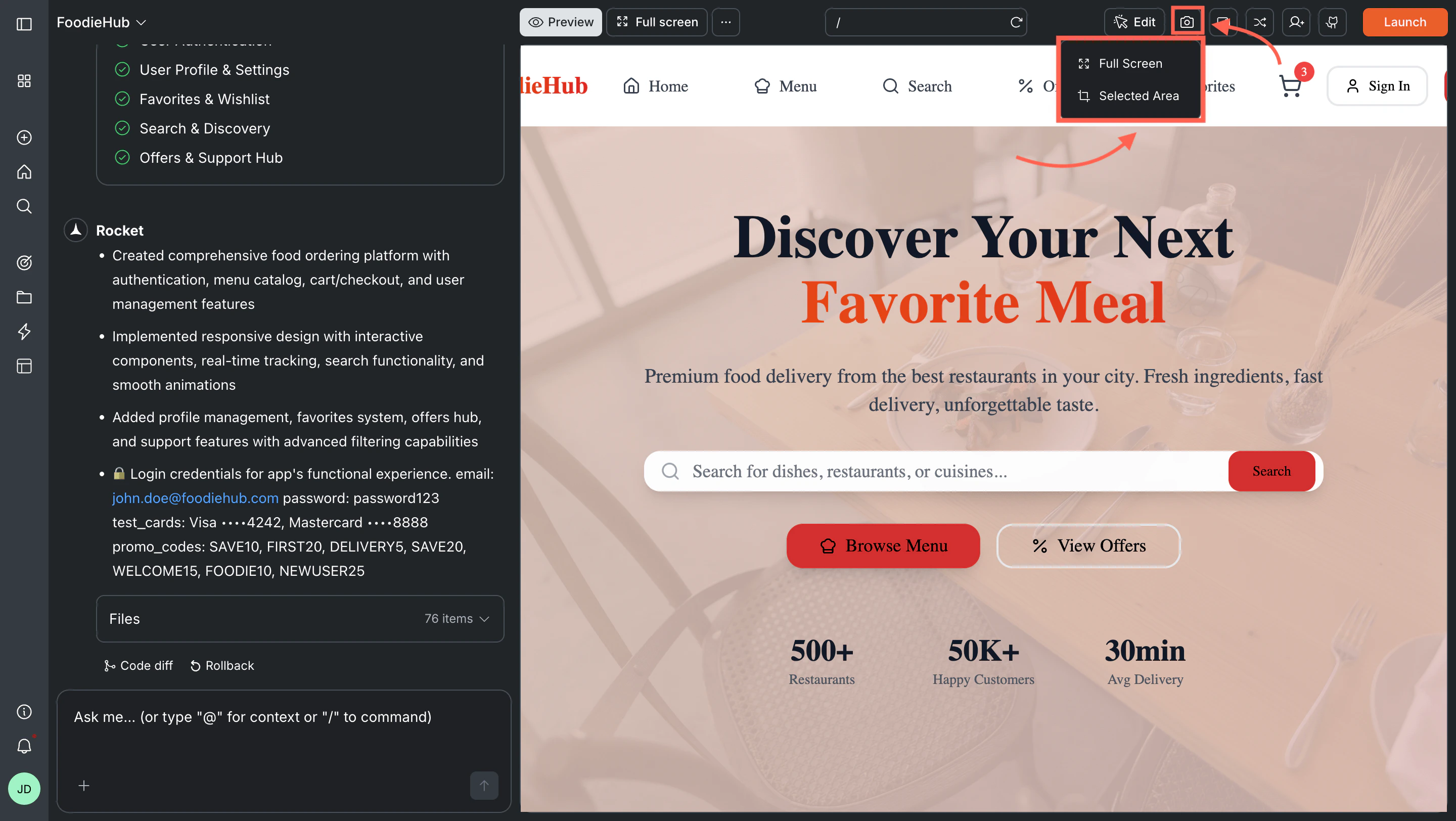
Take a screenshot of the current preview and use it in chat to show Rocket exactly what to change.- Click the Camera icon in the toolbar.
- Choose your capture mode:
- Full screen - captures the entire preview area
- Selected area - click and drag to capture a specific region
- Drag and drop the screenshot into the chat input.
What’s next?
Visual edit
Click any element in the preview to change its text, style, or spacing.
Theme
Update your app’s fonts, colors, logo, and images from one place.
Versions
Compare, roll back, and launch specific versions of your app.
Deploy your app
Publish your app to a live URL and share it with the world.