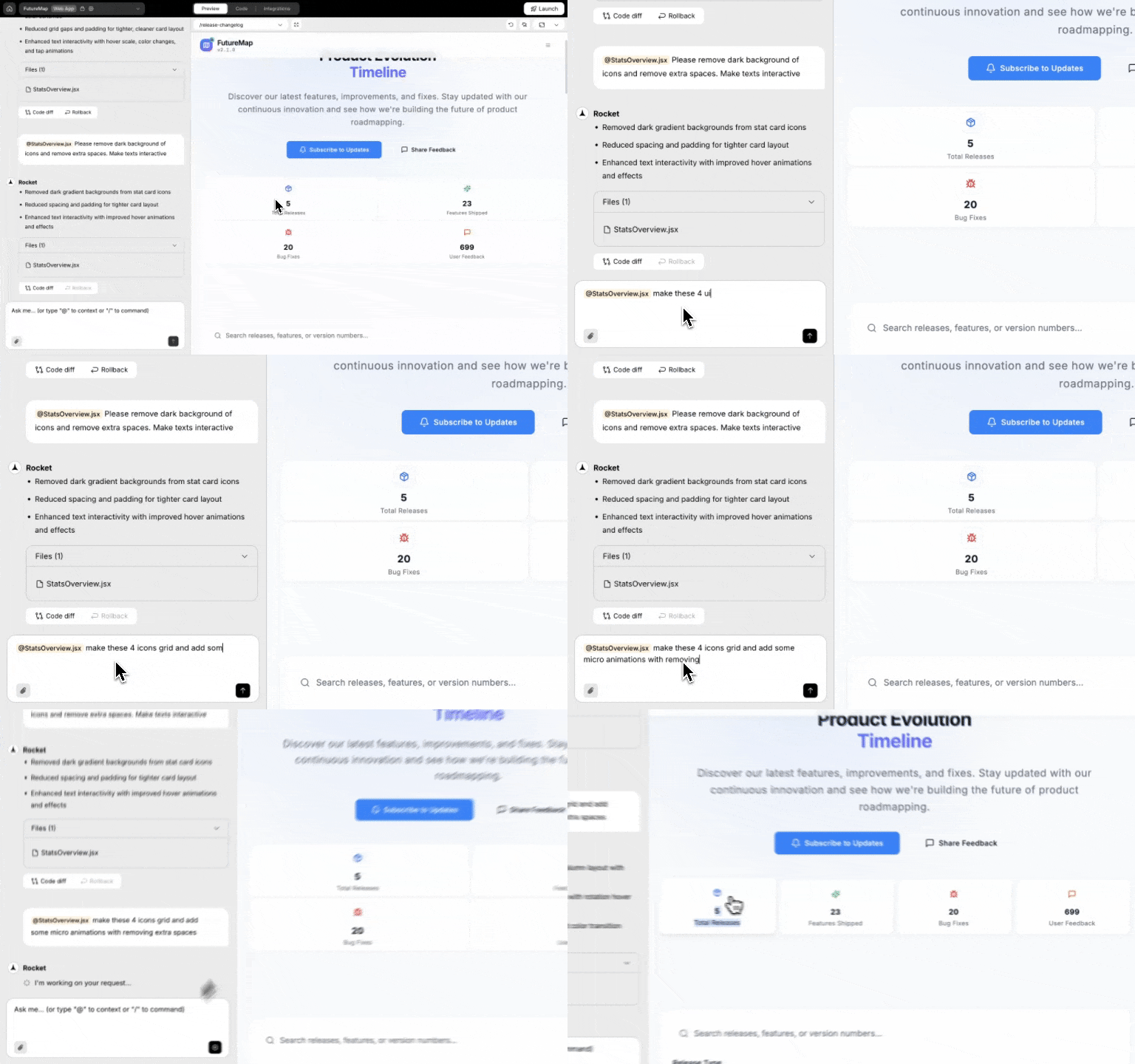
Use / and @ commands for precise control over your builds from chat.
Precise control from chat.Commands let you make targeted edits without describing everything from scratch. Use / for screen-aware shortcuts and @ for changes to a specific part of your app.
Commands are only available on the web browser. They are not supported in the Rocket mobile app.
Precise edits to known files, isolated component changes
After either command runs, you will see a short summary and a preview link to review changes.
Save tokens: Tokens are the credits that power every action in Rocket. One specific / command beats a long description.Quoting exact text or naming areas avoids follow-up prompts.
Use this catalog to see which / commands each category offers from chat, organized by app type and intent.
Web Projects
Mobile Projects
Brand & Identity
Layout & Structure
Quick Fixes
Animations & Effects
AI Features
Integrations
Language Features
SEO (Search Engine Optimization)
GEO (Generative Engine Optimization)
Accessibility
Privacy and compliance
/Update App Logo
Purpose:
Replace the app logo across all pages.Usage:
Attach the logo file first, then run the /Update App Logo command.Examples:
/Update App Logo
/Update App Logo use the logo from the attached file
Transparent PNGs work well for logos.
/Update App Name
Purpose:
Change the app name in titles, UI, and metadata.Examples:
/Update App Name Nova Suite
/Update App Name Atlas
For custom text blocks that still show the old name, use /Update Content.
/Change App Theme
Purpose:
Apply a new color scheme across your entire web app.Examples:
/Change App Theme switch to a light theme with navy primary and soft gray background
/Change App Theme primary color #4F46E5 and accent #F97316
If colors look off after a big change, follow up with /Fix Theme Switching.
/Add Light/Dark Theme
Purpose:
Add coordinated light and dark theme options to your app.Examples:
/Add Light/Dark Theme
/Add Light/Dark Theme with higher contrast dark mode for text and buttons
Use /Fix Theme Switching if toggling between modes does not update all areas.
/Generate SVG Illustration
Purpose:
Create custom AI-generated SVG illustrations, hero visuals, section graphics, icons, and diagrams tailored to your app. SVGs are vector-based, so they scale to any size without losing quality.Examples:
/Generate SVG Illustration replace the hero image with a custom drawing of a rocket launching from servers
/Generate SVG Illustration add a process flow illustration showing fresh farms to cleaning to factory processing
/Generate SVG Illustration create an animated notification bell icon with a gentle swing animation, duotone style, for the subscribe section
Describe the style (isometric, geometric, line art, gradient), intended placement (hero, section, icon), and colors for best results.
/Update Content
Purpose:
Replace text, placeholders, or branding in the current page.Examples:
/Update Content change "Get started" to "Launch now" in hero section
/Update Content change hero title to "Welcome to Rocket" in hero section
/Update Content change all CTA (Call To Action) buttons to "Buy Now" in pricing section
/Update Content change pricing tier names to Starter, Growth, Scale in pricing section
/Change Element
Purpose:
Replace an existing UI element with a different element type on the current page.Examples:
/Change Element change hero image to video in hero section
/Change Element change secondary button to a text link in footer
/Add Element
Purpose:
Insert a new UI element into the current page.Examples:
/Add Element add testimonial card under "What our customers say" in reviews section
/Add Element add sticky CTA button in header that links to pricing section
/Remove Element
Purpose:
Delete UI elements or sections with automatic layout reflow.Examples:
/Remove Element hero section
/Remove Element footer
/Remove Element announcement bar
/Remove Element image row under "Features"
/Remove Screen
Purpose:
Delete an entire screen from your app, including its route and navigation references.Examples:
/Remove Screen delete the About page
/Remove Screen remove onboarding screen
/Restructure Screen Layout
Purpose:
Restructure the layout of the current page to a different design pattern.Examples:
/Restructure Screen Layout change pricing section to a three column grid
/Restructure Screen Layout turn hero into split layout with text on left and image on right
/Fix Layout Issues
Purpose:
Automatically fix spacing, alignment, positioning, and responsiveness issues on the current page.Examples:
/Fix Layout Issues
/Fix Layout Issues for mobile breakpoints
/Fix Layout Issues in pricing grid
/Fix Layout Issues for tablet and mobile breakpoints
/Fix Navigation Issues
Purpose:
Resolve navigation and routing problems in your web app.Examples:
/Fix Navigation Issues in header navigation
/Fix Navigation Issues in sidebar menu for dashboard routes
/Fix Navigation Issues for broken links in the footer
/Fix Theme Switching
Purpose:
Fix problems when switching between light and dark mode.Examples:
/Fix Theme Switching for navbar and footer
/Fix Theme Switching on dashboard pages where text stays dark on dark background
/Organize Code
Purpose:
Break large files into smaller modules and clean up structure for specified files.Examples:
/Organize Code in src/components/dashboard.tsx
/Organize Code for auth related files in src/auth
/Add Page Transitions
Purpose:
Add smooth animations between pages across your web app.Examples:
/Add Page Transitions slide in from right for all marketing pages
/Add Page Transitions fade between dashboard and settings pages
/Generate Image
Purpose:
Create an AI generated image and place it by naming the destination.Examples:
/Generate Image add hero banner with soft gradient sky to hero section
/Generate Image replace product visual in hero section with a sleek abstract render
/Generate Image replace image in pricing card A with a minimal 3D icon
/Generate Image replace team photo in About with an abstract 3D shape (include alt: "Our team values")
Use one clear visual idea per command. Include alt text where it improves accessibility.
/Suggest What to Build Next
Purpose:
Get AI recommendations for what to build next based on your current app.Examples:
/Suggest What to Build Next based on current dashboard and auth flows
/Suggest What to Build Next to improve onboarding and first session experience
/Add Supabase Authentication
Purpose:
Add a complete authentication system with Supabase, including login, signup, profile, and password reset.Examples:
/Add Supabase Authentication set up login, signup, and forgot password
/Add Supabase Authentication add auth screens to this app
Make sure your Supabase project is already connected in Rocket before running this command.
/Add Social Authentication
Purpose:
Add social sign in options using OAuth providers.Examples:
/Add Social Authentication with Google and GitHub
/Add Social Authentication add Google sign in button to login page
/Fix Supabase Authentication Issues
Purpose:
Automatically diagnose and fix common Supabase authentication problems.Examples:
/Fix Supabase Authentication Issues
/Fix Supabase Authentication Issues for users who can sign up but cannot log in
/Add Stripe Payments
Purpose:
Set up one time checkout payments with Stripe.Examples:
/Add Stripe Payments create checkout for Pro subscription on pricing page
/Add Stripe Payments add one time purchase flow for order page
/Add Email Alerts
Purpose:
Send automated email messages to users using Twilio powered email.Examples:
/Add Email Alerts send order confirmation emails after successful checkout
/Add Email Alerts send weekly summary emails to active users
/Add WhatsApp Messages
Purpose:
Send automated WhatsApp messages to users using Twilio.Examples:
/Add WhatsApp Messages send order status updates after purchase
/Add WhatsApp Messages send appointment reminders from bookings page
/Add Text Messages (SMS)
Purpose:
Send automated SMS messages for verification and alerts using Twilio.Examples:
/Add Text Messages (SMS) send OTP codes on signup
/Add Text Messages (SMS) send delivery updates to users
/Add AI Chatbot
Purpose:
Add an AI powered chat assistant to your web app.Examples:
/Add AI Chatbot add support assistant widget on Help page
/Add AI Chatbot add in app assistant on dashboard
/Setup Google Analytics
Purpose:
Configure Google Analytics for page views, events, and user properties.Examples:
/Setup Google Analytics use measurement ID G-XXXXXXX
/Setup Google Analytics track page views and signup button clicks on marketing pages
/Setup Adsense
Purpose:
Place Google Adsense ad units throughout your web app.Examples:
/Setup Adsense add banner ad in blog sidebar
/Setup Adsense add responsive ad unit at the end of article pages
/Add RTL Support
Purpose:
Add right to left layout support for languages like Arabic and Hebrew.Examples:
/Add RTL Support apply RTL layout for all marketing pages
/Add RTL Support enable RTL for dashboard while keeping admin language in English
/Add Multiple Languages
Purpose:
Prepare your app for multiple languages and translation.Examples:
/Add Multiple Languages add English, Spanish, and French
/Add Multiple Languages set up structure for future translations without changing layout
/Generate SEO Report
Purpose:
Analyze codebase and generate SEO report.Examples:
/Generate SEO Report
/Generate SEO Report for marketing pages
/Improve SEO
Purpose:
Implement SEO in the current codebase.Examples:
/Improve SEO
/Improve SEO for landing page
/Improve GEO And AEO
Purpose:
Implement GEO (Generative Engine Optimization) and AEO (Answer Engine Optimization) in the current codebase.Examples:
/Improve GEO And AEO
/Improve GEO And AEO for blog and docs
/Generate GEO And AEO Report
Purpose:
Analyze codebase and generate GEO report.Examples:
/Generate GEO And AEO Report
/Generate GEO And AEO Report for content pages
/Generate Accessibility Report
Purpose:
Audit codebase for WCAG 2.1 AA compliance and generate accessibility report.Examples:
/Generate Accessibility Report
/Generate Accessibility Report for dashboard
/Improve Accessibility Audit
Purpose:
Implement WCAG 2.1 AA accessibility fixes in the current codebase.Examples:
/Improve Accessibility Audit
/Improve Accessibility Audit for forms and navigation
/Implement Privacy Compliance
Purpose:
Implement privacy compliance infrastructure in the current codebase.Examples:
/Implement Privacy Compliance
/Implement Privacy Compliance for user data and cookies
/Generate Privacy Report
Purpose:
Analyze codebase and generate a privacy compliance report.Examples:
/Generate Privacy Report
/Generate Privacy Report for data handling
Brand & Identity
Layout & Structure
Quick Fixes
Animations & Effects
AI Features
Integrations
Language Features
/Update App Logo
Purpose:
Replace the app logo across all mobile screens.Usage:
Attach the logo file first, then run the /Update App Logo command.Examples:
/Update App Logo
/Update App Logo use the logo from the attached file
/Update App Name
Purpose:
Change the app name in titles, UI, and package metadata.Examples:
/Update App Name Nova Suite
/Update App Name Atlas
/Change App Theme
Purpose:
Apply a new color scheme across your mobile app.Examples:
/Change App Theme switch to a dark theme with teal accents
/Change App Theme primary color #0F766E and accent #F97316
/Add Light/Dark Theme
Purpose:
Add light and dark theme options throughout your mobile app.Examples:
/Add Light/Dark Theme
/Add Light/Dark Theme with high contrast dark mode for text and icons
/Update Content
Purpose:
Replace text, placeholders, or branding in the current mobile screen.Examples:
/Update Content change "Continue" to "Next" on onboarding screen
/Update Content change CTA button text to "Start free trial" on home screen
/Update Content change plan names to Starter, Growth, Scale on pricing screen
/Change Element
Purpose:
Replace an existing UI element with a different element type in the current screen.Examples:
/Change Element change text field to dropdown in filters section on home screen
/Change Element change icon button to text button in header
/Add Element
Purpose:
Insert a new UI element into the current mobile screen.Examples:
/Add Element add floating action button on chat screen
/Add Element add banner card above list on home screen
/Remove Element
Purpose:
Delete UI elements or sections with automatic layout reflow.Examples:
/Remove Element hero section on onboarding screen
/Remove Element image carousel under "Featured" on home screen
/Remove Screen
Purpose:
Delete an entire screen from your mobile app, including its route and navigation references.Examples:
/Remove Screen delete the Settings page
/Remove Screen remove profile screen
/Restructure Screen Layout
Purpose:
Restructure the layout of the current screen to a different pattern.Examples:
/Restructure Screen Layout change settings screen to grouped list layout
/Restructure Screen Layout arrange product cards in two column grid
/Fix Layout Issues
Purpose:
Automatically fix spacing, alignment, and layout issues in the current screen.Examples:
/Fix Layout Issues on onboarding screen
/Fix Layout Issues in bottom navigation bar
/Fix Layout Issues for small devices
/Fix Navigation Issues
Purpose:
Resolve navigation and routing problems in your mobile app.Examples:
/Fix Navigation Issues in bottom tab bar
/Fix Navigation Issues between profile and settings screens
/Fix Overflow and Scrolling Issue
Purpose:
Resolve overflow and scrolling problems such as content being cut off or double scroll.Examples:
/Fix Overflow and Scrolling Issue on transactions list screen
/Fix Overflow and Scrolling Issue for small height devices
/Fix Theme Switching
Purpose:
Fix issues when switching between light and dark mode on mobile.Examples:
/Fix Theme Switching on settings screen
/Fix Theme Switching for status bar and navigation bar colors
/Fix Touch Interactions
Purpose:
Improve touch targets and mobile interaction patterns on the current screen.Examples:
/Fix Touch Interactions on product cards in home screen
/Fix Touch Interactions for primary CTA button in checkout
/Organize Code
Purpose:
Split large mobile files into smaller modules and tidy structure.Examples:
/Organize Code in lib/screens/home.dart
/Organize Code for shared widgets in lib/components
/Add Animations & Effects
Purpose:
Add animations and visual effects to UI elements in the current mobile screen.Examples:
/Add Animations & Effects add bounce effect on add to cart button when tapped
/Add Animations & Effects add shimmer loading state for list items
/Add Screen Transitions
Purpose:
Add smooth transitions between mobile screens across your app.Examples:
/Add Screen Transitions push from right when opening details screen
/Add Screen Transitions fade between login and home screens
/Generate Image
Purpose:
Create an AI generated image and place it in a named area of the current screen.Examples:
/Generate Image replace illustration on onboarding screen with a friendly welcome graphic
/Generate Image add product preview image to top of details screen
/Suggest What to Build Next
Purpose:
Get AI suggestions for the next features or screens to add to your app.Examples:
/Suggest What to Build Next for this ecommerce app based on home and cart screens
/Suggest What to Build Next to improve retention after onboarding
/Add Supabase Authentication
Purpose:
Add a complete Supabase powered auth flow to your mobile app.Examples:
/Add Supabase Authentication create login, signup, and forgot password screens
/Add Supabase Authentication add auth screens and wire them to existing home screen
/Add Social Authentication
Purpose:
Add social sign in options like Google or Apple to your auth flow.Examples:
/Add Social Authentication with Google and Apple
/Add Social Authentication add Google sign in button to login screen
/Fix Supabase Authentication Issues
Purpose:
Diagnose and fix common Supabase auth issues in your mobile app.Examples:
/Fix Supabase Authentication Issues
/Fix Supabase Authentication Issues where users stay logged out after signup
/Add Stripe Payments
Purpose:
Set up Stripe powered one time checkout flows in your mobile app.Examples:
/Add Stripe Payments create checkout for Pro subscription on pricing screen
/Add Stripe Payments add one time purchase flow on order screen
/Add Email Alerts
Purpose:
Send automated email messages, such as confirmations or summaries, from your mobile app flows.Examples:
/Add Email Alerts send order confirmation emails after checkout
/Add Email Alerts send weekly usage summary emails to active users
/Add WhatsApp Messages
Purpose:
Send automated WhatsApp messages using Twilio triggered by in app events.Examples:
/Add WhatsApp Messages send order status updates after purchase
/Add WhatsApp Messages send appointment reminders from bookings screen
/Add Text Messages (SMS)
Purpose:
Send automated SMS messages for verification codes and time sensitive alerts.Examples:
/Add Text Messages (SMS) send OTP codes on signup
/Add Text Messages (SMS) send delivery status updates
/Add RTL Support
Purpose:
Add right to left layout support for mobile screens.Examples:
/Add RTL Support apply RTL layout for all main screens
/Add RTL Support enable RTL when app language is Arabic or Hebrew
/Add Multiple Languages
Purpose:
Prepare your mobile app for multiple languages and translations.Examples:
/Add Multiple Languages add English, Spanish, and French
/Add Multiple Languages set up language switching in settings screen
Restructure content:@pages/faq.jsx reorder questions so payments and refunds appear first. keep answers unchanged.Improve guidance:@pages/onboarding.jsx rewrite tips to be friendlier and shorter. keep the same steps.Replace visuals:@assets/screenshots replace getting-started.png with the latest capture. update the caption to match.Clarify microcopy:@components/empty-state rewrite the message to set expectations and add a single call to action.Localize a section:@pages/about.jsx translate the team bio section to Spanish. keep names and roles in English.