

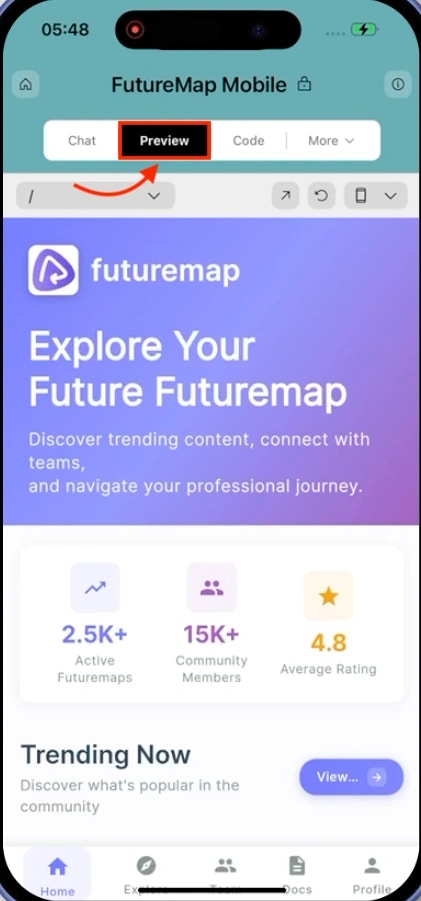
Why use preview?See your mobile app running on real device models without building installable files. Test how your app looks on specific iPhone and Android devices, verify touch interactions, and navigate through screens to catch design issues before deployment. The preview shows your app exactly as users will experience it.
- Web Browser
- Mobile App
Before you begin
You’ll need:
- An existing Rocket project.
See your app in action as you build
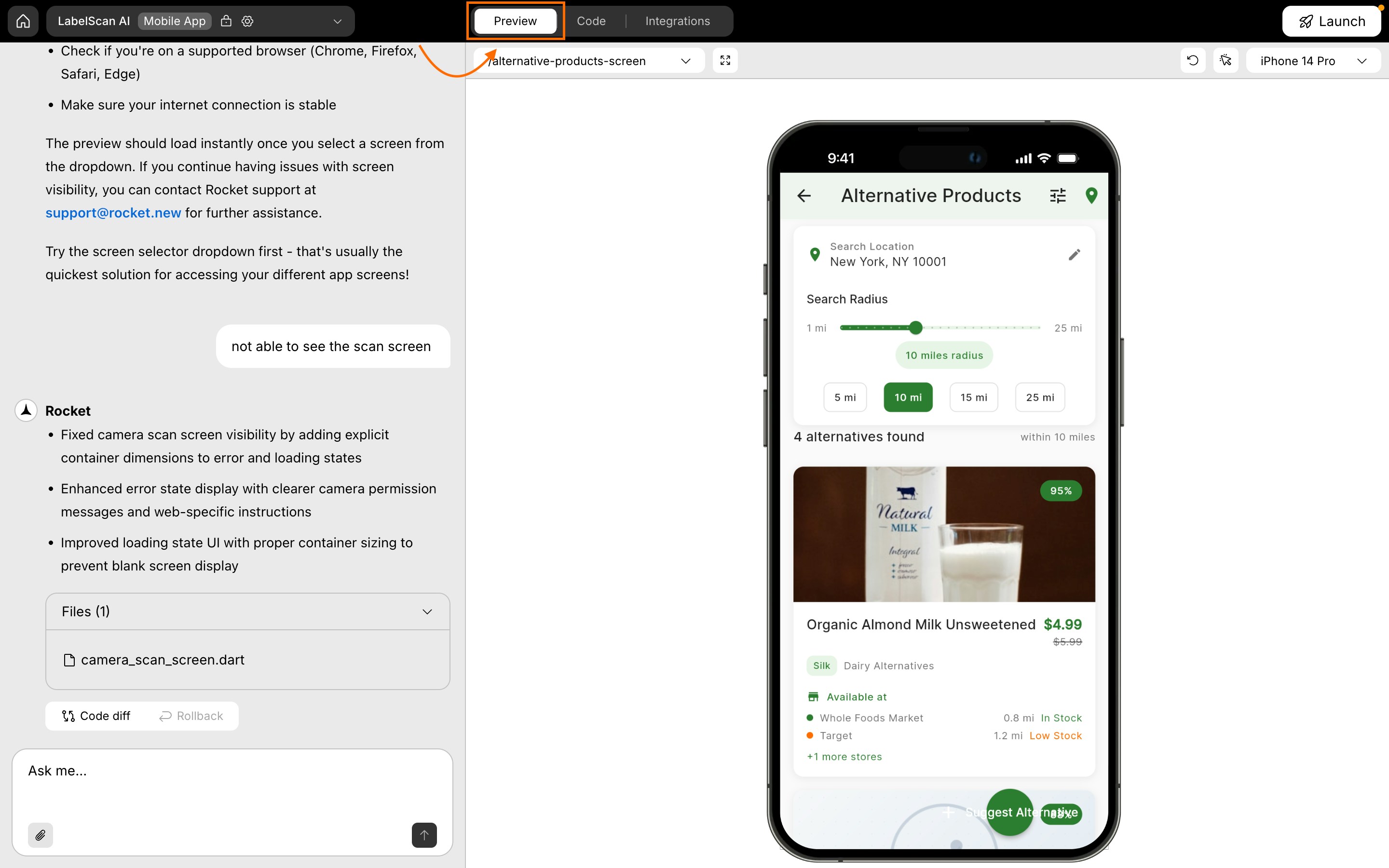
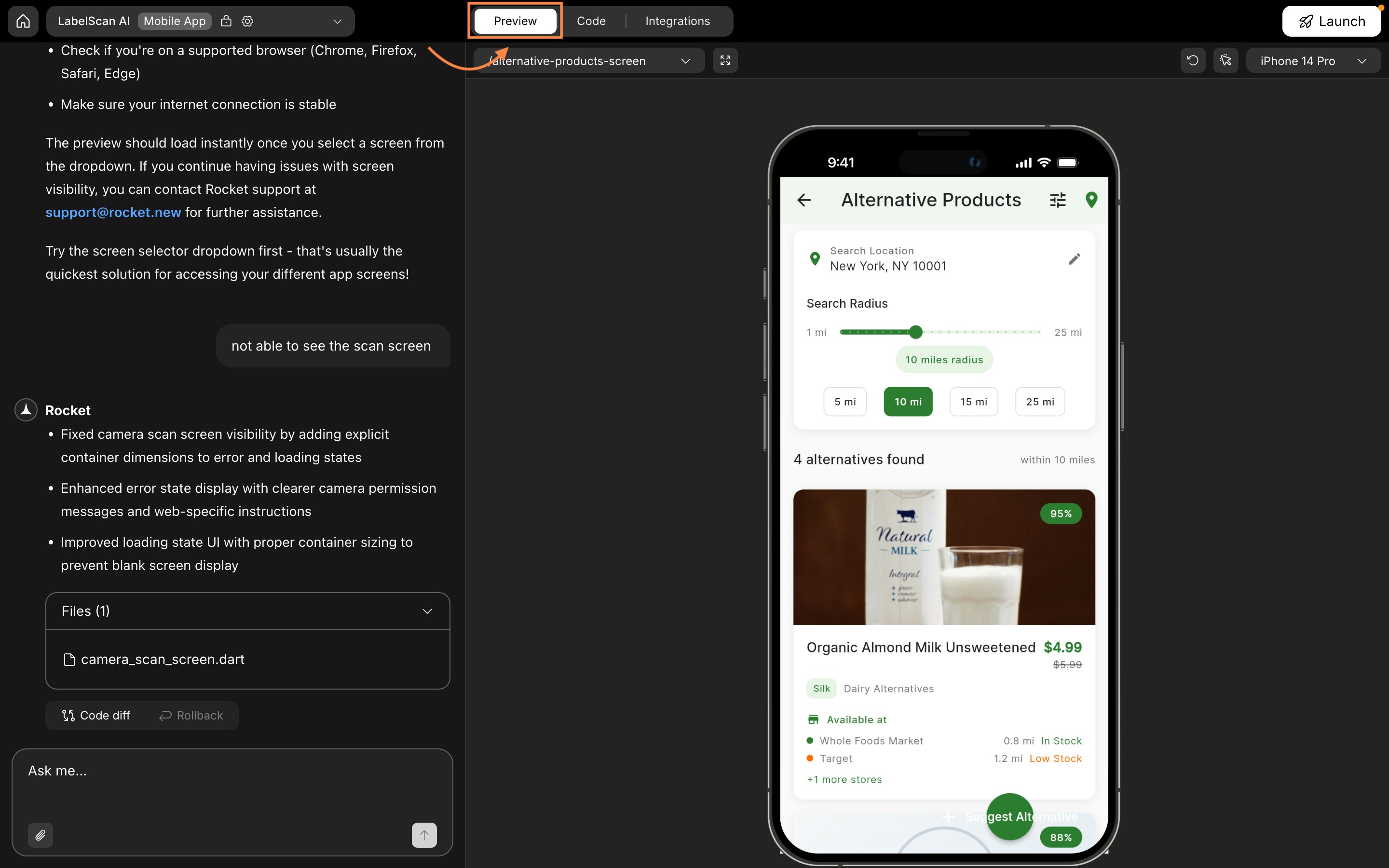
This launches a live, editable view of your app.
Preview panel features at a glance
Choose a screen to preview
Choose a screen to preview
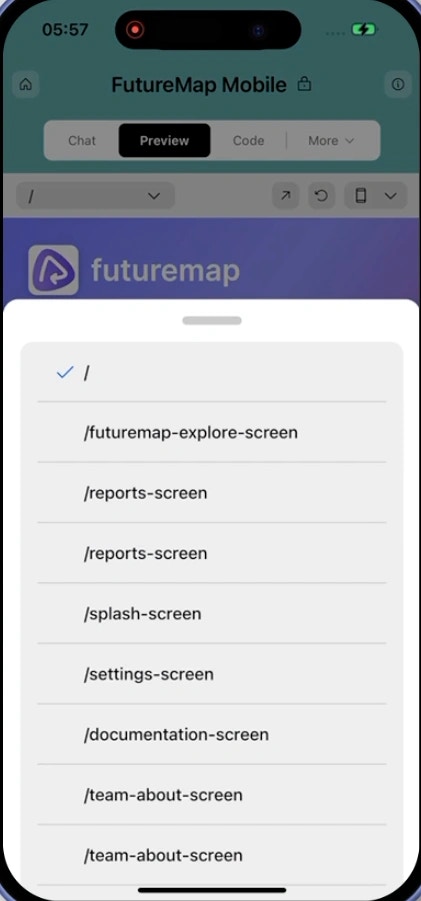
What is this? Switch between different screens in your mobile app using the dropdown menu. Navigate through your entire app structure without leaving the preview panel.
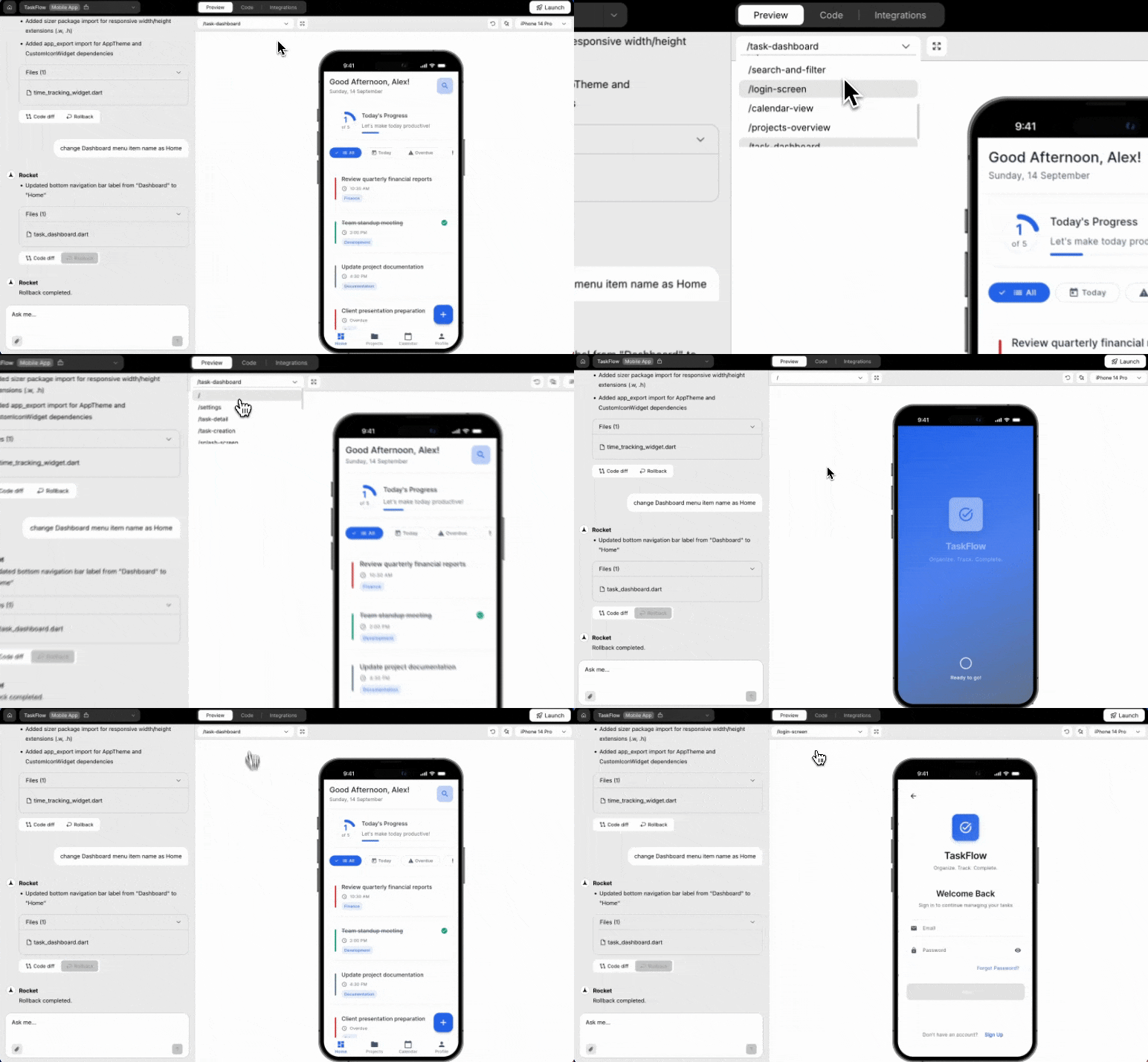
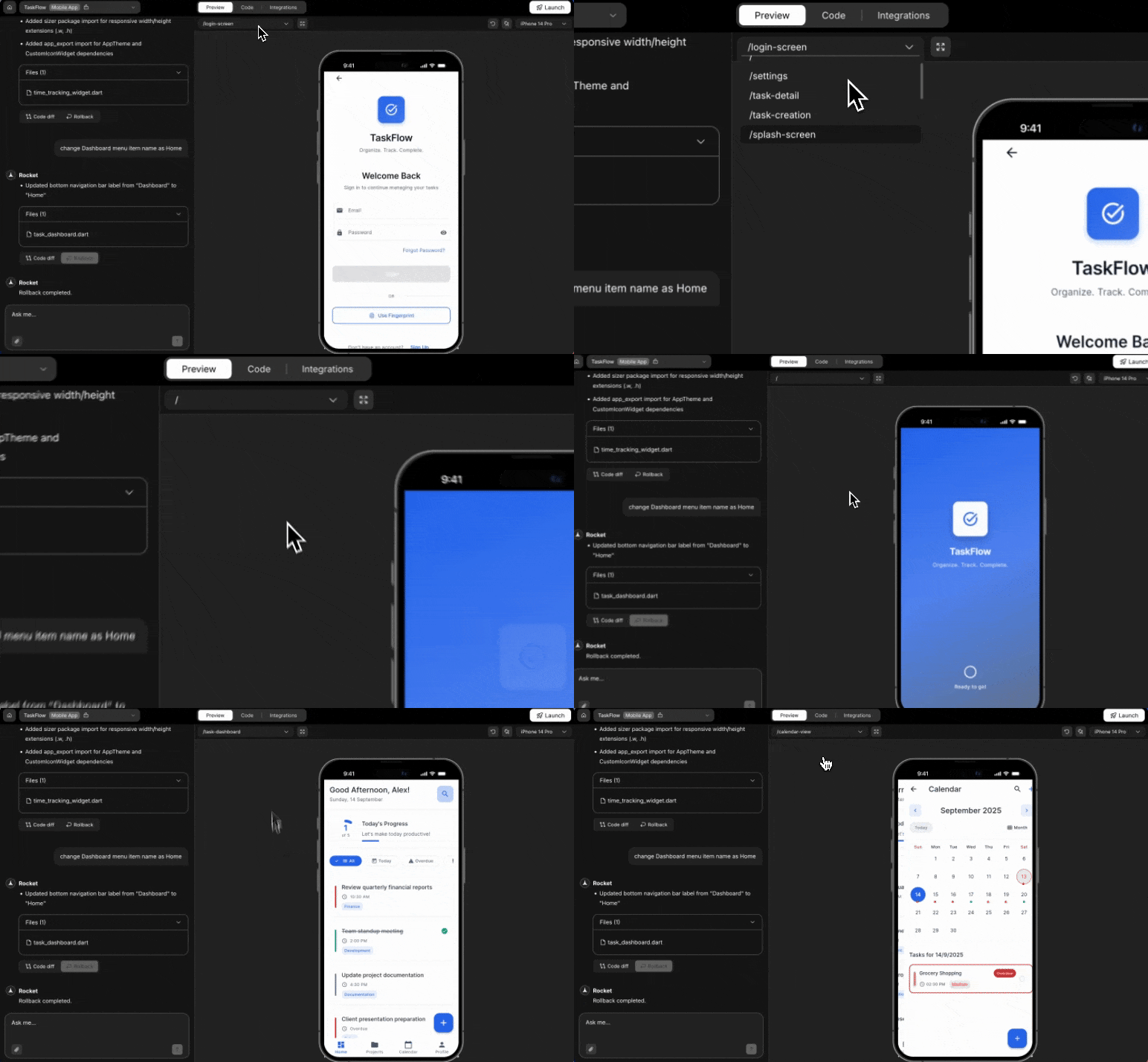
- Navigate through your app.
- Preview specific screens as you work.
Success check: The selected screen loads instantly in the panel.
Full screen preview
Full screen preview
What is this? Expand the preview to fill your entire screen, giving you more space to test your app. Perfect when the preview feels cramped with the chat panel open.
Click it to expand the preview to full screen and close the chat window.Use full screen when:
- The preview feels cramped with chat open.
- You want a cleaner test view.
Refresh your preview
Refresh your preview
What is this? Reload the preview panel to see your latest changes. Use this when updates aren’t appearing automatically or you want to ensure you’re viewing the most recent version.
Success check: The preview reloads and displays your latest updates.
Edit visually in the preview
Edit visually in the preview
What is this? Make design changes directly in the preview by clicking on elements. Adjust text, styles, spacing, and images without writing code or navigating to different files.
You’ll be able to select any on-screen element and adjust its properties visually.Editable properties include:
- Text
- Style
- Spacing
- Image
- Delete element
- Go to code
- Ask for quick changes
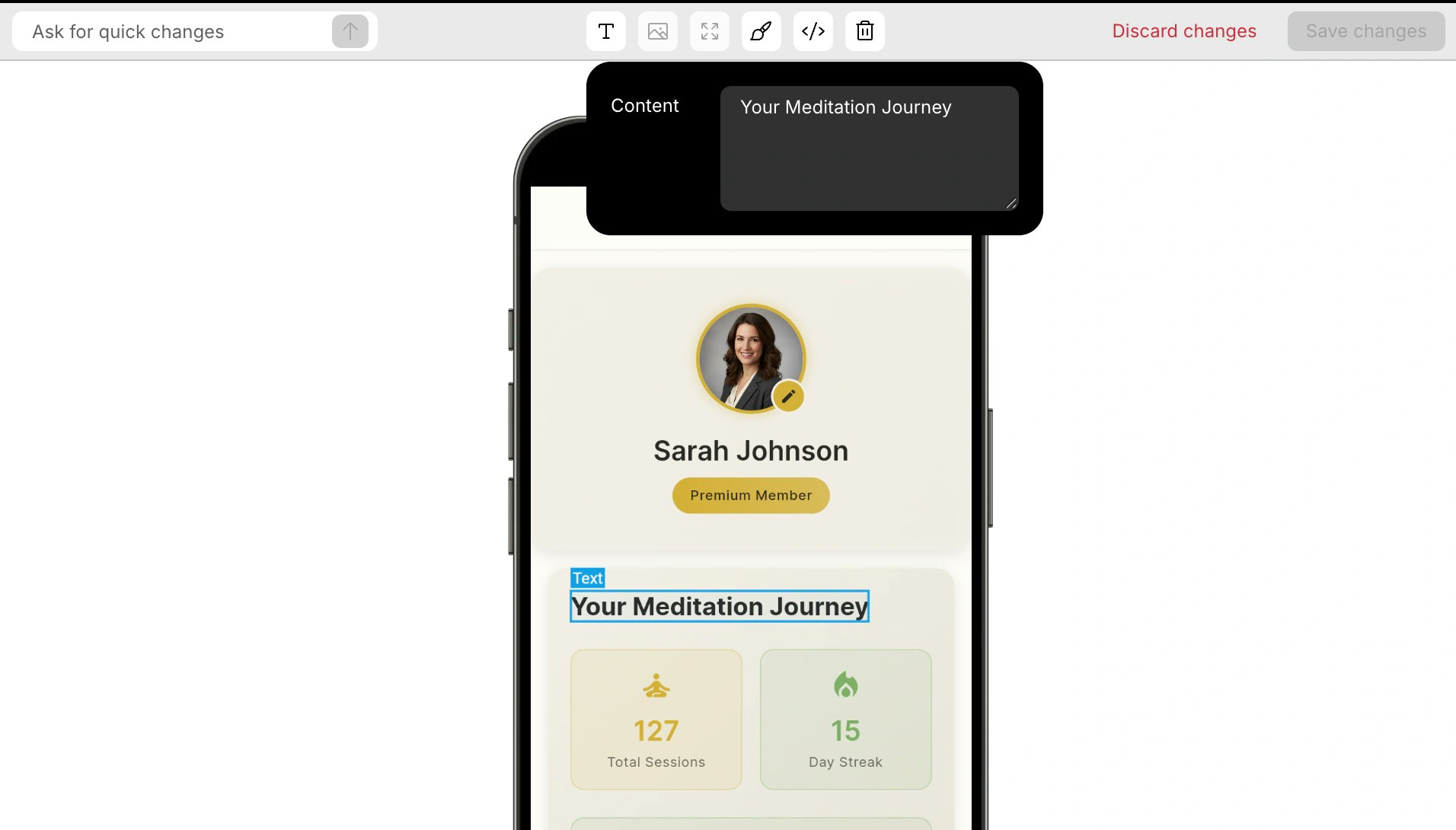
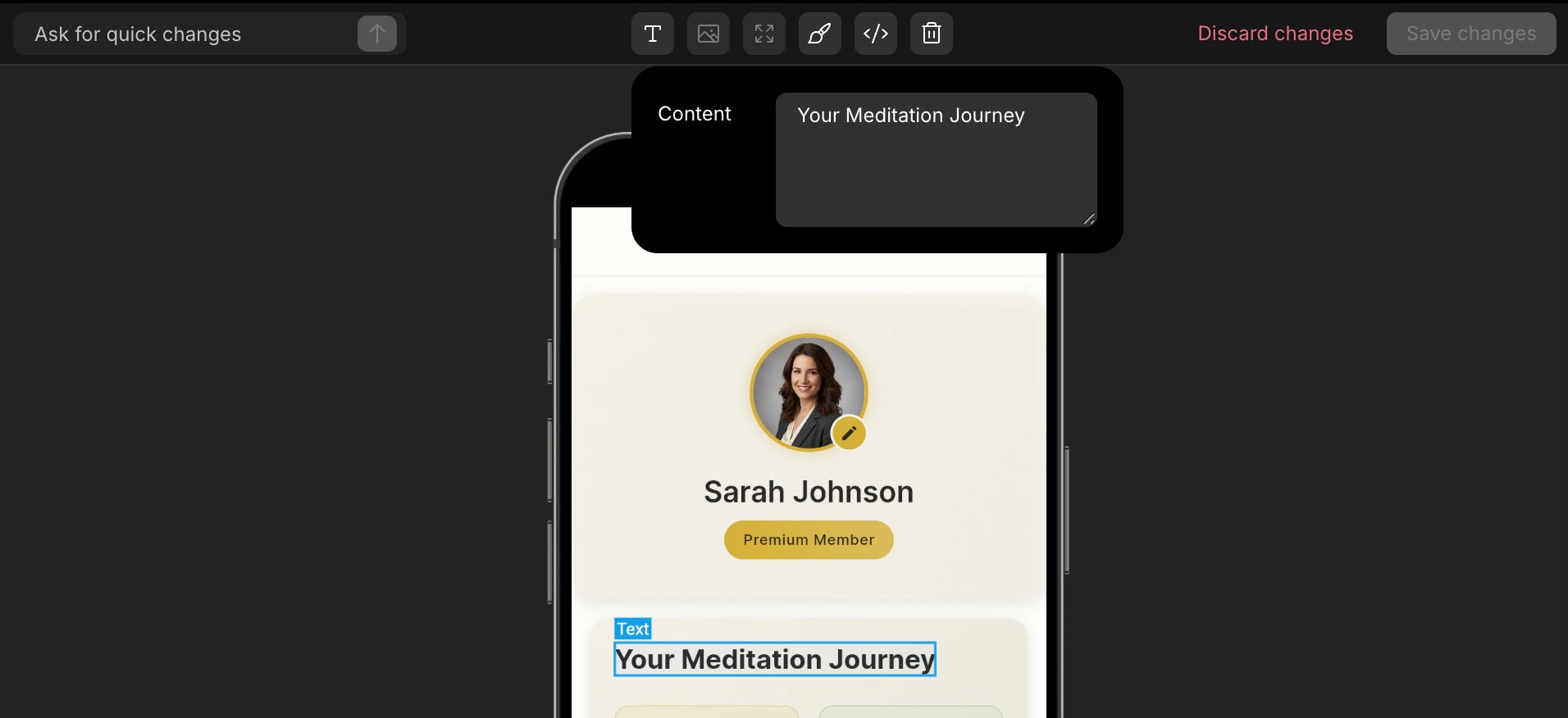
Success check: A properties panel opens for the selected element.
Use Discard changes to discard the edits.
Want to go deeper with visual editing?
Explore more ways to style your app without code.
Explore more ways to style your app without code.
Capture screenshots
Capture screenshots
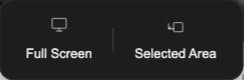
What is this? Take screenshots of your app directly from the preview panel to use within Rocket. Capture the full screen or select a specific area, then drag and drop the image into chat to show Rocket what you want to change.
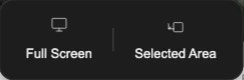
Choose your capture mode:
- Full Screen: Captures the entire preview area
- Selected Area: Click and drag to select a specific region


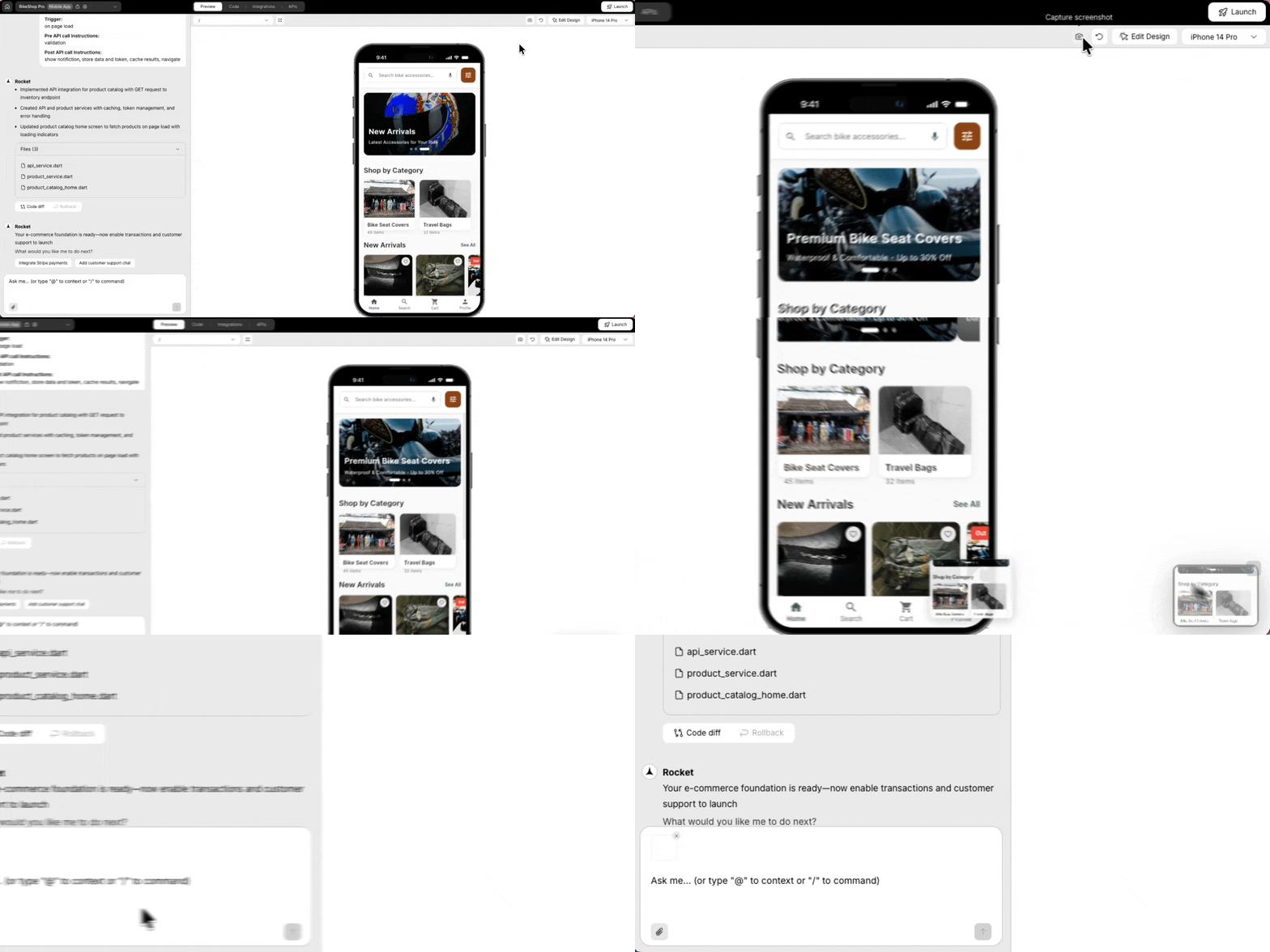
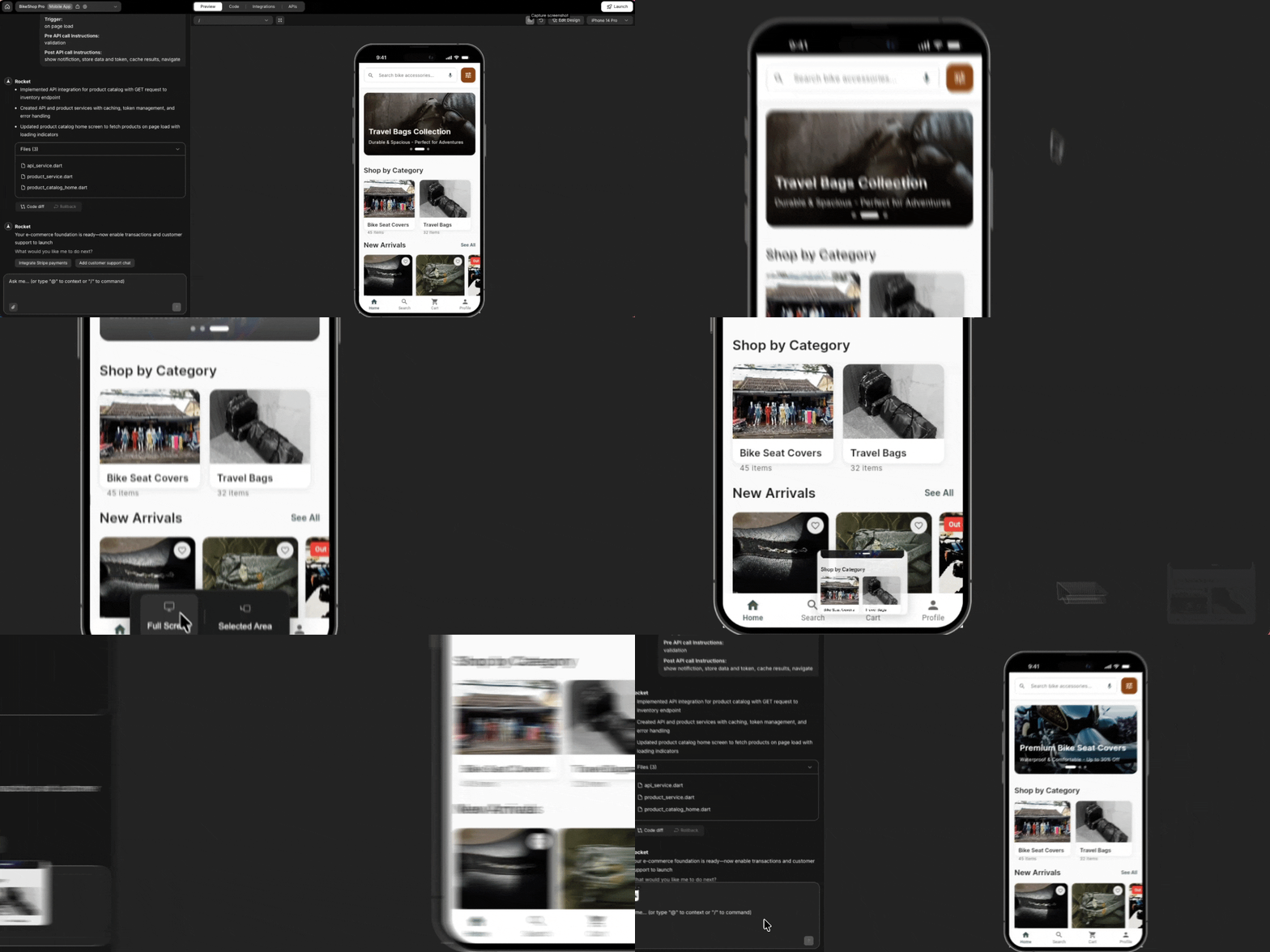
Note: Screenshot capture is only available in web browsers, not in the mobile app.
Success check: The screenshot appears in the chat input after dragging.
Preview device models
Preview device models
What is this? Test how your app looks on real device models like iPhone 14 Pro, iPhone SE, and Samsung Galaxy. See exactly how your design works across different phone sizes and operating systems without building APK files.
- iPhone 14 Pro
- iPhone SE
- Samsung Galaxy S23
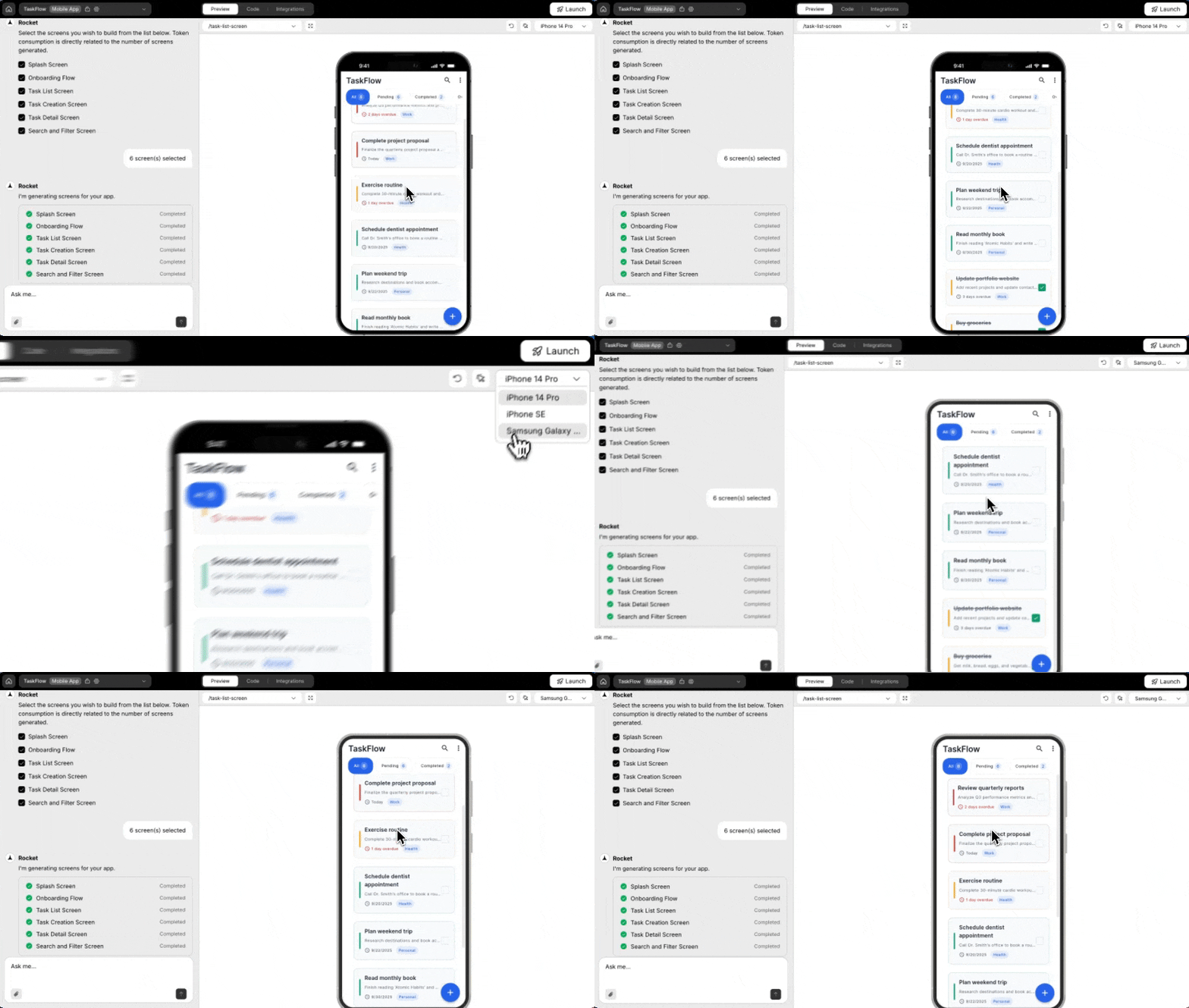
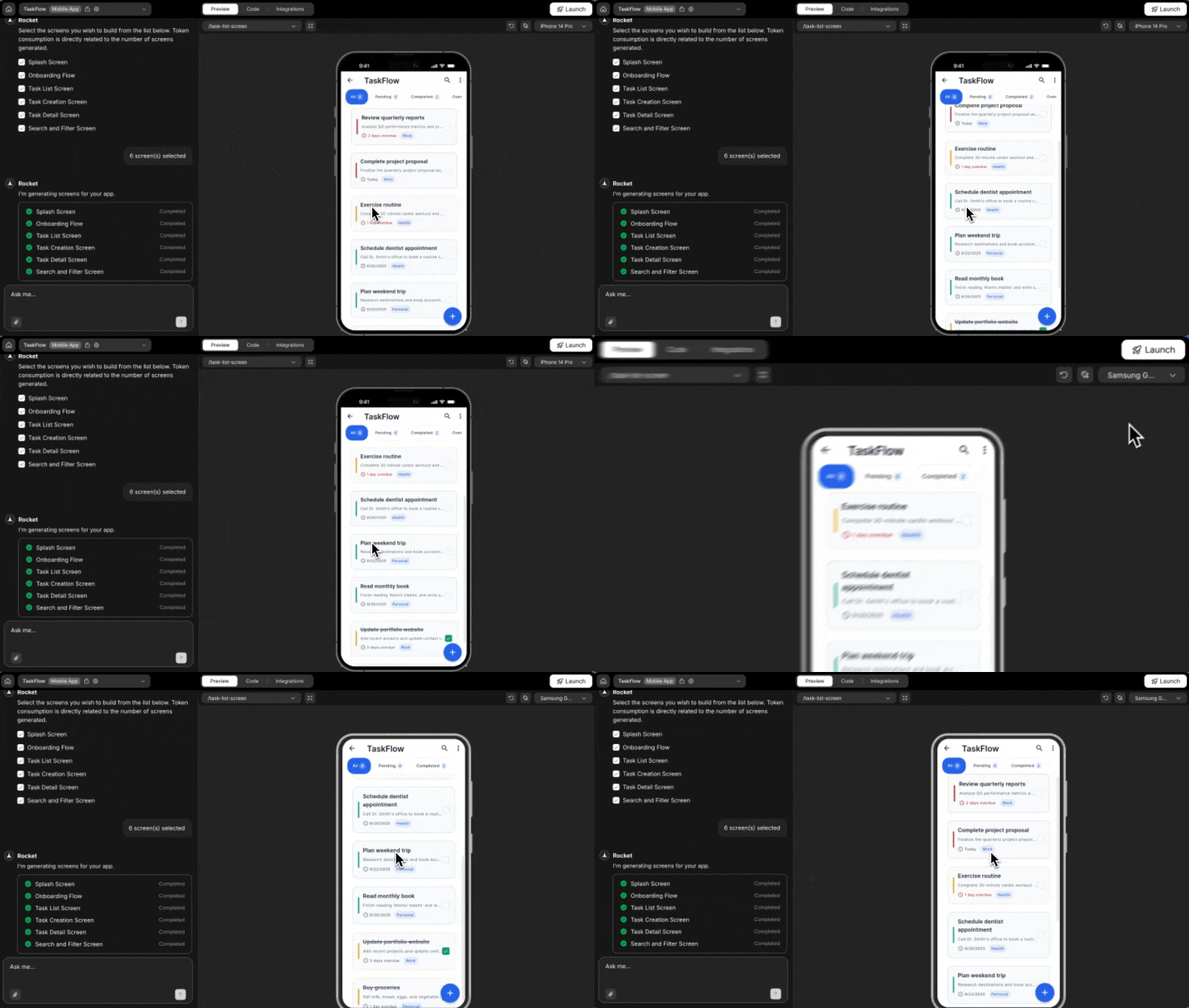
Success check: The preview resizes to match the selected device.
You did it!
You’ve unlocked the mobile preview panel. Switch views, edit live, test across devices, and get your app launch-ready.