

Documentation Index
Fetch the complete documentation index at: https://docs.rocket.new/llms.txt
Use this file to discover all available pages before exploring further.
Figma to Flutter mobile app in minutes. Import your mobile screen designs and Rocket generates a complete Flutter app for iOS and Android with native navigation, styled components, and clean Dart code. Then iterate with chat to add state management, connect APIs, and submit to app stores.
Figma import is only available on the web browser at rocket.new. It is not available in the Rocket mobile app.
What you can build
Consumer mobile apps
Consumer mobile apps
Turn your social, fitness, food, or lifestyle app designs into working Flutter apps with real navigation and data.Try this prompt after import:
Business and productivity apps
Business and productivity apps
Convert CRM, task management, or internal tool designs into functional mobile apps.Try this prompt after import:
E-commerce mobile apps
E-commerce mobile apps
Build mobile shopping experiences from your Figma product catalog and checkout designs.Try this prompt after import:
Before you begin
You will need:
- Access to rocket.new.
- A Figma account and a design file with view or edit permission.
Not sure how to get your Figma link? Follow this quick guide to grab the right URL.
Launch your mobile app
Import Figma
Click the + button at the lower left of the input box and select Add from Figma.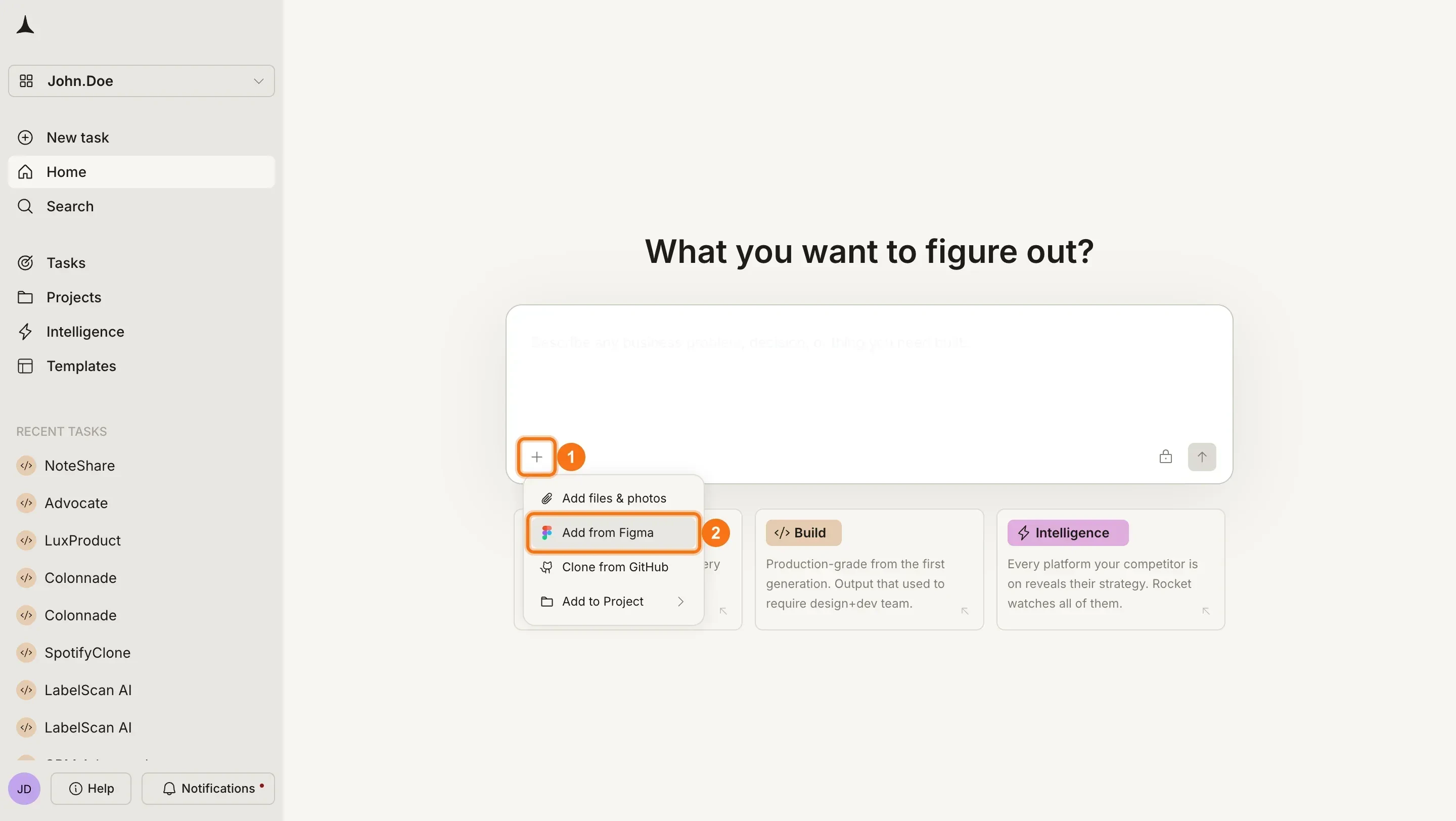
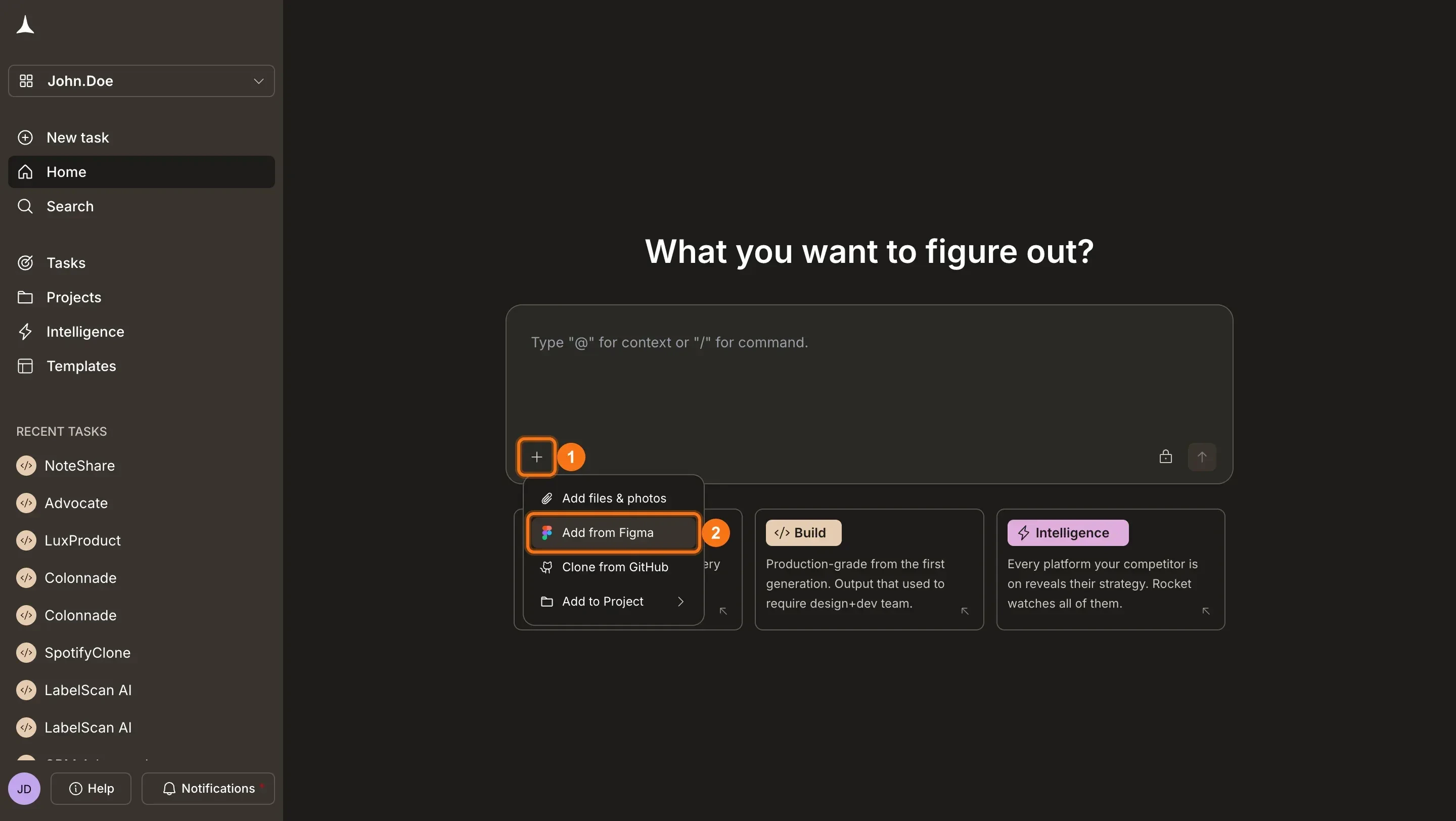
First time? Connect your Figma account to Rocket before importing.
Paste your Figma link
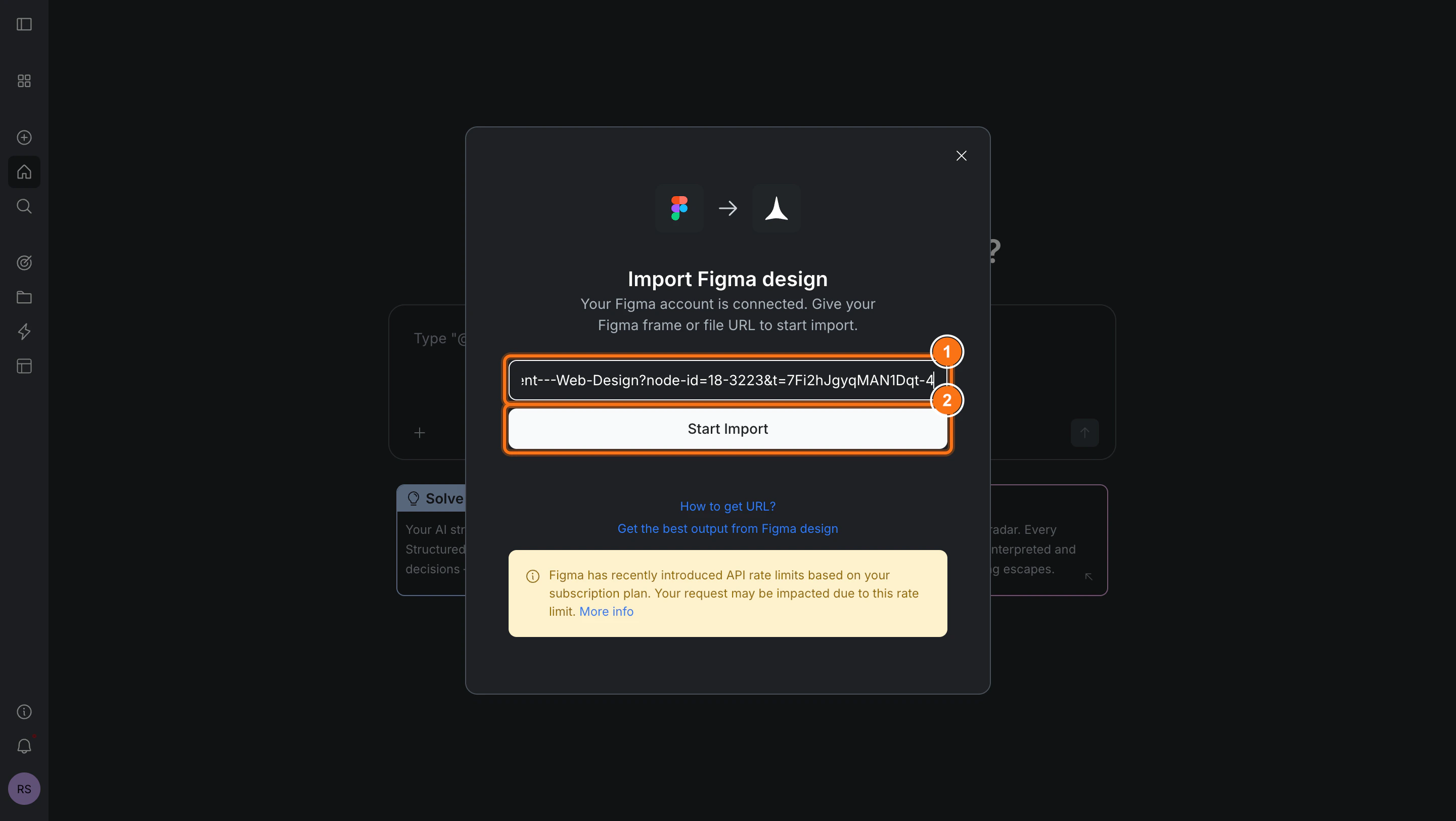
In the Import Figma design dialog, paste your Figma frame or file URL and click Start import.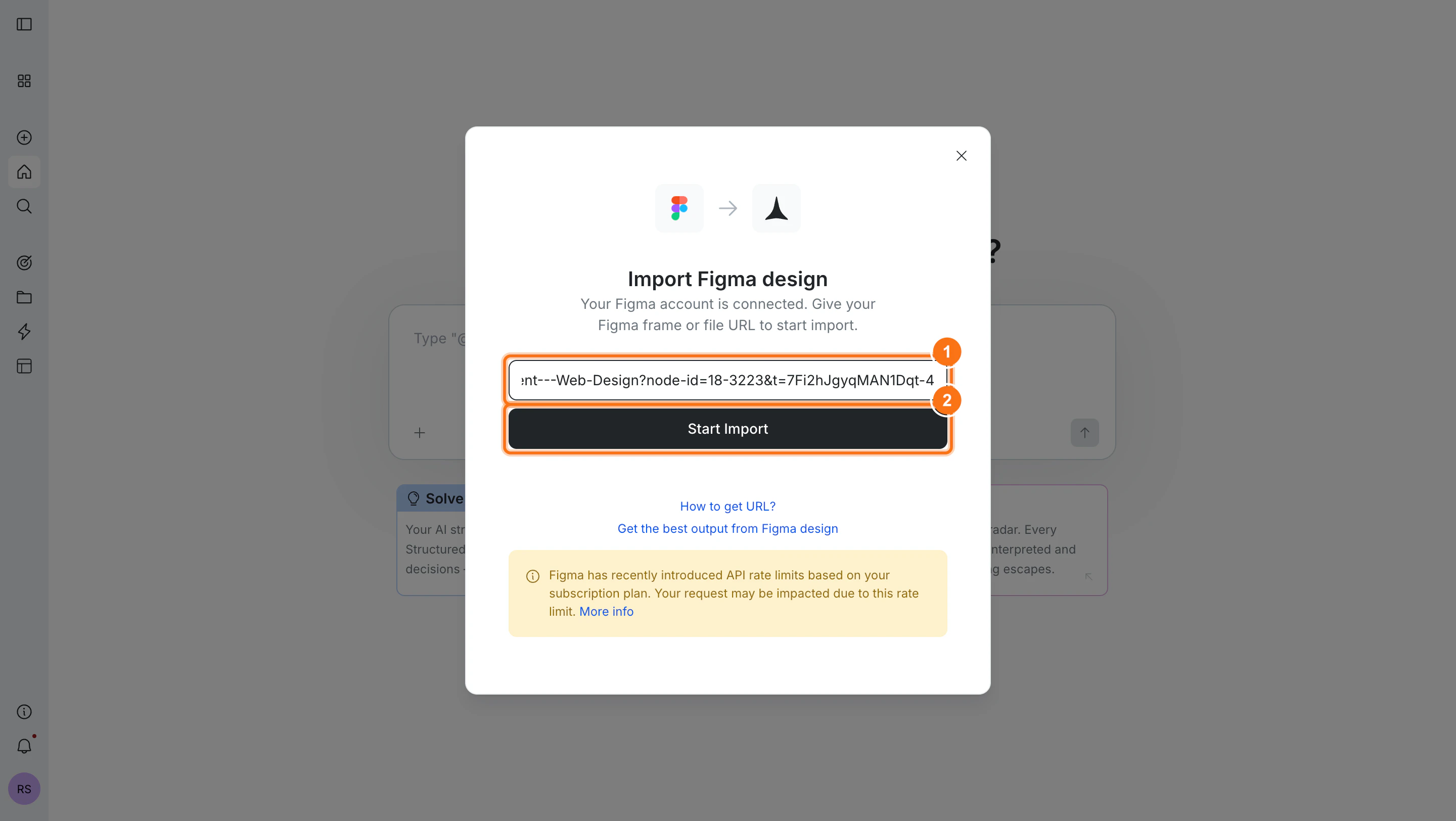
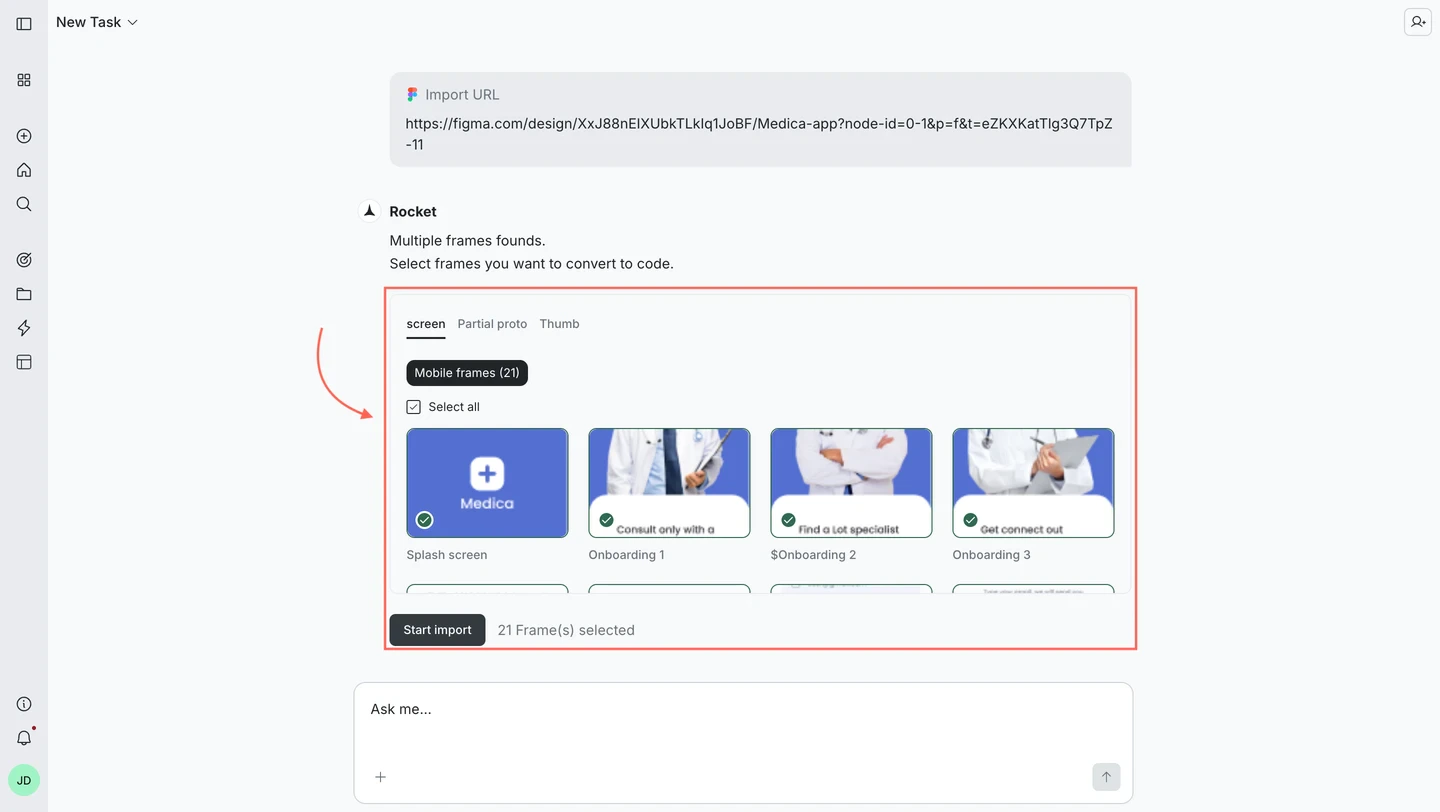
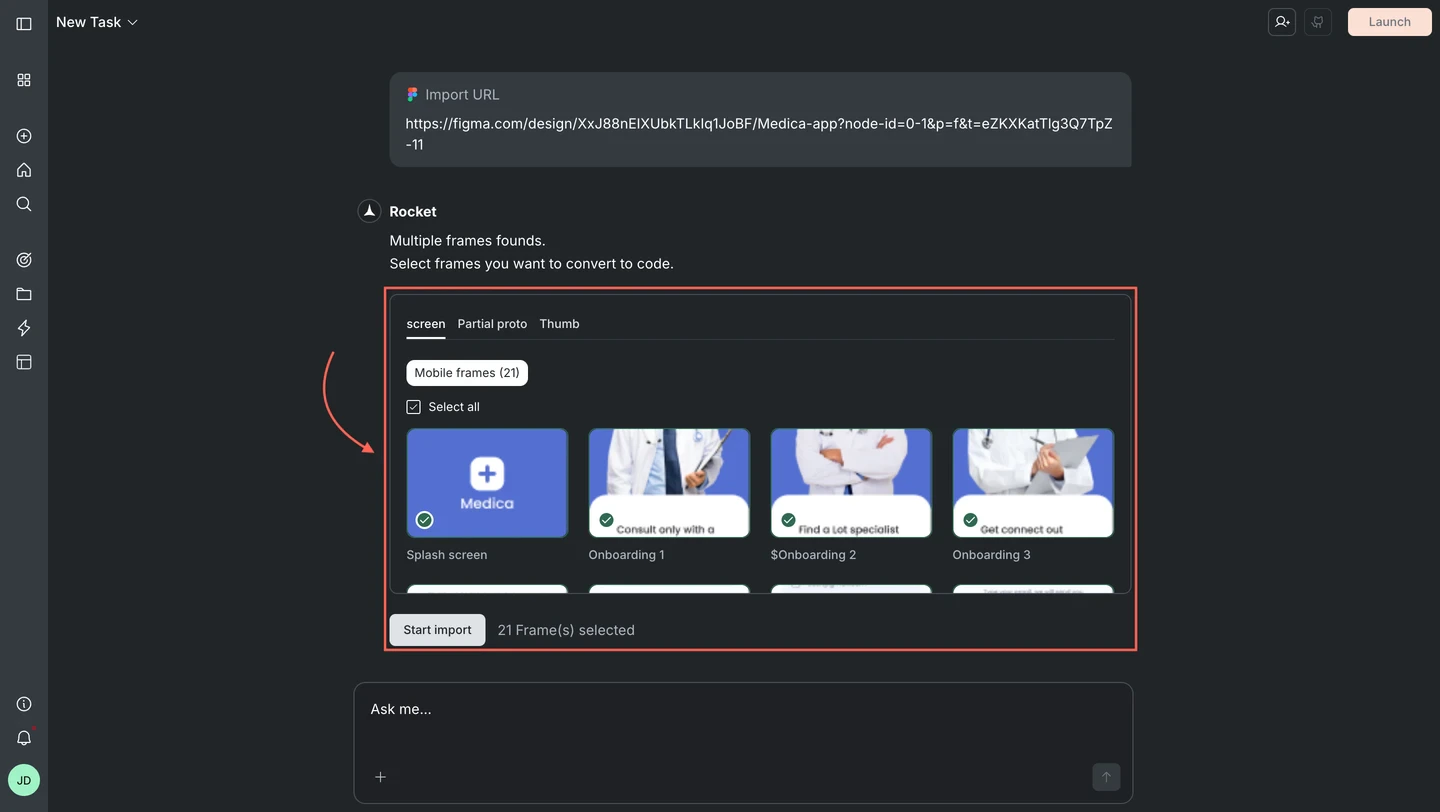
Choose screens and framework
You can import up to 40 screens at a time.
Using the free plan? Some features may be limited. Upgrade to keep generating without interruptions.
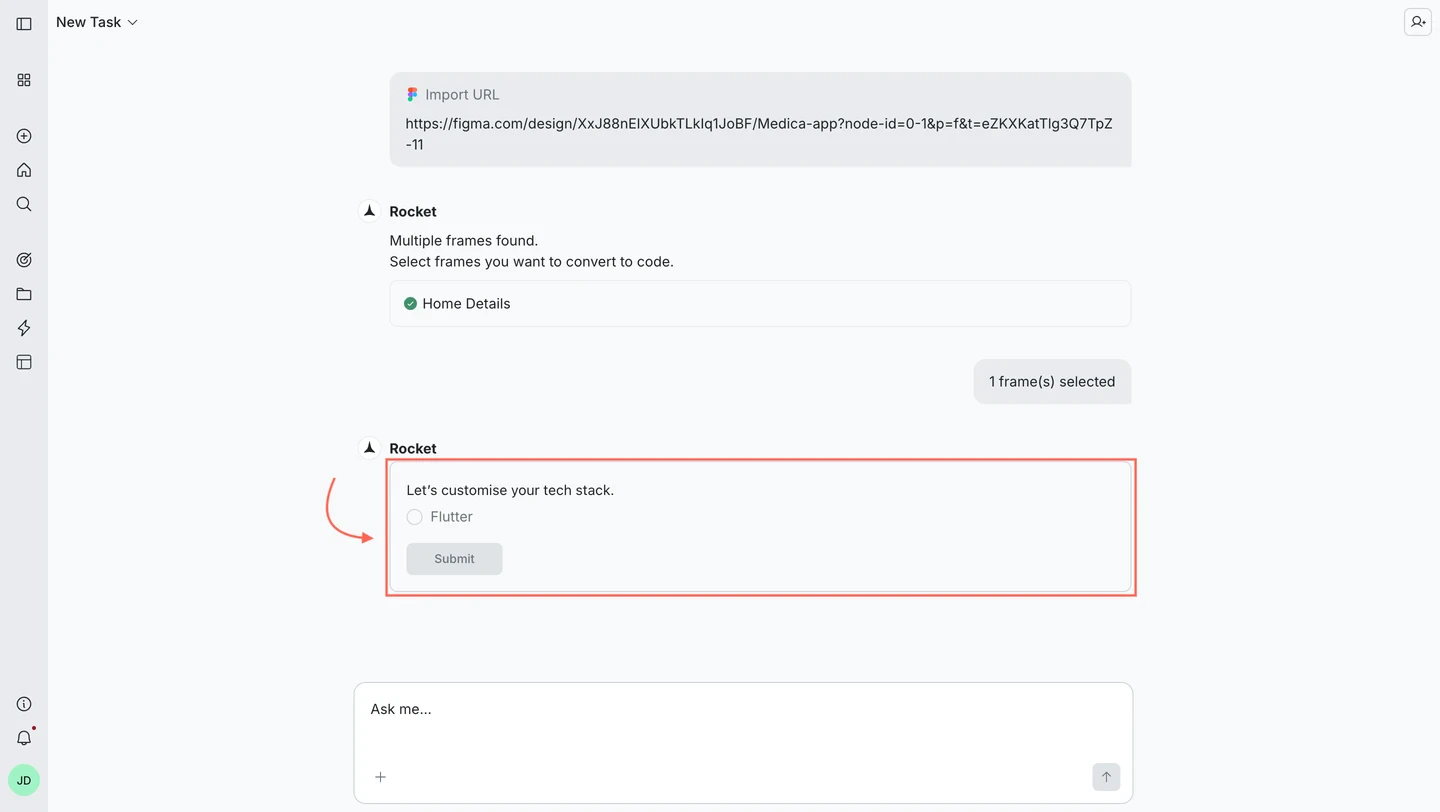
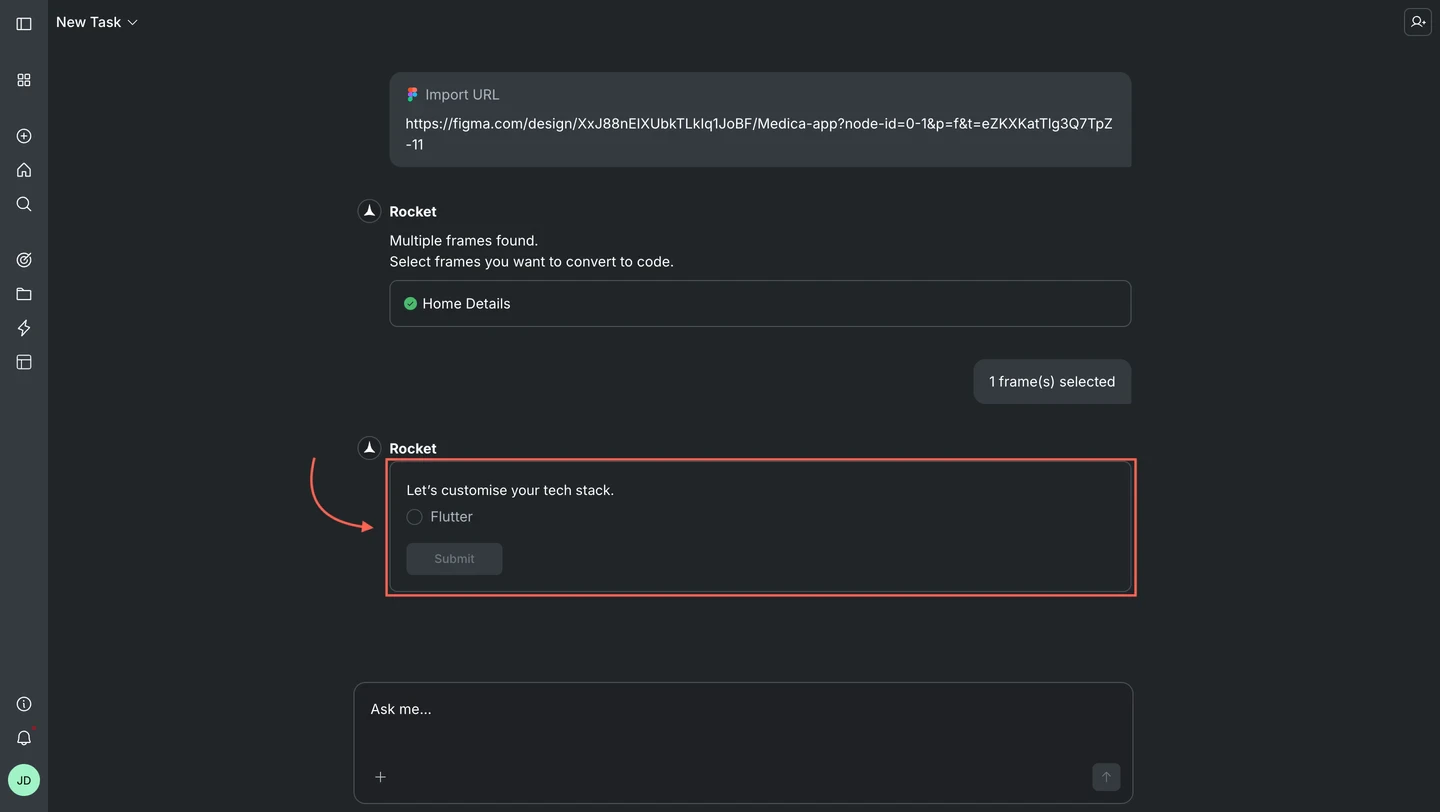
Select state management
Rocket asks how your app should manage user actions and screen changes.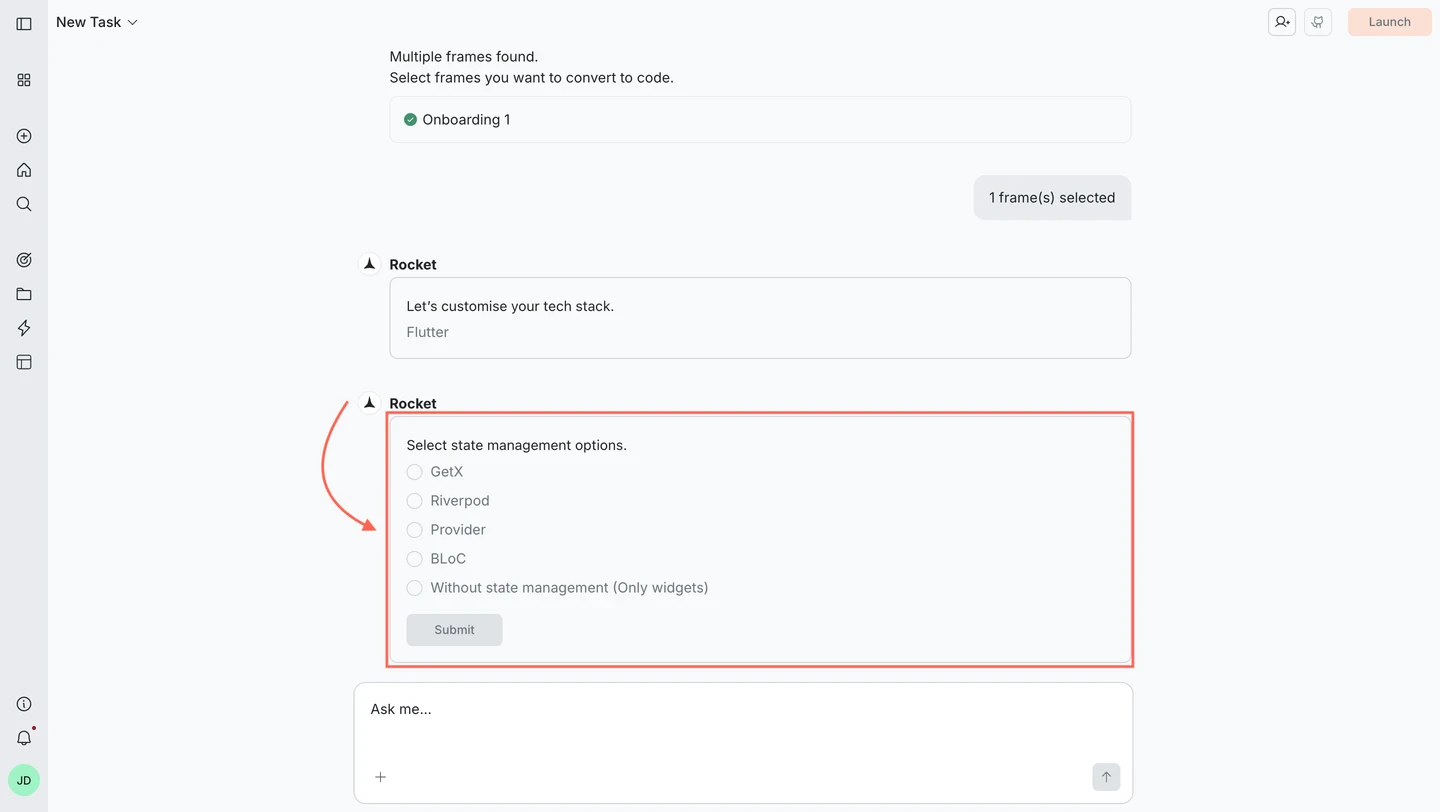
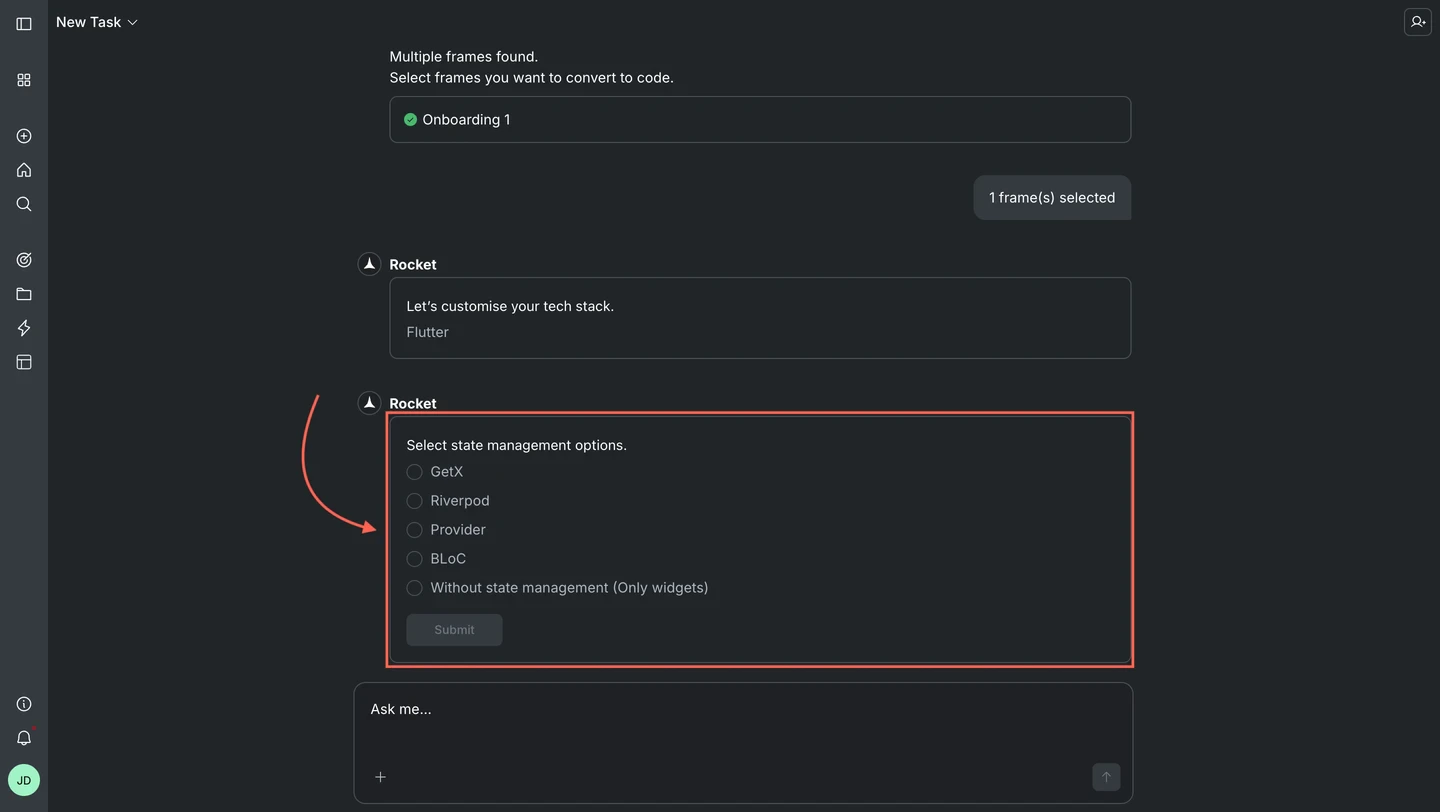
- BLoC - Great for apps with complex logic and data flows
- GetX - Lightweight and fast, ideal for quick builds
- Provider - Simple and reliable for most apps
- Riverpod - A flexible upgrade to Provider, great for scaling
- Without state management - Use only widgets (best for basic apps or prototypes)
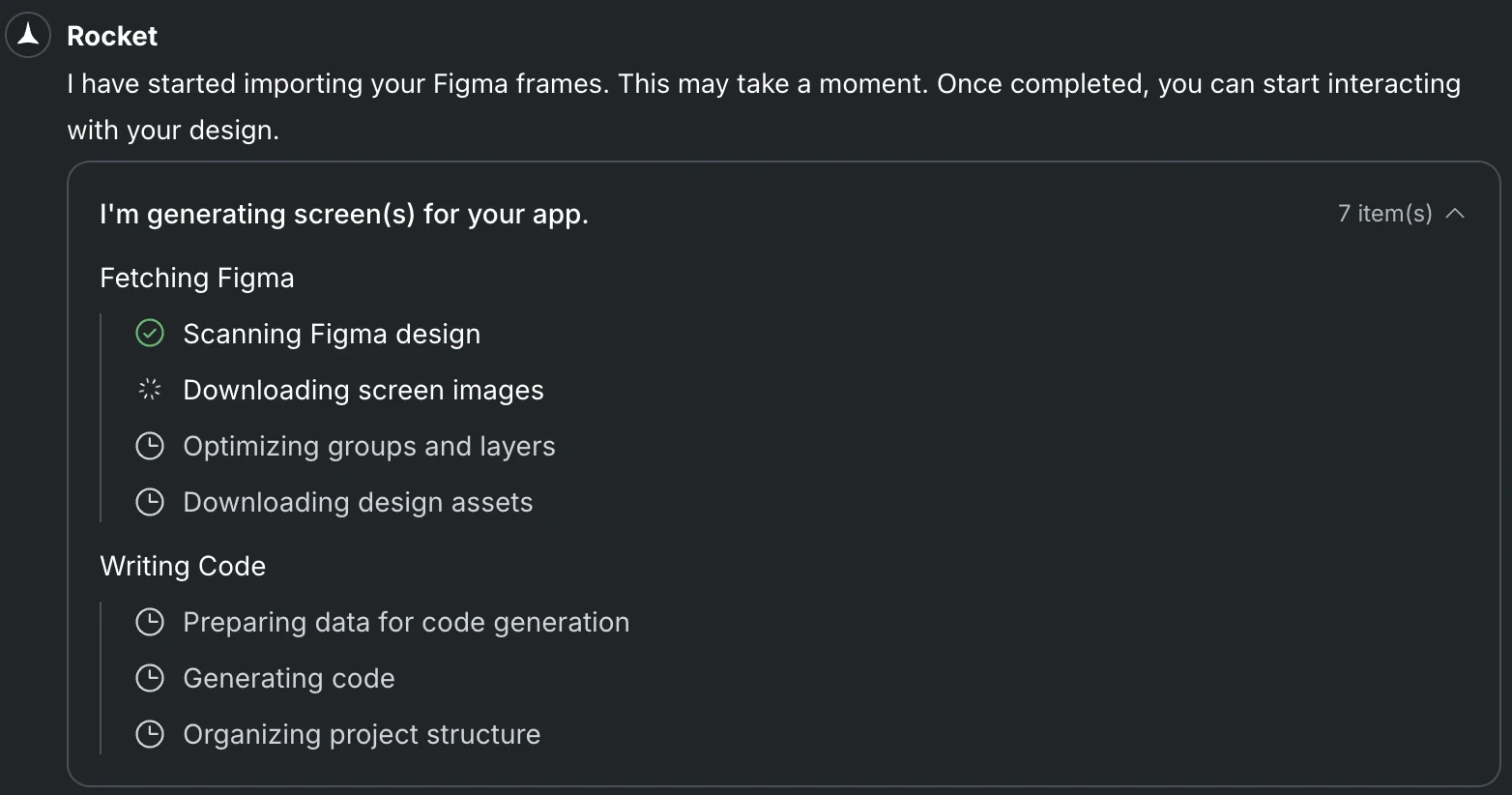
Rocket generates your mobile app
Rocket parses your Figma file, optimizes images and layout, and generates clean Flutter code.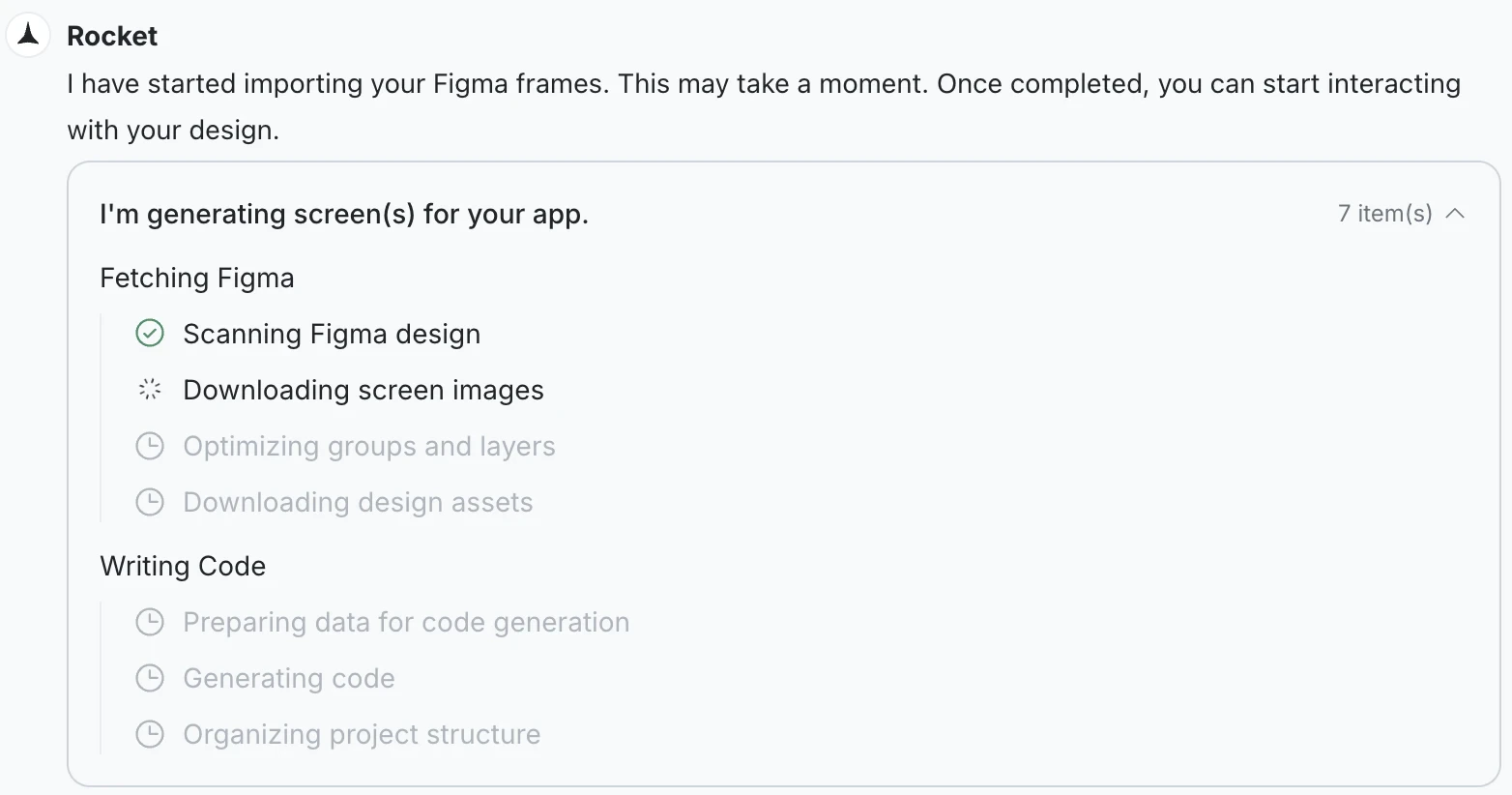
Review in Rocket and compare with Figma
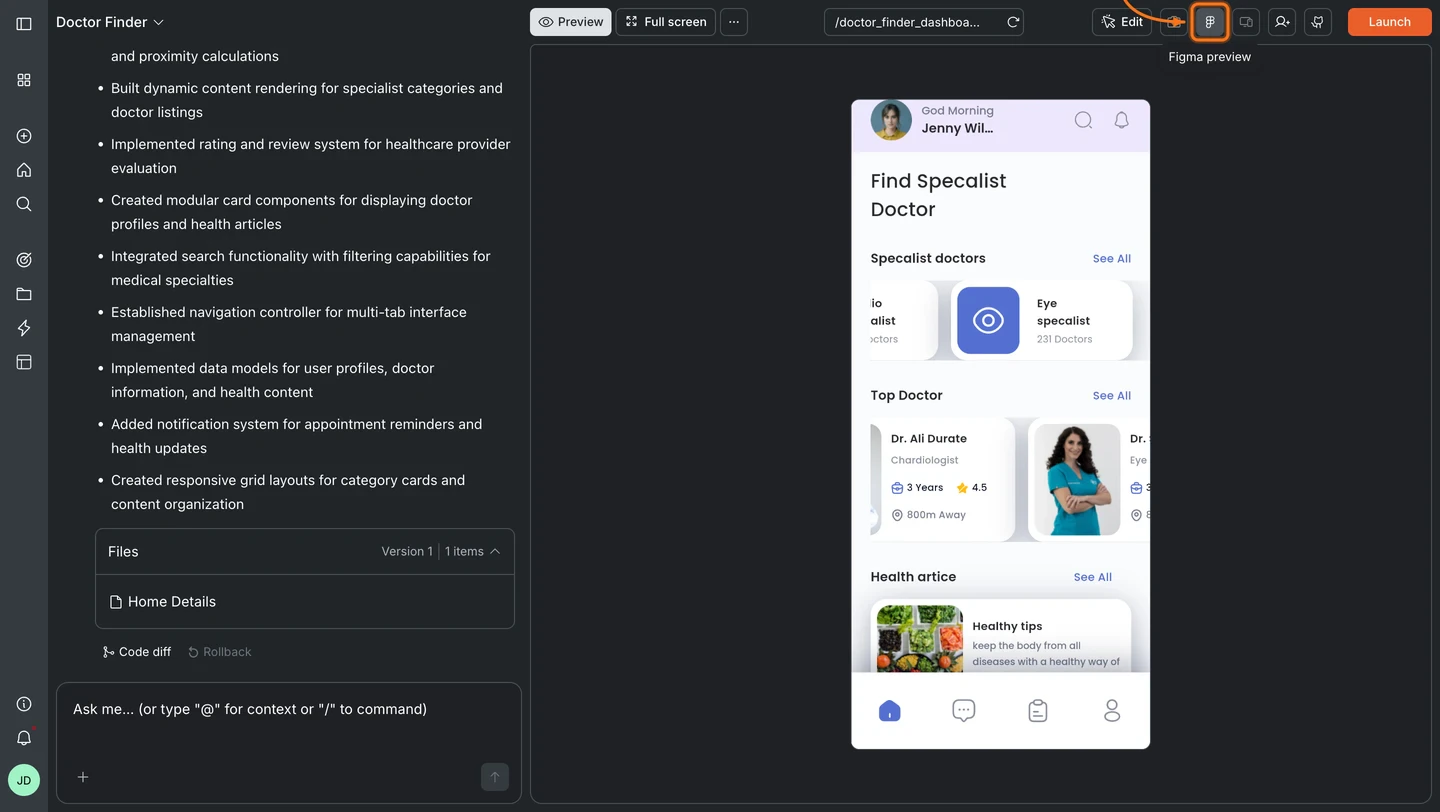
Once generation is complete, use the Preview tab at the top of the editor to view your Rocket-generated mobile app.To view your original Figma design directly in Rocket, click the icon in the top-right navbar. This opens the Figma preview panel, showing your source design alongside the chat panel.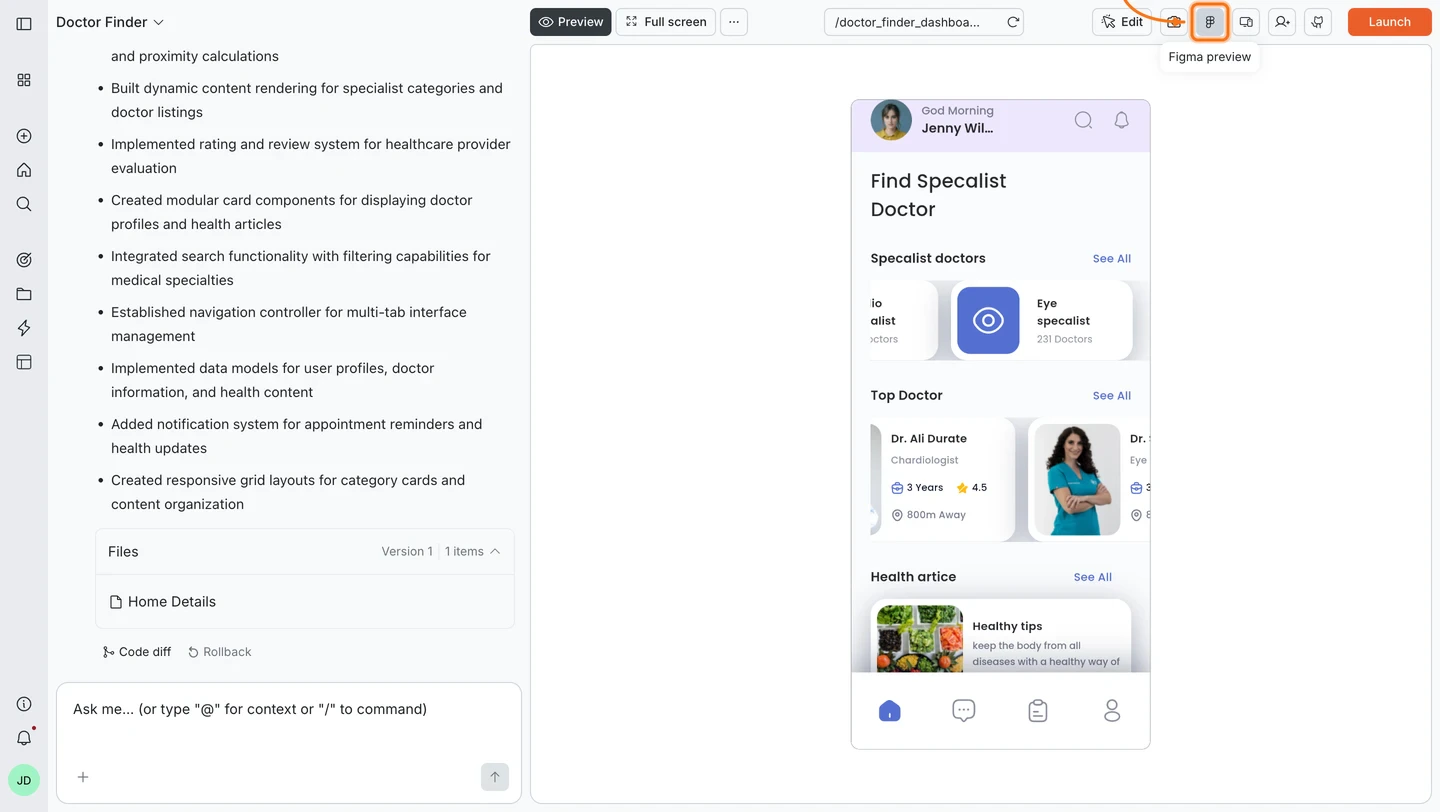
- What you see: The card has a shadow that does not appear in the original design
- What Figma shows: No shadow on the card
- Fix it:
"Remove the shadow from the product cards on the Home screen"
Add more screens
Need to bring in more screens after the initial import?Click the + button at the bottom of the chat, then select Add new screen.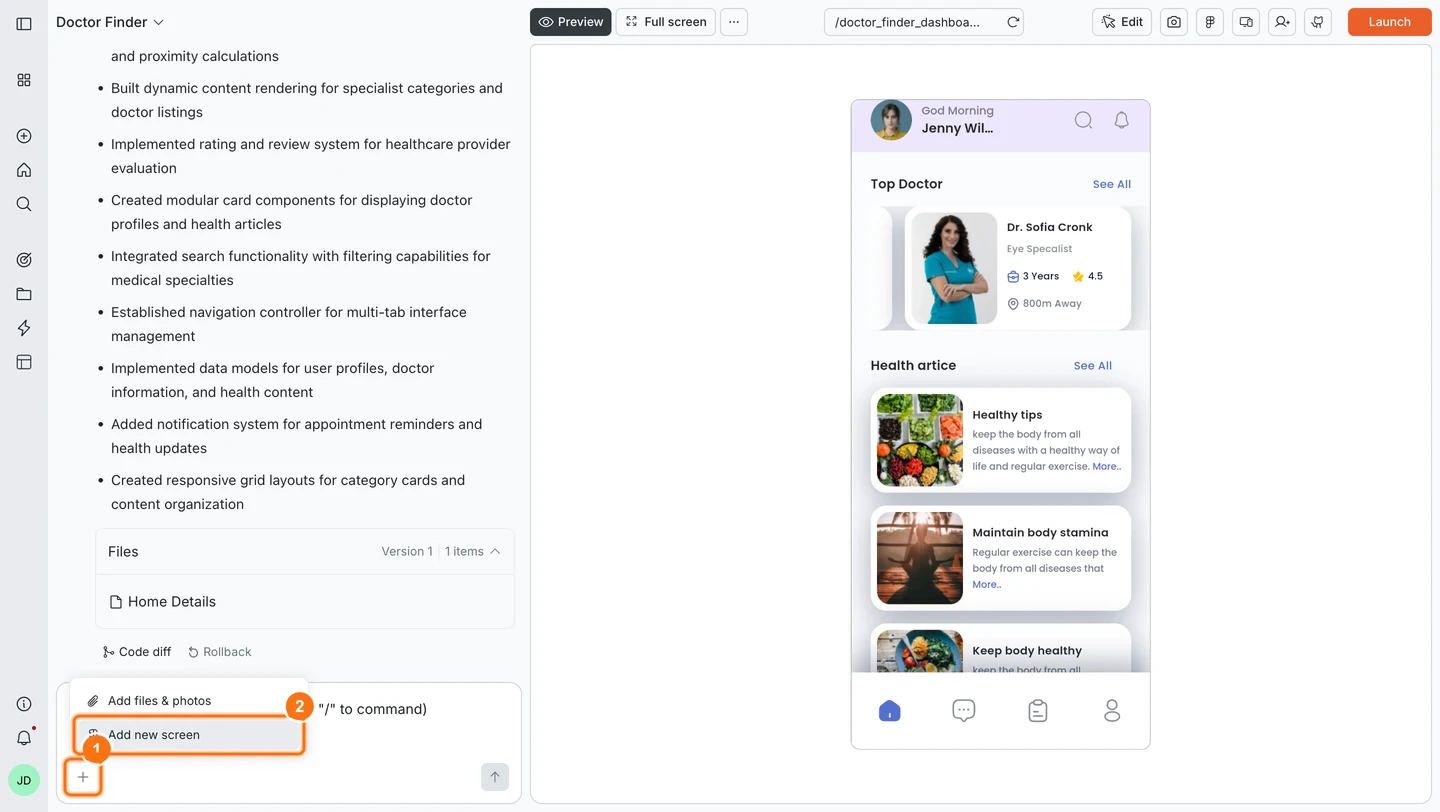
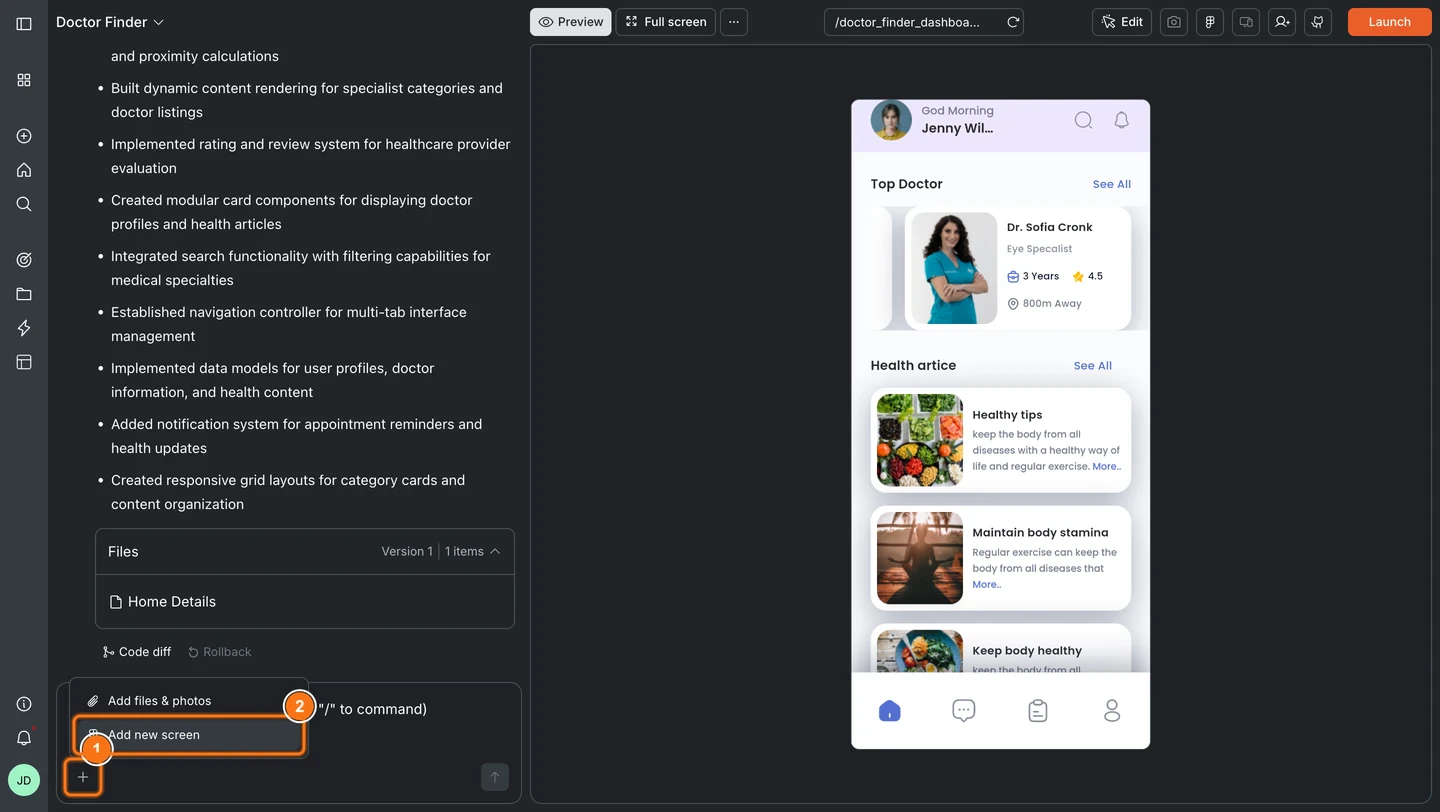
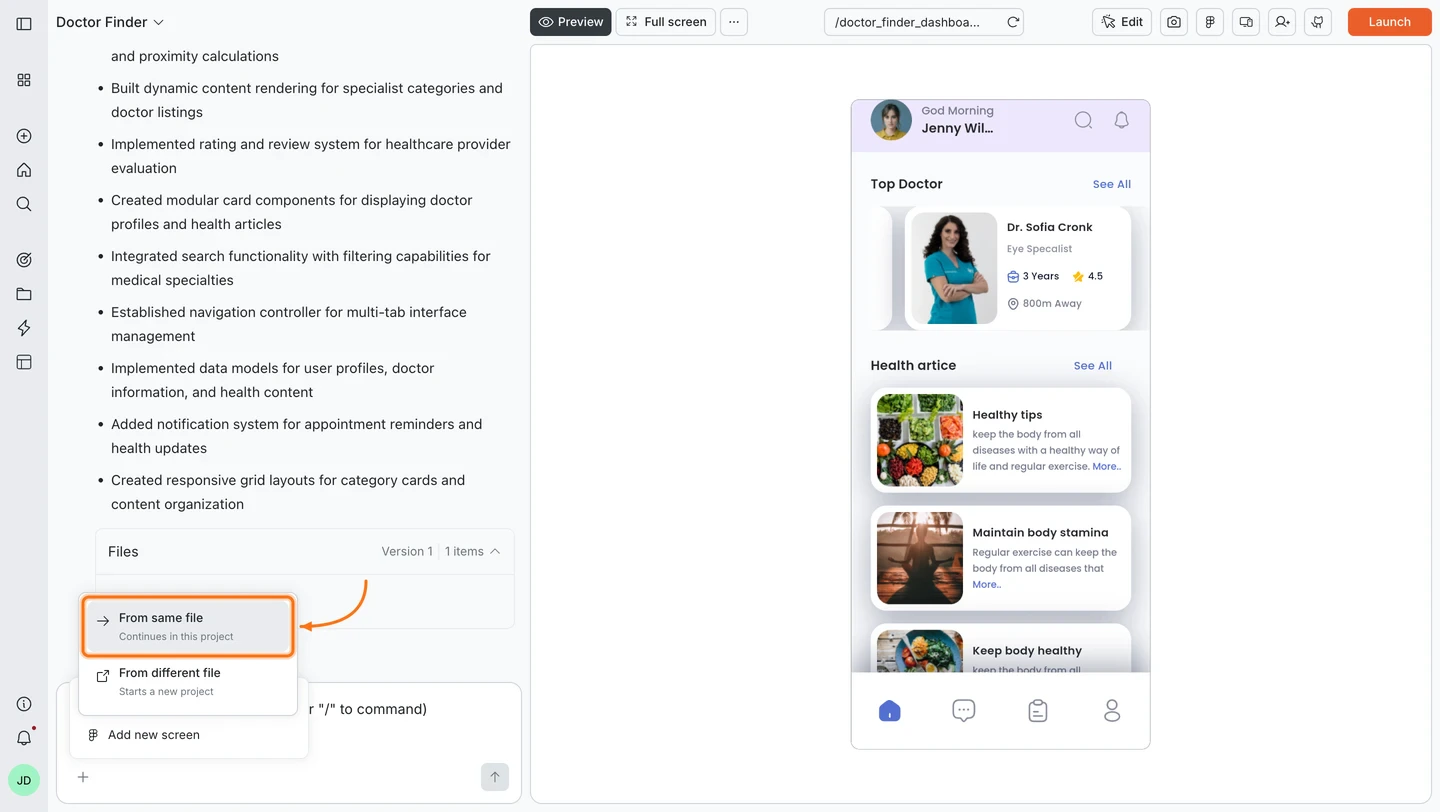
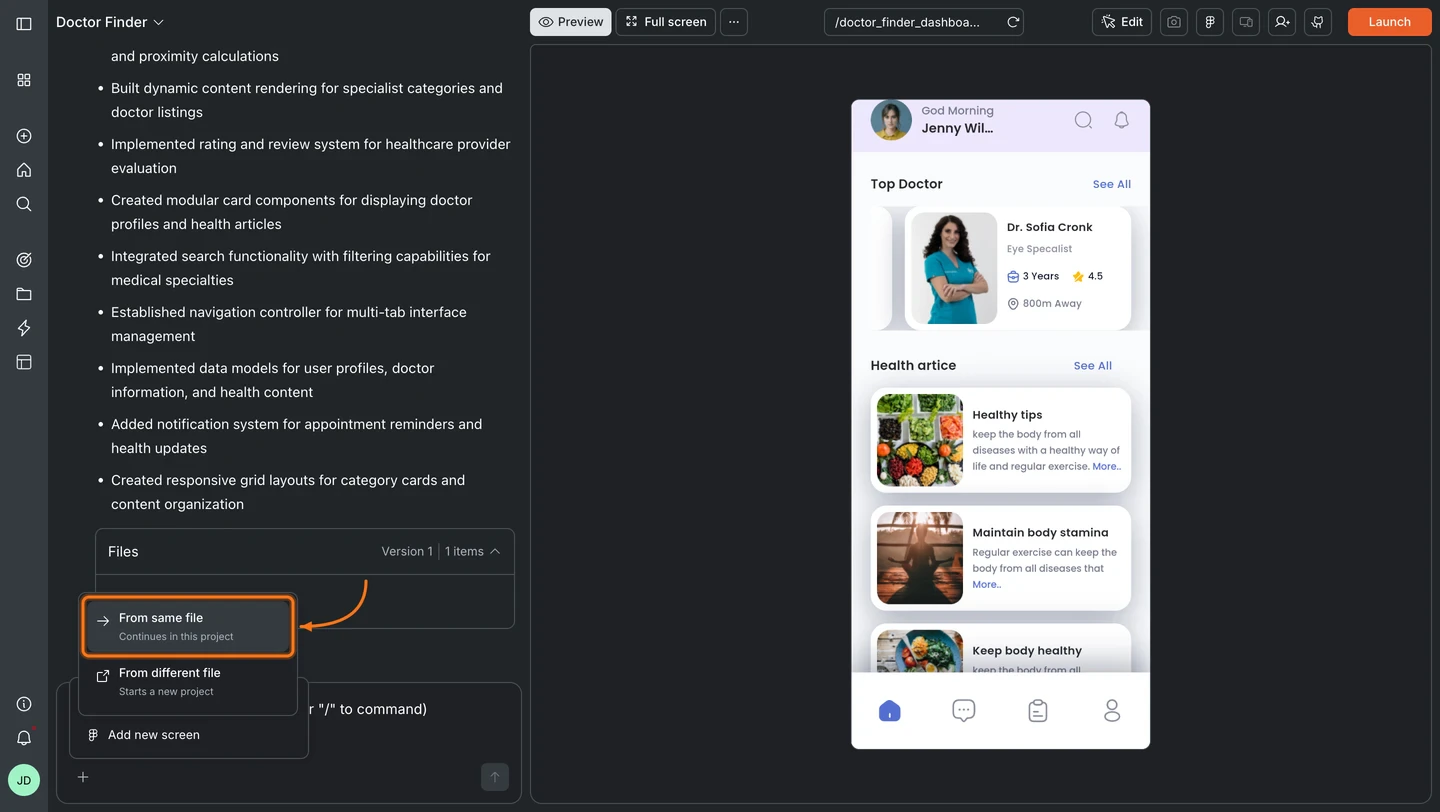
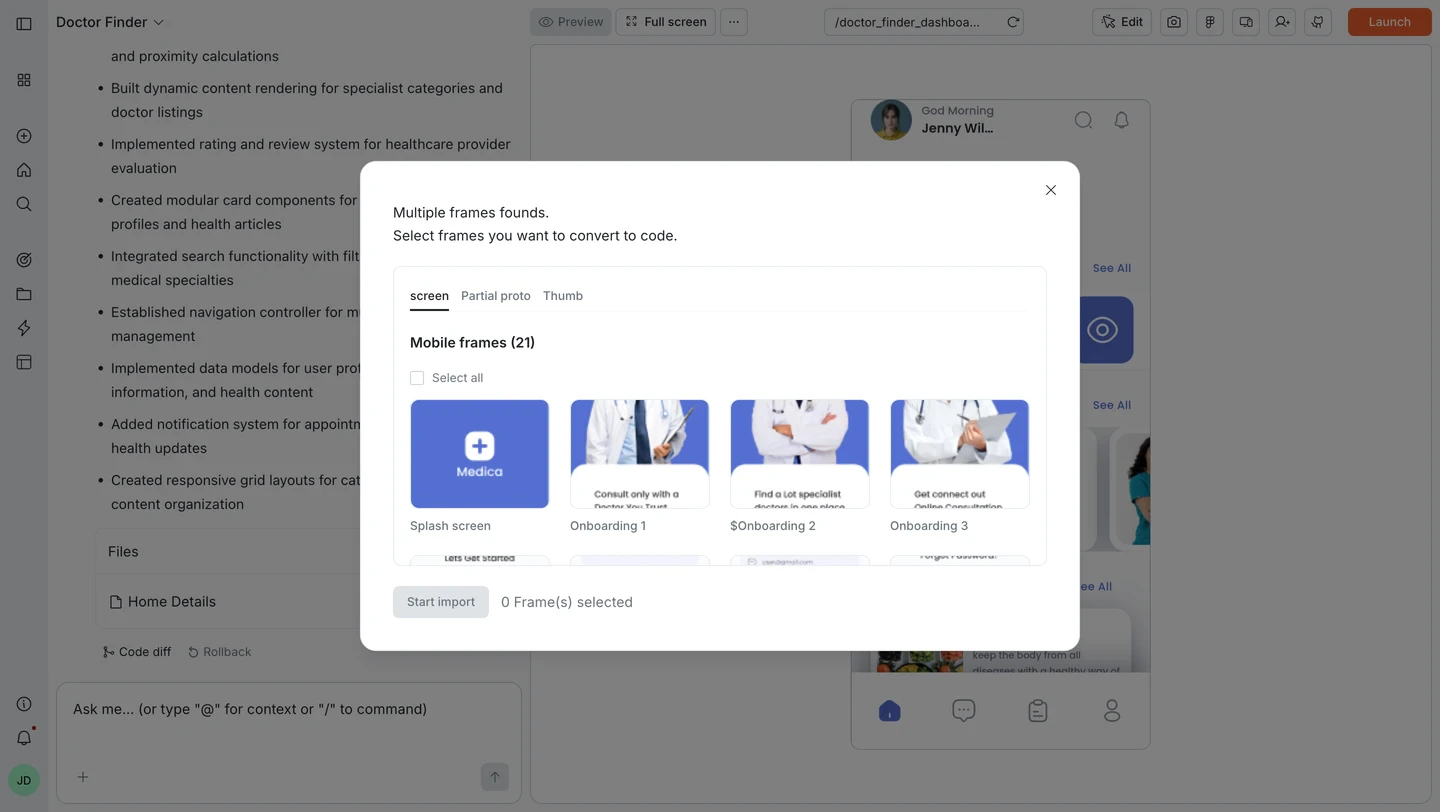
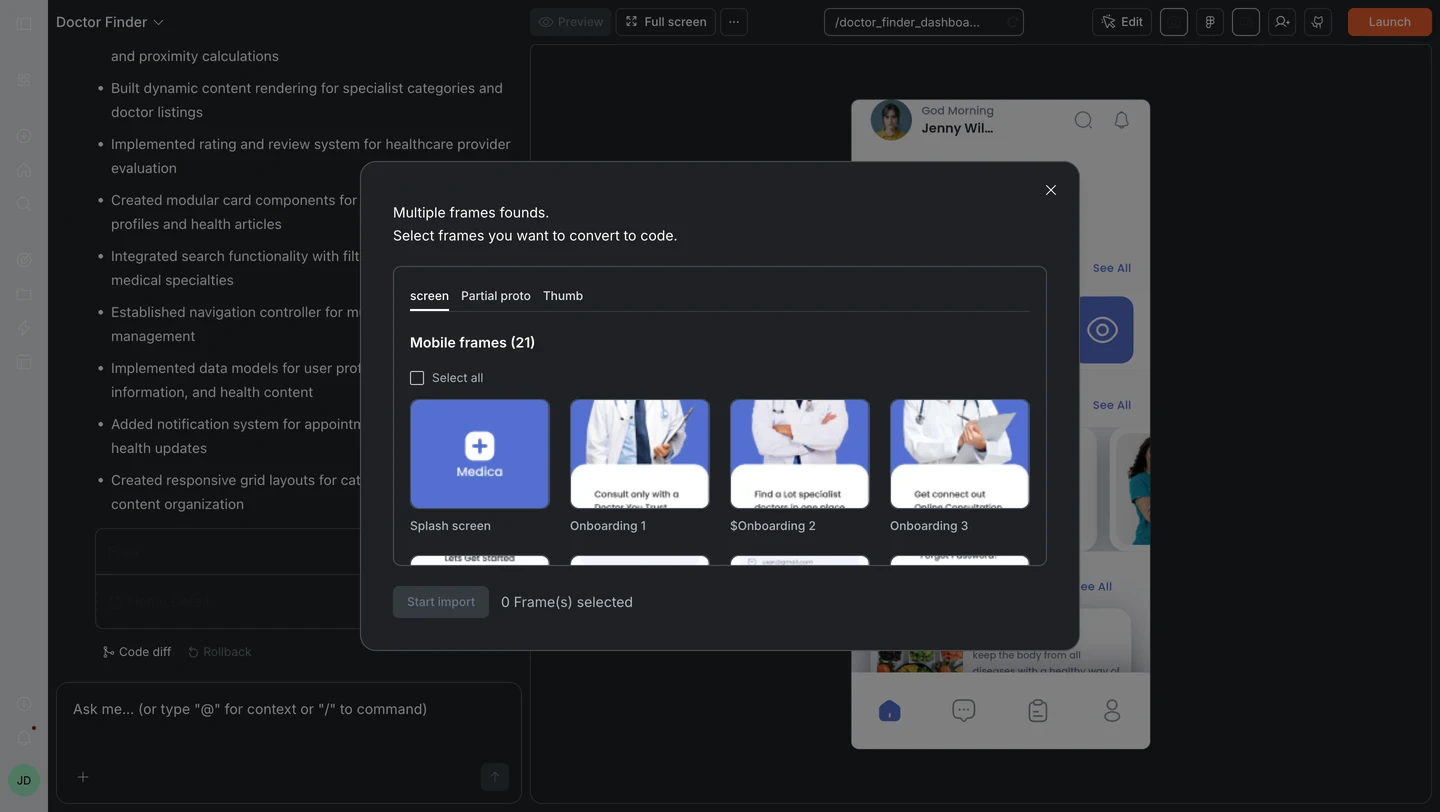
- From the same file: Select from the list of available screens (already-imported ones are marked) and click Start import.
- From a different file: Choose From different file, then paste a new Figma URL. This starts a new task. Your current task is not affected.
After your import
Once Rocket generates your Flutter app, iterate with chat to add functionality:| Goal | Prompt |
|---|---|
| Add navigation | Add a bottom tab bar with Home, Search, Favorites, and Profile tabs. |
| Connect a database | Connect Supabase and load the product list from a "products" table. |
| Add authentication | Add login and signup screens with email/password auth and a splash screen. |
| Fix visual differences | The card shadow is too dark. Match the shadow from my Figma design exactly. |
| Add animations | Add a slide-in animation when navigating between screens. |
| Push notifications | Connect Firebase and add push notification support for order updates. |
Tips
- Start with key screens. Import your most important 5-10 screens first, then add more incrementally.
- Choose the right state management. For simple apps, Provider or no state management works fine. For complex apps with lots of data flow, use BLoC or Riverpod.
- Use the Figma preview. Click the icon in the top-right navbar to view your original Figma design directly in Rocket. Use the Preview tab to see the Rocket-generated app.
- Fix visual mismatches in chat. If a shadow, spacing, or color does not match, describe the difference and Rocket corrects it.
- Follow the design guidelines. Mobile frames should be between 200px and 800px wide. See the guidelines.
- Prototype links do not work. Use file or frame URLs, not prototype links.
What’s next?
Iterate with chat
Refine your imported app with natural language prompts.
Connectors
Add payments, databases, AI, email, and analytics.
Preview on device
Test your Flutter app on real devices or emulators.
Submit to app stores
Publish your Flutter app to the App Store and Google Play.