

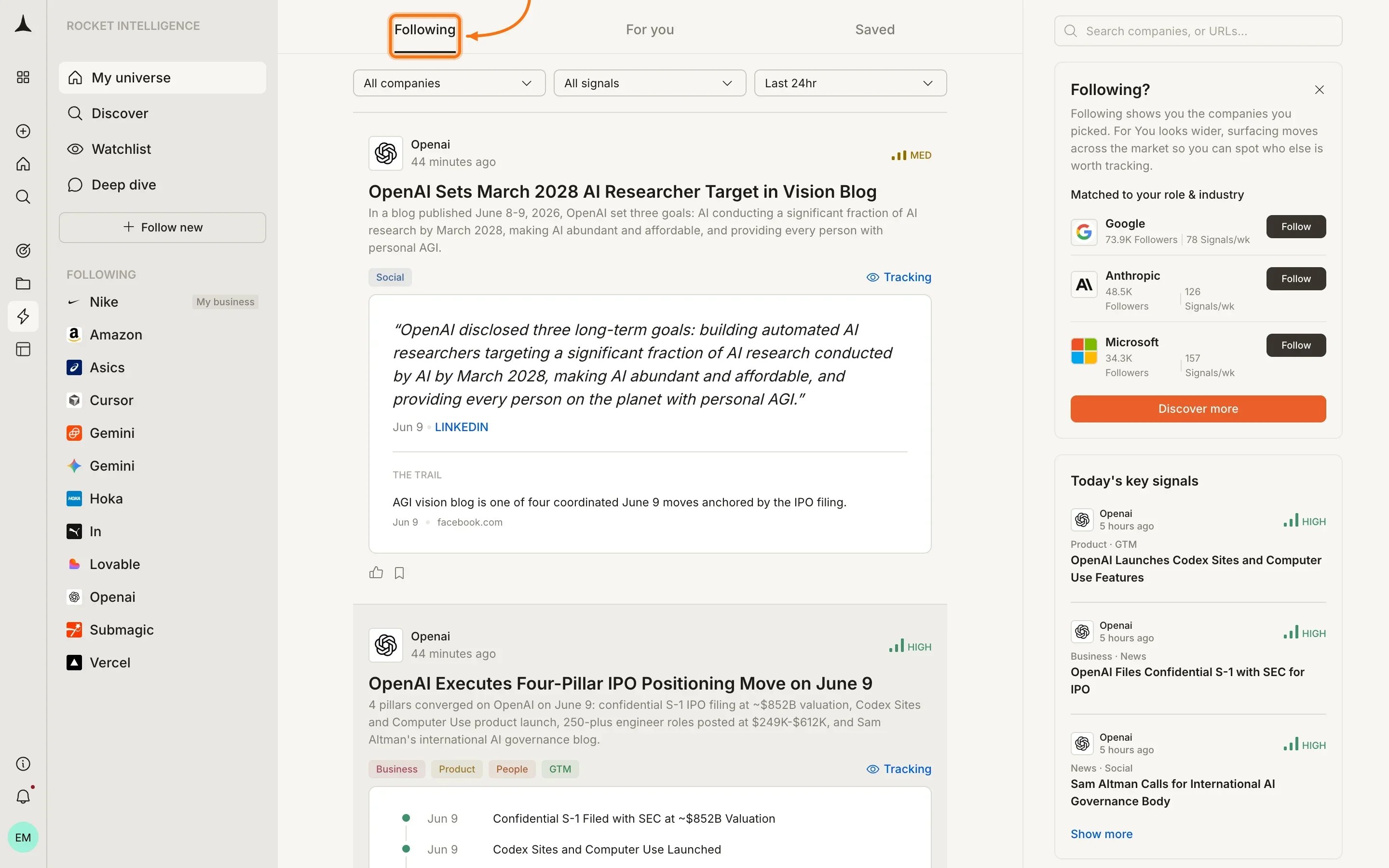
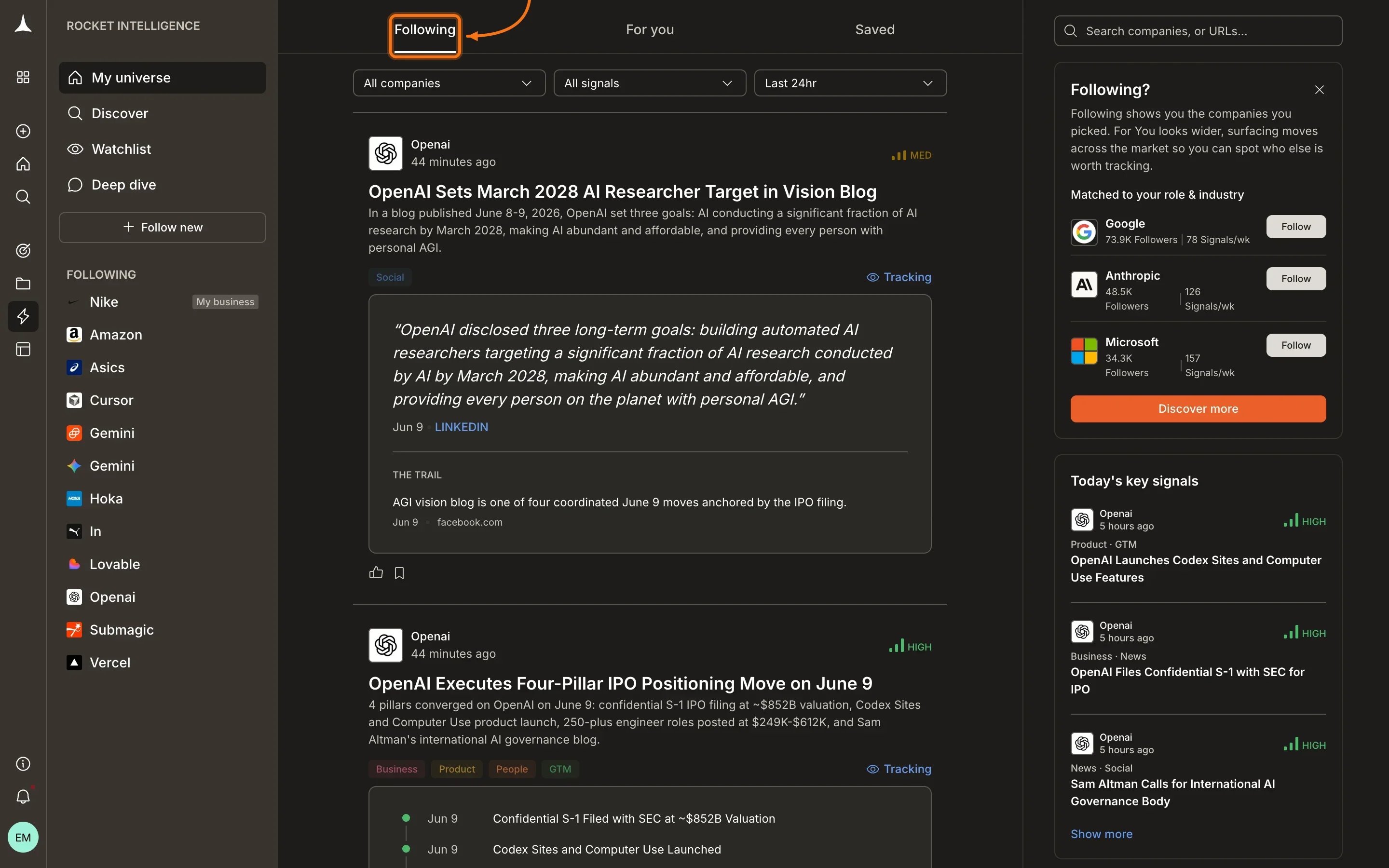
Layout
The Following feed is organized into three areas:- Header tabs: switch between For You, Following, and Saved
- Filter bar: narrow results by company, signal type, or time window (All companies | All signals | Last 24hr)
- Right sidebar: contextual nudges that change based on your current stage, such as prompts to follow companies, create a watchlist, or discover new signals
Intel cards
Each Intel card in your feed contains: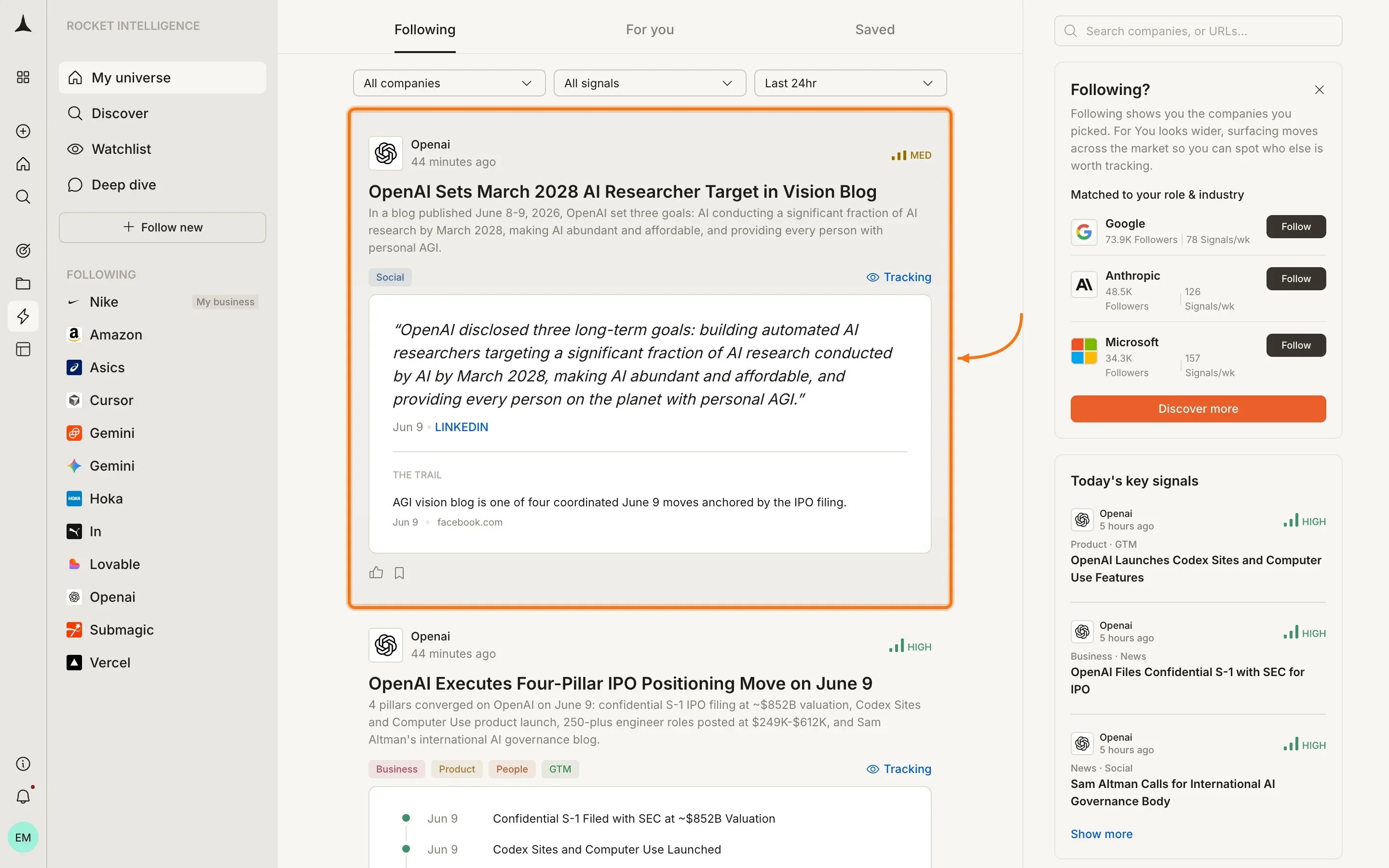
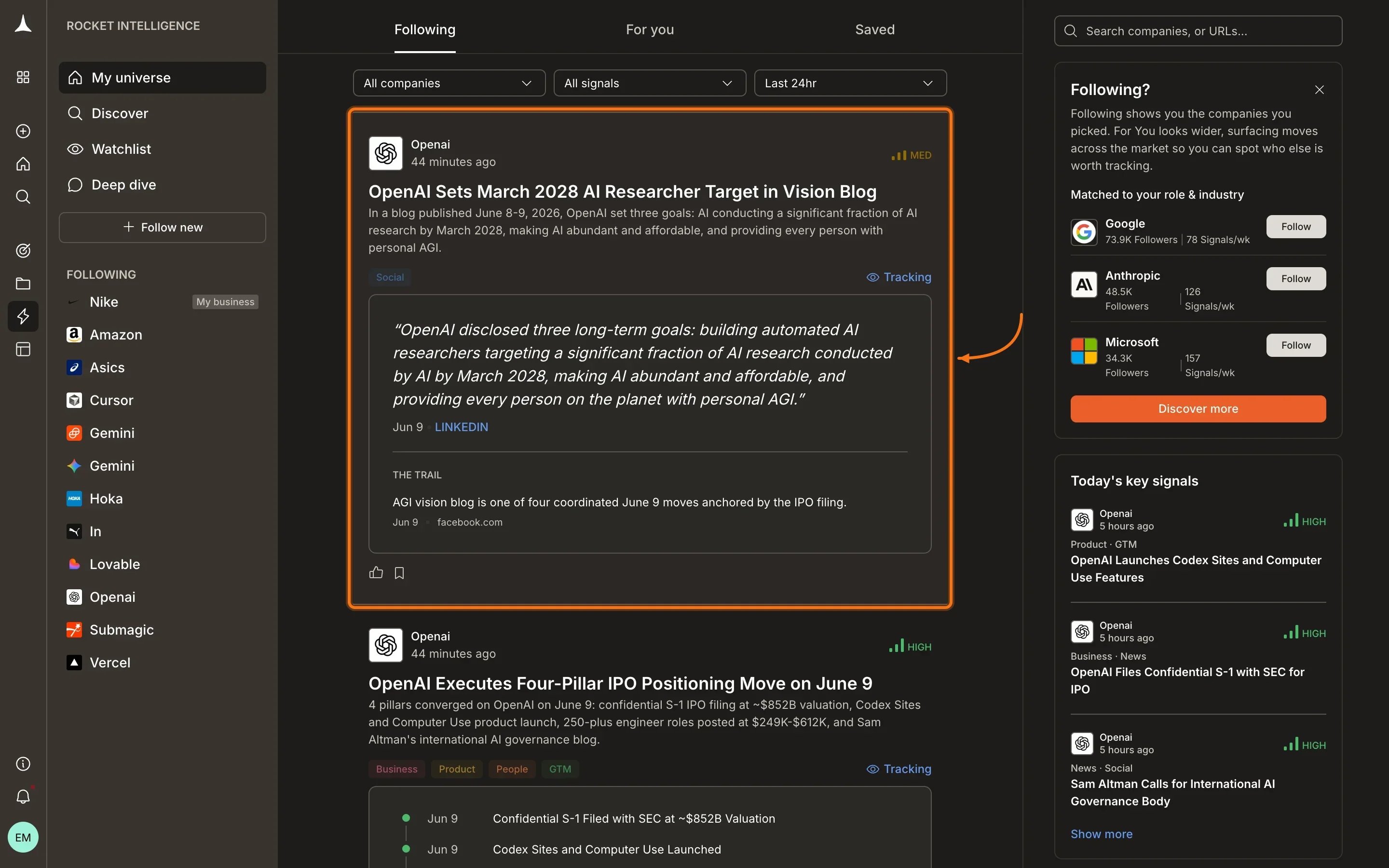
- Company name and timestamp at the top of the card
- Magnitude badge (High, Medium, or Low) indicating significance
- Headline summarizing the interpreted Intel
- Detail paragraph explaining what was detected and its broader context
- Pillar tags showing which pillars contributed (Business, News, GTM, etc.)
- “Tracking” link connecting this Intel to the lens you set for the company
- Quoted evidence: the raw source material supporting the interpretation
- The Trail section listing the evidence chain behind the Intel
- Thumbs up and bookmark icons for feedback and saving
- Magnitude: High-magnitude Intel surfaces first
- Your pins: pinned companies get priority
- Your lens: the reason you watch each company weights which signals matter more
- Your role: from your profile, used to prioritize signal types
Viewing pillar detail
Expanding an Intel card reveals deeper analysis including “What this means for you” and “What could make this wrong” sections. Click View pillars to open the full pillar navigation for that company.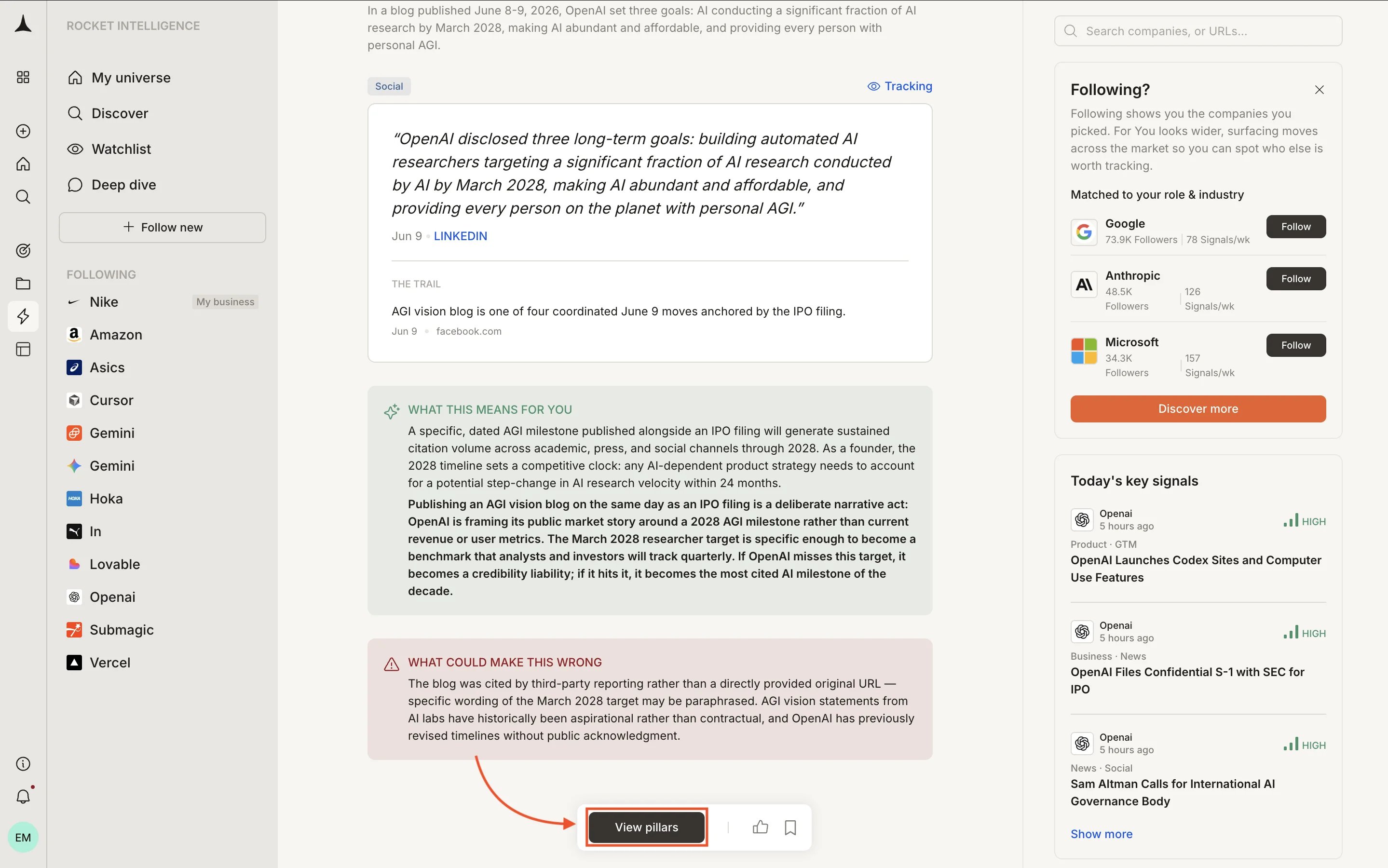
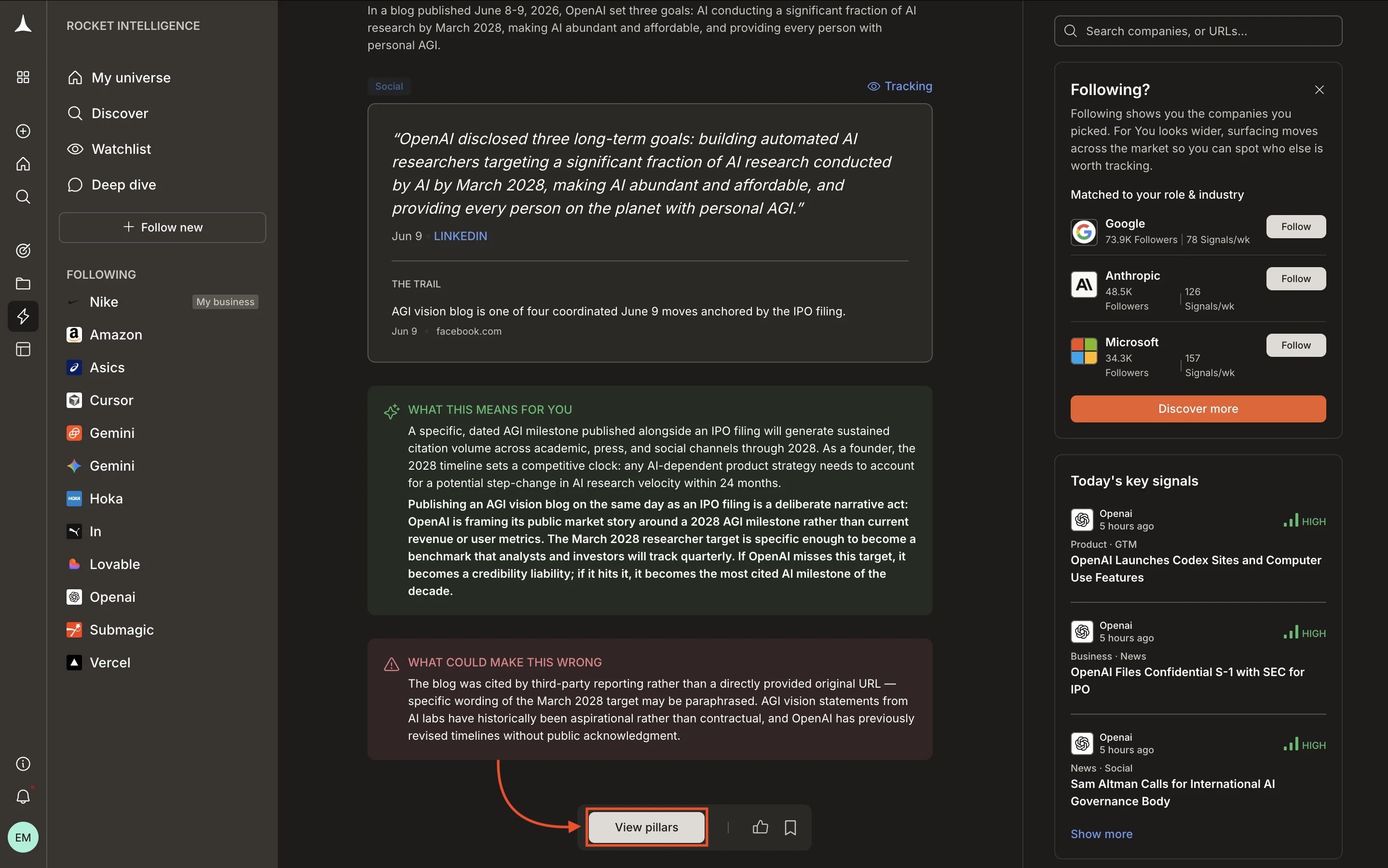
Expanded Intel detail with personalized analysis and the View pillars button.
Daily rhythm
The recommended way to use Following:1
Scan once daily
Spend 5 to 10 minutes reviewing what surfaced overnight. High-magnitude Intel appears at the top.
2
Read the personalized implication
Each Intel card includes a “What this means for you” section connecting the signal to your context.
3
Go deeper when needed
Click View pillars on any Intel card to open the company’s full pillar view and investigate further.
4
Act or note
Decide whether a signal needs a Solve task, a conversation with your team, or just awareness. Bookmark important Intel for later reference.
Empty state
If you have not followed any companies yet, Following shows a welcome message directing you to Discover to build your universe.Following only shows Intel from companies in your universe. For signals from companies you do not watch, check the For You feed.
What’s next
For You
Intel from outside your universe that matches your interests.
Saved
Your personal collection of bookmarked Intel.
Discover
Find and add companies to grow your universe.
Company pillars
Deep-dive into a specific company’s activity.