Publish your Rocket.new app to a staging URL to preview the live build, share it with reviewers, and validate everything before going public.
Rocket deploys your app to a staging URL where you can test and share it before going live. When you’re ready to publish to a real domain, connect a custom domain from the Production tab.
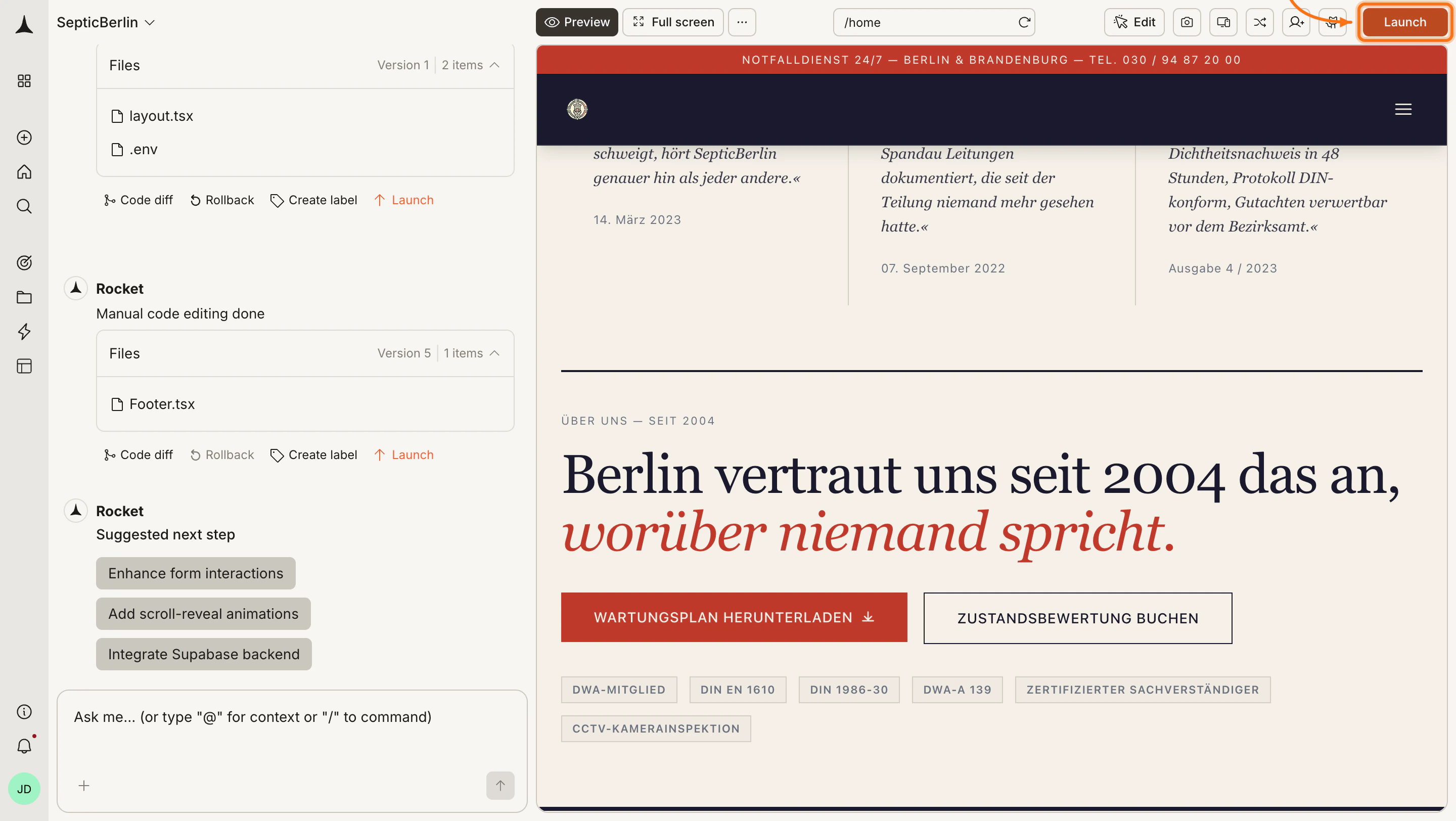
Open your task in Rocket and click the Launch button in the top-right corner.
Launch button in the top-right
2
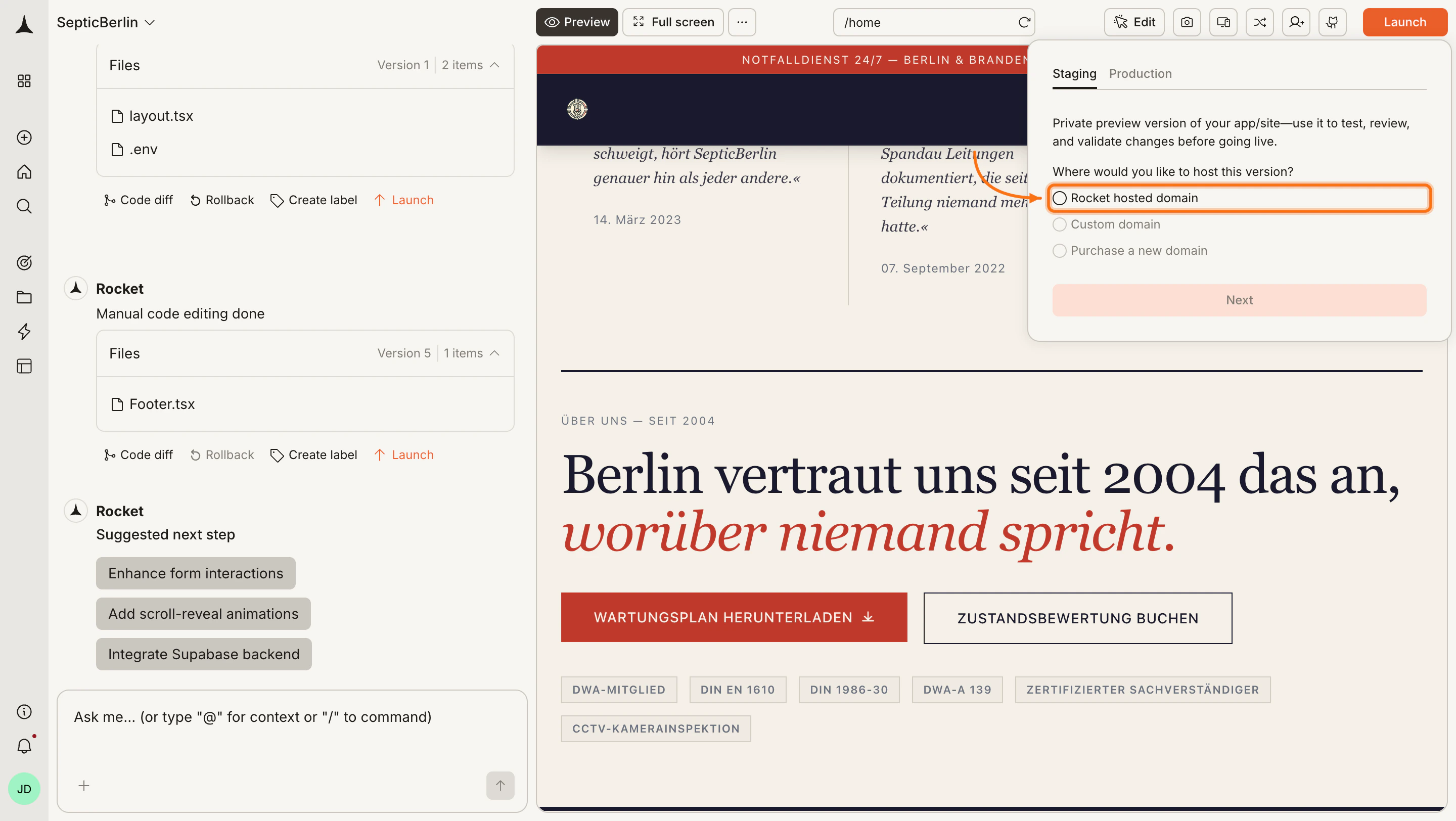
Go to the Staging tab and publish
The launch dialog opens with Staging and Production tabs. Stay on Staging and click Publish.You can also connect or purchase a custom domain directly from the Staging tab. See Custom domain and Buy a domain for details.
Launch dialog - Staging tab
Rocket uses a default Vercel account if you have not connected your own. You can connect your Netlify account to use your own.
3
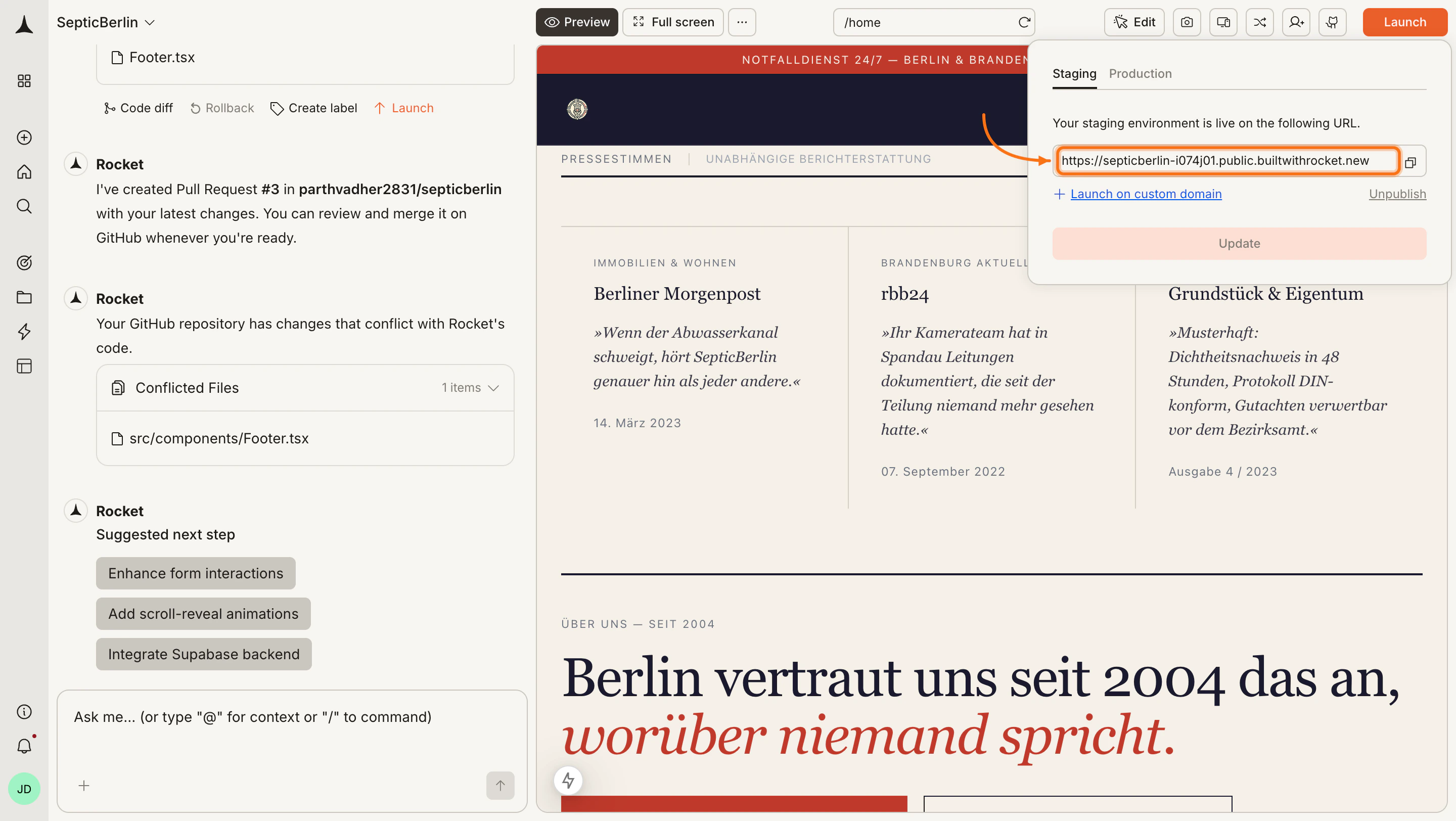
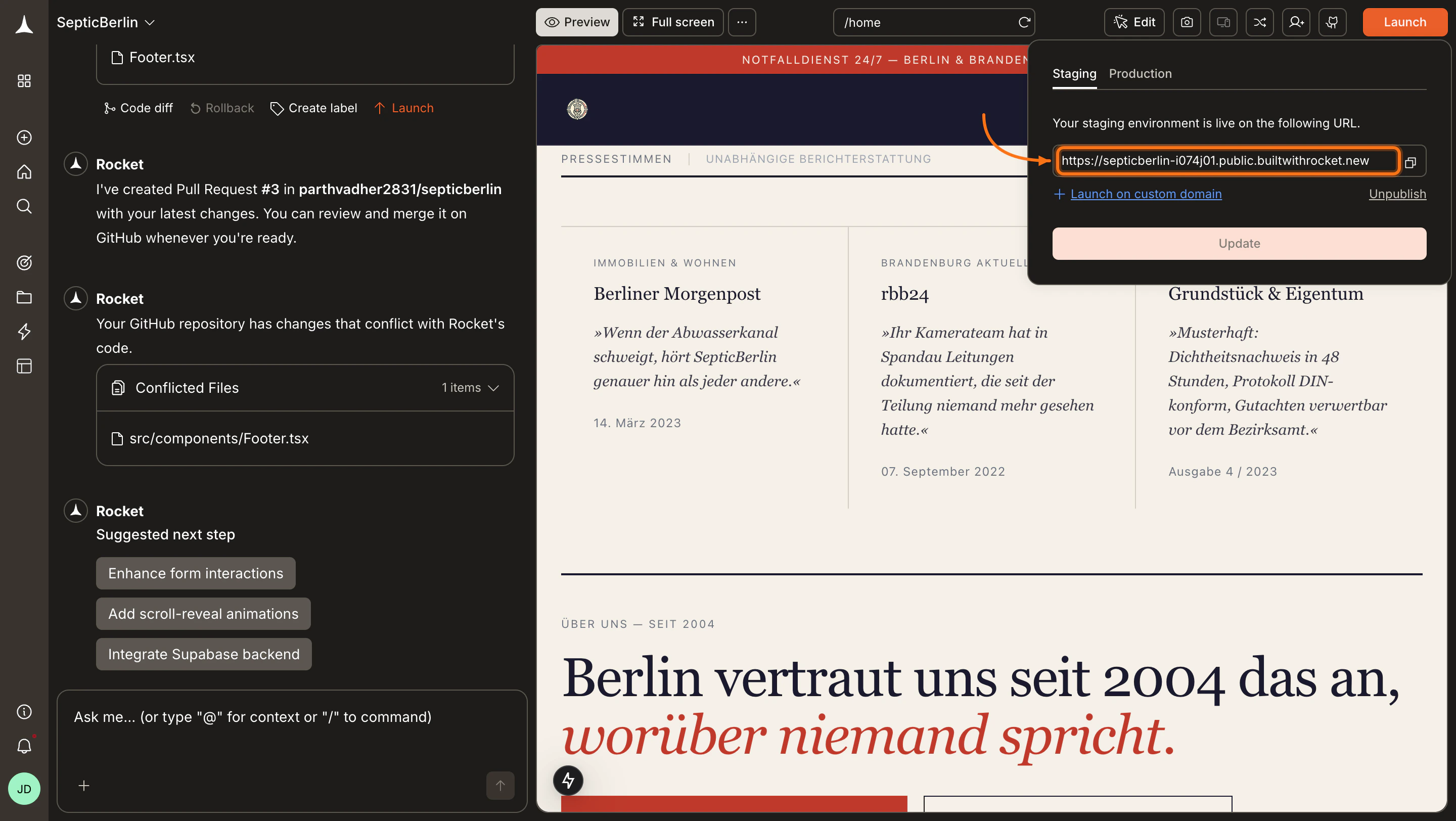
Your app is live on staging
When deployment finishes, you see your staging URL. Share it with teammates to collect feedback, or open it yourself to test.
Staging URL live with controls
Click Update any time to push your latest changes to the same URL. Staging has no version dropdown. It publishes the current build.
4
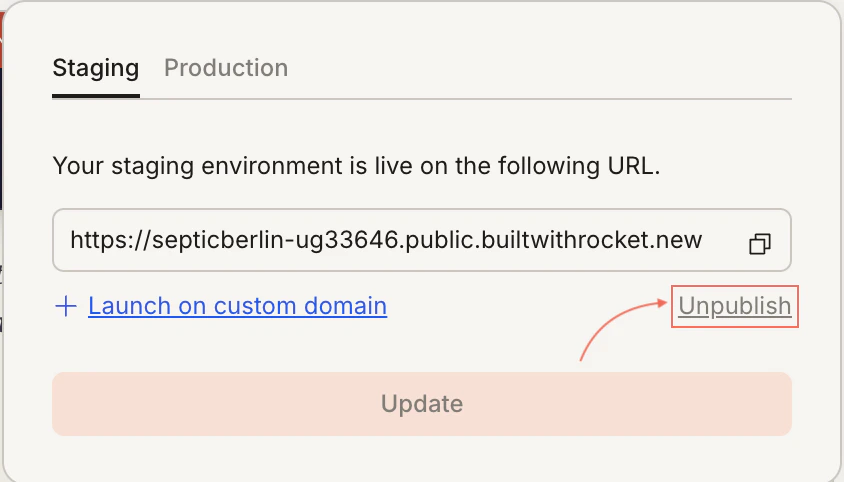
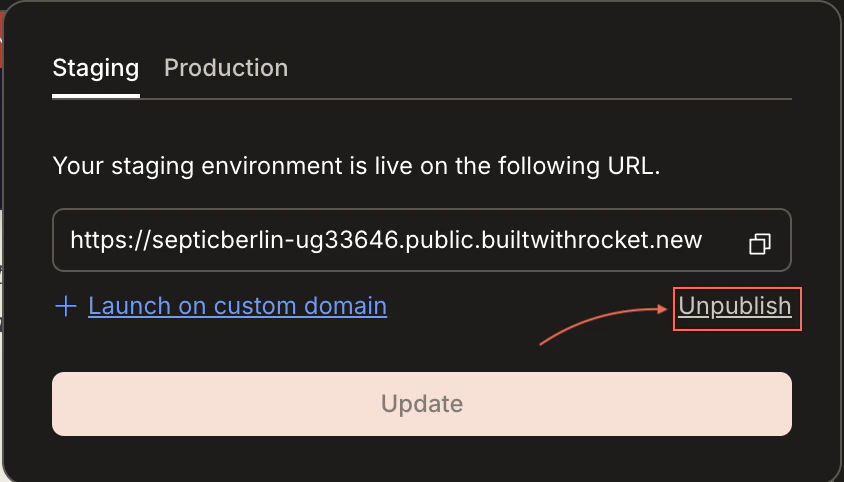
Unpublish if needed
Click Unpublish to take the staging URL offline. Unpublishing requires a paid plan (Pro or above).
Unpublish confirmation dialog
After unpublishing, the link stops working immediately. You can republish at any time.
Staging and Production keep separate environment variables. Before you update either one, open Settings, click Environment, and set values on the tab that matches the site you are updating.
Staging. Click Update on the Staging tab. There is no version number on this tab. Set values on the Staging tab in Environment settings first.
Production. The version dropdown is only on the Production tab. Select the version number you want live, then update. Set values on the Production tab in Environment settings first.
When testing is done, switch to the Production tab in the Launch dialog to connect a custom domain and publish your live app. The version dropdown on this tab is how you choose which version goes live.
Custom domain
Connect your own domain and publish to production.