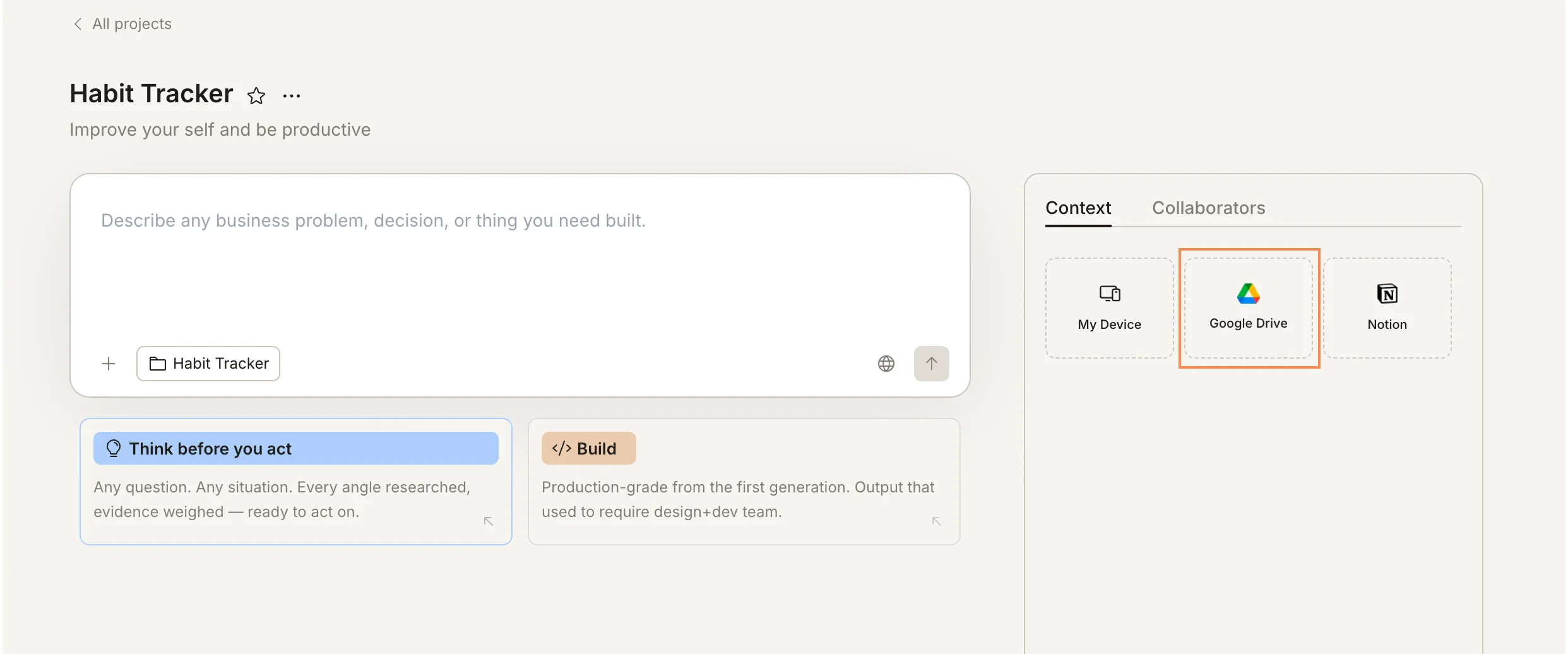
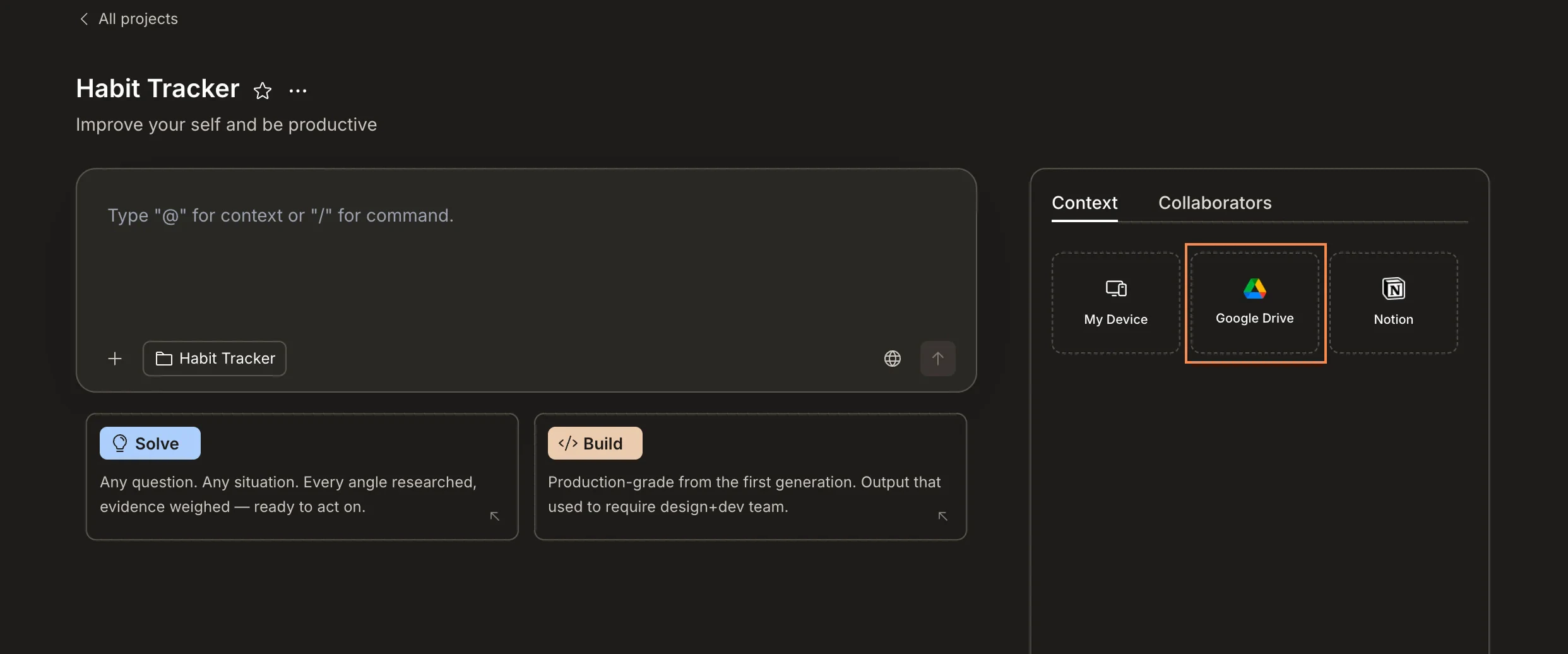
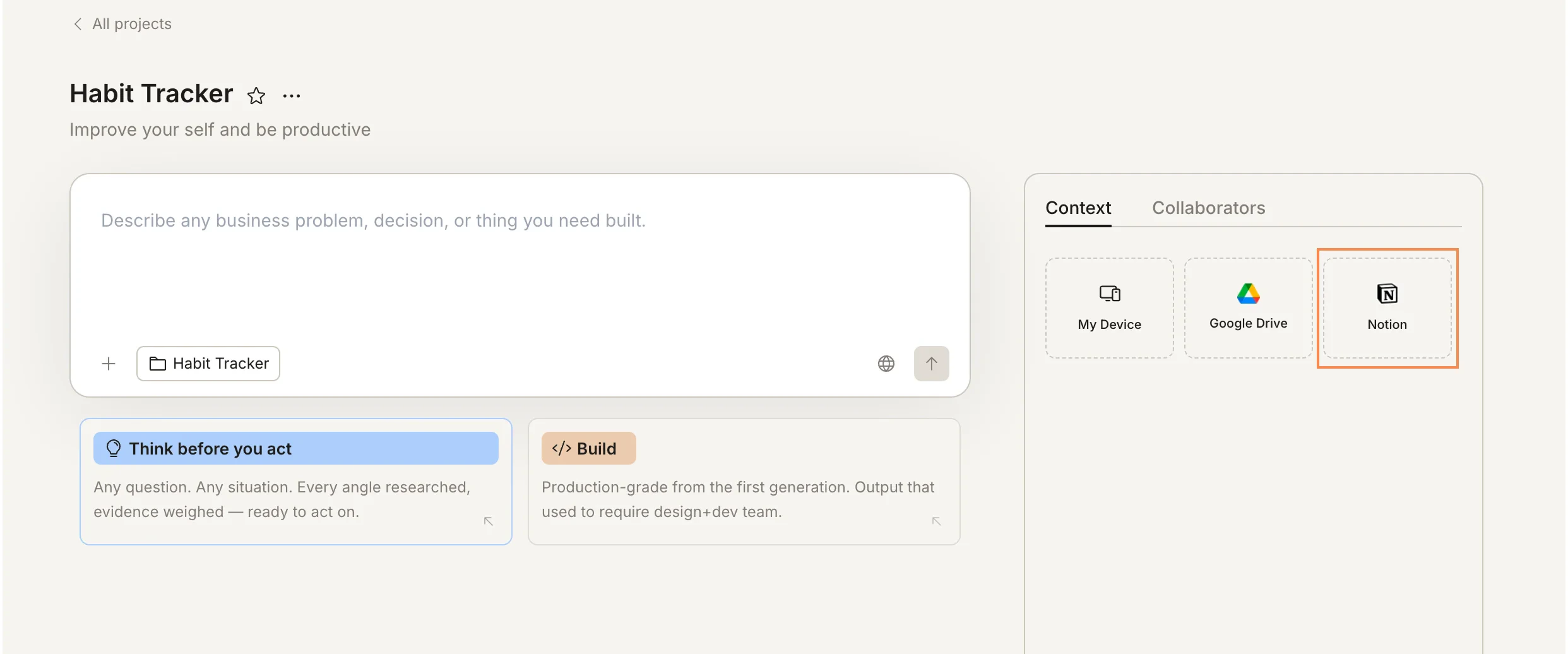
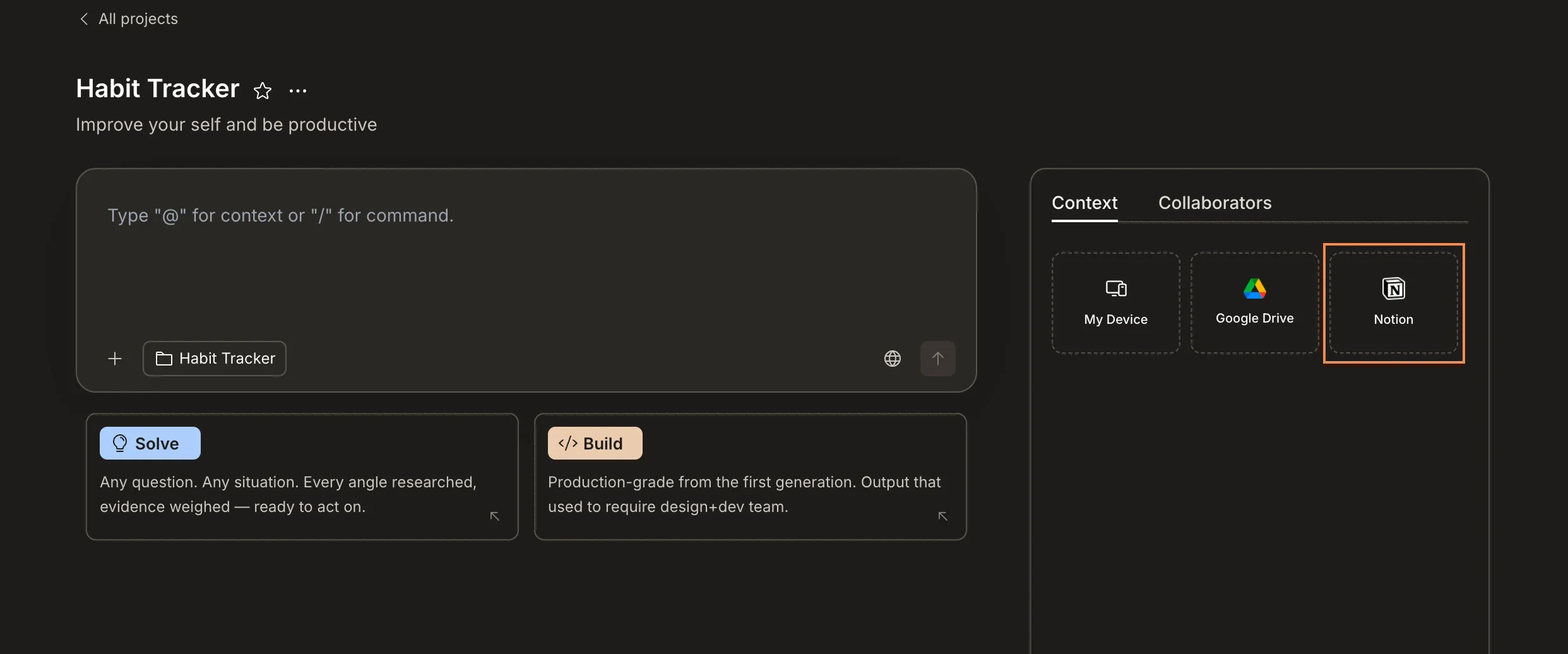
Connected services are different from integrations. Integrations add functionality to your Build tasks (like Stripe for payments or Supabase for databases). Connected services provide context - they give Rocket access to external documents and data that inform your work.
Supported services
Notion
Connect Notion pages and databases. Rocket reads your content to inform tasks with product specs, meeting notes, wikis, and more.
Google Docs
Link Google Docs to share briefs, proposals, research documents, and other written materials with your project.
Google Sheets
Connect spreadsheets with data, metrics, pricing models, or any structured information your tasks need.
More connected services are coming. Check the changelog for the latest additions.
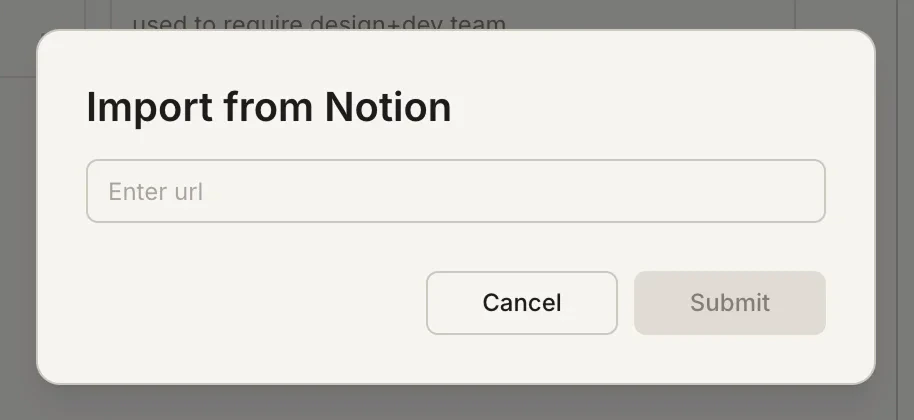
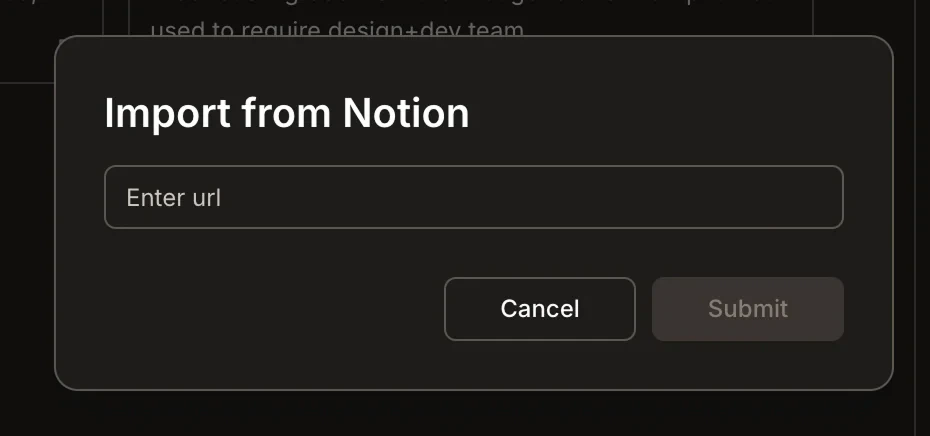
Connect Notion
Authorize access
Sign in to your Notion account and select the pages or databases you want to share with Rocket. Click Allow access.
Choose specific pages
Back in Rocket, select which Notion pages or databases should be available to this project. You can connect multiple pages.
Success check: Connected Notion pages appear in the Connected Services panel, and tasks can reference their content.
Connect Google Docs
Select Google Docs
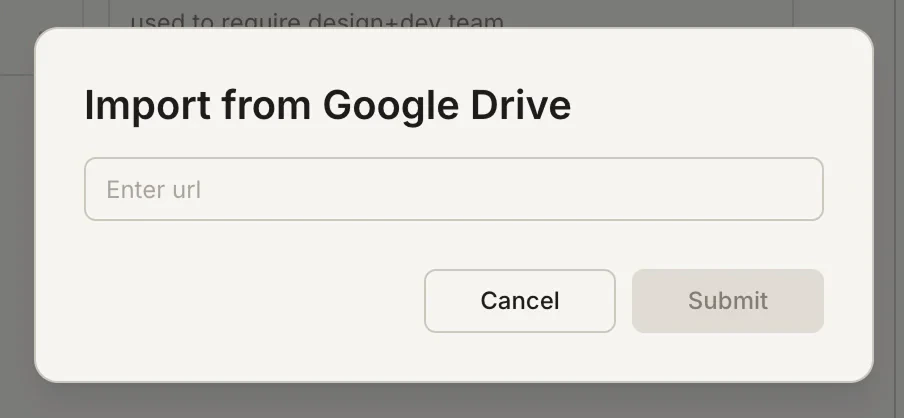
Click Connect next to Google Docs. You’ll be prompted to sign in with your Google account.
Authorize access
Grant Rocket read access to your Google Docs. Rocket only reads documents you explicitly select.
Select documents
Browse or search for the Google Docs you want to connect. Select one or more documents.
Connect Google Sheets
Select Google Sheets
Click Connect next to Google Sheets. Sign in with your Google account if not already connected.
Select spreadsheets
Browse or search for the Google Sheets you want to connect. You can select specific sheets within a spreadsheet if needed.
How connected context enriches tasks
Once a service is connected, Rocket reads the linked content and makes it available as context for every task in the project. Here’s how this works in practice:Solve tasks use connected context for richer analysis
Solve tasks use connected context for richer analysis
If your Notion workspace contains a product requirements doc, a Solve task asking “What pricing model should we use?” can reference your product details, target audience, and feature list directly from Notion - without you re-describing them.
Build tasks use connected context for accurate implementation
A Google Doc with a detailed product brief means your Build task produces an app that matches the spec from the start. Rocket reads the brief and structures the app accordingly.
Spreadsheet data informs data-driven work
Connect a Google Sheet with competitor pricing data, and your Solve task can analyze it directly. Connect a sheet with product metrics, and your Build task can create dashboards that reflect real numbers.
Connected services provide read-only access. Rocket reads content from these services but does not write back to them or modify your external documents.
Manage connections
View active connections
Open Project settings → Connected services to see all active connections for the project. Each connection shows the service name, connected items, and when it was last synced.Update connected items
To add or remove specific pages, documents, or sheets from a connection:- Open Project settings → Connected services.
- Click the connection you want to modify.
- Add or remove individual items.
- Click Save.
Disconnect a service
To fully remove a service connection:- Open Project settings → Connected services.
- Click Disconnect next to the service.
- Confirm the disconnection.
What’s next?
Share files
Upload files directly to your project for additional context.
Context flow
Understand how connected services fit into the broader context flow.
Integrations
Add functional integrations like Stripe, Supabase, and analytics to Build tasks.
Project collaboration
Invite team members who share access to connected services.