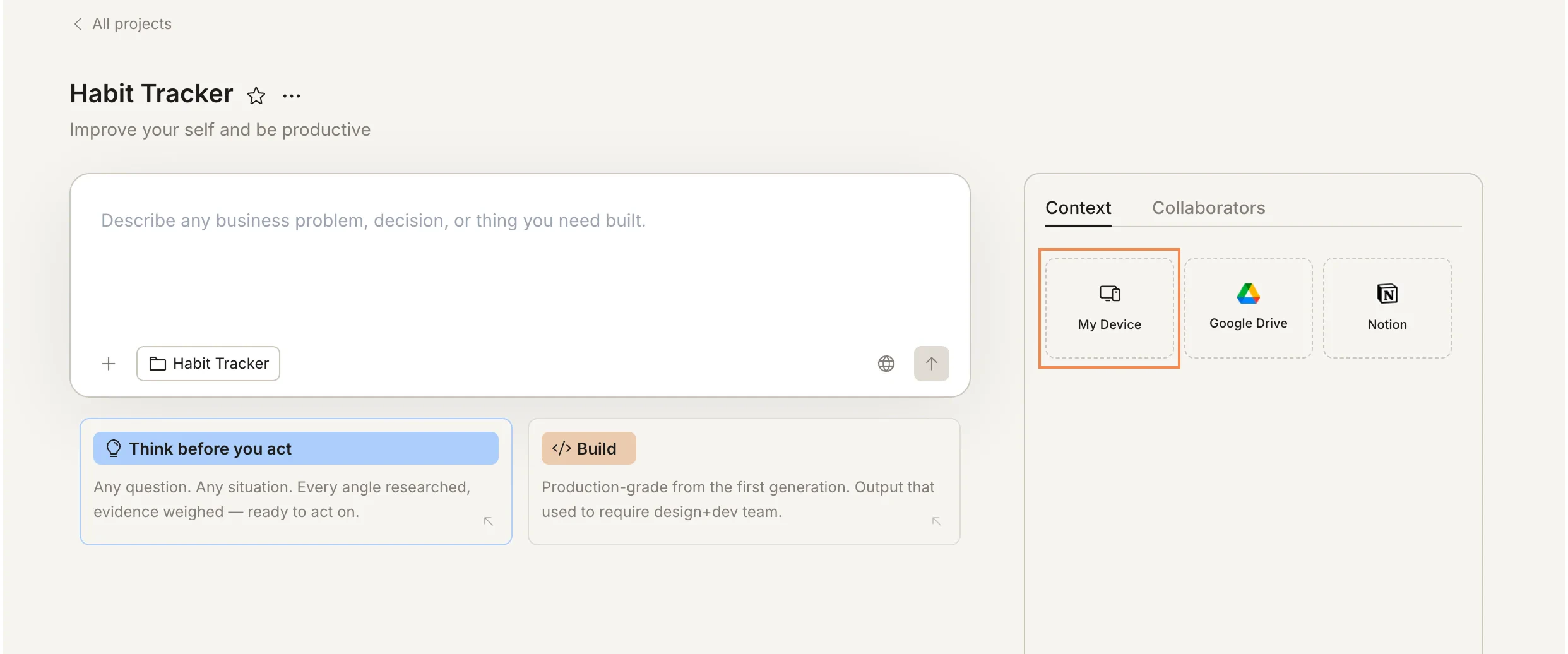
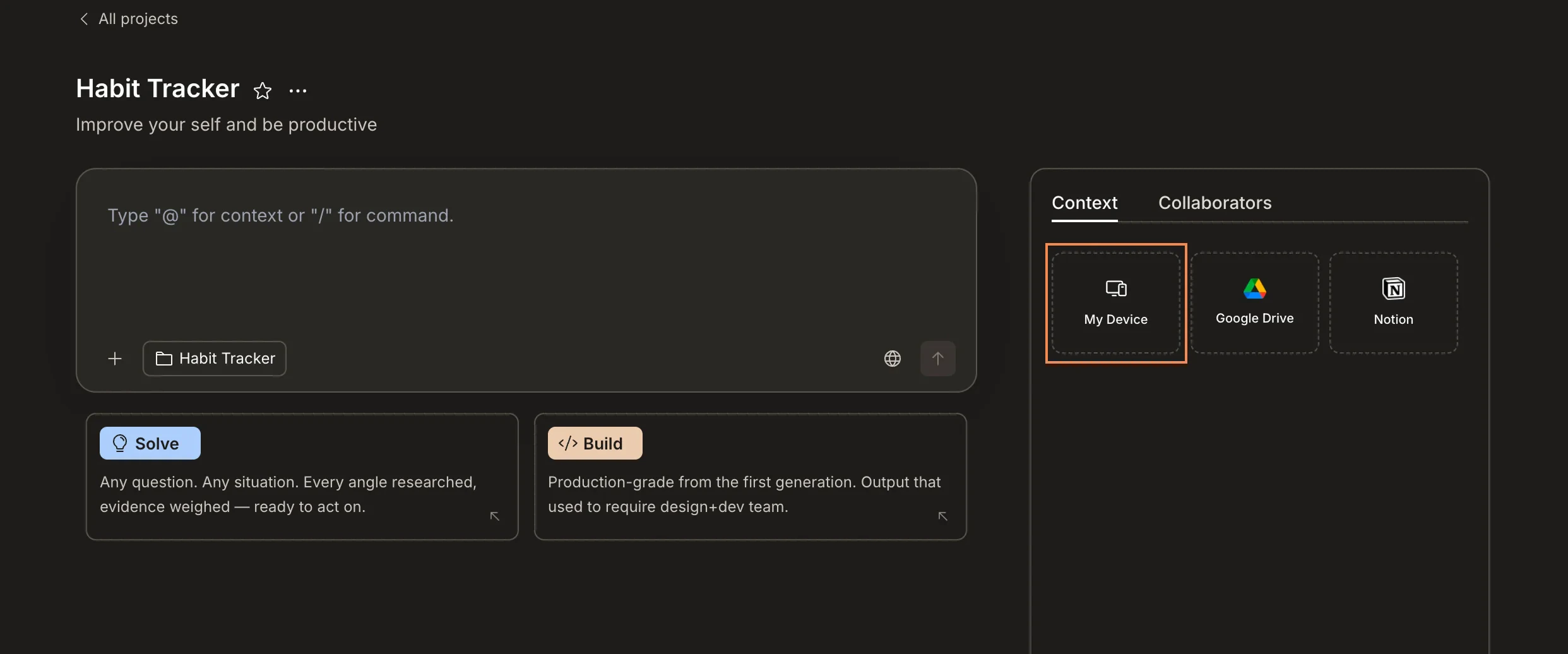
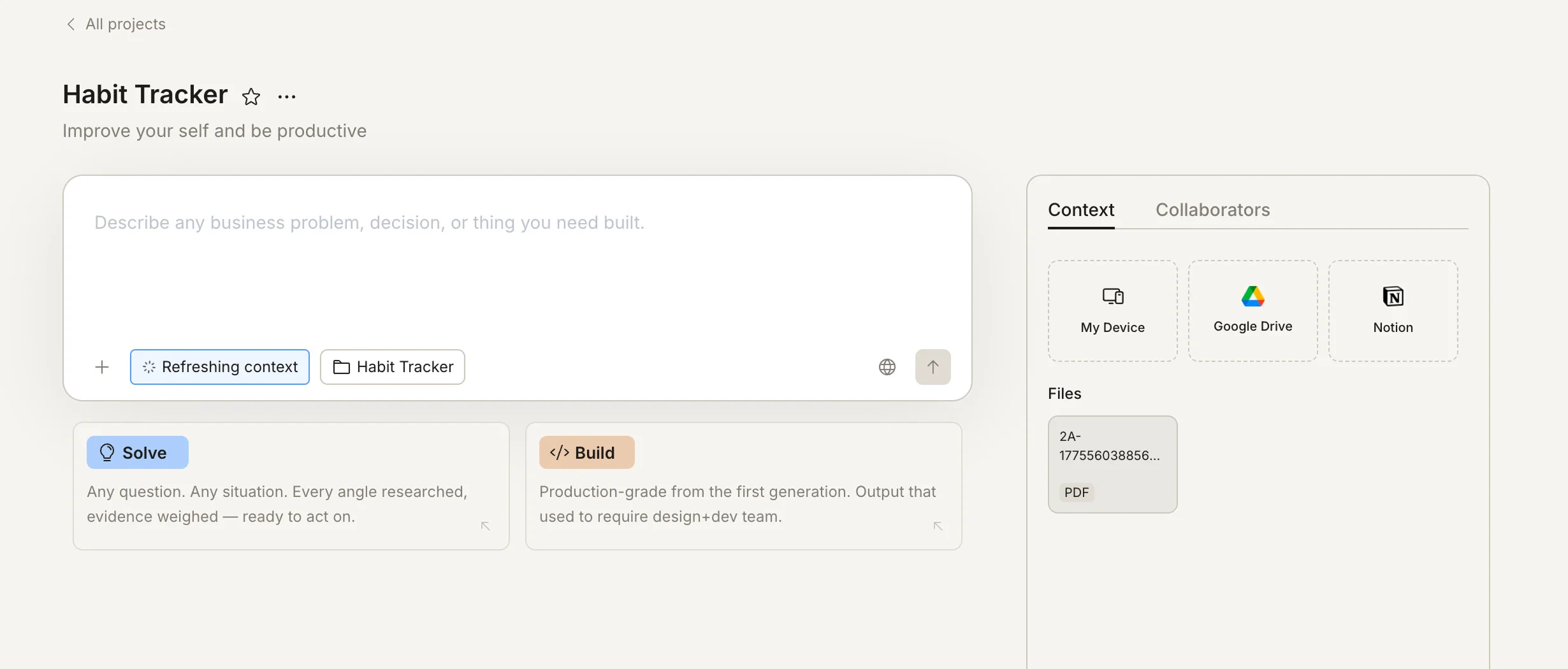
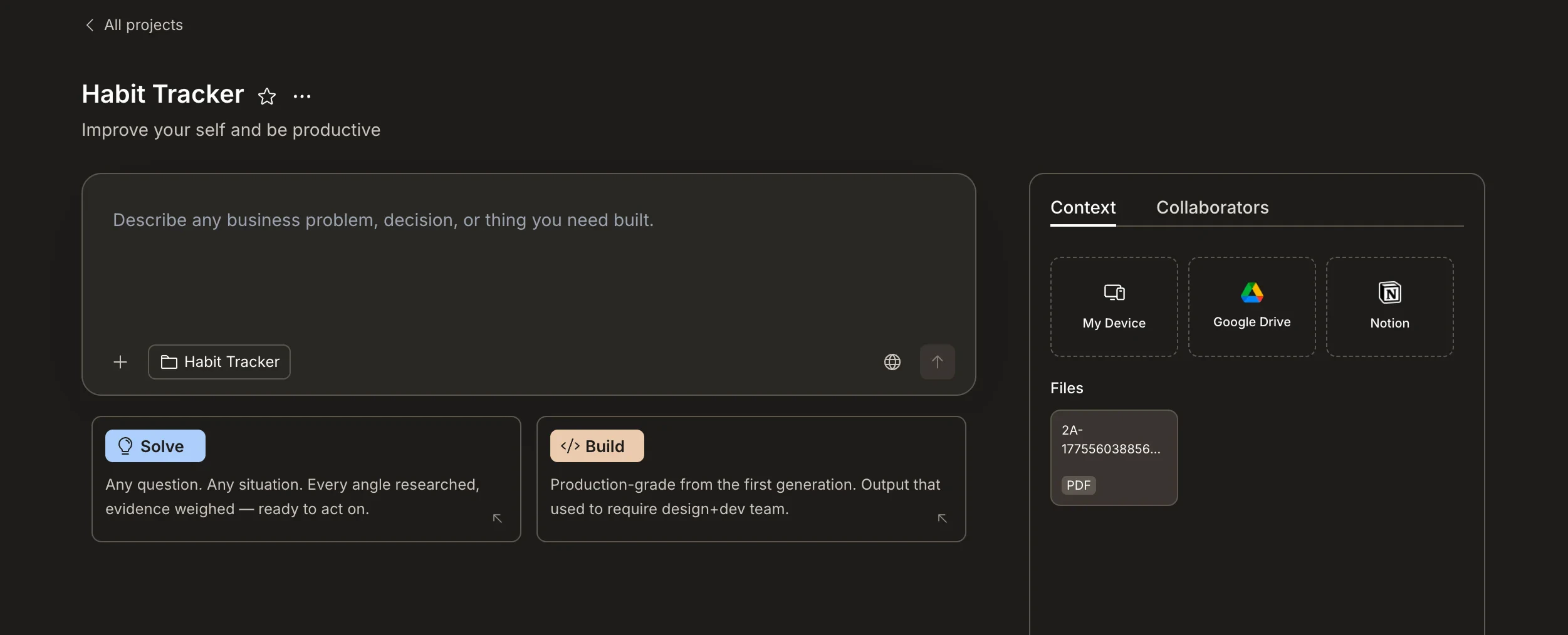
Upload your reference files to a project once and they become persistent context for every task inside it. Company overview, financial model, brand guidelines, research data - whatever your work depends on, it’s available from the first message in every task.
Project files vs task files: Files uploaded directly inside a task are disposable - they exist only for that conversation. Files uploaded at the project level are persistent - they’re available to every task in the project, automatically, without being re-uploaded or re-explained.

What to upload

Upload anything that provides lasting context for your work on this initiative. The best project files are things you’d otherwise paste or re-explain in every task.
File typeExamples
Company contextCompany deck, one-pager, mission/strategy doc
Financial dataP&L, financial model, cap table (.xlsx, .csv)
ResearchMarket reports, competitor teardowns, user interviews (.pdf)
Brand assetsBrand guidelines, logo usage, design system
Product specsPRD, feature specs, user stories (.pdf, .md)
Reference dataPricing data, industry benchmarks, customer data exports
You don’t need to upload everything upfront. Start with the files you’d reach for most often, and add more as the project evolves.

Upload files to a project

1

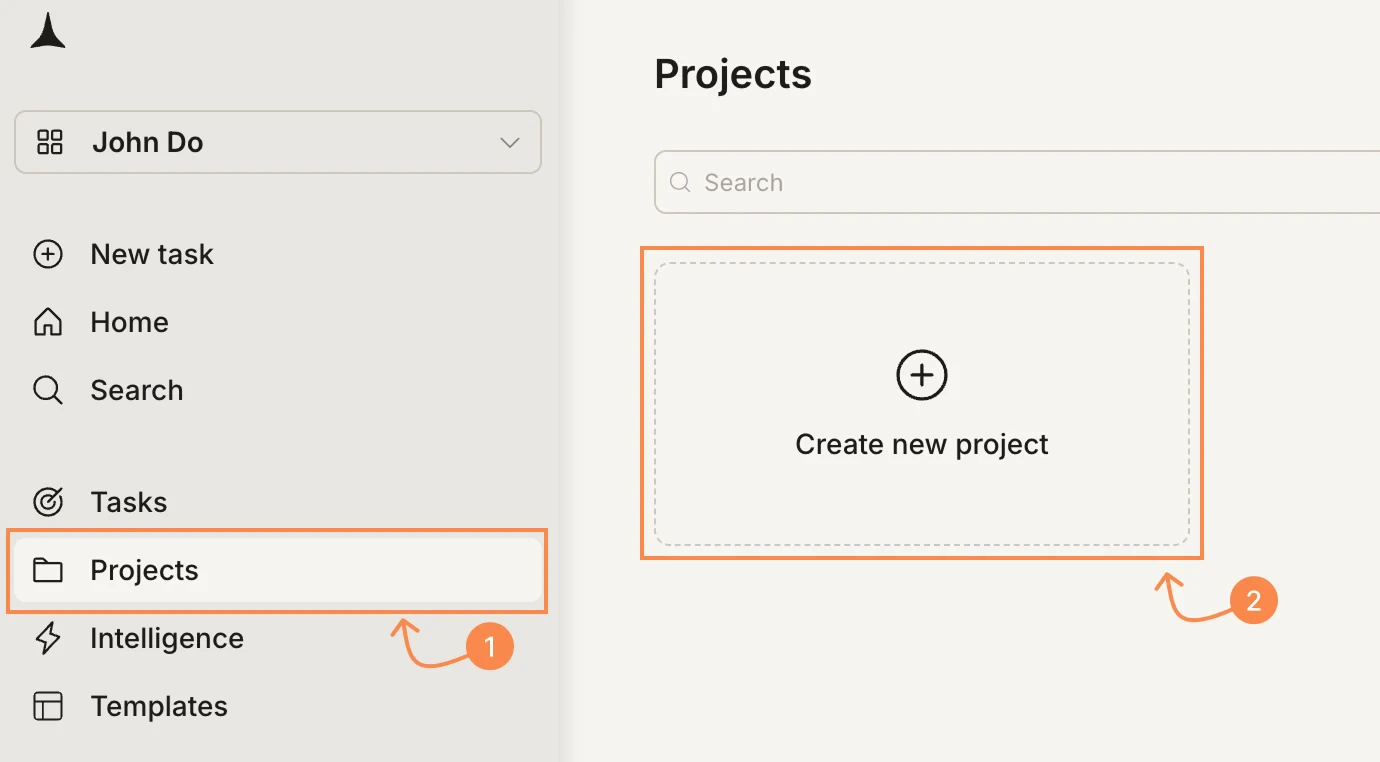
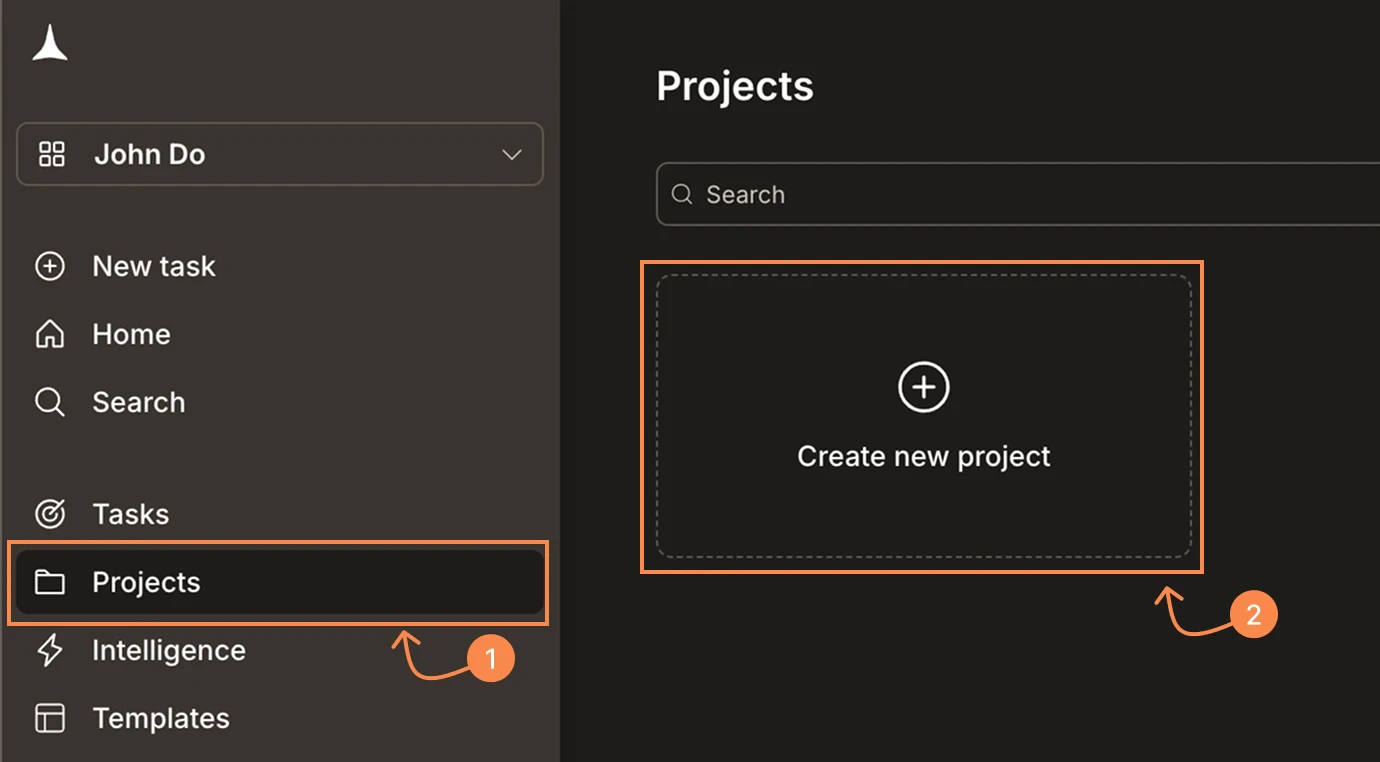
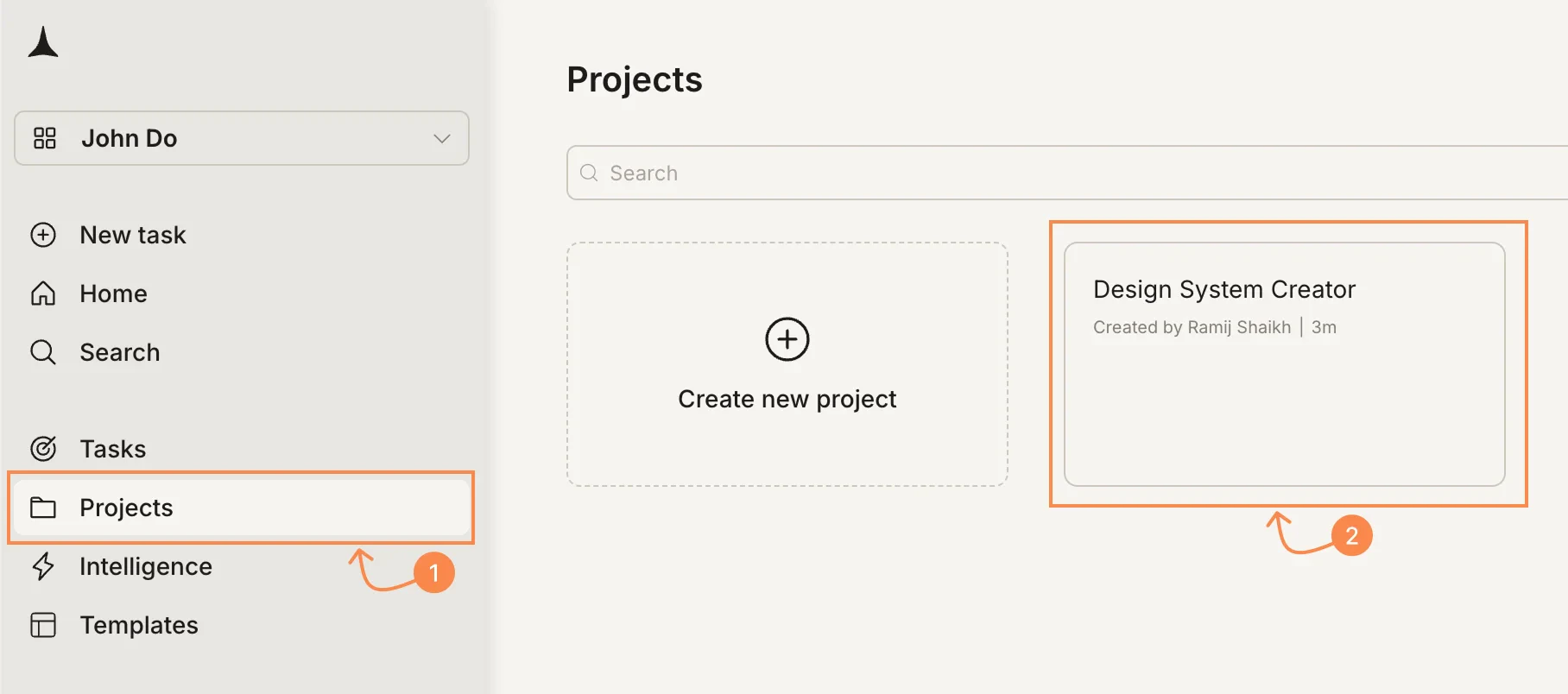
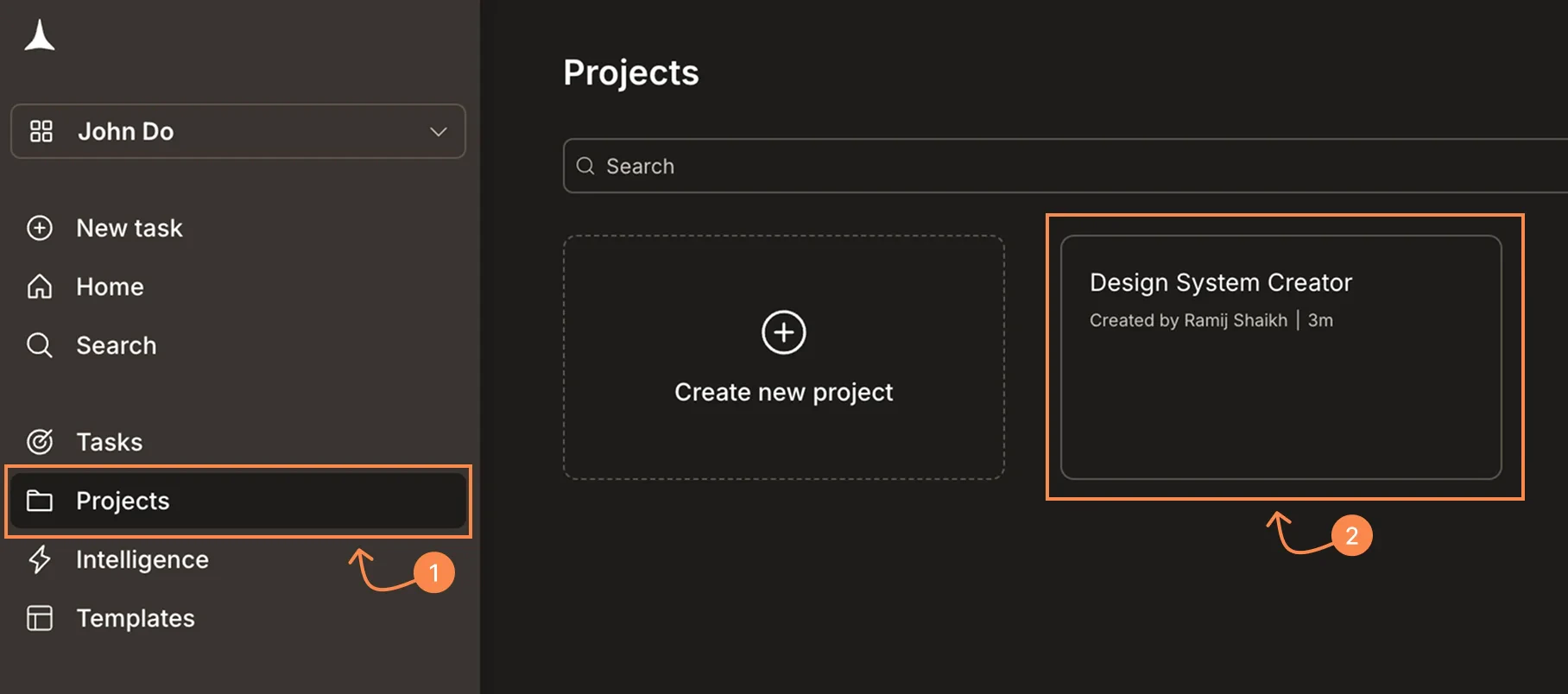
Open your project

Navigate to the project where you want to upload files.
2

Open the files panel

Click the Files tab in the project sidebar. This shows all files currently shared across the project.
3

Upload your files

Click Upload or drag and drop files into the panel. You can upload multiple files at once.
4

Confirm upload

Files appear in the panel once uploaded. They’re immediately available to all tasks in the project.
Success check: Uploaded files appear in the project files panel and can be referenced from any task.

Supported file types

Rocket natively understands five file formats. These aren’t treated as plain text dumps - each format is parsed for its structure, relationships, and meaning.
FormatWhat Rocket understands
PDF (.pdf)Full text extraction, document structure, headings, tables, images, and page layout
Excel (.xlsx, .xls)Multi-sheet workbooks, formulas, cross-sheet dependencies, charts, merged cells, and comments
CSV (.csv)Column structure, data types, and row relationships
Markdown (.md)Headings, sections, code blocks, tables, and links
Images (.png, .jpg, .jpeg, .webp, .gif, .svg)Visual content, embedded text, diagrams, and UI layouts
Word documents (.doc, .docx) and rich text files (.rtf) are also supported. Google Sheets and Notion pages can be connected as live sources via connected services.

How Rocket reads files

Most AI tools perform flat text extraction - they strip a file down to raw text and discard everything else. Structure, formulas, cross-references, and visual elements are lost in translation. Rocket performs deep structural parsing. It doesn’t just read what a file says - it understands how it’s organized, how parts relate to each other, and what the data means.
Excel is where most business decisions live - financial models, operational dashboards, planning templates, data exports. Rocket understands the full complexity of a spreadsheet, not just the cell values.Multi-sheet workbooks: Rocket reads all sheets in a workbook together, including hidden sheets. A 15-sheet financial model is understood as one interconnected workbook, not 15 disconnected tables.Formulas: Rocket identifies every formula, extracts the expression, and knows its evaluated result. It understands that a cell showing 450,000 is actually =SUM(D2:D11) - both the logic and the output are available.Cross-sheet dependencies: When a formula references another sheet, Rocket maps that relationship. If Sheet 3’s projections are driven by assumptions on Sheet 1, Rocket knows the direction of that dependency and can trace it.Merged cells: Merged headers that span columns are read correctly as headers, not as empty adjacent cells.Charts: Embedded charts are detected with their type, title, and underlying data source ranges. A revenue trend chart isn’t a black box - Rocket knows what data it’s visualizing.Cell comments: Analyst notes, review flags, and assumption explanations embedded as comments are extracted and surfaced alongside their cell location.Hyperlinks and embedded images: Cells containing links or embedded images are recognized, with their location and content captured.Structural summary: Before using any data, Rocket can generate a structural map of the workbook - which sheet does what, how data flows between them, and where the key inputs and outputs are.
Rocket extracts full text with preserved document structure: headings, sections, tables, and reading order. Embedded images within PDFs are analyzed visually, not skipped. This means a PDF financial report with tables and charts is understood as a structured document, not a wall of text.
Rocket reads column headers, infers data types per column, and understands row-level relationships. Multi-column datasets with mixed types (text, numbers, dates) are parsed correctly without needing a schema explanation.
Rocket respects Markdown structure: headings define sections, code blocks are treated as code, tables retain their columns, and links are recognized. A spec written in Markdown is understood as a structured document with hierarchy.
Rocket analyzes image content visually. This covers embedded text (screenshots, scanned documents), diagrams and flowcharts, UI mockups and wireframes, and charts. You can upload a competitor’s screenshot or a hand-drawn wireframe and reference it directly in a prompt.

File size limits

PlanMax file sizeMax total storage per project
Free10 MB per file100 MB
Personal50 MB per file500 MB
Rocket50 MB per file1 GB
Booster100 MB per file5 GB
These limits apply to project-level shared files. Files uploaded directly to a task have their own limits. Check Limits for the full breakdown.

How tasks use shared files

When you create or continue a task inside a project, Rocket already has access to all shared files. You don’t need to re-upload or re-describe them.
1

Rocket reads project files automatically

Every task in the project can draw on the shared files without any action from you. Rocket is aware of them from the first message.
2

Reference files explicitly when it helps

For the most precise results, mention the file by name in your prompt: “Using the brand guidelines PDF, build a landing page that matches our visual identity.” Explicit references ensure Rocket applies the right file to the right part of the task.
3

Results reflect the file content

Whether it’s a Solve report or a Build app, the output is informed by your files. Research tasks cite your uploaded data. Build tasks match your brand assets and specs.
Rocket may also draw on relevant files automatically when the context is clear, even without an explicit mention.

Organize files

As your project grows, keeping files organized helps both you and Rocket find what’s needed.
Name files clearly: brand-guidelines-v2.pdf is better than document.pdf. Descriptive names help Rocket match files to task context and make it easier for collaborators to find what they need.
If a file has been superseded, remove the old version to avoid confusion. Rocket may reference outdated files if they’re still present in the project.
Add foundational files - brand guides, product specs, research data - when you first create the project. This ensures every task from the start has access to the right context.
Upload files that are relevant to the project’s scope. A project about “Q3 Product Launch” doesn’t need your company’s full employee handbook - just the product brief and brand assets.

Delete shared files

To remove a file from a project:
  1. Open the Files panel in the project sidebar.
  2. Hover over the file you want to remove.
  3. Click the Delete icon.
  4. Confirm the deletion.
Deleting a shared file removes it from the project permanently. Tasks that previously referenced the file won’t lose their existing outputs, but future tasks won’t have access to that file’s content.


What’s next?

Connect services

Link Notion, Google Docs, and other tools for live external context.

Context flow

See how files and task outputs create shared context across your project.

Projects overview

Start a new project and upload your first files.

Build from an attachment

Use uploaded files as a starting point for a Build task.