You need your Publisher ID from Google AdSense. It looks like pub-1234567890123456.
Find your Publisher ID in the AdSense help center
Your Publisher ID (pub-XXXXXXXX) is embedded in your page’s public HTML source and is not a secret. Entering it in the connection popup carries no security risk.
AdSense is a task-level connector. Each Rocket task connects to its own Publisher ID independently.
You can connect from two places - both open the same popup.Option 1: From chatType a prompt that mentions AdSense - for example, Connect AdSense and add a banner ad to the homepage. Rocket detects the intent and shows a Connect button inline. Click it and the popup opens.
AdSense connection prompt in chat
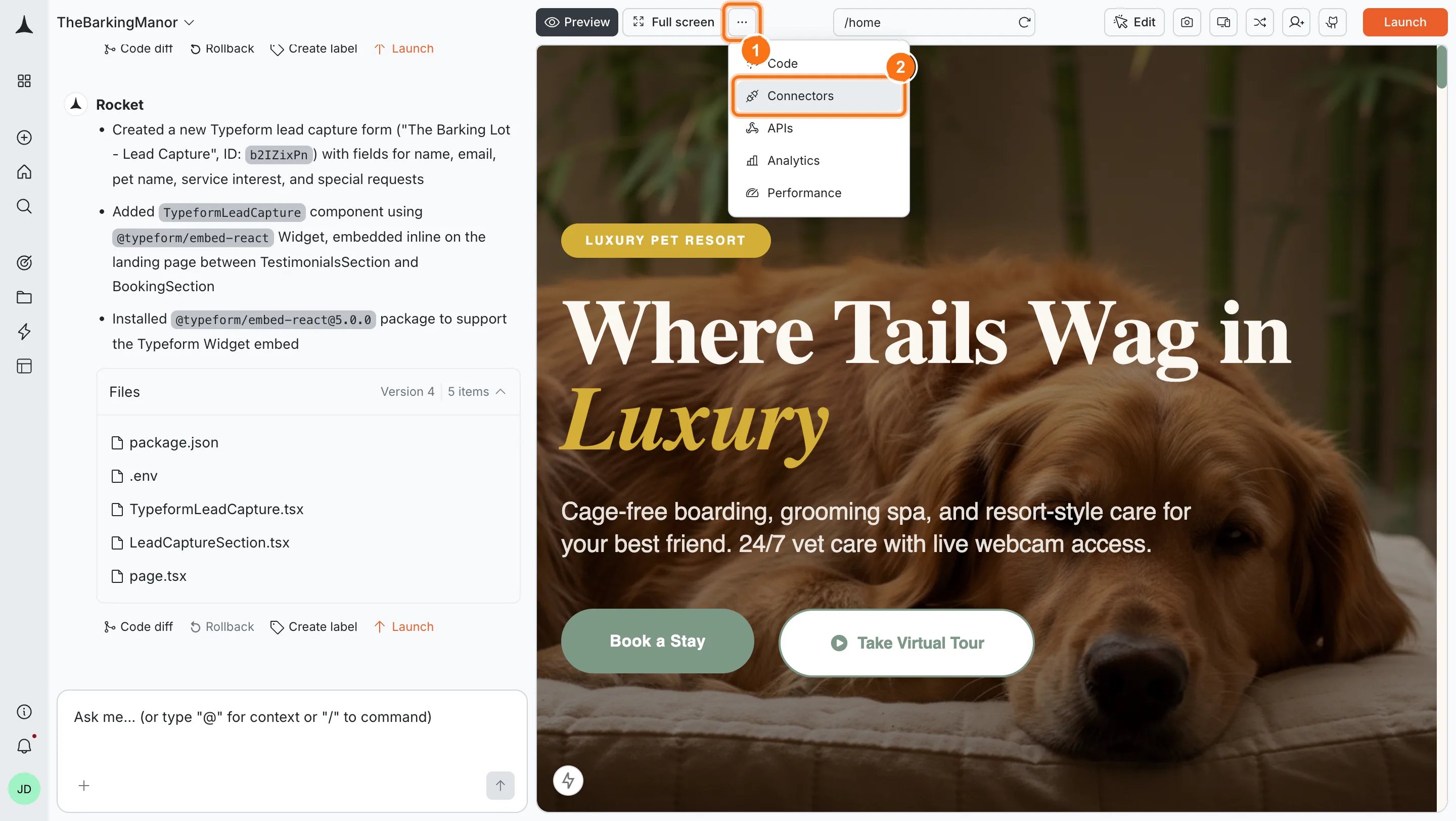
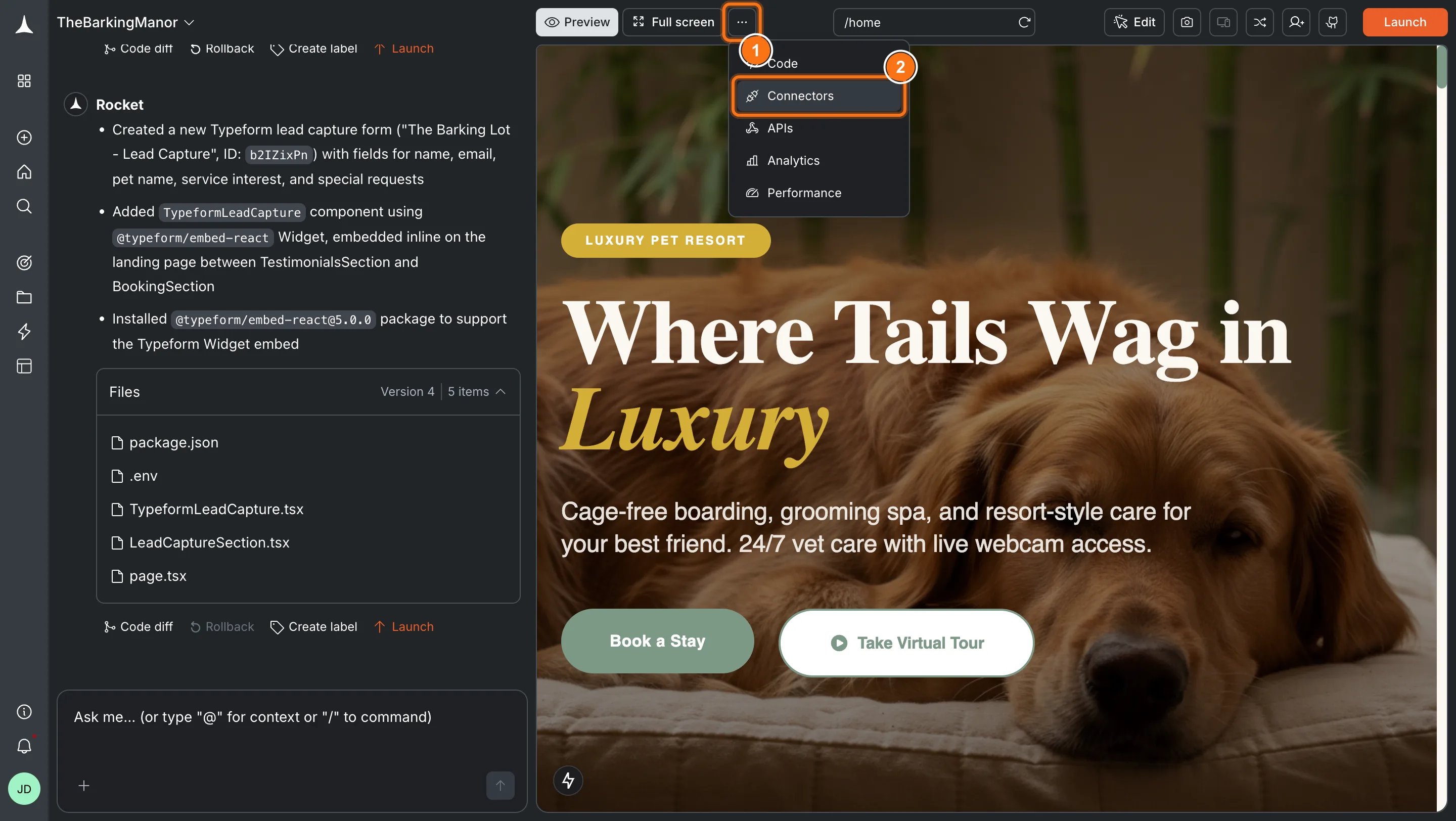
Option 2: From the Connectors tabClick the ... button in the preview toolbar, then select Connectors.
Open Connectors from the toolbar
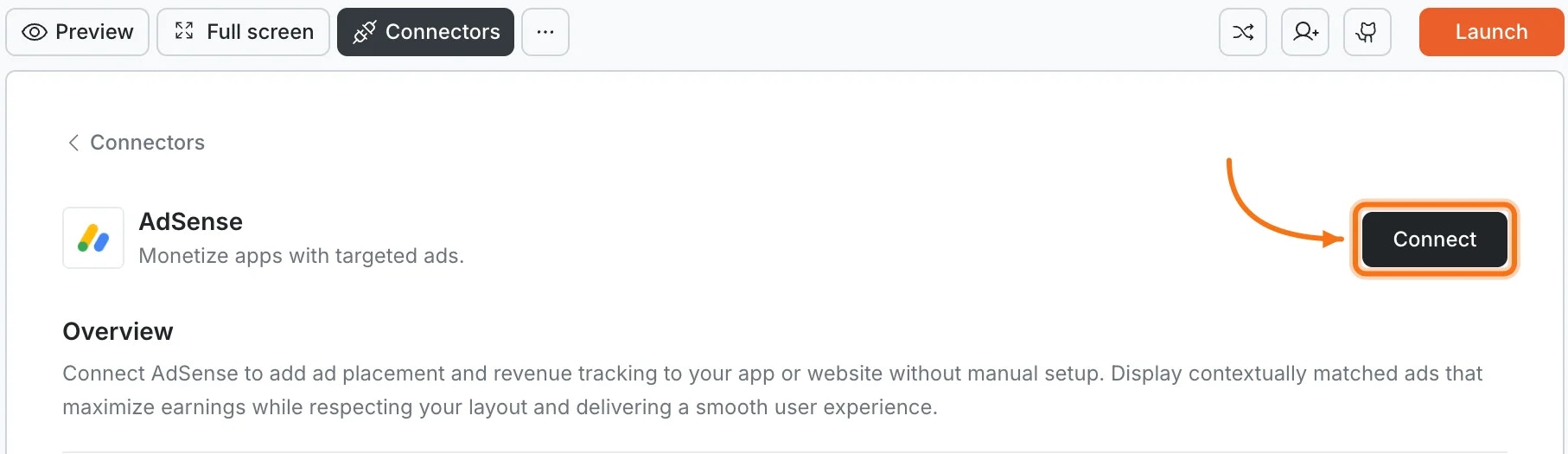
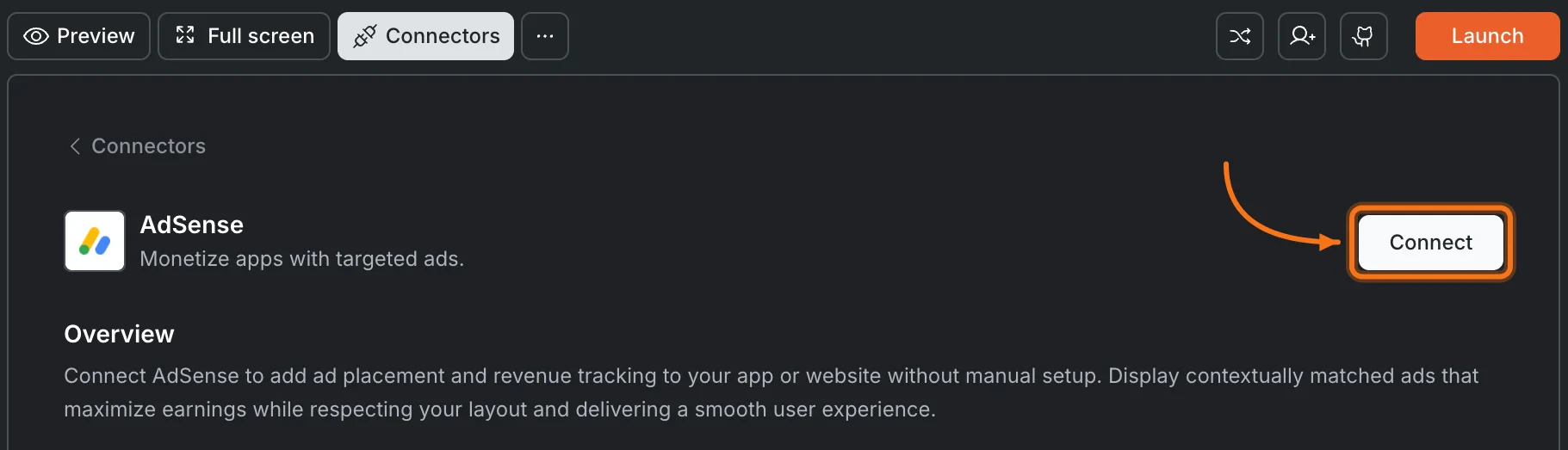
Click the AdSense card, then click Connect.
AdSense card in the Connectors panel
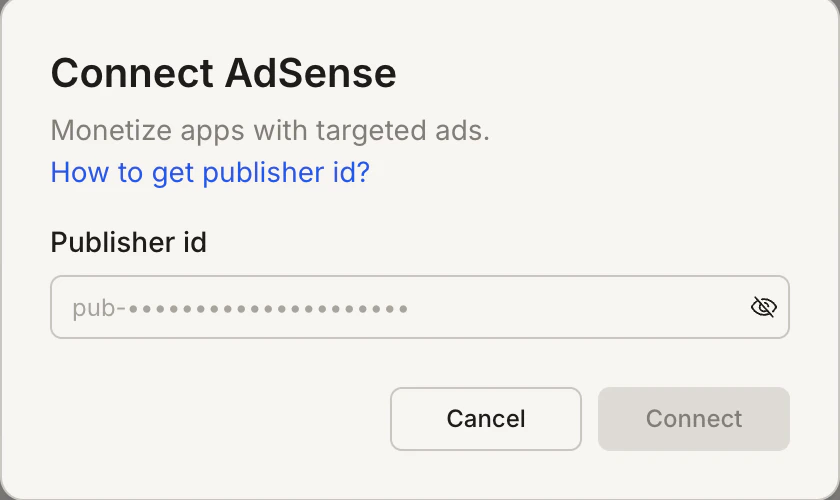
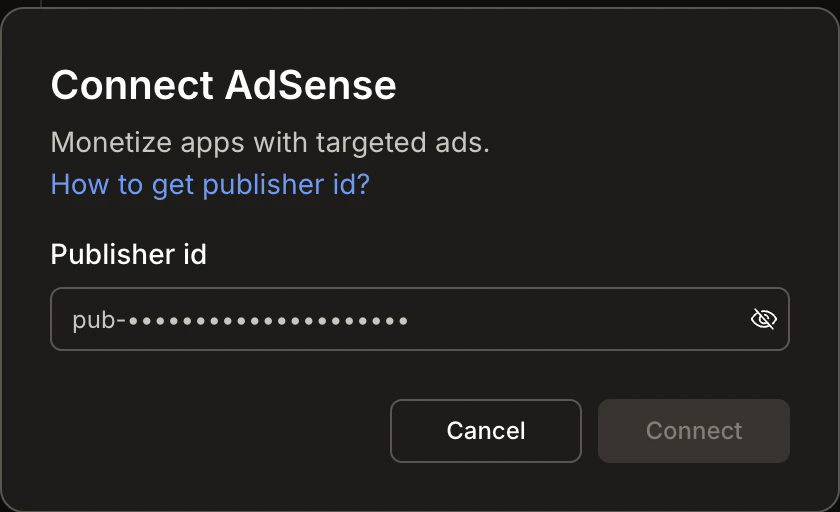
After clicking ConnectA popup opens. Enter your Publisher ID, then click Connect. A green dot appears next to AdSense when the connection is active.
Connect AdSense popup
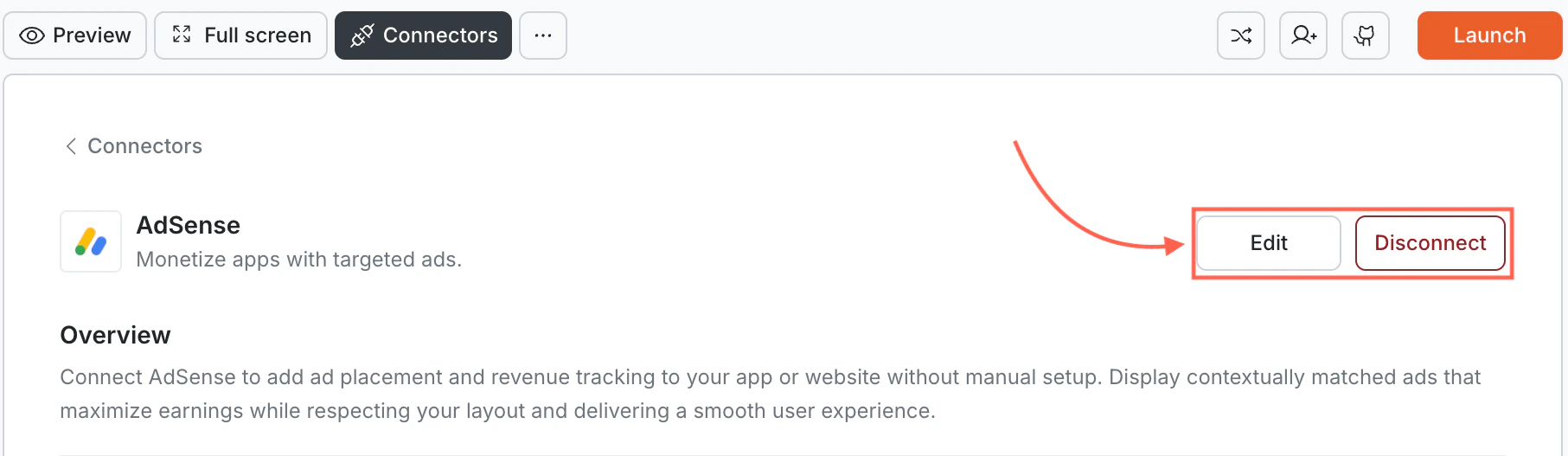
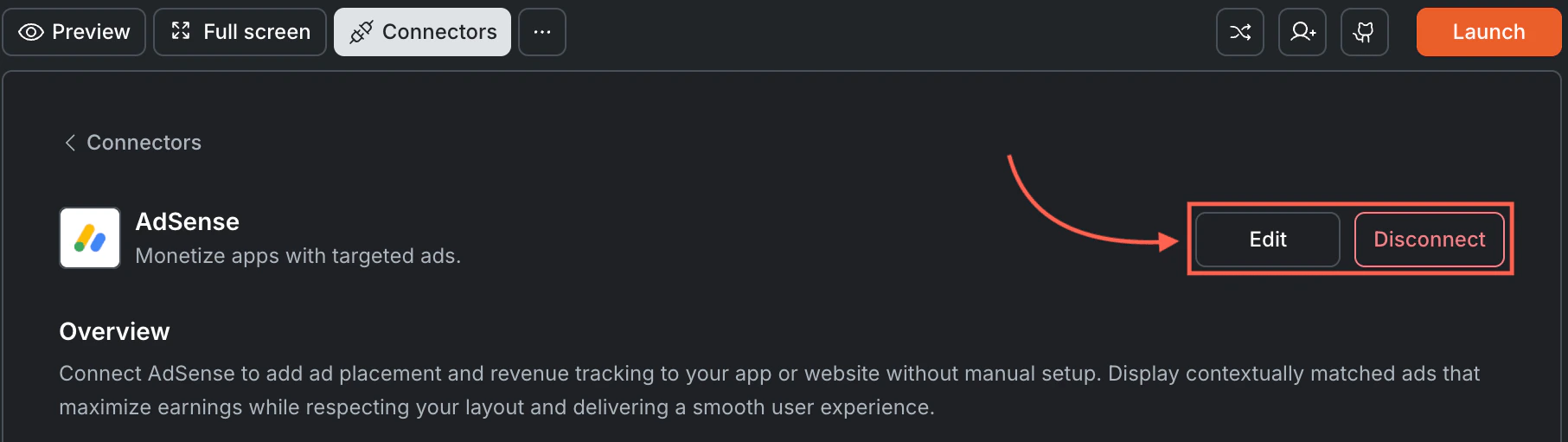
Update or disconnectGo to Connectors > AdSense. Click Edit to update your Publisher ID or Disconnect to remove the integration.
Edit and Disconnect options on a connected AdSense card
You can connect from two places - both open the same popup.Option 1: From chatType a prompt that mentions AdSense. Rocket detects the intent, shows a Connect button, and the popup opens when you tap it.Option 2: From the Connectors tab
Tap the More button in the header.
Tap Integrations.
Tap the AdSense card, then tap Connect.
After tapping ConnectA popup opens. Enter your Publisher ID, then tap Done.A green dot appears next to AdSense when the connection is active.Update or disconnectGo back to the AdSense card in Integrations. Tap Edit to update your Publisher ID or Disconnect to remove it from this task.
Ads only display on deployed tasks. AdSense will not render in the Rocket preview. Deploy your task and test on the live URL.
Google must approve your site. Your domain and content must comply with AdSense program policies before ads appear. Approval can take days to weeks. New sites with thin or limited content may be rejected, so ensure your site has substantial, original content before applying.
Ad blockers will hide ads. A significant percentage of users run ad-blocking extensions. Keep this in mind when projecting revenue.
Too many ads hurt user experience. Google may limit ad serving if your page has an unfavorable content-to-ad ratio. Follow AdSense best practices for ad density.
One Publisher ID per task. Each Rocket task connects to one AdSense account. Use different tasks for different Publisher IDs.