Accept payments in your Rocket.new app with Stripe to handle one-time checkout, recurring subscriptions, and donation flows from a single prompt.
Connect Stripe and describe the payment flow you want in chat. Rocket generates the complete checkout experience: pricing pages, payment forms, webhook handlers, and subscription management.
You need your Secret key and Publishable key from the Stripe Dashboard.
Open your Stripe API keys in the Stripe Dashboard
Key type
Prefix
Usage
Publishable key
pk_
Safe to use on the client side
Secret key
sk_
Server side only - keep this confidential
Keys come in two modes. Always start with Test keys and switch to Live keys only when you are ready to accept real payments.
Never paste your Stripe keys directly into chat. Always use the secure connection popup. If your Secret key has been exposed, rotate it immediately from the Stripe Dashboard.
Stripe works best paired with Supabase for user accounts. Rocket links Stripe customers to authenticated Supabase users automatically.
You can connect from two places - both open the same popup.Option 1: From chatType a prompt that mentions Stripe - for example, Connect Stripe and add a $49 one-time checkout. Rocket detects the intent and shows a Connect button inline. Click it and the popup opens.
Stripe connection prompt in chat
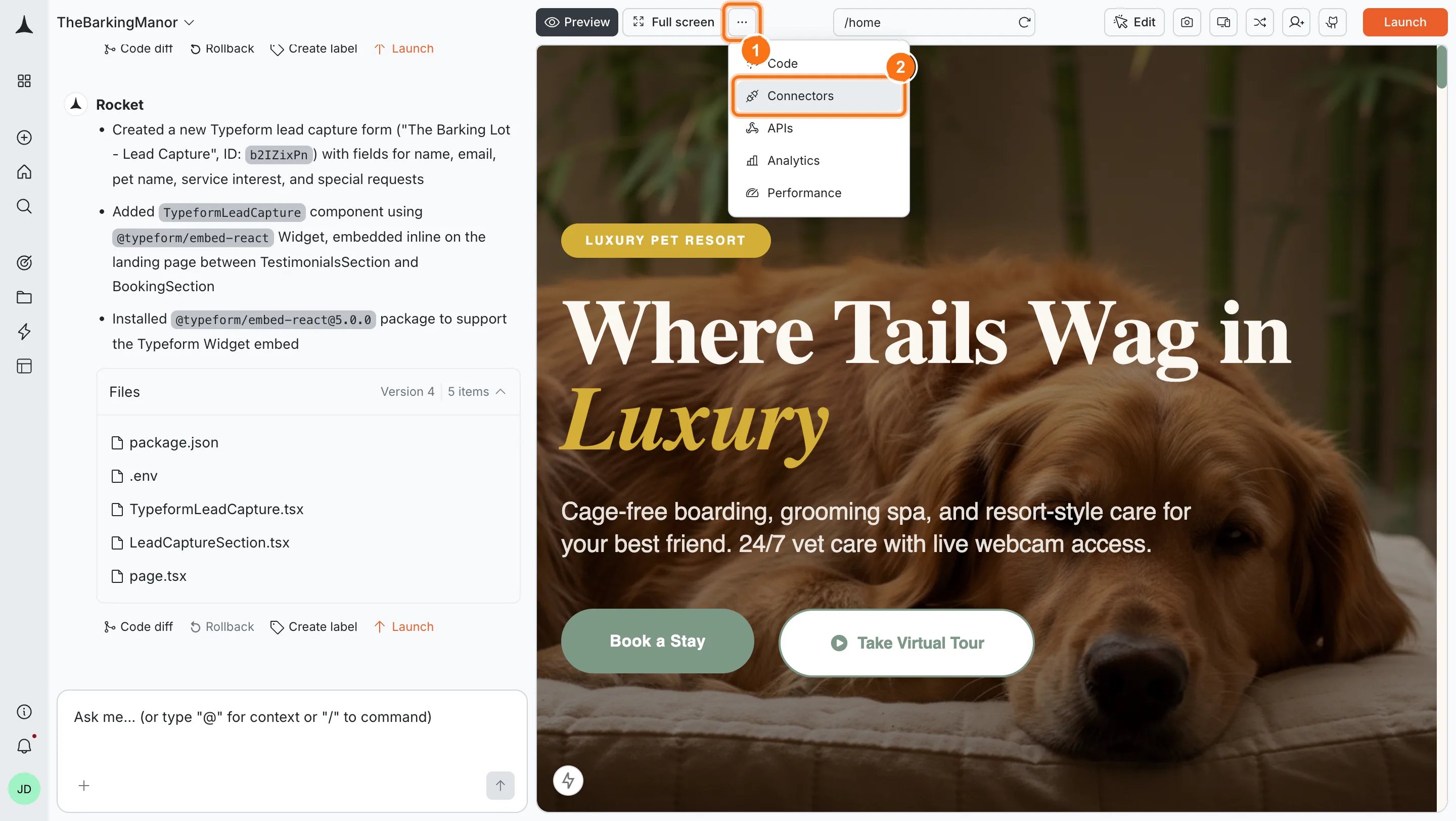
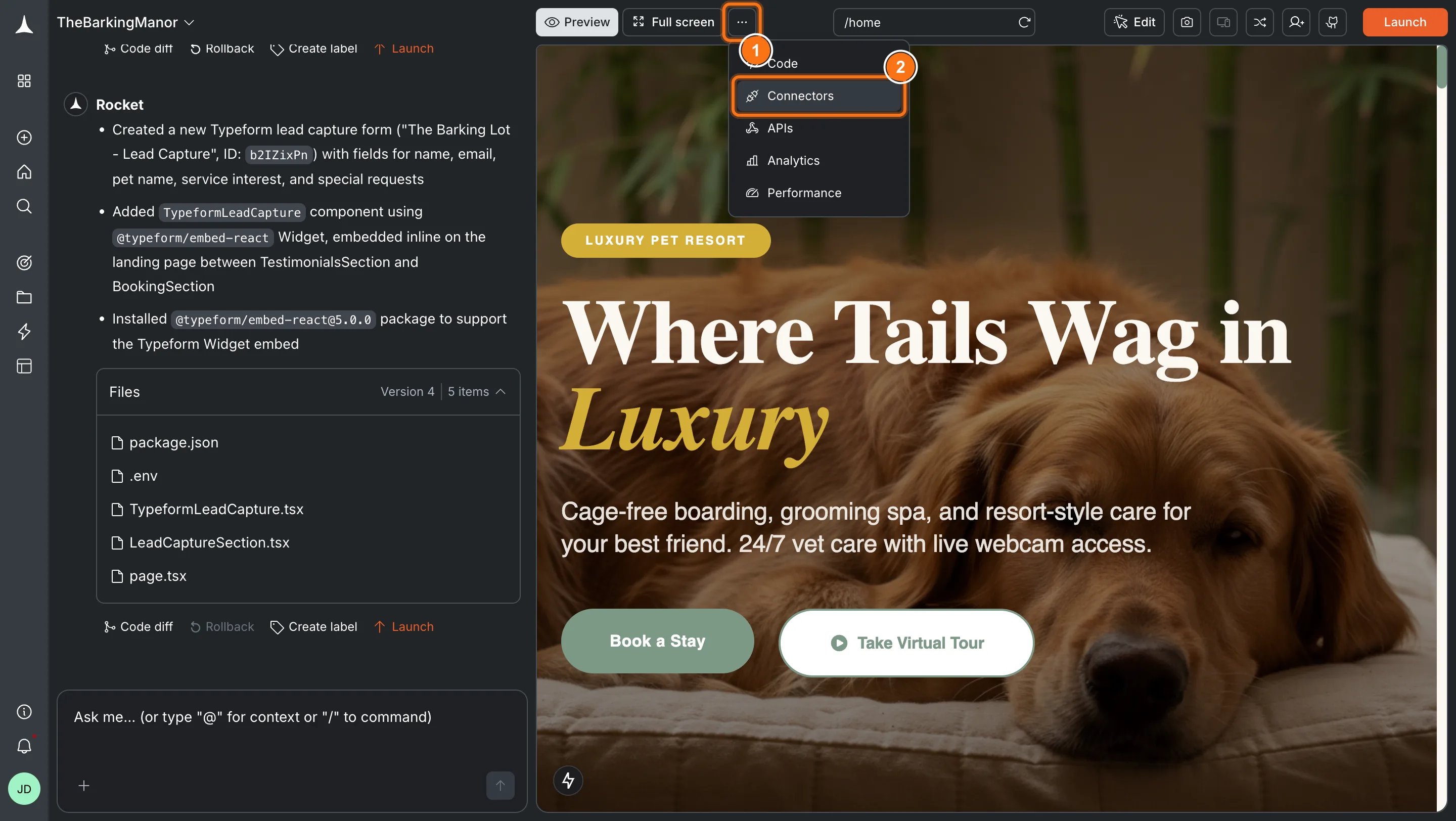
Option 2: From the Connectors tabClick the ... button in the preview toolbar, then select Connectors.
Open Connectors from the toolbar
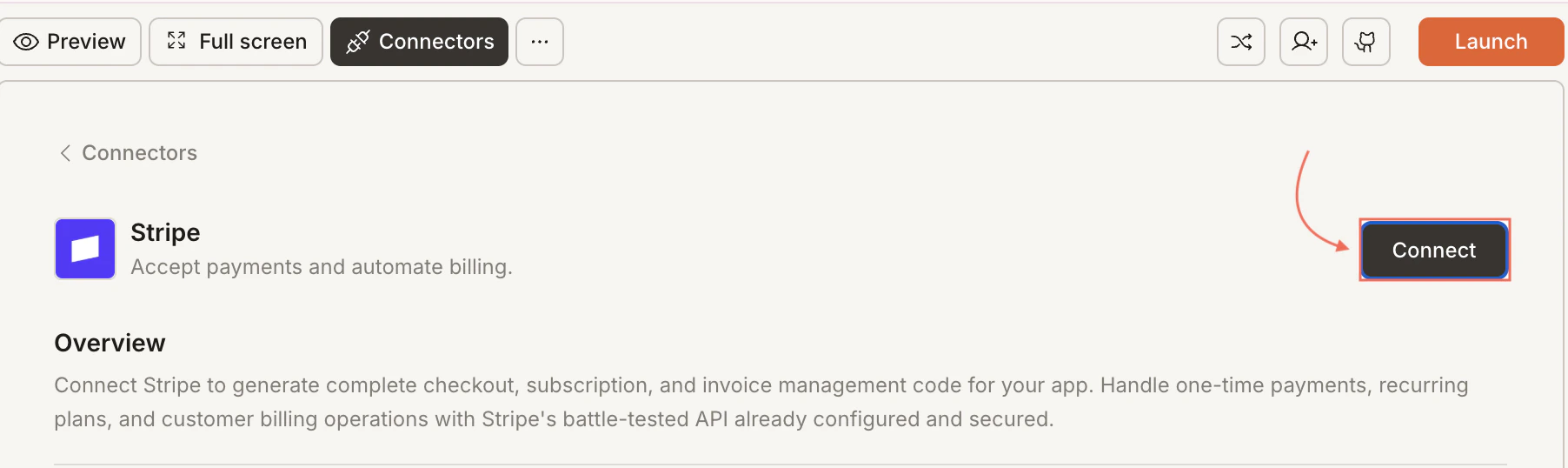
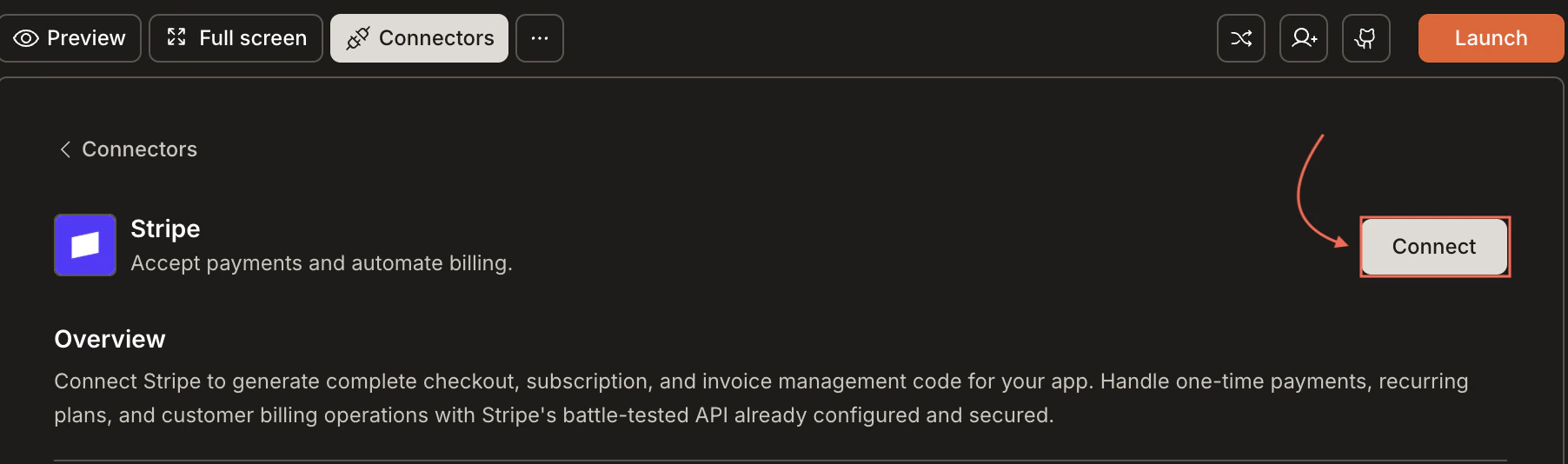
Click the Stripe card, then click Connect.
Stripe card in the Connectors panel
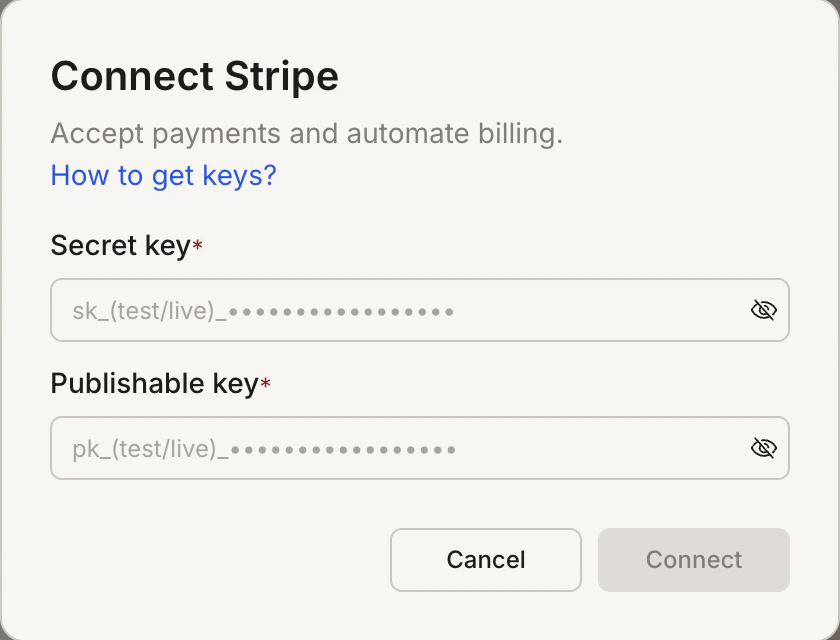
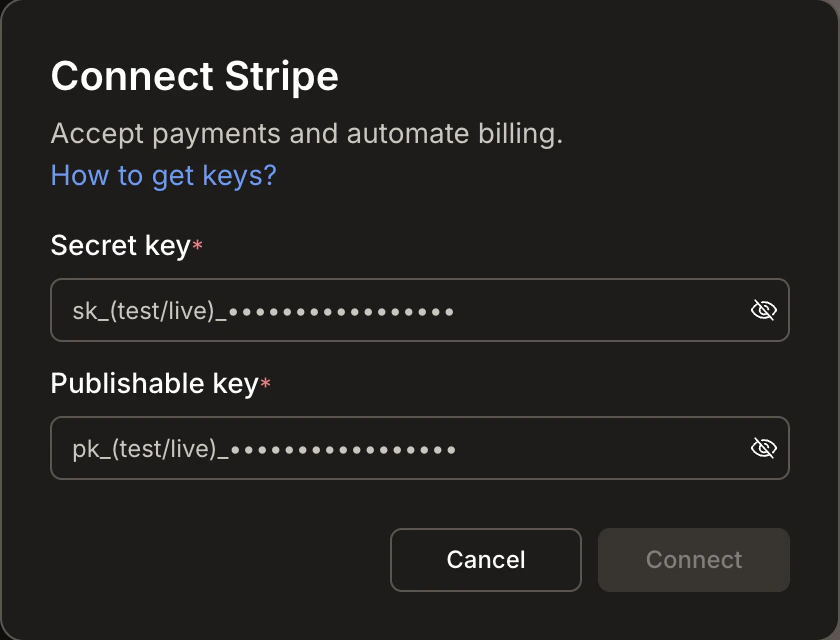
After clicking ConnectA popup opens. Paste your Secret key and Publishable key, then click Save. A green dot appears next to Stripe when the connection is active.
Paste your Stripe keys in the popup
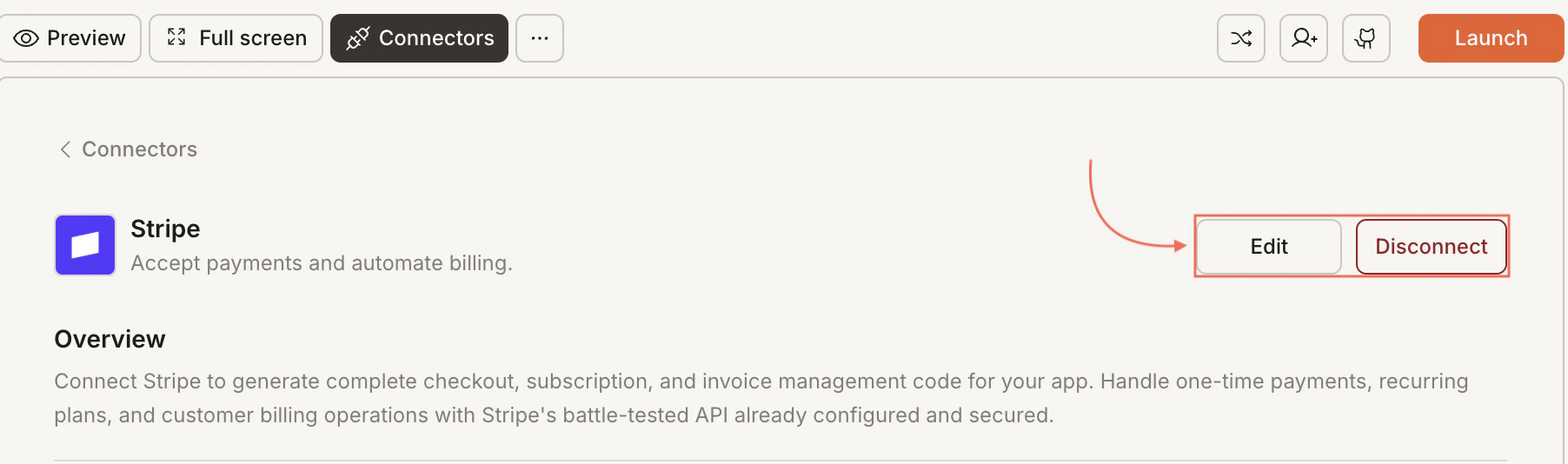
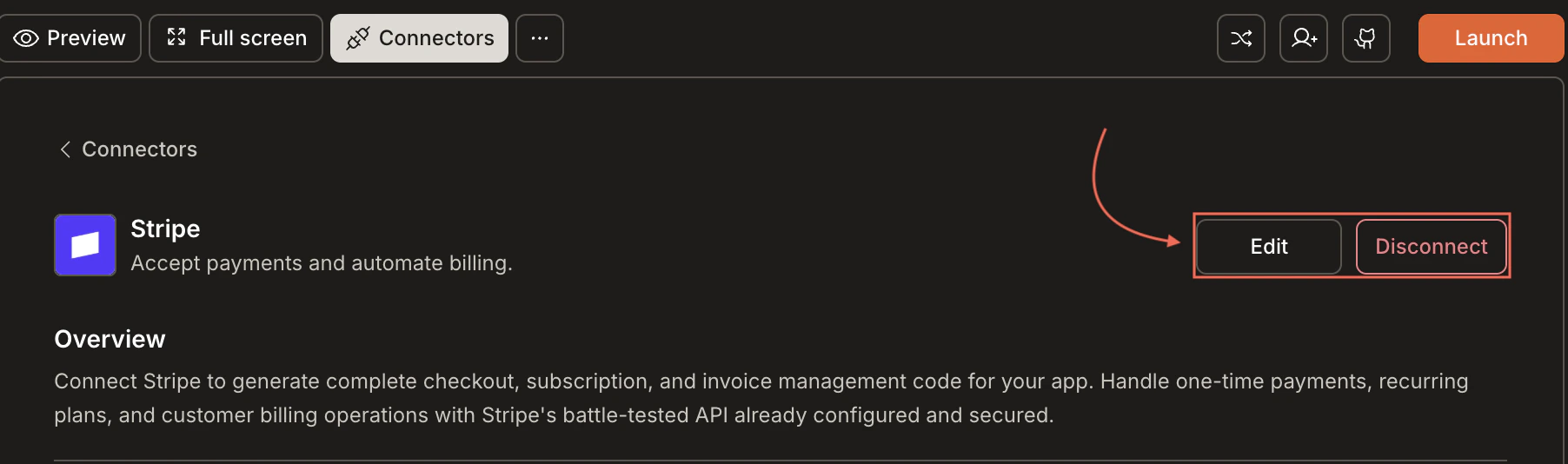
Update or disconnectGo to Connectors > Stripe. Update your keys or click Disconnect to remove the integration.
Disconnect Stripe
You can connect from two places - both open the same popup.Option 1: From chatType a prompt that mentions Stripe. Rocket detects the intent, shows a Connect button, and the popup opens when you tap it.Option 2: From the Connectors tab
Tap the More button in the header.
Tap Integrations.
Tap the Stripe card, then tap Connect.
After tapping ConnectA popup opens. Paste your Secret key and Publishable key, then tap Done. A green dot appears next to Stripe when the connection is active.Update or disconnectGo to Integrations > Stripe. Update your keys or tap Disconnect to remove the integration.
Always start with Test mode keys. Switch to Live keys only when you are ready to accept real payments. Test card: 4242 4242 4242 4242.
Connect Supabase first. Rocket links Stripe customers to Supabase user accounts. Connect Supabase before connecting Stripe.
Webhooks are handled automatically. Rocket sets up the necessary webhook handlers for events like checkout.session.completed and customer.subscription.updated.
Refunds and disputes live in Stripe. Manage refunds, disputes, and financial reporting directly from the Stripe Dashboard.
One set of keys per task. Each Rocket task connects to a single set of Stripe API keys. You can use the same Stripe account across multiple tasks.