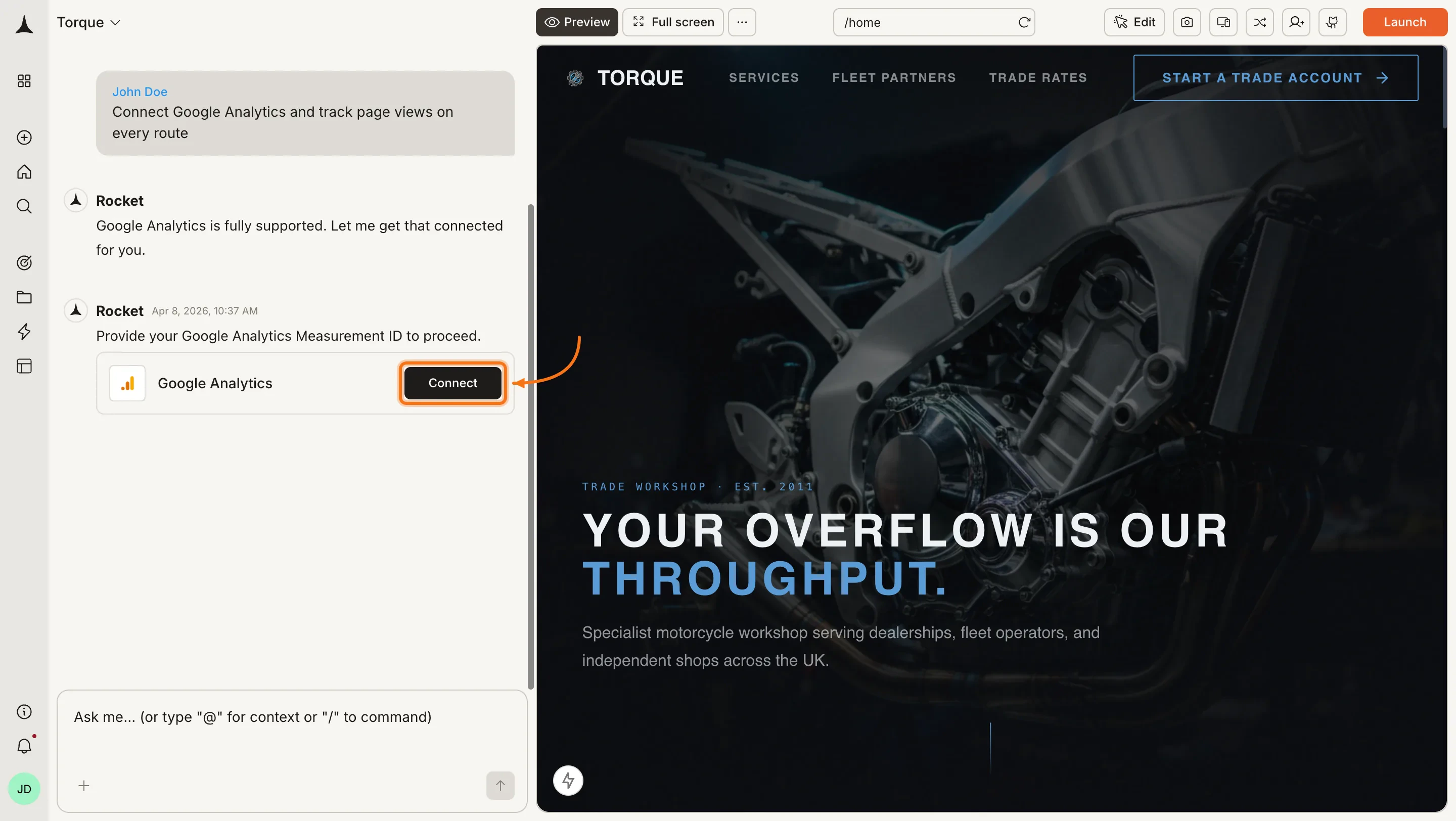
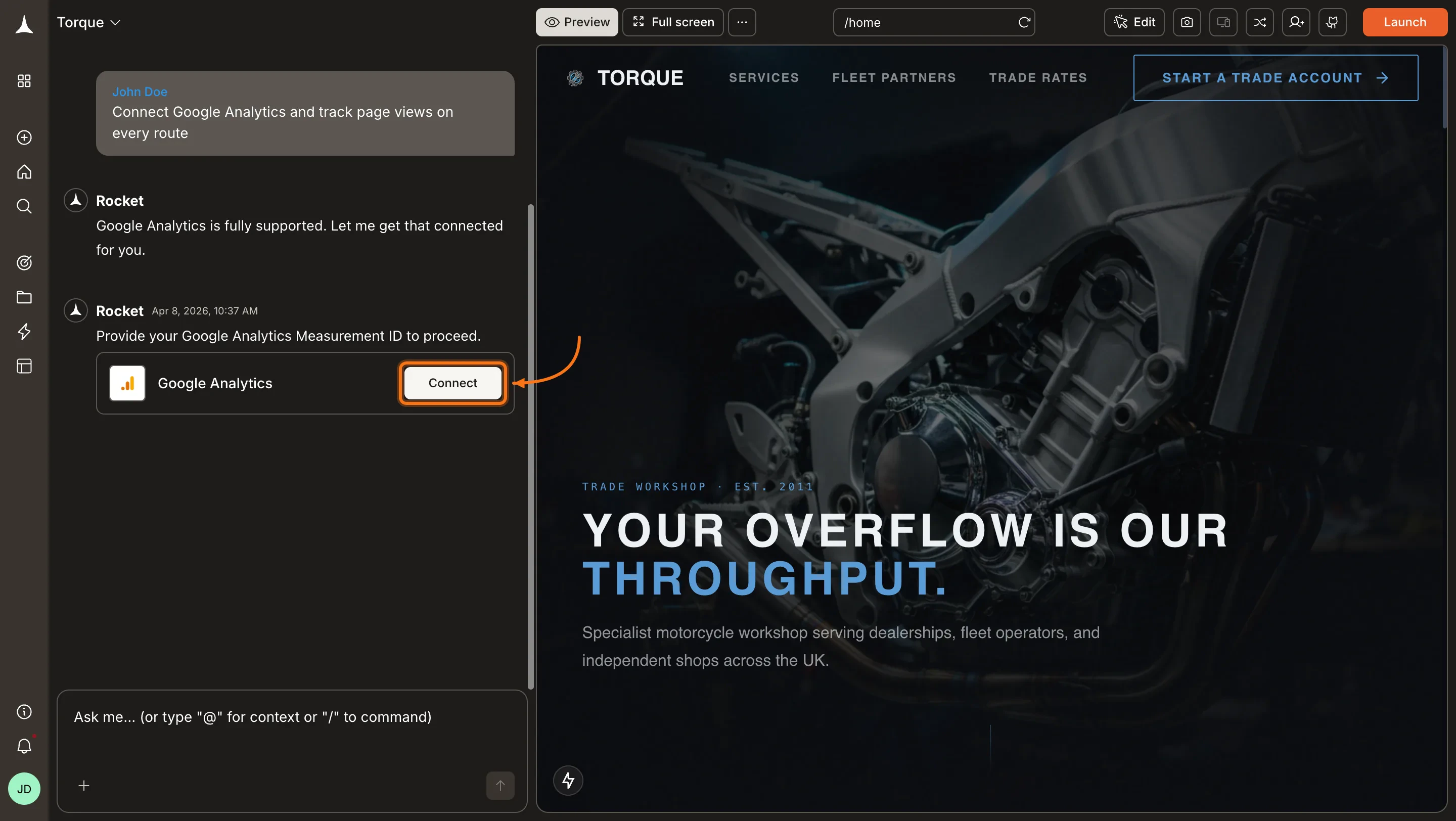
You can connect from two places. Both do the same thing.Option 1: From chatType a prompt that mentions Google Analytics, for example Connect Google Analytics and track page views on every route. Rocket detects the intent and shows a Connect button inline. Click it to open the credentials popup.
Google Analytics connection prompt in chat
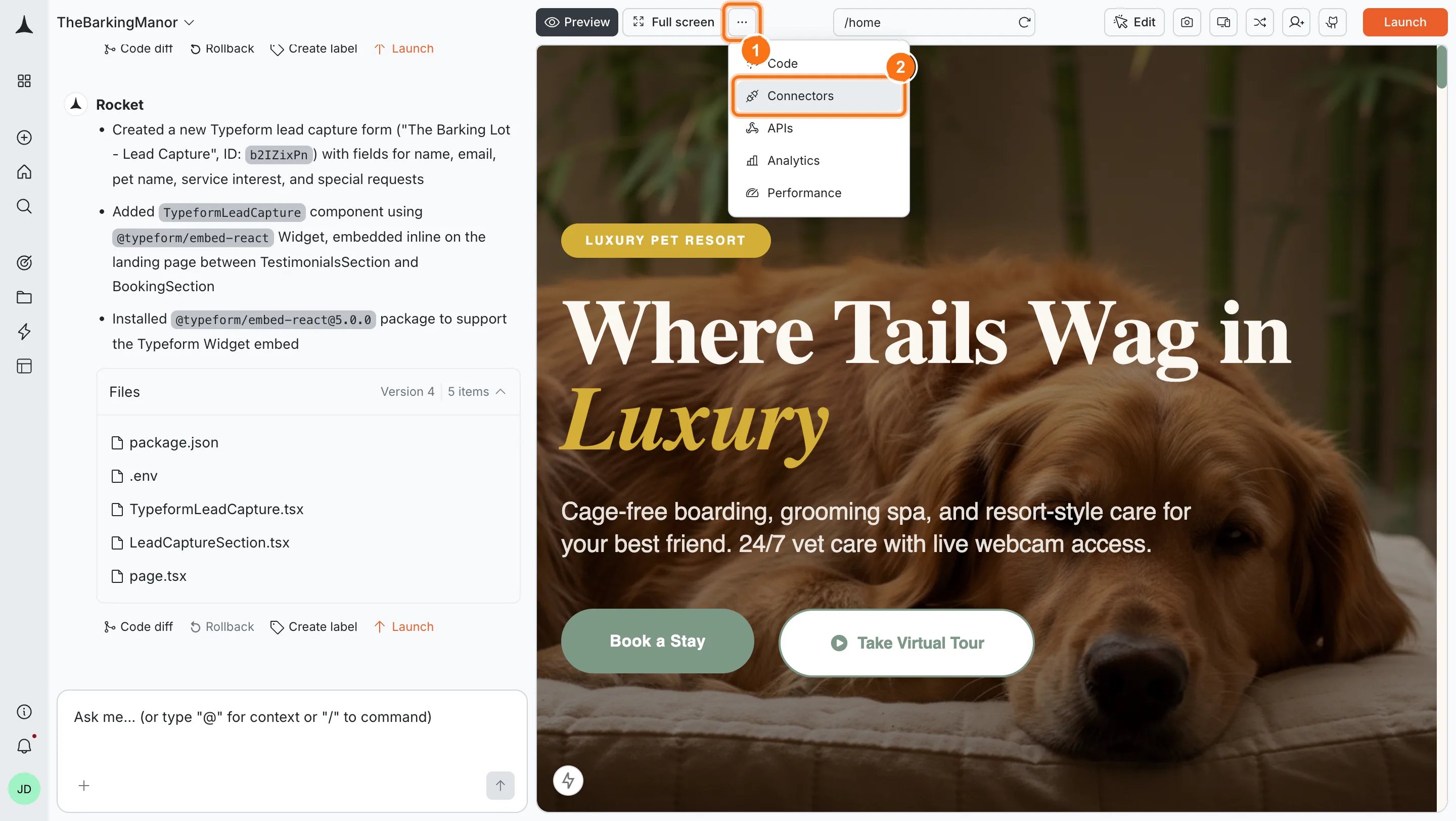
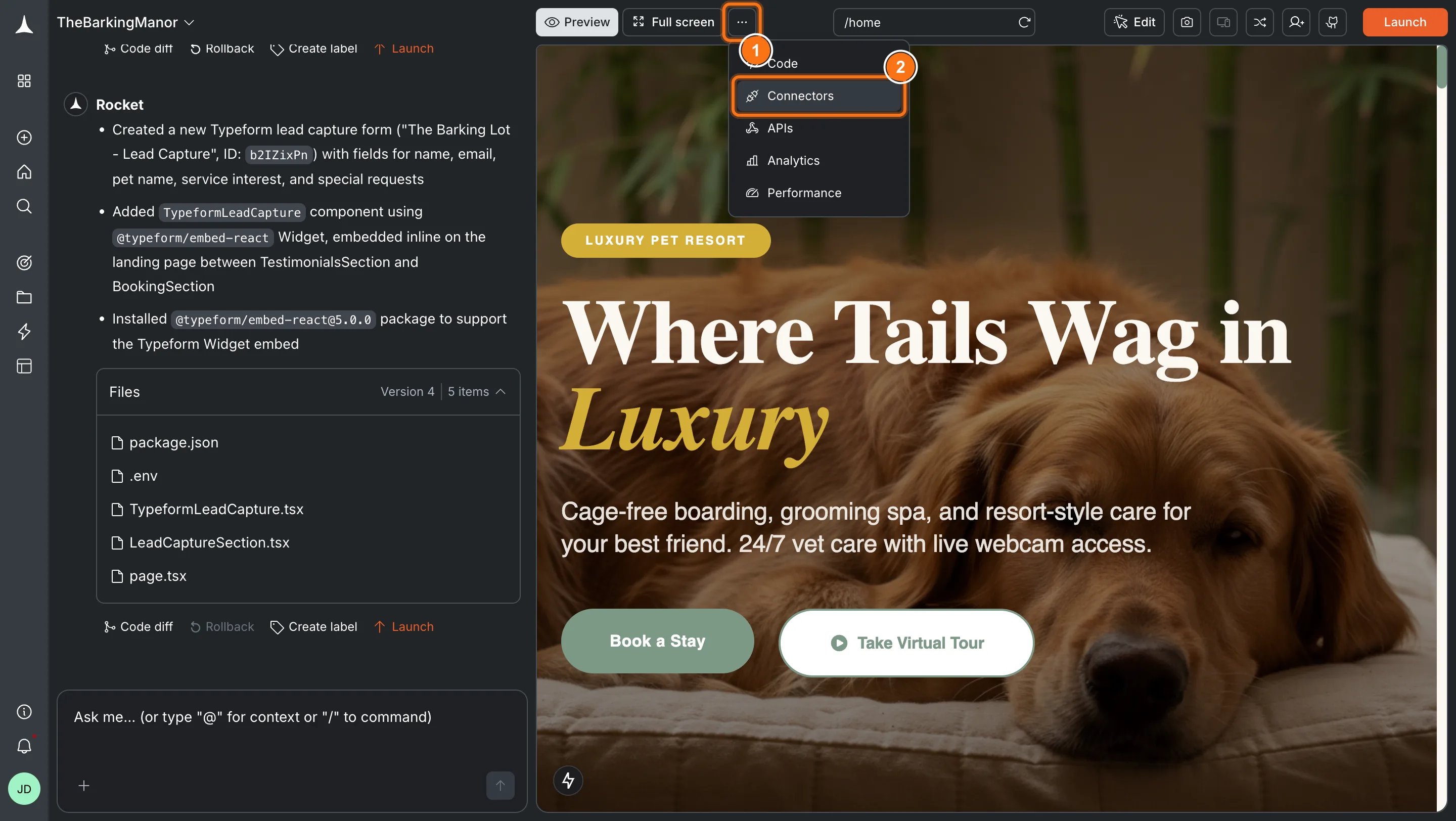
Option 2: From the Connectors tabClick the ... button in the preview toolbar, then select Connectors.
Open Connectors from the toolbar
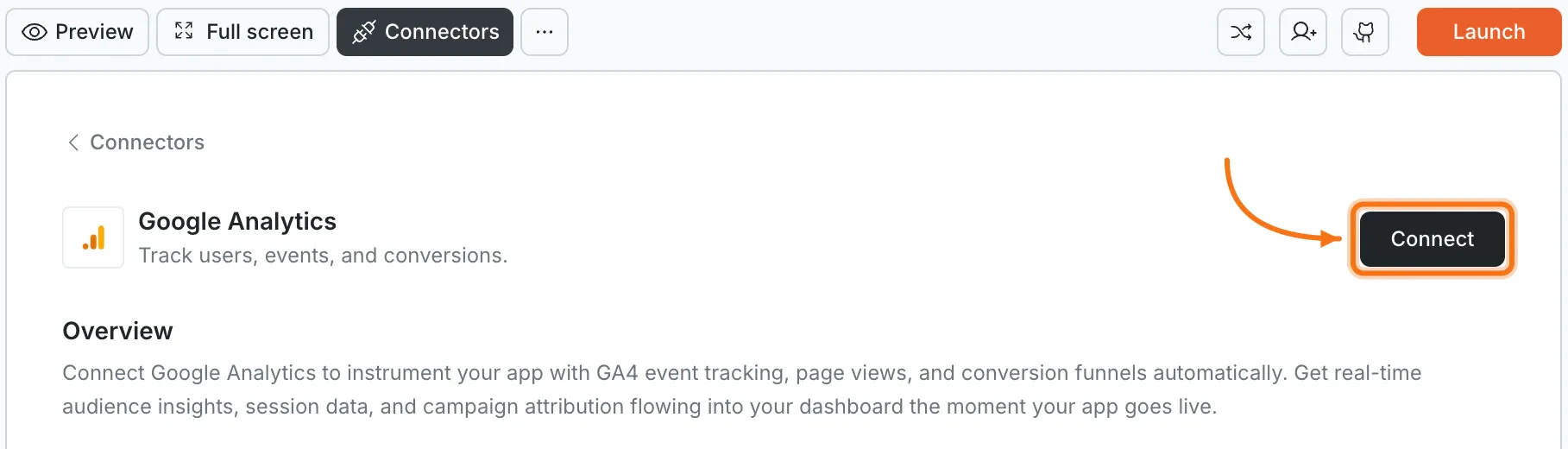
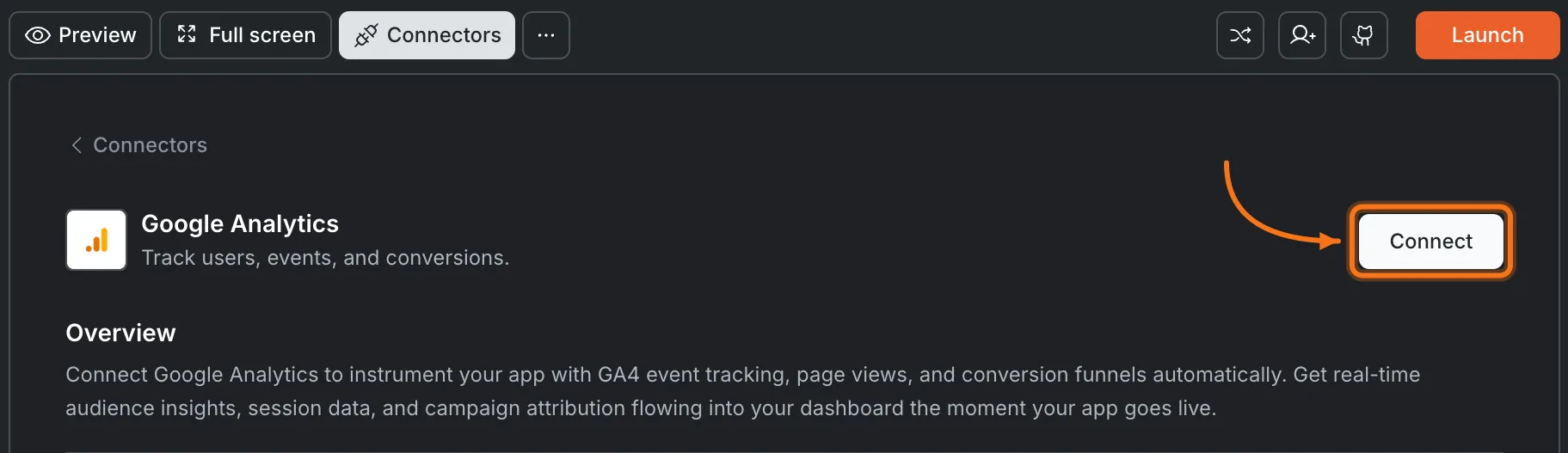
Click the Google Analytics card, then click Connect.
Google Analytics card in the Connectors panel
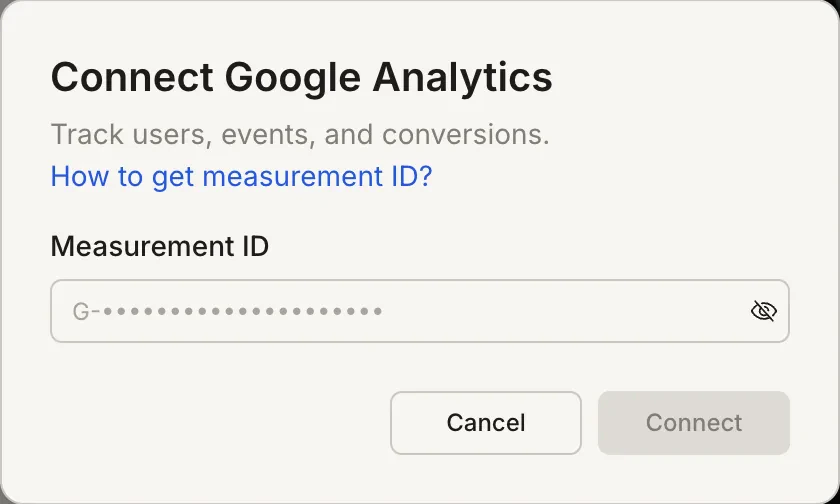
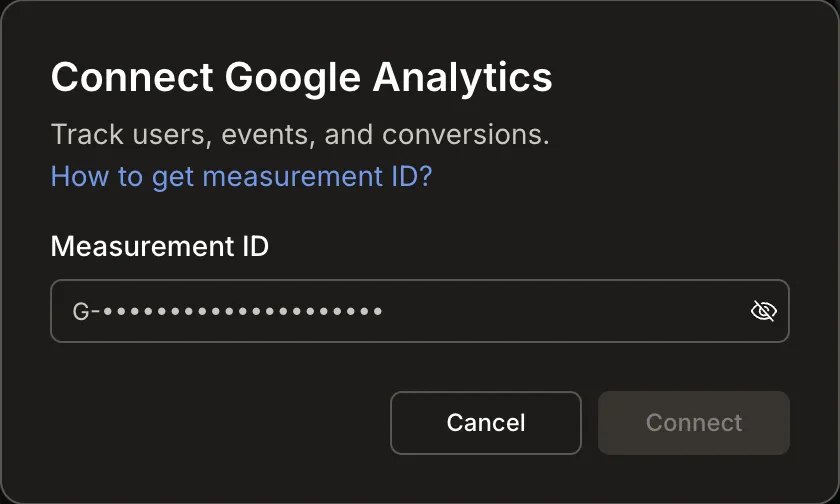
After clicking ConnectA popup opens. Enter your Measurement ID, then click Connect.
Connect Google Analytics popup
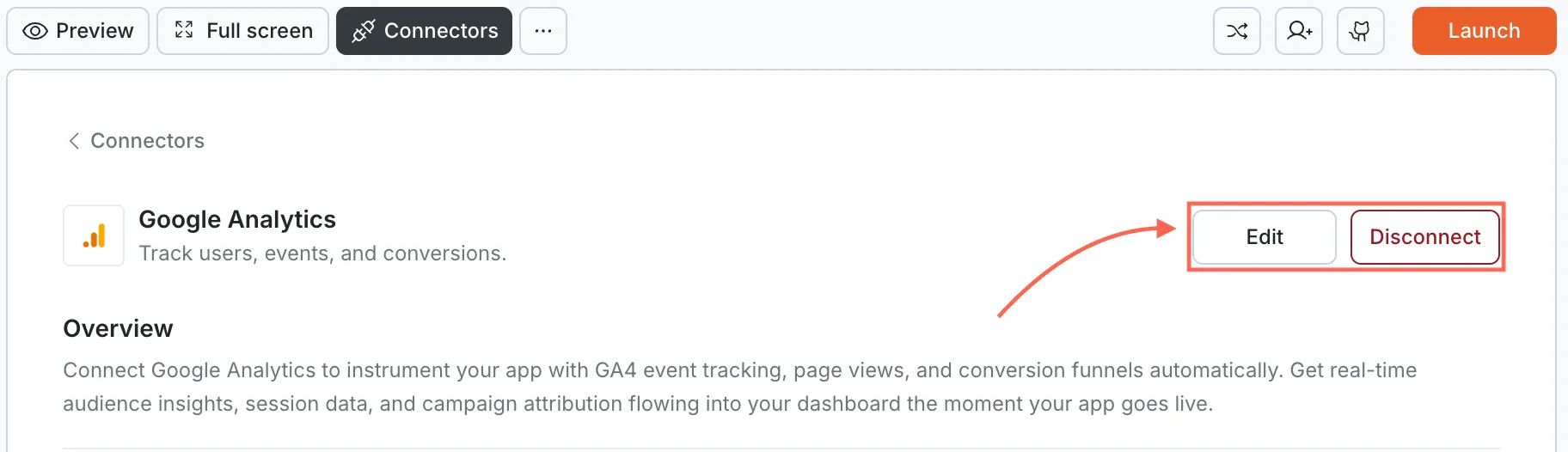
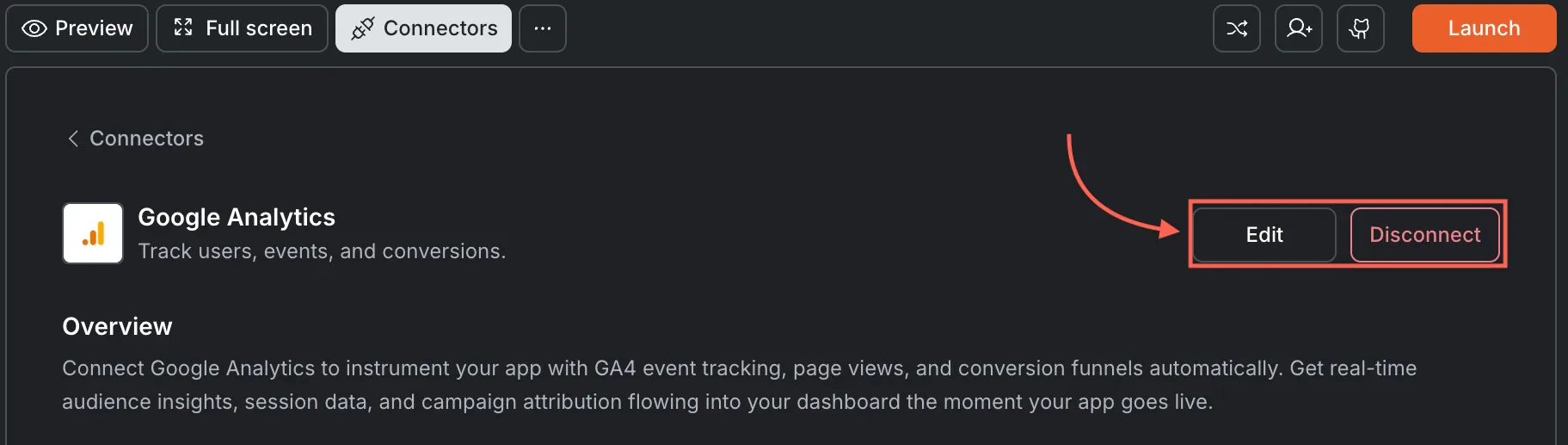
A green dot appears next to Google Analytics when the connection is active.Update or disconnectOpen Connectors > Google Analytics and click the card. Click Edit to update your Measurement ID or Disconnect to remove the integration from this task.
Edit and Disconnect options on a connected Google Analytics card
You can connect from two places. Both do the same thing.Option 1: From chatType a prompt that mentions Google Analytics. Rocket detects the intent and shows a Connect button inline. Tap it to open the credentials screen.Option 2: From the Connectors tab
Tap the More button in the header.
Tap Integrations.
Tap the Google Analytics card, then tap Connect.
After tapping ConnectA popup opens. Enter your Measurement ID, then tap Done.A green dot appears next to Google Analytics when the connection is active.Update or disconnectGo back to the Google Analytics card in Integrations. Tap Edit to update your Measurement ID or Disconnect to remove it from this task.
Tracking only works on deployed tasks. Google Analytics does not fire events in the Rocket preview. Deploy your task and test on the live URL.
GA4 data has a processing delay. Real-time reports update within seconds, but standard reports may take 24 to 48 hours to fully populate.
Only GA4 Measurement IDs are supported. IDs start with G-. Universal Analytics (UA-) was sunset in 2024 and no longer processes data.
Ad blockers may prevent tracking. Some users run browser extensions that block Google Analytics scripts. Keep this in mind when evaluating traffic numbers.
One Measurement ID per task. Each Rocket task connects to one Google Analytics property. Use different tasks for different properties.