

Edge functions
Generate and deploy Supabase Edge Functions from Rocket.new chat to add serverless backend logic, webhooks, and secure API endpoints to your app.
Rocket auto-detects when backend logic is needed and generates Supabase Edge Functions for you. This guide covers creating and deploying functions from chat, managing secrets, and troubleshooting deployment errors.
What are Supabase Edge Functions?
Edge Functions run on Supabase infrastructure and handle secure backend logic for your app. They are ideal for tasks like sending emails, calling APIs, generating PDFs, or processing data.
- Execute on the server, not the user's device.
- Can store and use secrets securely.
- Can be triggered from your UI or backend processes.
Why use Edge Functions with Rocket? Rocket writes the function code, prompts you for secrets, and deploys to Supabase. All from chat.
Create or detect a function in Rocket
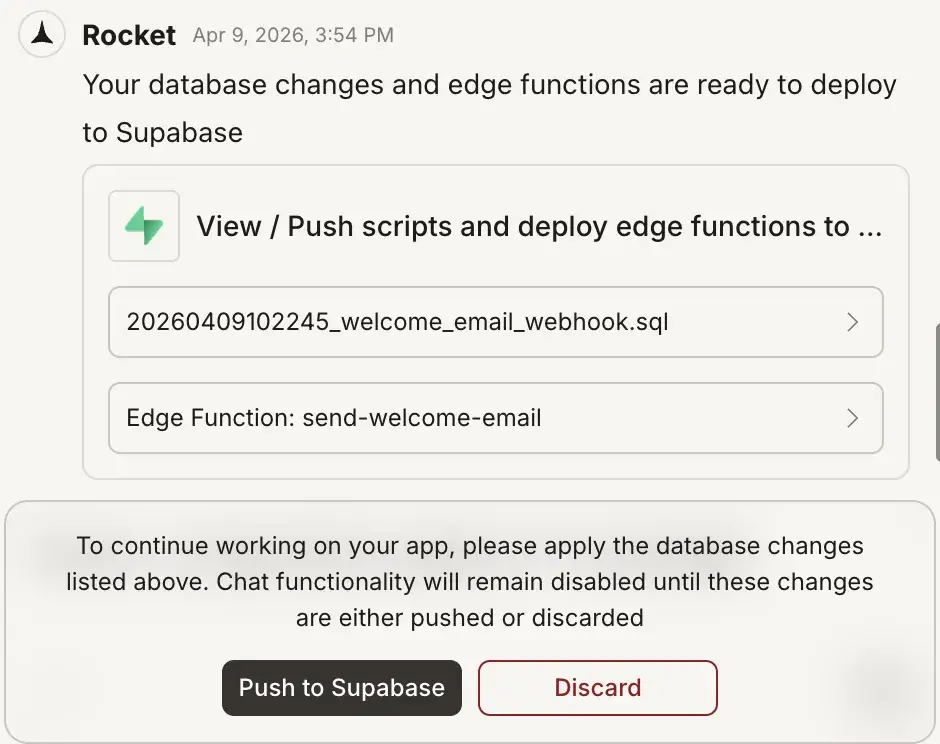
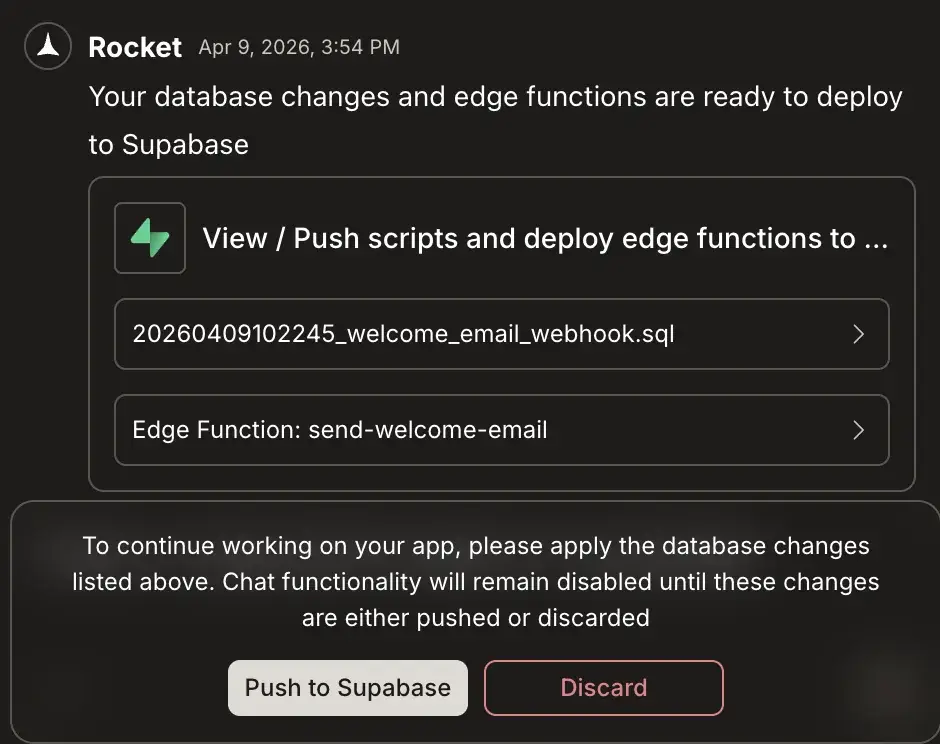
Rocket auto-checks if backend logic is needed when you build features. If a function is required and does not exist, Rocket generates it and opens a chat popup.
You will see:
- The function name and a code preview.
- Input fields for any required secrets.
- A Push to Supabase button to deploy.
You can also ask Rocket to create a function manually. For example:
Create an Edge Function that sends a welcome email with Resend when a user signs up.Rocket will:
- Write the function code.
- Prompt for the
RESEND_API_KEY.
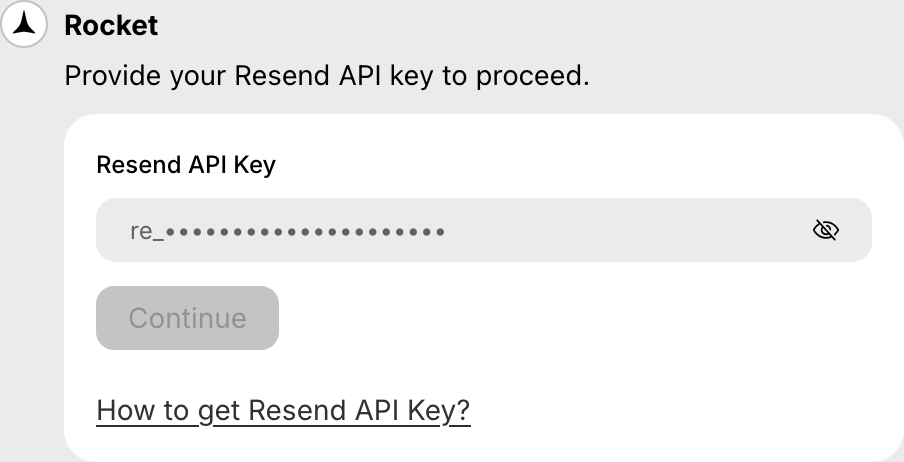
- Show a Push to Supabase popup so you can deploy the function.
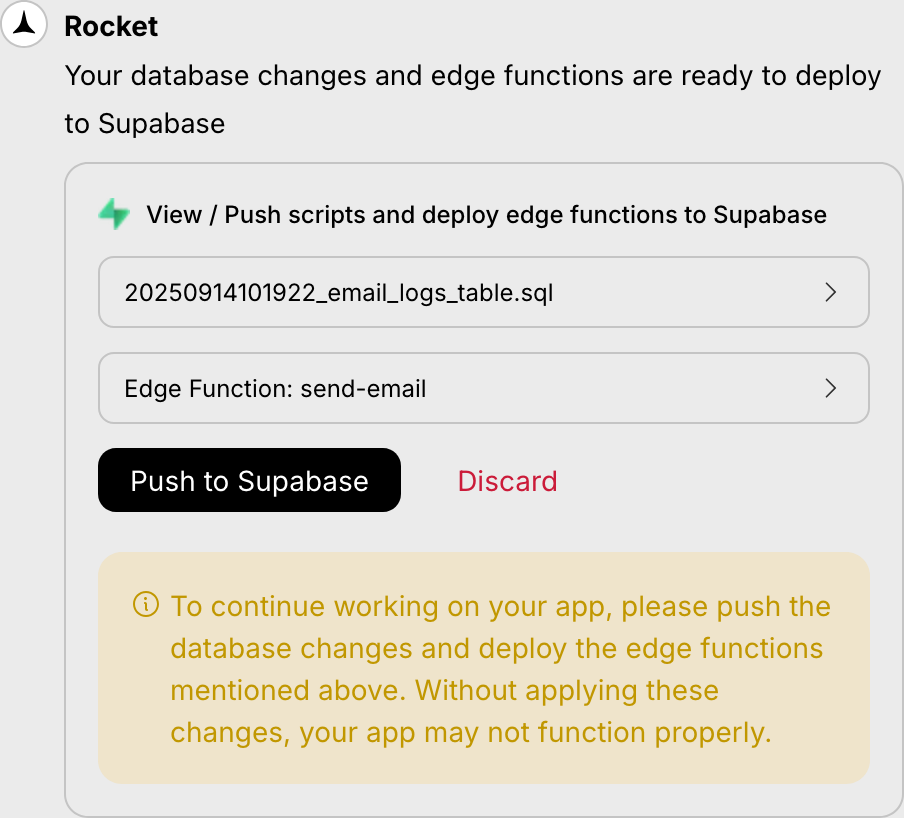
You can stay in Rocket for most workflows. Open the Supabase dashboard when you want to review a deployed function, check logs, or manage secrets manually.
View deployed functions in Supabase
After you push a function, you can confirm it in the Supabase dashboard.
- Go to the Supabase Dashboard and open your project.
- Click Edge Functions in the left sidebar.
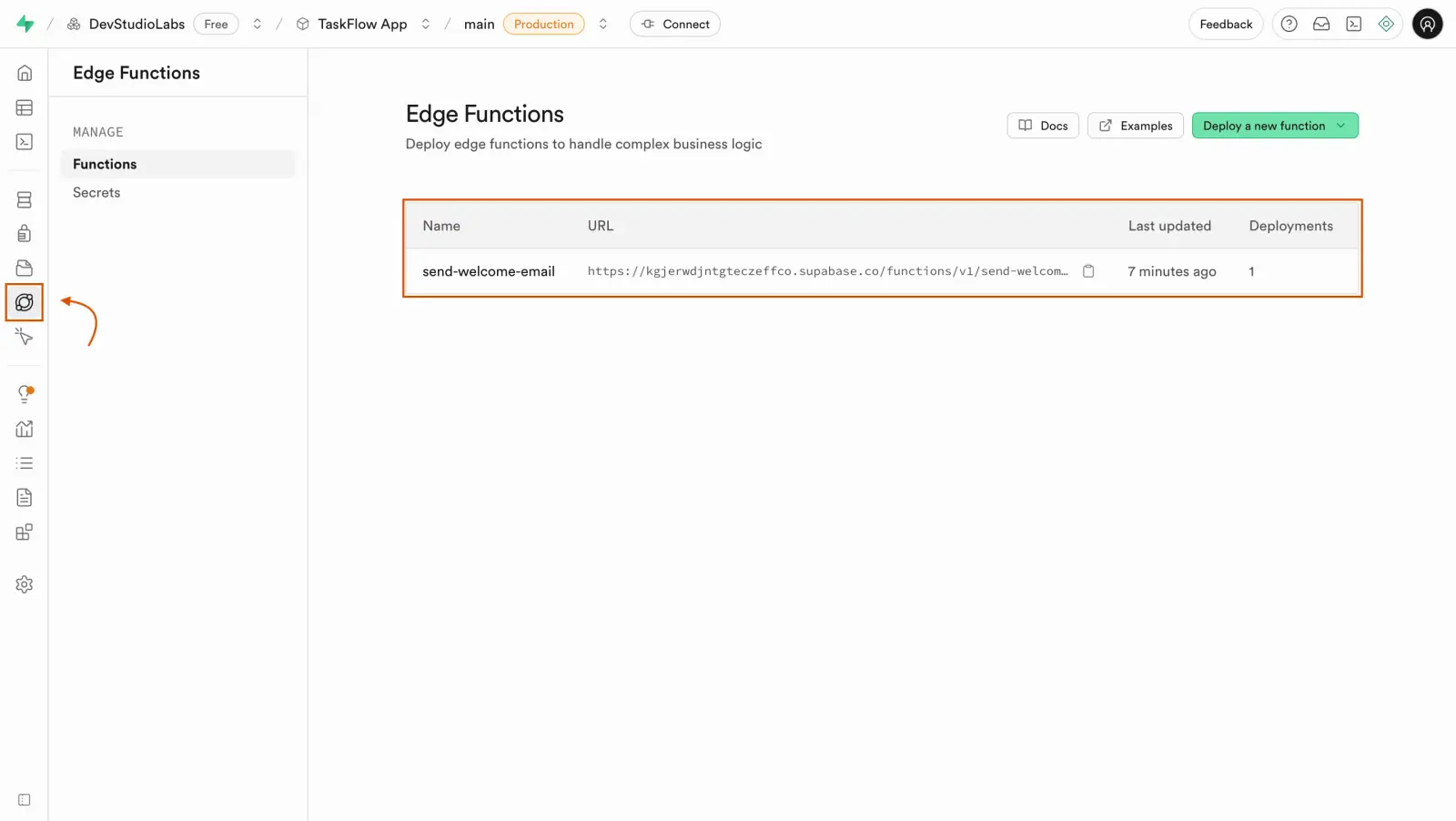
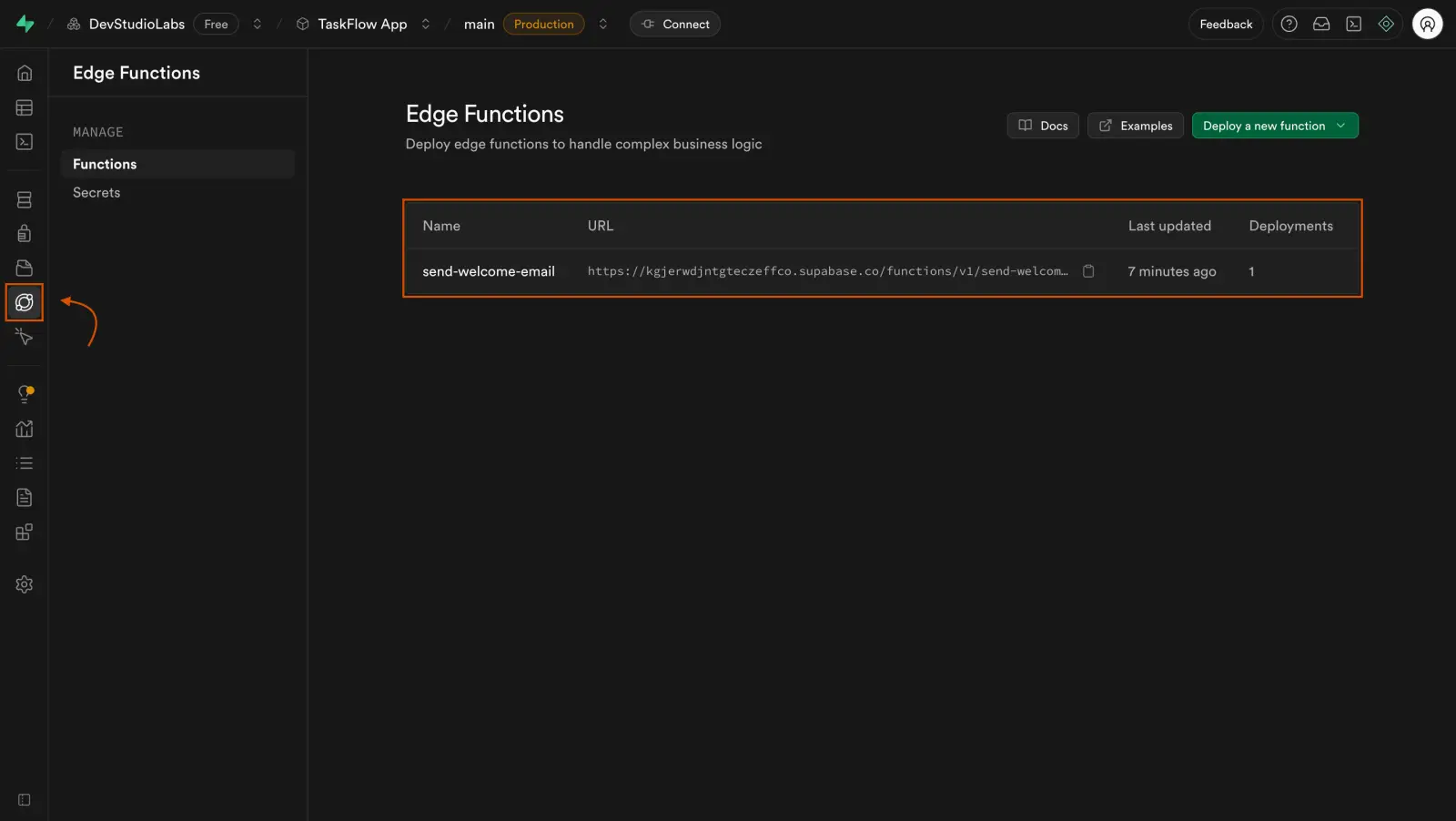
Open a function to see its details, code, and logs.
Manage secrets
Secrets such as RESEND_API_KEY or STRIPE_SECRET_KEY are stored in Supabase, not in Rocket. Your Edge Functions read them at runtime.
Add secrets from Rocket
When Rocket asks for secrets:
- Paste them into the secure input fields provided.
- Rocket saves them to your Supabase project during deploy.
- To rotate a value later, ask Rocket to redeploy with the new key, or update it manually in Supabase.
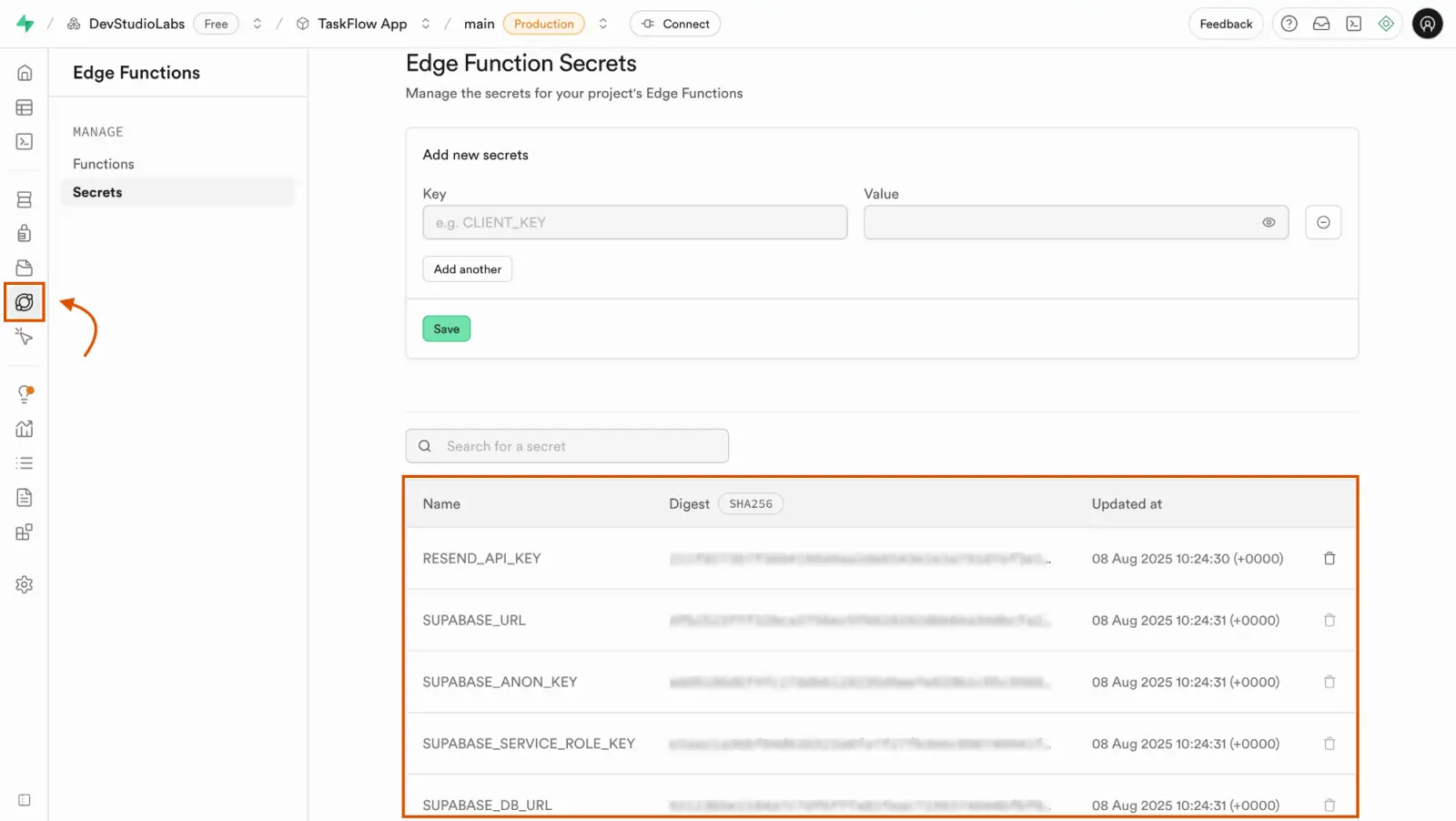
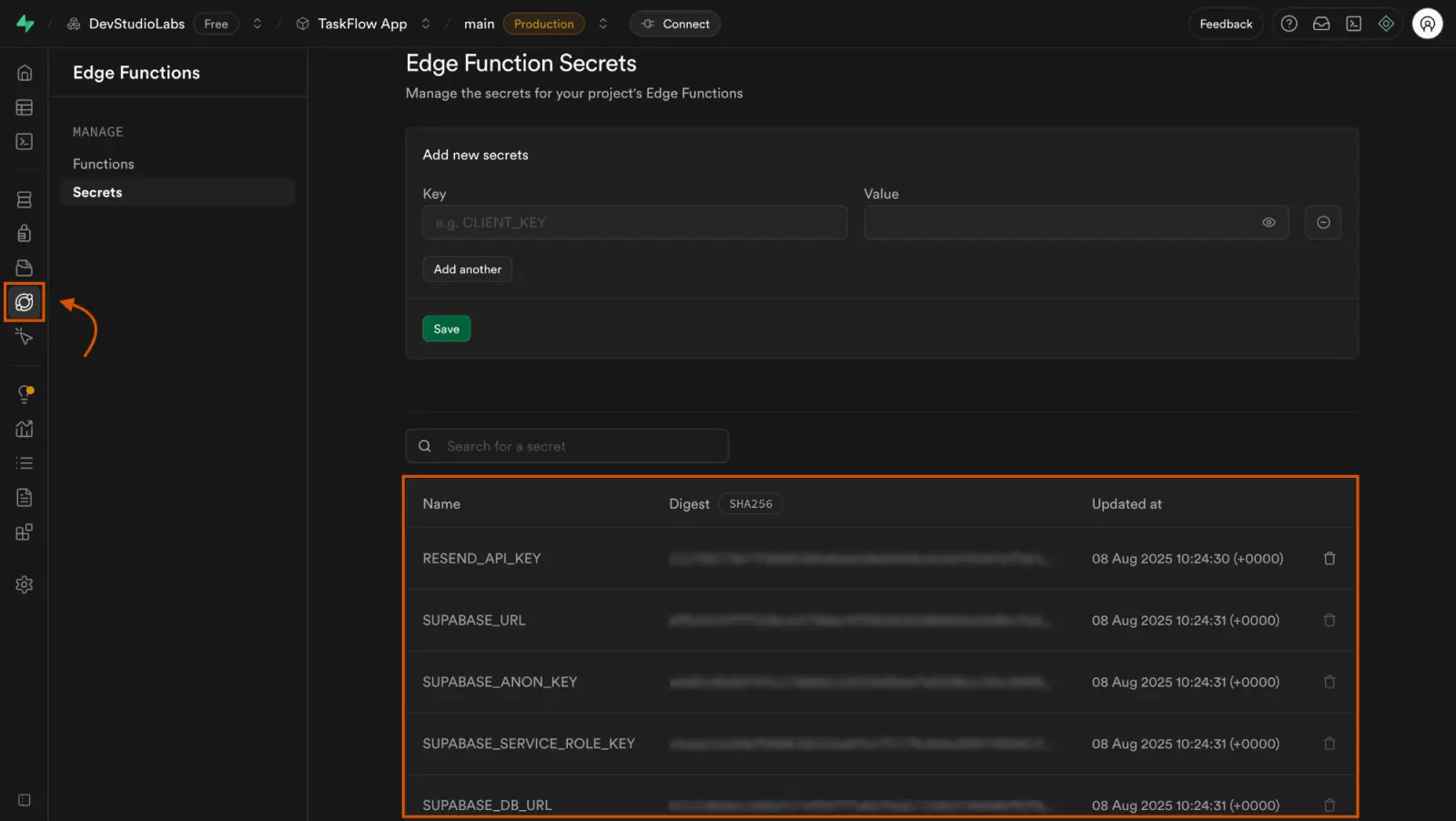
View secrets in Supabase
- Go to the Supabase Dashboard and open your project.
- In the left sidebar, open Edge Functions, then open Secrets.
Update a secret manually in Supabase
If Rocket cannot update a secret, change it in the Supabase dashboard. Use this when the secure popup fails, or when an Edge Function errors after you rotate a Stripe, Resend, or Twilio key.
- Go to the Supabase Dashboard and open your project.
- In the left sidebar, open Edge Functions, then open Secrets.
- Find the secret name your function uses (see the table below).
- Enter the new key or token as the value. If the name already exists, Supabase replaces the previous value.
- Click Save.
Deployed functions pick up the new value immediately. You do not need to redeploy the function.
Trigger the flow again in your Rocket app. For example, send a test email, create a checkout, or send an SMS. If it still fails, check the function Logs tab in Supabase for the exact error.
Common secret names Rocket uses with connectors:
| Connector | Typical secret name |
|---|---|
| Stripe | STRIPE_SECRET_KEY |
| Resend | RESEND_API_KEY |
| Twilio | TWILIO_AUTH_TOKEN (and often TWILIO_ACCOUNT_SID) |
Updating the connector in Rocket with Edit on the connector card, and updating the Edge Function secret in Supabase, are separate steps. If you rotated a key in Stripe, Resend, or Twilio and Rocket fails to push the new value, use the steps above so your Edge Functions keep working.
Call your function from the app
Once deployed, Rocket can automatically wire your function into your app. You can also ask for specific triggers, such as:
- After user actions like signups or button clicks.
- From other backend processes.
To test first, ask Rocket to add a test button that triggers the function safely during development.
Example: Send a welcome email
Prompt:
Send a welcome email using Resend when a new user signs up.Rocket will:
- Generate the function.
- Request the
RESEND_API_KEY. - Show a Push to Supabase popup.
- Connect the function to your signup flow.
Troubleshooting
1. Function not found
What you will see: Rocket or your app reports that the function does not exist.
To fix this:
Rocket shows an error popup with a Fix it button. Click it. Rocket will check the issue and either:
- Repair the function and show a Push to Supabase popup.
- Generate a script to deploy if schema changes are needed.
If the function exists but does not behave as expected, describe the problem clearly in chat. For example:
When users sign up, they are not receiving the welcome email.Rocket will inspect, apply changes, and prompt you to redeploy.
2. Push to Supabase failed
What you will see: An error appears when you click Push to Supabase.
To fix this:
Check the error message shown in the popup.
If a Fix it button is available, click it. Rocket will:
- Fix the function.
- Show a new Push to Supabase popup so you can retry.
Push the updated function or script as prompted.
3. Secret or API key update failed
What you will see: Rocket cannot save or update a secret, or an Edge Function fails after you rotate a Stripe, Resend, or Twilio key.
To fix this:
- Confirm the new key works in the provider dashboard (Stripe, Resend, or Twilio).
- Update the secret manually in Supabase.
- Retry the action that calls the Edge Function.
If the secret name in Supabase does not match what the function reads (for example, RESEND_API_KEY), add or rename the secret so the names match, then save again.
Backend logic, deployed in minutes
Your Rocket app now runs secure server logic with Supabase Edge Functions, all created and deployed from chat.