

Razorpay
Connect Razorpay to your Rocket.new app and accept payments, process refunds, manage subscriptions, and handle orders with a single prompt.
Connect Razorpay via OAuth and describe the payment flow you want in chat. Rocket generates the complete checkout experience: order creation, payment forms, webhook handlers, and subscription management, all grounded in your real Razorpay configuration.
Razorpay is a workspace-level connector. Connect it once from Settings and it is available across all tasks.
What you can do
One-time checkout
Accept single payments for products, services, or digital goods with a Razorpay-powered checkout page.
Subscription billing
Monthly or yearly plans with automatic billing, upgrade and downgrade flows, and cancellation handling.
Order management
Create and track orders programmatically. Pull order history into dashboards and admin panels.
Refund processing
Trigger full or partial refunds from your app and sync refund status back to your UI.
Before you connect
Razorpay uses OAuth, so no API key is required. You authorize Rocket through Razorpay's login flow and Rocket gets scoped access to your account.
Rocket can only access the Razorpay account you authorize during the OAuth flow. To switch accounts, disconnect and reconnect with the new account.
Always test with Razorpay's Test Mode before switching to Live Mode. Test card: 4111 1111 1111 1111 with any future expiry and CVV.
Connect Razorpay
You can connect from three places. All do the same thing.
Option 1: From chat
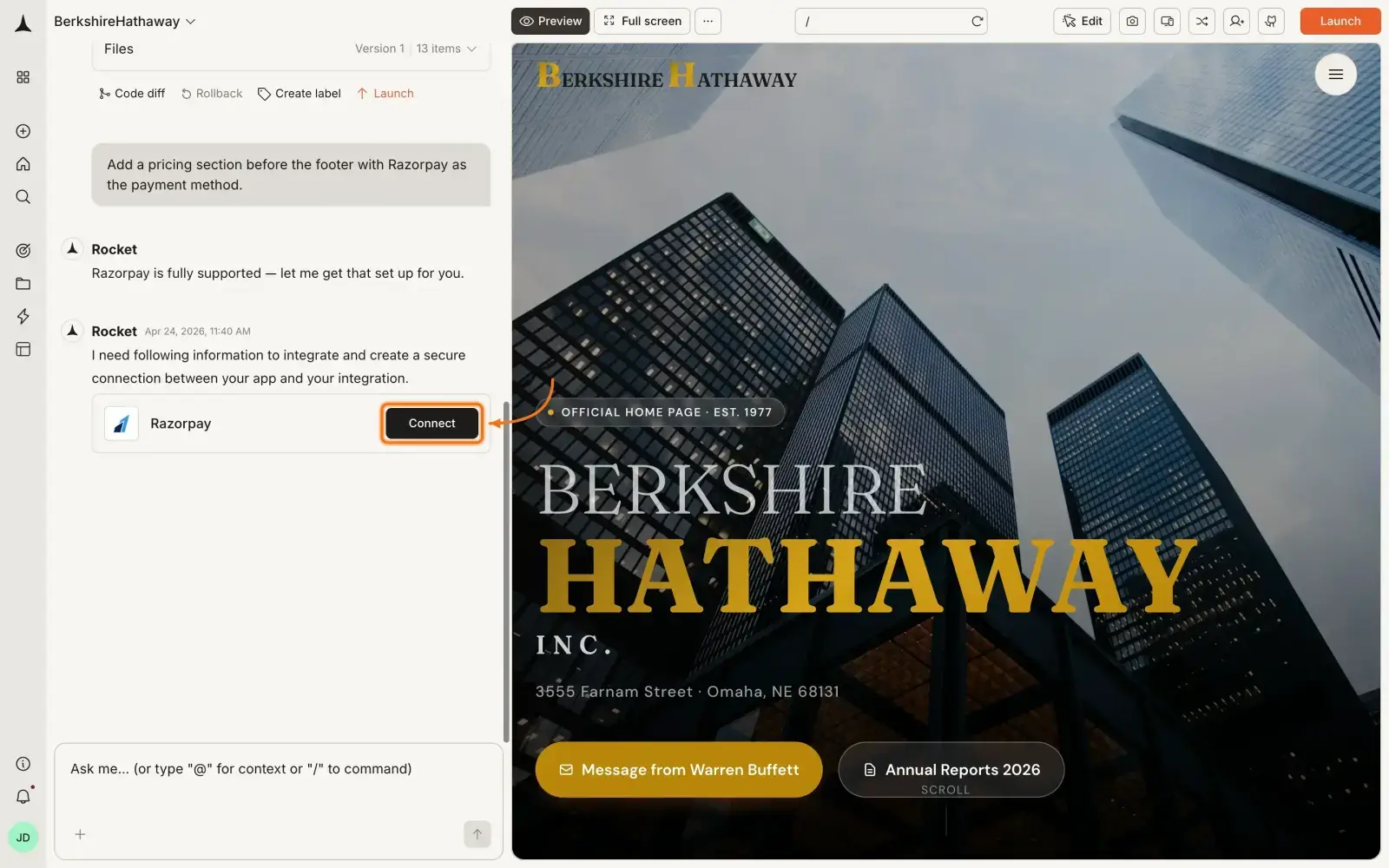
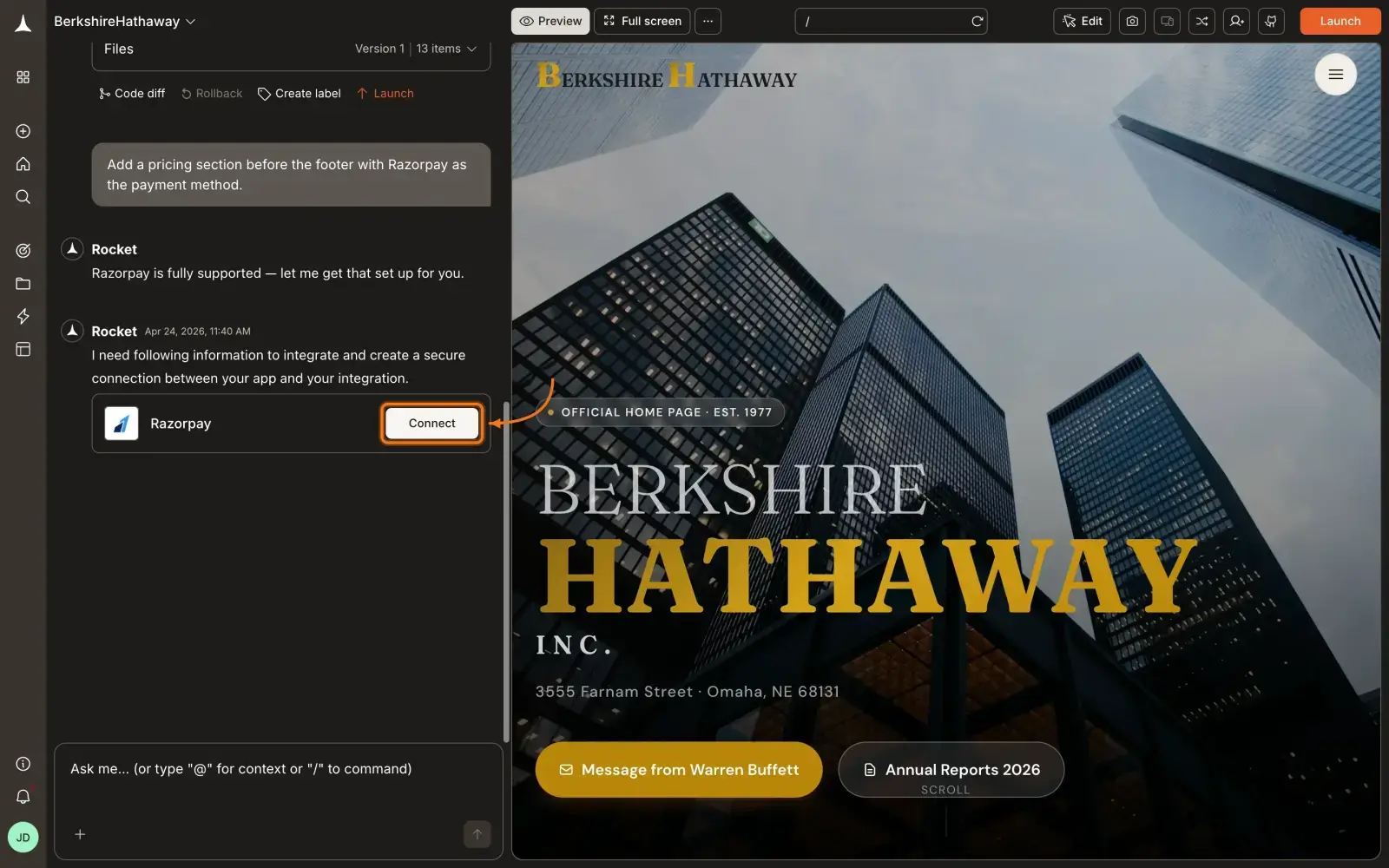
Type a prompt that mentions Razorpay - for example, Connect Razorpay and add a checkout for ₹499. Rocket detects the intent and shows a Connect button inline. Click it and the authorization flow opens.
Option 2: From the Connectors tab
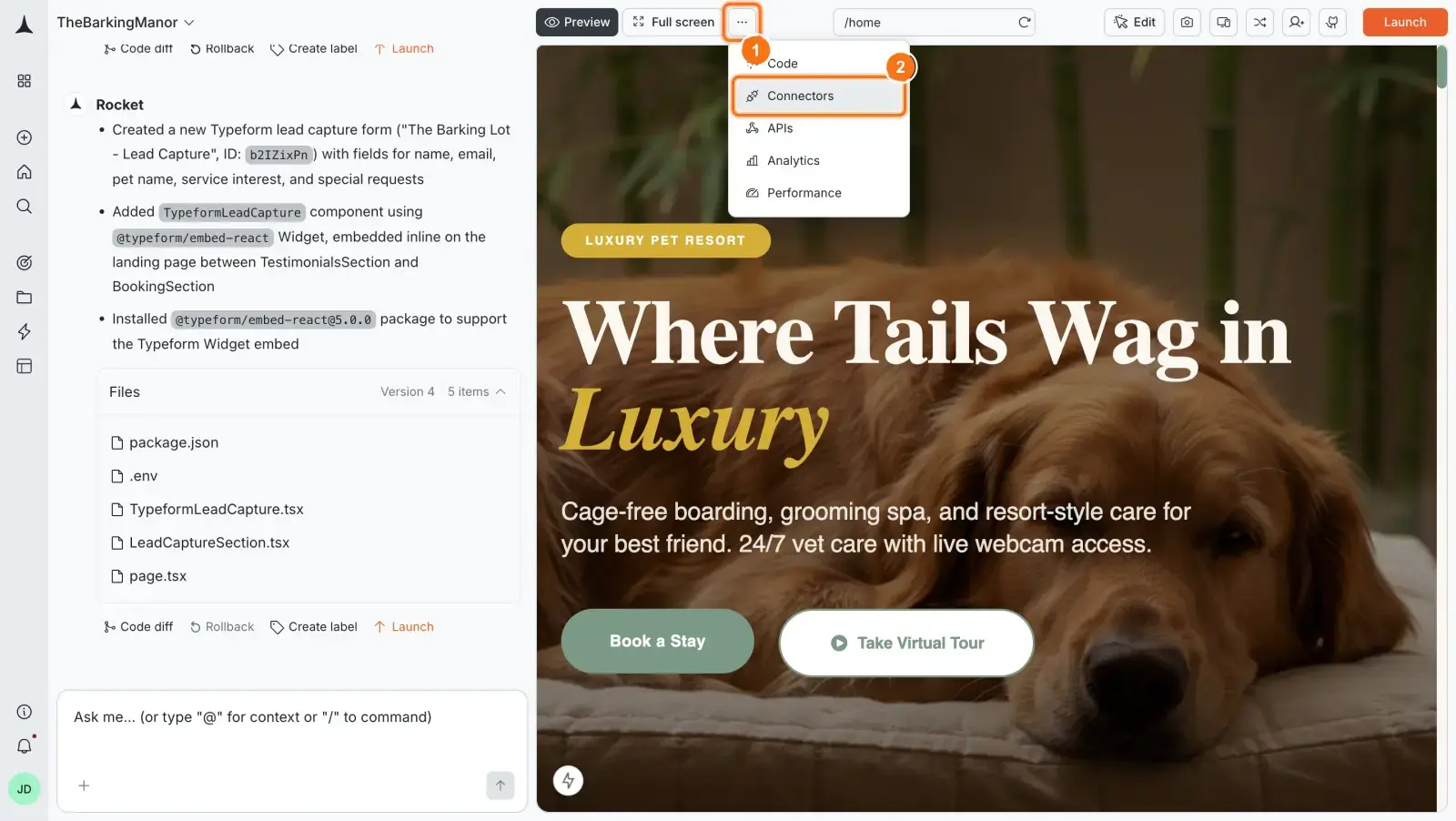
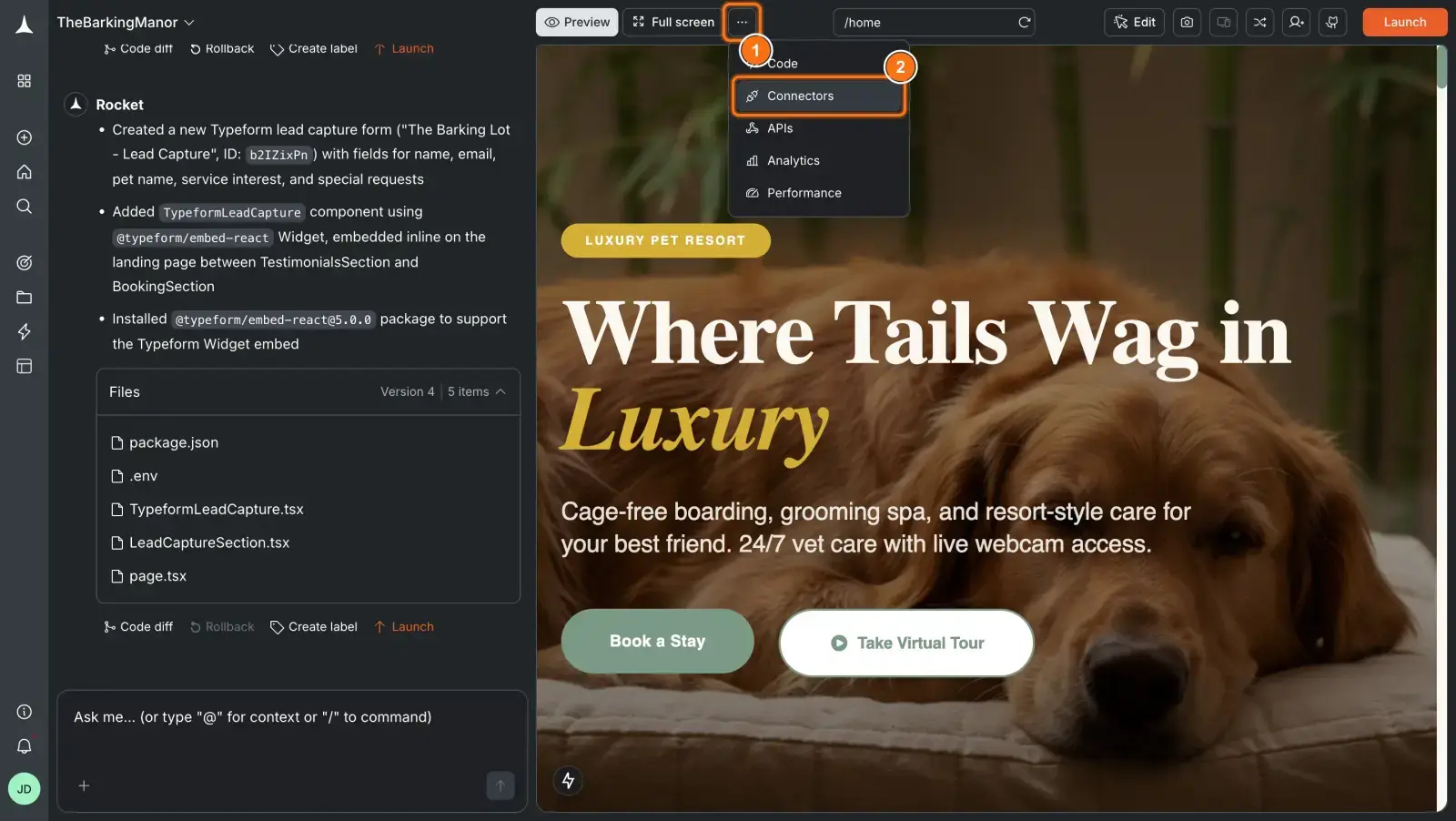
Click the ... button in the preview toolbar, then select Connectors.
Click the Razorpay card, then click Connect.
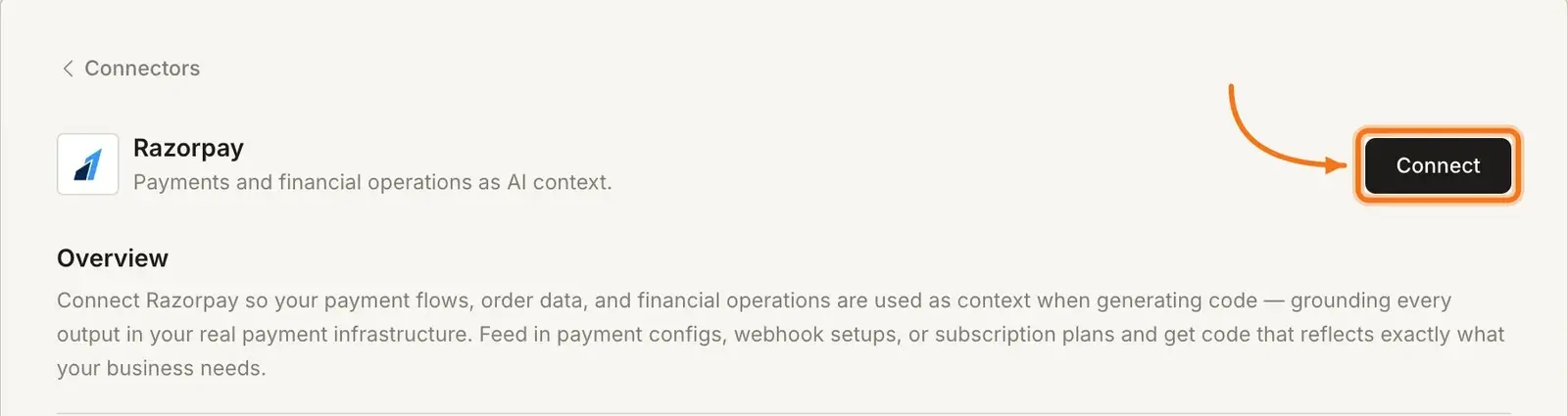
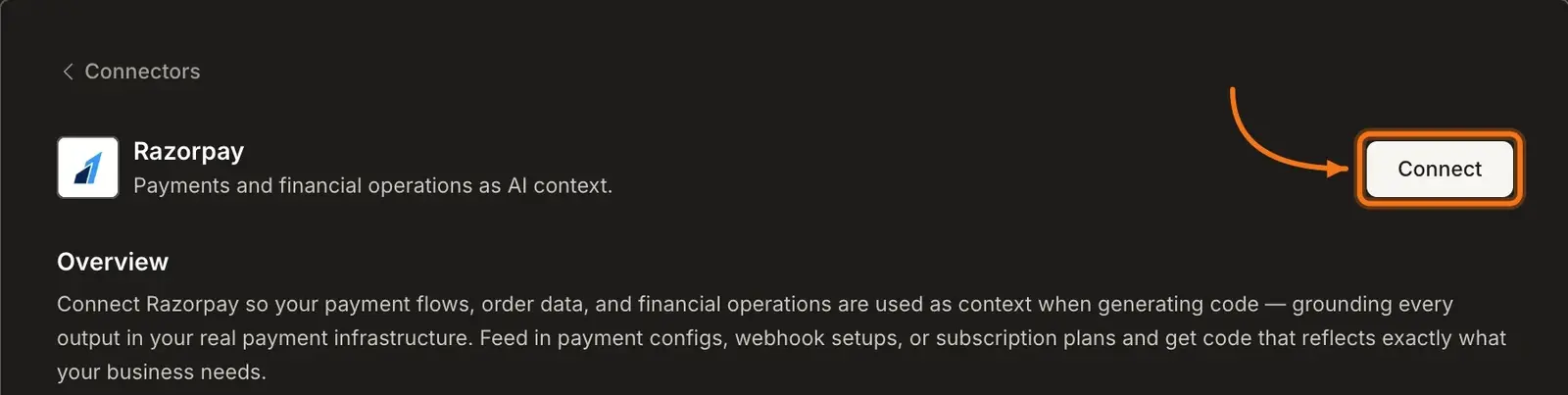
Option 3: From workspace Settings
Connect from workspace Settings
Connect once from Settings and it is available across all tasks.
After clicking Connect
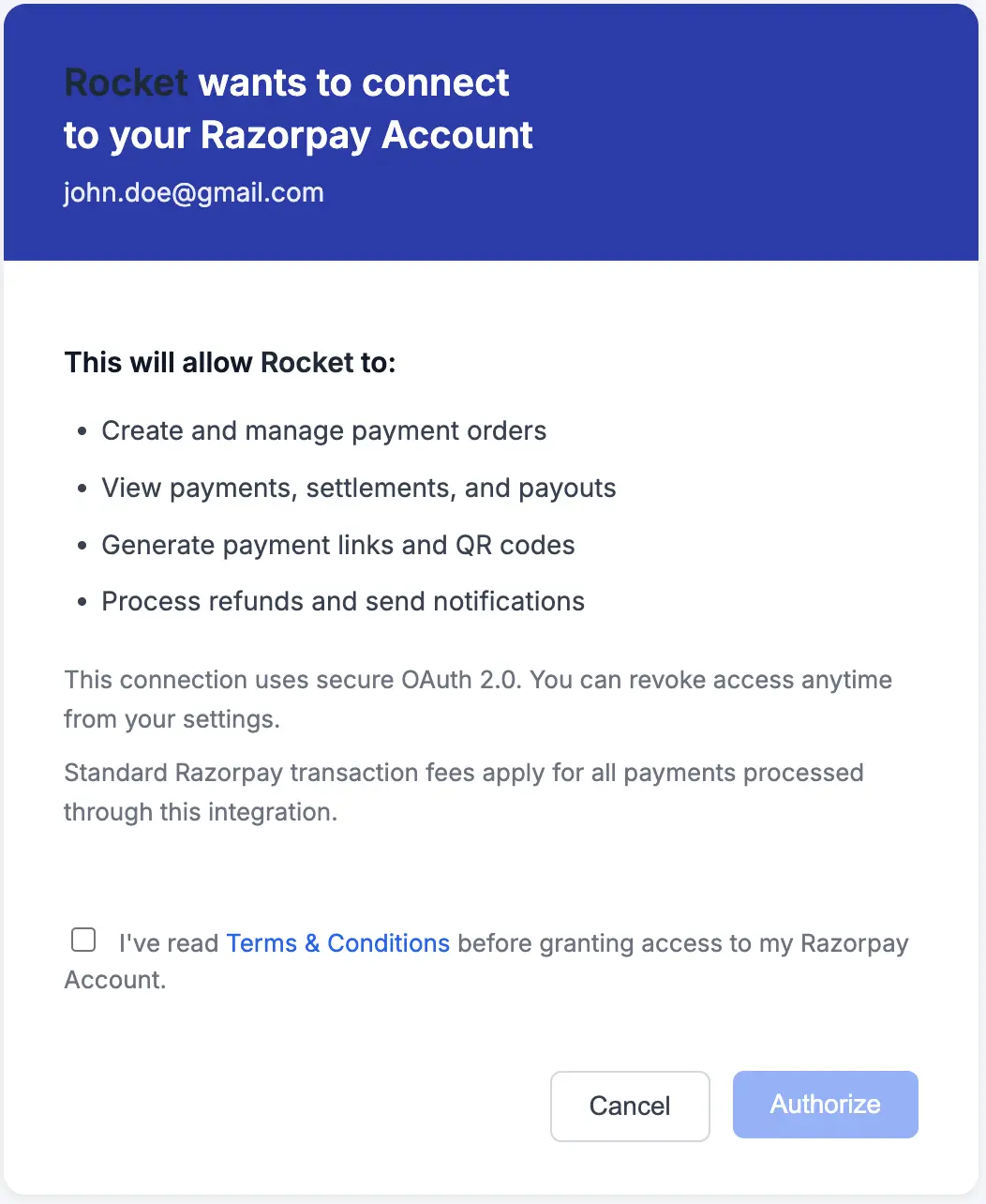
Razorpay's authorization screen opens. Review the permissions Rocket is requesting, check I've read Terms & Conditions, then click Authorize. A green dot appears next to Razorpay when the connection is active.
Disconnect
Disconnect a service
Example prompts
| Use case | Prompt |
|---|---|
| Simple checkout | Add a Razorpay checkout for my ₹999 product with a success page. |
| Subscription plans | Create a pricing page with Free, Pro (₹499/mo), and Enterprise (₹1999/mo) tiers using Razorpay. |
| Order history | Add an Orders page that shows the user's past Razorpay payments with status and amounts. |
| Refund flow | Add a Refund button on the order detail page that triggers a full Razorpay refund and updates the order status. |
| Webhook handler | Set up a Razorpay webhook handler for payment.captured and payment.failed events and update the database accordingly. |
| International checkout | Add a Razorpay checkout that supports INR and USD with automatic currency detection. |
Tips
- Always start in Test Mode. Use Razorpay's test credentials during development. Switch to Live Mode only when you are ready to accept real payments. Test card:
4111 1111 1111 1111. - Webhooks are handled automatically. Rocket generates the webhook handler code for common events like
payment.captured,subscription.charged, andrefund.processed. - Connect Supabase first. Rocket links Razorpay customers and orders to authenticated Supabase users. Connect Supabase before adding Razorpay for a complete payment flow.
- Refunds and disputes live in Razorpay. Manage financial reconciliation, settlements, and disputes directly from the Razorpay Dashboard.
- INR is the default currency. Razorpay supports multi-currency but defaults to INR. Mention your target currency explicitly in your prompt if needed.
What's next?
Supabase
Connect Supabase for user accounts and order storage to complete the payment flow.
Resend
Send payment confirmation and receipt emails automatically after Razorpay payments.
Stripe
Need global card payments? Stripe is an alternative for non-India markets.
Build a SaaS app
Full recipe: Supabase + payments + email to build a complete SaaS product.