

Confluence
Use Confluence pages, specs, and decision records as live context in Rocket.new so generated code follows your team's documented standards.
Connect Confluence and Rocket reads your team's pages, specs, and decision records as context when generating code. Architecture docs, API references, and sprint notes feed directly into the generation process for tighter alignment between docs and code, without copying and pasting.
Confluence is a workspace-level connector. Connect it once from Settings and it is available across all tasks.
What you can do
Build from specs
Link a product spec, PRD, or technical design doc in Rocket. Rocket reads the requirements and builds exactly what was specced.
Use architecture docs as context
Feed your team's API reference, system design, and architecture docs into Rocket so generated code matches your actual patterns.
Sync knowledge base content
Pull Confluence space pages into your app. Turn internal wikis into searchable help centers or onboarding tools.
Align with team standards
Sprint notes, ADRs, and runbooks become context so every output reflects your team's real decisions and conventions.
Before you connect
Confluence uses OAuth via Atlassian, so no API key is required. You authorize Rocket through Atlassian's login screen, then select your cloud instance and Confluence space inside Rocket.
Rocket can only read pages in the Confluence space you select during the connection flow. To access a different space, disconnect and reconnect with the new space selected.
Connect Confluence
You can connect from three places. All do the same thing.
Option 1: From chat
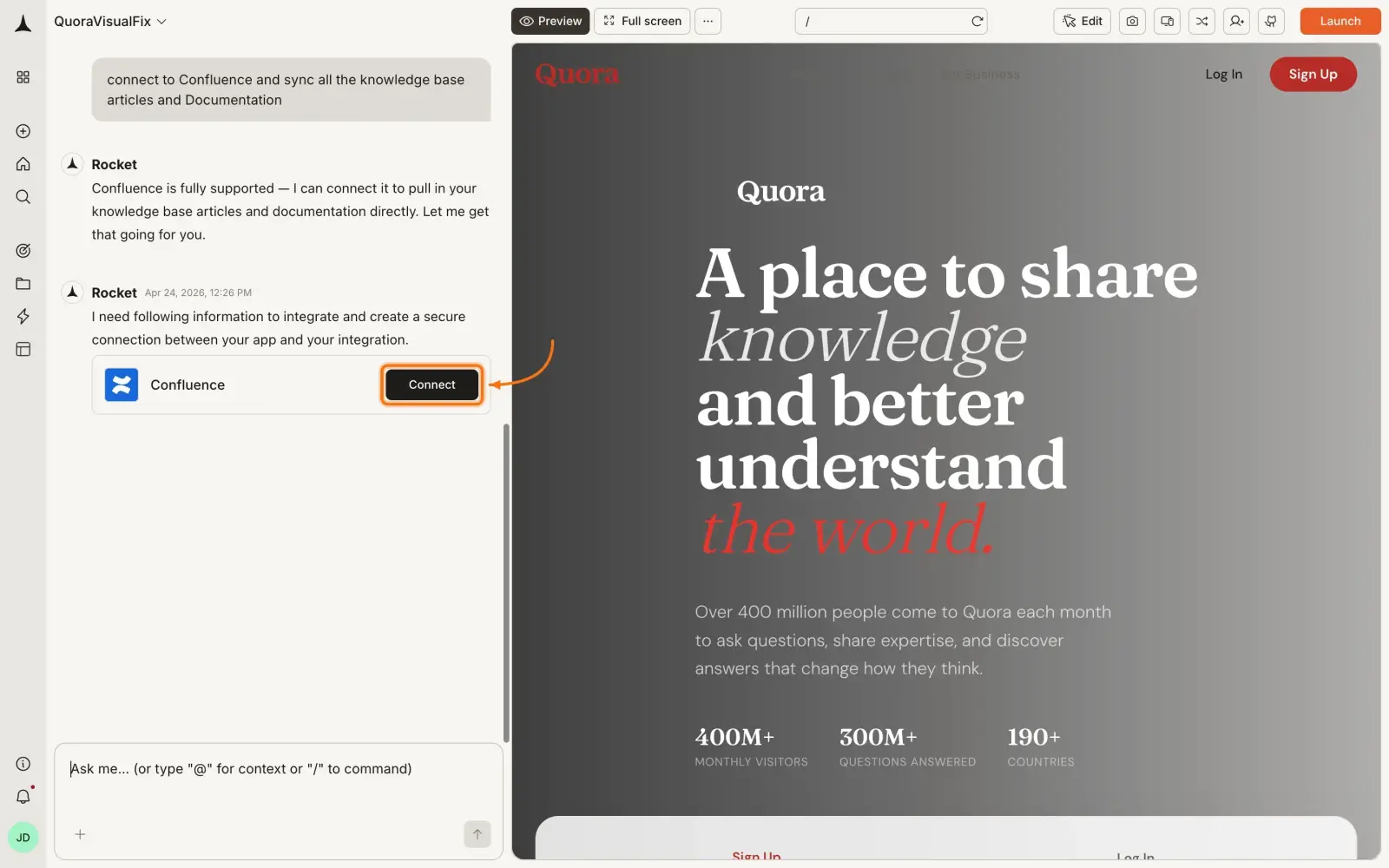
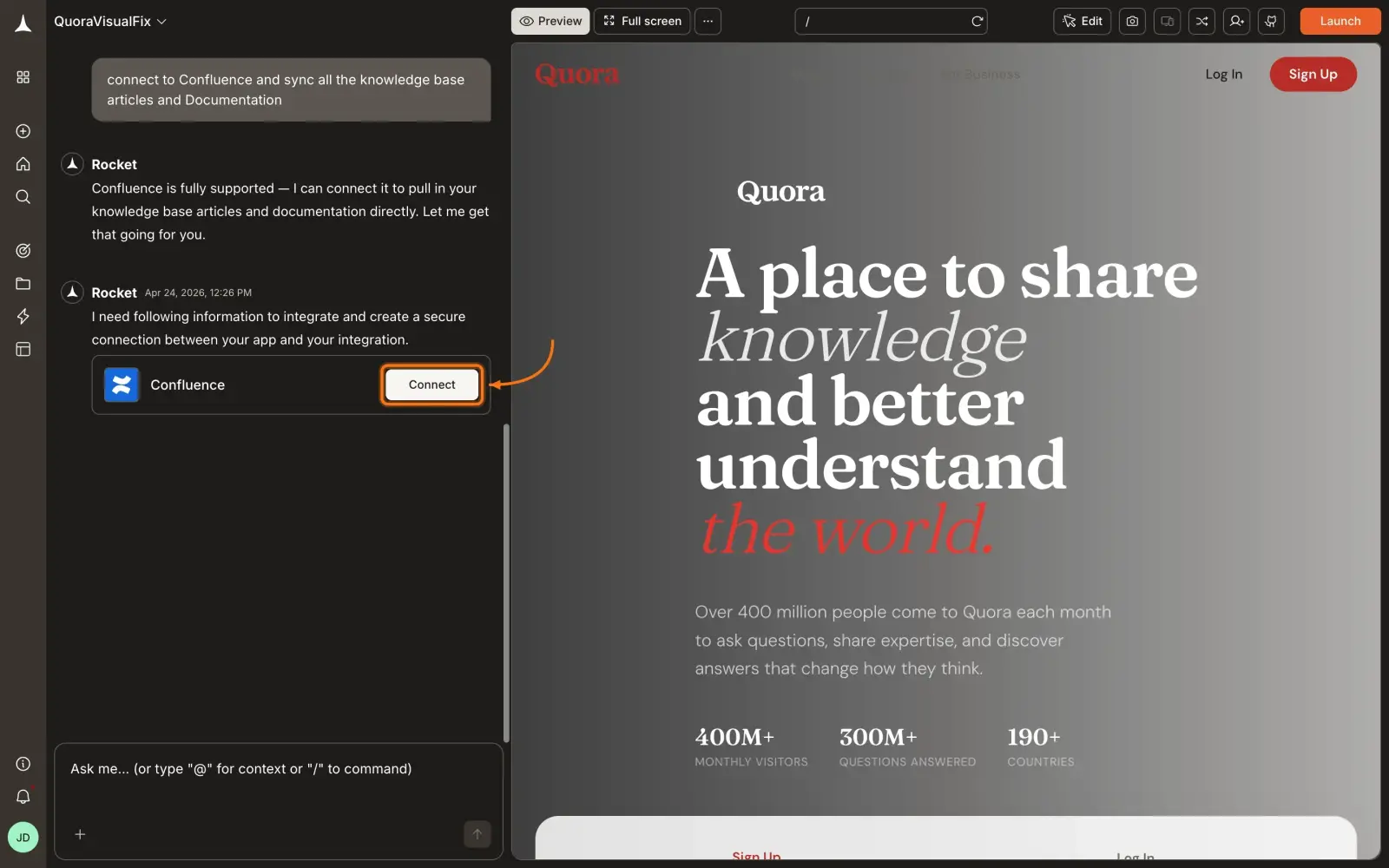
Type a prompt that references Confluence - for example, Connect our Confluence space and use the API spec doc when building this feature. Rocket detects the intent and shows a Connect button inline. Click it to open the authorization flow.
Option 2: From the Connectors tab
Click the ... button in the preview toolbar, then select Connectors.
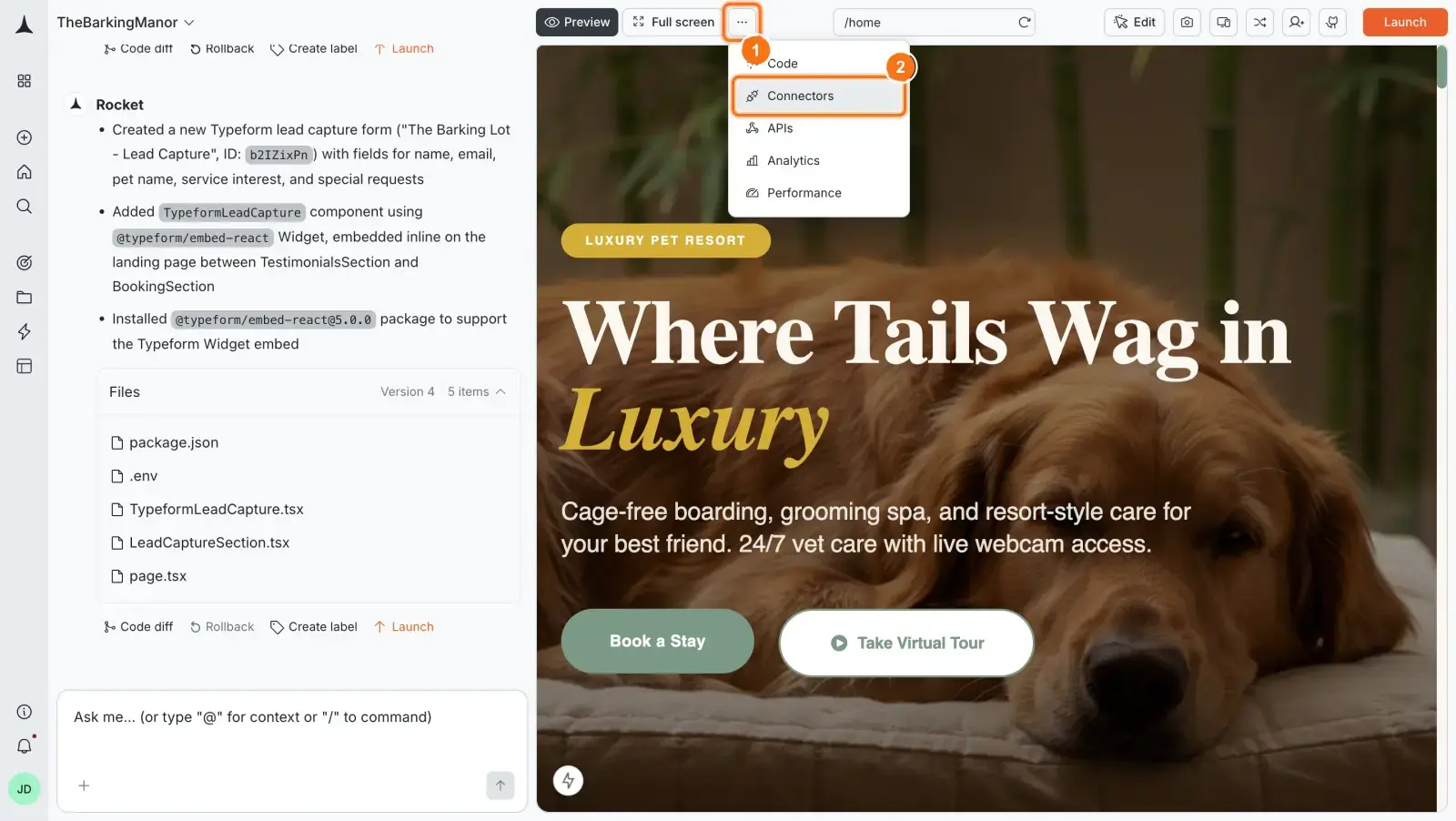
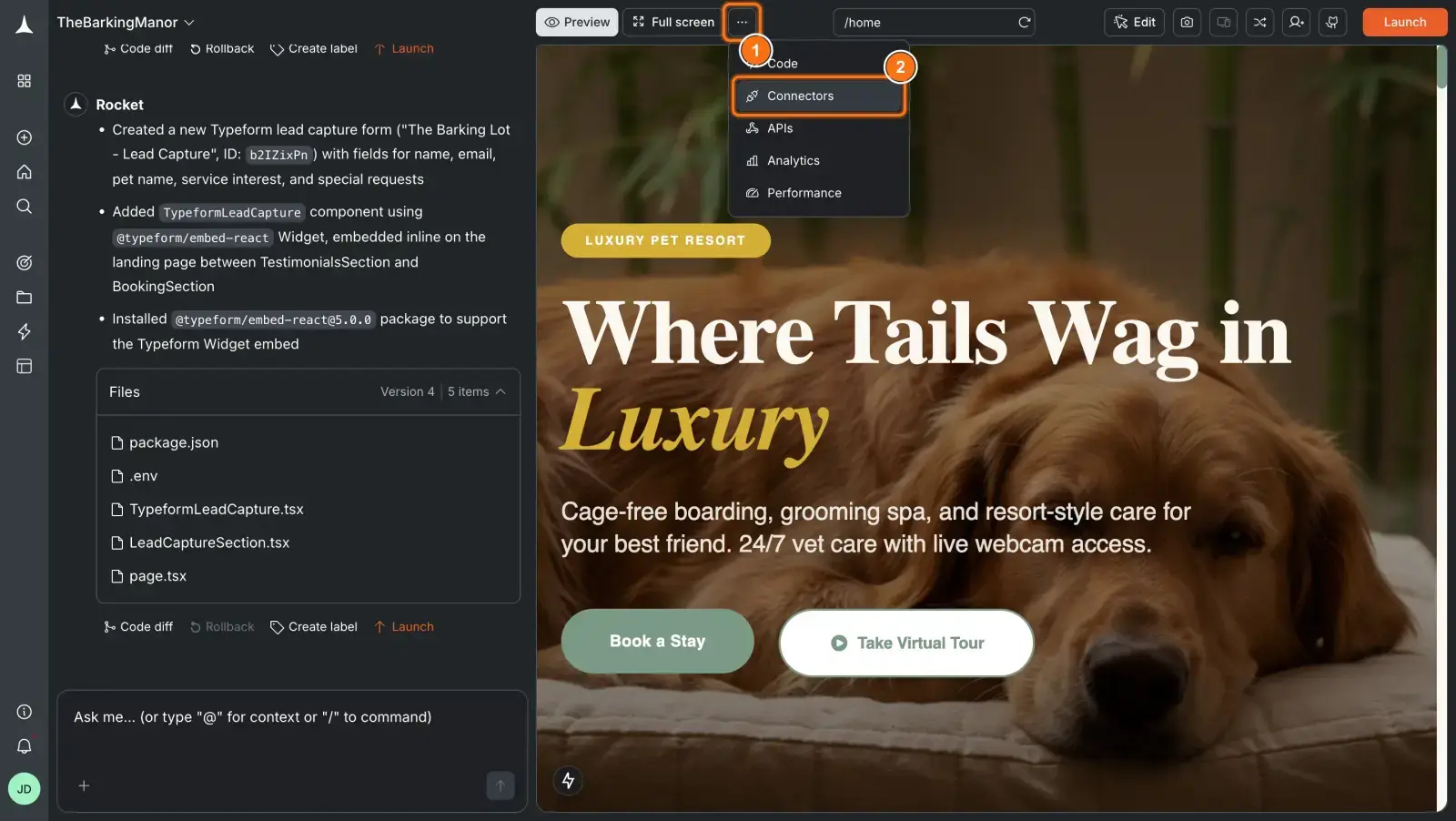
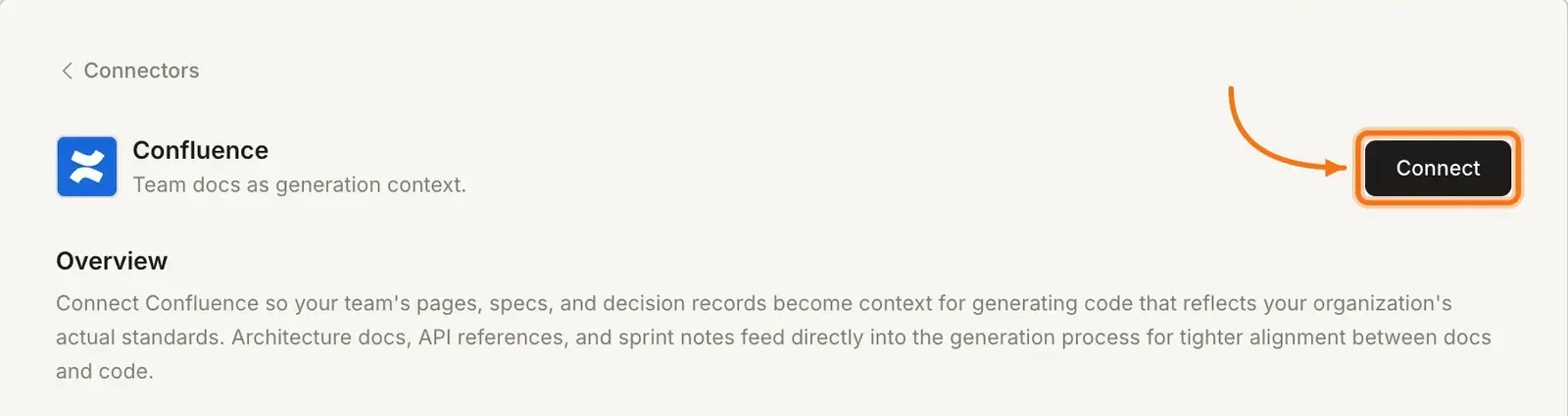
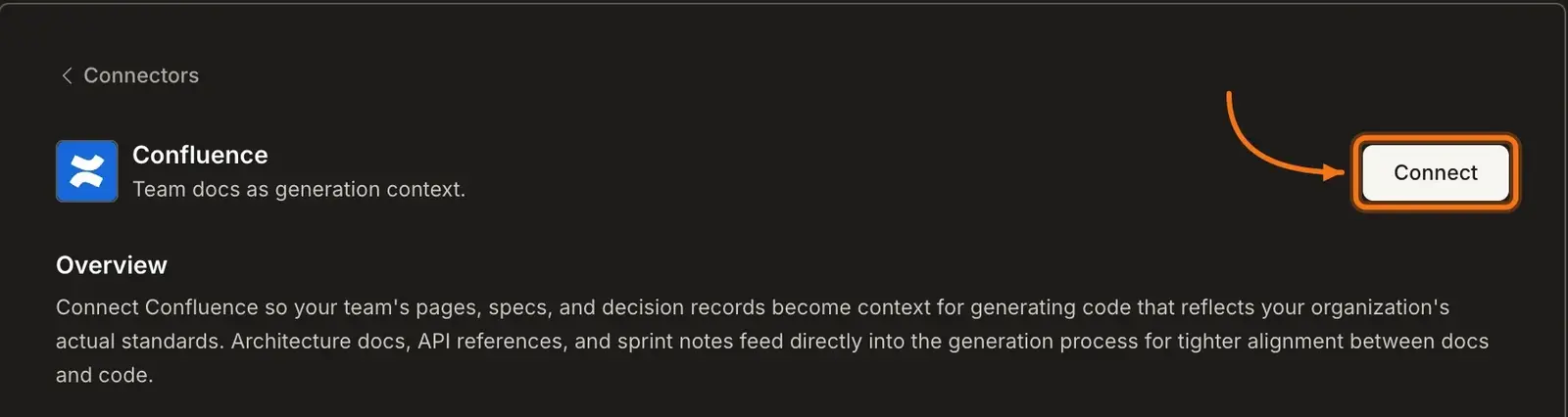
Click the Confluence card, then click Connect with Confluence.
Option 3: From workspace Settings
Connect from workspace Settings
Connect once from Settings and it is available across all tasks.
After clicking Connect with Confluence
Atlassian's authorization screen opens. Review what Rocket is requesting access to in Confluence and User, then click Accept.
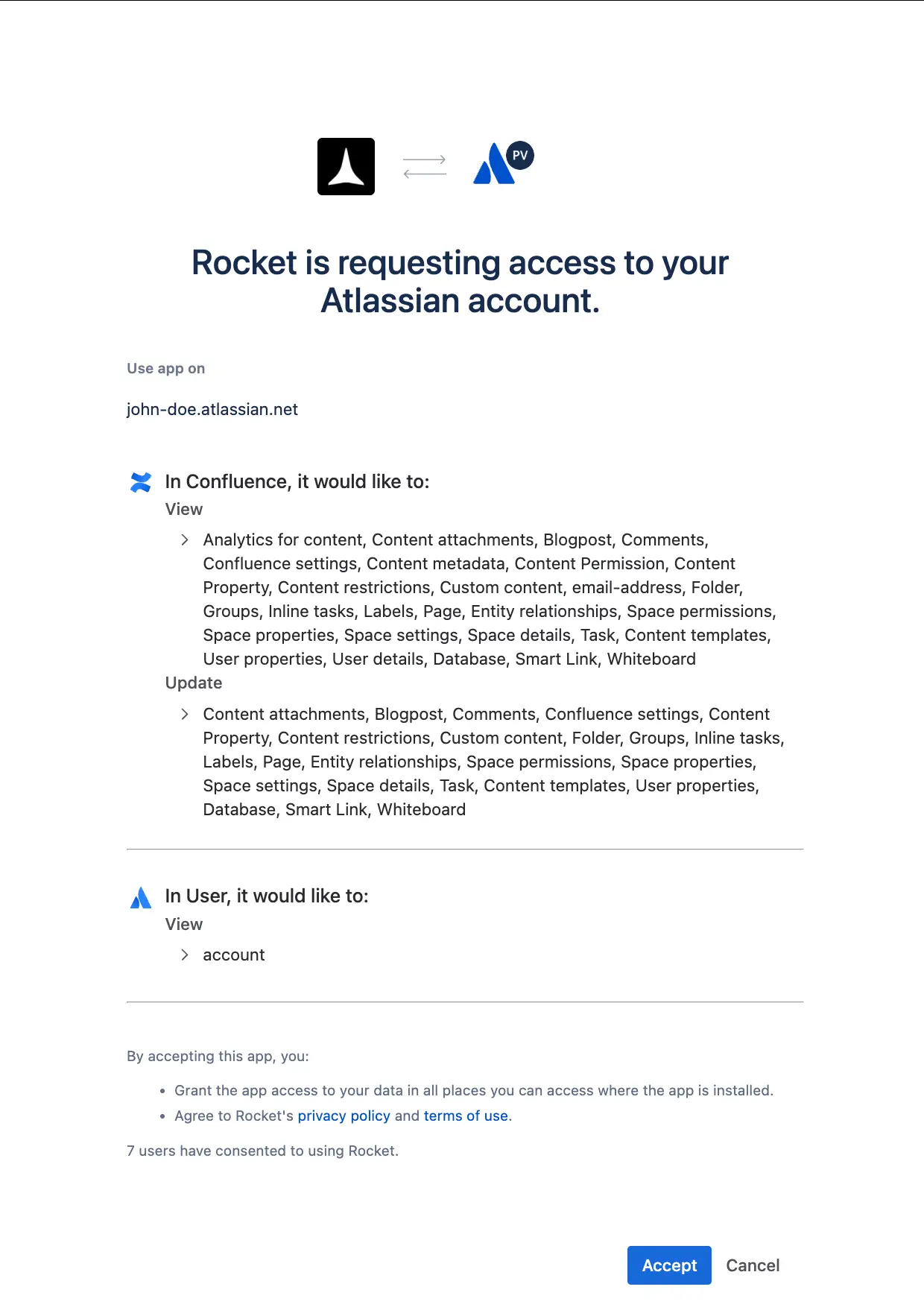
Back in Rocket, select your Atlassian cloud from the dropdown, then select the Confluence space you want to use as context and click Save. A green dot appears next to Confluence when the connection is active.
Disconnect
Disconnect a service
Disconnect or switch spaces from workspace Settings.
Example prompts
Replace [CONFLUENCE_URL] with the link to your Confluence page or space.
| Use case | Prompt |
|---|---|
| Build from spec | Read our product spec at [CONFLUENCE_URL] and build the described feature with all data models and user flows. |
| Use API reference as context | Use the API reference in our Confluence space when generating the integration layer for this service. |
| Architecture-aligned code | Generate the authentication module following the patterns in our architecture doc at [CONFLUENCE_URL]. |
| Help center from wiki | Turn the FAQ page at [CONFLUENCE_URL] into a searchable help center with category filters. |
| Onboarding from runbook | Build an onboarding checklist app using the steps from our new-hire runbook at [CONFLUENCE_URL]. |
| Standards enforcement | Generate the database schema following the conventions documented in our Confluence data model guide at [CONFLUENCE_URL]. |
Tips
- Paste Confluence page URLs directly in chat. Linking to a specific page gives Rocket focused context. Vague references may pull less relevant content from across the space.
- Connect the most relevant space. If your team has multiple Confluence spaces, connect the one that contains the specs and docs closest to what you are building.
- Specs produce the most accurate code. The more structured and detailed your Confluence doc, the more precisely Rocket can match your requirements.
- To switch spaces, reconnect. You can only connect one Confluence space at a time per workspace. Disconnect and reconnect to switch to a different space.
- Confluence context is RAG-based. Rocket retrieves the most relevant content from your space at generation time. It does not load the entire space into every prompt.
What's next?
Notion
Prefer Notion for your docs? Connect Notion as an alternative source of specs and wikis.
Linear
Build directly from Linear tickets alongside your Confluence specs.
Supabase
Store app data with Supabase while Confluence provides the documentation context.
GitHub
Push generated code to GitHub to keep it in sync with your team's workflow.