Connect Google Workspace to Rocket and build from your existing Docs, Sheets, and Calendar. Rocket reads your content as source material and writes generated outputs back into your Google tools.
This connector is only available for Next.js TypeScript web build tasks.
Without Google WorkspaceWith Google Workspace
Content lives in a Google DocContent lives in a Google Doc
You read it and summarize it as a promptRocket reads it directly
Rocket generates based on your descriptionRocket generates from the source material
Every detail and phrase your team chose carries through. No information loss.

What you can use it for

Reading from Google

Replace placeholder content

Point Rocket at the Google Doc with your hero headline, feature descriptions, and pricing copy. Rocket reads it and replaces every placeholder with your real brand messaging.

Build data-driven apps from Sheets

Rocket reads columns, rows, and data types from your spreadsheets, then generates a working app. Works for product catalogs, pricing matrices, campaign trackers, and team directories.

Build from specs and PRDs

Your team writes PRDs in Google Docs. Let Rocket read the spec directly and build what it describes - including data models, user stories, and UI layout notes.

Build from Google Calendar

Build booking systems and event pages that pull directly from Google Calendar. No fake data or hardcoded times.

Writing back to Google

Save copy to Docs for review

Send generated marketing copy to a Google Doc where your team can comment, edit, and approve before anything goes live.

Export SEO metadata to Sheets

After Rocket generates pages, export every title tag, meta description, and keyword target to a Google Sheet for your SEO team to audit.

Export content for client review

Export the full content structure - page name, section, headline, body, CTA - to a spreadsheet. Clients review and leave comments in the tool they already use.

Quick start

1

Have your Google Doc or Sheet ready

Open Google Workspace and navigate to the content you want Rocket to use.
2

Connect in chat

Open any Rocket project and type:
Read my brand messaging doc at [DOCS_URL] and replace all placeholder text on this landing page with real copy.
Rocket prompts you to authorize Google, then builds from your content.

Detailed setup

Connect Google Workspace to Rocket

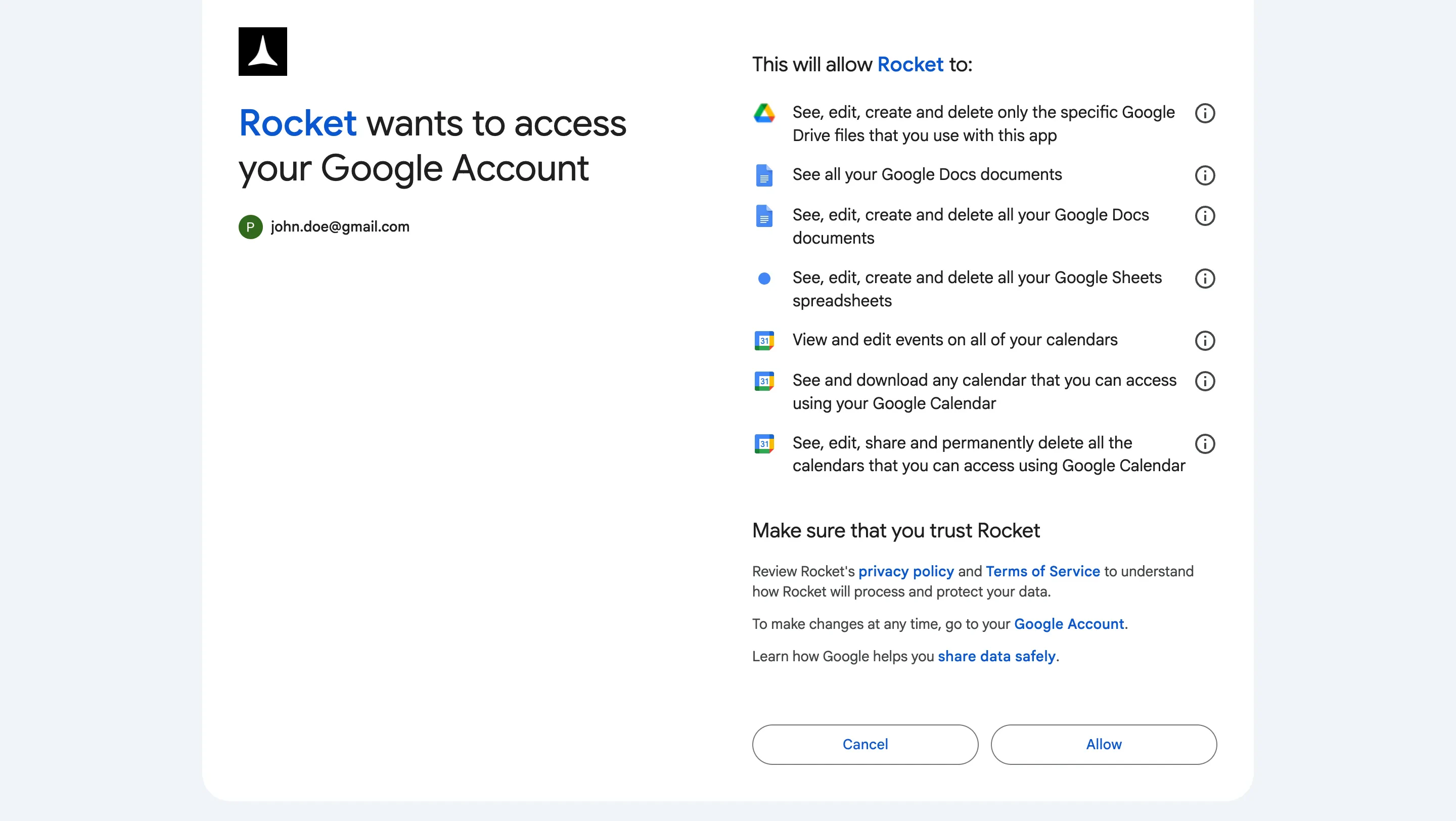
Google Workspace connects via OAuth. You authorize Rocket through Google’s login flow - no API key needed.
There are three ways to connect Google Workspace:Method 1: From workspace SettingsClick your workspace name in the top-left corner, select Settings, then click Connectors in the left sidebar. Click the Google Workspace card.

Workspace connectors

This connector is managed at the workspace level. Connect it once and it is available to all projects.
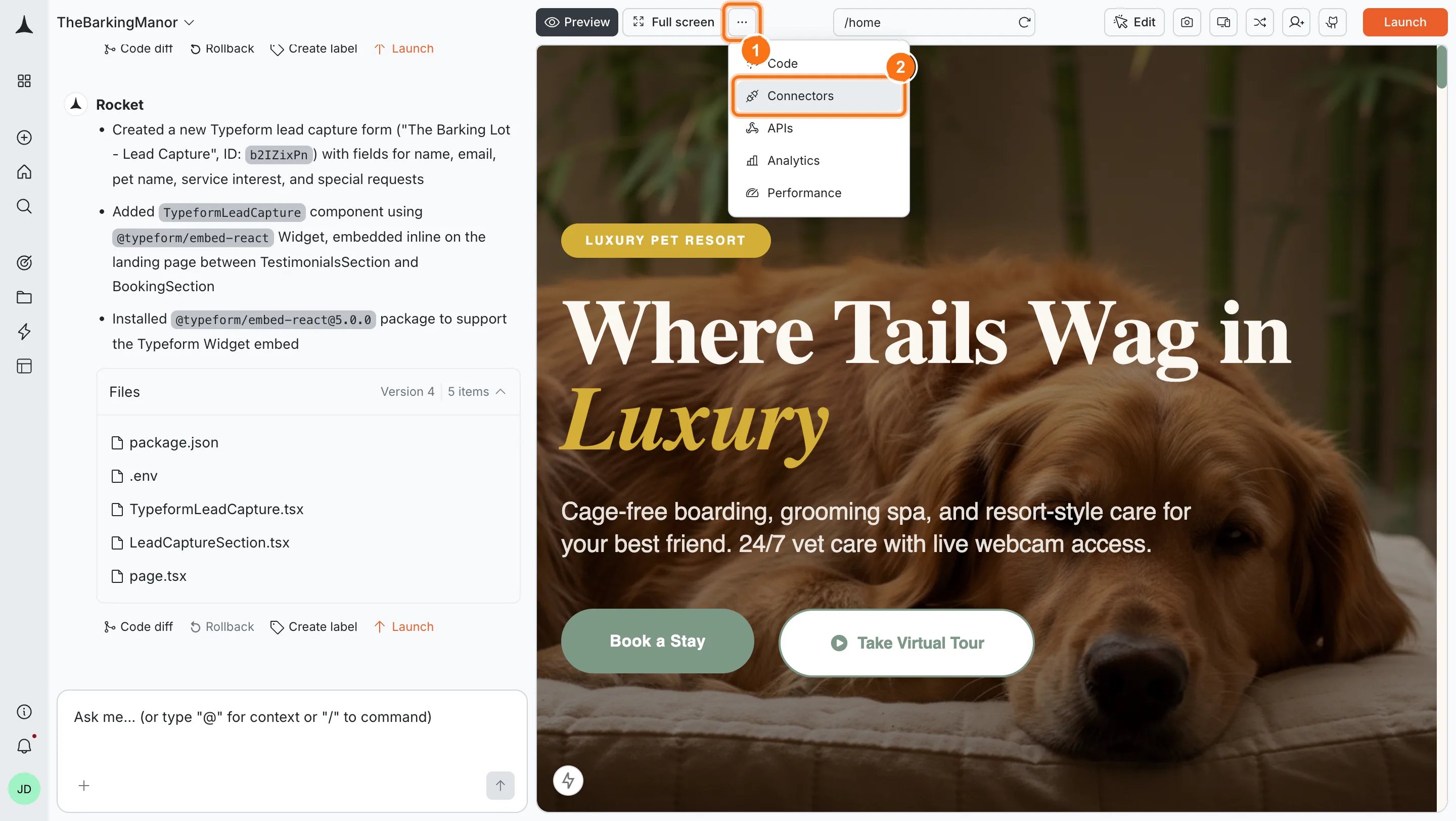
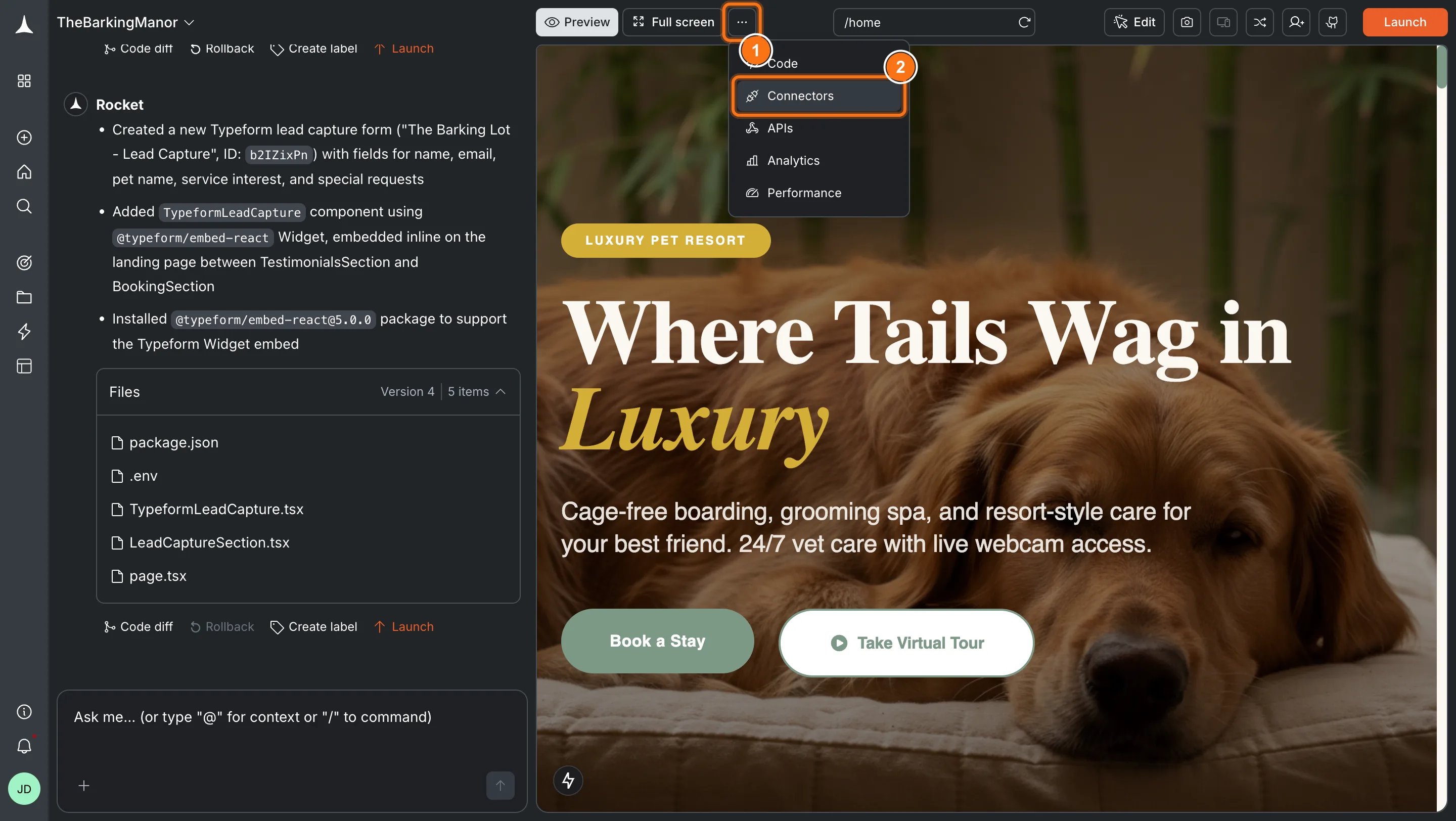
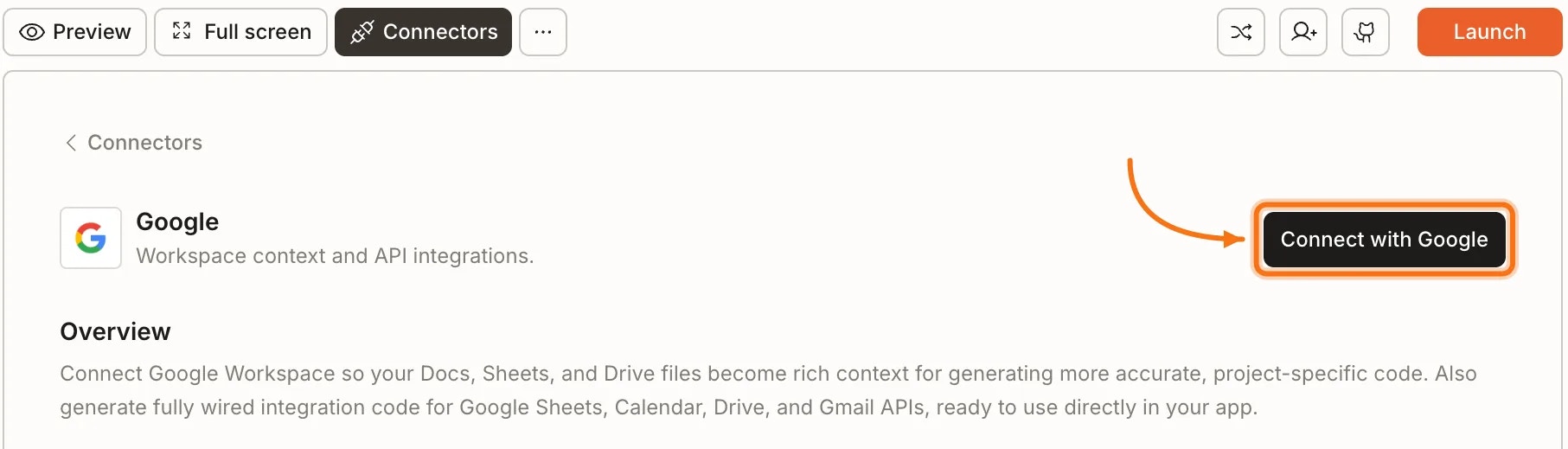
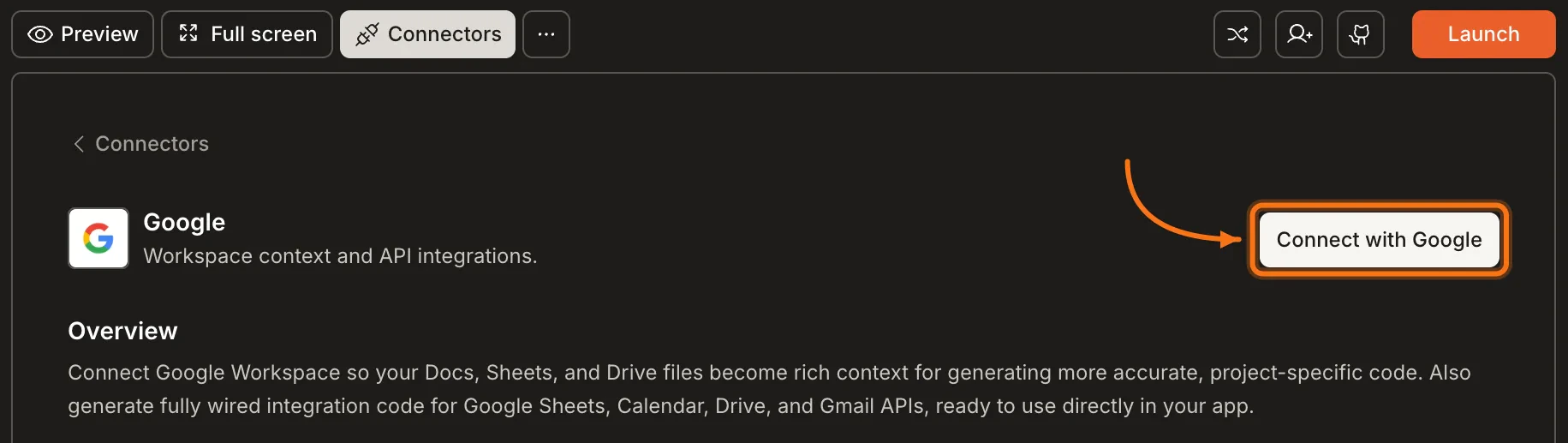
Method 2: From ConnectorsIn the preview toolbar, click the ... button and select Connectors. Click the Google Workspace card.
When you connect Google Workspace from Connectors, Rocket does not automatically read or write. After authorizing, tell Rocket which file or folder to use in chat.
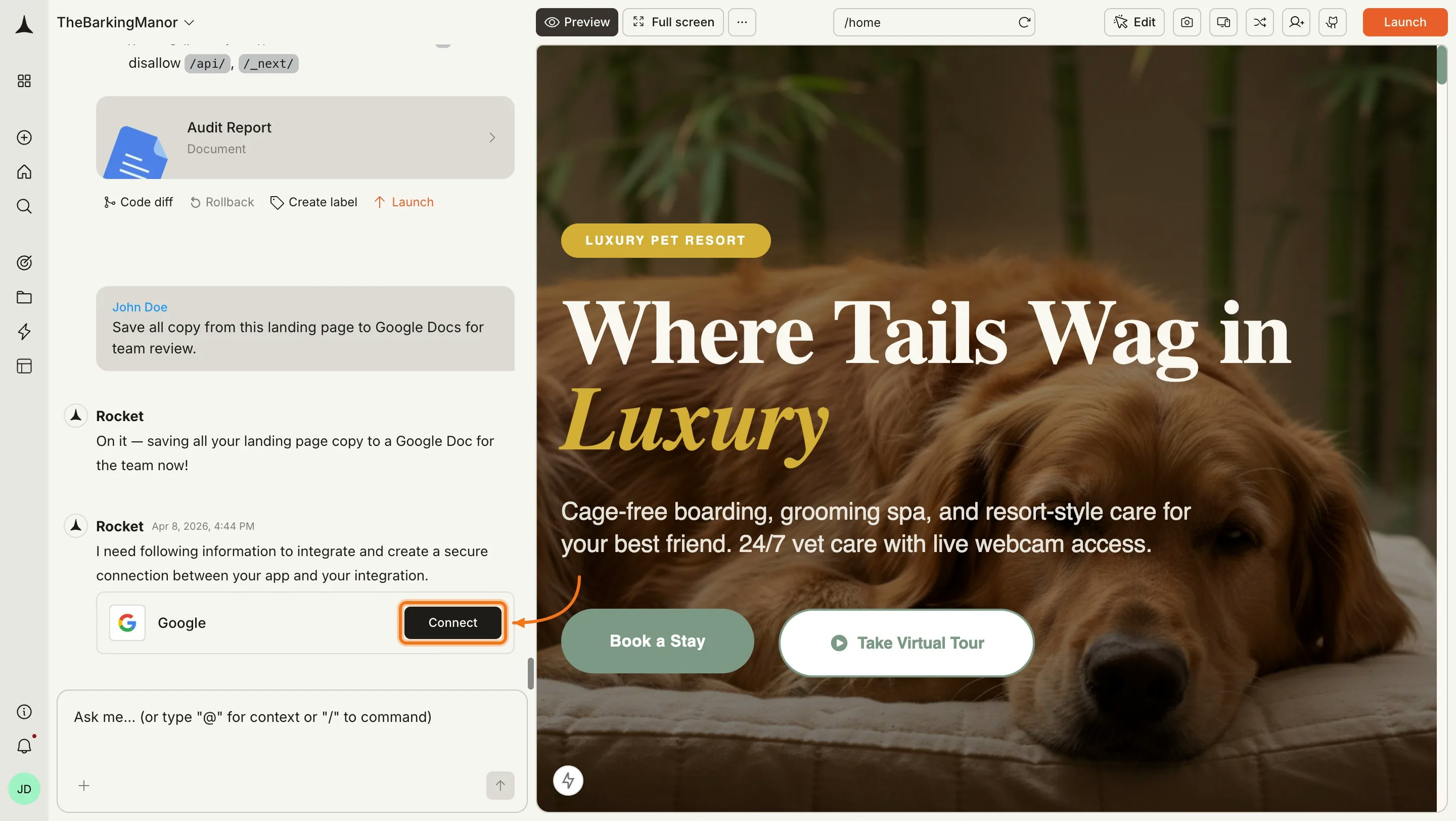
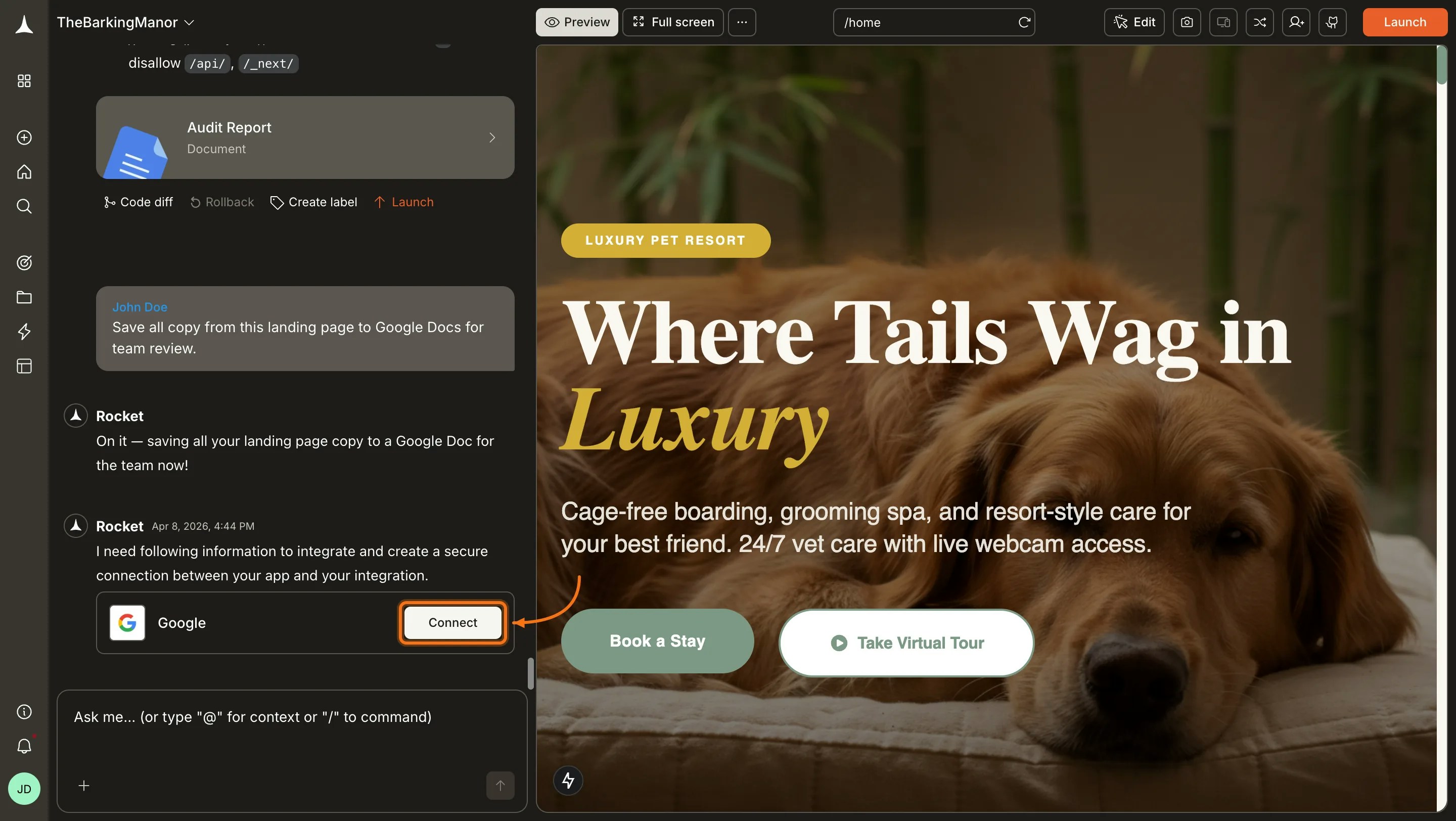
Click Connect, select your Google account, and click Allow. A green dot appears next to Google Workspace when the connection is active.Method 3: From chatIn any project, open the chat panel and type:
  • Read my brand messaging doc at [DOCS_URL] and update the hero section.
  • Save all copy from this landing page to Google Docs for team review.
Rocket prompts you to authorize and then reads from or writes to your Google content directly.Update or disconnectClick the Google Workspace integration again and click Disconnect. To switch accounts, disconnect and reconnect with a different Google account. See Manage connectors for full steps.

Supported services

ServiceReadWriteCommon use cases
Google DocsFull document text, headings, tables, embedded contentNew pages, reports, structured summariesBuild from specs, replace placeholder copy, generate documentation
Google SheetsColumn headers, row data, data types, formulasAppend rows, update cells, create new sheetsData-driven apps, SEO exports, content structure exports
Google CalendarEvents, availability, time zones, recurring eventsCreate and update eventsBooking systems, scheduling pages, event listings

Prompt cookbook

Replace [DOCS_URL] and [SHEETS_URL] with your actual links.

Brand and messaging

Use casePrompt
Update hero from brand guidelinesUpdate the hero section using my brand guidelines at [DOCS_URL]. Rewrite the headline, subtext, and CTA.
Replace all placeholder copyRead my brand messaging doc at [DOCS_URL] and replace every placeholder on this site with real copy. Match tone, voice, and terminology from the doc.

Features and product

Use casePrompt
Update features from product specUpdate the features section using my product spec at [SHEETS_URL]. Rewrite every feature card and reorganize categories to match the doc.
Build feature comparison tableRead the competitor analysis at [SHEETS_URL] and build a feature comparison table with check marks and descriptions.

Pricing

Use casePrompt
Update pricing from spreadsheetUpdate the entire pricing section using my pricing matrix at [SHEETS_URL]. Replace all placeholder tiers, prices, and limits and add a billing toggle.
Build pricing calculatorRead the pricing rules from [SHEETS_URL] and build an interactive pricing calculator with sliders for usage and a monthly/annual toggle.

Social proof and team

Use casePrompt
Update testimonials from real quotesUpdate the social proof section using customer quotes from [DOCS_URL] and company details from [SHEETS_URL]. Replace all placeholder testimonials and metrics.
Update team sectionUpdate the team section using roster data from [SHEETS_URL]. Replace placeholder team members with real names, roles, and bios.
Build case study pagesRead the case study briefs at [DOCS_URL] and build individual case study pages with challenge, solution, and results sections.

Write back to Google

Use casePrompt
Save copy for team reviewSave all copy from this landing page to Google Docs for the marketing team to review and approve.
Export SEO metadataExtract SEO metadata from this website and save page titles, meta descriptions, and keywords to a Google Sheet.
Save content for clientExport the content structure to Google Sheets with each row showing page, section, headline, body, and CTA for client review.
Generate A/B test variantsGenerate headline and CTA variants for A/B testing and save them to a Google Sheet.
Create ad copyCreate short-form ad copy for Google Ads, Meta Ads, and LinkedIn Ads from this landing page and save to Google Docs.

Tips and limitations

  • Sheets work best with clean data. Use clear column headers, consistent data types, and avoid merged cells. The cleaner the spreadsheet, the better Rocket maps it.
  • Calendar time zones. Rocket respects your calendar’s time zone settings. Double-check these before building scheduling features.
  • Write-back is additive. Rocket creates new documents or appends content. It will not overwrite existing files unless you explicitly ask.
  • Large files. For very large Docs or Sheets, reference specific sections or cell ranges to keep context focused.
  • Link directly. Sharing a direct URL gives Rocket the fastest path to your content. Descriptions like “my pricing spreadsheet” work too, but links are more reliable.


What’s next?

Notion

Connect your documentation and wikis for knowledge-driven development.

Linear

Connect issue tracking and project management to your Rocket workflow.

Supabase

Add a database backend with authentication and storage to your app.