Connect Notion to Rocket and build directly from your pages, databases, and wikis, or write generated content back to your workspace.
Connect Notion via OAuth and describe what you want to build in chat. Rocket reads your pages, databases, and wikis as source material and can write generated content back into your workspace.
Notion is a workspace-level connector. Connect it once from Settings and it is available across all tasks.
Link a product requirements document in Rocket. Rocket reads feature lists, user stories, and acceptance criteria, then builds exactly what was specced.
Sync databases as app data
A product catalog database becomes a storefront. A contacts database becomes a CRM. A job listings database becomes a careers page.
Replace placeholder content
Replace lorem ipsum with real copy pulled from your brand guidelines, product docs, or culture pages in Notion.
Build from wiki content
Turn internal knowledge into functional tools. Onboarding wikis become checklist apps. Support docs become searchable help centers.
Add pages from Notion content
Use Notion pages as source material for changelogs, roadmaps, about pages, and FAQs.
Write back to Notion
Push generated landing page copy, campaign briefs, project docs, social copy banks, and client handoffs back into your workspace.
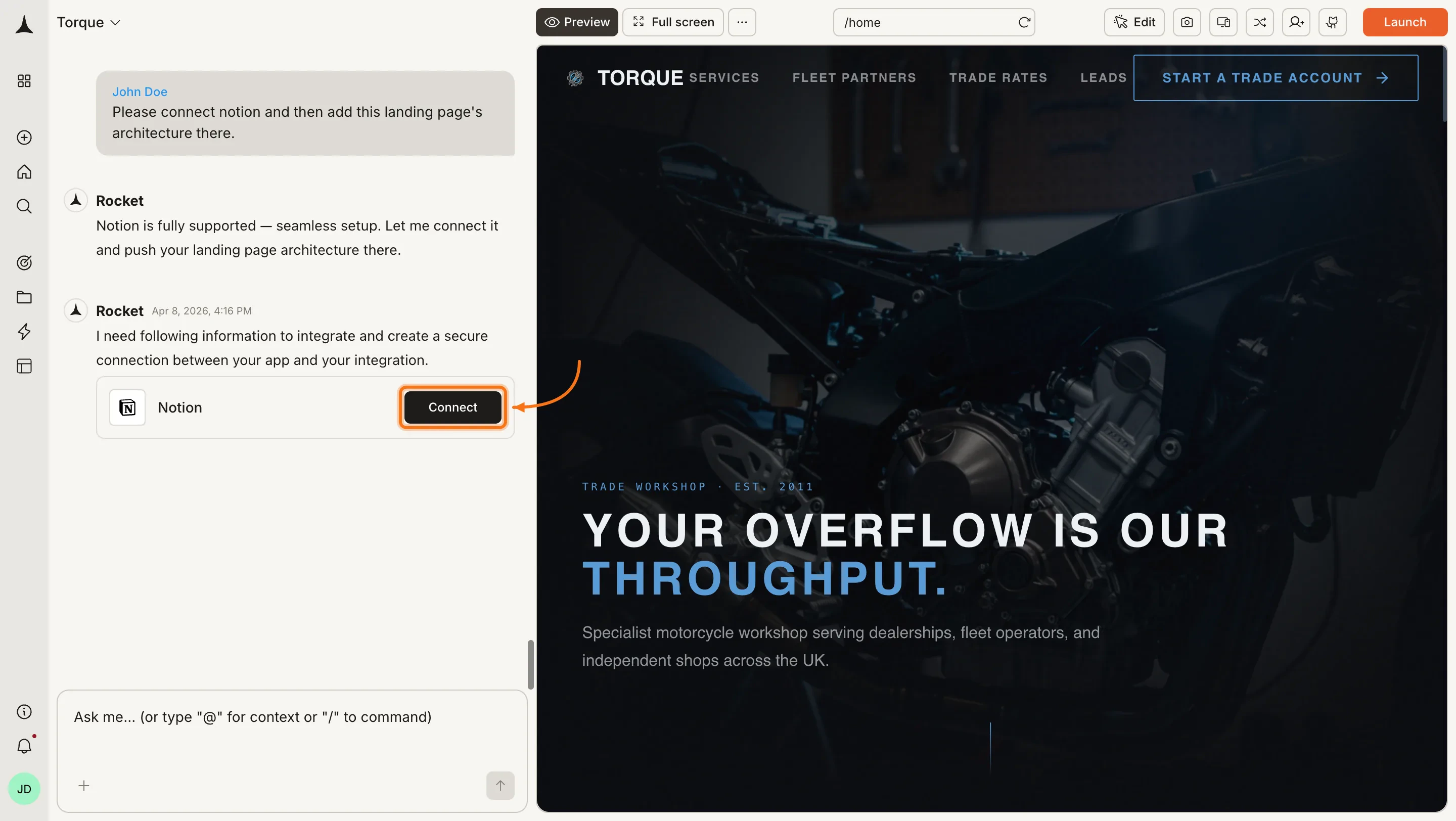
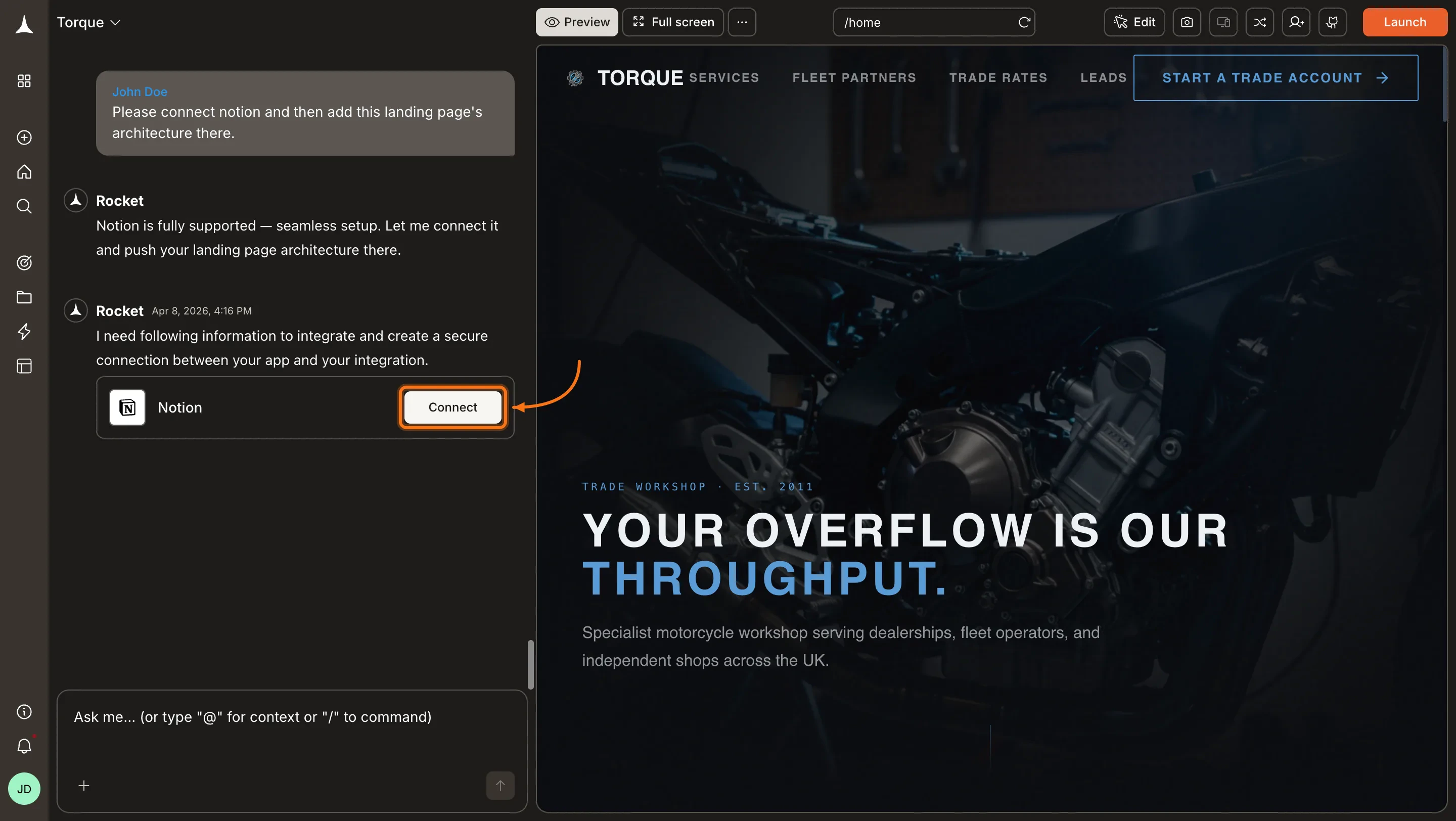
You can connect from three places. All do the same thing.Option 1: From chatType a prompt that references a Notion page or database, for example Read my PRD at [NOTION_URL] and build the described app. Rocket detects the intent and shows a Connect button inline. Click it to open the authorization flow.
Notion connection prompt in chat
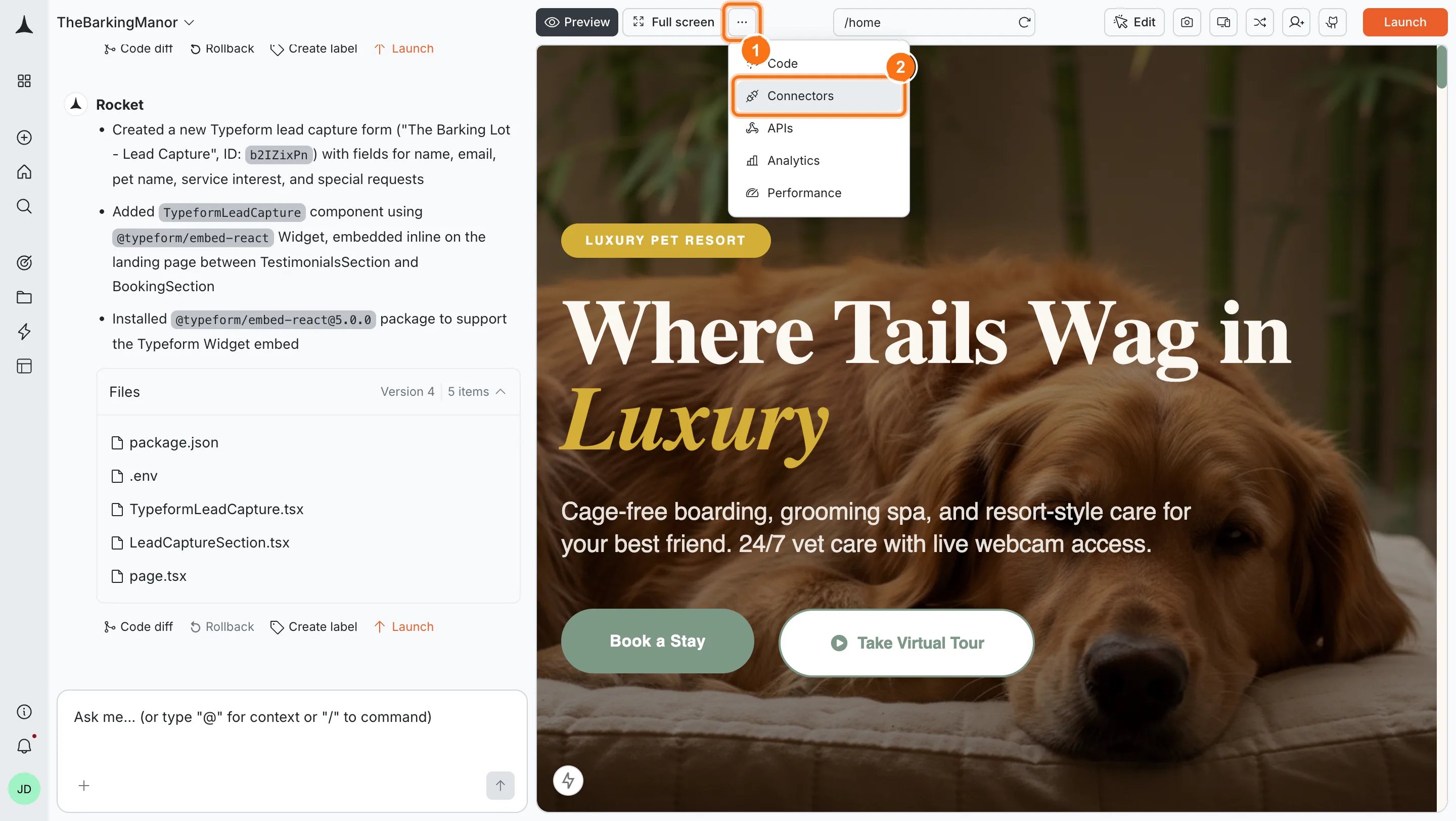
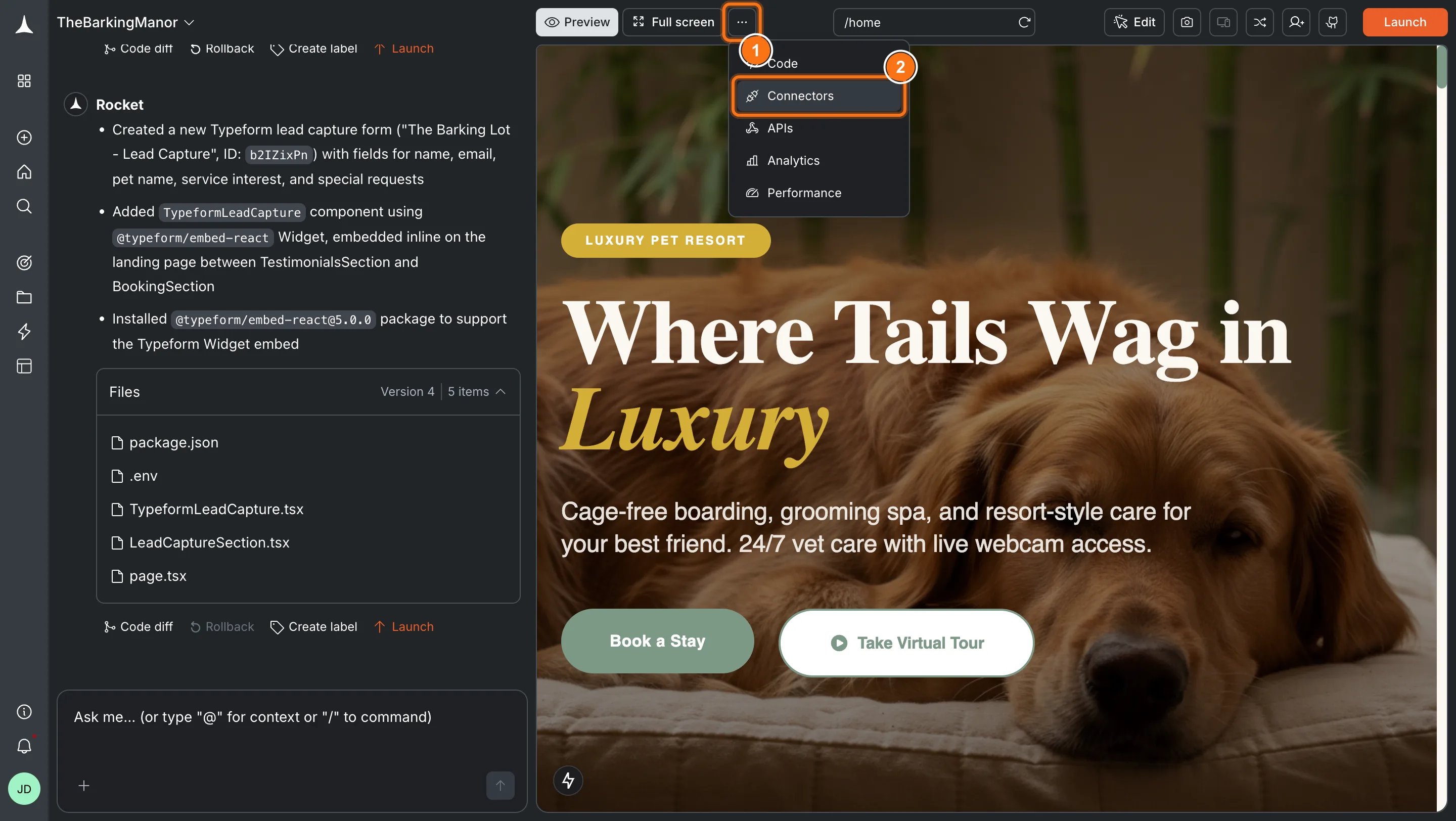
Option 2: From the Connectors tabClick the ... button in the preview toolbar, then select Connectors.
Open Connectors from the toolbar
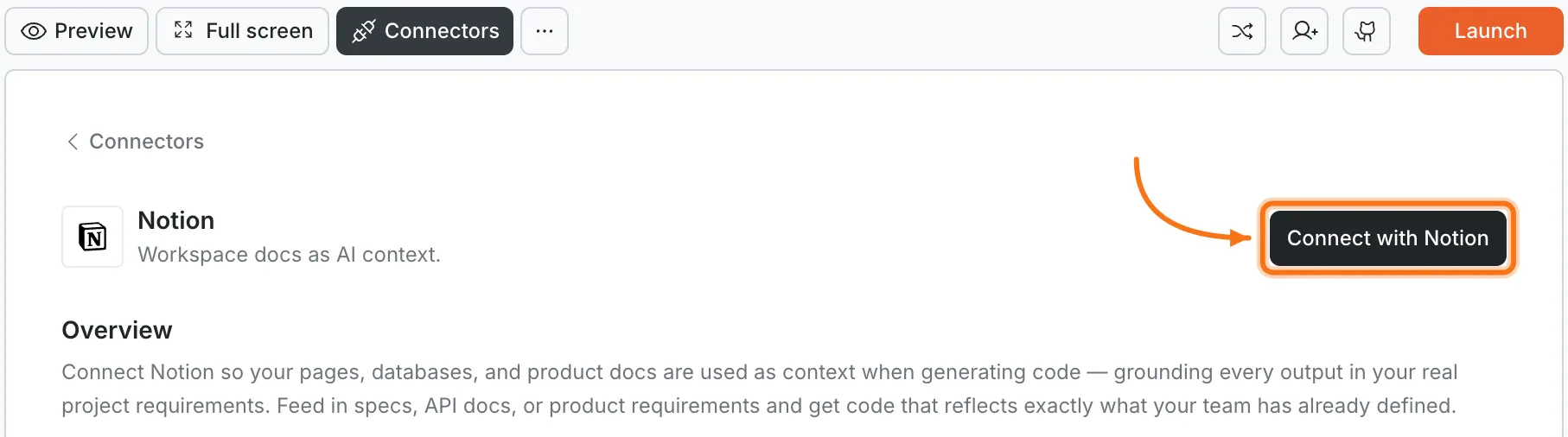
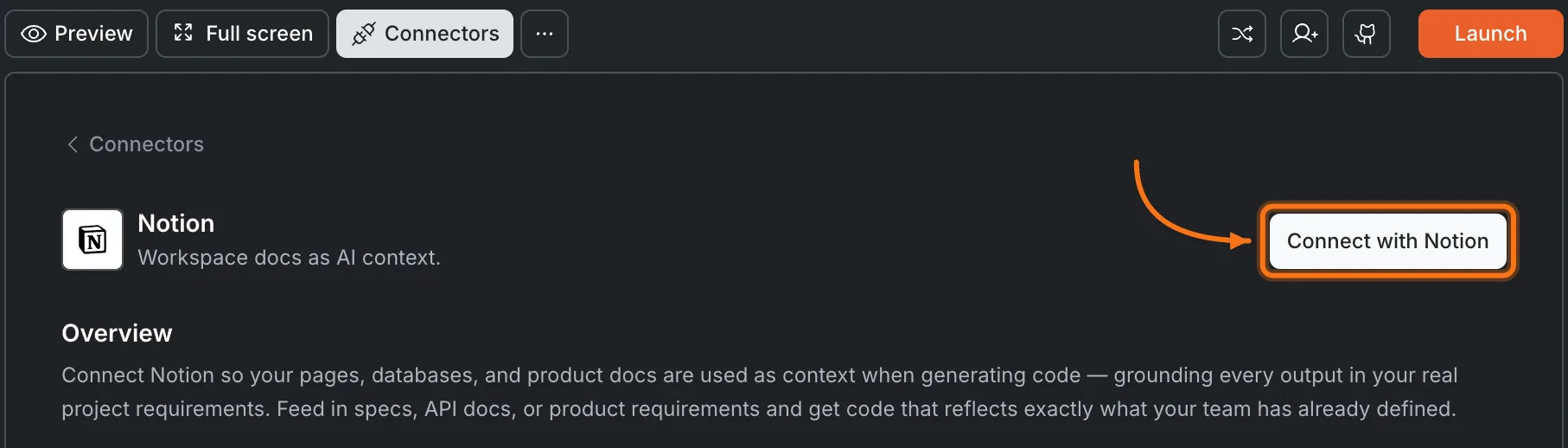
Click the Notion card, then click Connect with Notion.
Notion card in the Connectors panel
Option 3: From workspace Settings
Connect from workspace Settings
Connect once from Settings and it is available across all tasks.
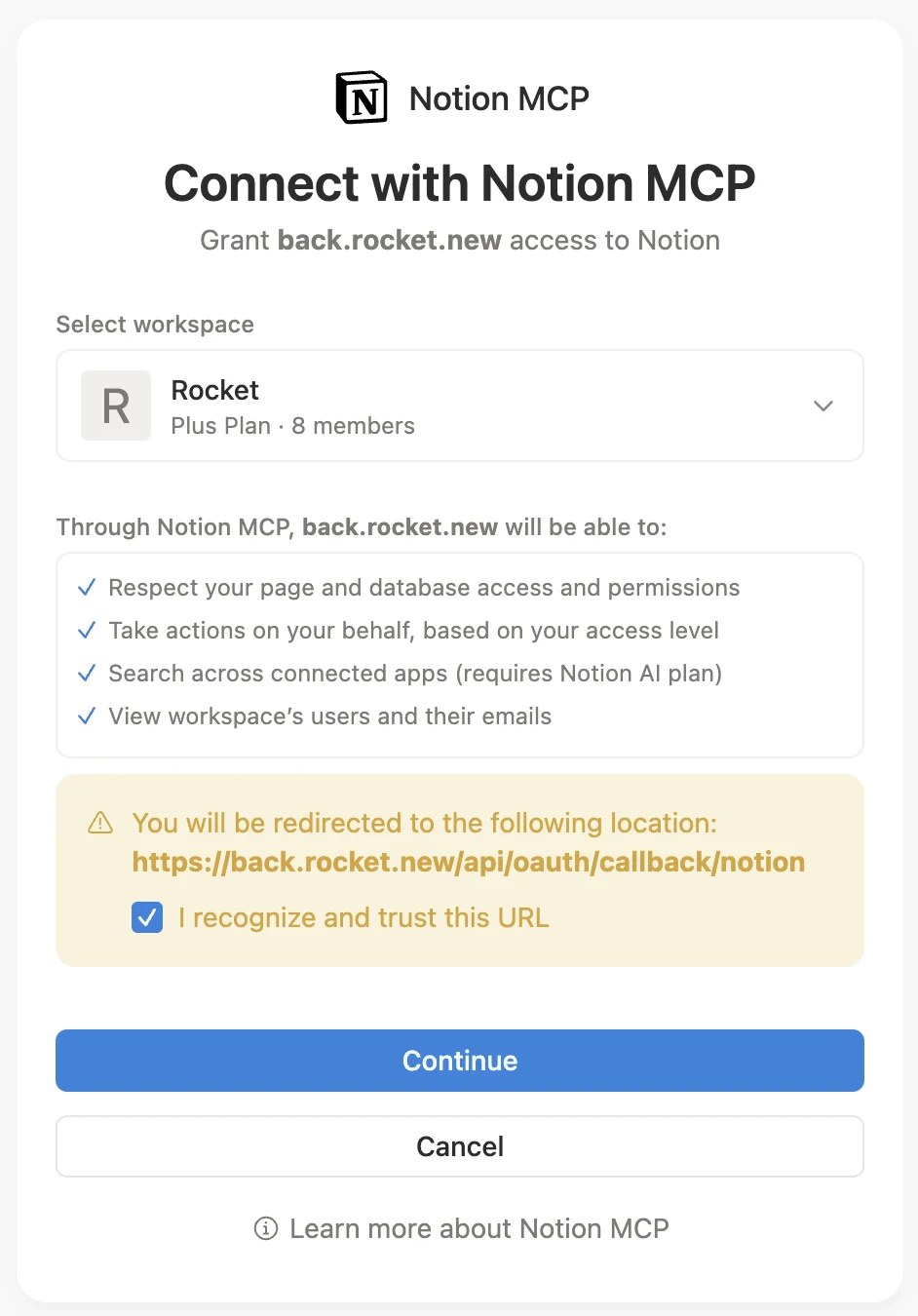
After clicking Connect with NotionNotion’s authorization screen opens. Select the workspace you want to connect, review the permissions, check I recognize and trust this URL, and click Continue.
Notion MCP authorization screen
A green dot appears next to Notion when the connection is active.Disconnect
Disconnect a service
Disconnect or switch accounts from workspace Settings.
You can connect from two places. Both do the same thing.Option 1: From chatType a prompt that references a Notion page or database. Rocket shows a Connect button inline. Tap it to open the authorization flow.Option 2: From the Connectors tab
Tap the More button in the header.
Tap Integrations.
Tap the Notion card, then tap Connect with Notion.
After tapping Connect with NotionNotion’s authorization screen opens. Select the workspace you want to connect, review the permissions, and tap Continue.A green dot appears next to Notion when the connection is active.
Select only what Rocket needs. During the OAuth flow, share only the pages and databases relevant to your task. Focused context produces better results.
Paste Notion URLs directly in chat. Linking to a specific page or database gives Rocket exact context. Vague references may pull the wrong content.
Write-back is structured. Rocket writes back as Notion pages with proper headings, code blocks, and tables - not plain text.
Database relations are supported. Rocket understands linked databases and can use related records as context.
Generated docs are drafts. Treat content Rocket writes to Notion as starting points. Review and refine before sharing externally.
Was this page helpful?
⌘I
Assistant
Responses are generated using AI and may contain mistakes.