Rocket reads your Linear tickets and writes updates back.Rocket reads: Your tickets, projects, acceptance criteria, and documentation, then builds directly from them. Point Rocket at an issue and it reads the full context before generating.Rocket writes back: Follow-up tickets, project boards, and issue updates after building. QA checklists, enhancement requests, and bug reports flow back into Linear automatically.Prerequisites: A Rocket account at rocket.new and a Linear workspace with issues or projects you want to connect.
Before and after
| Without the integration | With the integration |
|---|---|
| Read ticket | Point at ticket |
| Rewrite requirements as a prompt | Rocket reads the ticket directly |
| Rocket generates the feature | Rocket generates the feature |
| Manually update the board | Board auto-updated |
Who benefits most
- Solo founder. Your sprint board becomes your build queue. Write a ticket, point Rocket at it, ship.
- Small product team. The PM writes detailed tickets with acceptance criteria. The developer just points Rocket at them and reviews the output.
- Agency. Client requests live as Linear tickets. Rocket implements directly from ticket context, and follow-up work flows back as new issues organized by page and priority.
What you can use it for
Build features directly from tickets
Point Rocket at a specific issue like ENG-142 and it reads the title, description, acceptance criteria, and linked documents, then generates the full implementation.Try this prompt:Rocket reads: issue title, description, acceptance criteria, labels, and attachments. It generates the feature matching the spec.
Implement from project context
Point Rocket at an entire Linear project and it reads the full scope, including all child issues, milestones, and project briefs, then builds accordingly.Try this prompt:Rocket reads: project description, child issues, priorities, and linked documents. It generates the complete set of pages and components described in the project.
Fix bugs from bug reports
Rocket reads a bug ticket, including the screen name, expected behavior, and actual behavior, then generates a targeted fix.Try this prompt:Rocket reads: reproduction steps, expected vs. actual behavior, affected screen, and priority. It generates the minimal change needed to resolve the bug.
Use ticket content as copy source
Pull feature descriptions, value propositions, and acceptance criteria from a Linear ticket and use them as real content in your app.Try this prompt:Rocket reads: feature title, description, and value propositions from the ticket. It uses them as real content instead of placeholder text.
Create follow-up tickets after building
After Rocket builds a feature, it can create structured follow-up tickets in Linear for QA, enhancements, edge cases, and testing tasks.Try this prompt:Rocket writes: structured issues with descriptions, checklists, labels, and priority based on the context of what was built.
Create a Linear project with client change requests
Turn client feedback into an organized set of Linear tickets grouped by page and priority. Each change request becomes its own trackable issue.Try this prompt:Rocket writes: a new Linear project with individual tickets for each change request, tagged by page, priority level, and estimated scope.
Auto-update ticket status after implementation
When Rocket finishes building a feature, it can move the original ticket to “Done” or add a comment with implementation details.Try this prompt:Rocket writes: status update on the original issue and a comment summarizing the implementation.
Create documentation in Linear
Rocket can create a Linear document describing what was built and link it back to the original ticket for long-term reference.Try this prompt:Rocket writes: a Linear document with implementation details, design decisions, and links back to the source ticket.
Detailed setup
Linear connects through OAuth. You will authorize Rocket through Linear’s login flow, so no API key is needed.- Web Browser
- Mobile App
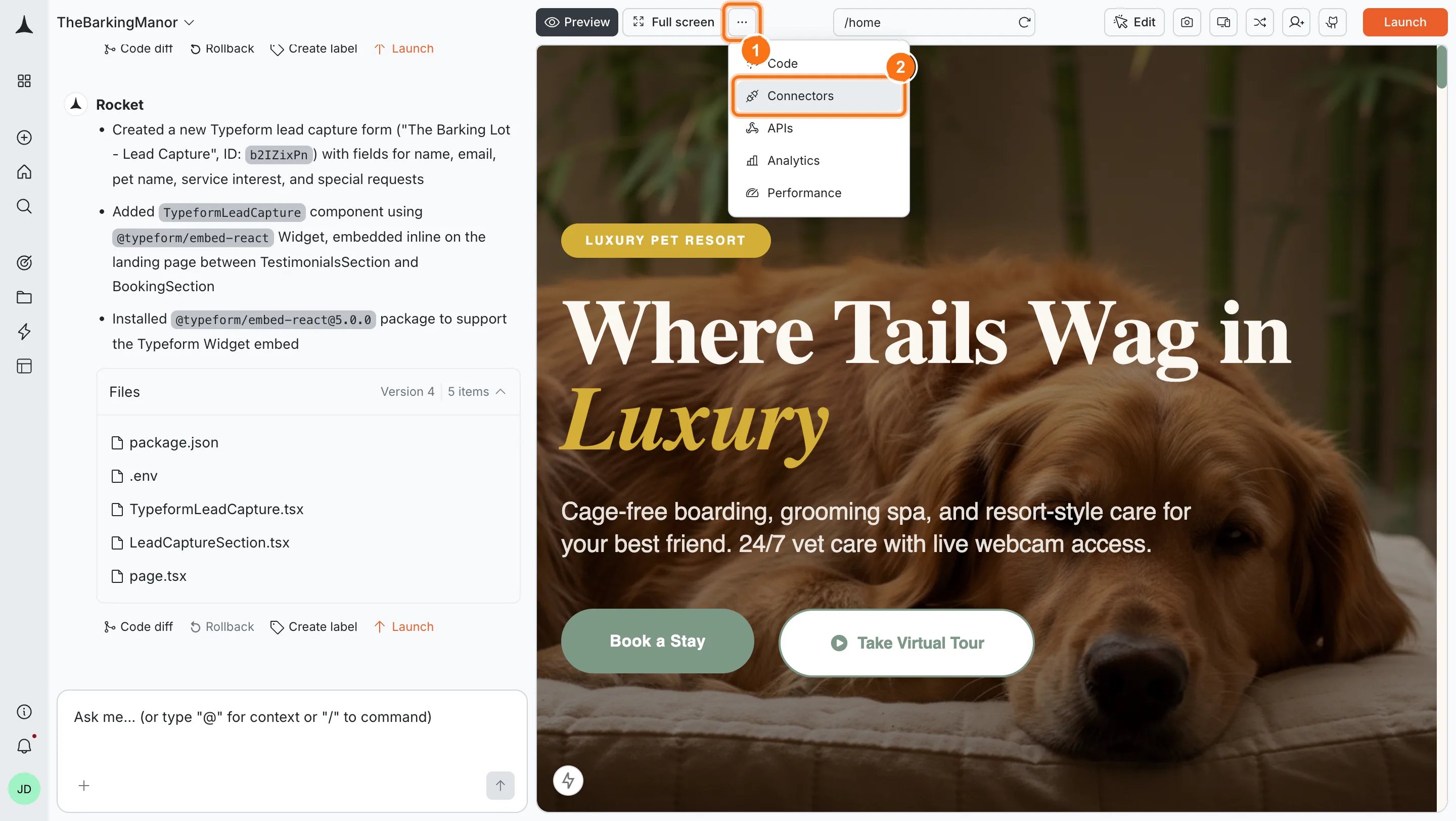
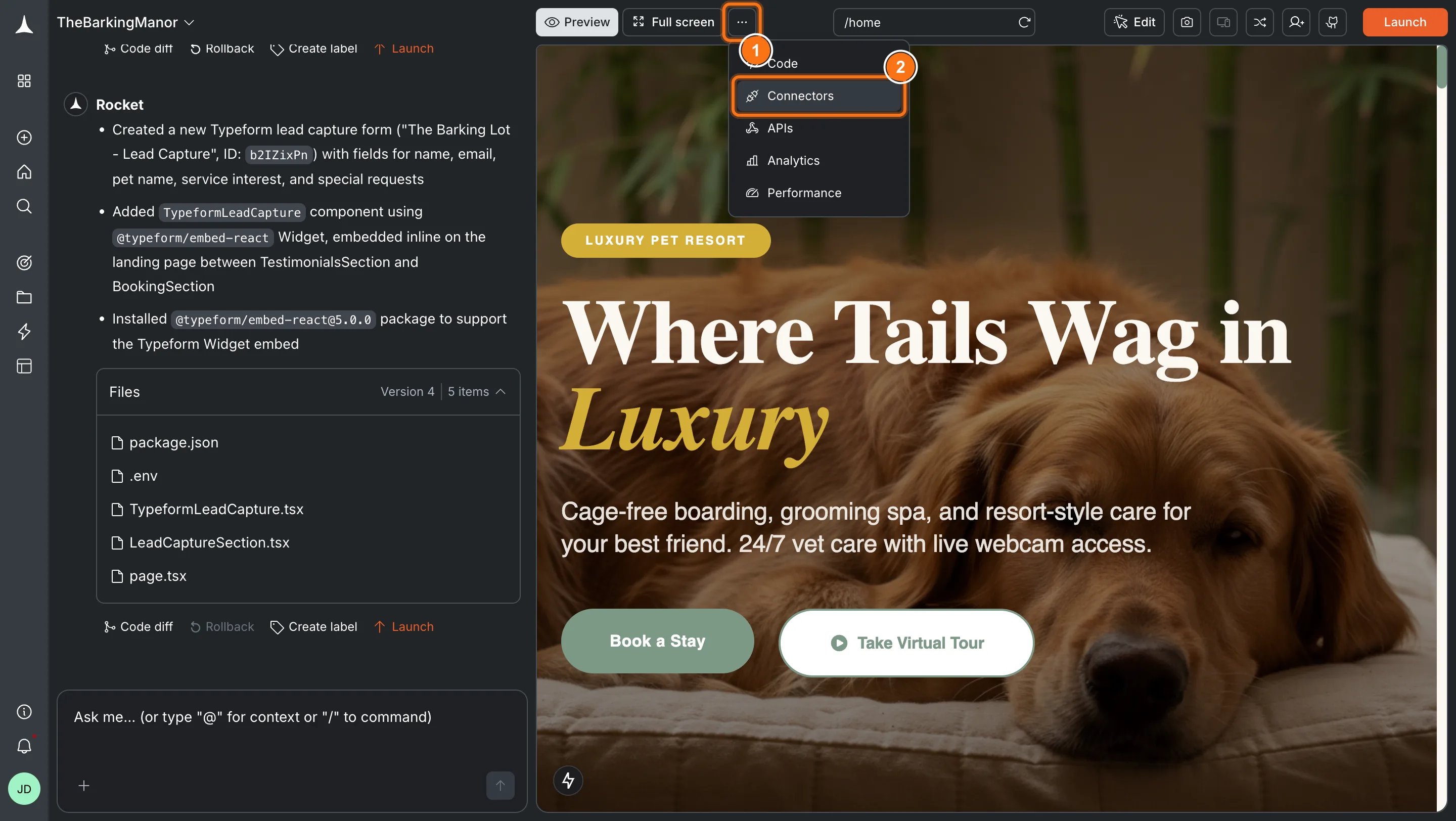
Open Integrations
- Open any project.
- Go to Integrations.
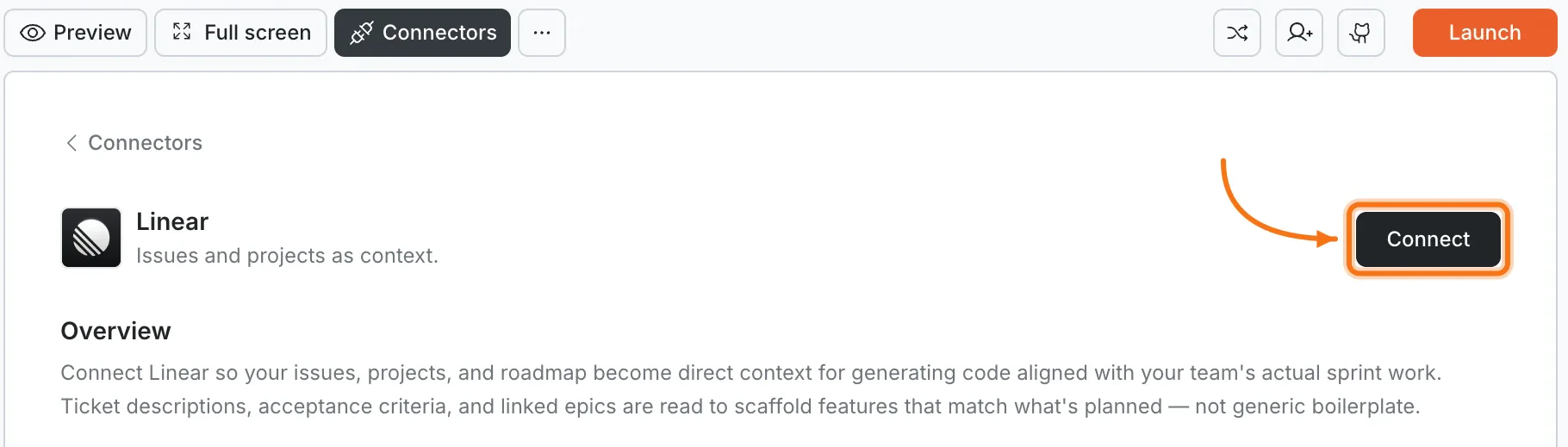
- Click the Linear card.
Authorize Linear
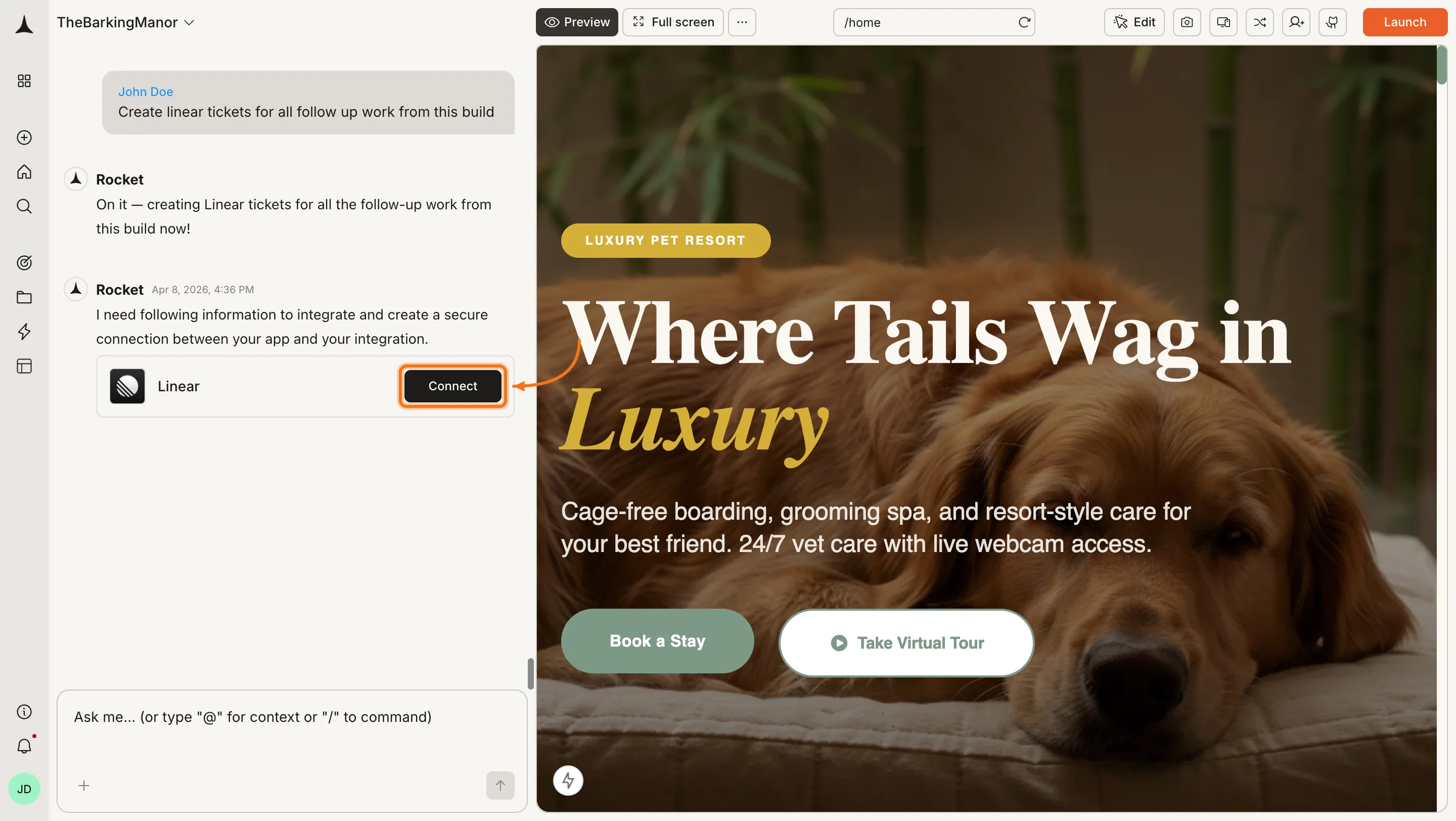
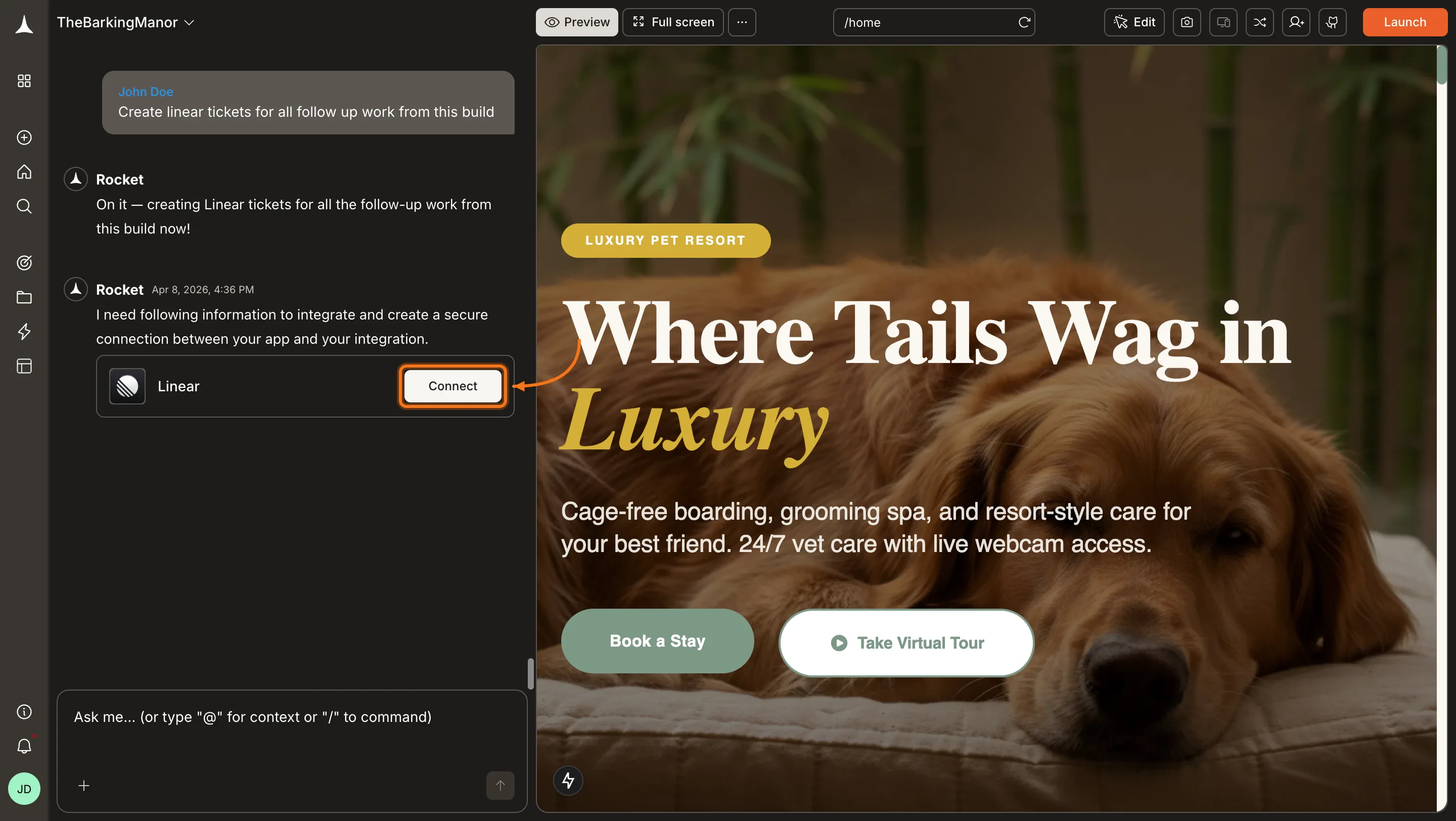
- Click Connect.
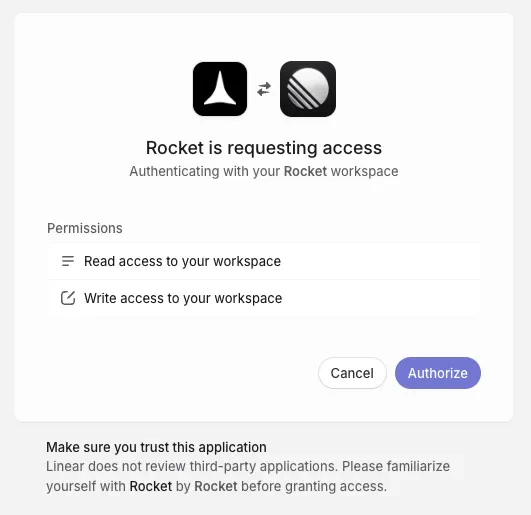
- You will be redirected to Linear’s authorization page.
- Select the workspace you want to connect.
- Review the permissions and click Authorize to grant Rocket access.
Update or disconnect
- Click the Linear integration again.
- Click Disconnect to remove the connection.
- To switch workspaces, disconnect and reconnect with a different Linear workspace.
Prompt cookbook
Copy-paste these prompts after connecting Linear. Replace[LINEAR_URL] with your actual issue URL.
Build from tickets
| Use case | Prompt |
|---|---|
| Build from a ticket | Build the feature described in [LINEAR_URL]. Read the full requirements, edge cases, and acceptance criteria before generating. |
| Build from a project | Read project "Dashboard Redesign" from Linear and build the described UI. |
| Fix a bug from a ticket | Fix the bug described in [LINEAR_URL]. Read the screen name, expected behavior, and actual behavior and generate a targeted fix. |
| Implement requirement change | The requirements changed in [LINEAR_URL]. Read the updated ticket and modify the relevant parts of the app. |
Write back to Linear
| Use case | Prompt |
|---|---|
| Create QA tickets | Create a Linear project with QA tickets for the checkout flow I just built. Include test cases based on the implementation. |
| Create client change tickets | Create a Linear project with tickets for each client-requested change, organized by page and priority. |
| Document implementation | Create a Linear document describing what was built and link it to the original ticket at [LINEAR_URL]. |
| Create follow-up tickets | Create Linear tickets for all the follow-up work from this build: enhancements, edge cases, and testing tasks. |
Add pages from ticket context
| Use case | Prompt |
|---|---|
| Add waitlist page from ticket | Add a waitlist page using the feature description from [LINEAR_URL] with benefits and signup form. |
Tips and limitations
- Issue context quality matters. The more detail in your Linear tickets (descriptions, acceptance criteria, labels), the better Rocket builds from them. Vague one-line tickets produce vague results.
- Workspace permissions. Rocket accesses issues and projects based on the permissions of the account used to connect. It respects Linear’s access controls.
- Write-back creates real issues. When Rocket creates or updates Linear issues, they appear in your workspace just like manually created ones. Review before sharing with your team.
- Large backlogs. For large workspaces, reference specific projects or individual issues rather than asking Rocket to read everything. Pointing at a project or issue URL gives Rocket the clearest context.
- Labels and priorities are preserved. Rocket understands Linear’s label system and can filter or categorize based on them when reading or writing issues.