Pull CMS content into your app with a single prompt. Strapi is an open-source headless CMS with a visual admin panel that gives developers full control over their content API. Connect it to Rocket and describe the content experience you want in chat. Rocket generates the pages, layouts, and data views that pull directly from your Strapi content types.Prerequisites:
  • A Rocket account at rocket.new.
  • A Strapi project with a running instance.
  • The Rocket mobile app installed (for mobile setup).

What you can use it for

Publish articles with images, categories, and author profiles managed in Strapi.Try this prompt:
Build a blog from my Strapi articles content type.
Include a listing page with featured images, a detail page with rich text, and author bios.
Rocket creates: article listing, detail page, author card component, and category filters.
Create a structured docs site with sidebar navigation and versioned content from Strapi.Try this prompt:
Build a documentation site from my Strapi docs collection.
Add a sidebar with section grouping and a search bar at the top.
Rocket creates: sidebar navigation, doc page renderer, search bar, and breadcrumb trail.
Display products with images, descriptions, pricing, and variant options from Strapi.Try this prompt:
Create a product catalog from my Strapi products content type.
Show a grid of product cards with images and prices, and a detail page with specs.
Rocket creates: product grid, detail page, spec table, and category navigation.
Render pages dynamically from Strapi content types with modular sections like heroes, feature blocks, testimonials, and CTAs.Try this prompt:
Render pages dynamically from my Strapi page-sections content type.
Support hero, features, testimonials, and CTA block types.
Rocket creates: section renderer, block components for each type, and dynamic page routing.
Showcase team members, partners, or directory listings from Strapi.Try this prompt:
Build a team page from my Strapi team-members content type.
Show profile cards with photos, roles, and social links.
Rocket creates: team grid, profile cards, social link icons, and optional detail modal.

Set up your Strapi project

Before connecting Strapi to Rocket, you need a running Strapi instance with the MCP plugin installed.
The MCP plugin is required for both Strapi Cloud and self-hosted projects.

Option A: Strapi Cloud

  1. Go to Strapi Cloud and create an account.
  2. Connect your backend repository from GitHub or GitLab, or select a default Strapi template.
  3. Deploy directly from the cloud dashboard.
  4. Once deployed, continue to the Install the MCP plugin step below.

Option B: Self-hosted

Create a new Strapi project locally:
npx create-strapi@latest
Answer the setup questions when prompted and wait for the installation to complete.

Install the MCP plugin

Inside your Strapi project folder, install the MCP plugin:
npm install @sensinum/strapi-plugin-mcp
Then update config/plugins.ts with the following configuration:
module.exports = ({ env }) => {
  const allowedIPs = env('MCP_ALLOWED_IPS');
  const ipConfig = !allowedIPs
    ? '*'
    : allowedIPs === '*'
      ? '*'
      : allowedIPs.split(',').map(ip => ip.trim());

  return {
    mcp: {
      enabled: true,
      config: {
        session: {
          type: 'memory',
          max: 20,
          ttlMs: 600000,
          updateAgeOnGet: true
        },
        allowedIPs: ipConfig,
      }
    }
  };
};
Build and start your project:
npm run build && npm run develop
Strapi starts locally at http://localhost:1337. For Strapi Cloud, commit and push your changes to trigger deployment.

Create content types and configure permissions

  1. Open the Strapi Admin Panel.
  2. Go to Content-Type Builder and create your content types (e.g., Blog, Product, Page).
  3. Add fields as required and save.
  4. Go to Content Manager and add sample records.
  5. Go to Settings > Users & Permissions > Roles.
  6. Select the Public role and enable find and findOne permissions for your content types.
  7. Save changes.

Get your Strapi API token

Open Strapi documentation to learn how to create your API token.
To generate an API token:
  1. Go to your Strapi Admin Panel > Settings > API Tokens.
  2. Click Create new API Token.
  3. Add a name, set the token duration and token type, then save.
  4. Copy the token. You will paste it into Rocket during setup.
You will also need your Strapi project URL (e.g., https://your-project.strapiapp.com). Keep your token private and do not share it in plain text.
Never paste your Strapi API token directly into Rocket chat. Always use the secure integration flow or the credential inputs in settings. If you believe your token has been exposed, revoke it from the Strapi Admin Panel and create a new one.

Detailed setup

Connect Strapi to Rocket

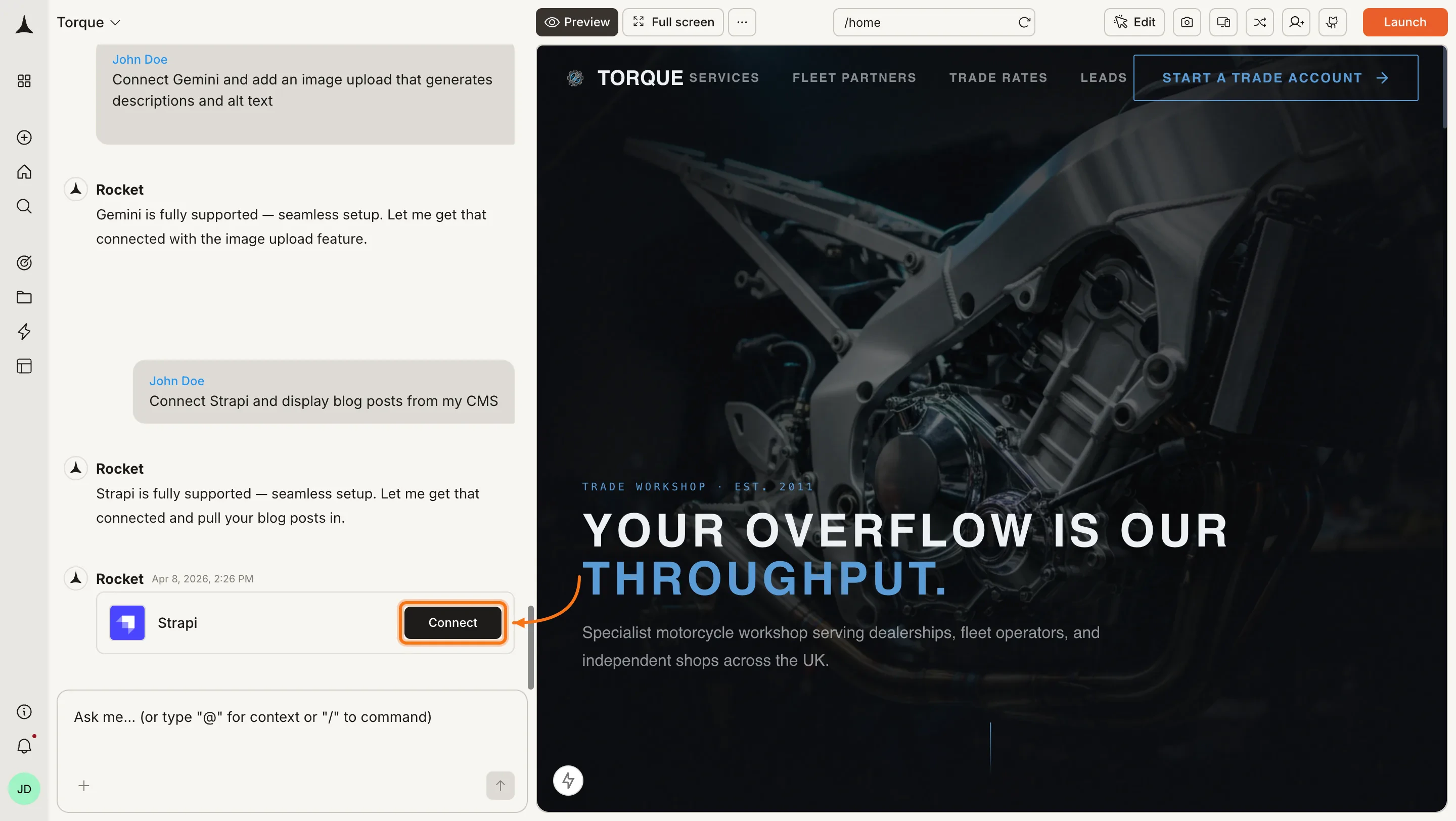
There are two ways to connect Strapi to Rocket:Method 1: Use Rocket Chat (fastest)
  • In any project, open the chat panel and type something like: Connect my Strapi project to:
  • Display blog posts from my CMS.
  • Build a content management dashboard.
  • You will see a popup appear where you can paste and save your credentials instantly.
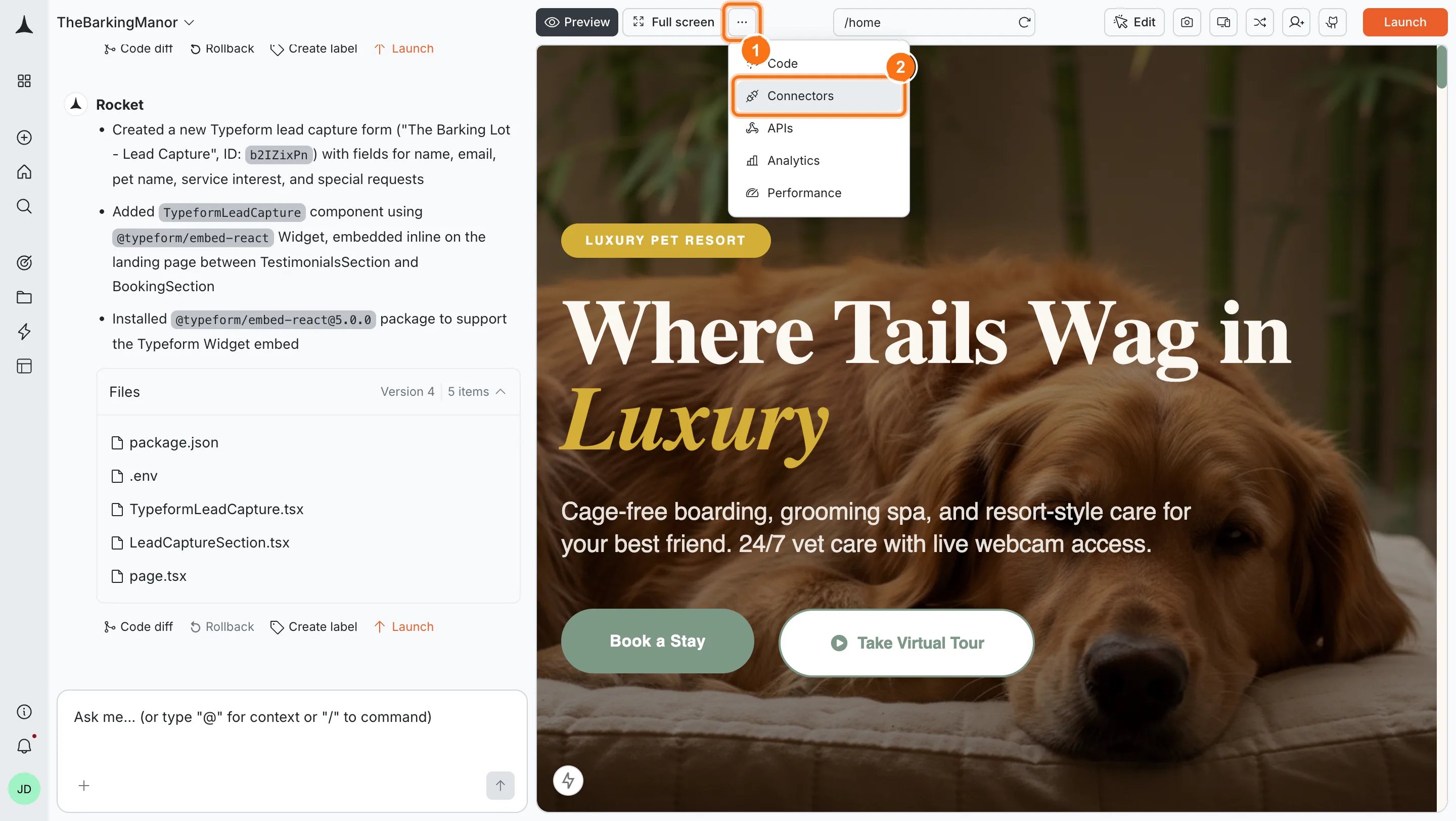
Method 2: From your project settings
  • Open any project and go to Integrations.
  • Click the Strapi card.
When you connect Strapi from Project Settings, Rocket will not automatically create content flows. After saving your credentials, describe the content flow you want in chat for Rocket to implement it.

Save your credentials

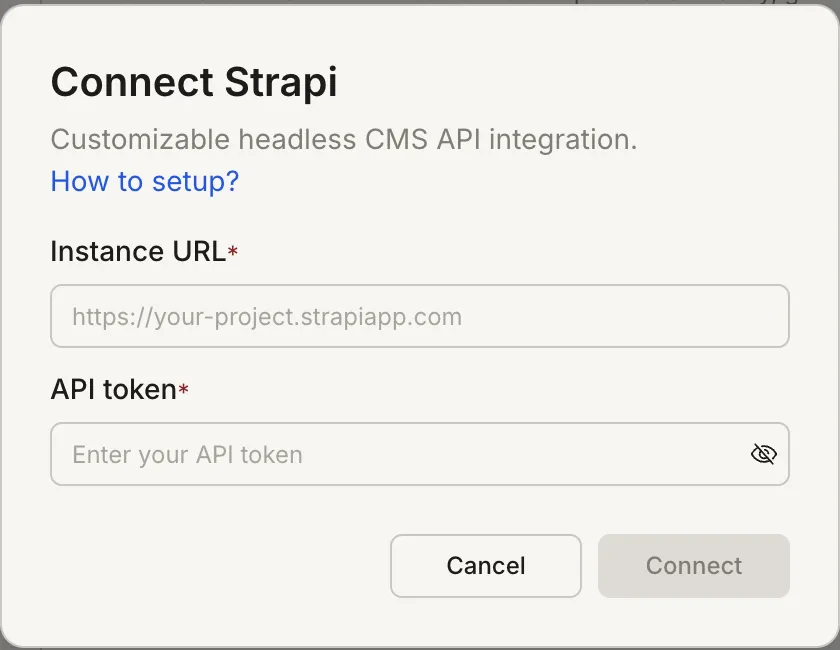
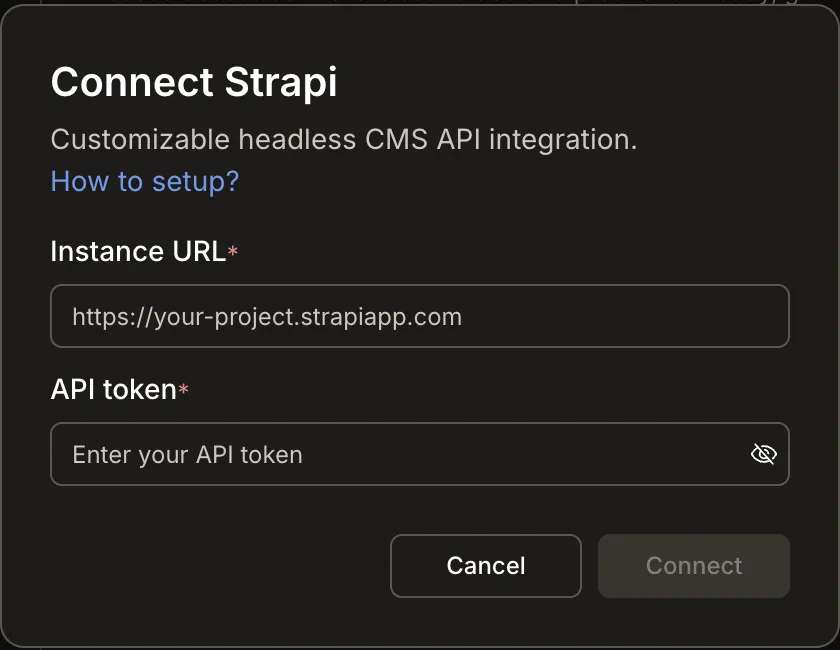
In Rocket’s Strapi integration screen, you will see two fields:
  • API URL: enter your Strapi project URL (e.g., https://your-project.strapiapp.com).
  • API Token: paste your generated token here.
Click Save to complete setup. A green dot next to Strapi in your integrations list confirms the connection is active.

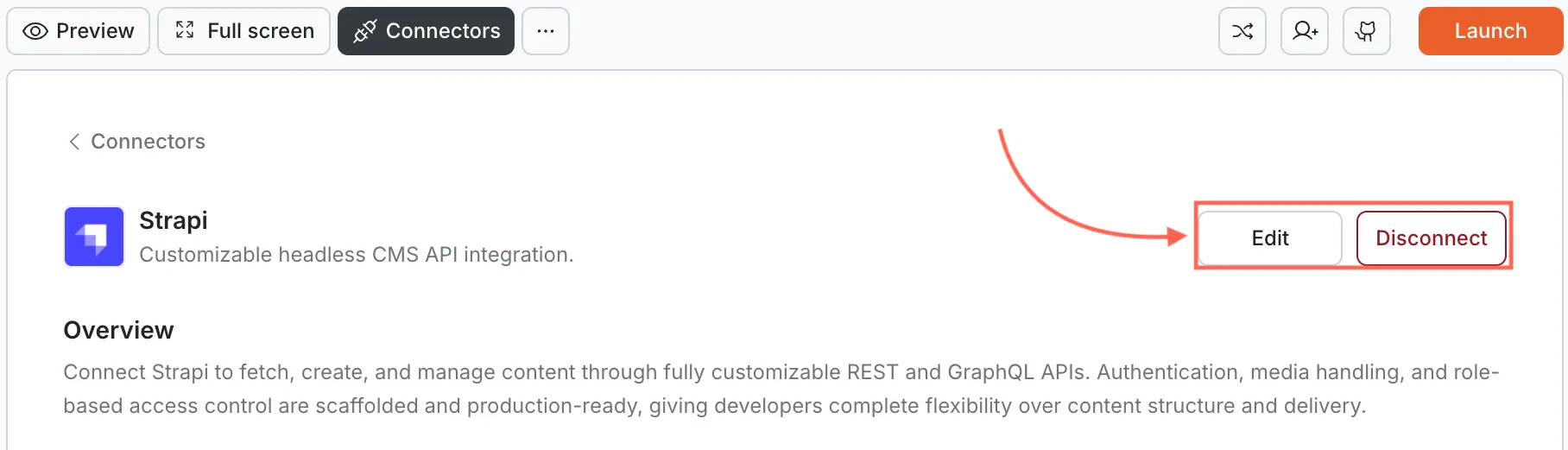
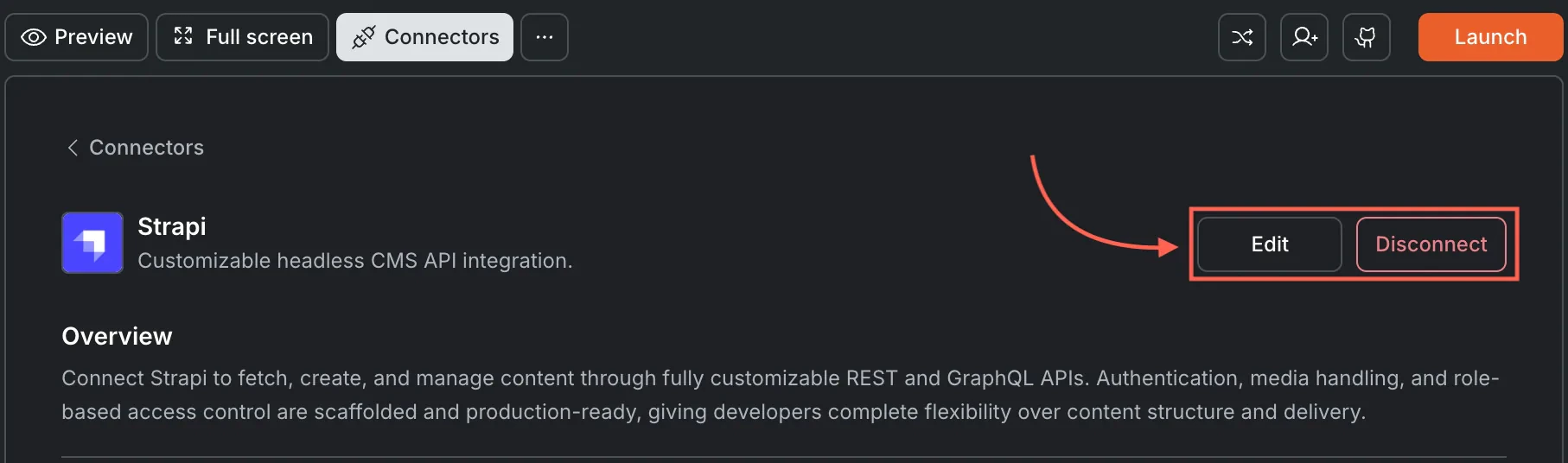
Update or disconnect

  • Click the Strapi integration again.
  • Replace the existing credentials or click Disconnect to remove it.

Prompt cookbook

Copy-paste these prompts after connecting Strapi to build common content experiences:
Use casePrompt
Blog listingShow all articles from my Strapi blog content type with thumbnails and dates.
Detail pageWhen a user clicks an article, show the full rich-text body and author bio from Strapi.
DocumentationBuild a docs site with sidebar navigation from my Strapi docs collection.
Product catalogCreate a product grid from Strapi with images, prices, and a detail page for each item.
Dynamic page sectionsRender pages dynamically from Strapi page-sections with hero, features, and CTA block types.
SearchAdd a search bar to my Strapi blog that filters articles by title and content.
Category filterAdd category tabs to my Strapi product listing that filter items by type.
PaginationAdd pagination to my Strapi blog listing, showing 12 posts per page.
Image galleryDisplay images from my Strapi media library in a responsive masonry grid.
RSS feedGenerate an RSS feed from my Strapi articles content type.

Tips and limitations

  • Your API token is stored securely. Rocket encrypts it at rest and never exposes it in client-side code.
  • Strapi must be running and accessible. Your Strapi instance needs to be reachable from the internet for Rocket to connect. Local-only instances will not work.
  • Deleting content must happen in Strapi. Rocket can create and update records, but content and asset deletion should be managed directly in your Strapi admin panel.
  • Token permissions control access. Use a “Full Access” token for development and a scoped “Read-only” token for production apps that only display content.
  • One Strapi project per Rocket project. Each Rocket project connects to one set of Strapi credentials. Use different projects for different Strapi instances.

What’s next?