

Why grouping matters
Everything in a screen design is made up of layers. When those layers are properly grouped, Rocket can generate better, more accurate results. Groups reduce clutter by combining related components into fewer layers, and they auto-adjust when child objects are resized.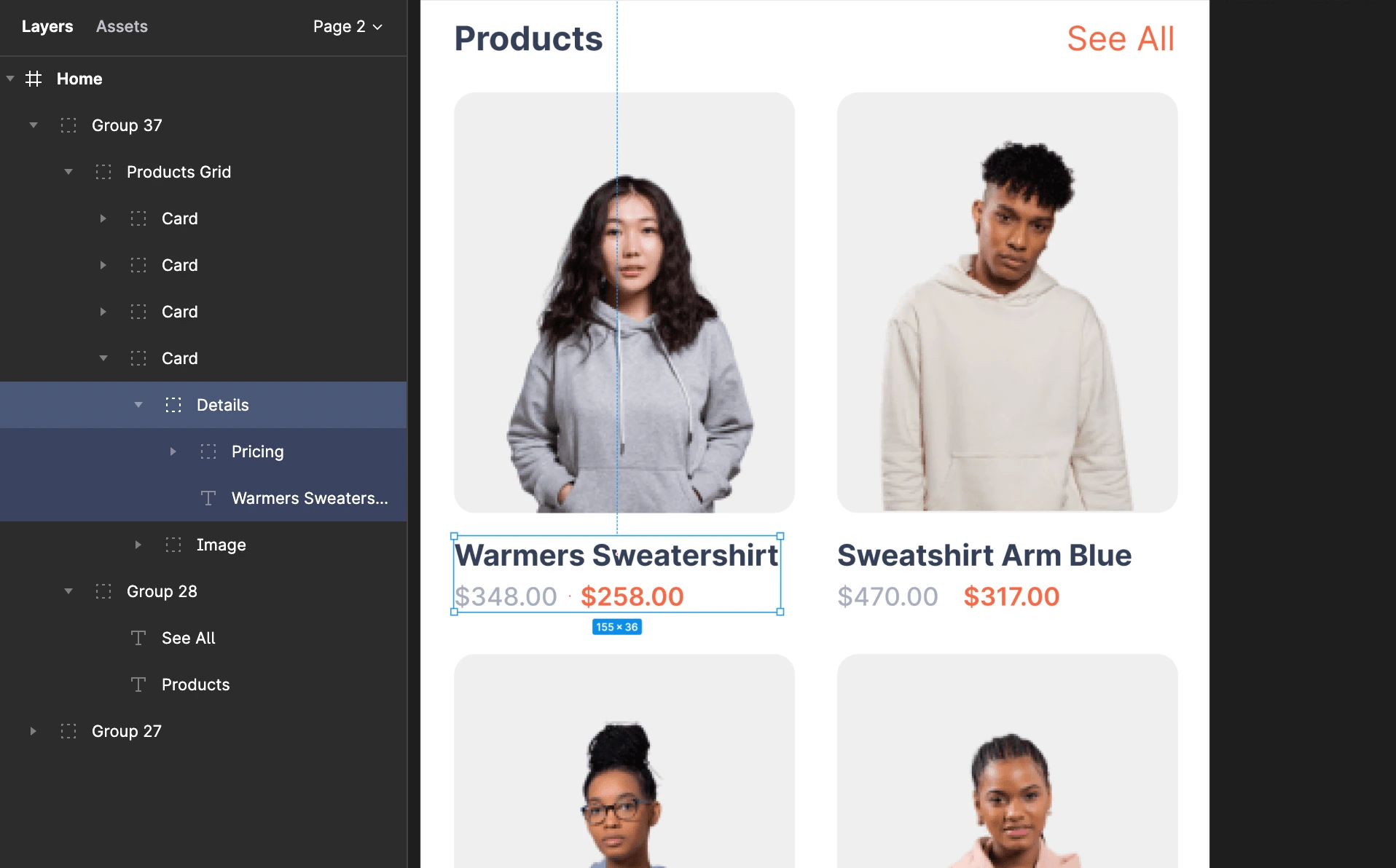
Grouped components example
How to group effectively
- Combine related elements like background images, buttons, or text into a single group.
- Maintain a clear hierarchy order inside groups.
- Use groups to simplify layering across your design, making components easier to manage and reuse.
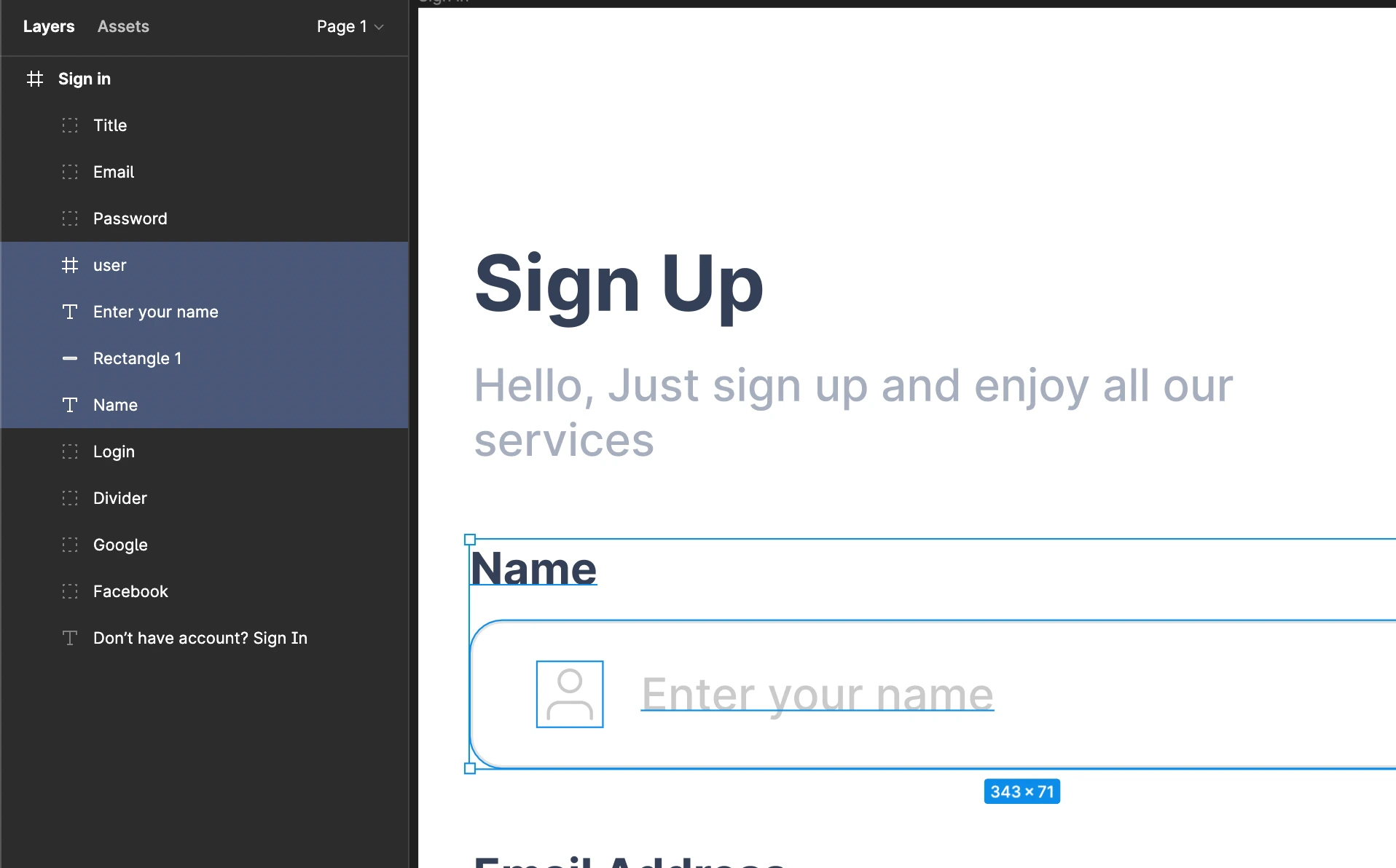
Example of an ungrouped design
Avoid ungrouped designs. Proper grouping helps Rocket identify and map your components accurately during import.
Example
In an e-commerce shopping list screen:1
Start with a background image
Place the background image as the base layer.
2
Add components
Add product image, title, description, and price on top.
3
Group them together
Layer them properly, then group them into one element.
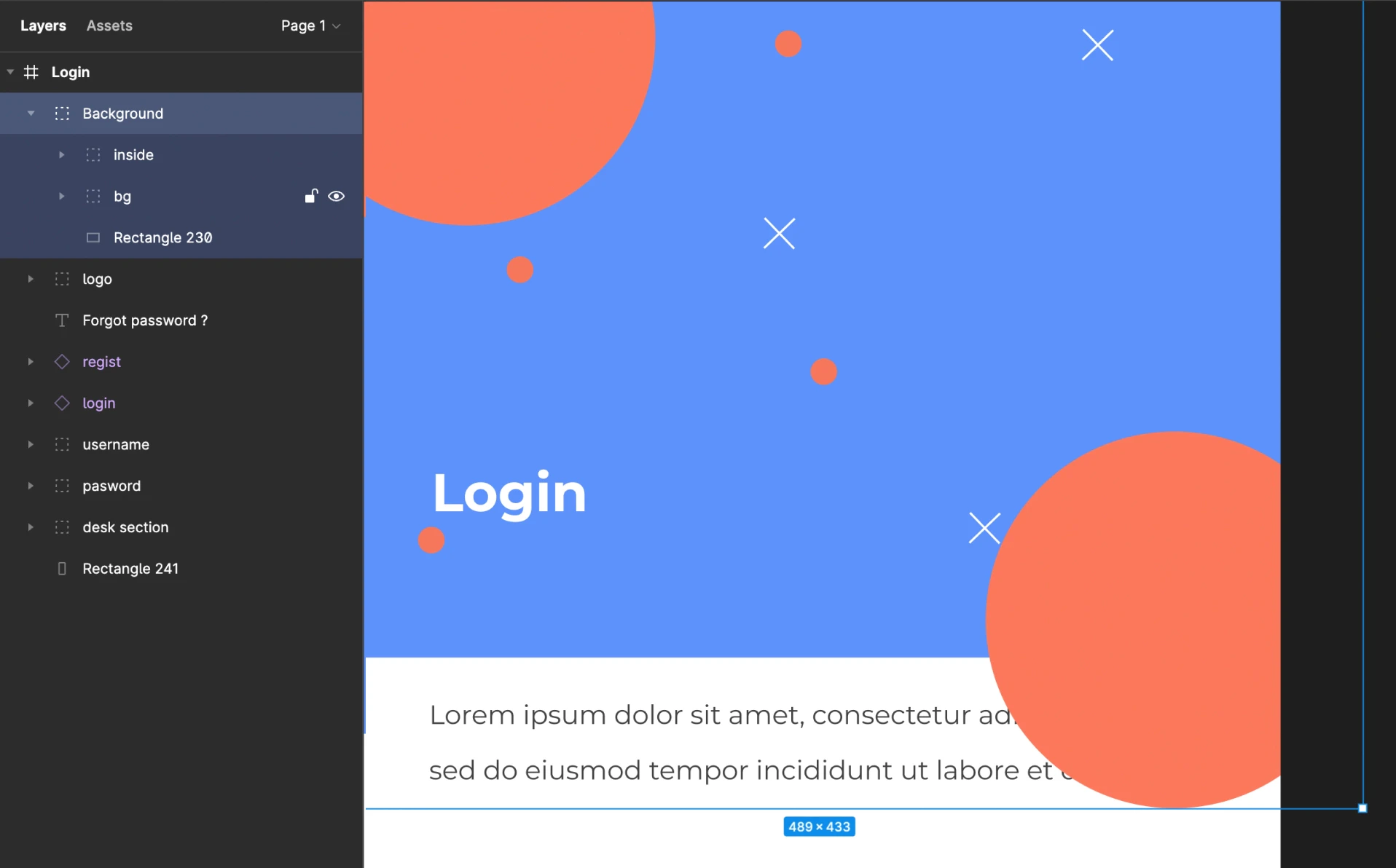
Grouped e-commerce components example
Back to guidelines
See all design guidelines for preparing your Figma files.
What’s next?
Figma import
Learn how to import your Figma design into Rocket.
Build from an idea
Start a project from a text prompt instead of a design file.