Connect your Perplexity API key and describe the search feature you need in chat. Rocket handles all the integration code automatically so you can focus on what your features should do.
This connector is only available for Next.js TypeScript web build tasks.

What you can do

Research tool with citations

Let users ask questions and get answers backed by linked sources from across the web.

Fact-checking assistant

Let users paste a claim and verify it against current web sources.

Competitive analysis tool

Research competitors, market trends, or industry news with sourced summaries.

News aggregator

Aggregate and summarize the latest news on a topic with links to original articles.

Knowledge base Q&A

Answer user questions using both internal data and live web sources, with full citations.

Before you connect

Get your Perplexity API key from your Perplexity account.
Never paste your API key directly into chat. Always use the secure connector flow. If you believe your key has been exposed, rotate it immediately from your Perplexity account.
The API key is scoped to the task you connect it in. Each task stores its own key - connecting in one task does not affect others.

Connect Perplexity

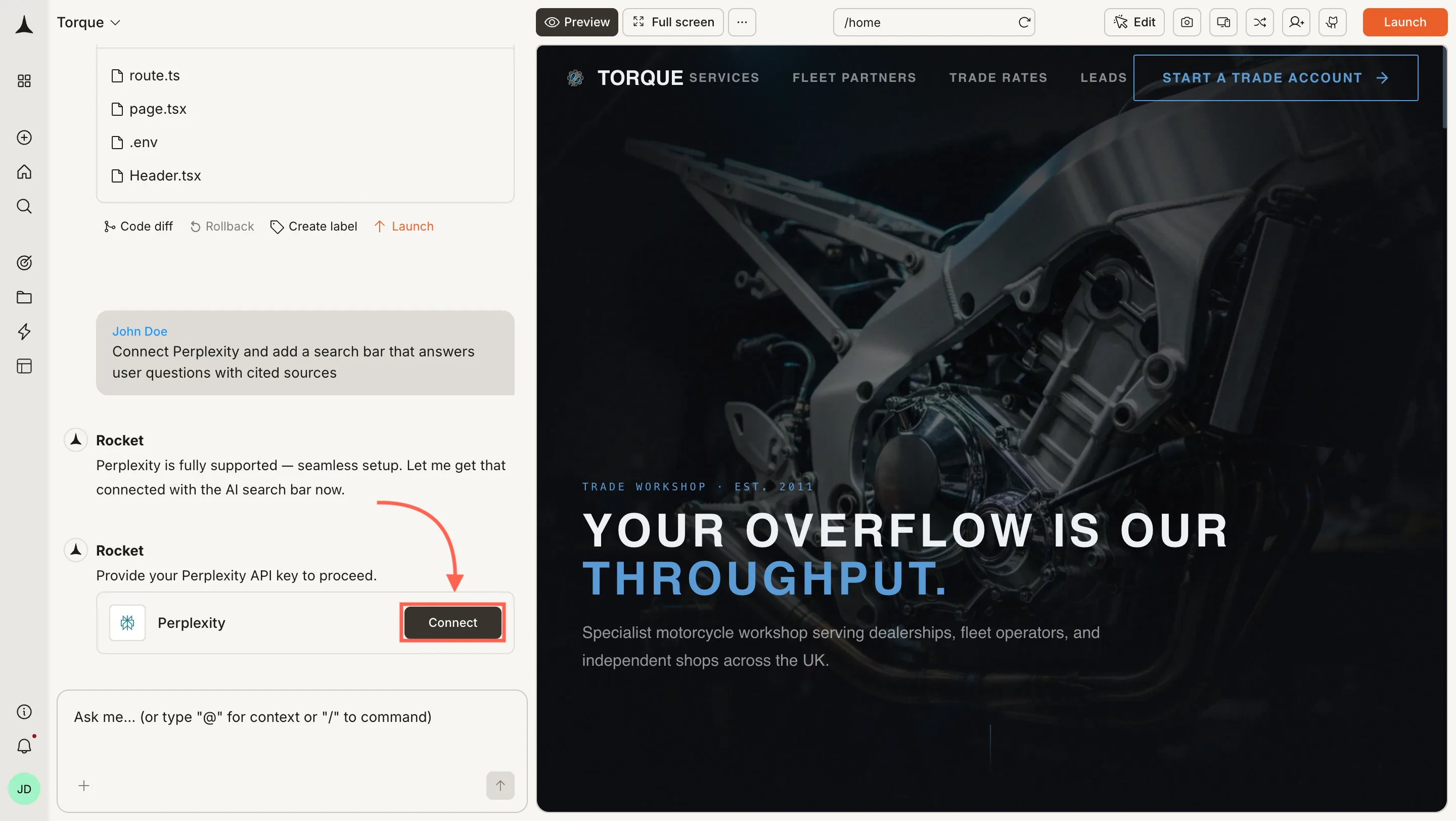
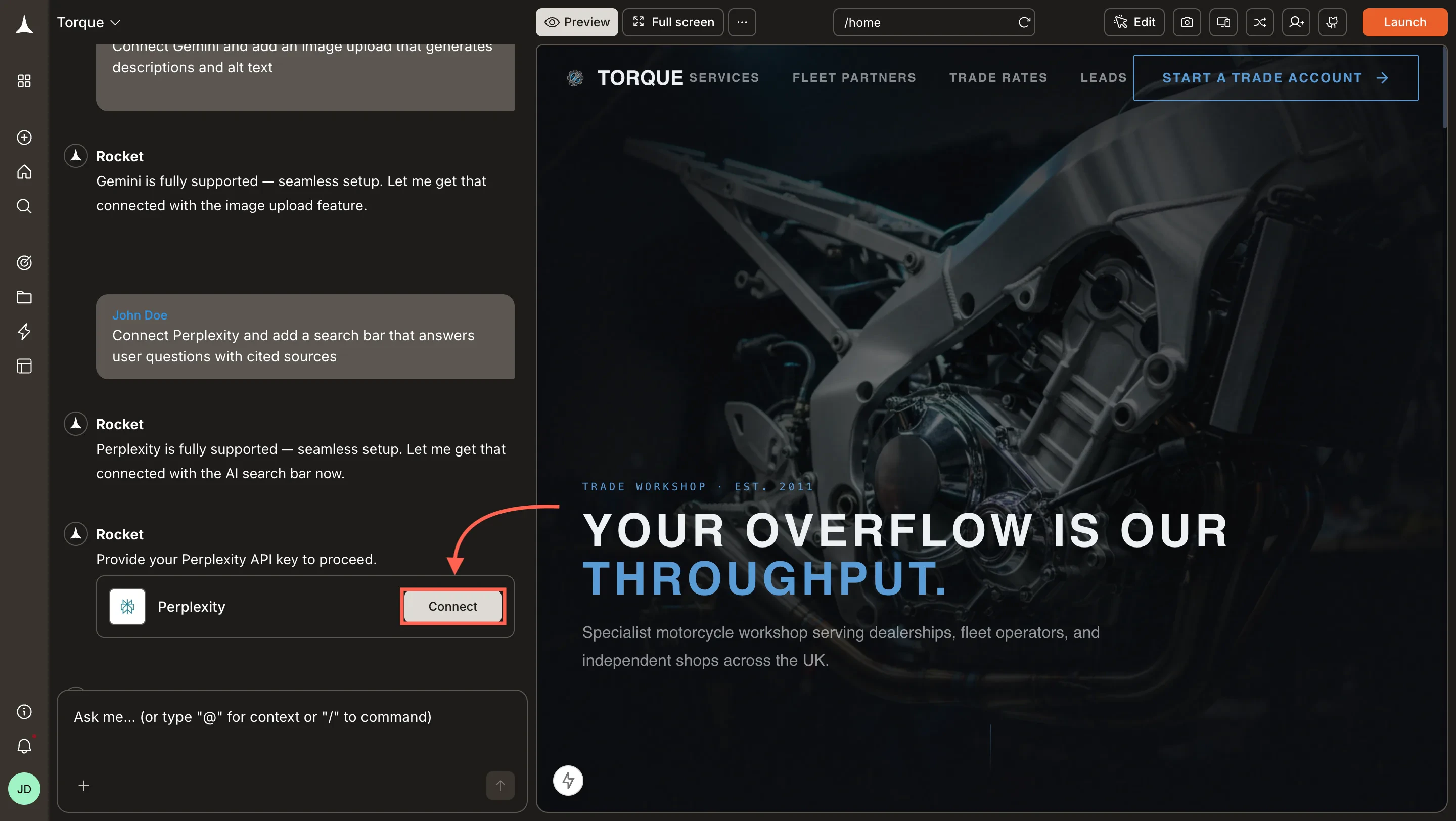
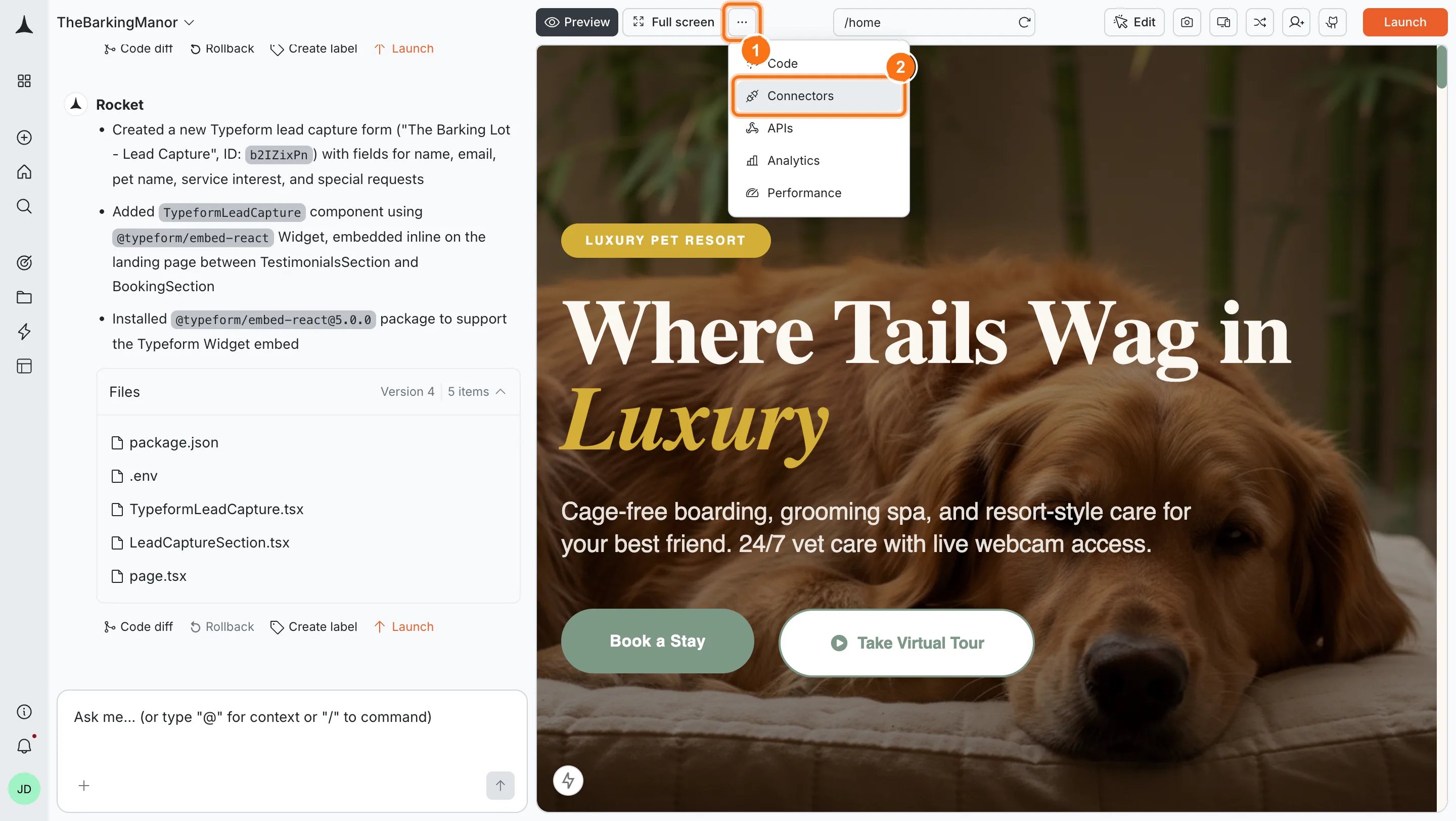
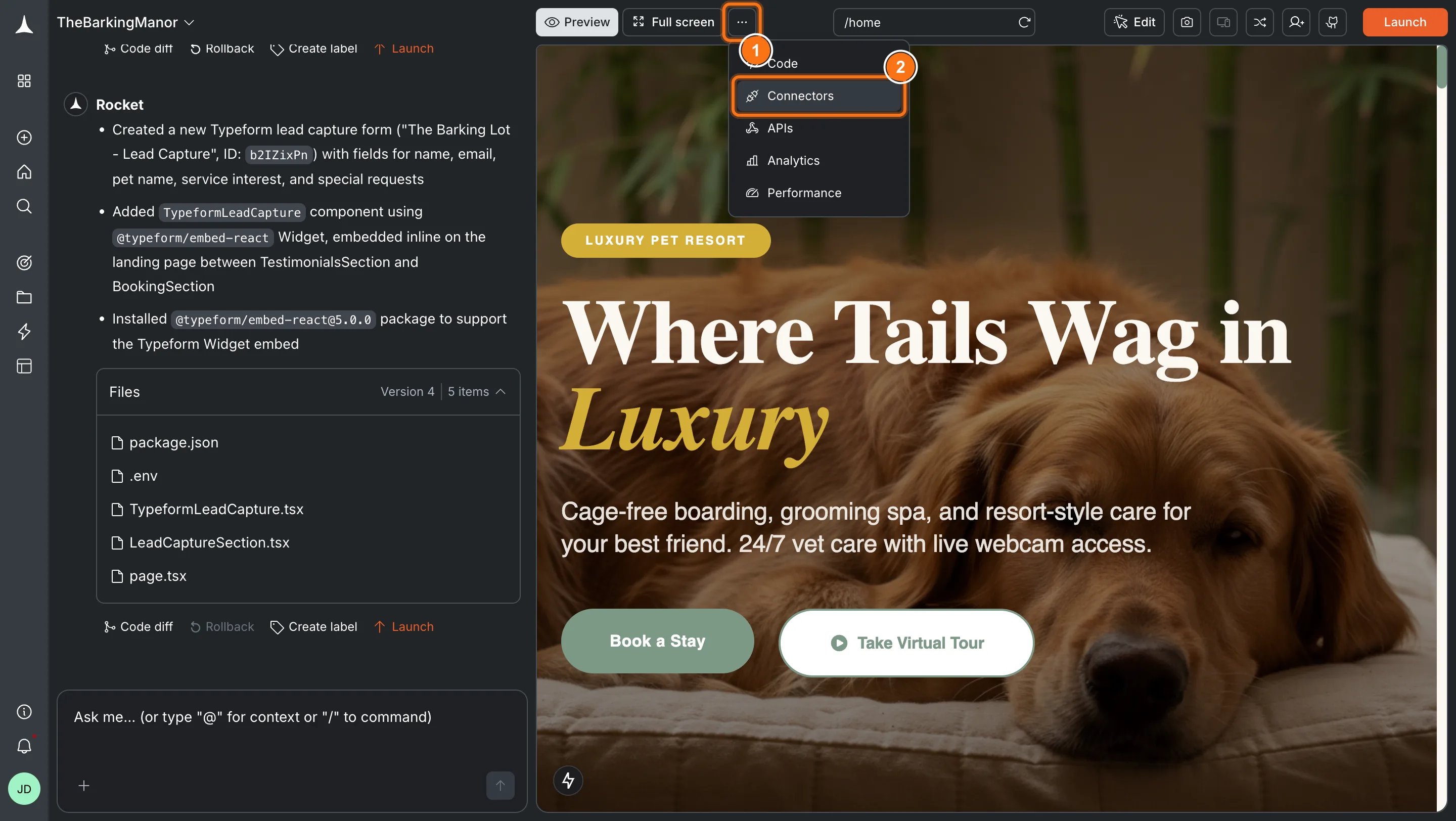
You can connect from two places - both open the same popup.Option 1: From chatType a prompt that mentions Perplexity - for example, Connect Perplexity and add a search bar that answers user questions with cited sources. Rocket detects the intent and shows a Connect button inline. Click it and the popup opens.Option 2: From the Connectors tabClick the ... button in the preview toolbar, then select Connectors.
Toolbar dropdown with Connectors option highlighted.Toolbar dropdown with Connectors option highlighted.
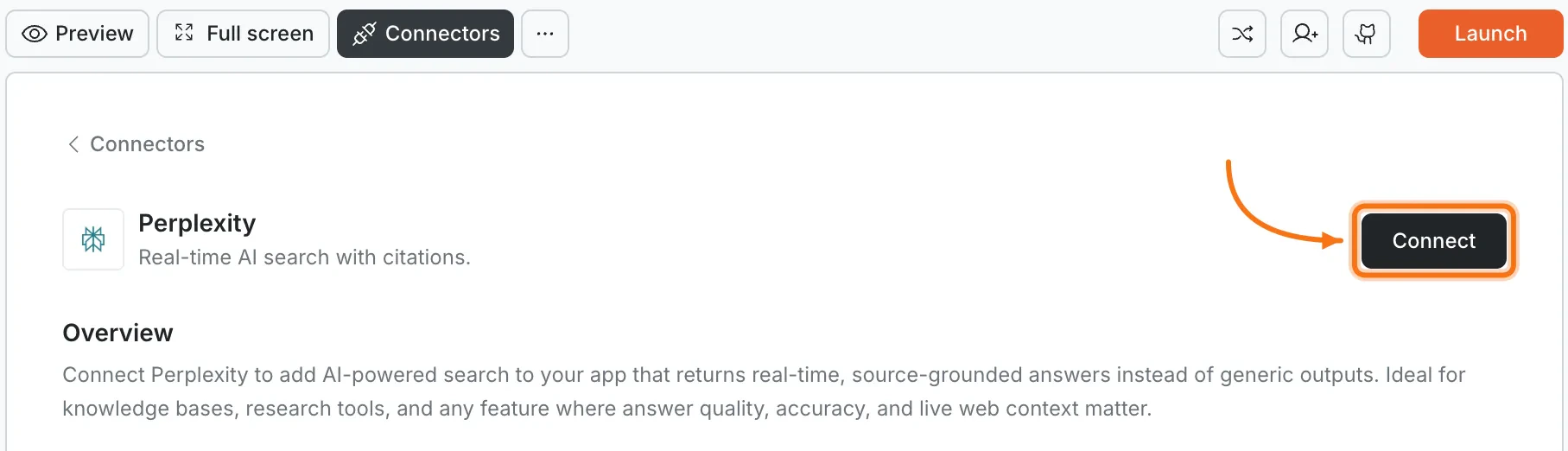
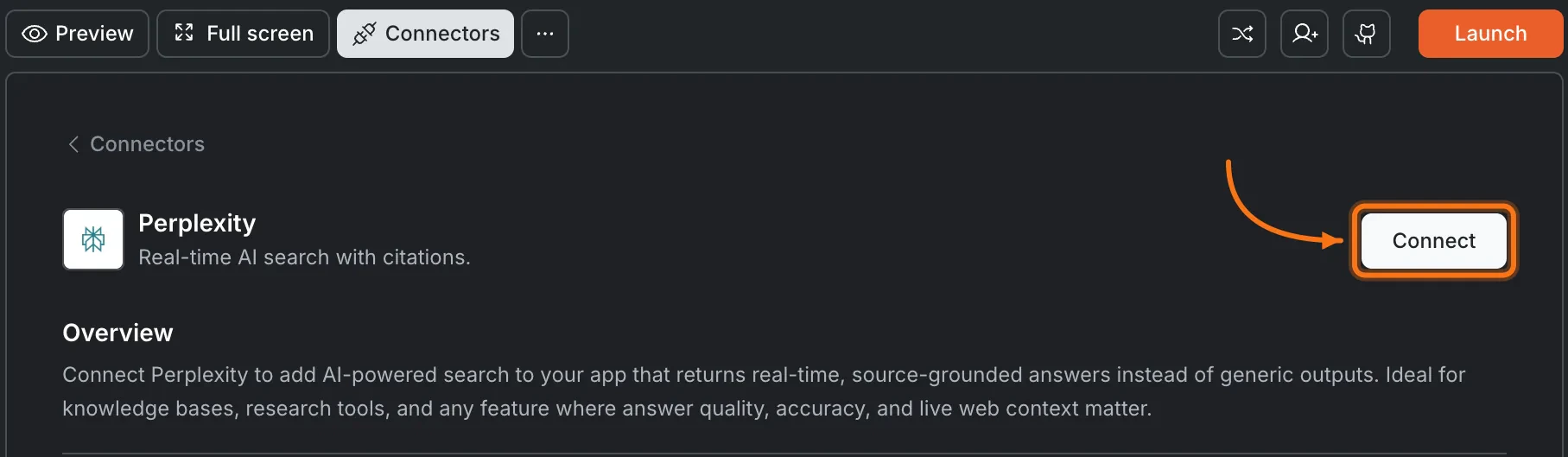
Click the Perplexity card, then click Connect.
Connectors panel showing the Perplexity card with a Connect button.Connectors panel showing the Perplexity card with a Connect button.
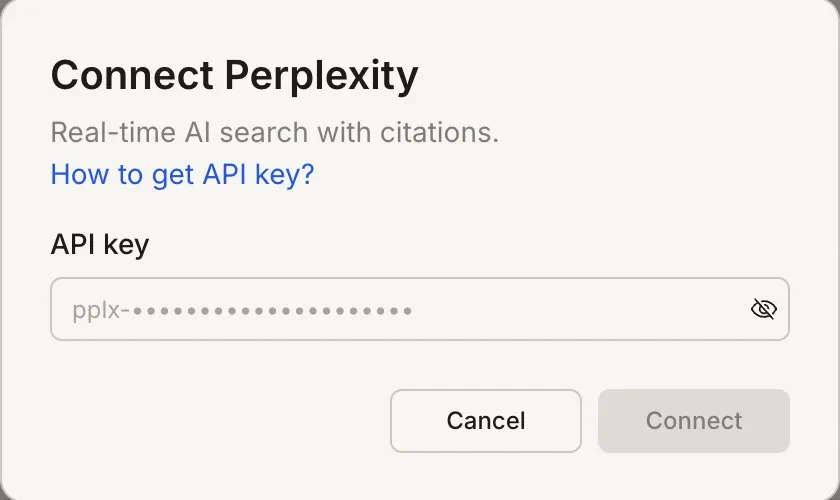
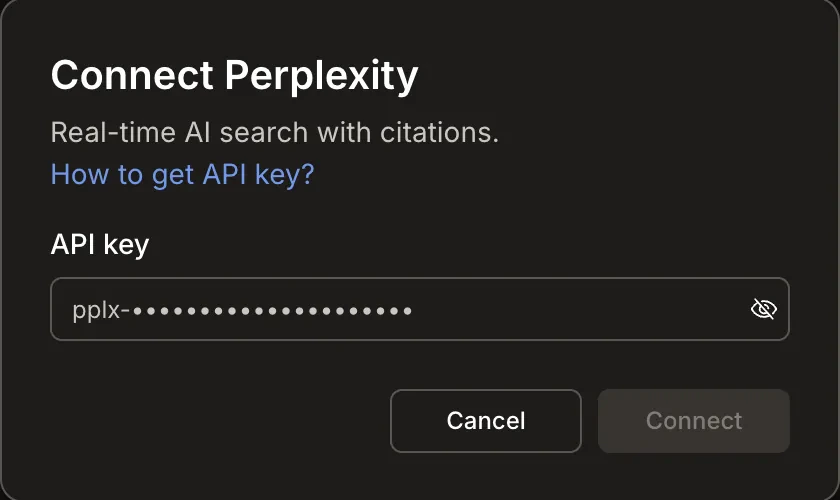
After clicking ConnectA popup opens. Paste your API key and click Connect.
Connect Perplexity popup with an API key input field.Connect Perplexity popup with an API key input field.
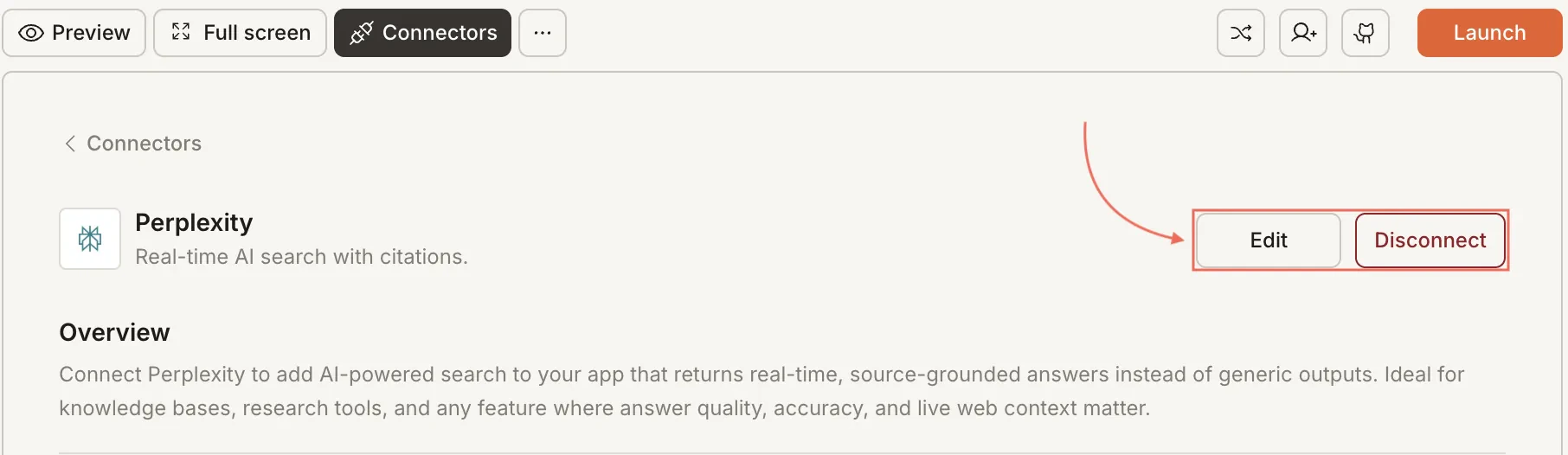
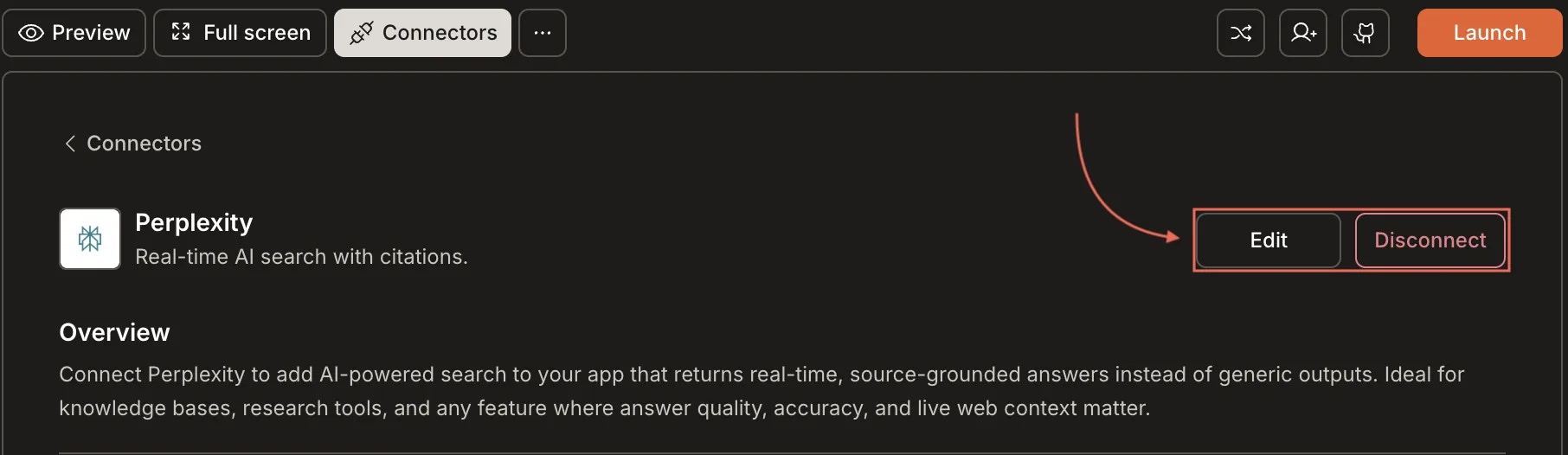
A green dot appears next to Perplexity when the connection is active.Update or disconnectOpen Connectors and click the Perplexity card. Click Edit to update the key or Disconnect to remove it from this task.
Perplexity card showing Edit and Disconnect buttons.Perplexity card showing Edit and Disconnect buttons.

Example prompts

Use casePrompt
Search barAdd a search bar that uses Perplexity to answer user questions with cited sources.
Fact-checkerBuild a fact-checking tool where users paste a claim and get a verified answer with sources.
Research assistantCreate a research panel where users enter a topic and get a summary with linked references.
News feedBuild a news aggregator that shows the latest headlines and summaries on a chosen topic.
Competitor trackerAdd a competitor analysis page where users enter a company name and get recent news and updates.
Product comparisonCreate a product comparison tool that researches specs and pricing from across the web.
Knowledge Q&ACreate a Q&A page where users ask questions and get answers sourced from our docs and the web.
Trend monitorBuild a dashboard that tracks trending topics in a specific industry with source links.

Tips

  • Best for factual, search-based tasks. For creative writing, code generation, or open-ended conversation, use Anthropic or OpenAI instead.
  • Citation quality varies by topic. Perplexity pulls from live web results, so niche or very recent topics may have fewer high-quality sources.
  • Rate limits apply. Monitor usage in your Perplexity dashboard to avoid hitting caps during high traffic.
  • API billing is separate from Rocket. Perplexity charges based on API usage. See their pricing page.
  • Key is scoped to this task. Each Rocket task connects to one Perplexity API key.