Calendly connects via OAuth, so no API key is needed.
Calendly is a workspace-level connector. No matter where you connect it (Settings, Connectors tab, or chat), it links to your entire Rocket workspace and is available across all tasks.
Web Browser
Mobile App
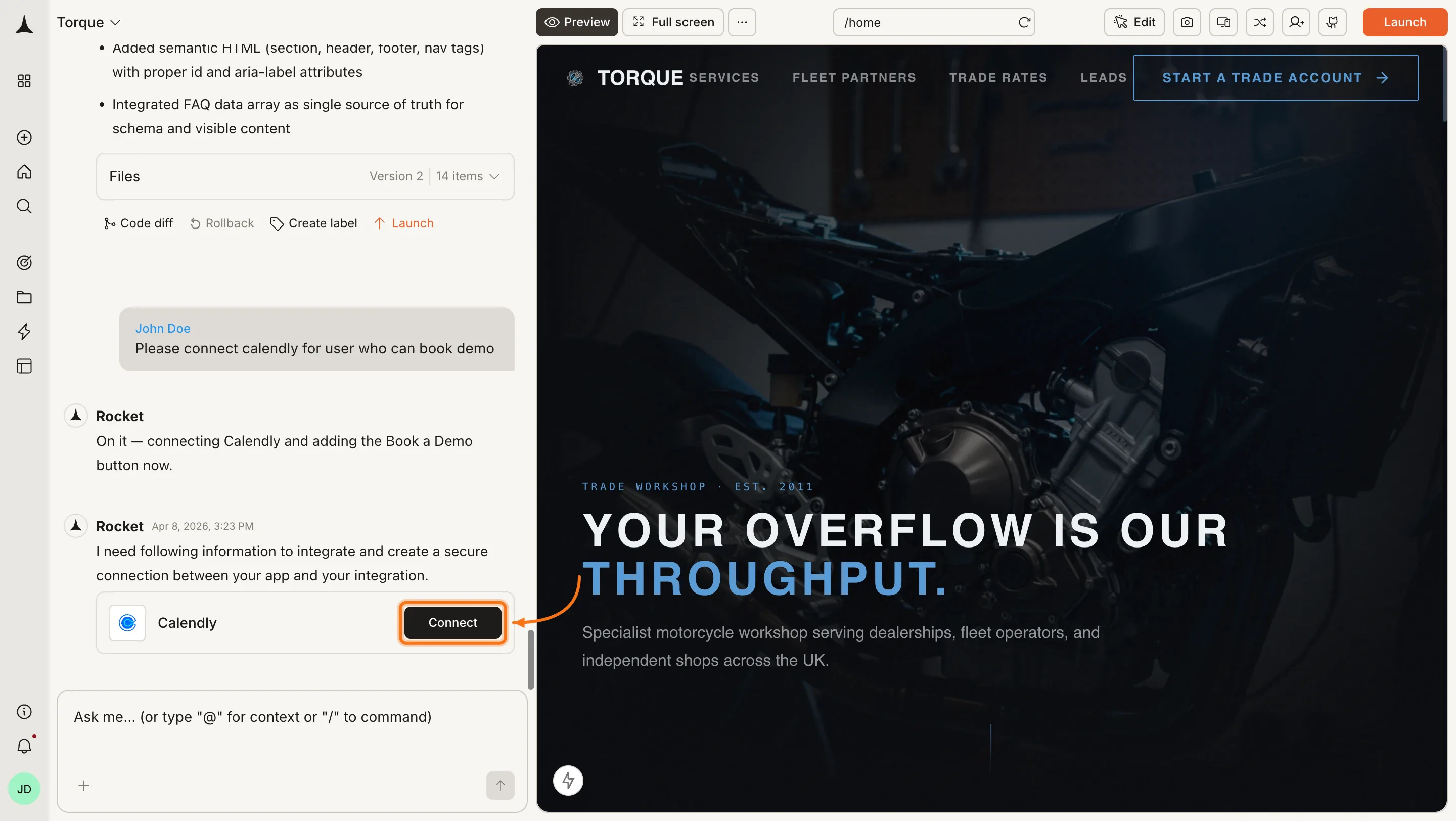
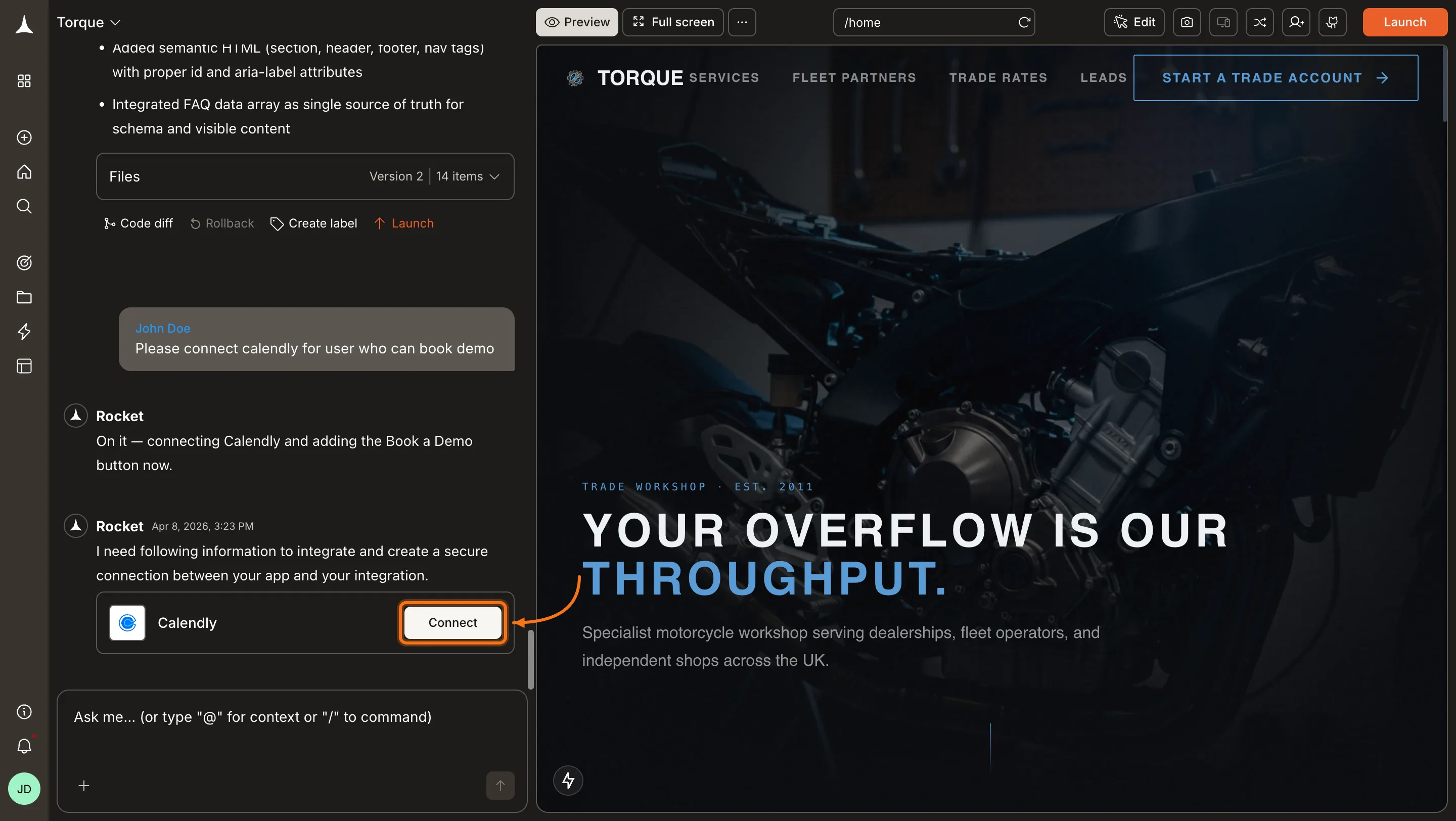
You can connect from three places. All do the same thing.Option 1: From chatType a prompt that mentions Calendly, for example Connect Calendly and add a Book a Demo button to my pricing page. Rocket detects the intent and shows a Connect button inline. Click it and the OAuth flow opens.
Calendly connection prompt in chat
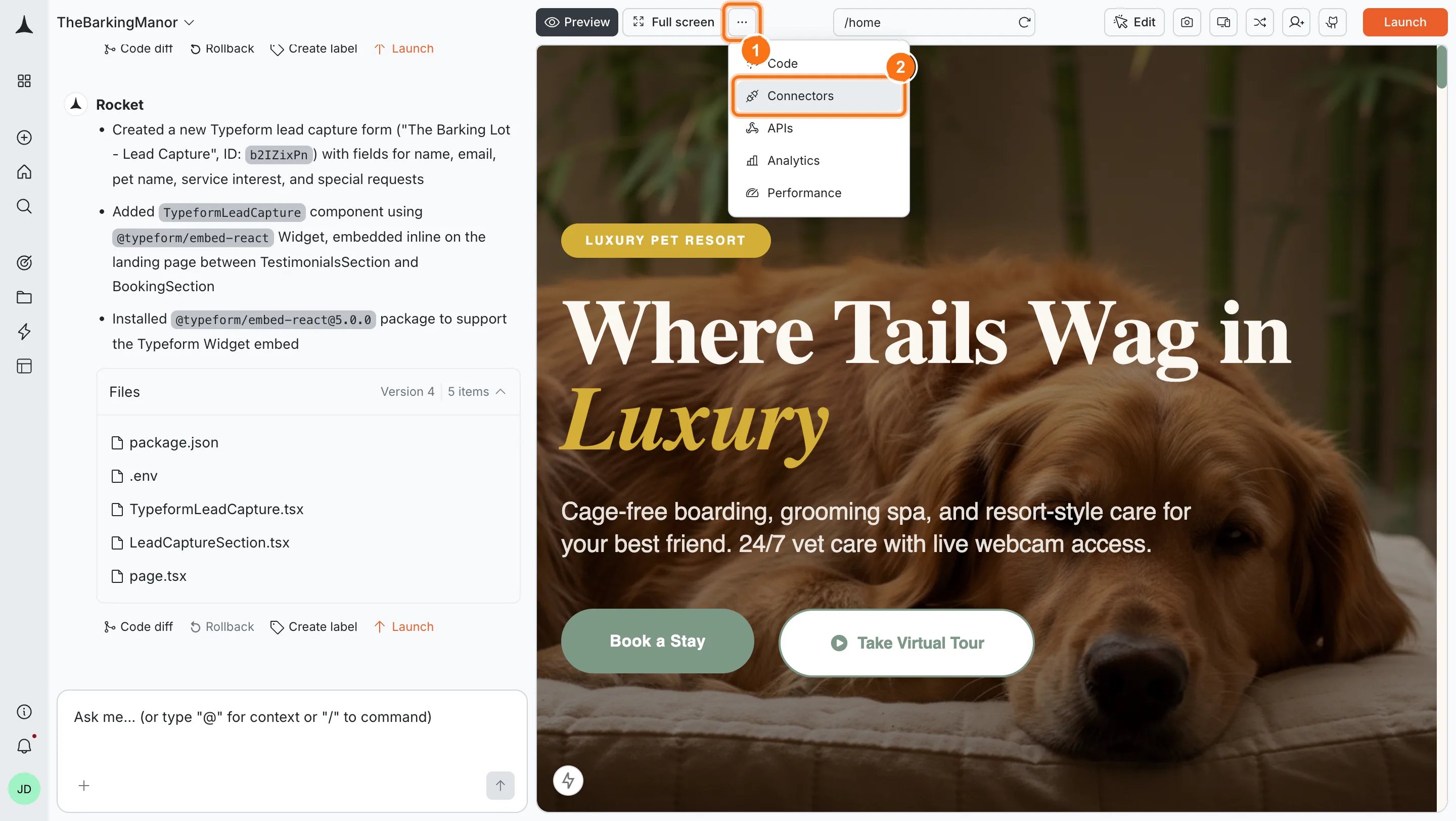
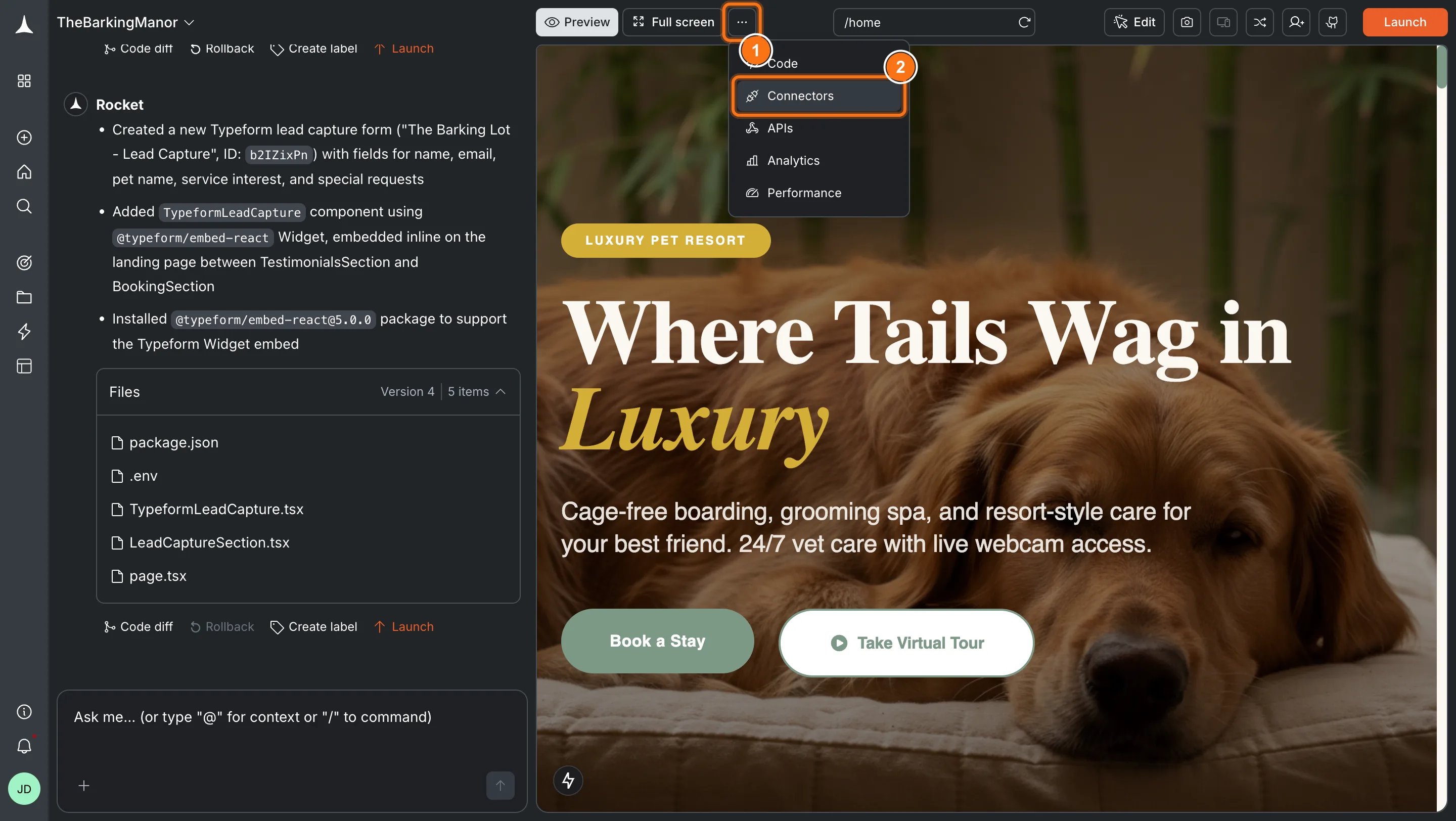
Option 2: From the Connectors tabClick the ... button in the preview toolbar, then select Connectors.
Open Connectors from the toolbar
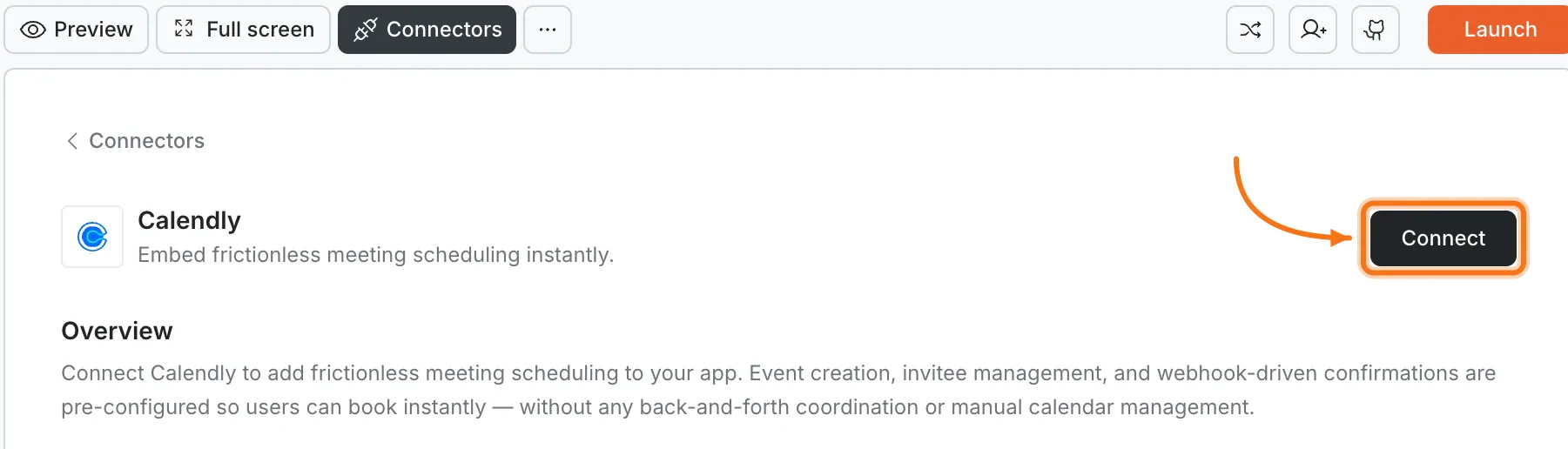
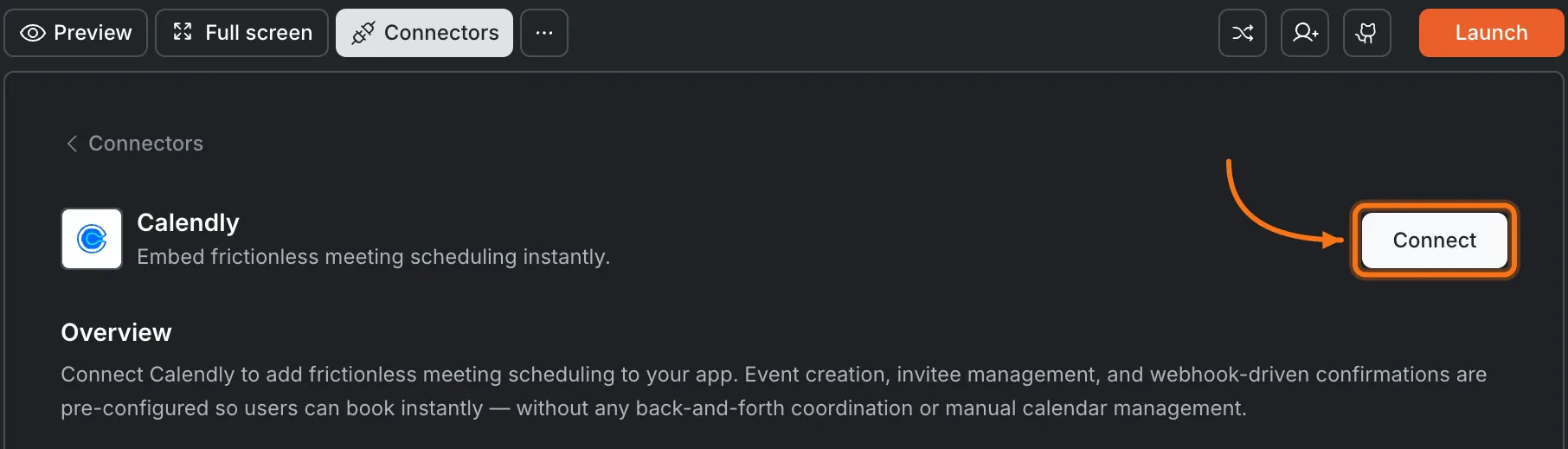
Click the Calendly card, then click Connect.
Calendly card in the Connectors panel
Option 3: From workspace Settings
Manage workspace connectors
Connect once from Settings and it is available across all tasks.
After clicking ConnectA Calendly authorization screen opens in your browser. Log in and grant Rocket access to your scheduling data. A green dot appears next to Calendly when the connection is active.Disconnect
Disconnect a service
Disconnect or switch accounts from workspace Settings.
You can connect from three places. All do the same thing.Option 1: From chatType a prompt that mentions Calendly. Rocket detects the intent and shows a Connect button inline. Tap it and the OAuth flow opens.Option 2: From the Connectors tab
Tap the More button in the header.
Tap Integrations.
Tap the Calendly card, then tap Connect.
Option 3: From workspace SettingsOpen your workspace, go to Settings, and tap Connectors. Tap the Calendly card and tap Connect.After tapping ConnectA Calendly authorization screen opens. Log in and grant Rocket access to your scheduling data. A green dot appears next to Calendly when the connection is active.DisconnectGo back to the Calendly card in Integrations. Tap Disconnect to remove the integration.
Calendar sync is automatic. Calendly syncs with Google Calendar, Outlook, and iCloud. Availability updates in real time.
Embedding options. Rocket can embed Calendly as an inline widget, popup, or full-page view. Describe the style you want in chat.
Free plan limits. Calendly’s free tier supports one event type. Upgrade for team scheduling, round-robin, and multiple event types.
Webhooks for custom flows. Calendly sends webhook events when meetings are booked or canceled. Use these to trigger Supabase inserts or email notifications through Rocket.
One Calendly account per workspace. All tasks share the same connected account.