Wire Brevo into Rocket.new to send transactional email, run SMS campaigns, and sync CRM contacts for onboarding and re-engagement flows.
Connect Brevo and describe the messaging flow you want in chat. Rocket generates the complete logic: templates, API calls, contact management, and automation triggers.
Brevo is a great choice when you need email, SMS, and CRM in a single platform. Pair with Supabase for user data and Stripe for payment-triggered communications.
Never paste your Brevo API key directly into chat. Always use the secure connection popup. If your key has been exposed, revoke it from Brevo Settings and create a new one.
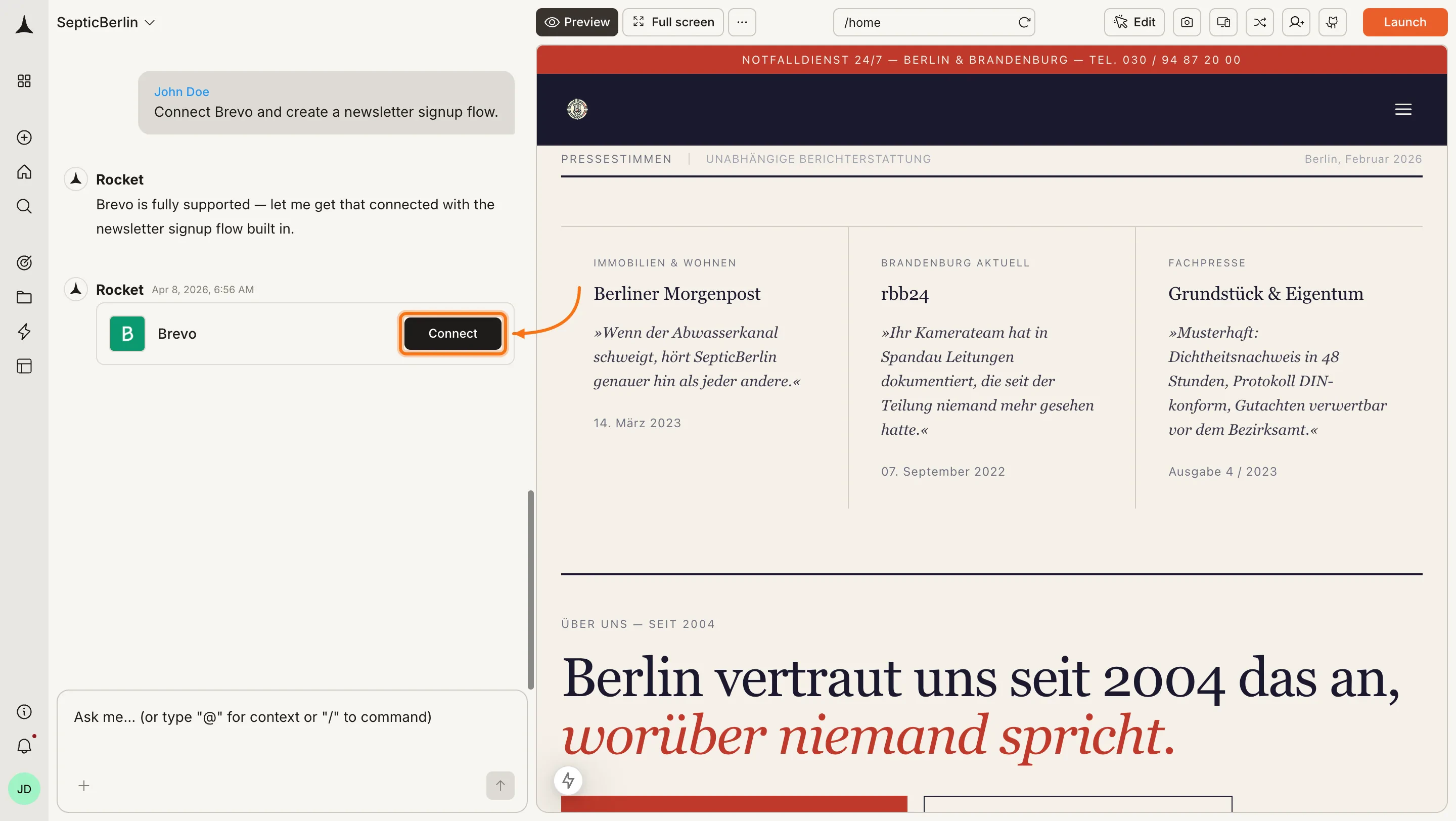
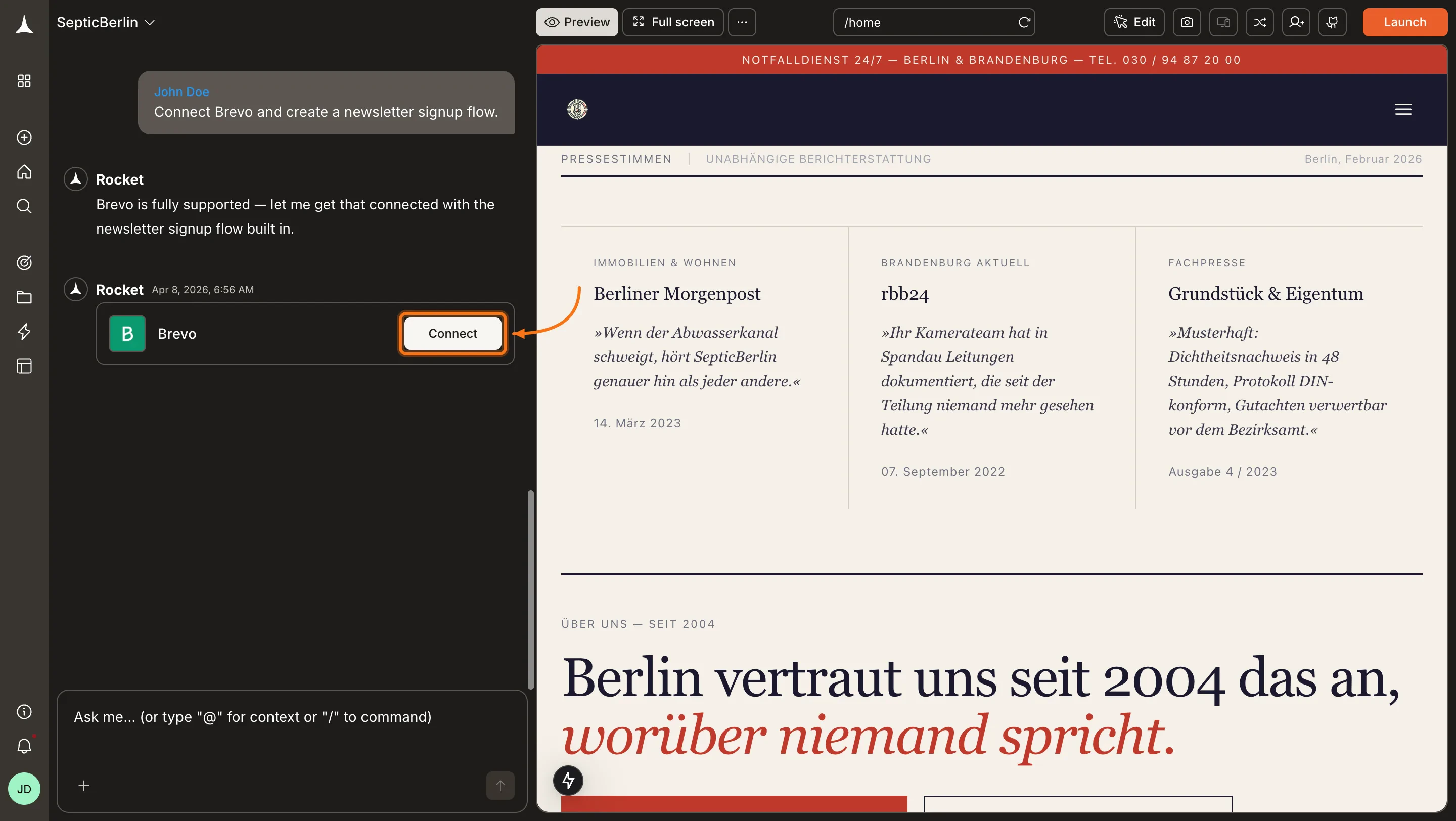
You can connect from two places - both open the same popup.Option 1: From chatType a prompt that mentions Brevo - for example, Connect Brevo and send a welcome email when a new user signs up. Rocket detects the intent and shows a Connect button inline. Click it and the popup opens.
Brevo connection prompt in chat
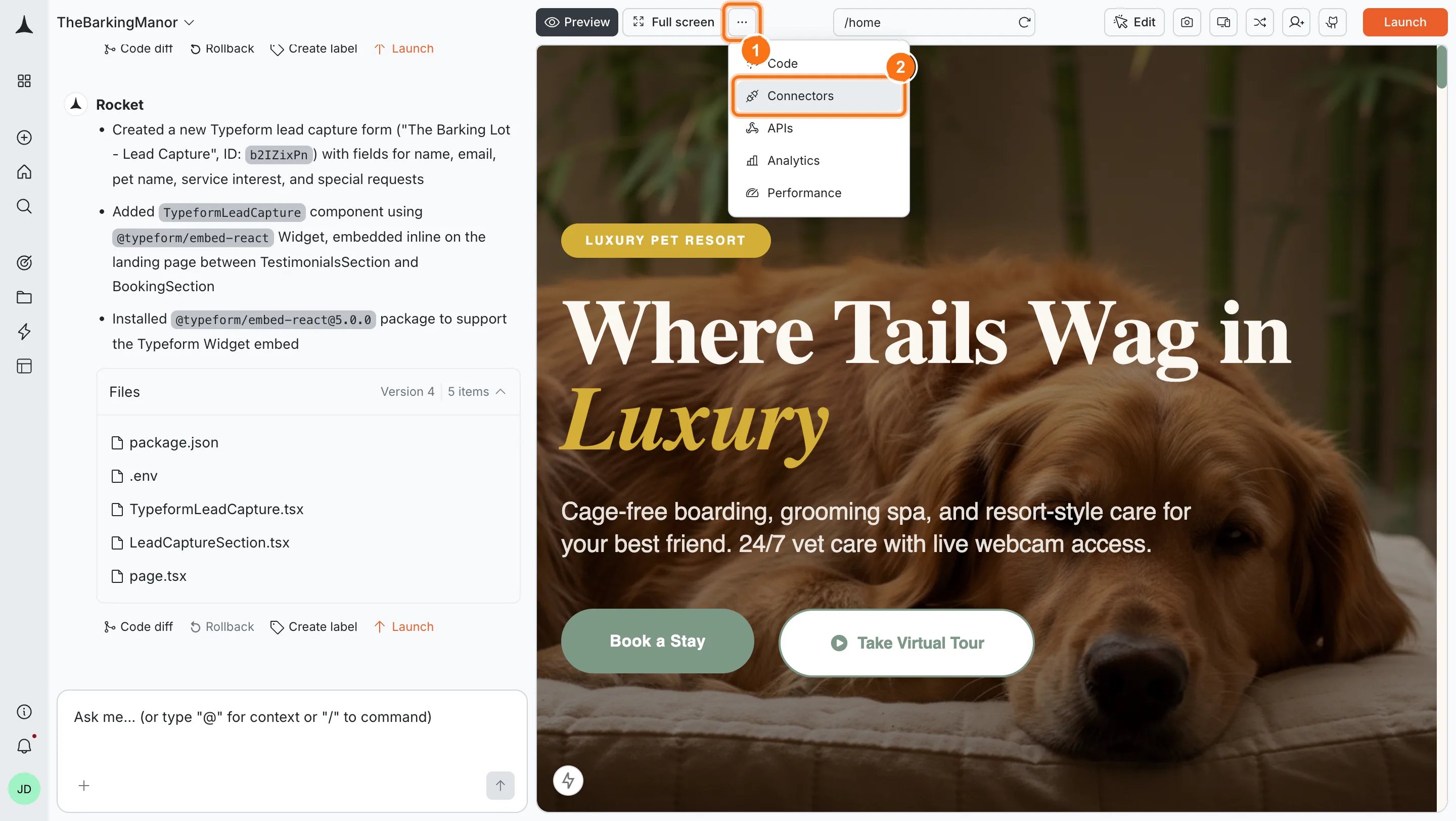
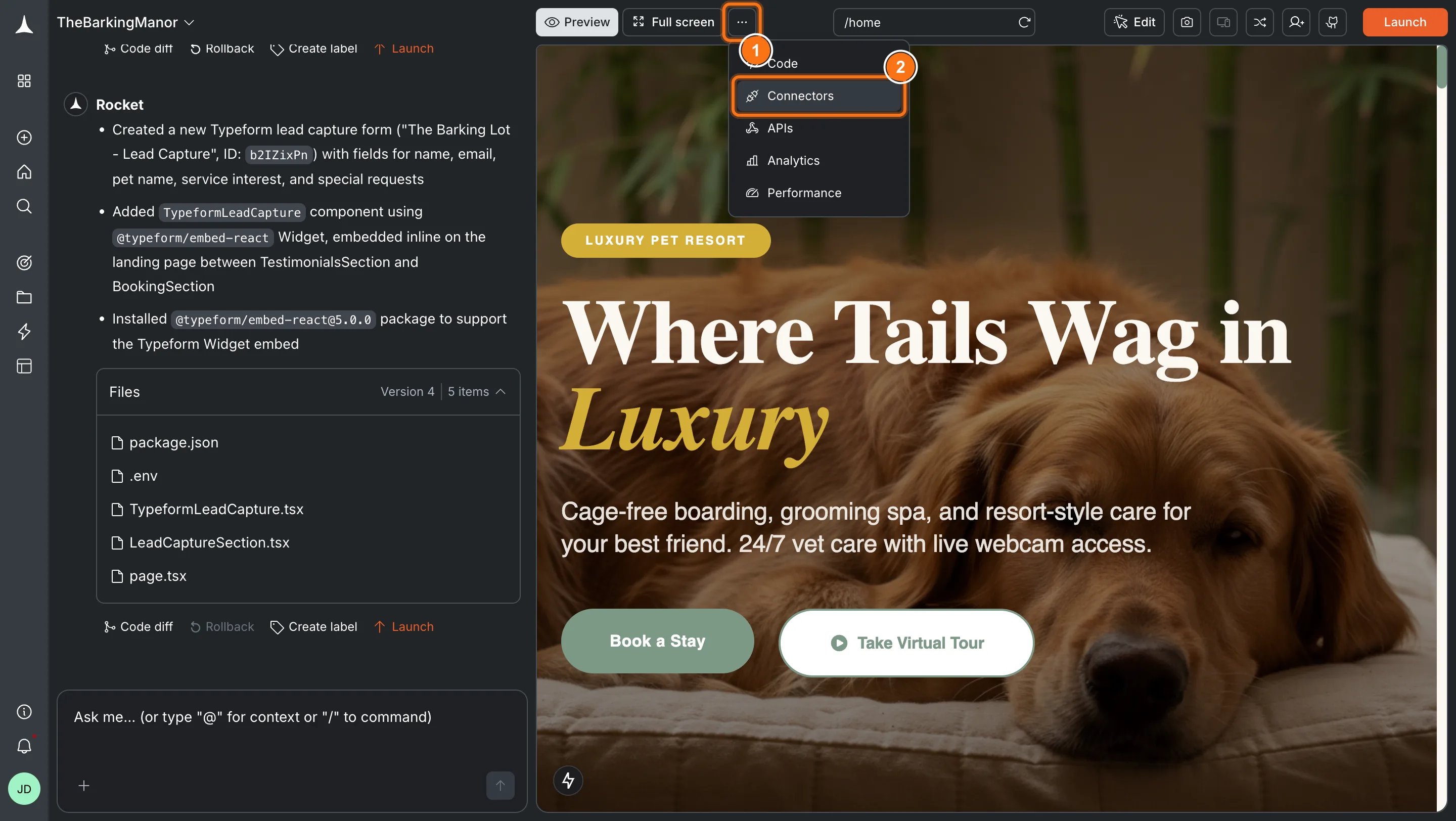
Option 2: From the Connectors tabClick the ... button in the preview toolbar, then select Connectors.
Open Connectors from the toolbar
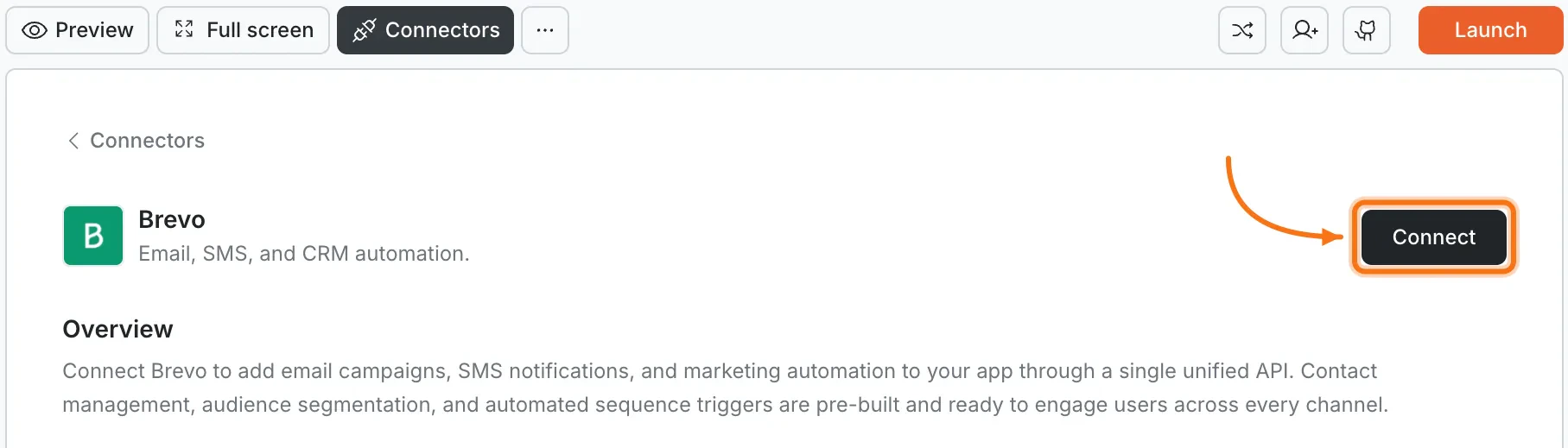
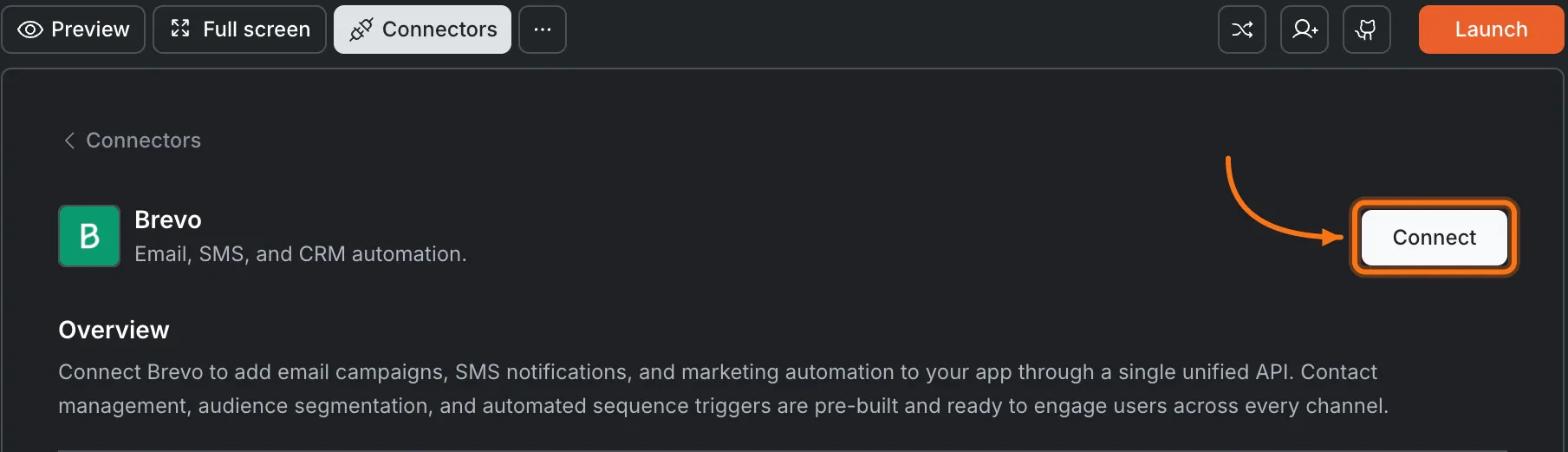
Click the Brevo card, then click Connect.
Brevo card in the Connectors panel
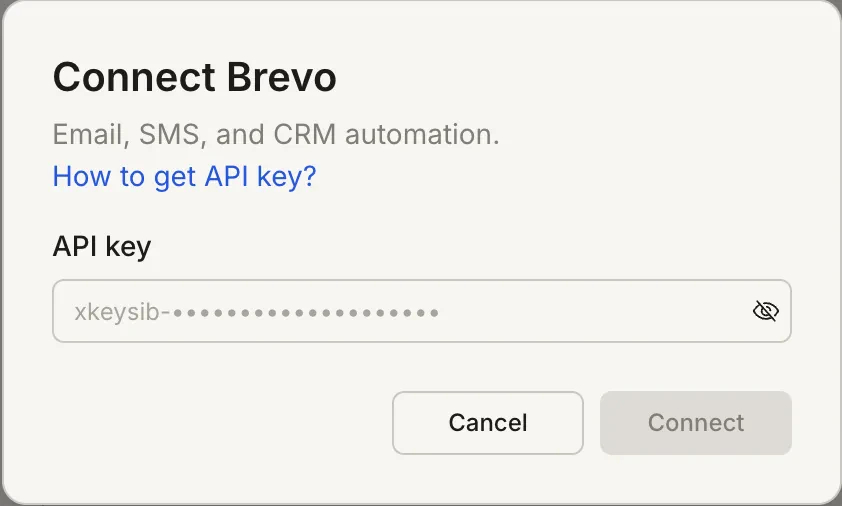
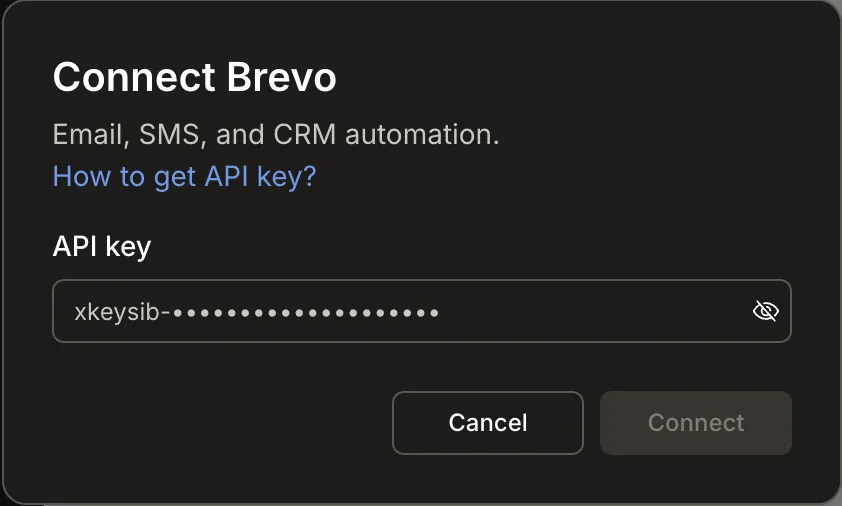
After clicking ConnectA popup opens. Paste your API key, then click Save. A green dot appears next to Brevo when the connection is active.
Paste your Brevo API key in the popup
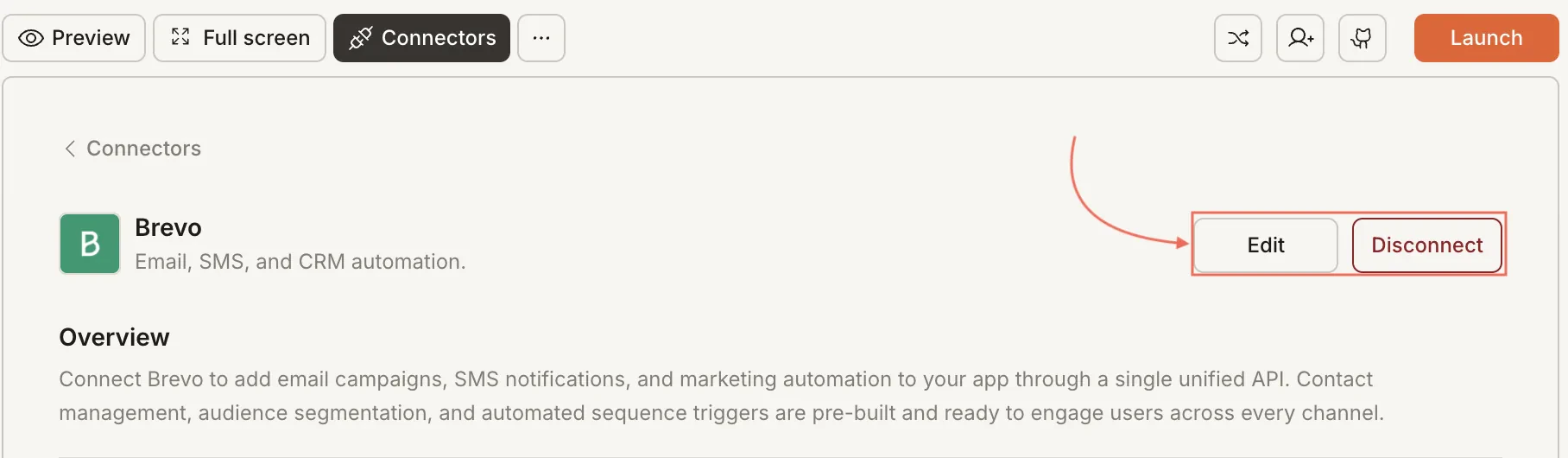
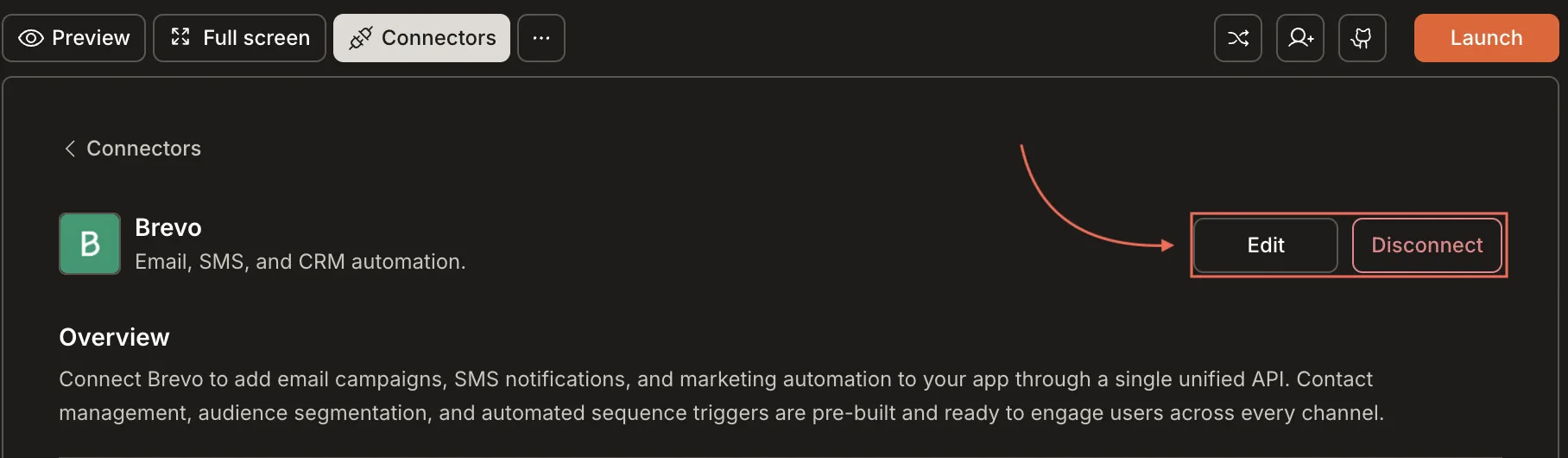
Update or disconnectGo to Connectors > Brevo. Update your key or click Disconnect to remove the integration.
Disconnect Brevo
You can connect from two places - both open the same popup.Option 1: From chatType a prompt that mentions Brevo. Rocket detects the intent, shows a Connect button, and the popup opens when you tap it.Option 2: From the Connectors tab
Tap the More button in the header.
Tap Integrations.
Tap the Brevo card, then tap Connect.
After tapping ConnectA popup opens. Paste your API key, then tap Done. A green dot appears next to Brevo when the connection is active.Update or disconnectGo to Integrations > Brevo. Update your key or tap Disconnect to remove the integration.
Brevo combines email, SMS, and CRM. Unlike standalone email services, Brevo includes SMS sending and contact management in one platform.
Free tier includes 300 emails per day. Brevo’s free plan allows 300 emails daily with no contact limit. Upgrade for higher sending volume and advanced features.
Transactional and marketing are separate. Brevo treats transactional emails and marketing campaigns as separate categories with different sending limits.
Manage contacts in Brevo. You can add contacts through Rocket, but deleting contacts, managing unsubscribes, and editing campaign templates must be done in the Brevo dashboard.
One Brevo account per project. Each Rocket project connects to one Brevo API key.