Enable social login in Supabase for your Rocket.new app to let users sign in with Google, GitHub, Apple, and other OAuth providers securely.
Enable social sign-in providers in Supabase and connect them to your Rocket app. This guide uses Google as an example. The process is similar for other providers.
Social sign-in only works on your app’s live preview or custom domain. It will not work inside Rocket’s preview.
The steps below use Google as an example.
The process is similar for other providers. For provider-specific instructions, refer to their documentation.
1
Open the provider settings in Supabase
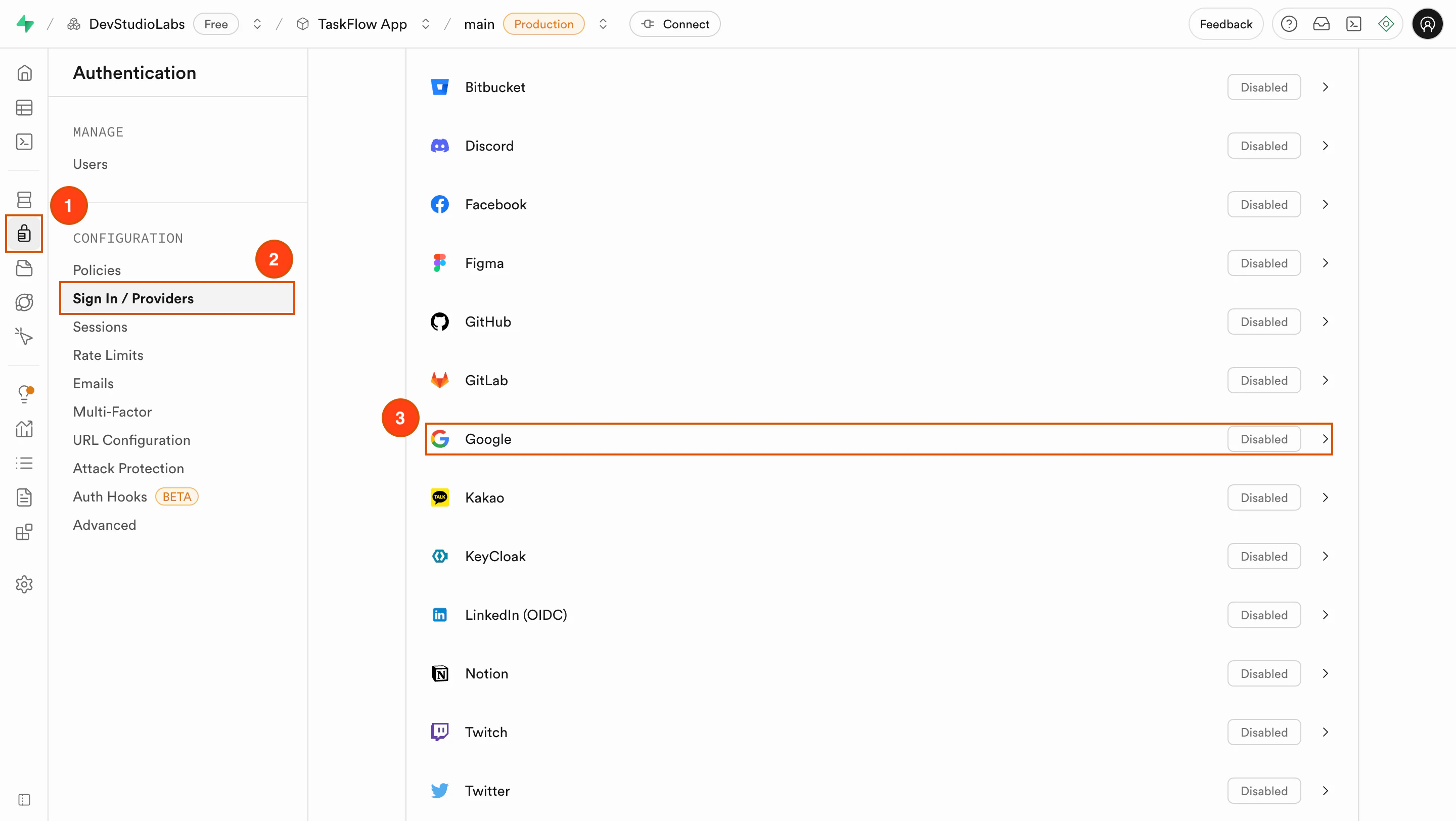
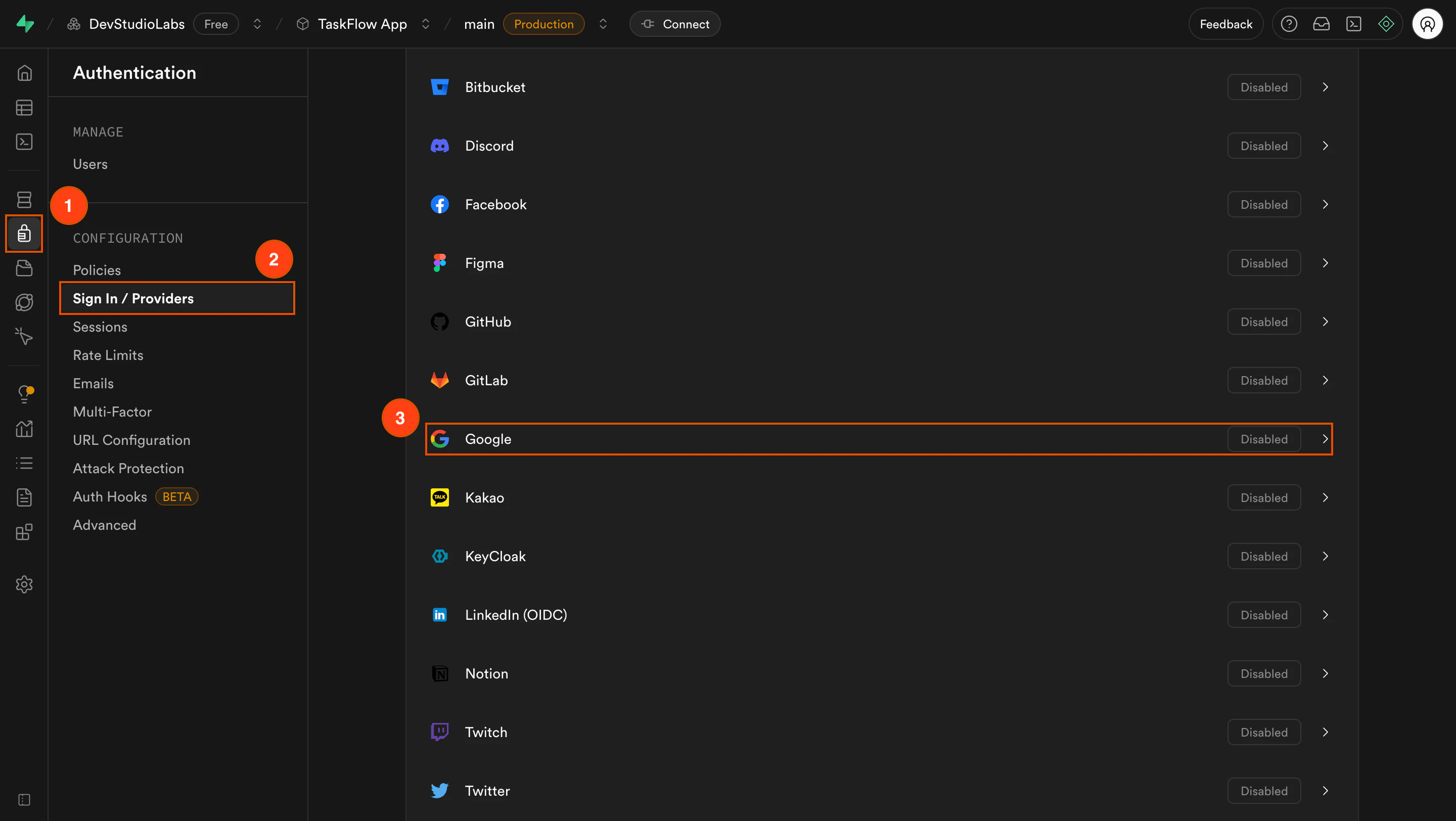
In your Supabase project, go to Authentication from the left menu.
Click Sign In / Providers.
Select your provider. In this case, choose Google.
Open provider settings in Supabase
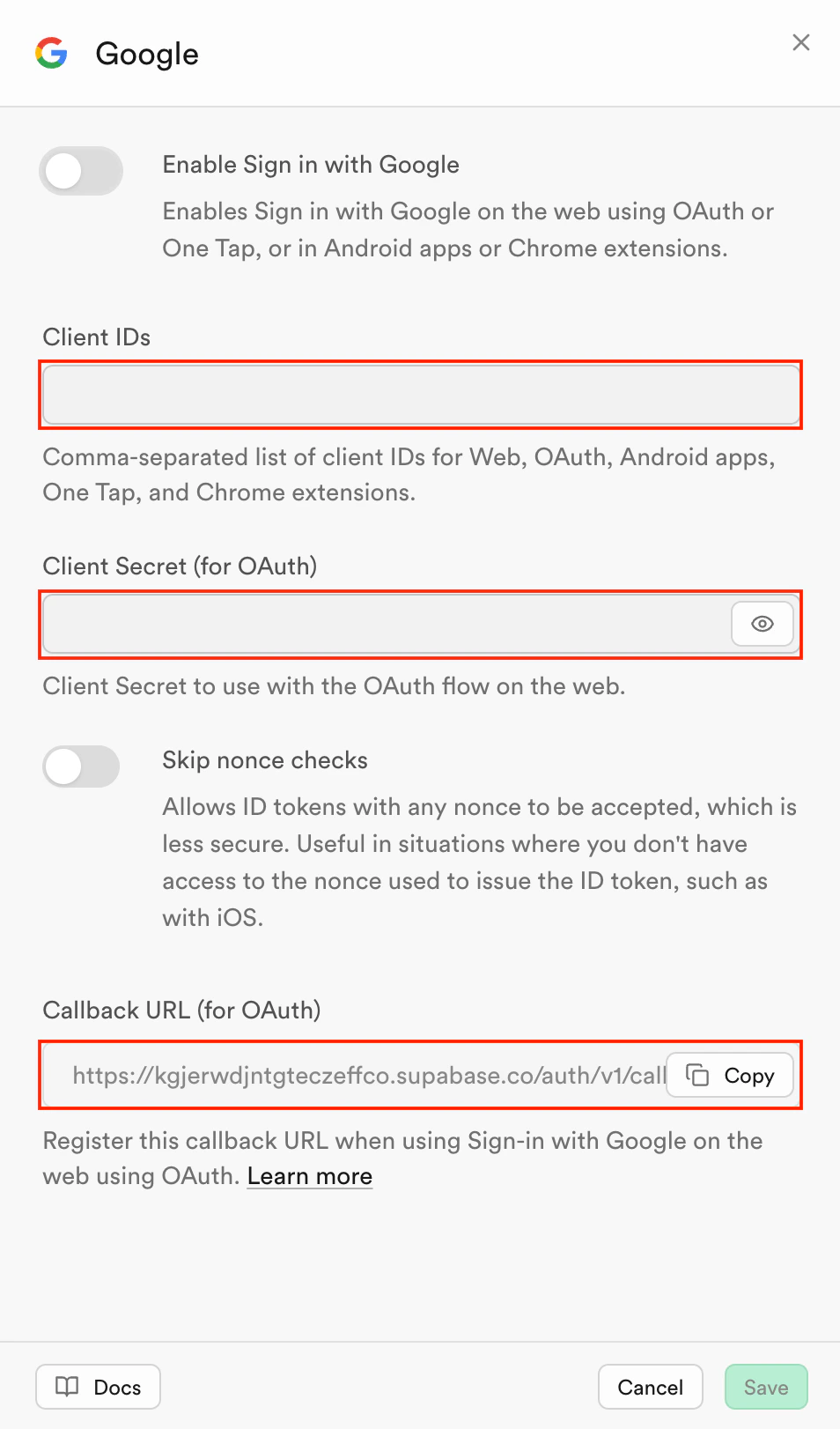
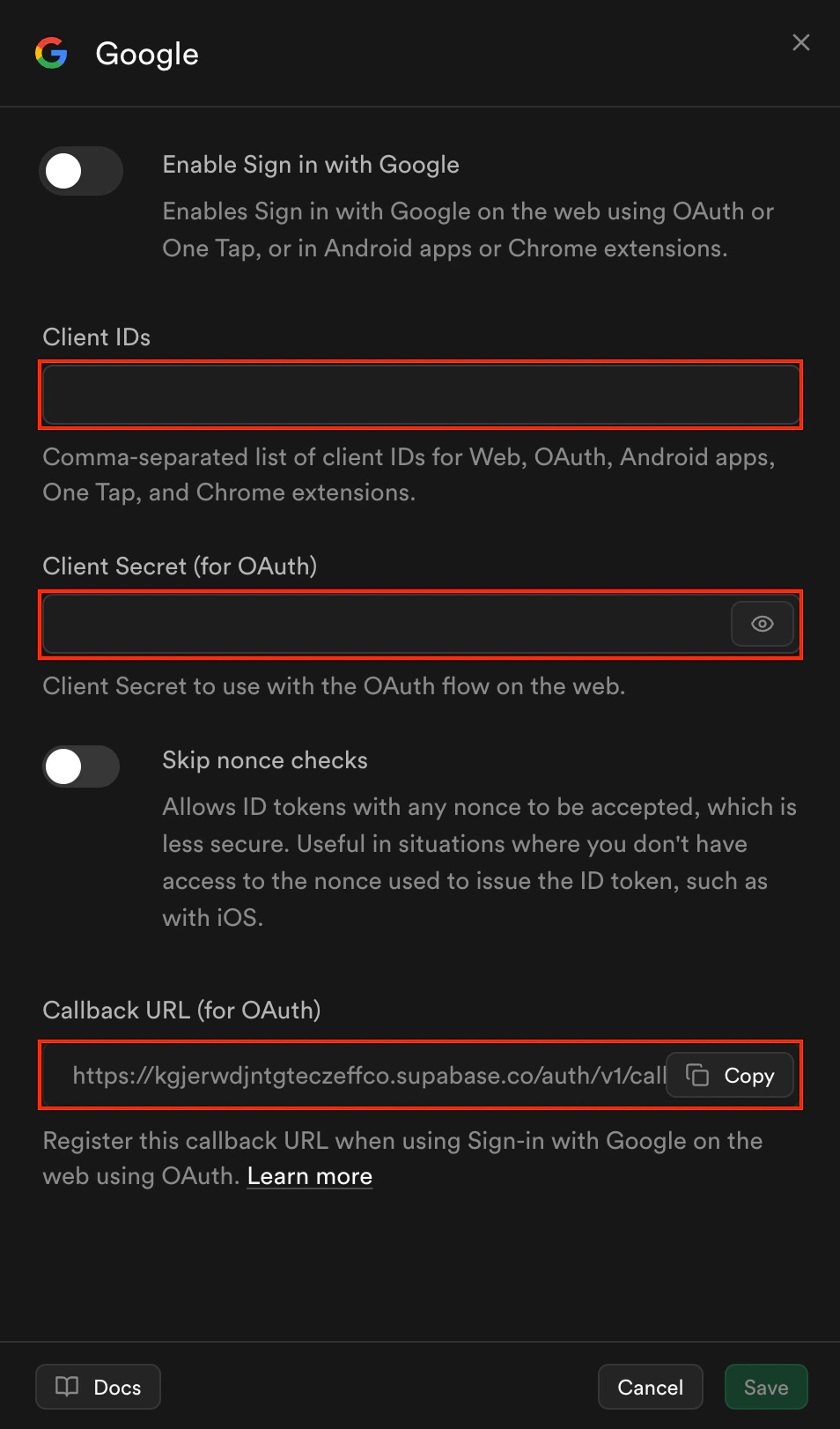
The provider settings panel opens, showing fields for credentials and a callback URL.
2
Create credentials in the provider console
In your provider’s developer console (e.g., Google Cloud Console):
Create a new OAuth 2.0 Client ID and Secret.
Under Authorized JavaScript origins, enter your Rocket app’s live preview URL or custom domain. Do not use localhost.
Under Authorized redirect URIs, paste the Callback URL from Supabase.
For Google, refer to the Google OAuth setup guide.You now have a Client ID and Client Secret from your provider.
3
Enter credentials into Supabase
Back in Supabase, on the selected provider’s settings page:
Paste the Client ID into the first field.
Paste the Client Secret into the second field.
Copy the Redirect URL shown in the third field.
Make sure this exact URL is also set in your provider’s console.
Enter credentials in Supabase
Always copy the callback URL directly from Supabase.
Each provider requires a unique format, and typos will break the flow.
The provider appears as enabled in your Supabase list.
4
Test sign-in in your Rocket app
Launch your Rocket app to get the live preview URL.
Open the live preview or your custom domain (not localhost).
Click Sign in with [Provider].
Complete the provider’s login flow.
You are redirected back to your Rocket app and signed in successfully.